






Achieve Next Level File Sharing Security Deploy Minimum SMB 3.0 With Intune
Let’s discuss Achieve Next Level File Sharing Security Deploy Minimum SMB 3.0 With Intune. Min Smb2 Dialect is a policy available on Microsoft Intune Portal to that controls the minimum version (or dialect) of the Server Message Block (SMB) protocol a client device is allowed to use for network communication.
This policy’s primary purpose is to security and protocol enforcement. When a Windows client wants to communicate with a file share (a server), it engages in a dialect negotiation to determine the highest common SMB version they both support.
Attackers can sometimes use man-in-the-middle attacks to try and force this negotiation to downgrade to older, less secure versions of SMB, such as SMB 2.0.2. Setting a minimum SMB version does not automatically disable the separate, outdated SMB 1.0 component.
To fully secure the environment, SMB 1.0/CIFS File Sharing Support must be explicitly disabled and uninstalled, as it is a highly vulnerable, deprecated feature. So organization must choose the SMB Version according to the preferences.

Table of Contents
Achieve Next Level File Sharing Security Deploy Minimum SMB 3.0 With Intune
Organization can configure this policy for several purpose. Organizations enable or disable this policy to balance security against compatibility. The primary reason to set a high minimum version (like SMB 3.0, 3.0.2, or the recommended SMB 3.1.1) is security and modern performance features.
- Configure Windows 11 SMB compression improvements to Compress File Aggressively
- Improve Data Security with FSLogix Cache Clearing using Intune Policy
- Enable Windows Apps Get Diagnostic Info to Maintaining Security and Integrity using Intune
Example Scenario – Ransomware Protection and Security Compliance
A large enterprise manages thousands of endpoints and file servers. Security auditors recommend enforcing only modern, encrypted protocols. The organization uses Intune to push a configuration profile that sets the minimum SMB protocol version to SMB 3.1.1.
Configure Policy from Intune Portal
SMB 3.0 and newer support end-to-end encryption (AES-128-GCM, AES-256-CCM in 3.1.1 and later) to protect data from eavesdropping during transit, a critical security feature absent in SMB 2.x and 1.0. To configure the MinSmb2Dialect policy, you have to sign into Microsoft Intune Portal with your credentials. Then go to Devices > Configuration > +Create >+ New Policy.
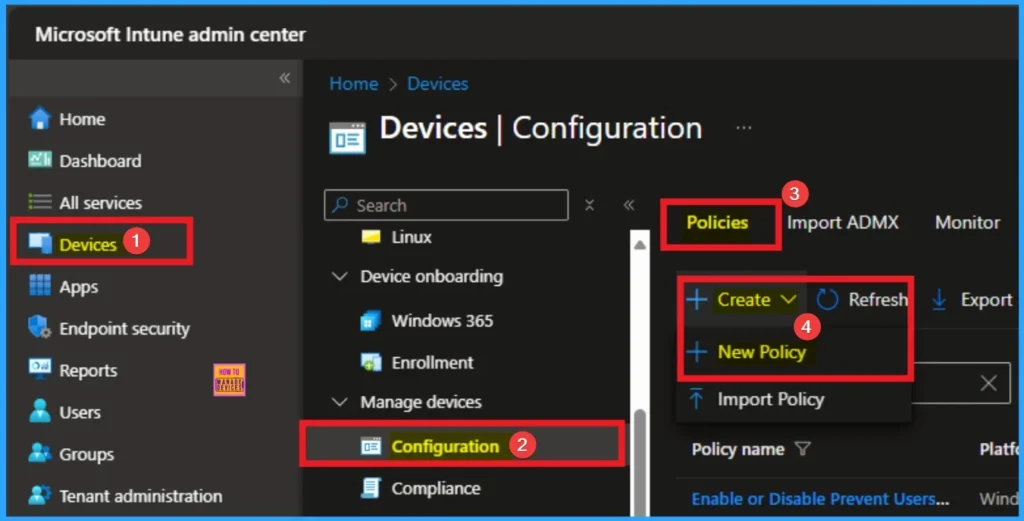
Profile Creation for Policy
Choosing Platform and Profile is the next step after selecting New policy. It is very necessary step to effectively configure the policy to appropriate platform. Here I would like to configure the policy to Windows 10 and later platform and settings catalog profile. Then click on the Create button.
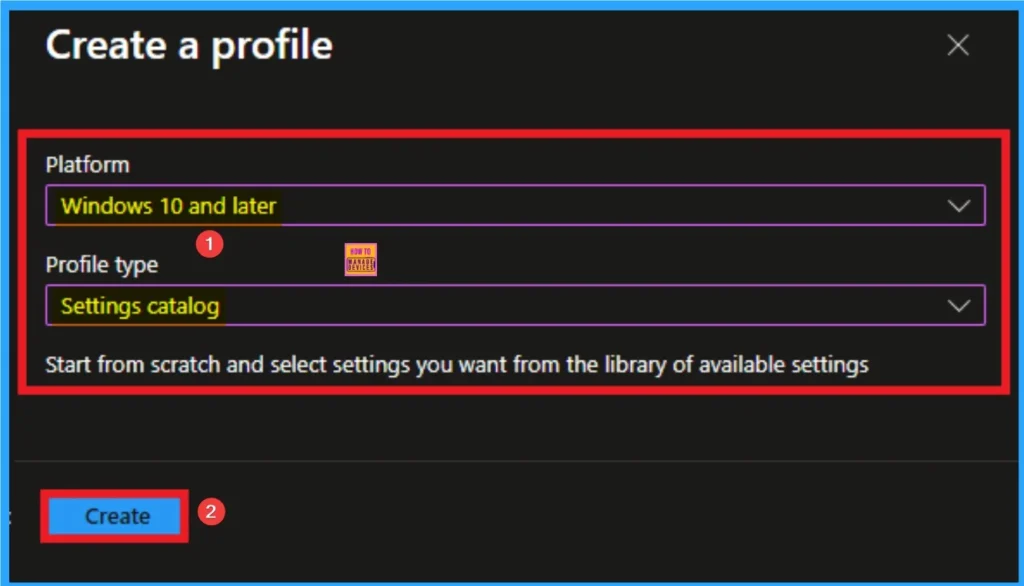
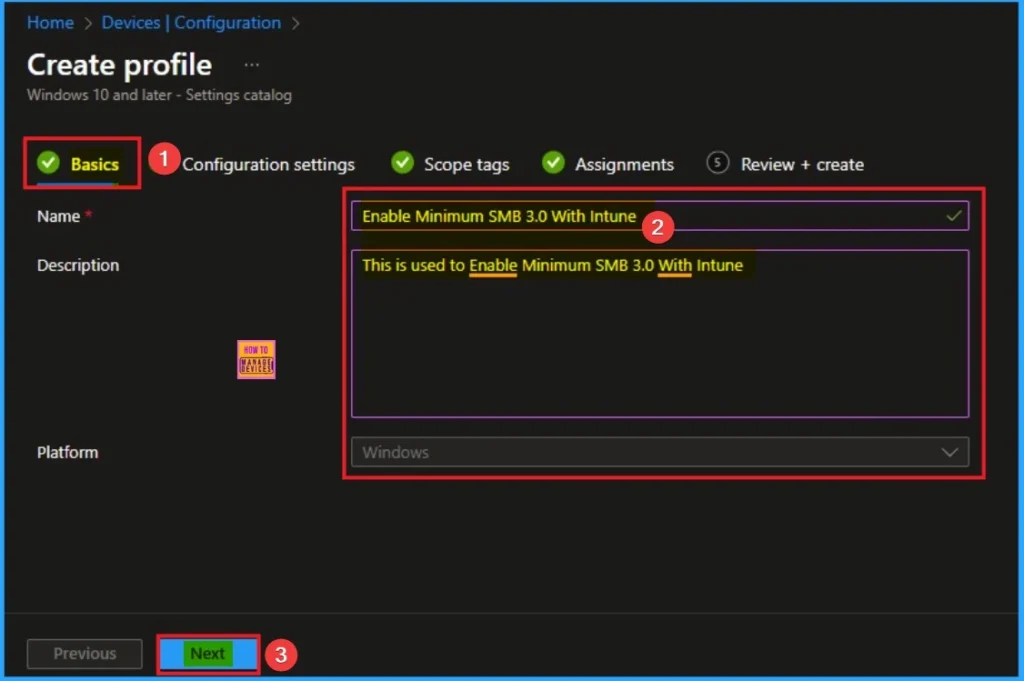
Beginning Step for Policy
On this section, you can add Name and Description for the selected settings. This step is necessary and mandatory for policy creation. After adding these details click on the Next button.
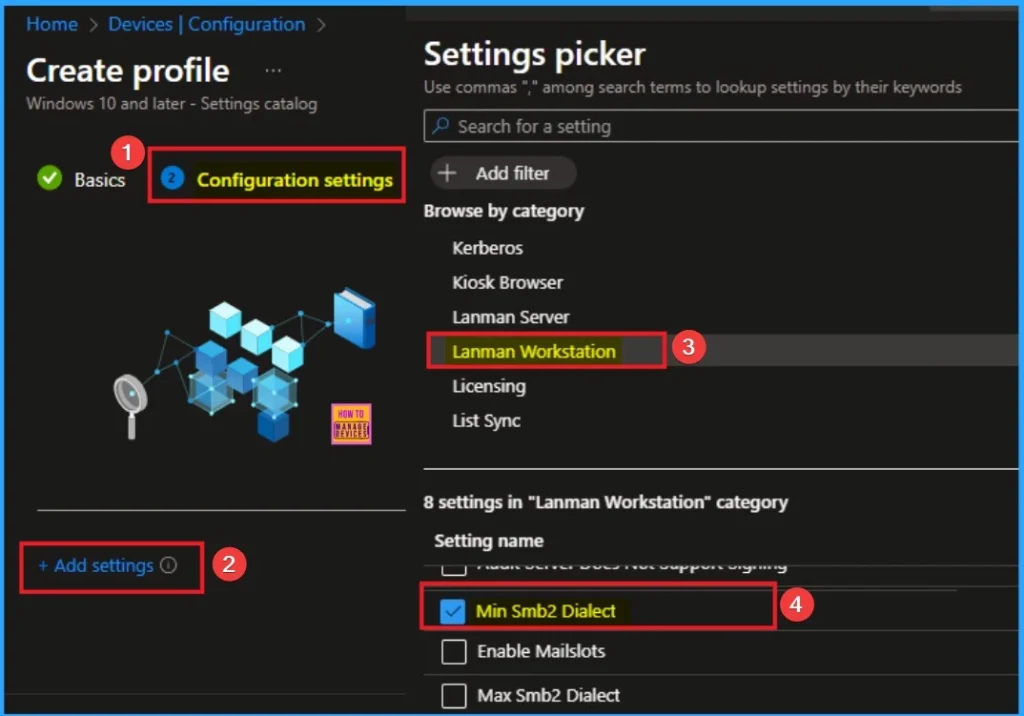
Select Settings from Settings Picker
On this tab you can access +Add settings hyperlink to access specific settings. When you click on this hyperlink, you will get Settings Picker. Here, I would like to select the settings by browsing by Category. I choose Lanman Workstation. Then, I choose MinSmb2Dialect settings.
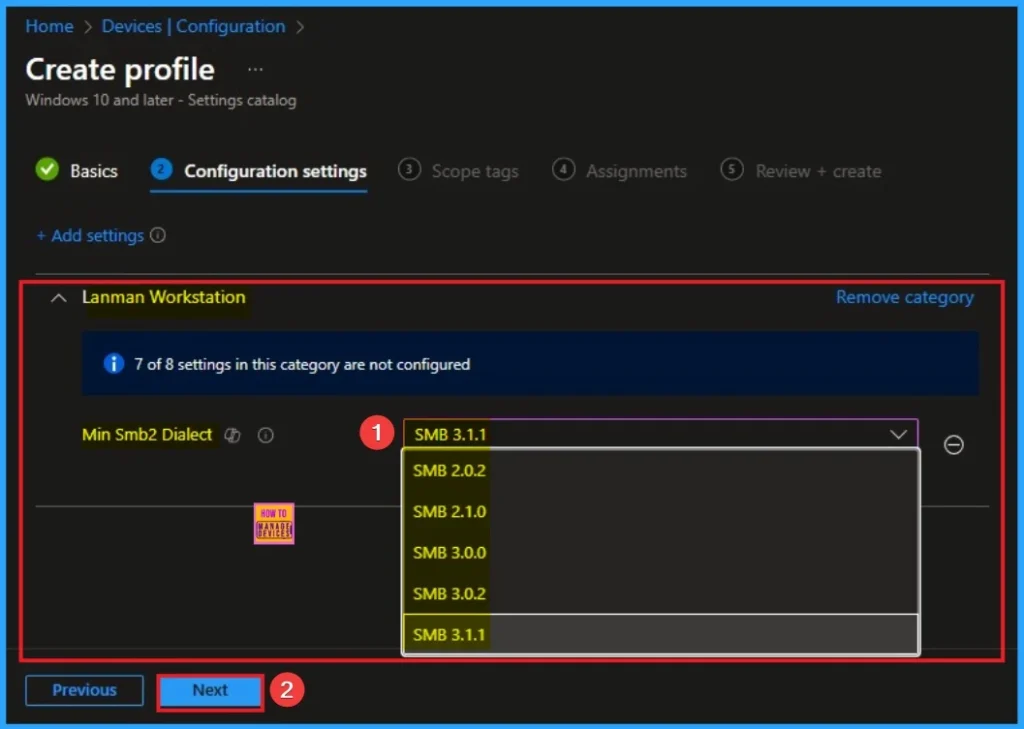
Select Value for Policy
There are 5 valuesa are available for this policy. The value you assign to this setting directly maps to a specific SMB dialect. The higher the value, the more secure the minimum protocol you are enforcing.
| Policy Value | SMB Protocol Dialect | Details |
|---|---|---|
| 514 (Default) | SMB 2.0.2 | The baseline version of the modern SMB protocol. It is generally not considered secure enough for modern environments and is a low-security minimum. |
| 528 | SMB 2.1 | Introduced with Windows 7 and Windows Server 2008 R2. Offers minor improvements over 2.0.2. |
| 768 | SMB 3.0.0 | Introduced significant security features like End-to-End Encryption (over the wire), SMB Multichannel, and RDMA (SMB Direct). This is a strong step up in security. |
| 770 | SMB 3.0.2 | Introduced with Windows 8.1 and Windows Server 2012 R2. Included updates and enhancements, particularly for cluster scenarios. |
| 770 | SMB 3.1.1 | The most secure and recommended dialect. It introduced crucial security enhancements: Pre-Authentication Integrity (using SHA-512) to prevent man-in-the-middle attacks that tamper with the negotiation and session setup, and Negotiation of AES-256 GCM/CCM encryption. |
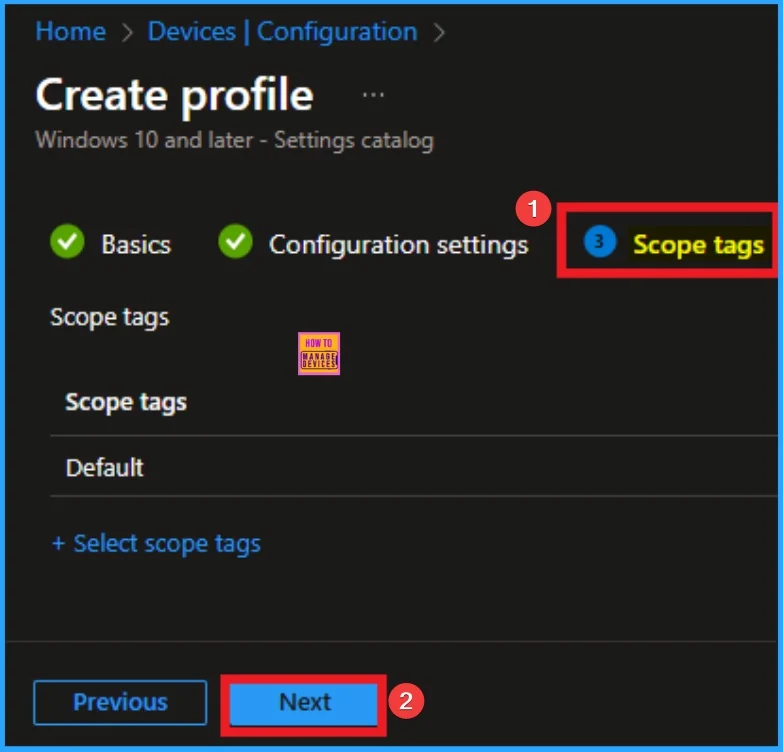
Scope Tag for MinSmb2Dialect
Scope Tags sections help you add restrictions to the visibility of the Policy. But it is not a mandatory step, so you can skip this step. Here, I don’t add scope tags for MinSmb2Dialect Policy. Click on the Next button.
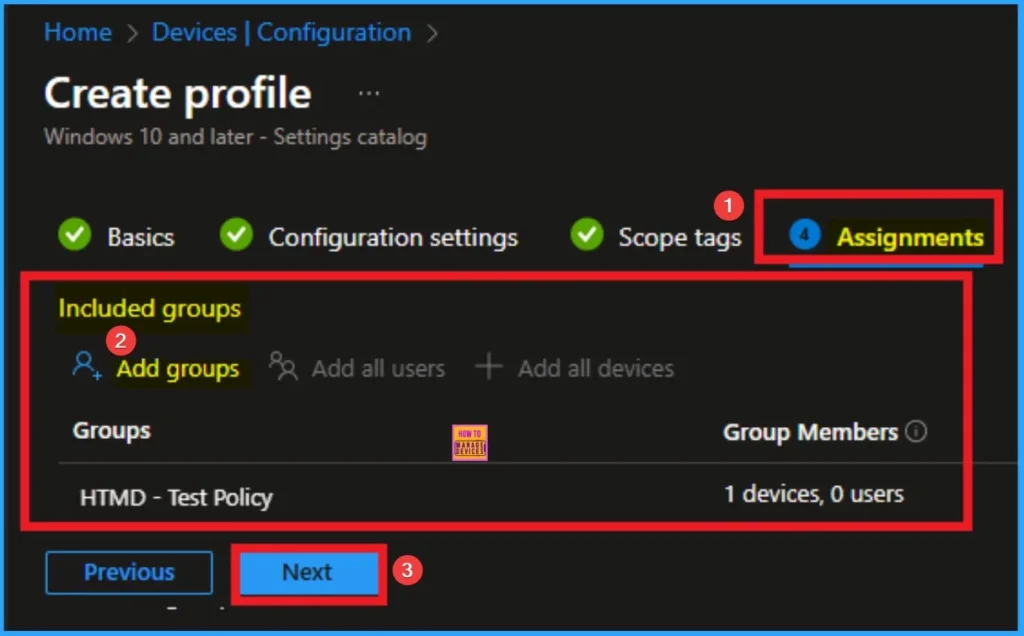
Assignment Tab for Selecting Group
You can assign the policy to specific groups,with Assignment Tab. Here I click, +Add groups option under Included groups. I choose a group from the list of groups and click on the Select button. Again, I click on the Select button to continue.
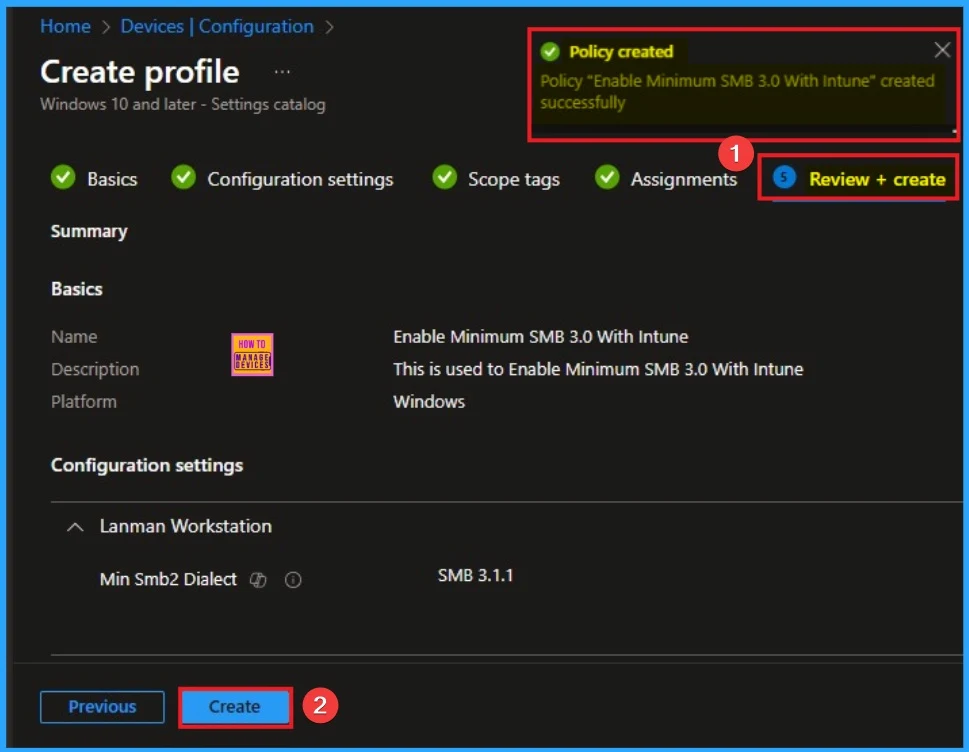
Finalise Policy with Review + Create Tab
Before completing the policy creation, you can review each tab to avoid misconfiguration or policy failure. After verifying all the details, click on the Create Button. After creating the policy, you will get a success message.
Device Check-in Status
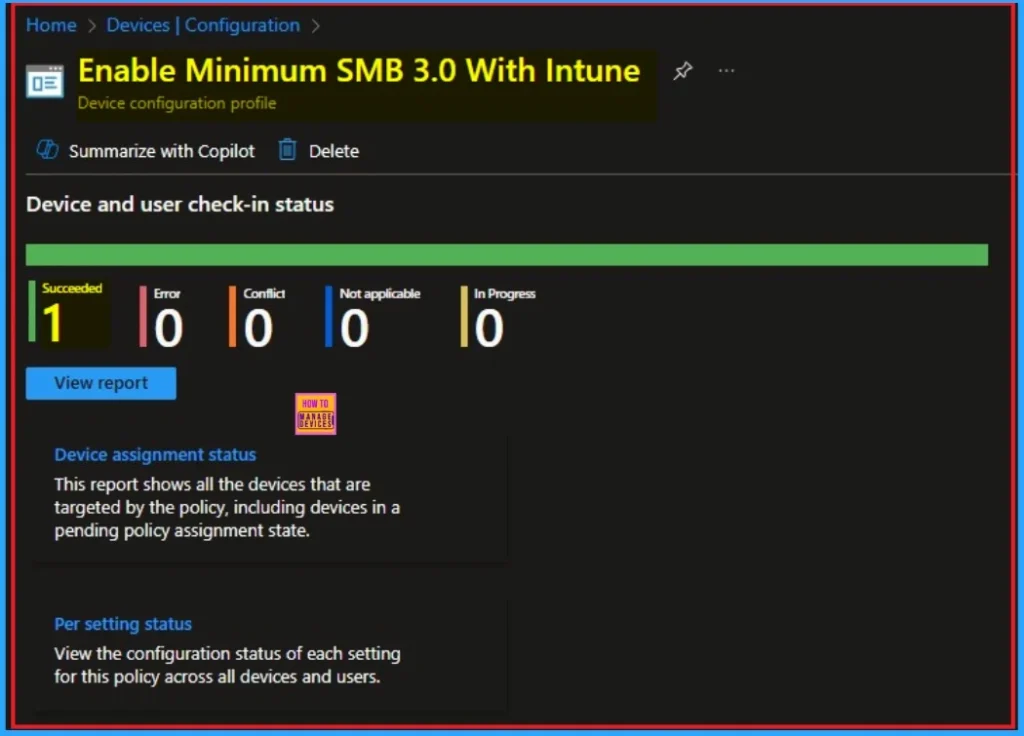
The Device Check-in Status page shows whether the policy has succeeded or not. To quickly configure the policy and take advantage of the policy sync, the device on the Company Portal, Open the Intune Portal. Go to Devices > Configuration > Search for the Policy. Here, the policy shows as successful.
Client Side Verification
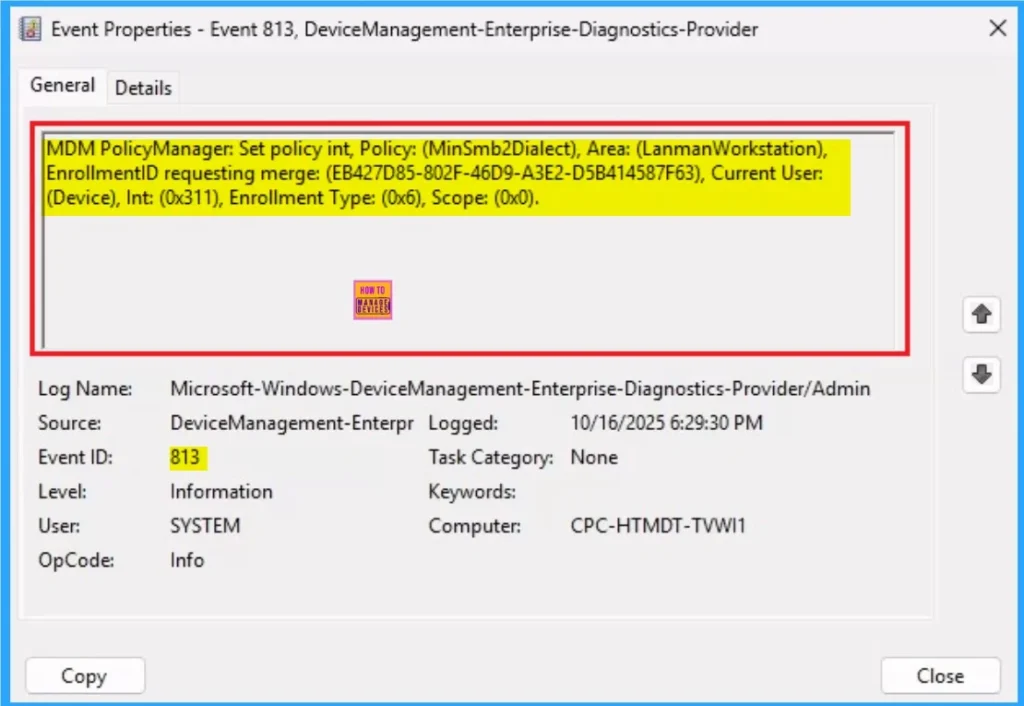
It helps you check the client side and verify the policy status. Open the Client device and open the Event Viewer. Go to Start > Event Viewer. Navigate to Logs: In the left pane, go to Application and Services Logs > Microsoft > Windows > DeviceManagement-Enterprise-Diagnostics-Provider > Admin.
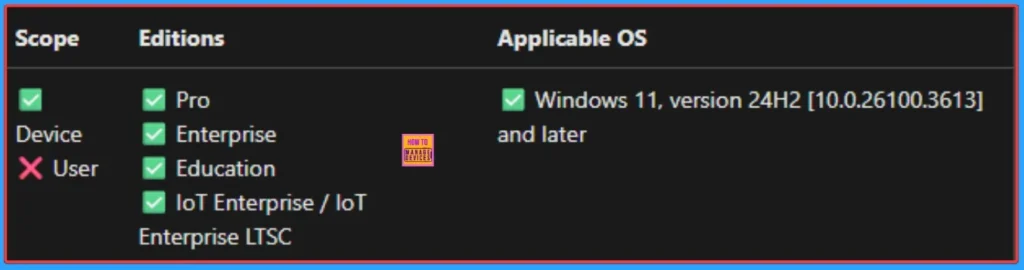
MDM PolicyManager: Set policy int, Policy: (MinSmb2Dialect), Area: (LanmanWorkstation),
EnrollmentID requesting merge: (EB427D85-802F-46D9-A3E2-D5B414587F63), Current User:
(Device), Int: (0x311), Enrollment Type: (0x6), Scope: (0x0).
Removing the Assigned Group from Minimum SMB 3.0 Settings
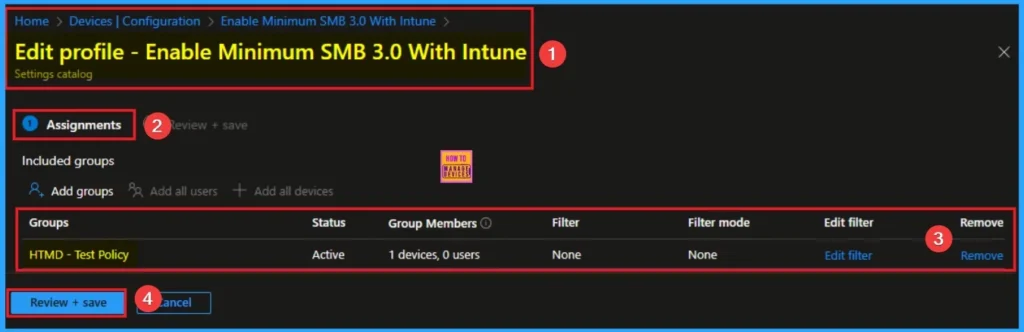
If you want to remove the Assigned group from the policy, it is possible from the Intune Portal. To do this, open the Policy on Intune Portal and edit the Assignments tab and the Remove Policy.
To get more detailed information, you can refer to our previous post – Learn How to Delete or Remove App Assignment from Intune using by Step-by-Step Guide.
How to Delete Minimum SMB 3.0
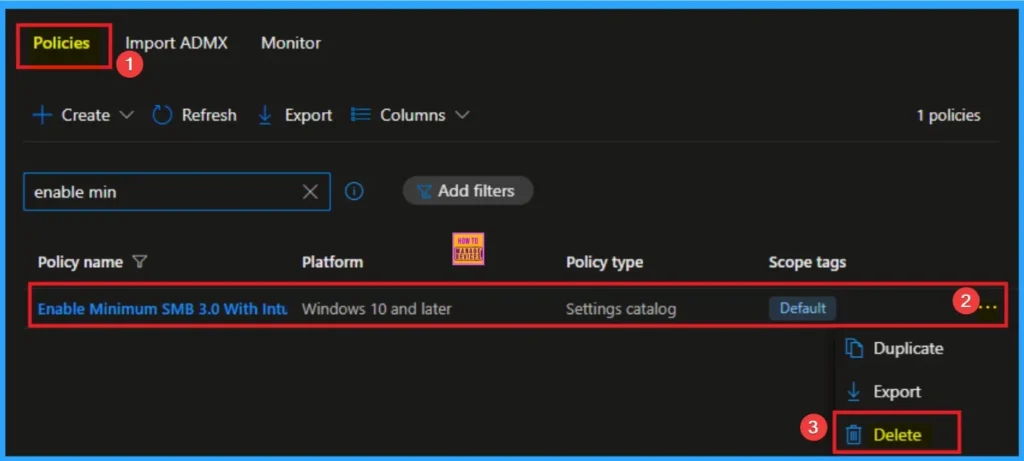
You can easily delete the Policy from the Intune Portal. From the Configuration section, you can delete the policy. It will completely remove it from the client devices.
For detailed information, you can refer to our previous post – How to Delete Allow Clipboard History Policy in Intune Step by Step Guide.
Windows CSP Details
This policy controls the minimum version of SMB protocol. This group policy doesn’t prevent use of SMB 1 if that component is still installed and enabled.
| Name | Value |
|---|---|
| Name | Pol_MinSmb2Dialect |
| Friendly Name | Mandate the minimum version of SMB |
| Location | Computer Configuration |
| Path | Network > Lanman Workstation |
| Registry Key Name | Software\Policies\Microsoft\Windows\LanmanWorkstation |
| ADMX File Name | LanmanWorkstation.admx |
Need Further Assistance or Have Technical Questions?
Join the LinkedIn Page and Telegram group to get the step-by-step guides and news updates. Join our Meetup Page to participate in User group meetings. Also, Join the WhatsApp Community to get the latest news on Microsoft Technologies. We are there on Reddit as well.
Author
Anoop C Nair has been Microsoft MVP for 10 consecutive years from 2015 onwards. He is a Workplace Solution Architect with more than 22+ years of experience in Workplace technologies. He is a Blogger, Speaker, and Local User Group Community leader. His primary focus is on Device Management technologies like SCCM and Intune. He writes about technologies like Intune, SCCM, Windows, Cloud PC, Entra, Microsoft Security, Career, etc.


Discussion