






Enable Disable Show Downloads Insecure Warnings in Edge via the Microsoft 365 Admin Portal
Let’s discuss how to Enable Disable Show Downloads Insecure Warnings in Edge via the Microsoft 365 Admin Portal. The ShowDownloadsInsecureWarningsEnabled policy shows warnings when users download potentially dangerous content from an HTTP website.
If this policy is enabled or not configured, users will see a warning message, such as “Insecure download blocked,” when downloading unsafe files. However, they can still choose to proceed with the download.
If this policy is disabled, these warnings will not appear, and users won’t be notified about insecure downloads. This policy works on Windows and macOS devices with Microsoft Edge version 128 or later.
This post explains everything you need to know about enabling the “Show Downloads Insecure Warnings” feature in Microsoft Edge using the Microsoft 365 Admin Portal. You will learn how to configure this setting to alert users about potentially unsafe downloads from HTTP websites, helping to improve security.

Table of Contents
What is the Group Policy (GP) Unique Name for this Setting?
GP Unique Name: ShowDownloadsInsecureWarningsEnabled
Where Can I Find the Group Policy Path for this Setting?
Mandatory Path: Administrative Templates/Microsoft Edge/Downloads
Recommended Path: Administrative Templates/Microsoft Edge – Default Settings (users can override)/Downloads.
What is the ADMX File Associated with this Policy?
ADMX File Name: MSEdge.admx
How Do I Configure this Setting in the Windows Registry?
Mandatory Registry Path: SOFTWARE\Policies\Microsoft\Edge
Recommended Registry Path: SOFTWARE\Policies\Microsoft\Edge\Recommended
Value Name: ShowDownloadsInsecureWarningsEnabled
Value Type: REG_DWORD
Example Value: 0x00000001 (to enable warnings)
How is this Policy Configured on MacOS?
Preference Key Name: ShowDownloadsInsecureWarningsEnabled
Example Value: Like Windows, you configure this setting to enable the warning.
Enable Show Downloads Insecure Warnings in Edge via the Microsoft 365 Admin Portal
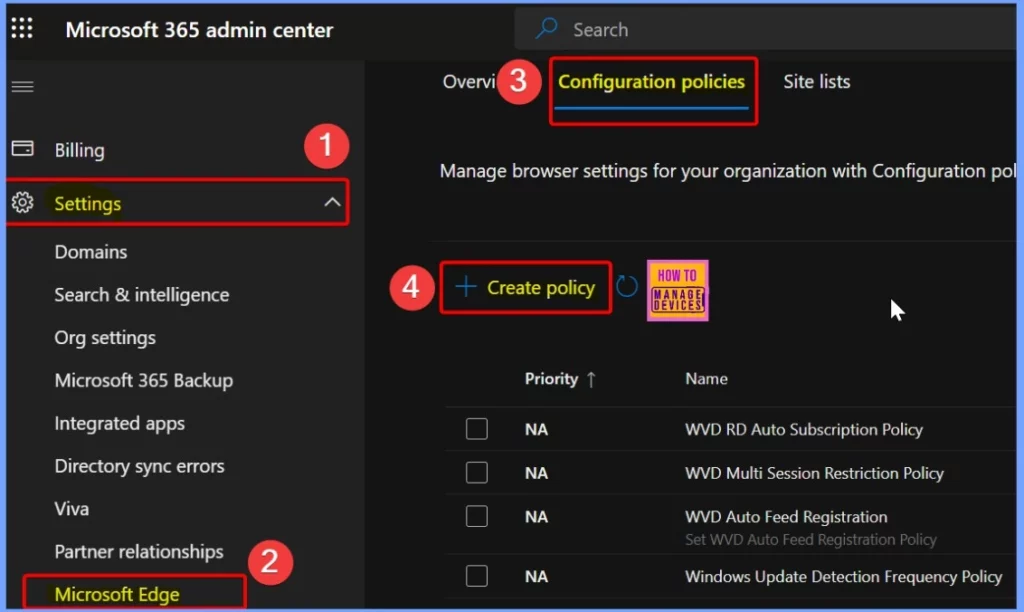
You can quickly set up the “Enable Show Downloads Insecure Warnings” feature in Edge through the Microsoft 365 Admin Portal. Go to the Microsoft 365 Admin Center, then navigate to Settings > Microsoft Edge. Under the Configuration Policies settings(the second tab), you will find the option to Create a Policy.
- Enable Additional Search Box in Edge Browser using Microsoft 365 Admin Center Policy
- Enable AI Gen Themes in Edge Browser using Microsoft 365 Admin Center Configuration Policy
- Brand Identity Advanced Customization Options for Microsoft Edge Browser for Business
ShowDownloadsInsecureWarningsEnabled
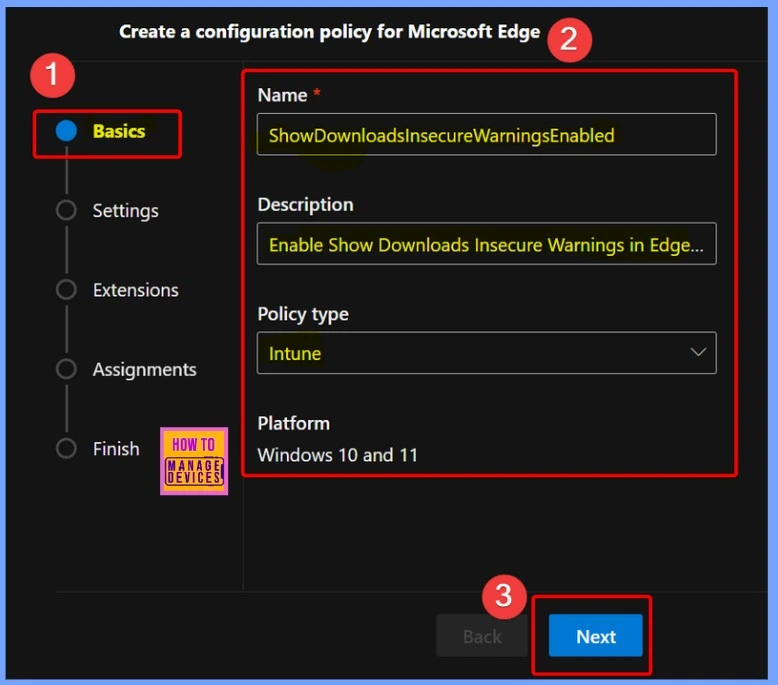
Five settings are available: Basic, Settings, Extensions, Assignments, and Finish. The Basic settings is the most important, where you must provide critical details like the Name, Description, Policy Type, Platform, and more.
| Basic Settings | Details |
|---|---|
| Name | ShowDownloadsInsecureWarningsEnabled |
| Description | Enable Show Downloads Insecure Warnings in Edge via the Microsoft 365 Admin Portal |
| Profile Type | Intune |
| Platform | Windows 10 and 11 |
Configure Policies for Microsoft Edge
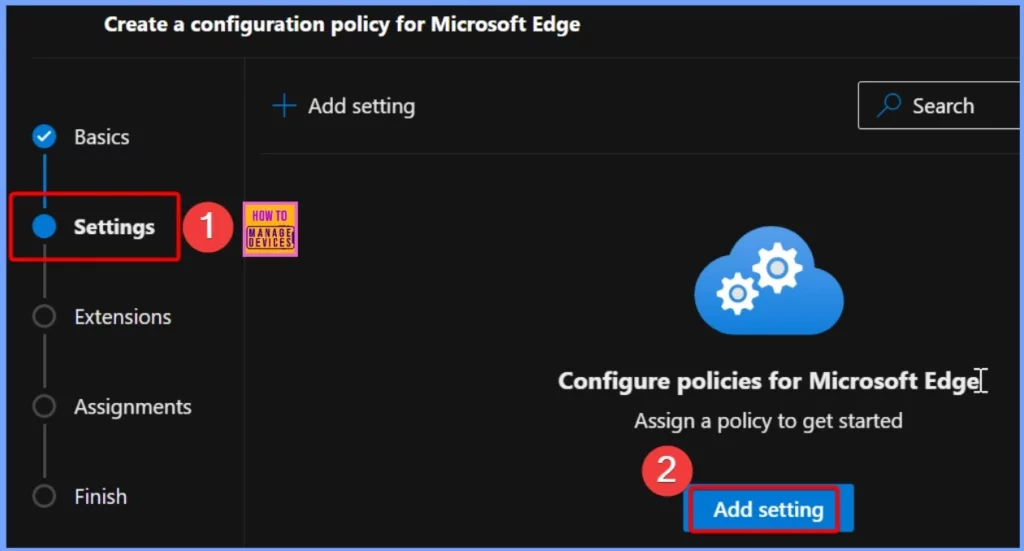
You can quickly set up policies for Microsoft Edge and assign them to get started. Under Settings, click on Add Settings to configure the policy.
Value and More Details
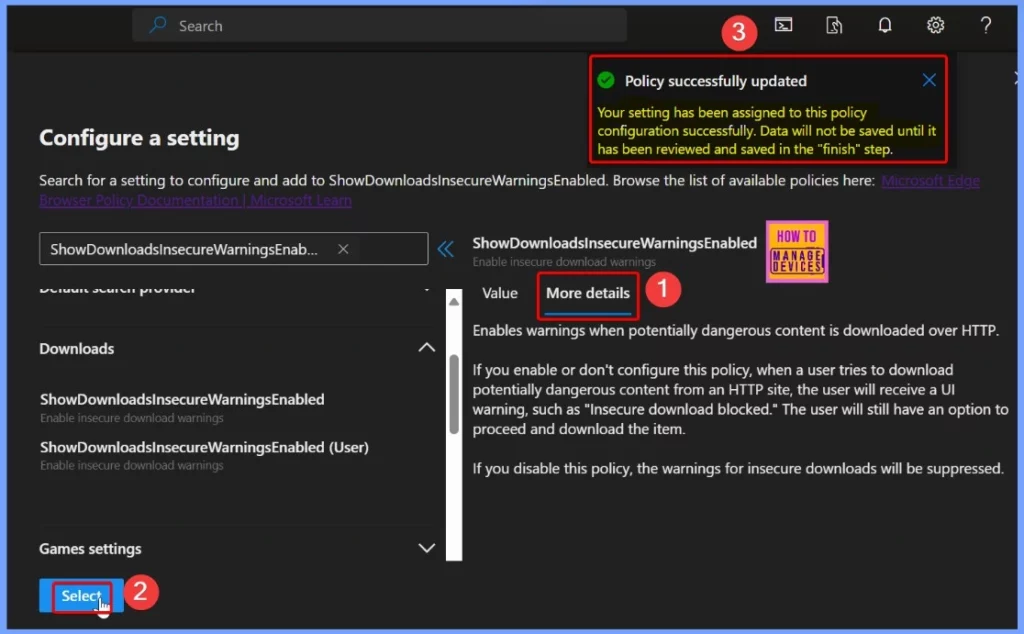
On the Configure Settings page, search for the policy name ShowDownloadsInsecureWarningsEnabled. You will find various settings grouped under different categories. Look under the Downloads category to locate ShowDownloadsInsecureWarningsEnabled.
You will see two options on the right: Value and More Details. Click the dropdown arrow under Value to enable the policy and select Enable.
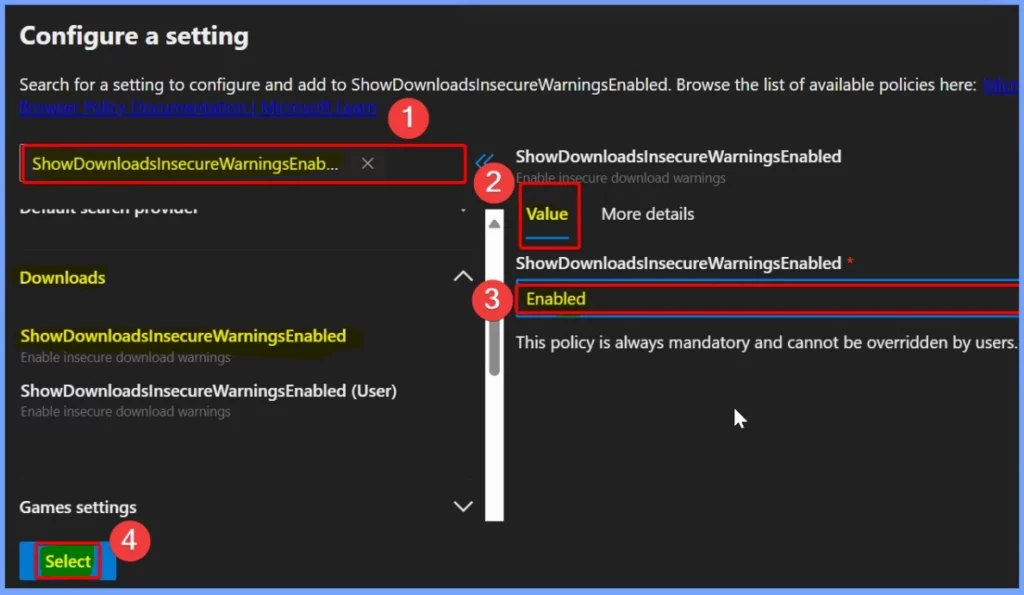
After reviewing the More Details section, click the Select button. Once you do this, a notification will confirm that your settings have been assigned to the policy configuration. However, the data won’t be saved until you review and save it in the Finish step.
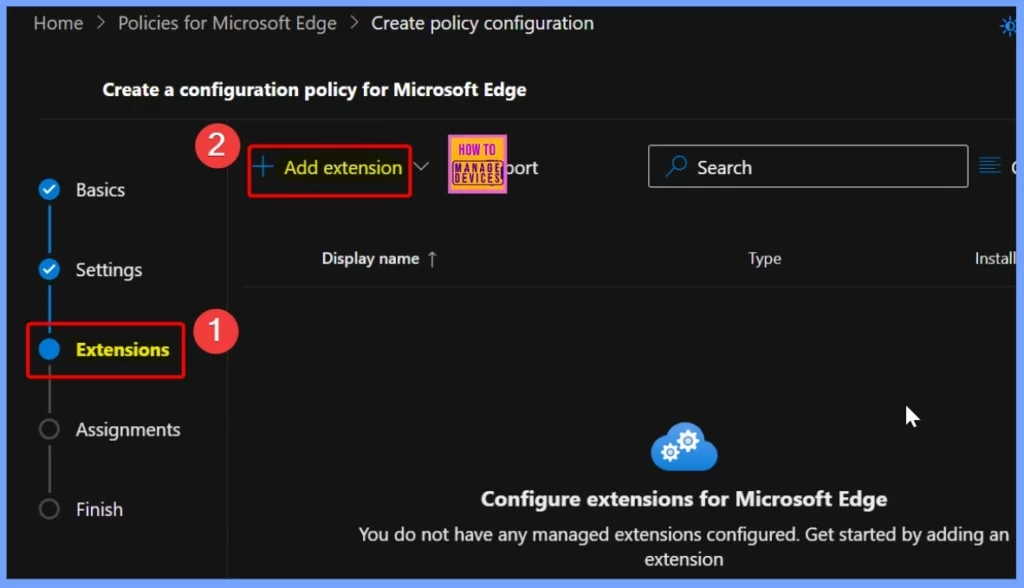
When managing an extension, you can customize its settings. These settings are unique to that extension and will take priority over any general profile settings. Your changes here will apply only to the chosen extension, regardless of the broader profile configurations.
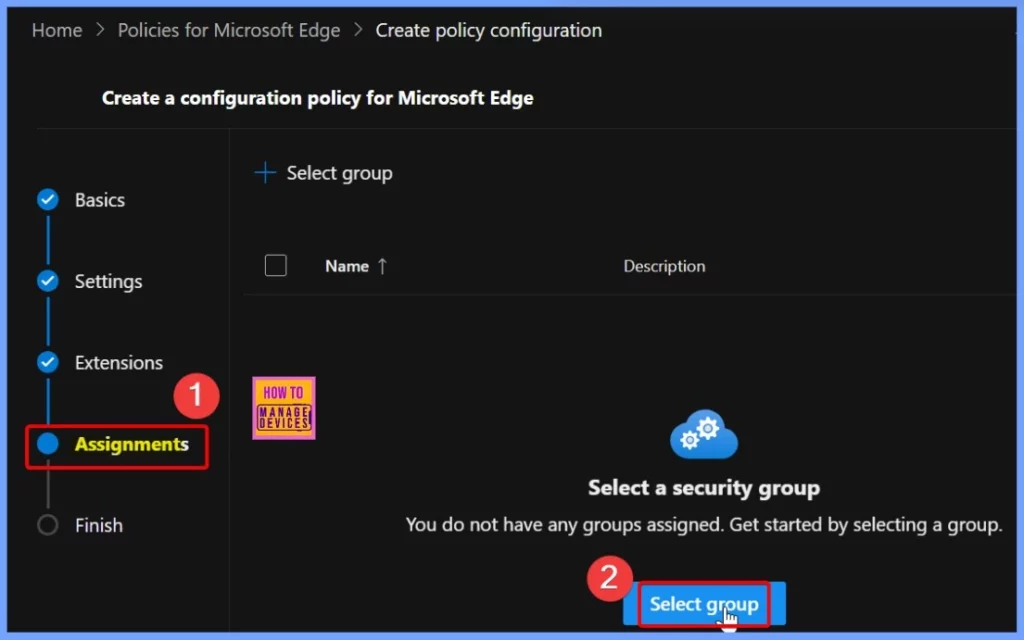
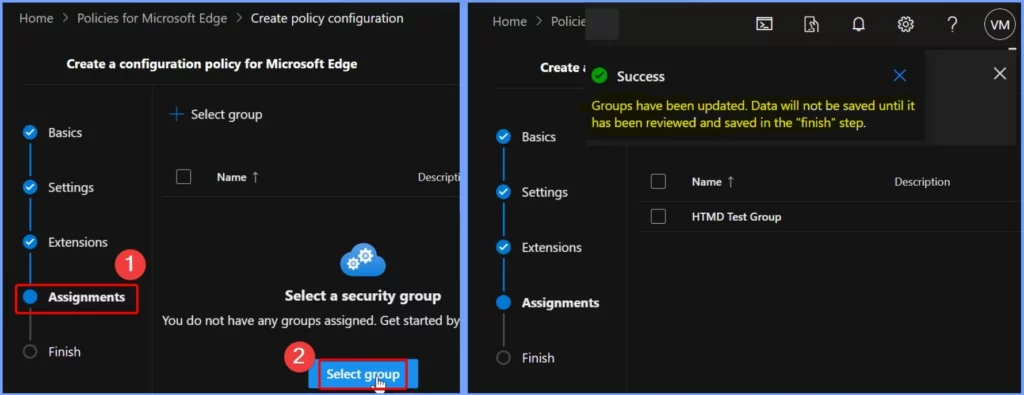
Assignments are the fourth and most important setting. To add a group, click the Select Group button, and you can easily assign the policy to a specific group of users or devices.
The screenshot below confirms that the groups have been successfully updated. However, it’s important to note that the data will not be saved until reviewed and finalized in the Finish step. This ensures that all settings are correctly checked before being applied.
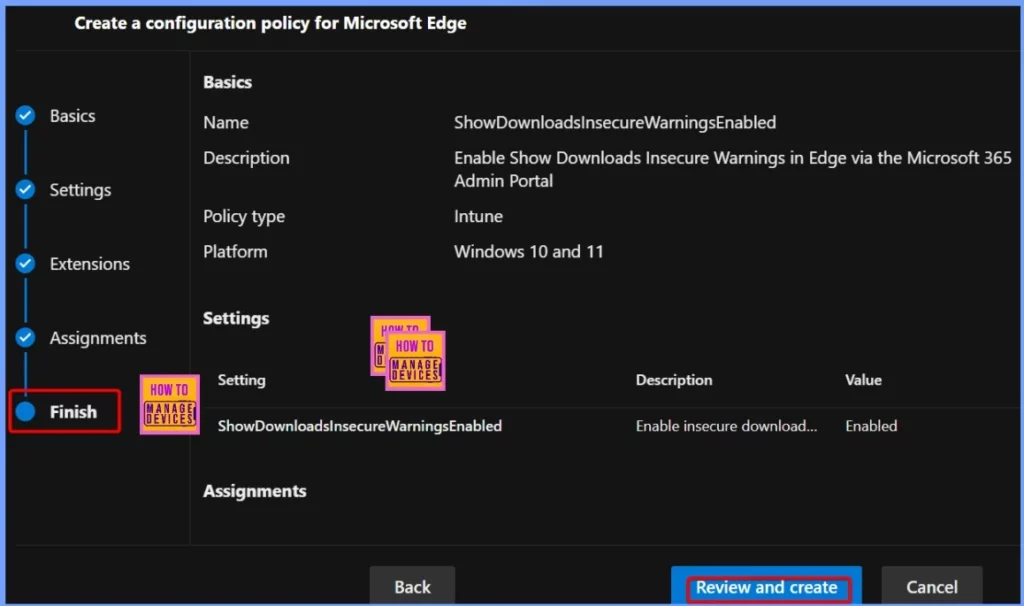
The finish is the final step, where you will see a Microsoft Edge policy configuration summary. This is your chance to review all the details you have set. Once you have checked everything, click the Review and Create button to finalise the policy, as shown in the screenshot.
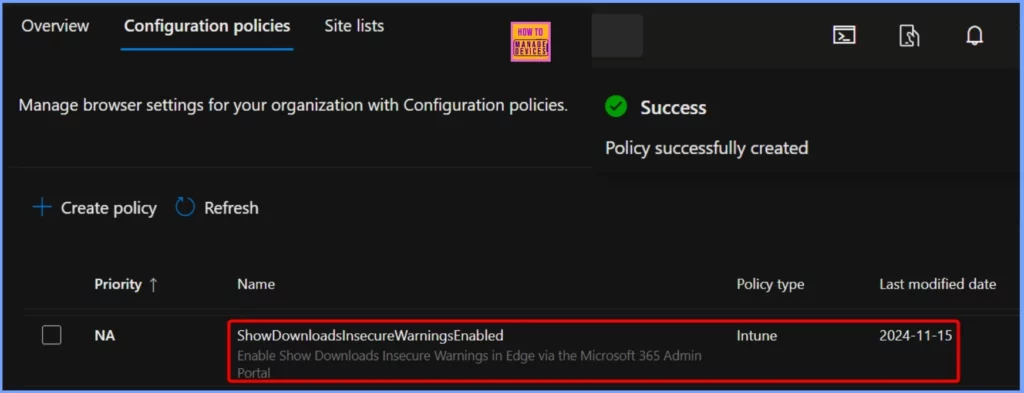
After clicking the Review and Create button, you’ll see a message confirming the policy was successfully created. The section below provides additional details about the policy.
End User Experience
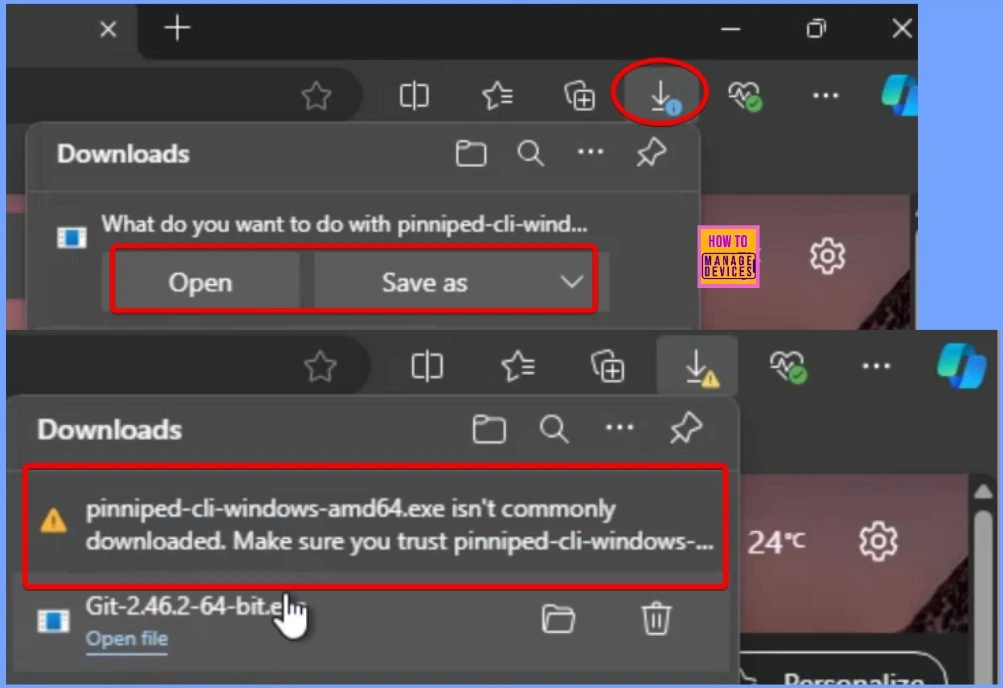
Open the Edge browser from the Start menu and try downloading an insecure image. You’ll receive a notification saying, “What do you want to do with this insecure image?” with two options: Open and Save As. If you click Open, another notification will appear, asking you to “Make sure you trust this site” before proceeding.
Need Further Assistance or Have Technical Questions?
Join the LinkedIn Page and Telegram group to get the latest step-by-step guides and news updates. Join our Meetup Page to participate in User group meetings. Also, Join the WhatsApp Community to get the latest news on Microsoft Technologies. We are there on Reddit as well.
Author
Anoop C Nair has been Microsoft MVP from 2015 onwards for 10 consecutive years! He is a Workplace Solution Architect with more than 22+ years of experience in Workplace technologies. He is also a Blogger, Speaker, and Local User Group Community leader. His primary focus is on Device Management technologies like SCCM and Intune. He writes about technologies like Intune, SCCM, Windows, Cloud PC, Windows, Entra, Microsoft Security, Career, etc.




Discussion