






Software Center Vs Company Portal Differences SCCM Intune
Software Center Vs Company Portal Differences with SCCM and Intune co-managed scenario. Let’s learn more details about ConfigMgr Co-Management Workload Client Apps.
The Client apps workload change helps Intune deploy and manage applications and PowerShell scripts on co-managed Windows 10 devices.
Co-management can manage Windows 10 devices with two device management platforms: Intune and ConfigMgr (a.k.a SCCM).
As you can see in the diagram below, Microsoft’s strategy for device management is three (3) fold.

- Tenant Attach (More details about Tenant Attach).
- Co-Management Workloads (this post is related to Client App Workload).
- Cloud-Native Management.
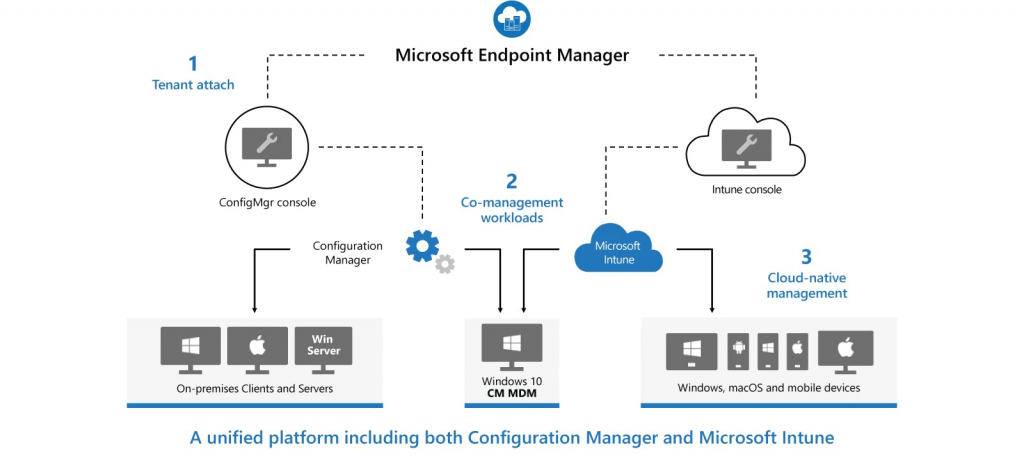
Table of Contents
Client Apps Workload
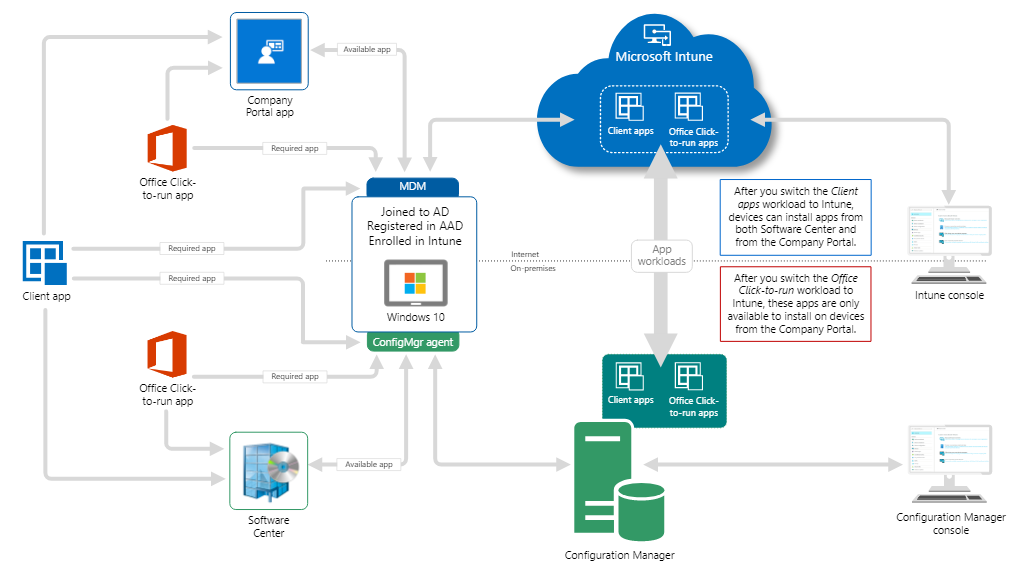
As I explained in the previous blog post, How to Setup SCCM Co-Management to Offload Workloads to Intune, once you transition client app workload from co-management properties, you can manage apps and PS scripts from SCCM and Intune.
- Any apps deployed from Intune are available on the Company Portal.
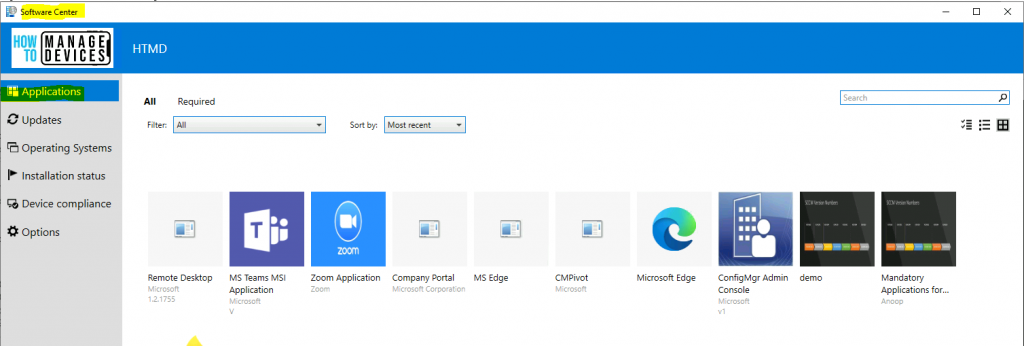
- Apps that you deploy from Configuration Manager are available in the Software Center.
NOTE! Starting in ConfigMgr version 2006, you can configure the Company Portal to also show SCCM apps. If you change this app portal experience, it changes the behaviors described in the diagram below. I have explained this behavior in the section below.
- Configure Apple DDM Enabled Software Update and Passcode Policies in Intune
- Modern Vs Legacy Azure Active Directory Authentication Methods
- Display Featured Apps in Software Center using SCCM
- 10 Super Useful End User Portals from Microsoft 365 Intune Azure AD
- Quickly Share Application from Intune Company Porta
Client Apps Workload is NOT Switched to Intune?
In a scenario where the device is already enrolled in Intune using group policy, what if the client app’s workload is not switched to Intune? As per my testing, the Intune application deployment won’t work on the Windows 10 co-managed device until you switch the client app workload to Intune. However, SCCM application deployment works as expected.
How to Change Co-Management Client Apps Workload?
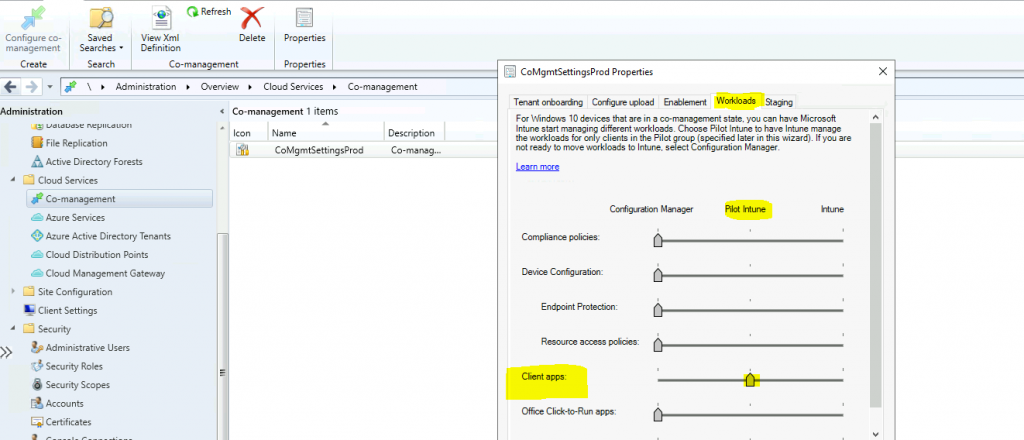
Let’s see how to switch the Co-Management Client Apps workload to pilot Intune or Intune.
- Navigate to \Administration\Overview\Cloud Services\Co-management
- Click on CoMgmtSettingProd.
- Select the properties option from the ribbon menu.
- Click on the Workloads tab.
- Slide the Client Apps and switch to Pilot Intune or Intune.
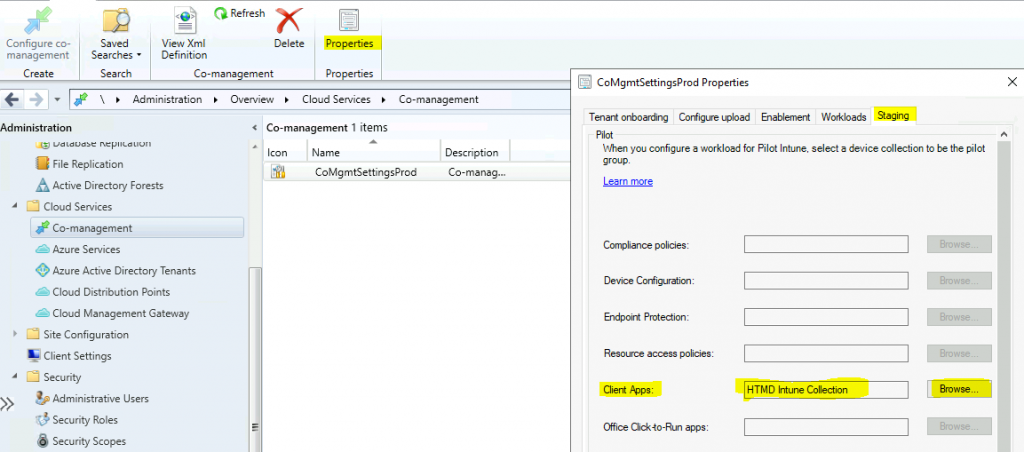
- Click on the Staging tab (Only if you have selected the Pilot Intune option).
- Select the pilot collection for the Client App workload.
- Click Apply and OK.
ConfigMgr Deployments
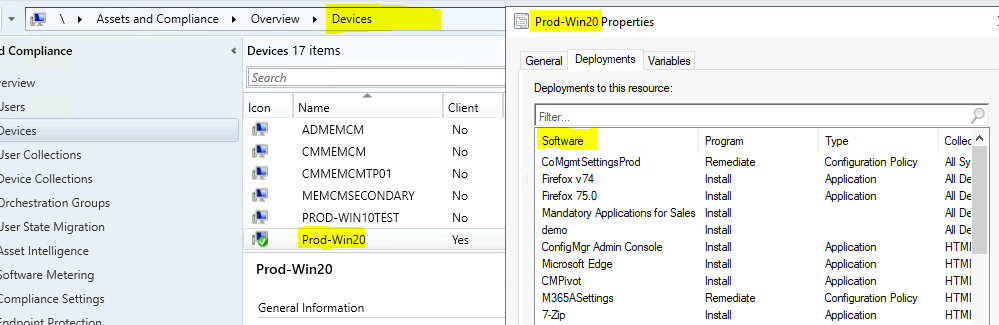
You can check the ConfigMgr (a.k.a. SCCM) deployments from the device properties—Deployments tab. This helps you get the list of applications deployed to Windows 10 devices. I feel the view below could help analyze the application deployment details.
How to Check Co-Management is Enabled
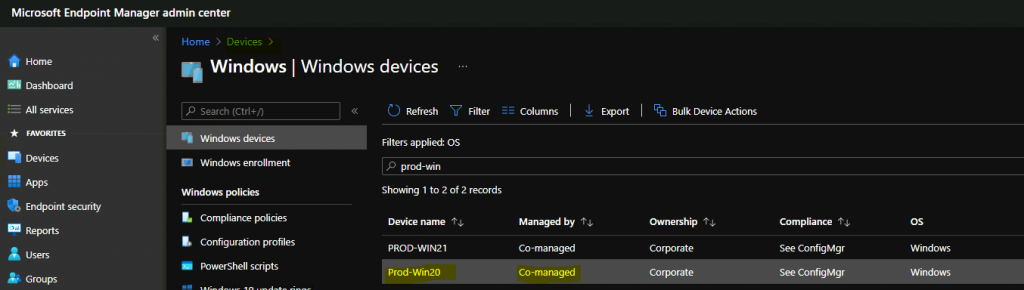
This section helps confirm whether the Windows 10 device is co-managed.
- You can confirm the Windows 10 Client’s co-management status from the Endpoint Manager (a.k.a. Intune) portal: https://endpoint.microsoft.com/.
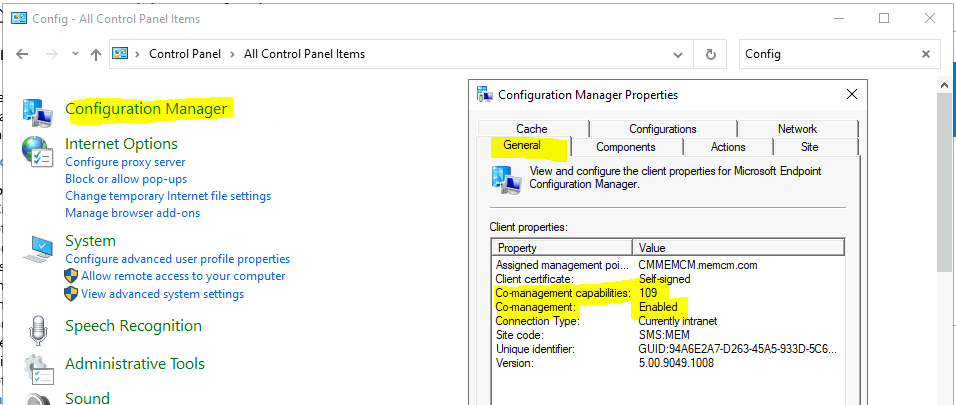
You can also confirm the co-management status from ConfigMgr Applet on Windows 10 devices.
- Co-management = Enabled.
Client Apps Behavior
This section will explain the Co-management deployment behaviors with Intune and ConfigMgr (a.k.a SCCM) and how the application and PowerShell script deployment behaves in a co-managed world.
- The company portal shows the applications deployed by Intune and Configuration Manager (a.k.a SCCM).
- Intune – Available applications are deployed to users of the AD Group.
- ConfigMgr – Available applications deployed to users or device collection.
NOTE! – To install & manage SCCM applications from the company portal, you need to have connectivity back to SCCM infrastructure via corporate network/VPN/CMG. The same applies to the software centers as well.
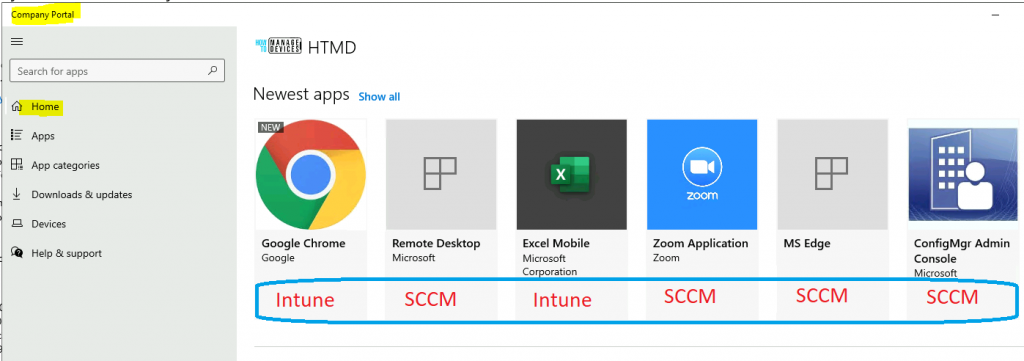
Software Center shows only the applications deployed as available & required from ConfigMgr (a.k.a SCCM).
Tips & Updates
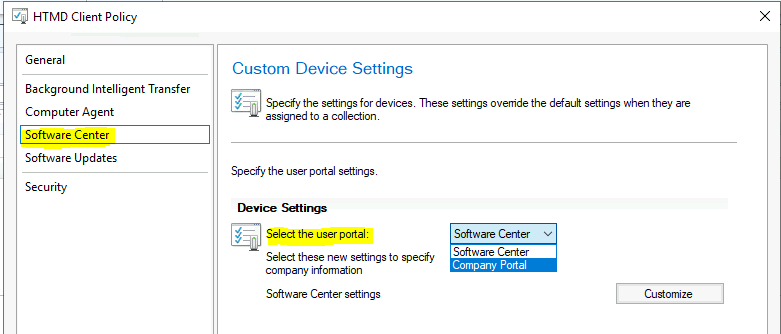
Also, there are options in client settings policies to enable either the software centre or the Company portal for the following workloads.
| Workload | Setting | Behavior |
|---|---|---|
| Client apps | Configuration Manager | You can see only Configuration Manager client apps |
| Client apps | Pilot Intune or Intune | You can see both Configuration Manager and Intune client apps |
| Office Click-to-run apps | Configuration Manager | You can see only Configuration Manager Office click-to-run apps |
| Office Click-to-run apps | Pilot Intune or Intune | You can see only Intune Office click-to-run apps |
Resources
Overview Windows 10 Co-Management with Intune and SCCM
Custom Report to Identify Machines Connected via SCCM CMG
How to Setup Co-Management - Introduction - Prerequisites Part 1
How to Setup Co-Management - Firewall Ports Proxy Requirements Part 2
Setup Co-Management - AAD Connect UPN Suffix Part 3
Setup Co-Management - CA PKI & Certificates Part 4
Setup Co-Management Cloud DP Azure Blob Storage Part 5
Setup Co-Management Azure Cloud Services CMG Part 6
SCCM Configure Settings for Client PKI certificates Part 7
How to Setup SCCM Co-Management to Offload Workloads to Intune - Part 8 (This Post)
How to Deploy SCCM Client from Intune - Co-Management - Part 9
End User Experience of Windows 10 Co-Management - Part 10
We are on WhatsApp now. To get the latest step-by-step guides, news, and updates, Join our Channel. Click here – HTMD WhatsApp.
Author
Anoop C Nair has been Microsoft MVP for 10 consecutive years from 2015 onwards. He is a Workplace Solution Architect with more than 22+ years of experience in Workplace technologies. He is a Blogger, Speaker, and Local User Group Community leader. His primary focus is on Device Management technologies like SCCM and Intune. He writes about technologies like Intune, SCCM, Windows, Cloud PC, Windows, Entra, Microsoft Security, Career, etc.




Can you stop apps from SCCM from appearing in the Company Portal app?
StaffI’m not sure about that. BTW, why do you want to hide SCCM apps from the company portal?
Have you checked the Client Settings options?
Hi my org is testing out shifting client apps workloads but currently when set to Pilot or Intune, user collection deployments in Software Center are not being displayed in Company Portal. Only device collection based app deployments in Software Center are being displayed in Company Portal. Any help would be appreciated.
StaffHello – As mentioned in the post SCCM shows only AVAILABLE applications deployed to users or devices collection. If the applications are deployed as REQUIRED it won’t show up.
Hi Dre. I have this exact same issue. Did you ever resolve?
Hello, Do you know if it’s possible to deploy SCCM packages also on company portal ? (and not only SCCM applications)
Thank you !
StaffThis is what I tested I think –
Company Portal shows the applications deployed from Intune and Configuration Manager (a.k.a SCCM).
Intune – Available Applications deployed to users AD Group.
ConfigMgr – Available applications deployed to users or devices collection
Yes i can see in your article that you tested SCCM Application successfully but what about the SCCM Package ? (package and application is different in SCCM).
In your screenshot, when you check the SCCM deployments associated to the device “Prod-Win20” i can see only “application” in the list (Type column).
Thank you
StaffSorry … I got you now. I never tested packages. don’t know whether that is even supported or not. I don’t think so. I will have to check MS docs to get more details probably.
You can run SCCM packages from Company Portal, and you will see them running in Software Center too.
My guess is that Company Portal just “calls” Software Center in the background… nothing really special 😀
Also, I found that I can also run Office Click-to-Run installation from Software Center while having the workload to Intune in my Intune Workload Pitoling clients. That’s kinda opposite to what MS is saying…
In case you wonder, required application from Intune are installed to co-managed devices with the Client-App workload on Intune, even if the Company Portal is not installed on the PC.
Hi, I have moved the client apps workload to Intune and removed all the application deployments from Config Manager. But I can still see all the application in software center and company portal. It seems like the apps won’t get updated and disappear once I moved the the workload.
Have you experienced anything like that before?
Hi.
I have co-managed environment with SCCM and Intune. Currently in pilot testing with Intune.
I have an issue with MS Office apps not showing in Company Portal. They are assigned to two user groups as available.
Why are they not showing up?
Have you experienced this?
StaffOther apps which are deployed with similar settings (assigned to users and available deployment) are available in Company Portal.
Applications that are assigned to user collection (all users) are not visible in Company Portal. Its only available in Software Center. Not sure if MS supports this. I know that Anoop has already mentioned this that it should work. But it doesn’t. That’s why some experts has posted this query above. Has anyone got this working?
More info:
Application Installation Behavior = Install for System
Logon requirement = Whether or not a user is logged on
Allow users to view and interact with program installation = checked