






SQL Query for SCCM Client Last Scan Time SUP WSUS Scan CAB File Version Details
SQL Query for SCCM Client Last Scan Time is made available with this post. Apart from the last scan details, this report provides SUP or WSUS server location details and CAB File Version details. Learn how to create an SCCM custom report for SCCM Client Last Scan Time, Last Reboot Date to help with troubleshooting.
The Windows 10 or Windows 11 device’s last scan and SUP location help with troubleshooting scenarios. SCCM Client Report for Software Update Patching Client Health scenarios. SQL Query for patching or software update troubleshooting is shared in this post.
I thought of sharing one of the useful reports for client health concerning monthly patching or software updates. All the credit goes to my ex-colleague Neetu who built the first version of the report.
The SCCM patching and troubleshooting are not easy at times. You need to have more accurate details from the clients to make Software Update troubleshooting easy. SCCM Client Last Scan Time with SUP, WSUS Scan, and CAB File Version Report.

You get access to the SQL query to create a custom SCCM report from where you can get all the mandatory patching information needed to handle SCCM patching issues without much trouble.
I have explained the end-to-end patching scenario and the Software Update patch package creation process in the following blog posts. There are default reports available in SCCM such as
I have explained the end-to-end patching scenario and the Software Update patch package creation process in the following blog posts. There are default reports available in SCCM such as ConfigMgr Default Reports Software Updates | SCCM Patching Reports.
- ConfigMgr Default Reports Software Updates | SCCM Patching Reports
- Enable Windows 11 Patching using SCCM WSUS
- SCCM Patching Basics Video Recording Available Now
SCCM Report for Software Update Patching Client Health
Let’s check SCCM Report for Software Update Patching Client Health. Following are screenshots of the results of the SCCM custom report for the client’s health checks. Many SCCM clients won’t get monthly patches, and the compliance percentage of monthly patches goes down significantly because of the common issues.
The SCCM Client Last Scan Time report with SUP, WSUS Scan, and CAB File Version details helps troubleshoot SCCM patching issues with the Windows 10 and Windows 11 clients. The following custom report created to help with patching or software update troubleshooting gives you direct access to a lot of information that you can’t get from default reports.
- Name
- Active
- Obsolete
- Client Version
- Last Heartbeat Discovery
- Last Hardware Inventory
- Last Software Inventory
- Last Scan Time
- Last Scan Package Location (WSUS server)
- Last Scan Package Version (CAB file from WSUS)
- Last Scan Package version (CAB File Version)
- Last Scan Status
- Last Boot Date
- Last Boot in Days

Let’s check the screen of the SCCM production environment where this report is helping the operations team to understand the issues with SCCM patching and remediate it so quickly.

SQL Query for SCCM Client Last Scan Time SUP WSUS Scan CAB File Version
You can create an SCCM custom report for finding out the last scan time, last scan WSUS location, Last SCAN CAB file version, and SCAN status from the following SQL Report.
Let’s look into the SQL Report to get the following details of all the SCCM Clients. The details are Last Scan Time, SUP or WSUS server the client scanned against, the CAB File Version, the client scanned against, etc.
The last reboot time, last boot in days, Last Hardware Inventory, and Last Heart Beat time details are also super helpful in troubleshooting.
You can follow the steps mentioned below to create the SCCM SQL query results from SQL Server Management Studio (SSMS).
- Open the SQL Management Studio.
- Connect your Database Engine.
- Right Click on your database CM_XXX and click on ‘New Query’
- Copy the following SQL query from the GitHub repository to find the report of SCCM Client Last Scan Time SUP WSUS Scan CAB File Version.
- Click on the Execute button.
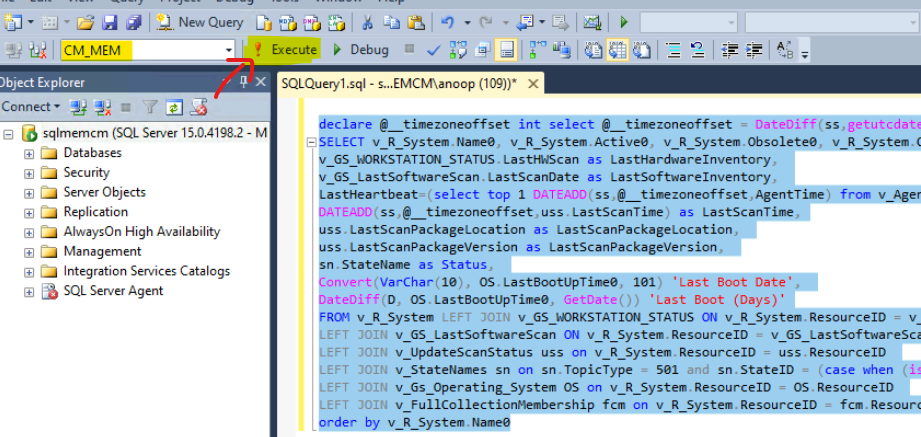
NOTE! – This query is only for educational purposes; I don’t recommend using it for production scenarios because this query will impact the performance of the SQL DB. This is because it runs against all the devices in the SCCM environment.
The SQL Query for all systems is available at SCCM-Software-Update-Patching-Client-Health/SCCM Client Last Scan Time SUP WSUS Scan CAB File.sql at main · AnoopCNair/SCCM-Software-Update-Patching-Client-Health (github.com).
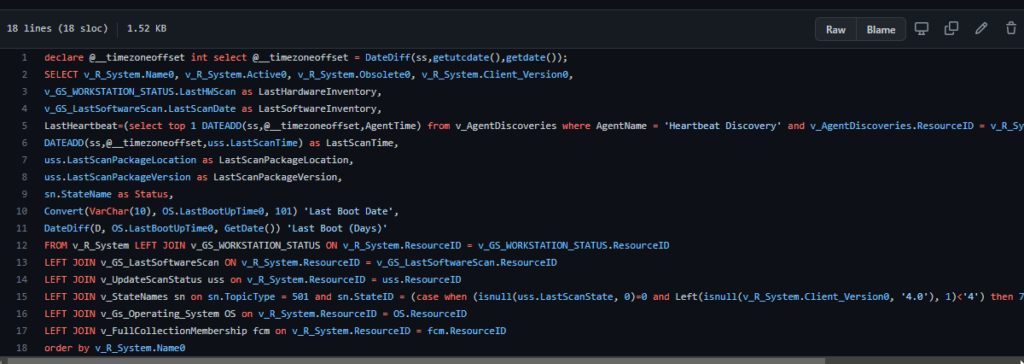
Results SCCM Client Last Scan Time SUP WSUS Scan CAB File Version Report
It’s time to check the SQL query results from the SSMS tool. You can export the report from SSMS to a CSV file.
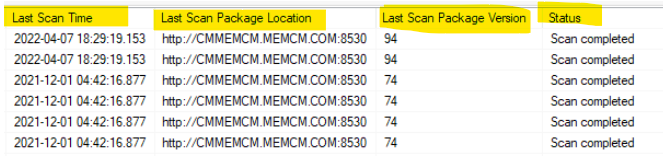
Warning! – There are a lot of duplicate records available in this report, so it’s better to fine-tune the query as per your requirement and then run it against the small collection.
| Name 0 | Active 0 | Obsolete 0 | Client Version0 | Last Hardware Inventory | Last Software Inventory | Last Heartbeat | Last Scan Time | Last Scan Package Location | Last Scan Package Version | Status | Last Boot Date | Last Boot (Days) |
| Prod-Win20 | 1 | 0 | 5.00.9078.1006 | 47:23.0 | NULL | 22:32.0 | 52:25.1 | http://CMMEMCM.MEMCM.COM:8530 | 94 | Scan completed | 3/28/2022 | 10 |
Limit the SQL Query only to a Collection
Let’s see how to limit the SQL query only to a collection in this section. The SQL Report for Software Update Troubleshooting helps get a lot of useful data that you can’t get from SCCM default reports.
I have added a collection ID filter into the following SQL query to get a better quality report for SCCM Client Last Scan Time, SUP + WSUS Scan server location, and CAB File Version Details.
You can click on the New Query button from SQL Server Management Studio and copy the SQL query from the GitHub location given below.
SQL Query from GitHub – https://github.com/AnoopCNair/SCCM-Software-Update-Patching-Client-Health/blob/main/Collection%20Filter%20SCCM%20Client%20Last%20Scan%20Time%20SUP%20WSUS%20Scan%20CAB%20File.sql
Remember: You need to change the collection ID from the SQL query to get the appropriate results.
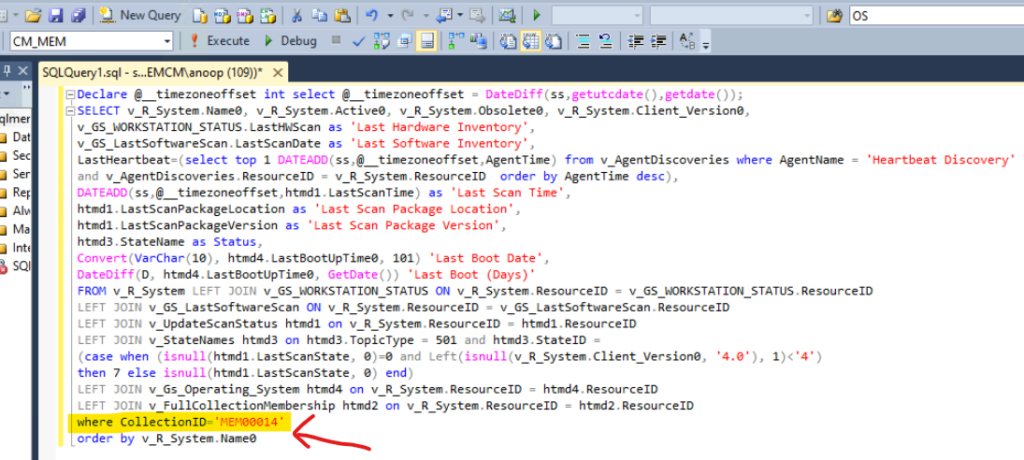
You can get much cleaner results from the above query if you target this only to a specific collection. I couldn’t reproduce the duplicate entries issue with a collection-specific query. This SQL query is more suitable for running in a production SCCM environment.

Resources
11 Days Of Free Intune Training Course By HTMD Community – HTMD Blog #2 (howtomanagedevices.com)




Discussion