






Enable or Disable Suggested Sites in Microsoft Edge using Intune Policy
Let’s discuss about the Enable or Disable Suggested Sites using Intune Policy. As you all know the setting catalog is one of the best ways to deploy applications in Intune. Here you have to understand that security is now a days most valued one.
So, in this case we have to manage, secure, and deploy policies across various devices. With the setting catalogs admins can simplify the process of managing and deploying configurations to devices. We discussed different types of catalogue policies in our previous post.
Now we are discussing a new topic for Suggested sites. This policy is based on a user’s browsing behaviour and history, detecting patterns, and recommending websites that match the user’s interests. This policy is used in Windows, macOS, and Linux, and is integrated with web browsers such as Microsoft Edge.
Enabling this policy automatically turns on the Suggested Sites feature for all users in the organization. If this policy disabled Suggested Sites feature and all related functionality are turned off. So oits very important to understand how to enable or disable the policy though Intune.

Table of Contents
What Happens When the Suggested Sites Policy Setting is Enabled or Disabled?
When the Suggested Sites policy setting is enabled, the user is not prompted to enable the feature, and their browsing history is sent to Microsoft to provide website recommendations based on their interests.
If the policy setting is disabled, the Suggested Sites feature and all related functionality are turned off, preventing any suggestions from being made.
Enable or Disable Suggested Sites in Internet Explorer using Intune Policy
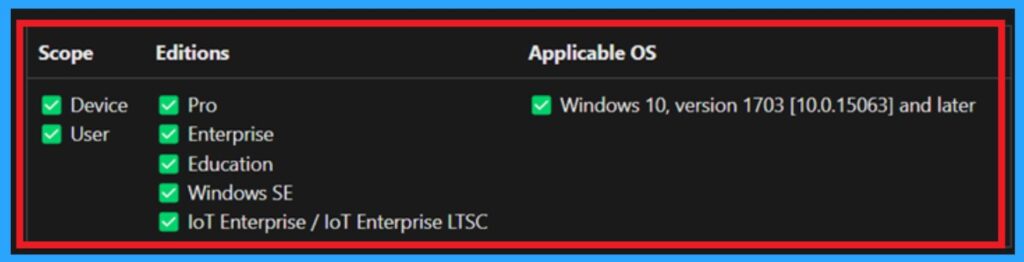
The previous discussion covered various aspects of suggested site settings and their benefits. It’s essential to mention the details of the policy’s CSP (Configuration Service Provider), as this is crucial for policy deployment. The CSP details provide the scope, version, and applicable operating system information.
This setting is only a placeholder and should not be used in a production environment. The below table shows you the details or specifications about how this setting is described.
| Property Name | Property Value |
|---|---|
| Format | chr (string) |
| Access Type | Add, Delete, Get, Replace |
- Allow or Block Hardware Keyboard Text Suggestions in Text Input using Intune Policy
- Enable Disable Defender SmartScreen For Microsoft Store Apps In Windows 11
- Turn On or Off Microsoft Defender SmartScreen for Microsoft Edge in Windows 11
Create a Policy
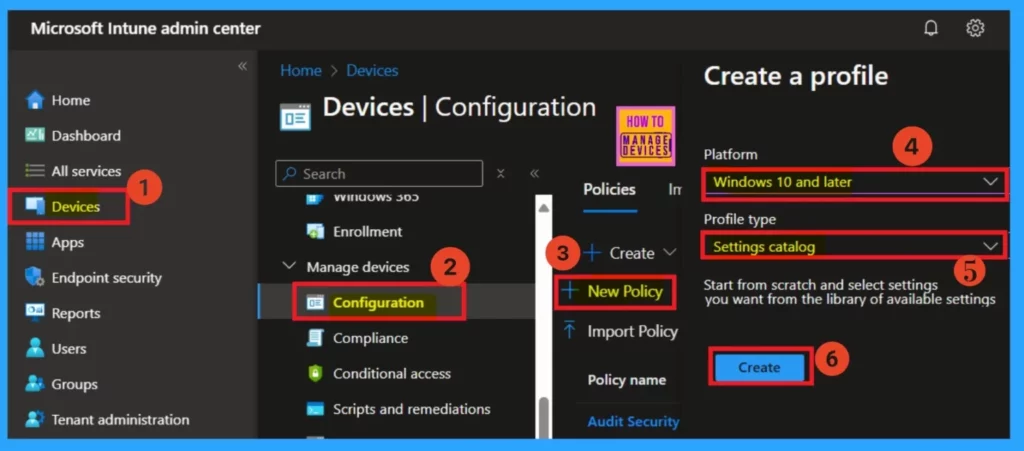
To deploy this policy through Microsoft Intune, first sign into the Microsoft Intune admin center. Next, navigate to Devices > Configurations. On the right side, you will see the option for +create; select that and then click on New Policy.
In the new policy creation process, choose the platform as “Windows 10 and later” and set the profile type to Setting Catalog. Finally, click on the “Create” option to proceed.
Basics
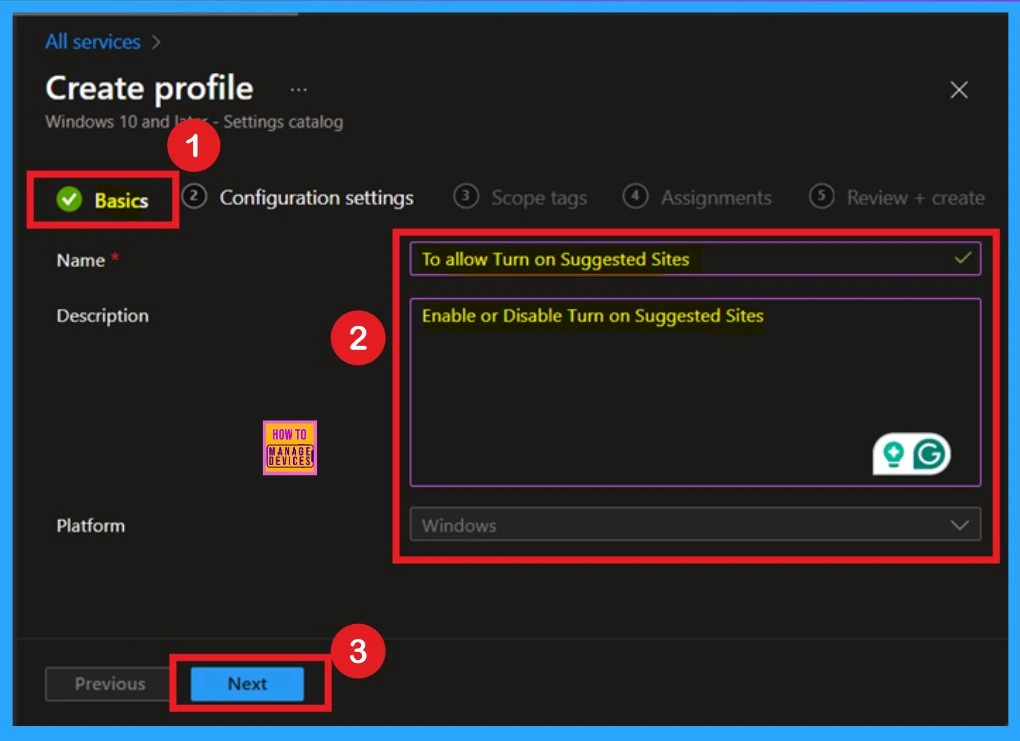
In the basic details section, you must enter essential information about a policy, including its name, description, and platform details. I will give the name to allow you to turn on suggested sites. You can add the description if you want to, as it helps you identify the policy later.
- The platform is defaultly set as Windows.
Configuration Settings
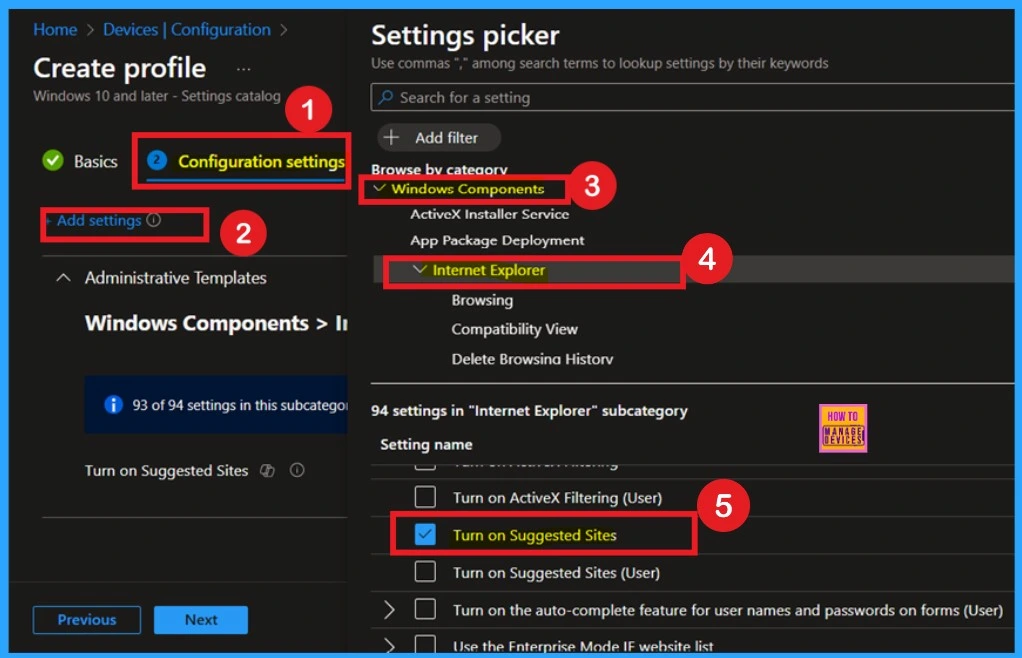
In the configuration settings, first locate the option to add settings through a hyperlink and click on it. This action will open a settings picker. Next, navigate to the administrative templates. When you expand this option, you will find “Windows Components.” Click on that and then select “Internet Explorer.” Once you click “Internet Explorer,” you will see various settings.
- Here, you can choose to turn on suggested sites.
Disable Suggested Sites in Internet Explorer
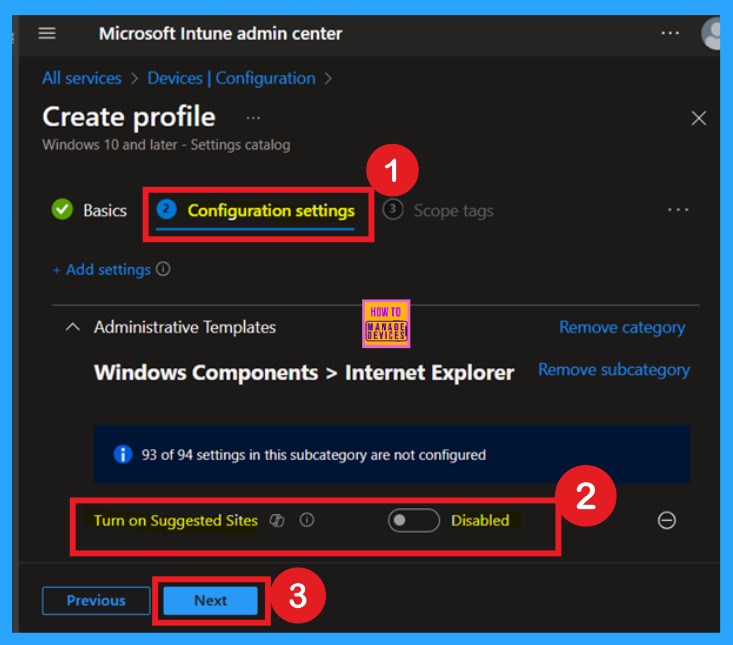
After that, you can close the settings picker window. Once you close the settings window, you will be directed to the configuration settings page. You can see the option to turn on suggested sites in your window here. This setting is turned off by default. If you want to keep this setting disabled, click the next option.
Enable Suggested Sites in Internet Explorer
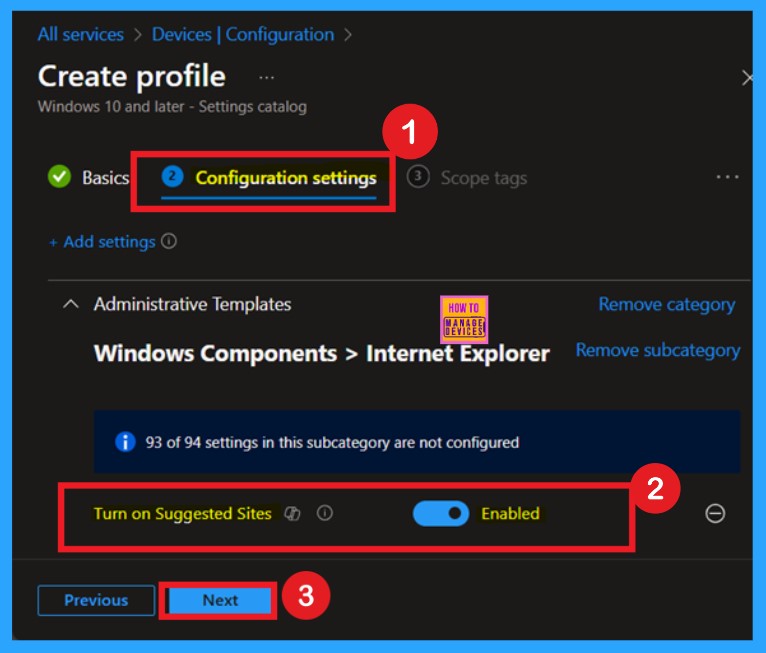
To enable this policy, you need to turn on the suggested settings. You will find a toggle switch there. Moving the toggle from left to right changes to a blue color and is labeled “Enabled.” This indicates that the option is now activated. You can now easily proceed to the next step.
Scopes
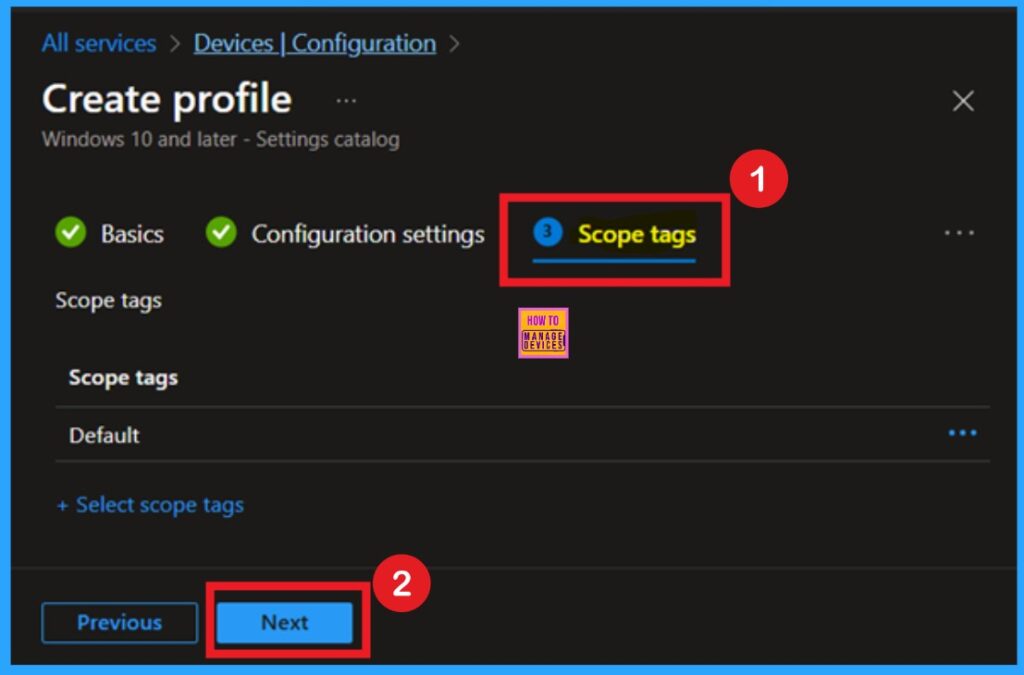
After the configuration tab, you will find the scope tags section. In this section, you can add a scope tag for the policy, but it is not mandatory; therefore, I will skip this part and click Next.
Assignments
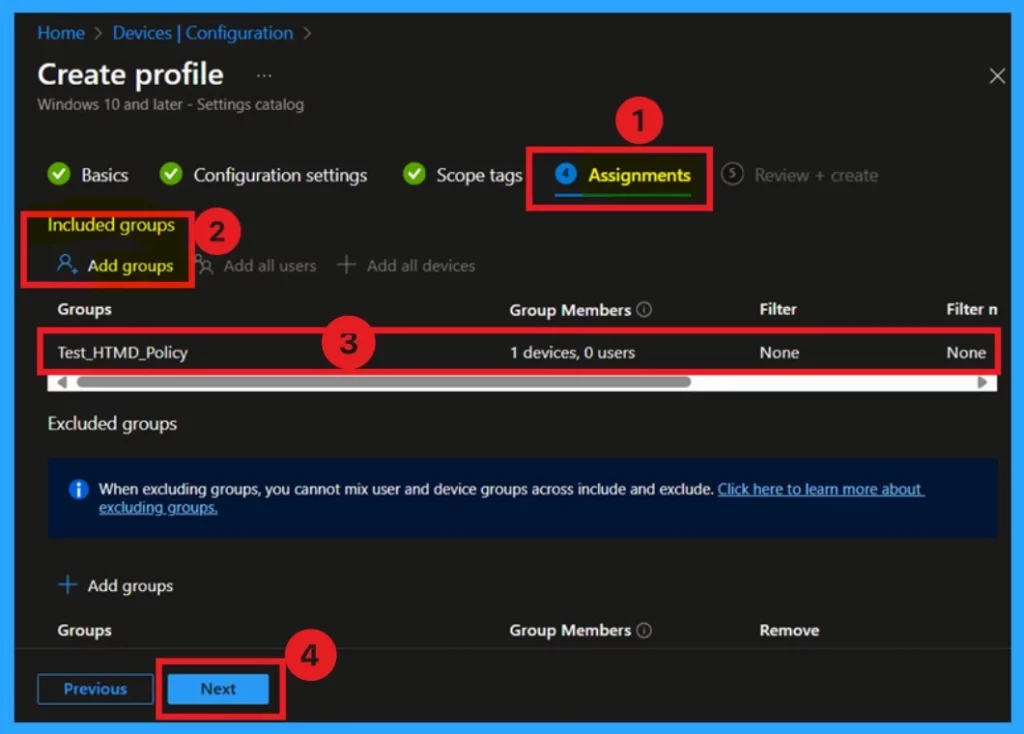
The next step is the Assignment tab, which is essential for policy deployment. In this section, you can specify the group to which you want to apply the policy. I clicked on “Add Groups” under the Include Group option. When I clicked “Add Groups,” a list of suggested groups appeared. I selected the group I wanted, and now it is visible on the assignment page. After this, click “Next” to proceed.
Review + Create
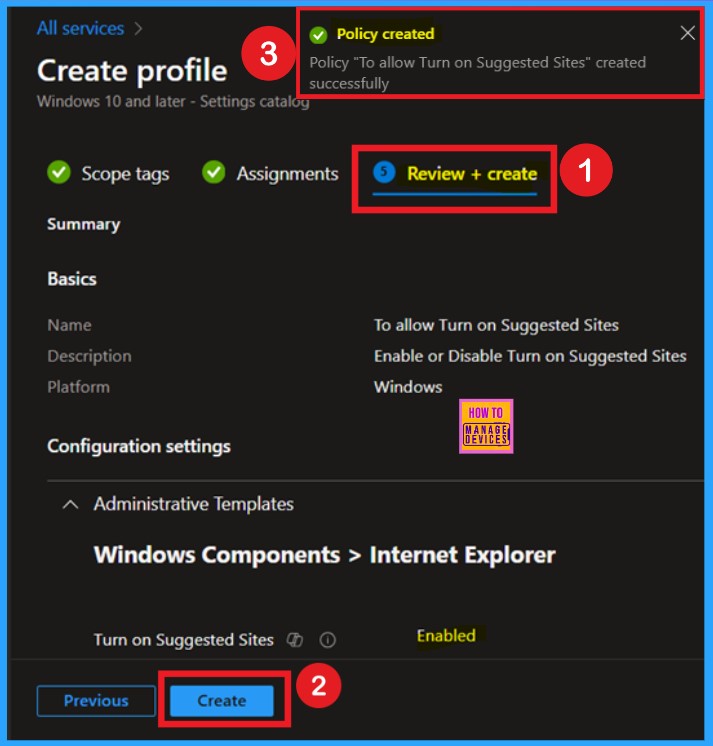
After completing the assignments, you will reach the review and create option, which is the final stage of policy creation. You can view all the details about the policy, including the basics, specifics, and configuration details. Now,click on the “Create” option. Once you click “Create,” you will receive a notification confirming that the policy has been successfully created.
Monitor Status
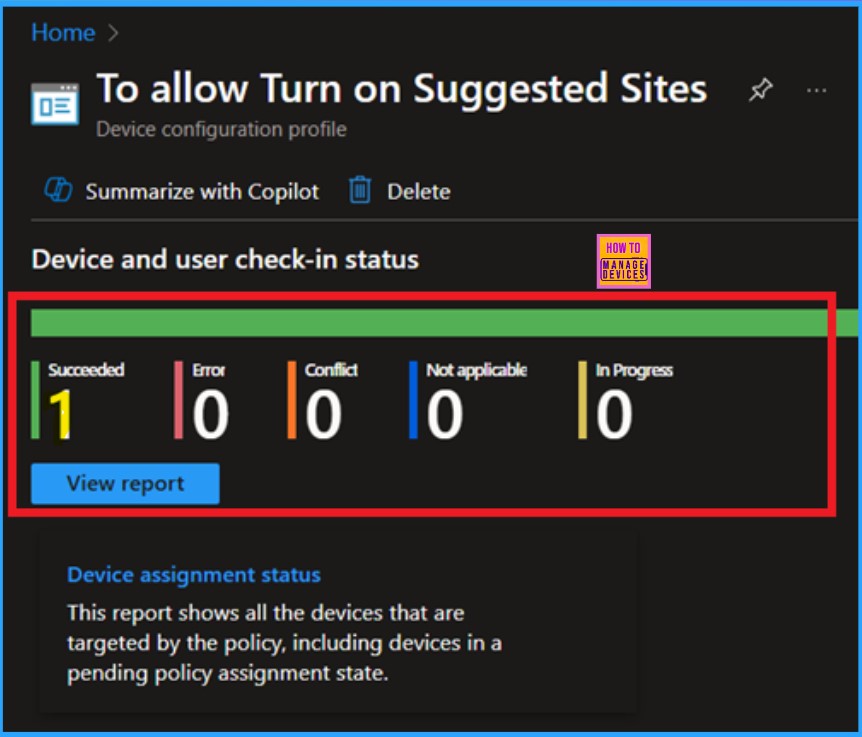
When you create a new policy for a device, it usually takes up to 8 hours to apply automatically. However, you can speed up this process by manually syncing the policy. After syncing, you can confirm that the policy has been successfully used by checking Intune.
- To do this, navigate to Device > Configuration and select the policy.
Client Side Verification
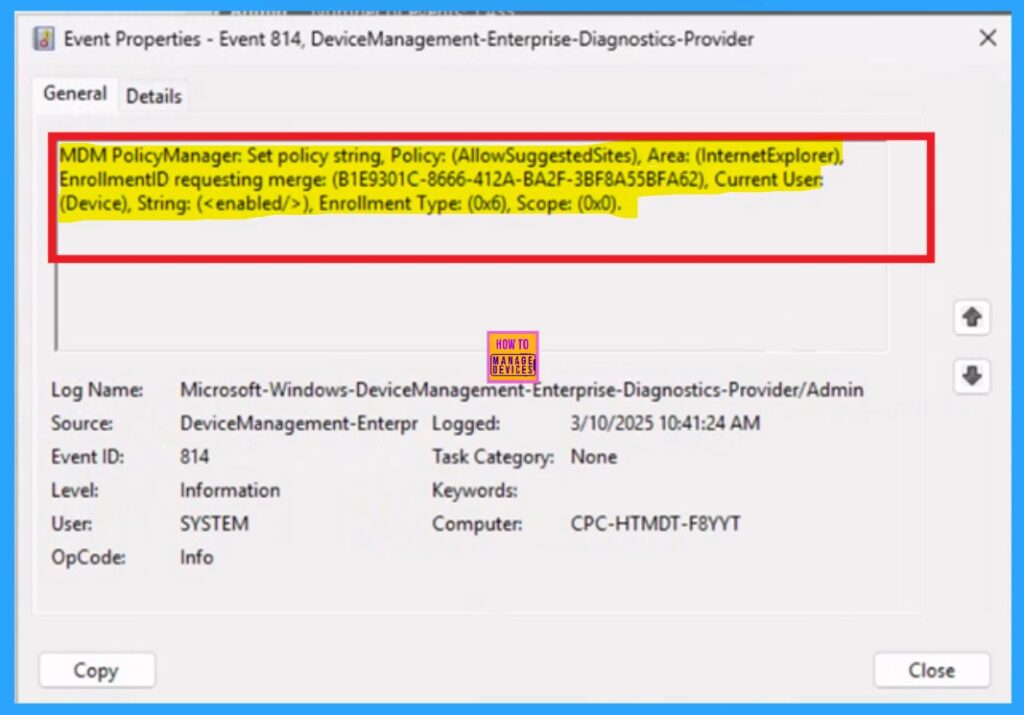
To monitor the status of Intune, you can use Event Viewer. Go to the Start and type Event Viewer. Then, navigate to Application and Services Logs > Microsoft > Windows > DeviceManagement–Enterprise–Diagnostics–Provider > Admin.
Then you will get a list of Information. In the right pane, click on “Filter Current Log.” In the filter dialog, focus on the Event IDs field and enter either 814 or 813, then click OK to apply the filter. I get the result from the 814 event Id number.
| Policy Details |
|---|
| MDM PolicyManager: Set policy string, Policy: (AllowSuggestedSites), Area: (InternetExplorer), EnrollmentiD requesting merge: (B1E9301C-8666-412A-BA2F-3BF8A55BFA62), Current User: (Device), String: (), Enrollment Type: (0x6), Scope: (0x0). |
Need Further Assistance or Have Technical Questions?
Join the LinkedIn Page and Telegram group to get the latest step-by-step guides and news updates. Join our Meetup Page to participate in User group meetings. Also, Join the WhatsApp Community to get the latest news on Microsoft Technologies. We are there on Reddit as well.
Author
Anoop C Nair has been Microsoft MVP for 10 consecutive years from 2015 onwards. He is a Workplace Solution Architect with more than 22+ years of experience in Workplace technologies. He is a Blogger, Speaker, and Local User Group Community leader. His primary focus is on Device Management technologies like SCCM and Intune. He writes about technologies like Intune, SCCM, Windows, Cloud PC, Windows, Entra, Microsoft Security, Career, etc.


Discussion