






Enable Tab Lifecycles Policy for MS Edge Browser to Optimise Performance using Intune
Let’s discuss Enable Tab Lifecycles Policy for MS Edge Browser to Optimise Performance using Intune. Tab lifecycle policy for Microsoft Edge browser is designed to manage system resources by dealing with unused browser tabs. This policy is very beneficial for all organizations.
Tab Lifecycles policy is beneficials for different scenarios. By managing tabs in Microsoft Edge with this policy, users can improve the productivity and experience. The Microsoft Edge browser will be more responsive by reducing the CPU usage and memory.
For example, Imagine you are working as an IT admin in an organization and using Microsoft Edge is the default browser. Employees, frequently feels performance issues in Edge browser and entire system slow down while using multiple tabs. After enabling this policy this issue is reduced.
When the Tab Lifecycles Policy enabled, the browser automatically, reduces CPU cycle, pauses execution and eventually discards (unloads from memory) tabs that haven’t been active for a set period. The unused tabs will paused around 30 Minutes.

Table of Contents
What are the Difference Between Sleeping Tab and Tab Life Cycle in Microsoft Edge Browser?
But Sleeping tabs” is the term used by Microsoft Edge to describe the Freezing stage of the tab lifecycle. Simply we can say “Sleeping tabs” is a part of the “tab lifecycles” process.
Enable Tab Lifecycles Policy for MS Edge Browser to Optimise Performance using Intune
As mentioned, the unused tabs will paused for some minutes. When the user clicks on one of those tabs, it quickly reloads, but the overall system performance remains high because the browser is not actively running all tabs at once.
With this policy, admins will get the complete control over browser on all devices in your organization. Ensures a consistent and optimized browsing experience for all employees, which is crucial in a large organization.
- How to Configure New Tab Page Search Box Policy in MS Edge Browser using M365 Admin Center
- Turn ON or OFF Edge Browser Additional Flexible Search Box on Your Windows Desktop Device
- Enable Additional Search Box in Edge Browser using Microsoft 365 Admin Center Policy
Steps to Start Policy Creation
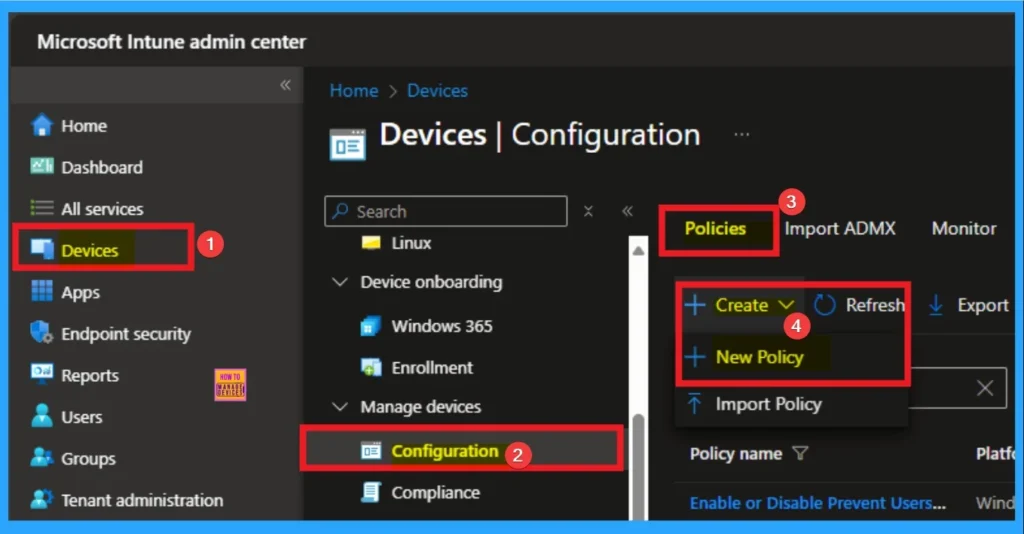
By signing in Microsoft Intune admin center, you can start configuring Tab Lifecycles Policy Policy. Open the Microsoft Intune Admin center. Go to Devices > Configuration > +Create >+ New Policy.
Selecting Profile and Platform
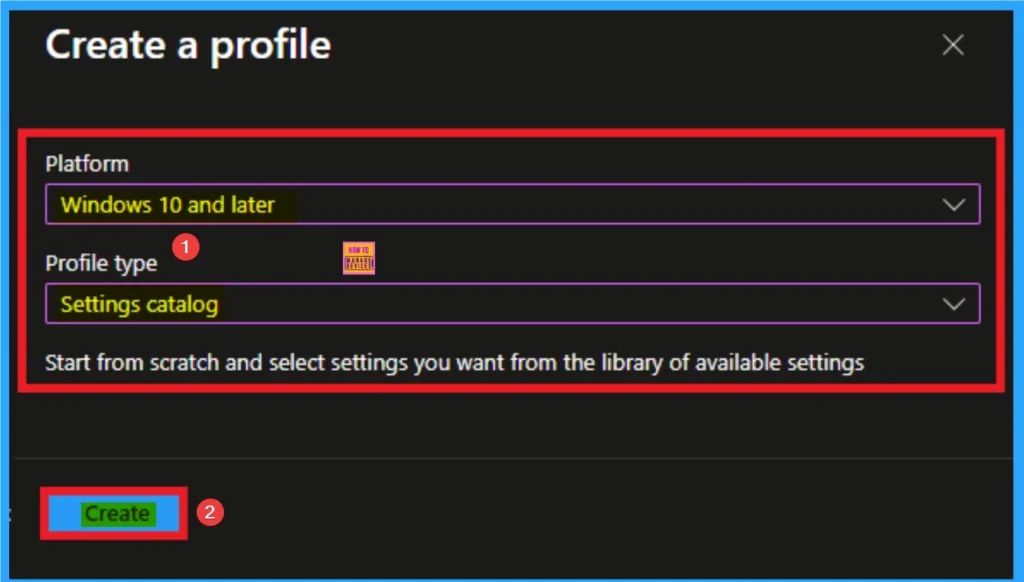
After that, you have to select platform and profile. It is important to select the platform and profile before configuring the policy. Here, I selected Windows 10 and later as the Platform and Settings catalog as the profile type. Then click on the Create button. Then you will get the basic tab.
Adding Basic Details
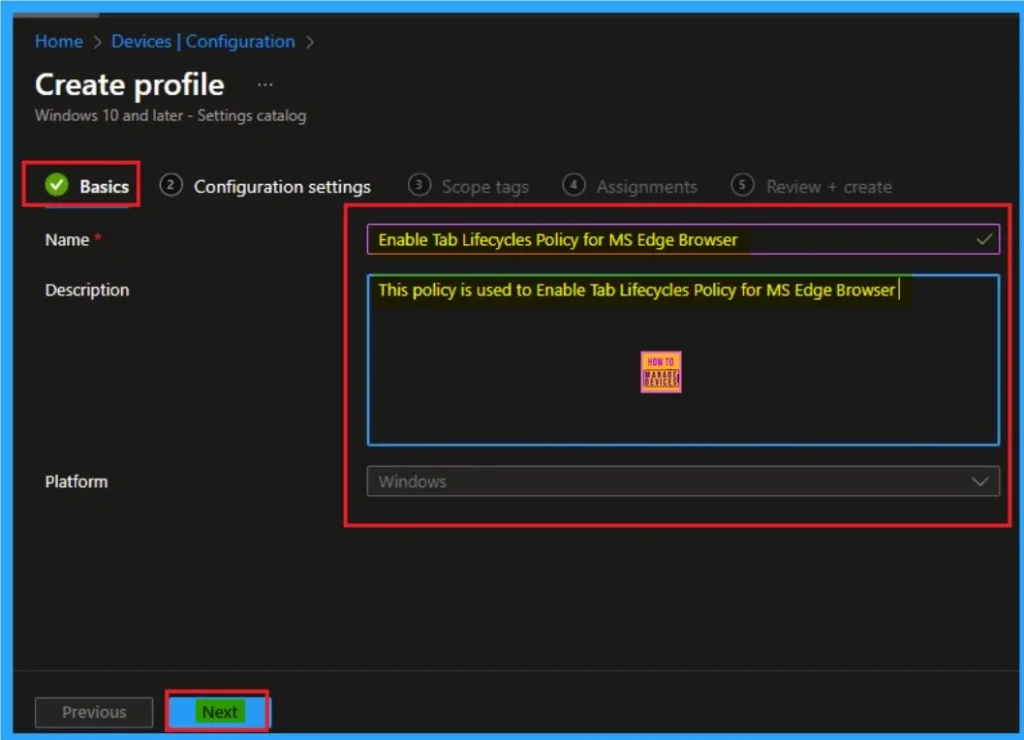
Adding basic details is necessary and important in policy creation. It gives an identify for the settings you will select to create the policy. Policy name and description is useful for identifying the policy purpose. After adding this, click on the Next button.
Configure the settings from Settings Picker
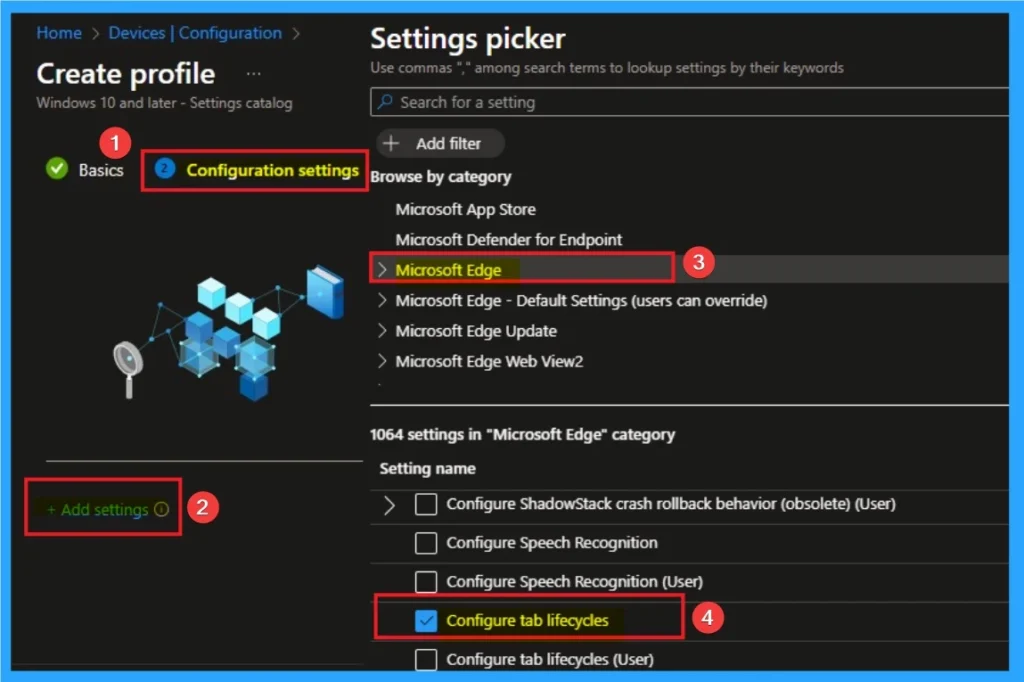
Using configuration settings tab, you can access the specific settings. For this you have to click on the +Add settings hyperlink to get the settings picker. From the Settings Picker I choose Microsoft Edge category and select the Configure tab lifecycles settings. Then you can close settings picker.
Disable Tab Lifecycles Policy
If you disable this policy, the tab lifecycles feature is disabled, and all tabs are left running normally. By default, this policy is disable. If you want to disable the Click on the Next button.
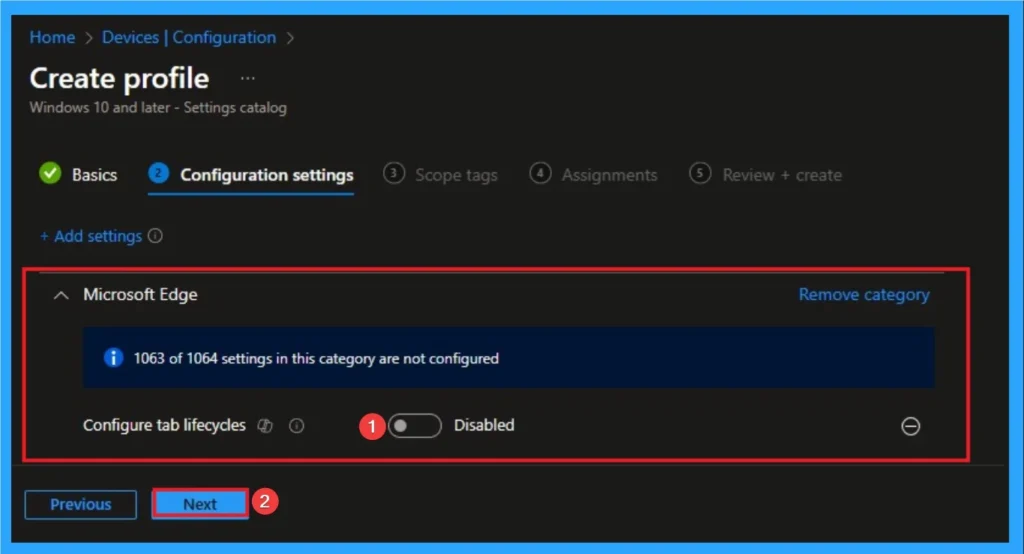
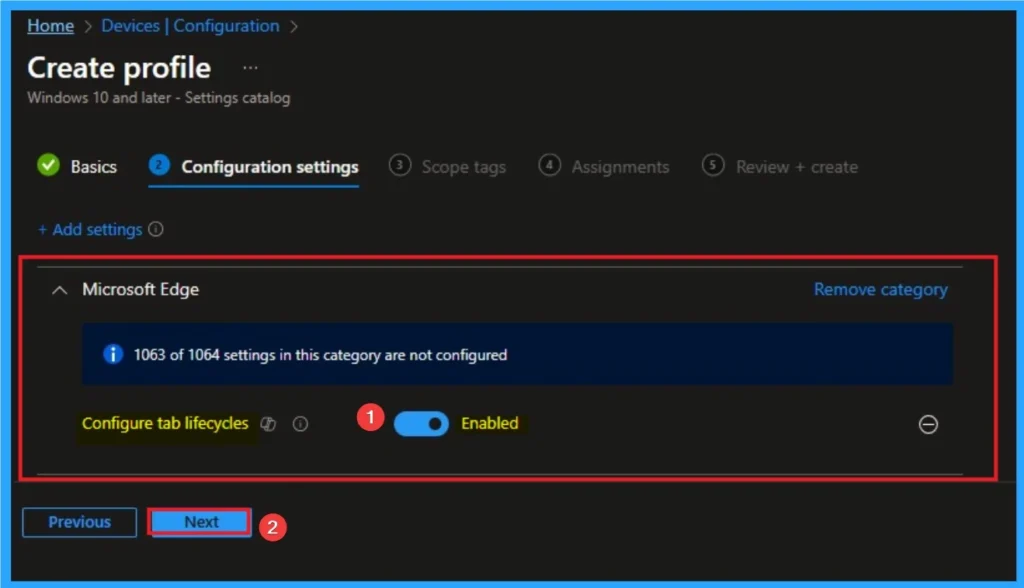
Enable Tab Lifecycles Policy
By enabling this policy, admins can address performance issues before they become widespread problem. Users can enhance the battery life with this policy. Here, I would like to enable the Tab Lifecycles Policy.
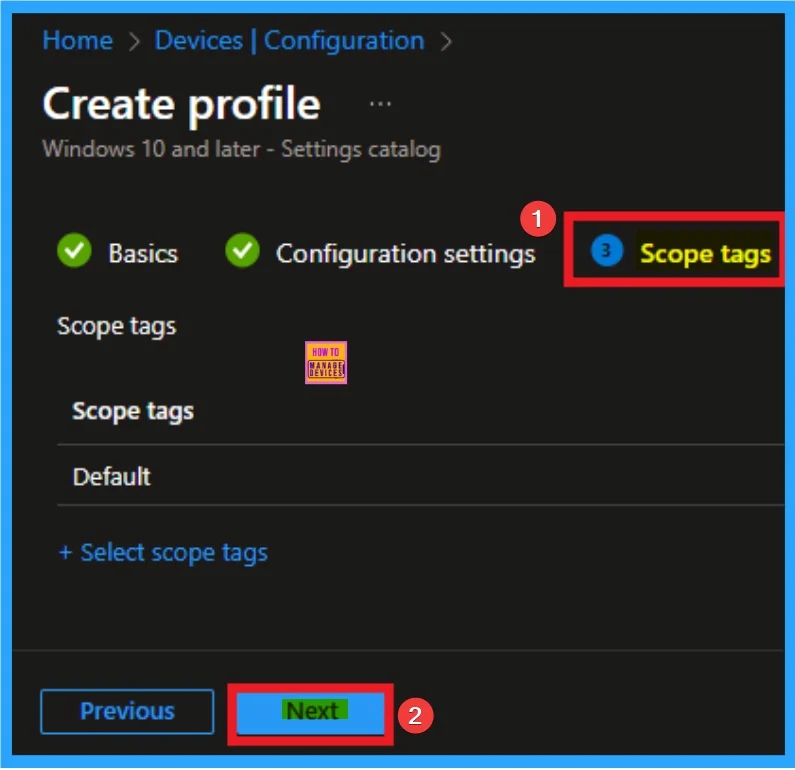
Scope Tags for Policy
With scope tags, you create a restriction to the visibility of the Tab Lifecycles. It also helps to organise resources. Here, I would like to skip this section, because it is not mandatory. Click on the Next button.
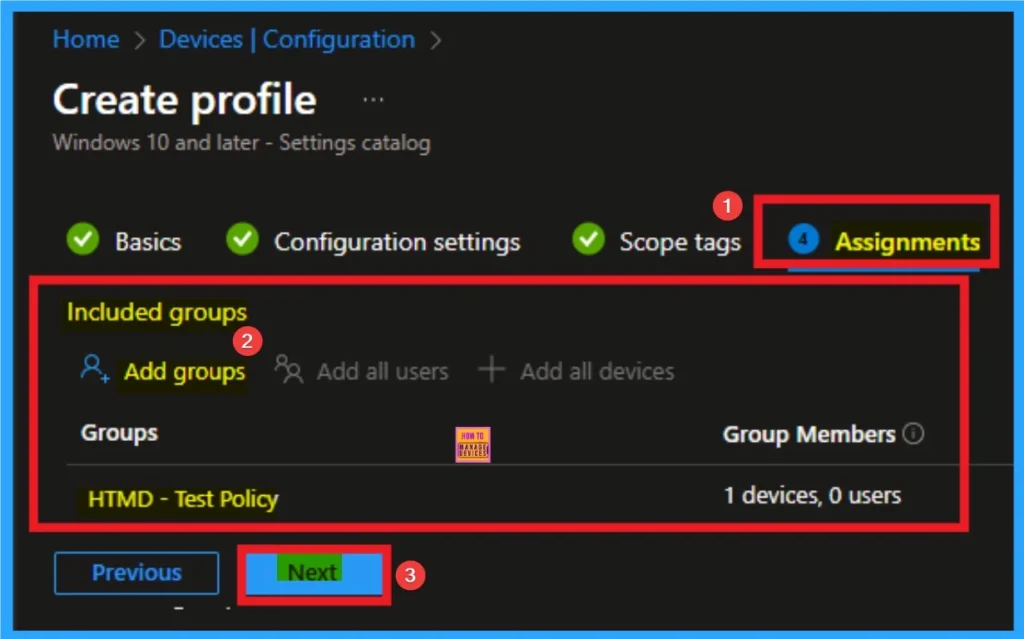
Assigning Specific Groups
To assign the policy to specific groups, you can use the Assignment Tab. Here I click, +Add groups option under Included groups. I choose a group from the list of groups and click on the Select button. Again, I click on the Select button to continue.
Review + Create Tab for Policy Creation
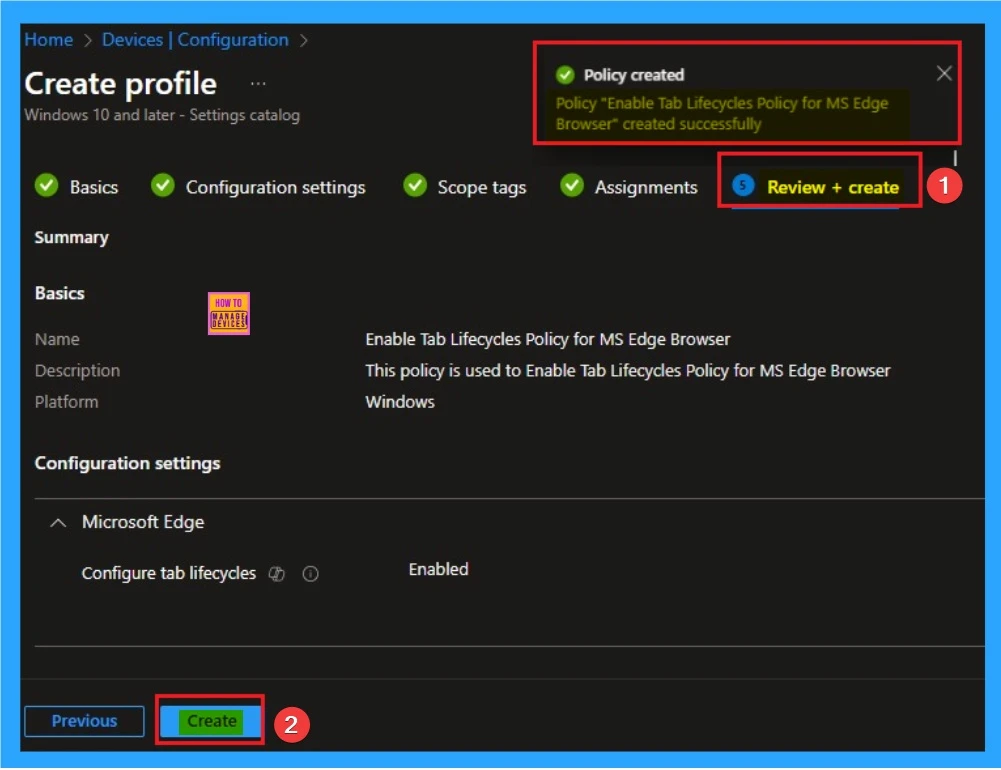
Review + Create Tab helps you recheck all the details of the policy you entered on all the tabs. After verifying all the details, click on the Create Button. After creating the policy, you will get a success message.
Monitoring Status
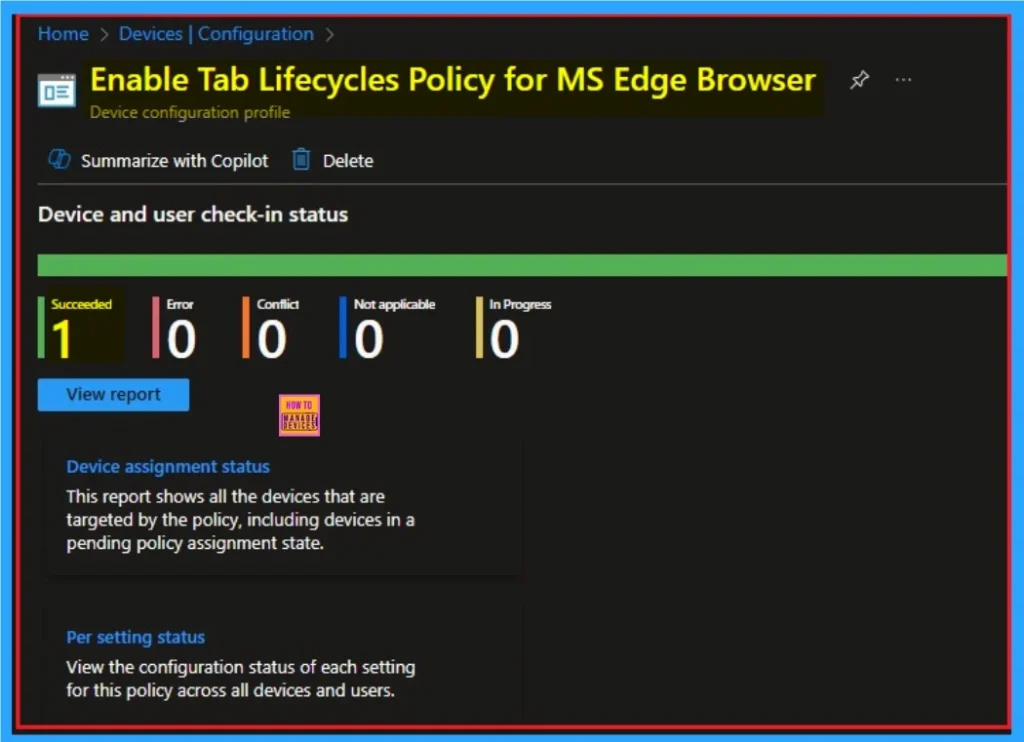
The Monitoring Status page shows if the policy is succeeded or not. o quickly configure the policy and take advantage of the policy sync the assigned device on Company Portal. Open the Intune Portal. Go to Devices > Configuration > Search for the Policy. Here, the policy shows as successful.
Event Viewer Details
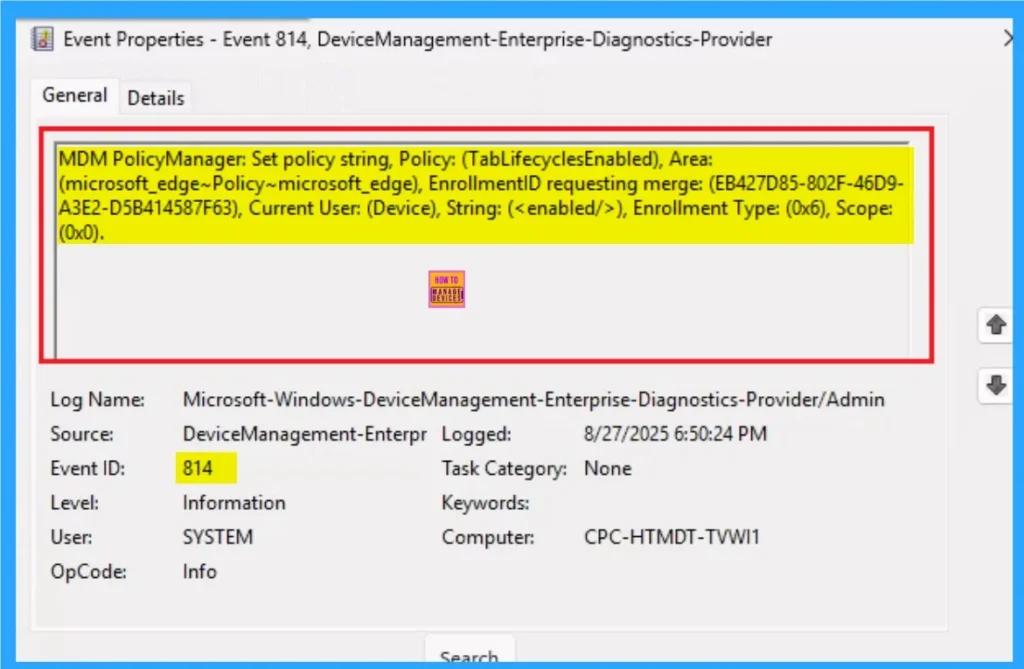
Event Viewer helps you check the client side and verify the policy status. Open the Client device and open the Event Viewer. Go to Start > Event Viewer. Navigate to Logs: In the left pane, go to Application and Services Logs > Microsoft > Windows > DeviceManagement-Enterprise-Diagnostics-Provider > Admin
- Filter for Event ID 814: This will help you quickly find the relevant logs.
| Event ID Details |
|---|
| MDM PolicyManager: Set policy string, Policy: (TabLifecyclesEnabled), Area: (microsoft_edge~Policy~microsoft_edge), EnrollmentID requesting merge: (EB427D85-802F-46D9- A3E2-D5B414587F63), Current User: (Device), String: (), Enrollment Type: (0x6), Scope: (0x0). |
Removing the Assigned Group from these Settings
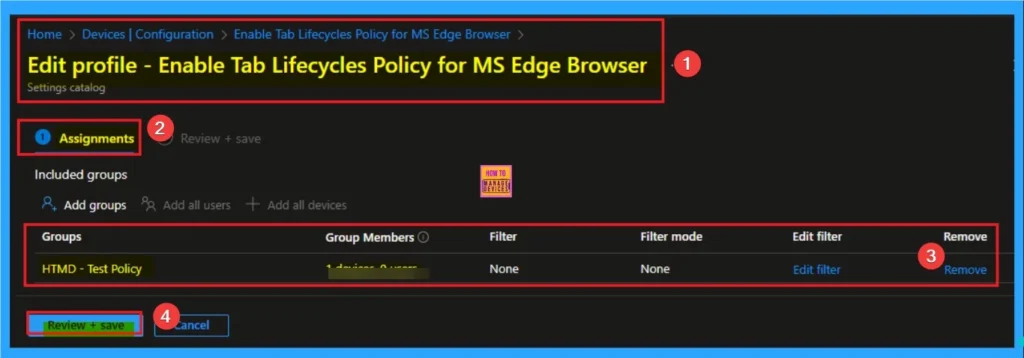
If you want to remove the Assigned group from the policy, it is possible from the Intune Portal. To do this, open the Policy on Intune Portal and edit the Assignments tab and the Remove Policy.
To get more detailed information, you can refer to our previous post – Learn How to Delete or Remove App Assignment from Intune using by Step-by-Step Guide.
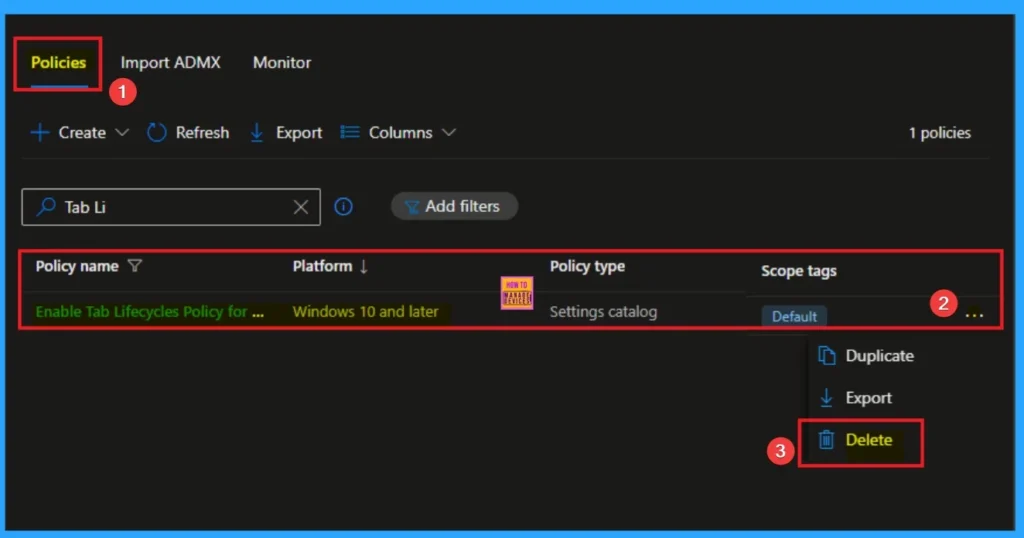
How to Delete Tab Lifecycles Policy
You can easily delete the Policy from the Intune Portal. From the Configuration section, you can delete the policy. It will completely remove it from the client devices.
For detailed information, you can refer to our previous post – How to Delete Allow Clipboard History Policy in Intune Step by Step Guide.
Need Further Assistance or Have Technical Questions?
Join the LinkedIn Page and Telegram group to get the step-by-step guides and news updates. Join our Meetup Page to participate in User group meetings. Also, Join the WhatsApp Community to get the latest news on Microsoft Technologies. We are there on Reddit as well.
Author
Anoop C Nair has been Microsoft MVP for 10 consecutive years from 2015 onwards. He is a Workplace Solution Architect with more than 22+ years of experience in Workplace technologies. He is a Blogger, Speaker, and Local User Group Community leader. His primary focus is on Device Management technologies like SCCM and Intune. He writes about technologies like Intune, SCCM, Windows, Cloud PC, Windows, Entra, Microsoft Security, Career, etc.


It’s failed on Edge Version 142.0.3595.53
Policy Name
Policy Value
Source
Applies To
Level
Status
Show More
Search result match: TabLifecyclesEnabled
1
Platform
Current user
Mandatory
Error