






New Teams and Outlook Calendar Enhanced Displays Personalization and Scheduling Efficiency
Let’s discuss the New Teams and Outlook Calendar Enhanced Displays Personalization and Scheduling Efficiency. Now that Outlook and Teams calendars are combined, users will have a consistent experience with both services.
This calendar includes the latest features from Microsoft Copilot and Places to improve your scheduling and time management. It works seamlessly with Outlook so that you can enjoy the same modern calendar in Teams and Outlook.
The new Teams calendar integrates with Outlook, giving a unified experience with expanded features like delegate access, print support, expanded calendar settings, filtering, support for multiple time zones, time suggestions in scheduling, support for attachments, and more.
This updated calendar aims to be easy to use and dependable. The following sections of this blog post will detail these enhancements and other new features in the updated Teams calendar.

Table of Contents
New Teams and Outlook Calendar
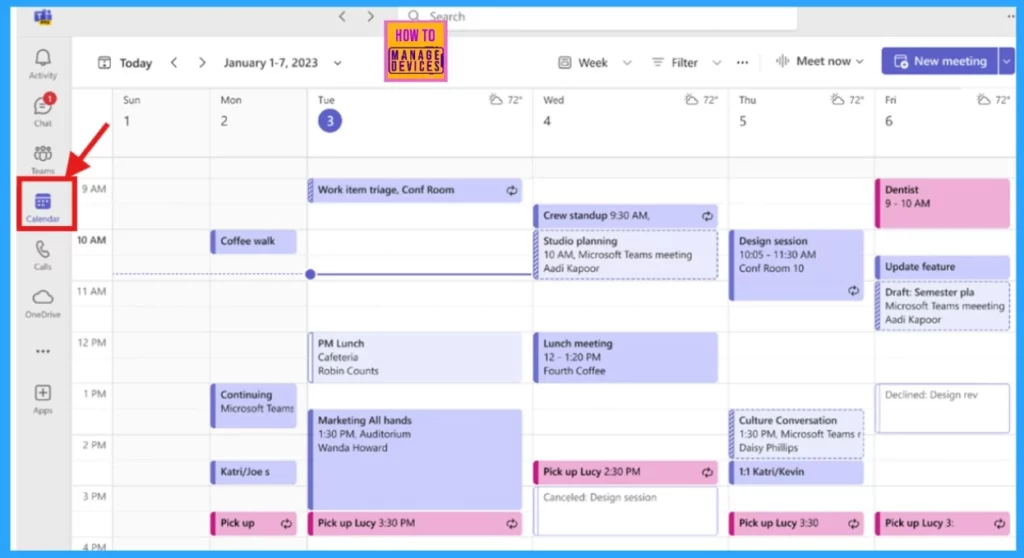
The new Teams calendar features advanced tools that make it easier to use. It combines functions from Copilot and Places, including managed booking from Copilot, workplace presence, and the Places card. Teams Premium users can also access extra features like QuickBooks and Places Finder.
- Turn Off Turn On Notifications in Microsoft Teams Channel Posts
- Enable CART Captions in Teams Meetings | Live Captioning
- Create Offline Meetings In Microsoft Teams
Enhanced Calendar Displays
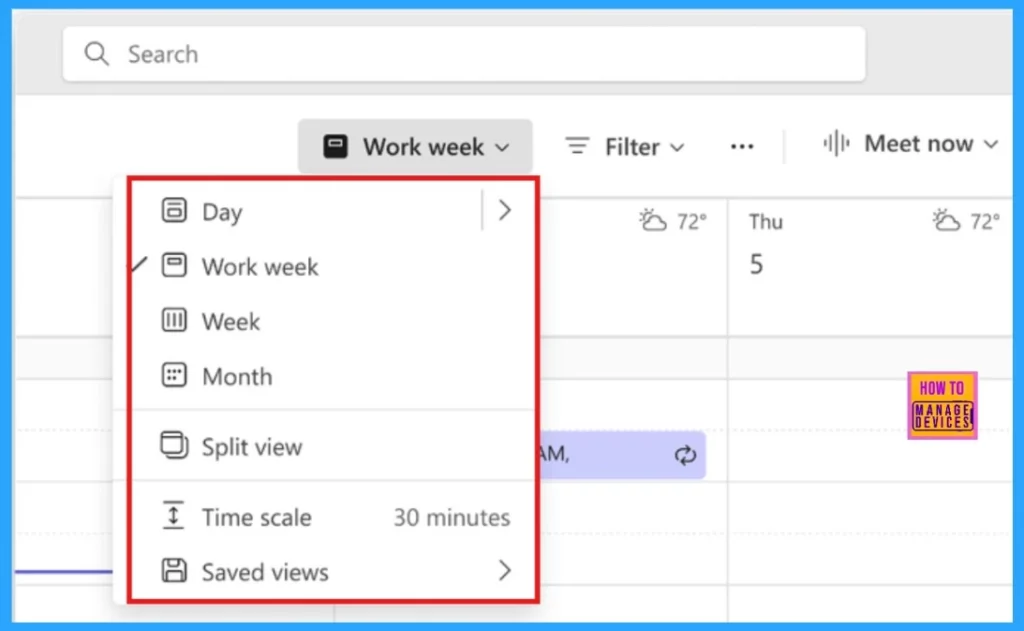
One significant change in this update is the introduction of new calendar views. The updated Teams calendar now offers a variety of views and navigation options to improve user comfort. The following table provides a brief description of these options.
| Calendar Views | Description |
|---|---|
| Time Scale | Specify the calendar’s time scales or intervals (e.g., daily, weekly, monthly). |
| Month View | You can now view your calendar by month. This feature was highly demanded and is especially helpful for users with few events on their calendars. |
| Split View | You can now split the calendar view when multiple calendars are selected. |
| Weather Display | View local weather conditions directly within your calendar. |
| Saved Views | Save your preferred calendar view for quick access. |
Calendar Personalization
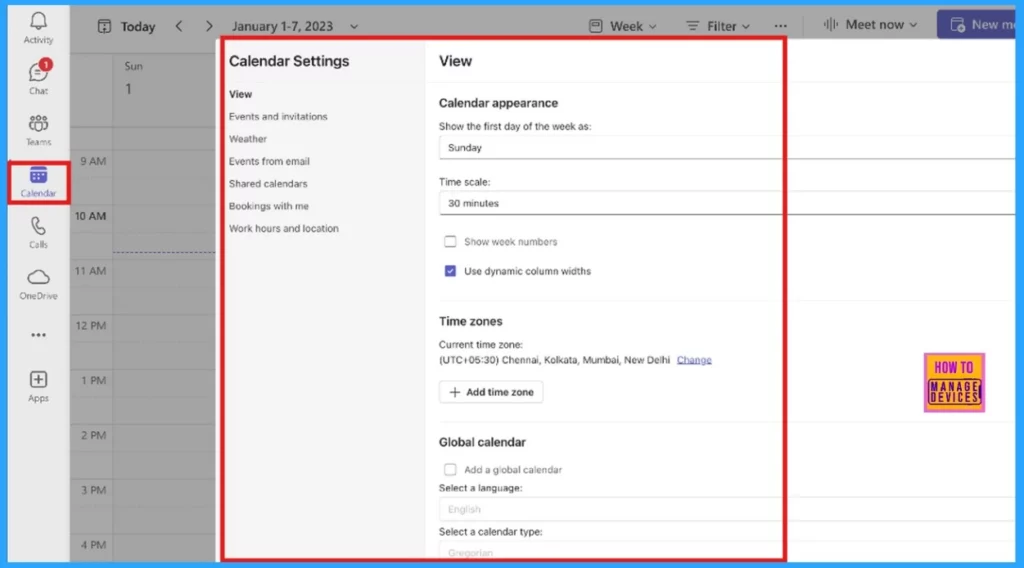
You can personalize your calendar with customizable settings, such as event start and end times, location preferences, etc. You can also share your calendar easily with colleagues and print it as needed. The calendar can also be opened in a separate window for improved multitasking.
Time-saving Scheduling
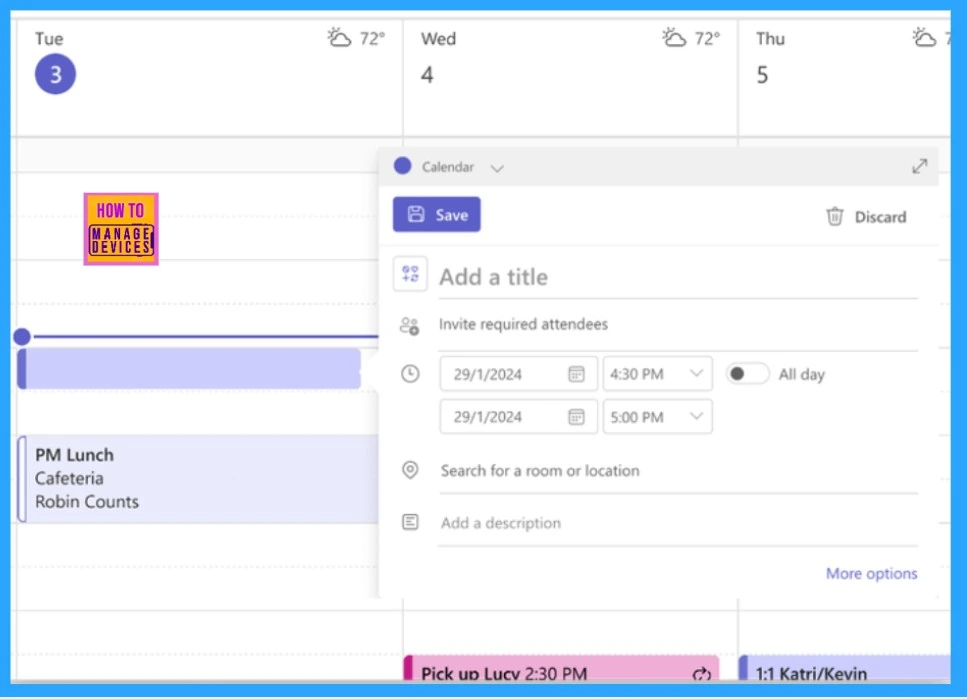
Scheduling meetings is now simple. You can easily start a meeting by clicking on a time slot in your calendar or by using the new scheduling form. This form has updated meeting options and templates designed for different types of meetings. Also, meeting artefacts are accessible directly from the peek view.
- For instance, left-clicking an event opens its recap.
Try the New Calendar
Experience the updated calendar in Teams to enhance your scheduling. Follow these steps to use the new calendar.
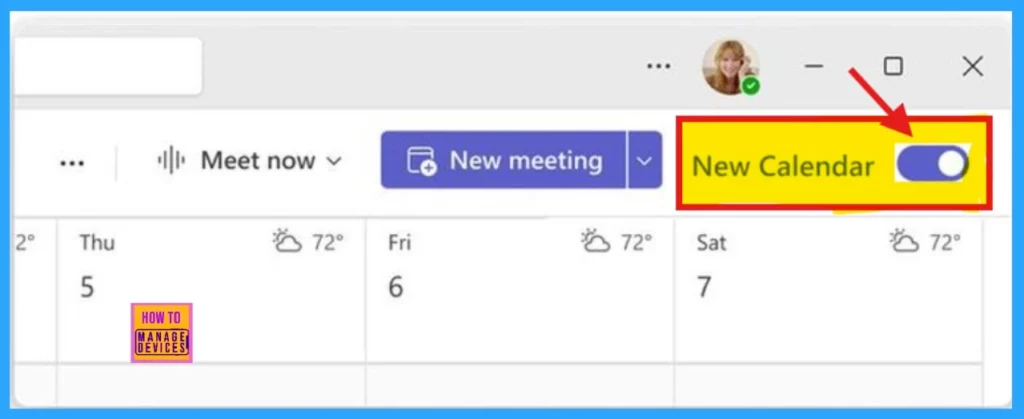
- Open the Teams desktop client and go to the Calendar app.
- Click the New Calendar toggle in the top-right corner of the calendar.
- The new calendar will load within a few seconds.
You can switch back to the classic version anytime. Just turn off the toggle in the new calendar, and it will automatically open the classic version.
Resources
Need Further Assistance or Have Technical Questions?
Join the LinkedIn Page and Telegram group to get the latest step-by-step guides and news updates. Join our Meetup Page to participate in User group meetings. Also, Join the WhatsApp Community to get the latest news on Microsoft Technologies. We are there on Reddit as well.
Author
Anoop C Nair has been Microsoft MVP for 10 consecutive years from 2015 onwards. He is a Workplace Solution Architect with more than 22+ years of experience in Workplace technologies. He is a Blogger, Speaker, and Local User Group Community leader. His primary focus is on Device Management technologies like SCCM and Intune. He writes about technologies like Intune, SCCM, Windows, Cloud PC, Windows, Entra, Microsoft Security, Career, etc.




Discussion