






Best Method to Prevent Microsoft Teams from Office New Installations or Updates using Intune
In this article am going to discuss with you how to Prevent Microsoft Teams from Office New Installations or Updates using Microsoft Intune. To prevent Microsoft Teams from installing during new Office installations or updates via Intune, you can use the Settings Catalog option.
Within the Microsoft Office configuration settings, there is an option to control Teams installation behavior. By configuring the “Prevent Microsoft Teams from installing with Office” setting, you can ensure that Teams does not automatically install when deploying or updating Office applications.
Additionally, you can use Office Deployment Tool (ODT) or Group Policy for more granular control if required. If Teams was already installed, you can create an uninstall policy using PowerShell scripts in Intune to remove Teams from existing devices. This approach ensures a controlled Office deployment without unintended Teams installations.
Many organizations prefer to manage Teams deployment separately, using Intune’s app deployment policies, to ensure it aligns with company policies, security requirements, and version control strategies. If a company has a phased adoption plan or only specific departments require Teams, preventing its auto-installation allows IT admins to selectively deploy and configure Teams as needed. This approach ensures a more structured and manageable deployment process across the organization.


Table of Contents
Why to Prevent Microsoft Teams from Office New Installations or Updates
Here’s a table comparing the reasons for not installing Microsoft Teams with new Office installations versus using the Intune Settings Catalog to control Office updates.
| Factor | Avoid Installing Teams with Office Installation | Control via Intune Settings Catalog |
|---|---|---|
| Use Case | Prevents Teams from being installed when deploying Office. | Manages Teams installation behavior for existing Office deployments. |
| Configuration Method | Use Office Deployment Tool (ODT) or Group Policy. | Configure via Microsoft Intune (Settings Catalog). |
| Implementation | Modify XML file (ExcludeApp ID=”Teams”) or use GPO. | Apply “Exclude Teams” policy in Intune. |
| Impact on Devices | Ensures Teams is never installed with Office. | Allows IT admins to manage Teams separately after deployment. |
| Best for | New deployments or fresh installations. | Managing updates and changes post-installation. |
| Requires Reinstallation? | No, prevents installation from the start. | No, but applies only to future updates or reinstalls. |
| Intune Dependency | No, can be configured via ODT or GPO. | Yes, requires Intune for policy enforcement. |
| Control Granularity | Static, applies at installation time. | Dynamic, can be changed anytime via Intune policies. |
- Simple Method to Disable Office Online Repair with Intune PowerShell Script
- Microsoft Teams Introduces Super Resolution AI-Enhanced Video Quality
- Big Changes in Microsoft Teams App Chats Teams and Channels moving into one place under Chat
- Easy Method to Install Speech Pack using Microsoft Intune
Create a Configure Policy to Prevent Microsoft Teams from Office New Installations or Updates in Intune
Follow the below-mentioned steps to create a configuration policy to Prevent Microsoft Teams from Office New Installations or Updates using Microsoft Intune. First, Sign In to the Microsoft Intune Admin Center with your Intune administrator credentials.
- Navigate to Devices > Windows > Manage devices > Configuration
- Click on +Create > +New Policy
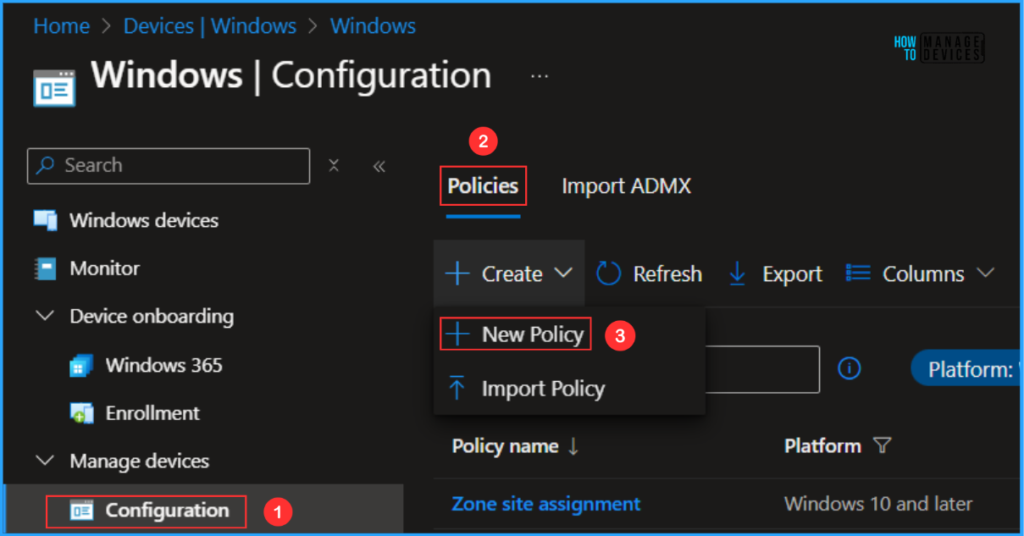
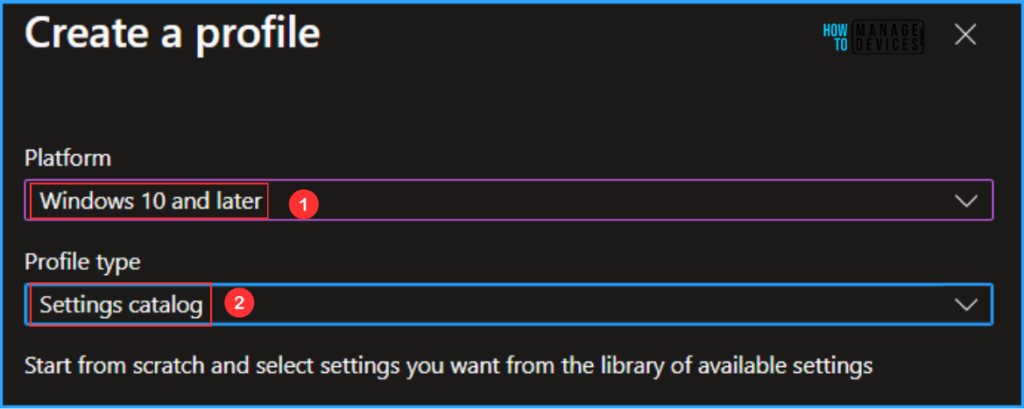
In the next step, we can create a new Configuration profile from scratch. First, we need to provide the options mentioned below.
- Platform: Windows 10 and later
- Profile type: Settings catalog
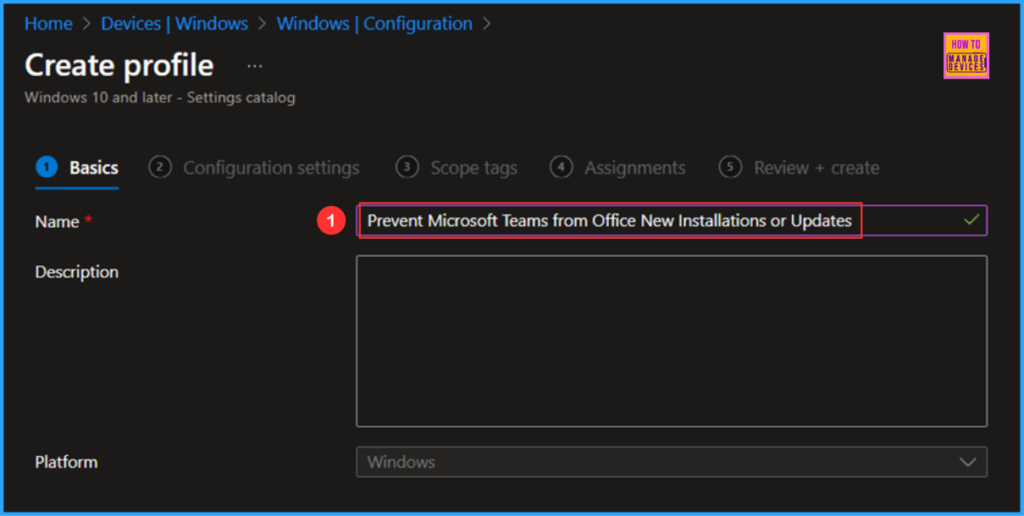
On the Basics details page, we can name the configuration policy as “Prevent Microsoft Teams from Office New Installations or Updates” if needed, briefly describe the policy use in detail and then click Next.
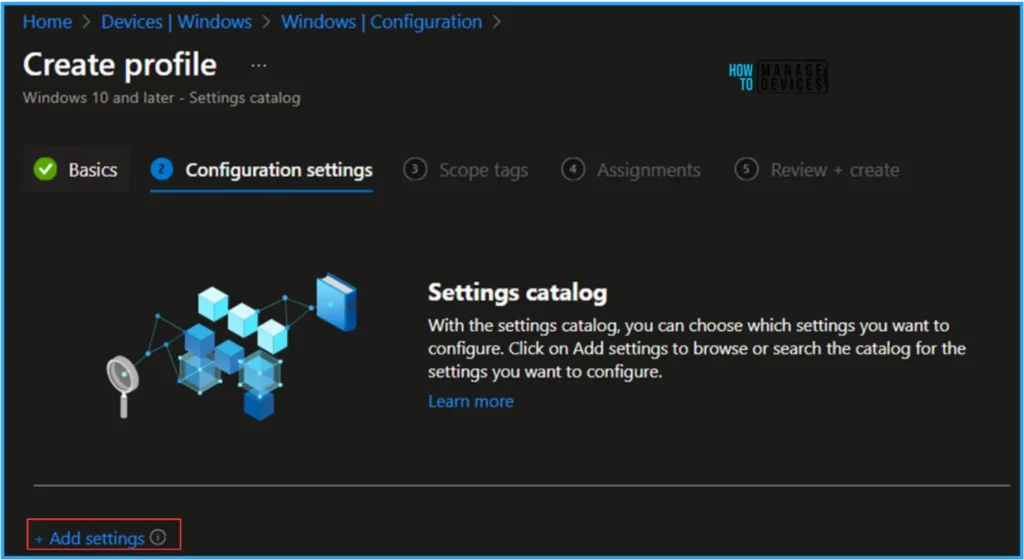
We can now add the required settings to the Configuration Settings pane. To do that, click +Add settings in the bottom left corner of the page.
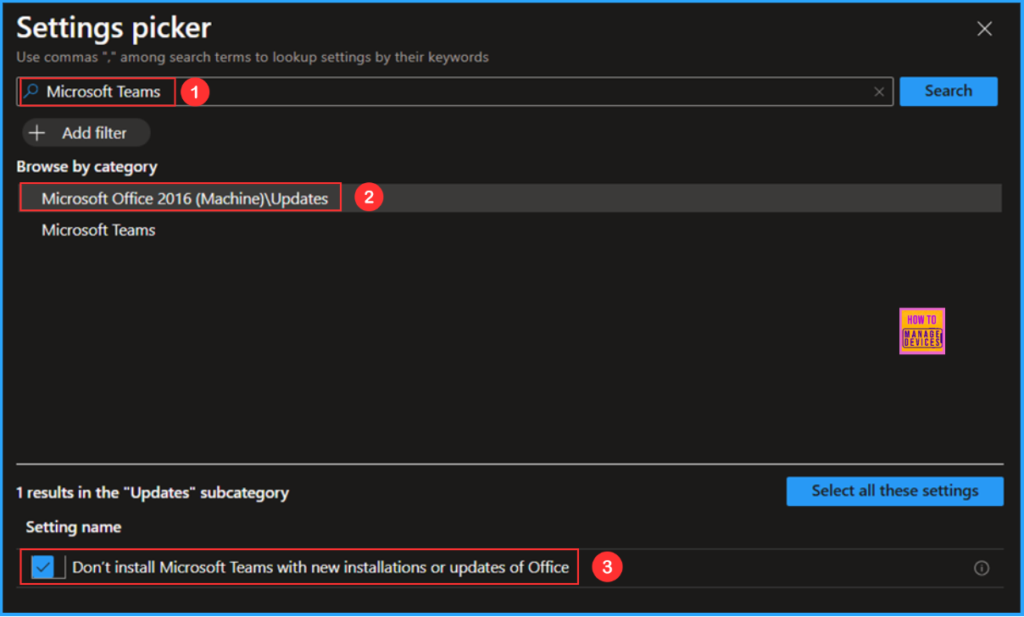
Search “Microsoft Teams” as a keyword. This will help us to find the correct policy based on our your current need. Now you can see the browse by category found as Microsoft Office 2016 (Machine)\Updates. Click that and check the “Don’t install Microsoft Teams with new Office installations or updates of Office” Settings name and close the Settings picker window.
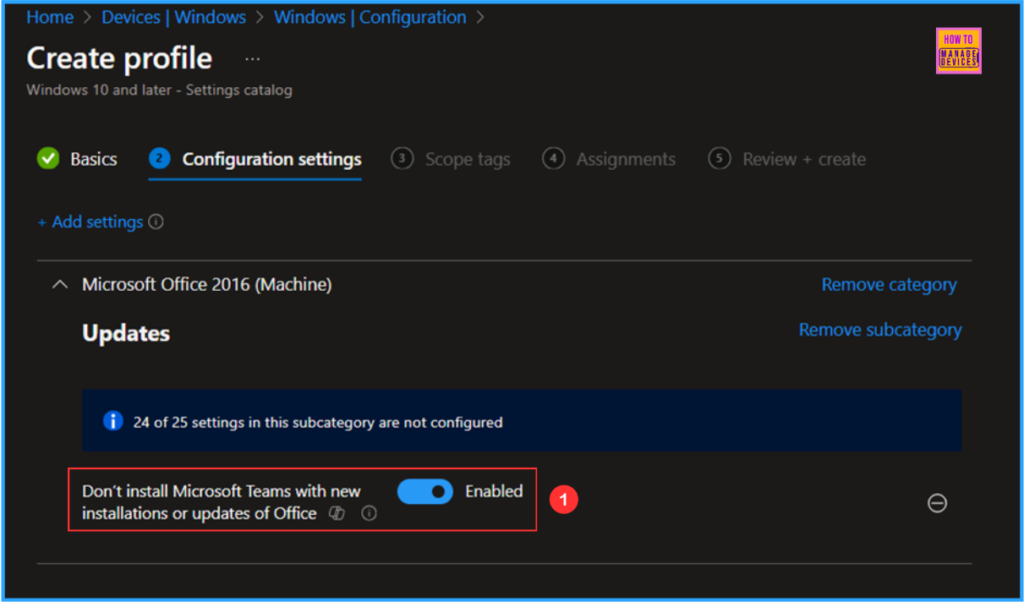
On the current Configuration settings page, toggle on the Don’t install Microsoft Teams with new Office installations or updates of Office option and click Next.
Note! This policy setting allows you to control whether Microsoft Teams is installed with a new installation of Office or when an existing installation of Office is updated. This policy setting only applies to versions of Office, such as Office 365 ProPlus, where Teams is installed with a new installation or an update of Office.
If you enable this policy setting, Teams won’t be installed with a new installation or an update of Office. If you disable or don’t configure this policy setting, Teams will be installed as part of a new installation or an update of Office, unless you have used some other method, such as the Office Deployment Tool, to exclude the installation of Teams.
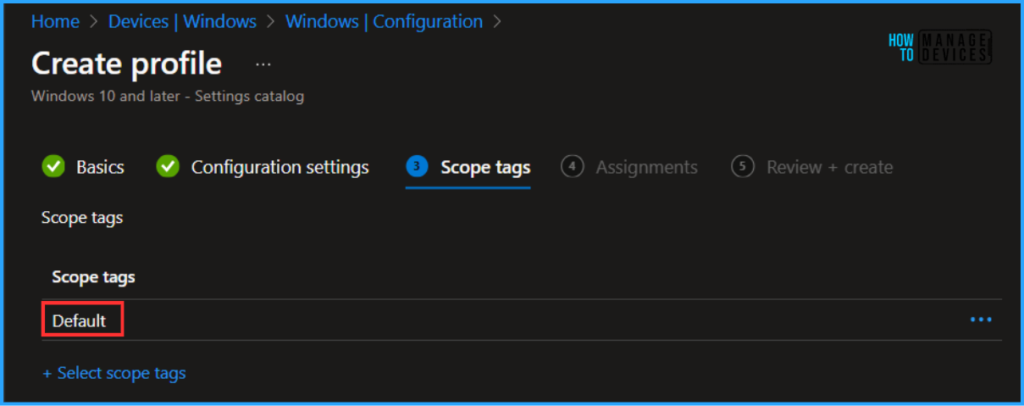
On the next page, Leave the Scope tags as Default. If your tenant has custom scope tags, you can select them based on your policy needs then Click on Next.
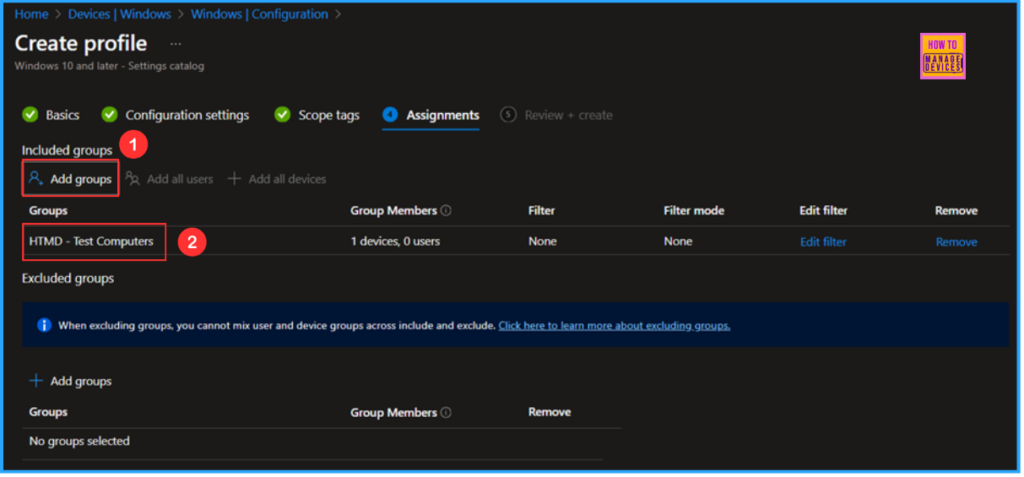
Here, I am assigning the configuration policy to HTMD – Test Computers a Device Group. To do that, click Add Groups and select a required device group under the Included Groups option. Not using any Filter in this example, and the Excluded Groups option was also left blank.
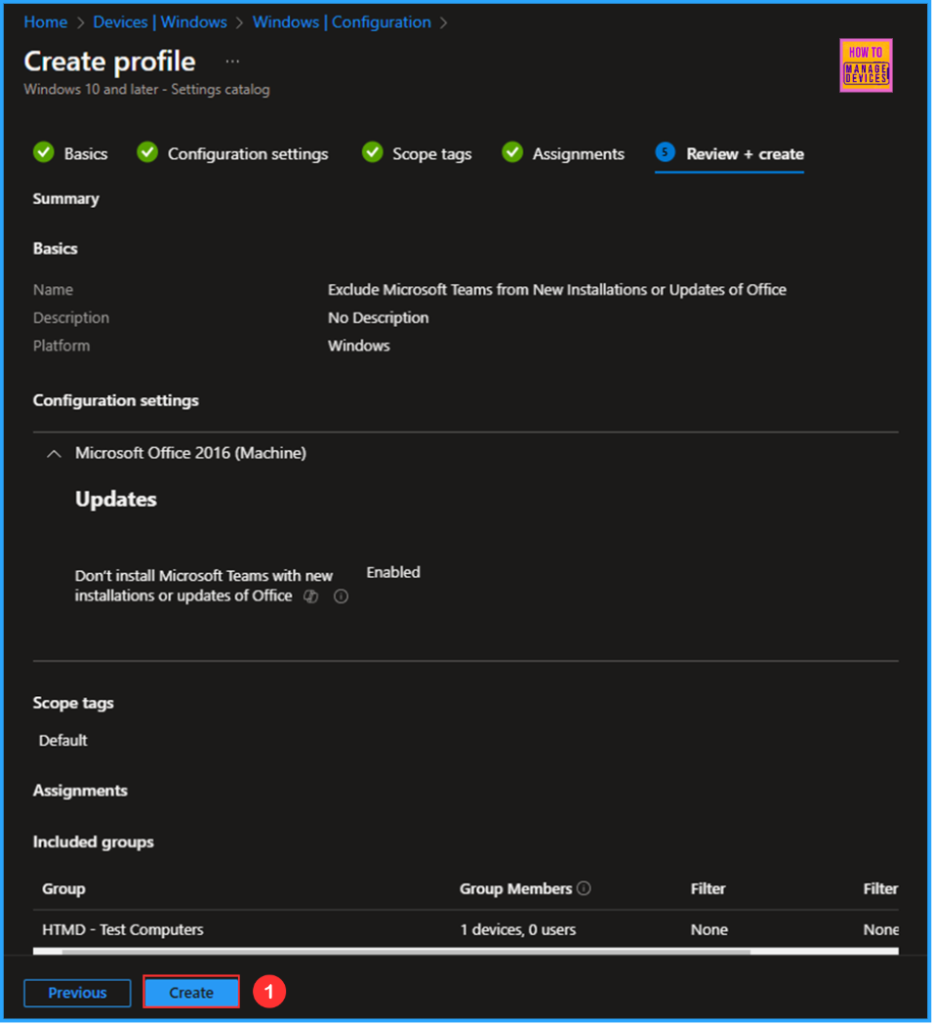
On the Review + create page, carefully review all the settings you’ve defined for the Prevent Microsoft Teams from Office New Installations or Updates policy. Once you’ve confirmed everything is correct, select “Create” to deploy the policy.
- Shared Tab in Chat Microsoft Teams Introducing the Best Way to Access Files and Links in a Chat
- Take Control During Screen Sharing Now Available in Teams for the Web
- How to use the Update option in Intune Enterprise App Catalog apps by Vaishnav
Monitor the Prevent Microsoft Teams from Office New Installations or Updates Policy Deployment
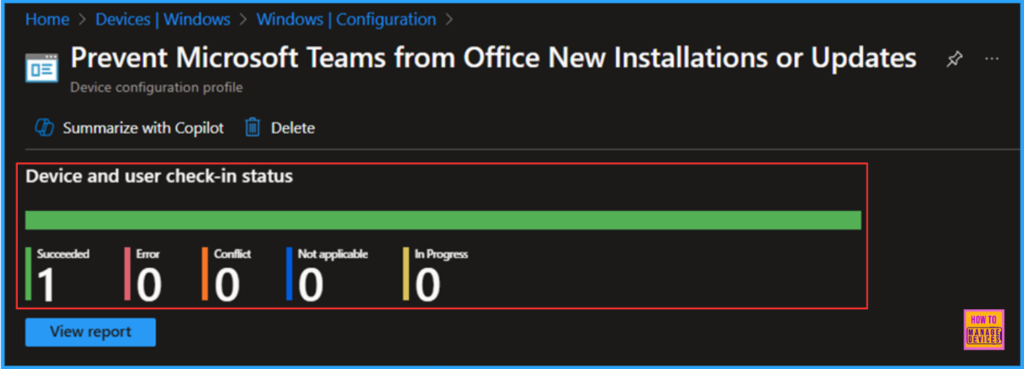
The configuration policy has been deployed to the HTMD – Test Computers, Microsoft Entra ID Device group. Once the devices are synced, the policy will take effect immediately. To monitor the policy deployment status from the Intune Portal, follow the steps below.
- Navigate to Devices > Windows > Configuration > Search for the “Prevent Microsoft Teams from Office New Installations or Updates” configuration policy.
- Under the Device and user check-in status, you can see the policy’s deployment status.
End User Experience
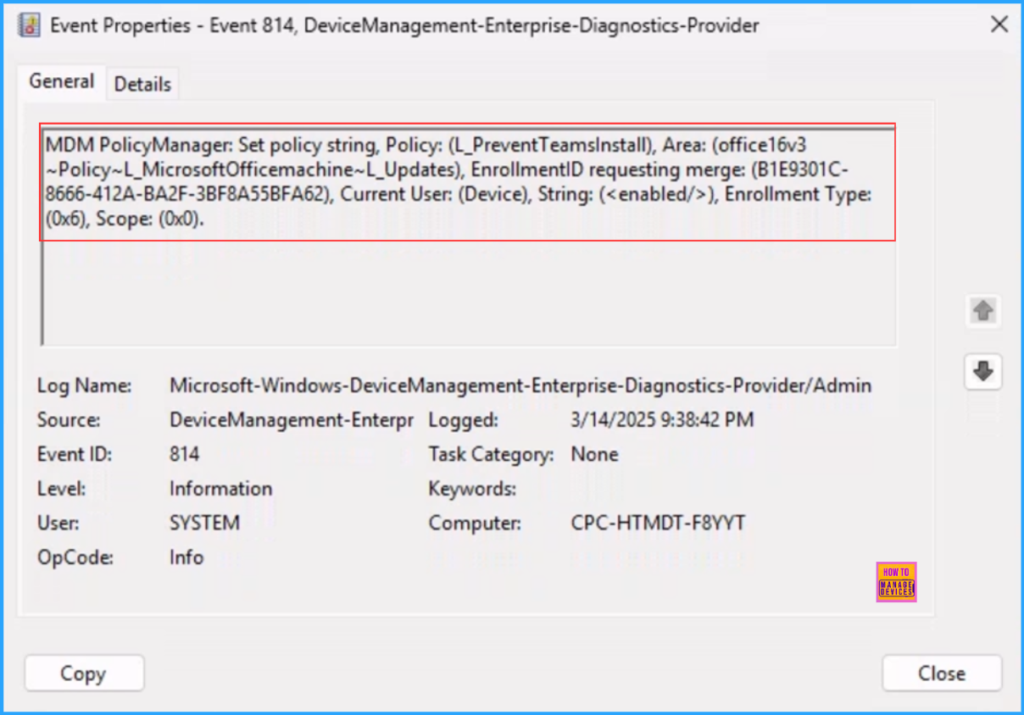
Now, we have to check whether the Prevent Microsoft Teams from Office New Installations or Updates policy is working fine or not. Log on to one of the policy-targeted devices. This time we can check the policy status via Intune Event Logs. Open Event Viewer from the device.
- Navigate to Applications and Services Logs > Microsoft > Windows > Devicemanagement-Enterprise-Diagnostics-Provider – Admin
Filter the latest logs with 814 Event ID so it make easy to find. the success log. We can also analyze the step-by-step logs in detail for more information about the targeted policy. The screenshot below shows that the policy is successfully applied to the system and our policy has been worked as expected!
Need Further Assistance or Have Technical Questions?
Join the LinkedIn Page and Telegram group to get the latest step-by-step guides and news updates. Join our Meetup Page to participate in User group meetings. Also, Join the WhatsApp Community to get the latest news on Microsoft Technologies. We are there on Reddit as well.
Author
Vaishnav K has over 11 years of experience in SCCM, Device Management, and Automation Solutions. Writes and imparts knowledge about Microsoft Intune, Azure, PowerShell scripting, and automation. Check out my profile on LinkedIn.


Discussion