






Enable or Disable Text Prediction Policy in MS Edge Browser using M365 Admin Center
Let’s discuss Enable or Disable Text Prediction Policy in MS Edge Browser using M365 Admin Center. Microsoft 365 policies helps you to manage settings in Microsoft Edge browser. Microsoft Edge can be easily customized with Edge Policies in Microsoft 365 Admin Center.
Today we are going to discuss about, Text prediction feature in Microsoft Edge. Text prediction feature suggests words or phrases as you type, helping you write faster and more efficiently. Text prediction helps with writing assistance across the web.
Like Text Prediction Windows 11 has a feature called Text suggestion which is similar to text prediction. Text suggestions in Windows 11 help you type faster and more accurately by offering word predictions as you type. Here we are going to configure Text prediction in Edge for Windows devices using Intune.
Using 365 policy you can enable or disable Text prediction in Edge for Windows Devices. When you turned on, typed characters and text predictions are cached for up to 30 days for service quality and performance improvement purposes.

Table of Contents
What are the Benefits of Text Prediction?
1. Provides Personalized Suggestions
2. Get Better Writing Flow
3. Multilingual Support
Text Prediction Policy in MS Edge Browser
Text prediction feature is available in Word, Outlook, and as a browser extension, and offers text prediction alongside spelling and grammar checks. This feature is beneficial for beginners. In this blog, I will help you to configure Text prediction Policy in Edge.
- Enable or Disable Super Drag Drop Policy in MS Edge Browser using M365 Admin Center
- New Text Prediction and other Features in MS Edge Browser
- Enable Disable Web Search Suggestions Policy in MS Edge Browser using M365 Admin Center
Steps to Configure Text Prediction Policy
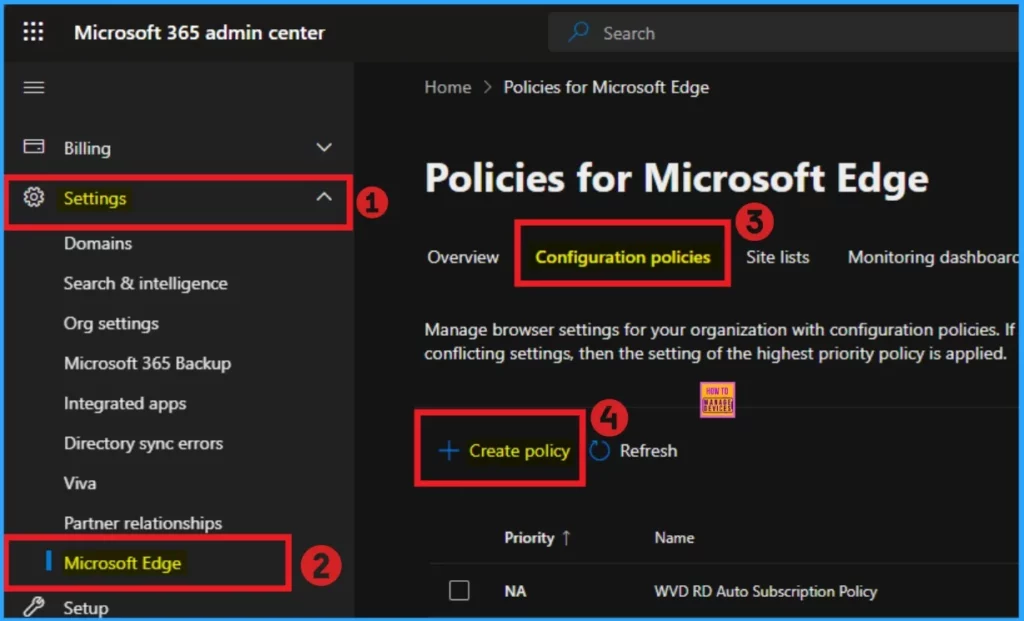
With some simple steps, you can easily configure the Text Prediction Policy in your organization. To start policy creation, Open the Microsoft 365 admin center. Go to Settings > Microsoft Edge > Configuration Policies > + New Policy.
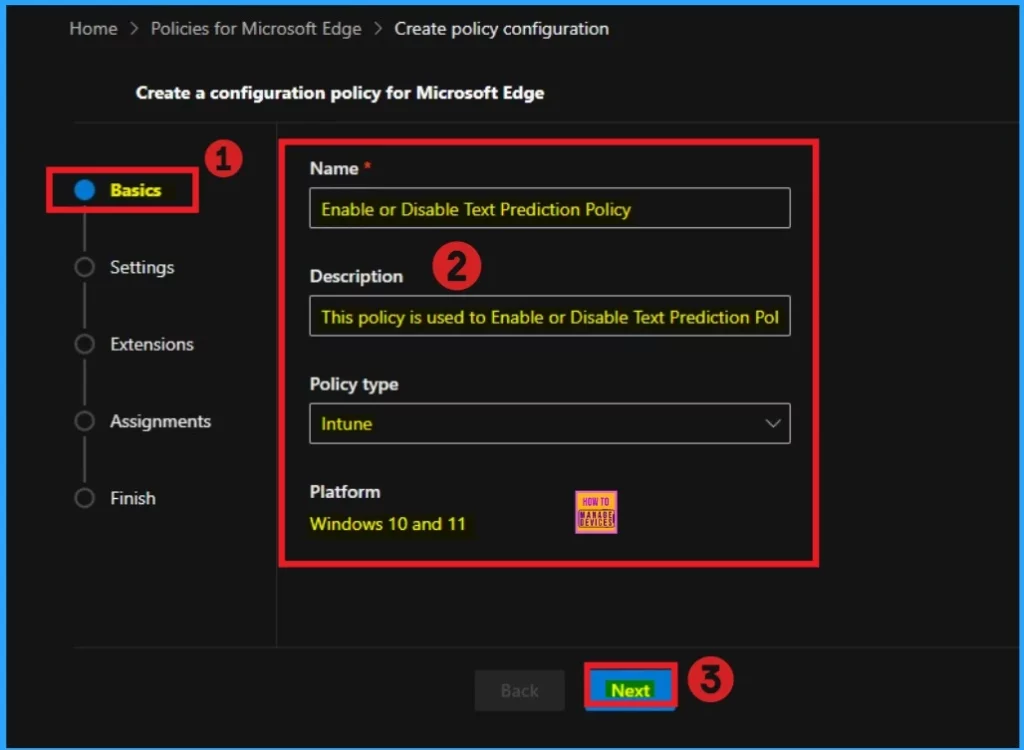
Basic Tab
Using Basic tab, You can add policy name and description according to the Policy. It is bigging step of policy creation in 365 admin center. The Name field is very important and mandatory but Description is not necessary. The profile type and platform are automatically added. Click on the Next button.
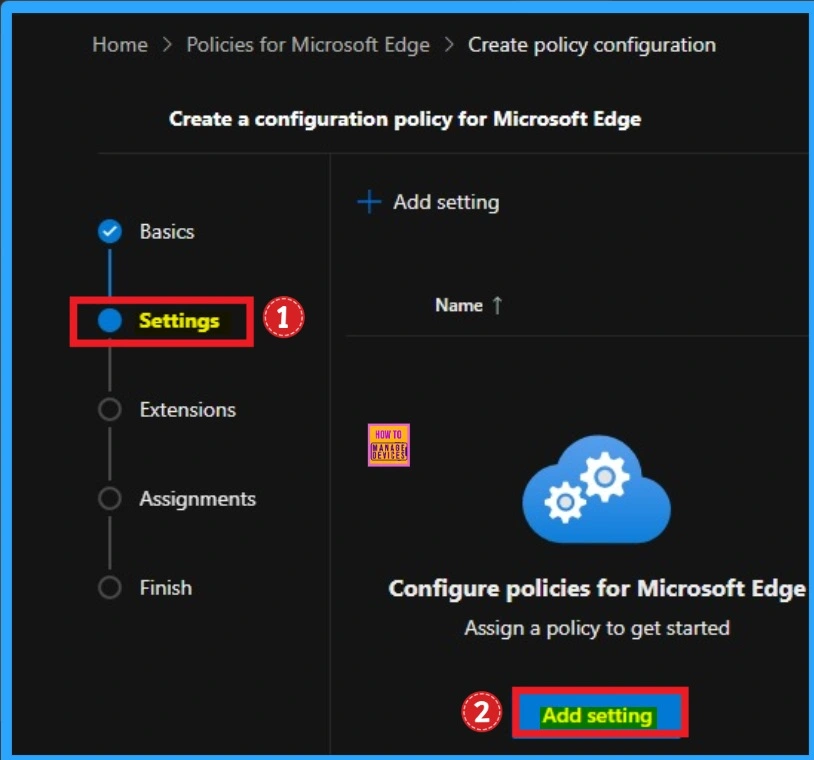
Settings Tab
The Settings tab is very crucial while creating policy. Click the Add setting option in the window below to add a setting. There are 2 option you can see to add settings. You can choose any of these.
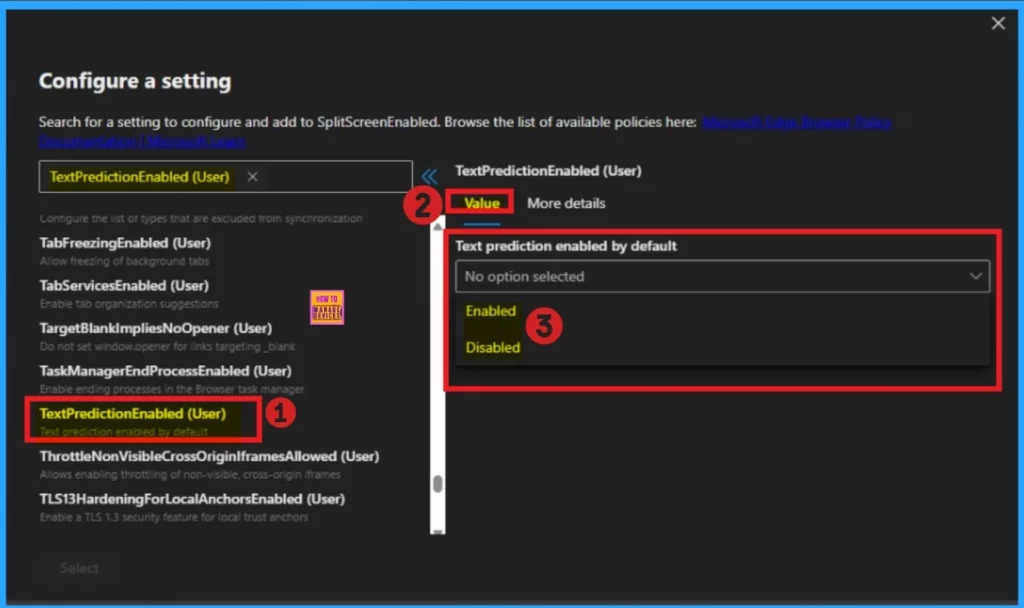
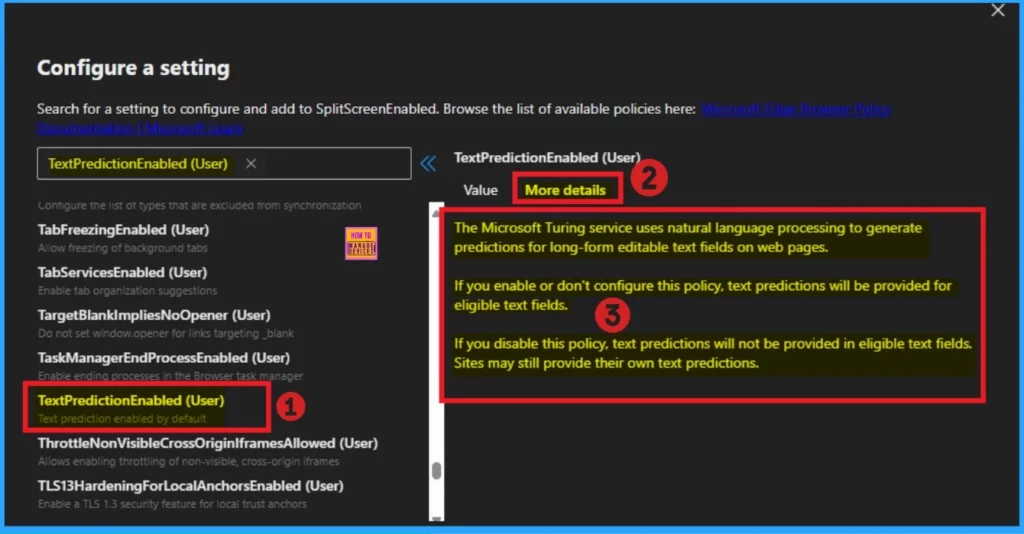
On the Configure a setting page, you can different types of category to select settings. Here I choose Additional Settings and select TextPredictionEnable (User). You can see 2 value on this policy for this settings. You can enable or disable this If you want to go with this policy.
More Details
The more details tab is showsn next of the Value Tab. This tab helps to know the details of the selected policy setting. The Microsoft Turing service uses natural language processing to generate predictions for long-form editable text fields on web pages.
| Enable | Don’t Configure | Disable |
|---|---|---|
| If you enable this policy, text predictions will be provided for eligible text fields. | If you don’t configure this policy, text predictions will be provided for eligible text fields. | If you disable this policy, text predictions will not be provided in eligible text fields. Sites may still provide their own text predictions. |
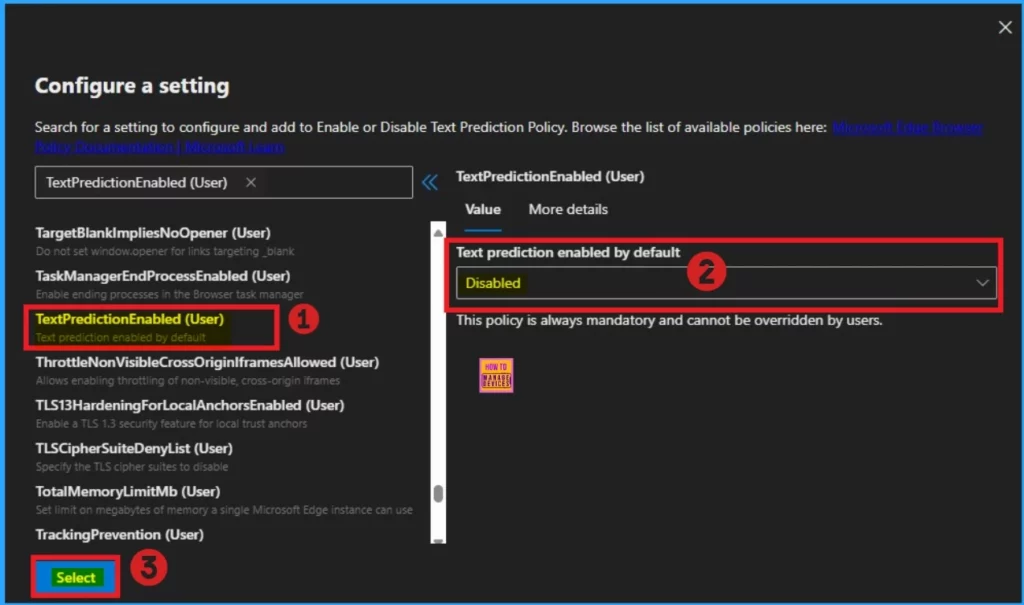
Disable Text Prediction
If you want to Disable Text prediction, You can choose Disable value form the text box. By disable this policy you can encourage original sentence construction rather than relying on predicted phrases. Select Enable value then I click on the Select button.
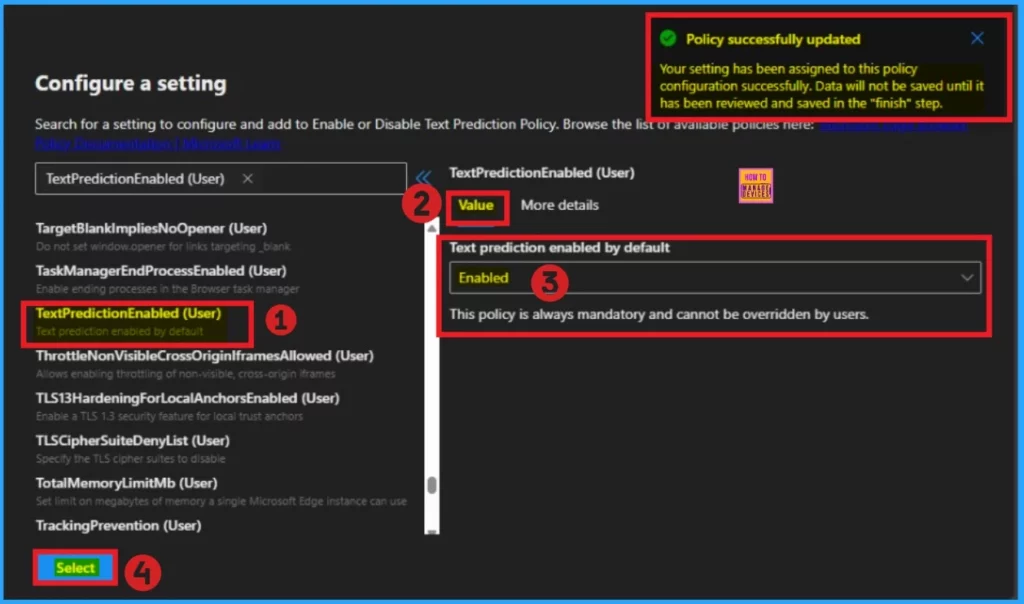
Enable Text Prediction
Here I would like to Enable Text Prediction Policy. So I select Enable value then I click on the Create button and I got the success notification. Look at the below window.
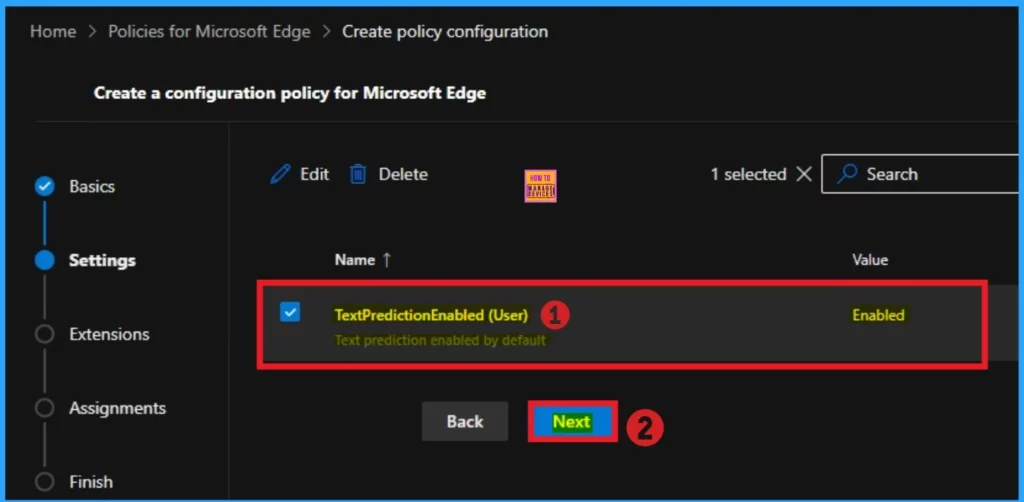
Then you can close the configuration settings window. Then the created policy shown on the Settings page. Click on the Next button. Look at the below window for more clarity.
Extensions
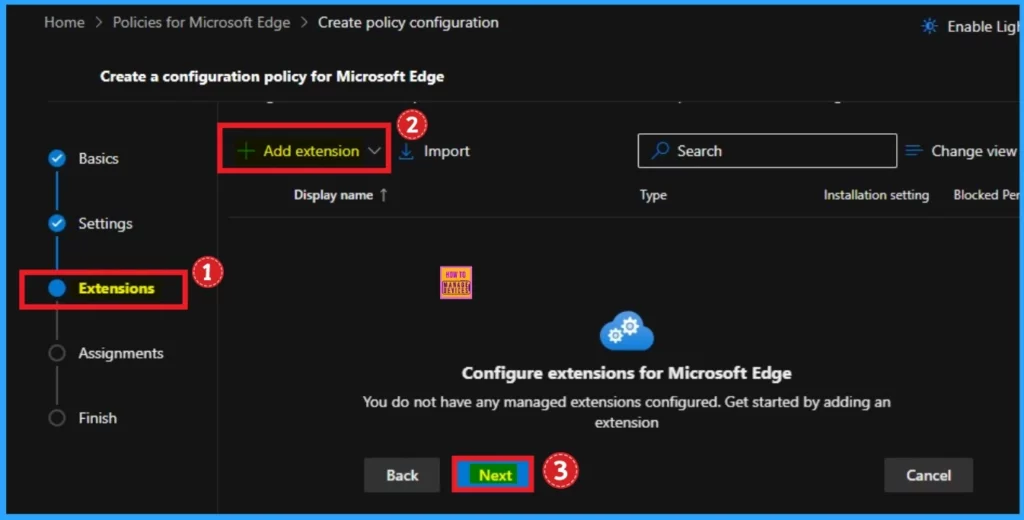
The extensions tab helps you add extensions like Edge Add-on, Sidebar app, External extension, etc. This is optional for your policy. You can add an extension. Here, I skip this section and click on the Next button.
Assignments Tab
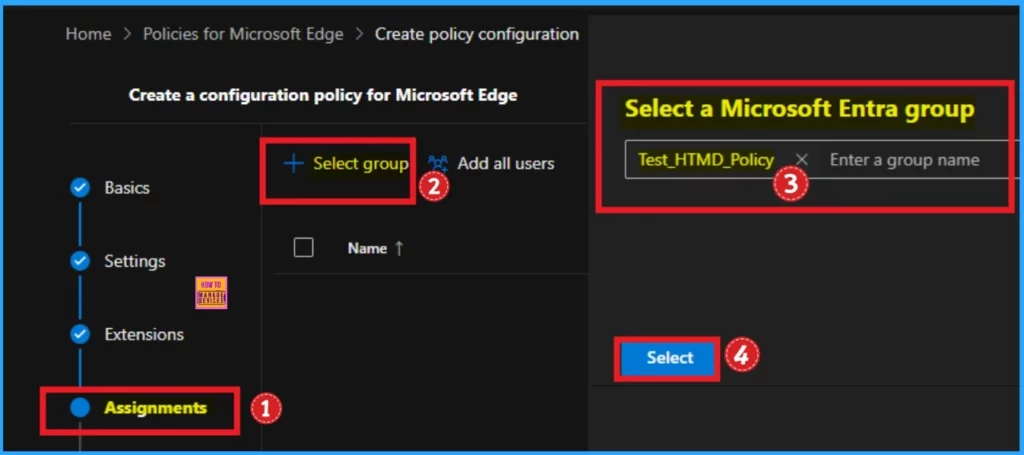
The assignments tab is the most important; it helps you select groups to add to the policy chosen. You can use different groups for this. Here I select 1 group. Click on the +Select group and select a Microsoft Entra group.
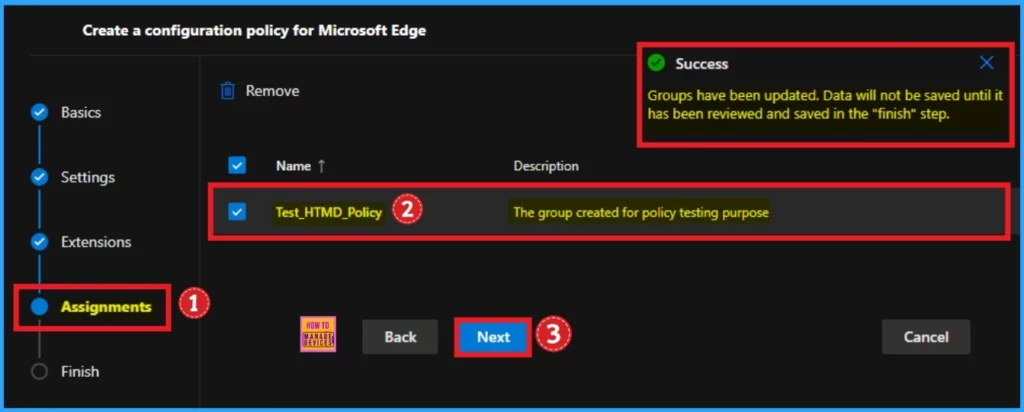
After the group selected you can see the success notification on the Portal. The Notification is like that the “Group have been updated. Data will not be saved until it has been reviewed and saved in the “finish” step. The selected group will shown on the Assignment tab. Click on the Next button.
Finish Tab
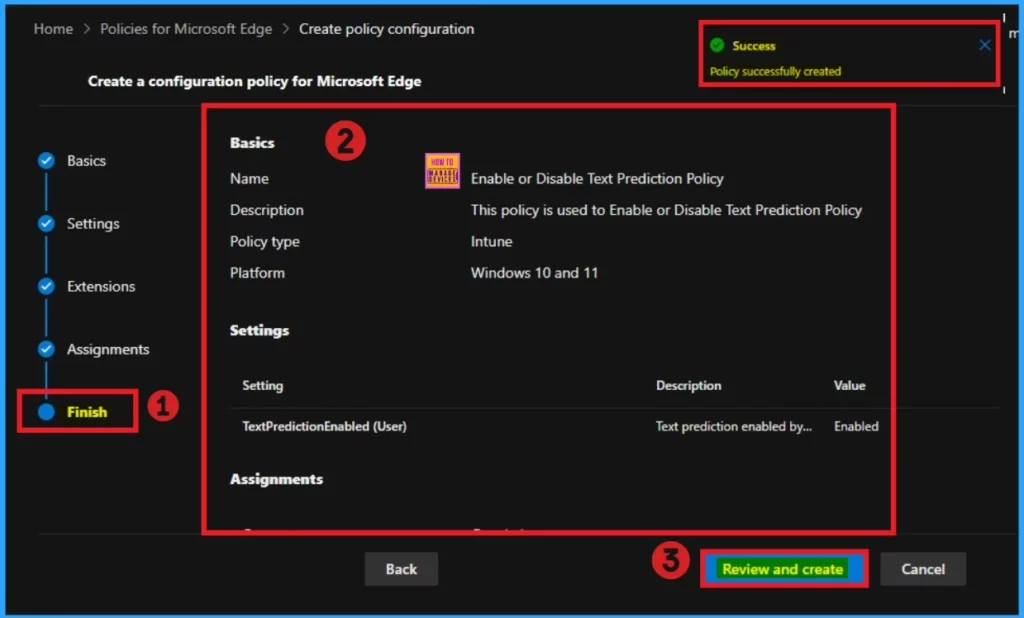
The Finish Tab shows all the information that is added on the previous tabs. Here, you can verify all the sections and bring changes quickly. After confirming the details, click on the Review and Create button. The screenshot below will help you. After that, you will receive a success notification on the portal.
Monitoring Status
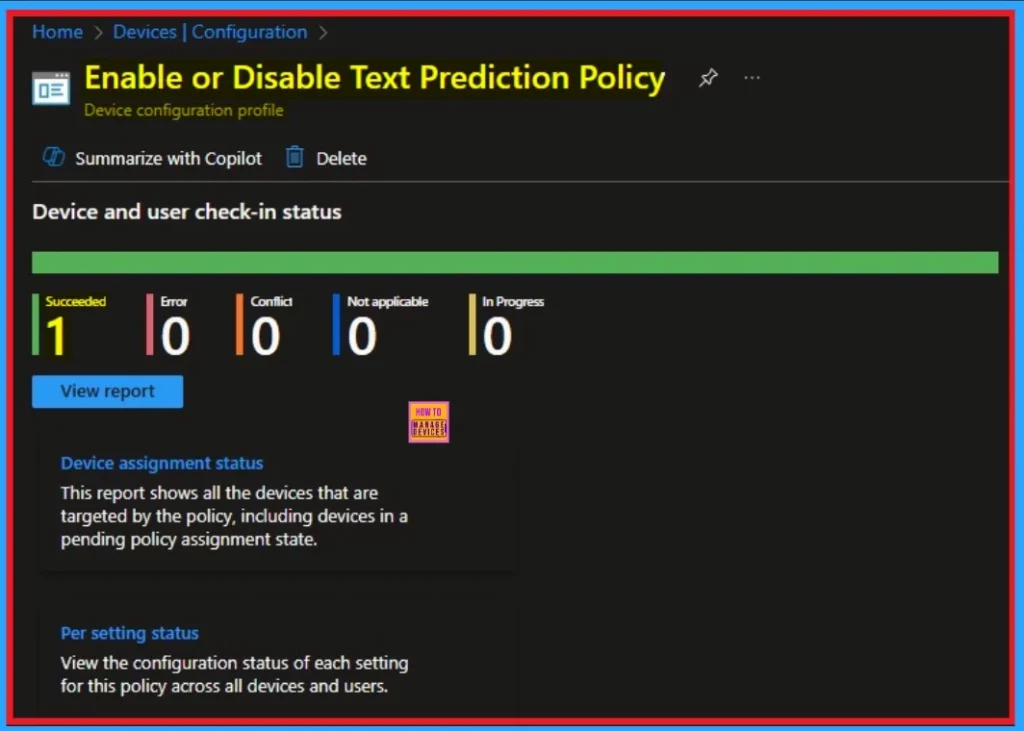
After getting the success result, you should sync the device on the Company Portal It helps you to easily completed deployment. After that you can check the Monitoring Status on the Intune Portal. The created policies Platform is Intune. That’s why we can check the monitoring status on Intune Portal.
Client Side Verification – Event Viewer
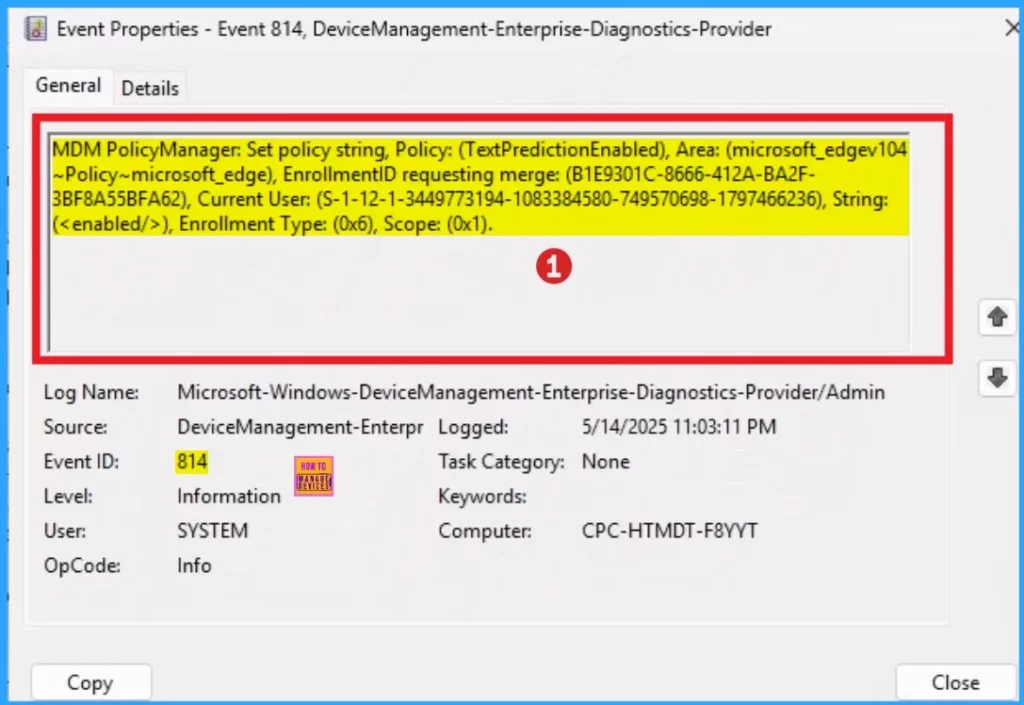
After completing the policy creation the policy you should complete the client side Verification. To do this, you can use Event Viewer. Follow the below list to access the event viewer. Click on the Start Menu, Search Event Viewer, and open it. On the User Account Control window, click on the Yes button.
- Here the success result can be seen on the Event ID 814
- On the Event Viewer Navigate > Applications and Services Logs > Microsoft > Windows > DeviceManagement- Enterprise-Diagnostics-Provider > Admin
| Event ID Details |
|---|
| MDM PolicyManager: Set policy string, Policy: (TextPredictionEnabled), Area: (microsoft_edgev104 ~Policy~microsoft_edge), EnrollmentID requesting merge: (B1E9301C-8666-412A-BA2F- 3BF8A55BFA62), Current User: (S-1-12-1-3449773194-1083384580-749570698-1797466236), String: (), Enrollment Type: (0x6), Scope: (0x1). |
End Result of Text Prediction Policy
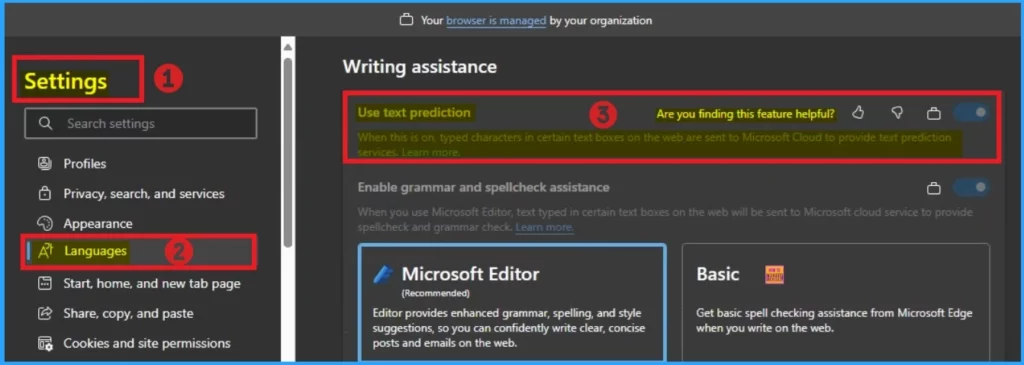
When the Text Prediction policy is deployed you can check the end result on the Edge Settings. It helps you to recognize the policy succeeded or not. If the policy is deployed, you can see a lock symbol near the toggle. To varify that follow the below steps and Screenshot.
- Open the Microsoft Edge browser on the Assigned device
- Go to 3 dots ( Settings and more) and select Settings
- Select Language settings
- Under Writing Assistance settings you can see Text prediction feature is enabled.
End User Experience – Text Prediction
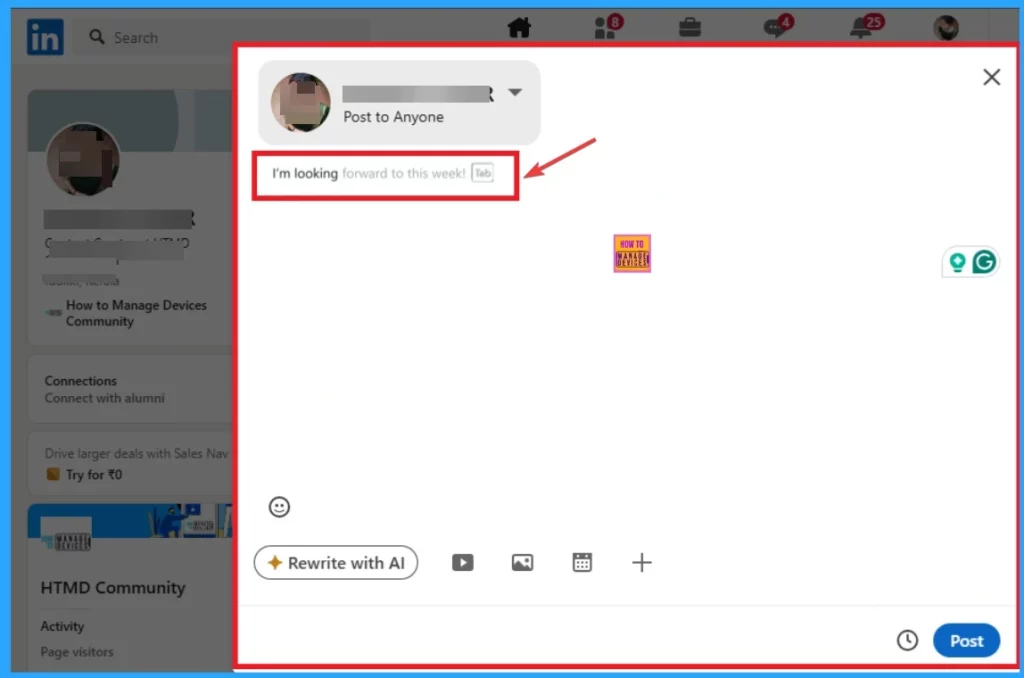
After Enabling the Text Prediction, you will get the text suggestion when you type a word. The below screenshot shows Text prediction which is available on LinkedIn. Here I Login LinkedIn on Microsoft Edge Browser. Here I wrote ” I’m looking” The Text prediction is forward to this week. Look at the below screenshot.
Need Further Assistance or Have Technical Questions?
Join the LinkedIn Page and Telegram group to get the latest step-by-step guides and news updates. Join our Meetup Page to participate in User group meetings. Also, Join the WhatsApp Community to get the latest news on Microsoft Technologies. We are there on Reddit as well.
Author
Anoop C Nair has been Microsoft MVP from 2015 onwards for 10 consecutive years! He is a Workplace Solution Architect with more than 22+ years of experience in Workplace technologies. He is also a Blogger, Speaker, and leader of the Local User Group Community. His primary focus is on Device Management technologies like SCCM and Intune. He writes about technologies like Intune, SCCM, Windows, Cloud PC, Windows, Entra, Microsoft Security, Career, etc.




Discussion