






How to Discover TPM Status across Windows Devices using Intune Inventory
Let’s discuss how to Discover TPM Status across Windows Devices using Intune Inventory. The Trusted Platform Module (TPM) is a dedicated security chip embedded in most modern Windows devices. It provides hardware-based protection for sensitive data.
Microsoft Intune collects several important properties related to the Trusted Platform Module (TPM) on Windows devices. These properties help you understand the status and details of the TPM chip.
This feature in Intune helps IT administrators by giving them centralized visibility into the TPM status across all managed Windows devices. With this data, admins can quickly verify if TPM is properly configured, activated and enabled which is essential for enabling security features like BitLocker encryption and Secure Boot.
In this post, you will find all the essential details on how to discover the TPM (Trusted Platform Module) status across Windows devices using Microsoft Intune Inventory. TPM plays a critical role in device security, supporting features like BitLocker, Secure Boot, etc.

Table of Contents
How to Discover TPM Status across Windows Devices using Intune Inventory
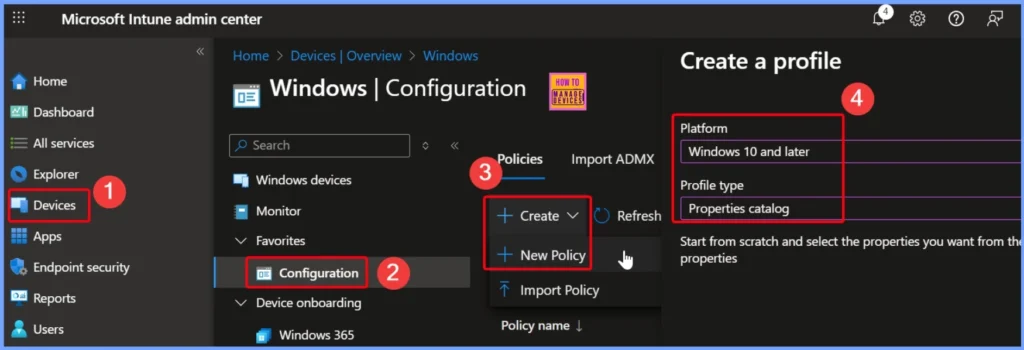
You can easily discover the TPM status across Windows devices using Intune Inventory by following a few simple steps in the Microsoft Intune admin center. Start by signing in with your administrator account. Once logged in, navigate to the left-hand menu and click on Devices. From there, select Manage devices and then choose the Configuration section. Next, click on Create, select New Policy, and begin setting up your profile.
| Platform | Profile Type |
|---|---|
| Windows 10 and later | Properties Catalog |
- How to Track Device Battery Information using Intune Property Catalog
- How to Collect Physical and Virtual Memory Information using Intune Properties Catalog
- Intune Managing OneDrive File Downloads for Low Disk Space
Basics Tab of your Intune Policy Setup
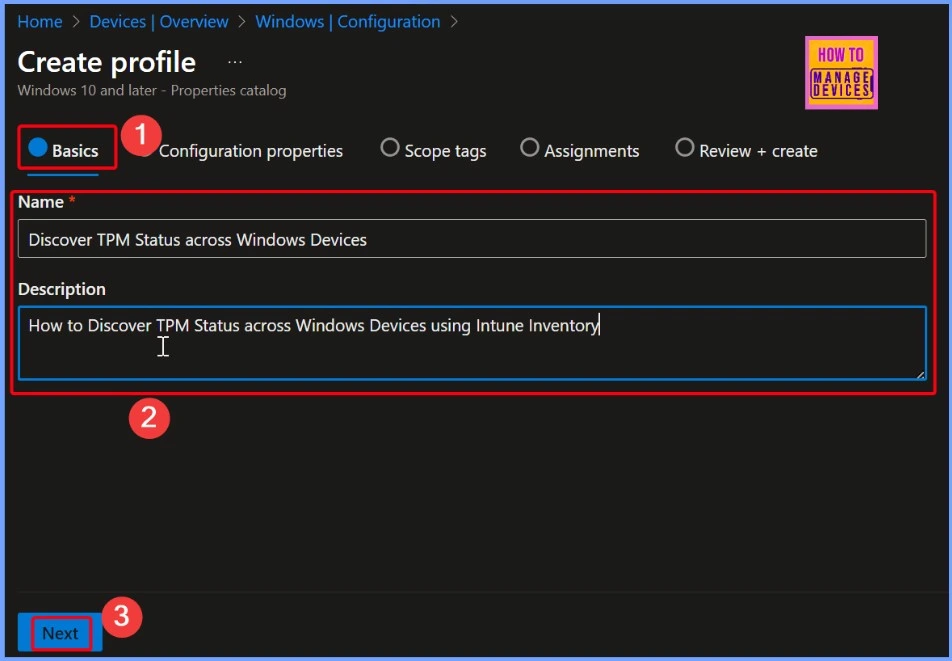
In the Basics tab of your Intune policy setup, you’ll need to provide key details to identify and describe the policy. For the Name, enter “Discover TPM Status across Windows Devices” this clearly indicates the purpose of the policy. In the Description field, you can add a brief explanation such as “How to Discover TPM Status across Windows Devices using Intune Inventory.”
Choose the Inventory Details
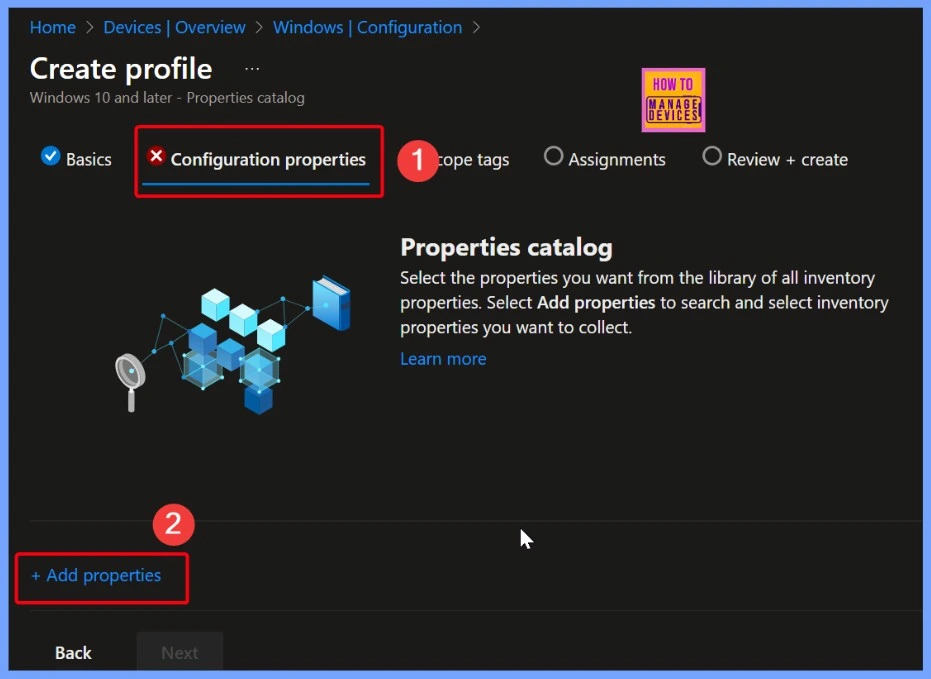
To choose the inventory details you want to collect, go to the full inventory property library and click on ‘Add properties to search.’ From there, browse through the available options and select the specific properties you need. Then, click the ‘+ Add properties’ link in the window that appears to include them in your policy configuration.
TPM (Trusted Platform Module) Inventory in Intune
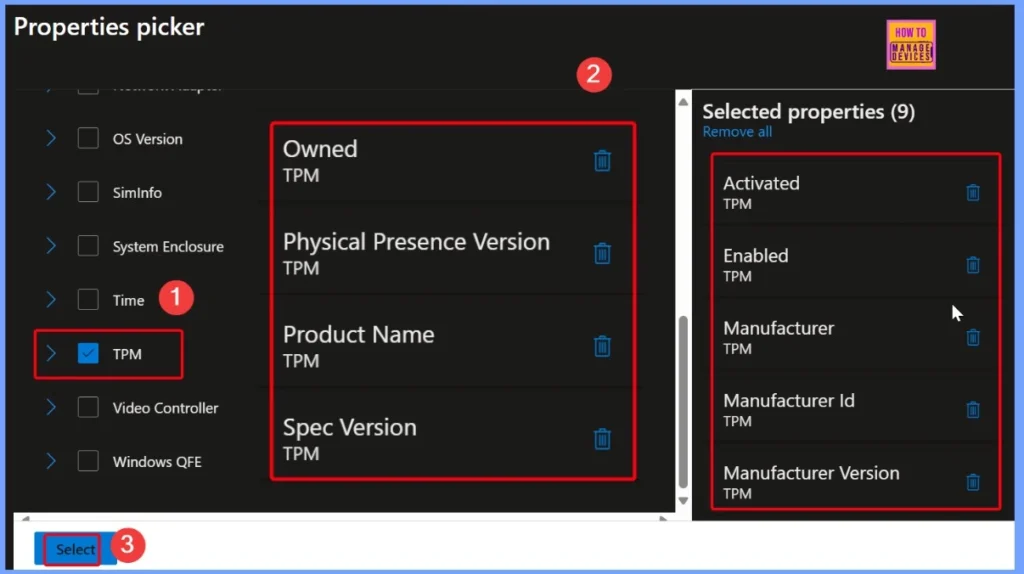
The TPM (Trusted Platform Module) inventory in Intune provides a comprehensive set of details that help assess the status and configuration of the TPM chip on Windows devices. It includes whether the TPM is Owned and Enabled, which indicates if it is active and properly configured.
TPM
- Selected properties (9)
- Activated
- Enabled
- Physical Presence Version
- Product Name
- Manufacturer
- Spec Version
- Manufacturer Id
- Manufacturer Version
TPM
You also get information about the Physical Presence Version, which relates to user interaction requirements for certain operations. Additional details include the Product Name of the TPM, the Manufacturer name, and the corresponding Manufacturer ID and Manufacturer Version.
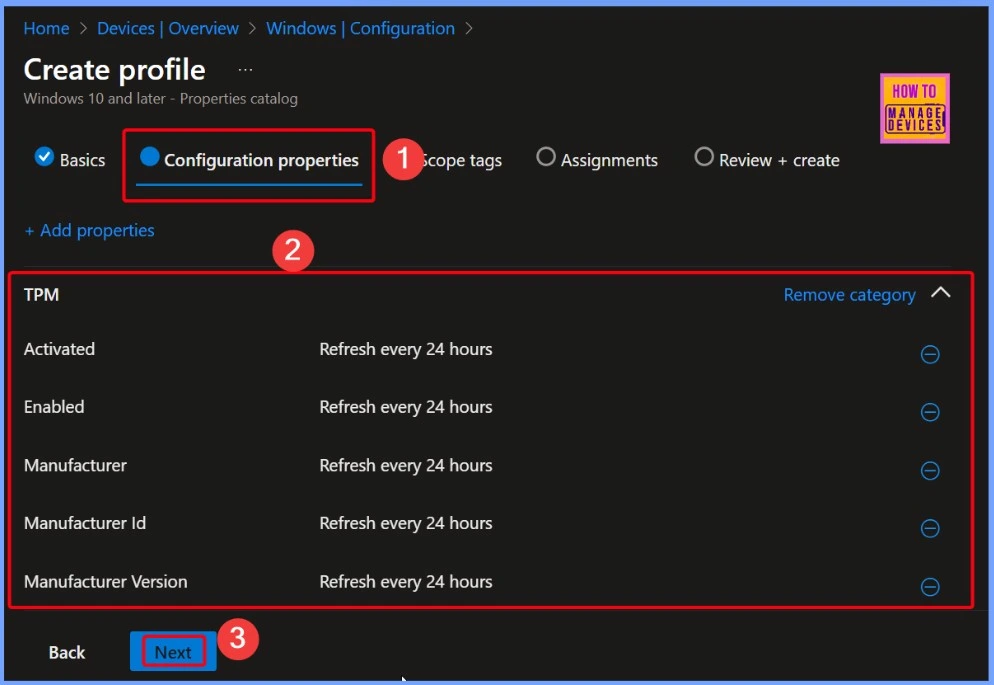
- TPM
- Activated – Refresh every 24 hours
- Enabled – Refresh every 24 hours
- Manufacturer – Refresh every 24 hours
- Manufacturer Id – Refresh every 24 hours
- Manufacturer Version – Refresh every 24 hours
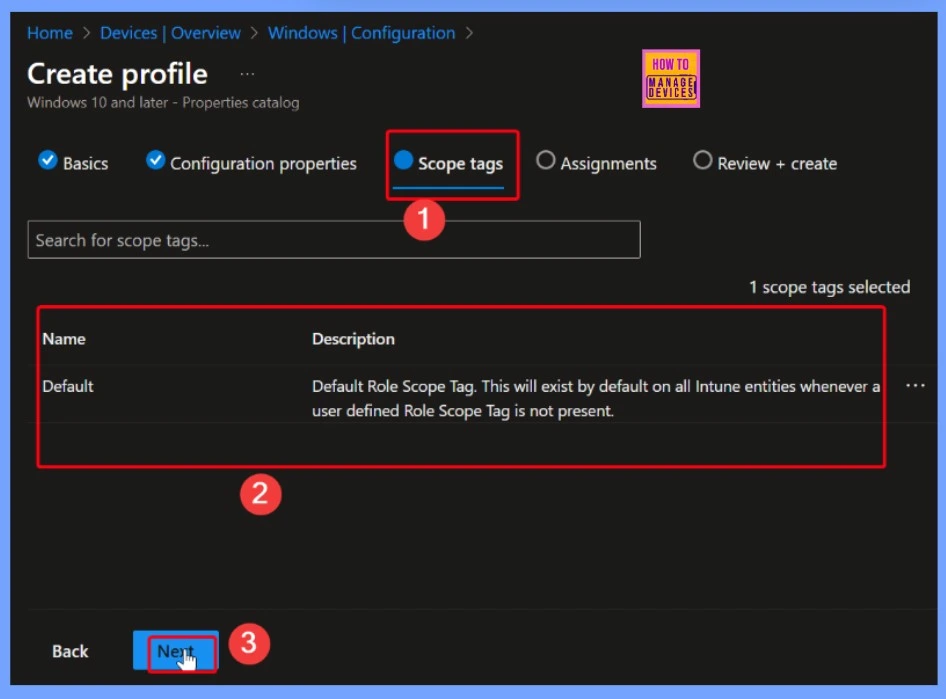
Microsoft Intune Scope Tag
In Microsoft Intune, a scope tag is a way to logically group and control access to resources. It’s a powerful tool used in role-based access control (RBAC) to help organizations delegate management tasks while maintaining control and security.
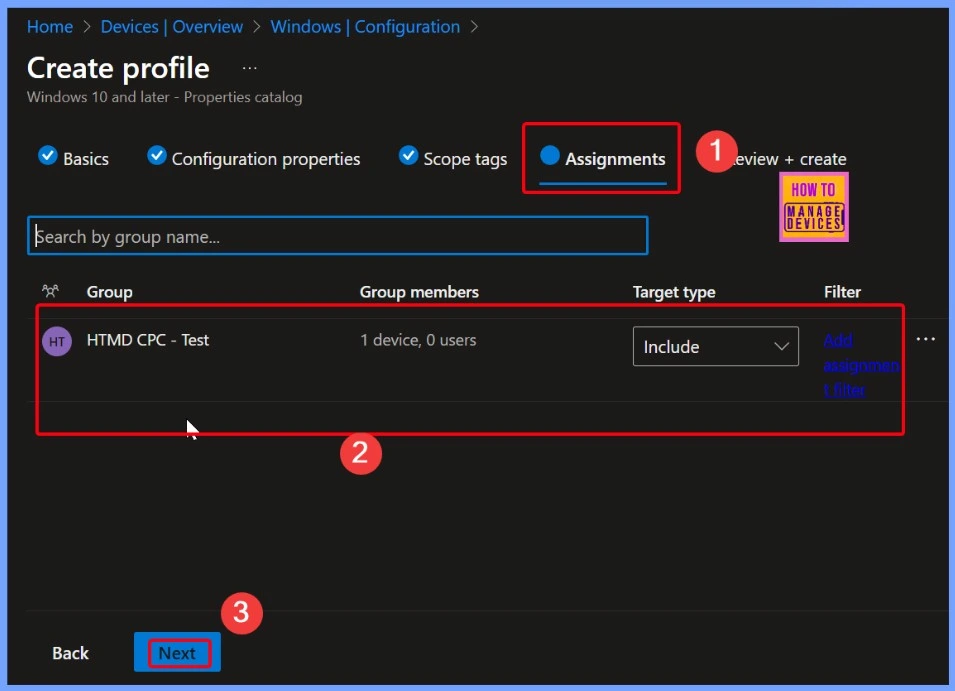
Assignments
In Microsoft Intune, assignments define which users or devices receive a specific policy. Assignments are a core part of how Intune delivers configuration, compliance, security settings, and applications to endpoints across your organization.
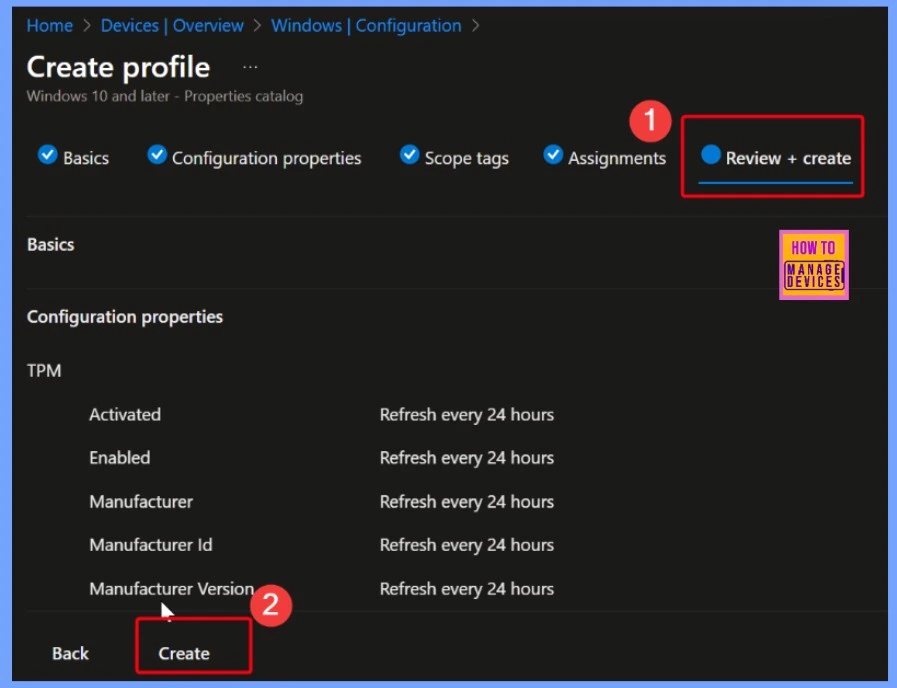
Review + Create
The “Review + Create” page gives you a summary of all the settings and selections. This is your last chance to review everything before applying the policy or configuration. The below screenshot shows more details.
Settings and Configurations
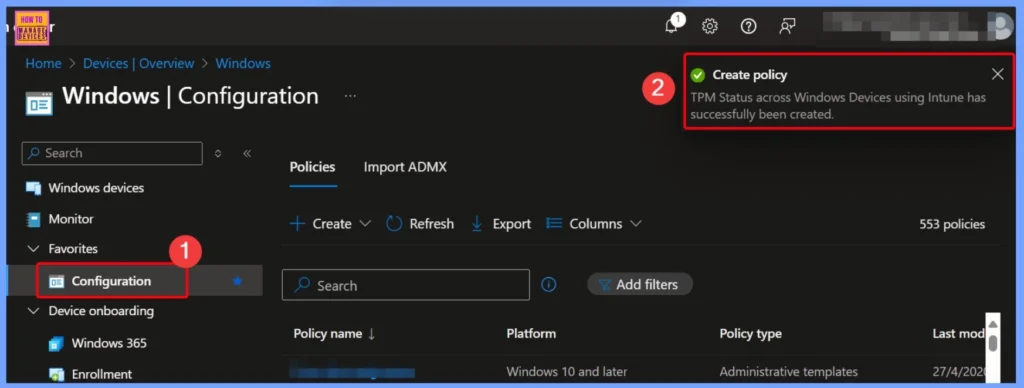
Once the policy is successfully created, a notification will appear confirming its creation. This message indicates that all your chosen settings and configurations have been applied and saved correctly. The notification is shown in the below window.
End Result
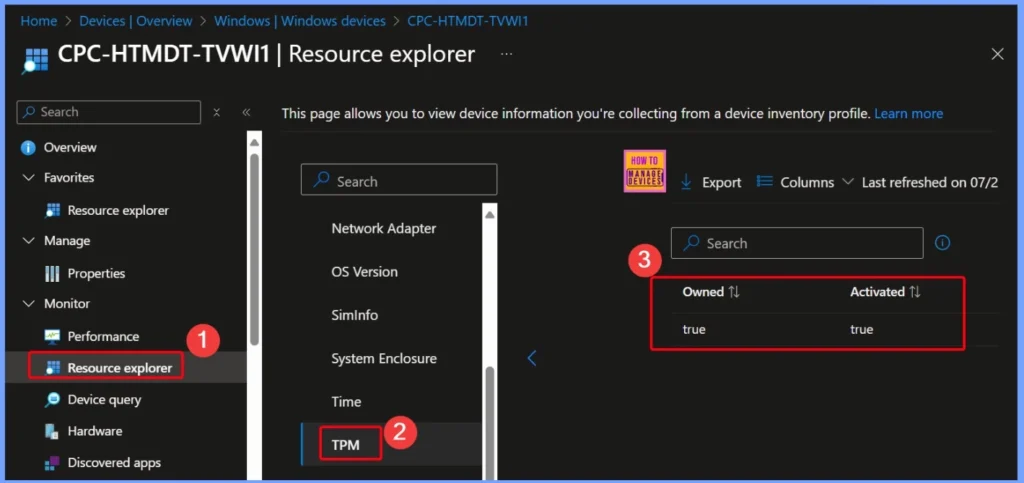
To access the collected inventory data in Intune, go to Devices > Windows Devices and select the specific device you want to review. Then, under the Monitor section, click on Resource Explorer. From there, you can choose a category to view detailed hardware information, including TPM status and other device-specific data.
Starting with Intune’s September 2509 release, the Resource explorer pane will be renamed to Device inventory. This is a UI update only no changes will be made to functionality or data. The new name will appear under Devices > select a platform > select a device > Monitor, and will be visible if you have at least one corporate-owned or Windows device targeted by a properties catalog policy.
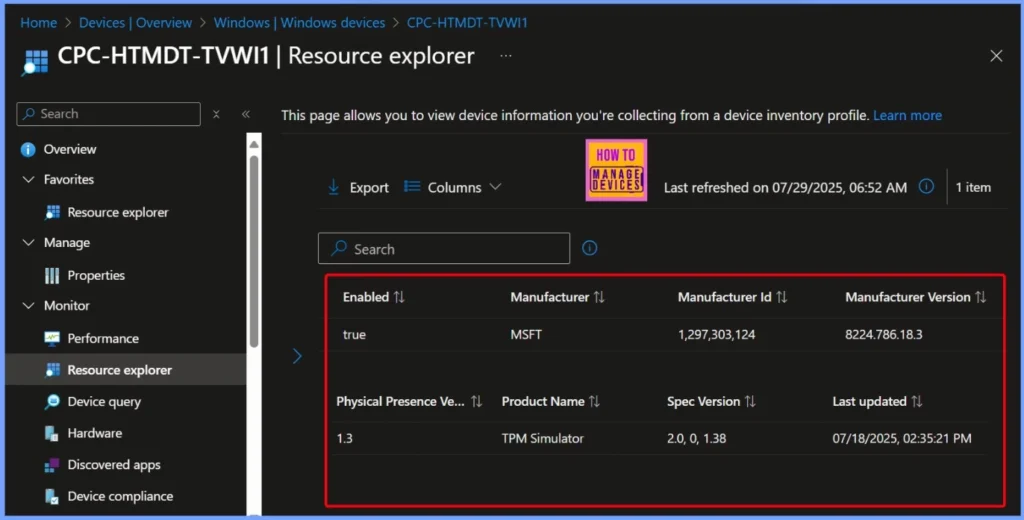
| Owned | Activated | Enabled | Manufacturer | Manufacturer Id | Manufacturer Version | Physical Presence | Product Name | Spec Version | Last updated |
|---|---|---|---|---|---|---|---|---|---|
| True | True | True | MSFT | 1,297,303,124 | 8224.786.18.3 | 1.3 | TPM Simulator | 2.0, 0, 1.38 | 07/18/2025, 02:35:21 PM |
Resource Explorer
The Trusted Platform Module (TPM) on this device is fully functional, with ownership established and both activation and enablement confirmed. It is provided by a recognized manufacturer and operates using a specific firmware version. The TPM supports physical presence requirements and is identified as a simulator model.
Need Further Assistance or Have Technical Questions?
Join the LinkedIn Page and Telegram group to get the latest step-by-step guides and news updates. Join our Meetup Page to participate in User group meetings. Also, join the WhatsApp Community to get the latest news on Microsoft Technologies. We are there on Reddit as well.
Author
Anoop C Nair has been Microsoft MVP for 10 consecutive years from 2015 onwards. He is a Workplace Solution Architect with more than 22+ years of experience in Workplace technologies. He is a Blogger, Speaker, and Local User Group Community leader. His primary focus is on Device Management technologies like SCCM and Intune. He writes about technologies like Intune, SCCM, Windows, Cloud PC, Windows, Entra, Microsoft Security, Career, etc.


Discussion