






Quickly Turn Off AutoPlay Using Intune
In this post, I will show you how to turn off autoplay using Intune, aka Endpoint Manager. AutoPlay is a feature that automatically runs a program or opens a file on a removable drive and, based on content such as pictures, music, or video files, launches an appropriate application to play or display the content.
Autoplay begins reading from a drive as soon as you insert media in the drive. As a result, the setup file of programs and the music on audio media start immediately. That helps users to make life easier. The automatic execution of media can be dangerous if you want to protect your PC, or those on your network, from attacks. It would be best if you disabled AutoPlay to make a safe environment.
I had recently noticed the issue raised on Twitter, HTMDForum community member reported that trying to disable AutoPlay in Windows 10 with multiple methods through Administrative Templates, Custom CSP, Registry. All of the methods did not work for them. Setting up the policies will not show it is disabled in the UI when you check inside Windows Settings.
As mentioned by MVP Mattias Melkersen, You can also check the option for proactive remediation that will set the keys in HKCU which will disable the button in the settings applet. You can also refer to more details enable or disable AutoPlay using windows settings or the registry method. Let’s how to Deploy Proactive Remediation Script using Intune. You can refer to the prerequisites of the proactive remediation script before the start the activity.

- Block USB Device Access using Intune
- Disable Remote Desktop Connections Using Intune
- Intune Logs Event IDs IME Logs Details for Windows Client Side Troubleshooting
Step to Turn Off AutoPlay Using Intune
Let’s follow the below steps to turn off Autoplay using Intune –
- Sign in to the https://endpoint.microsoft.com/
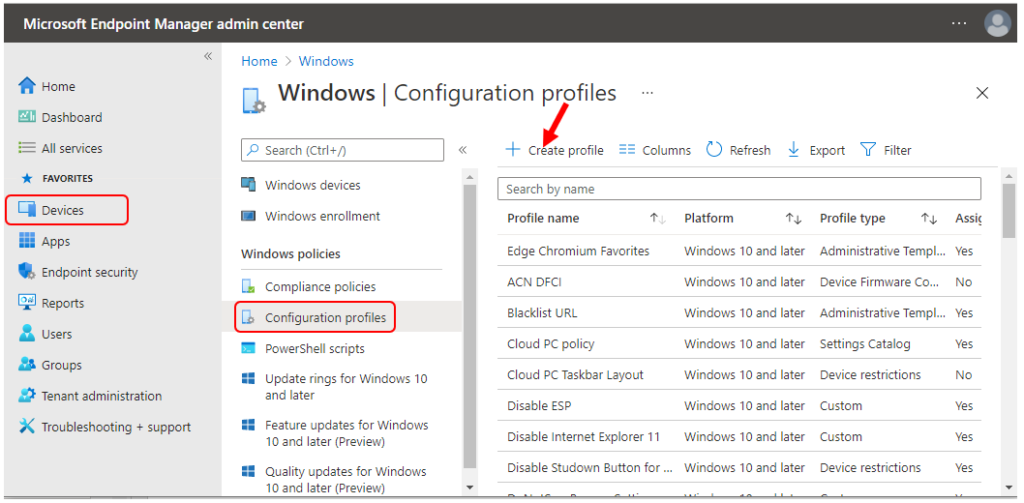
- To create a new Configuration profile, Select Devices > Windows > Configuration profiles > Create profile
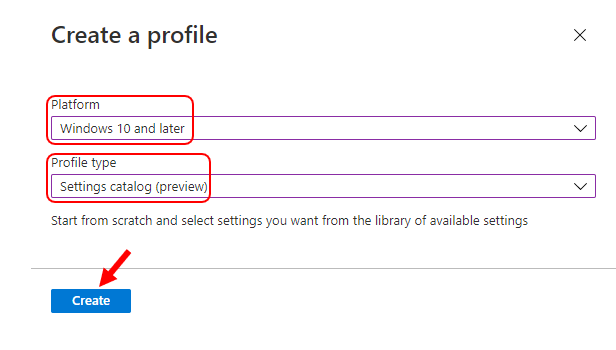
In Create a profile, Select Platform, Windows 10, and later and Profile, Select Profile Type as Settings catalog. Click on Create button.
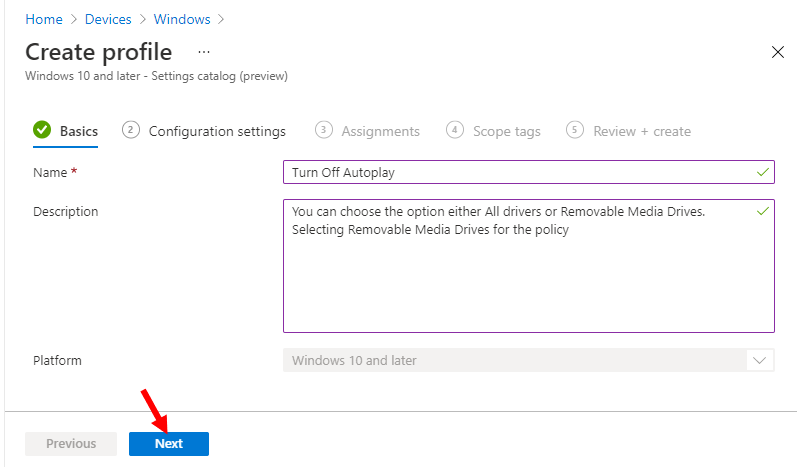
On the Basics tab, enter a descriptive name, such as Turn Off Autoplay. Optionally, enter a Description for the policy, then select Next.
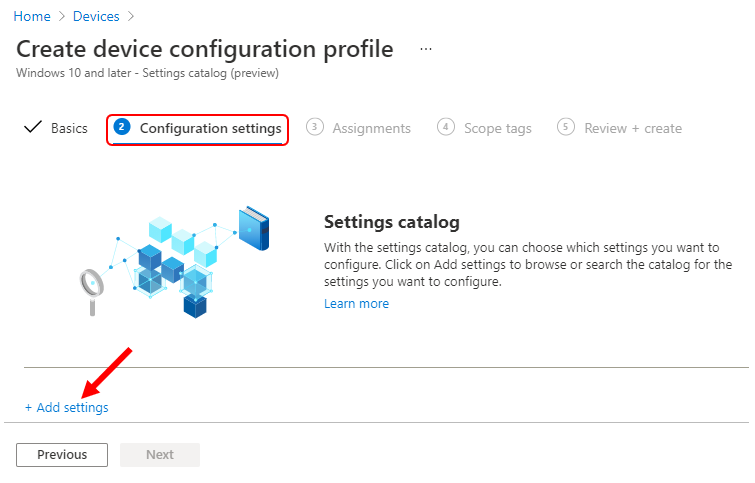
In Configuration settings, under Settings catalog, click Add settings.
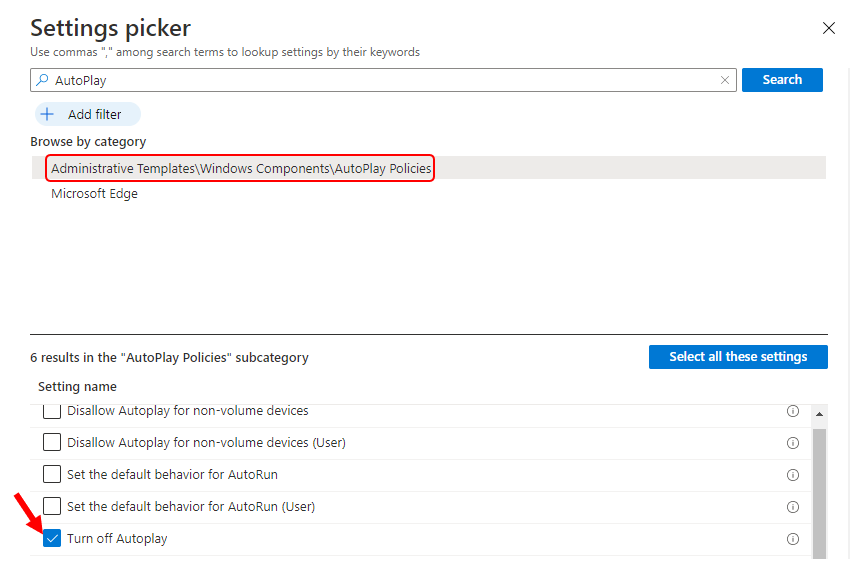
On the Settings Picker windows, Select Administrative Templates\Windows Components\AutoPlay Policies to see all the settings in this category. Select Turn off Autoplay below. After adding your settings, click the cross mark at the right-hand corner to close the settings picker.
Note – In policy, use the search box to find specific settings. You can search by category or a keyword, such as Autoplay. It will display the related settings available.
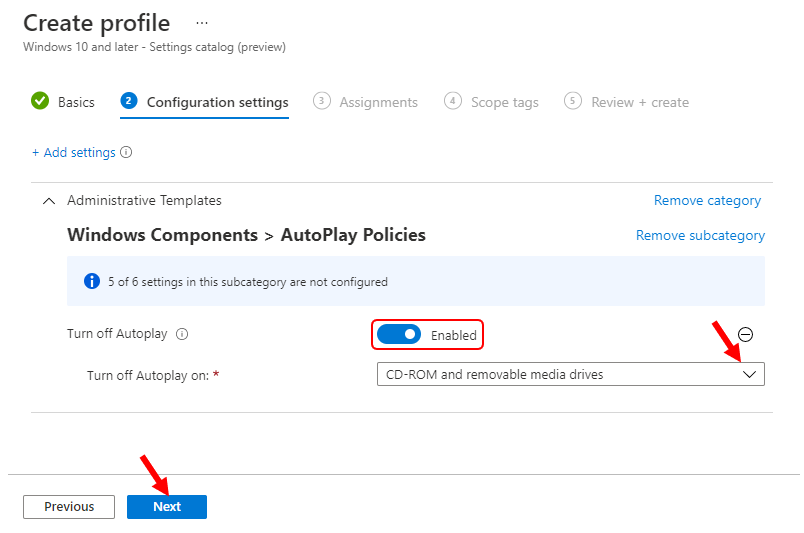
The setting is shown and configured with a default value Disabled. Set Turn off Autoplay to Enabled.
Turn off Autoplay on – Specifies whether you want to disable either All drivers or Removable Media Drives. If you enable this policy setting, Autoplay is disabled on CD-ROM and removable media drives, or disabled on all drives. Click Next.
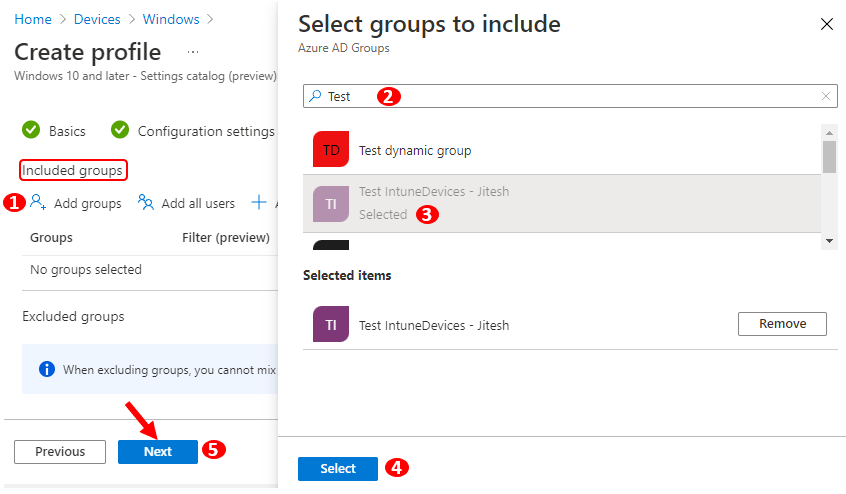
Under Assignments, In Included groups, click Add groups and then choose Select groups to include one or more groups. Click Next to continue.
In Scope tags, you can assign a tag to filter the profile to specific IT groups. Add scope tags (if required) and click Next.
In Review + create, review your settings. When you select Create, your changes are saved, and the profile is assigned.
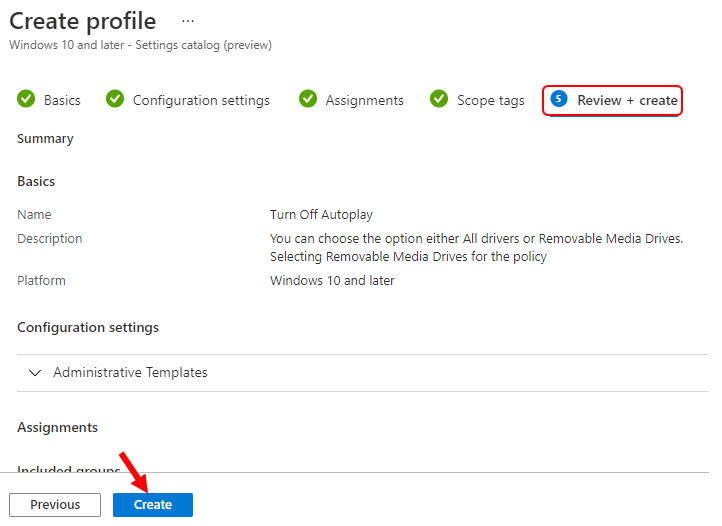
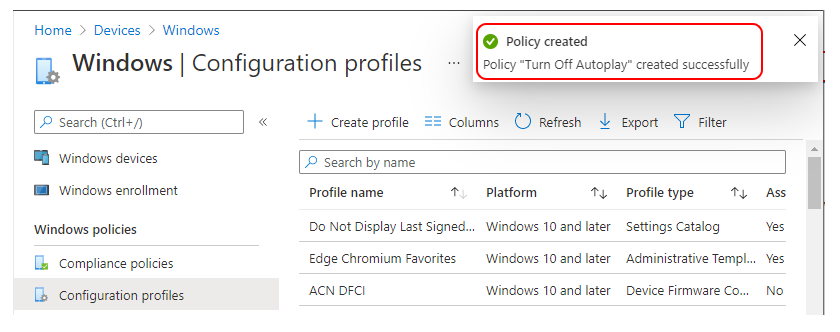
A notification will appear automatically in the top right-hand corner with a message. Here you can see, Policy “Turn Off Autoplay” created successfully. The policy is also shown in the Configuration profiles list.
Your groups will receive your profile settings when the devices check-in with the Intune service. Once the policy applies to the devices, When you insert media in the device. As a result, the setup file of programs and the music on audio media will not start automatically.
Author
About Author -> Jitesh has over 5 years of working experience in the IT Industry. He writes and shares his experiences related to Microsoft device management technologies and IT Infrastructure management. His primary focus area is Windows 10 Deployment solution with Configuration Manager, Microsoft Deployment Toolkit (MDT), and Microsoft Intune.


It’s 2021, why do we have to set this at all? Especially in an Enterprise build.
StaffI wonder why Microsoft is publishing this policy 😀
This method is not working on my test computers. The status in Conflict, but I’m not really sure what it’s conflicting with as I don’t have this set anywhere else in Intune.
This one is not compliant in Windows 11.
The policy now gives an error
SETTING Turn off Autoplay STATE Noncompliant