






Turn On and Off Location Sharing in Edge
Let’s learn how to Turn On and Off Location Sharing in Edge. Microsoft Edge is a powerful web browser with several helpful features and updates. Currently, the location facility is used by everyone in their day-to-day lives.
Microsoft operates a location service that provides the exact geographic location of your Windows service. The Microsoft Edge browser is user-friendly and easy to understand. Its security features help keep you safe in the digital world.
Microsoft Edge enables location by default. When a site requests your location, the Edge browser simultaneously asks for permission. This option helps you disable the feature you didn’t allow to share your locations.
The Location feature is an inbuilt option in Microsoft Edge. It helps you find the correct mapping service and gives the right destination, allowing only the user’s choice.

What are the Advantages of Disabling Edge Browser Location?
1. It helps to protect your browsing data
2. It helps to avoid selling things to you by using browsing information
3. It allows you to avoid data sharing with other companies
4. It helps to maintain the security and privacy of your Edge Browser
Turn On and Off Location Sharing in Edge
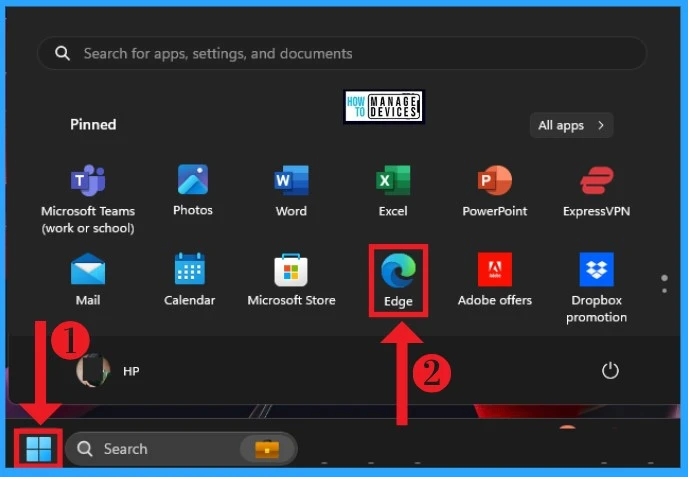
Microsoft Edge brings several new features that help users a lot. To use the Location option in the Edge browser, which is already enabled on your PCs, turn it on. The screenshots below clearly show how to access the inbuilt feature.
- Select Microsoft Edge in the Start Menu
- Easy Steps to Enable Disable Copilot in Windows 11
- Enable Disable Autocorrect Misspelled Words on Windows 11
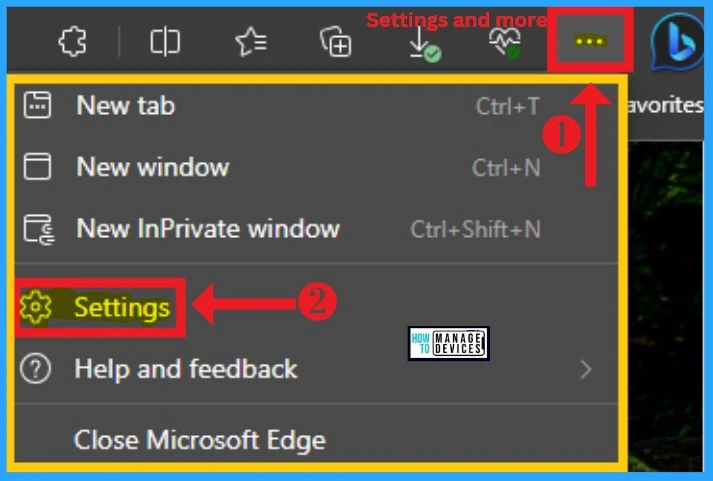
After selecting Microsoft Edge from the Start menu, click the 3 dots (settings and more) from the right side. Select the Settings option from the window.
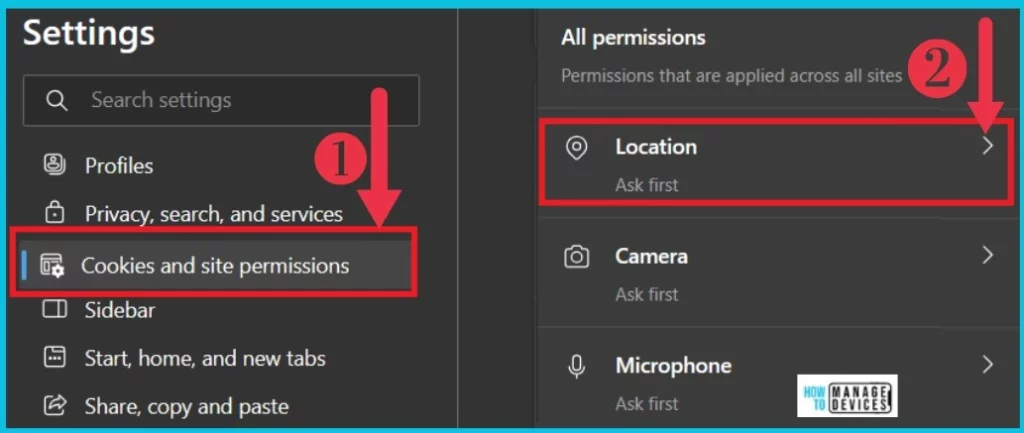
After selecting the settings, you will see another window: choose Cookies and Site permissions from Settings. The All permissions box is available on the right side of Cookies and site permissions.
- Select Cookies and Site Permissions from Settings menu/option
- Select the Location and click the arrow to continue
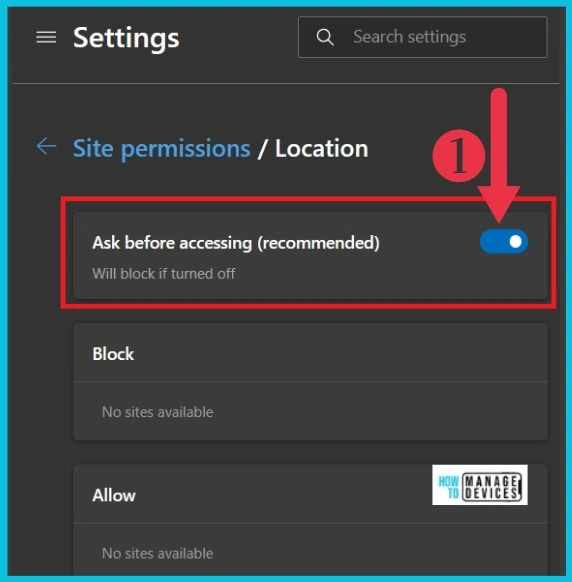
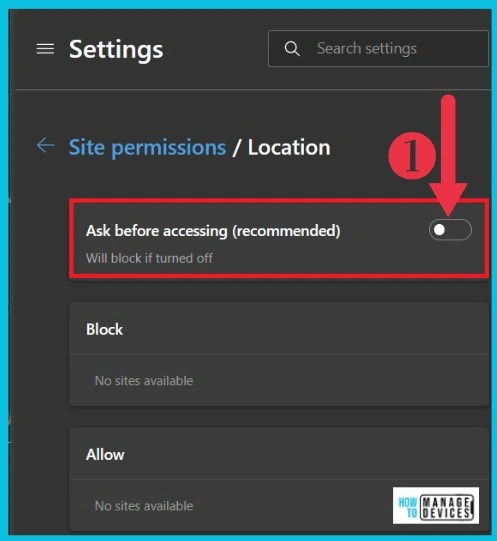
You will get a new window that shows the site permissions or locations. The ” Ask before accessing “ (recommended)option is visible. After selecting the location, this feature is enabled by default.
If you search for a new site, it asks your location for continuation. If you enable this option here, the browser asks for your permission to access some sites. It is beneficial for your security.
- How to Enable Disable Automatic Screenshots for Web Pages on Microsoft Edge
- Enable Disable Memory Compression on Windows 11
You can easily disable this option from your Microsoft Edge browser. This can be done by selecting the Cookies and site permissions from Edge Settings. This feature helps you to block sites.
| How to Disable Location in Microsoft Edge |
|---|
| To disable location, toggle the pane to the left |
We are on WhatsApp. To get the latest step-by-step guides and news updates, Join our Channel. Click here for HTMD WhatsApp
Author
Sumitha was introduced to the world of computers when she was very young. She loves to help users with their Windows 11 and related queries. She is here to share quick news, tips and tricks with Windows security.




Discussion