Skip to content
Turn On Convenience PIN Sign-In Policy using Intune

Turn On Convenience PIN Sign-In Policy using Intune

Written By Abhinav Rana
Last Updated November 21, 2023
Posted In Intune
SHARE

This post will help in understanding and setting the Turn On Convenience PIN Sign-In Policy Using Intune. Here we are going to implement this policy using Intune’s Configuration Profiles. This policy’s main aspect is providing hands-on experience over the Turn On Convenience PIN Sign-In Policy Using Intune.

Turn On Convenience PIN Sign-In Policy configuration controls whether a domain user can sign in using a convenience PIN. Enabling this policy allows a domain user to establish and use a convenience PIN for signing in. Conversely, if you disable or leave this policy unconfigured, a domain user won’t have the option to set up or use a convenience PIN.

It’s important to note that when this feature is employed, the user’s domain password is cached in the system vault. To configure Windows Hello for Business, utilize the Administrative Template policies found under Windows Hello for Business.

When this policy setting is enabled, a domain user has the capability to establish and use a convenience PIN as an alternative method for signing in. If this policy setting is disabled or not configured, a domain user won’t have the option to set up or utilize a convenience PIN for signing in.

Patch My PC

It’s crucial to be aware that when a convenience PIN is used, the user’s domain password is cached in the system vault. This caching is part of the process associated with using a convenience PIN for authentication.

Turn On Convenience PIN Sign-In Policy Using Intune Fig.1

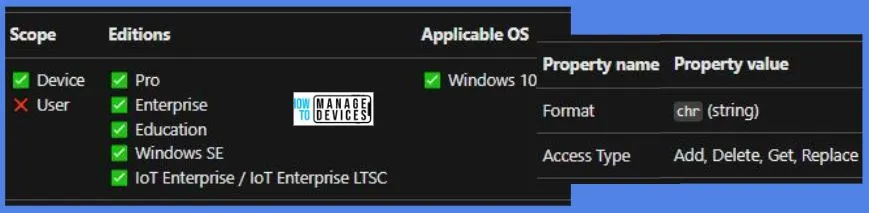
Windows CSP Details AllowPINLogon

We will see Windows CSP Details for this Policy setting AllowPINLogon. This policy setting introduces a level of control and flexibility for administrators regarding the use of convenience PINs for domain user sign-ins. It balances user convenience with security considerations, and administrators should carefully configure and communicate policies to align with organizational security standards.

CSP URI – ./Device/Vendor/MSFT/Policy/Config/CredentialProviders/AllowPINLogon
Turn On Convenience PIN Sign-In Policy Using Intune Fig.2

Turn On Convenience PIN Sign-In Policy using Intune

To Turn On Convenience PIN Sign-In Policy Using Intune, follow the steps stated below:

  • Sign in to the Intune Admin Center portal https://intune.microsoft.com/.
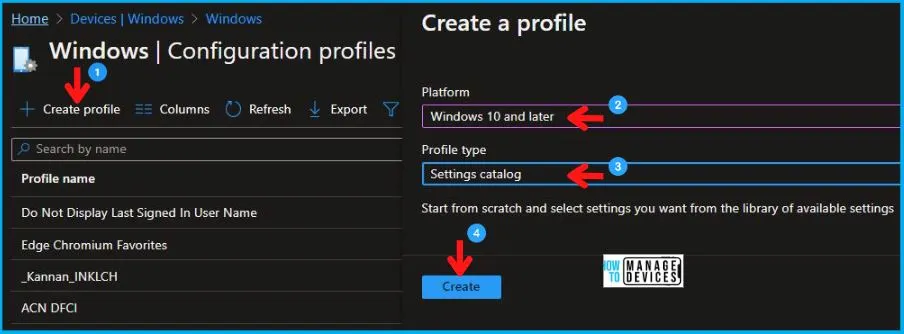
  • Select Devices > Windows > Configuration profiles > Create a profile.

In Create Profile, I select Windows 10 and later in Platform, and select Profile Type as Settings catalog. Click on the Create button.

PlatformProfile Type
Windows 10 and laterSettings Catalog
Table 1 – Turn On Convenience PIN Sign-In Policy Using Intune
Turn On Convenience PIN Sign-In Policy Using Intune Fig.3

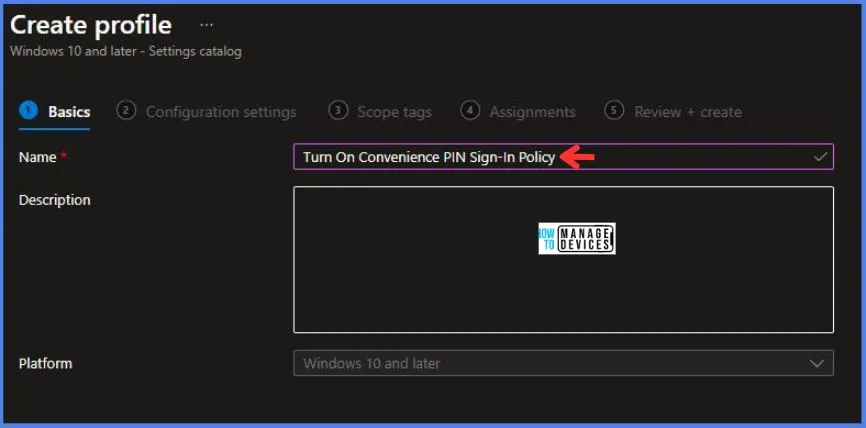
On the Basics tab pane, I provide a name for the policy as “Allow Clipboard Synchronization Across Devices Policy.” Optionally, if you want, you can enter a policy description and proceed by selecting “Next“.
Turn On Convenience PIN Sign-In Policy Using Intune Fig.4

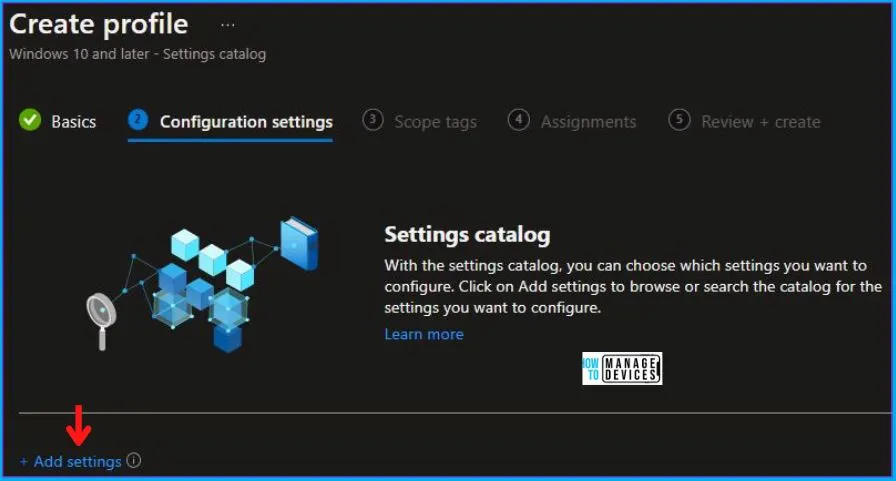
Now in Configuration Settings, click Add Settings to browse or search the catalog for the settings I want to configure.
Turn On Convenience PIN Sign-In Policy Using Intune Fig.5

In the Settings Picker windows, I searched for the keyword PIN, I found the category Administrative Templates\System\Logon and selected this.

When I select that option as stated above, I see the sub-category Turn on convenience PIN sign-in. After selecting that, click the cross mark at the right-hand corner, as shown below.
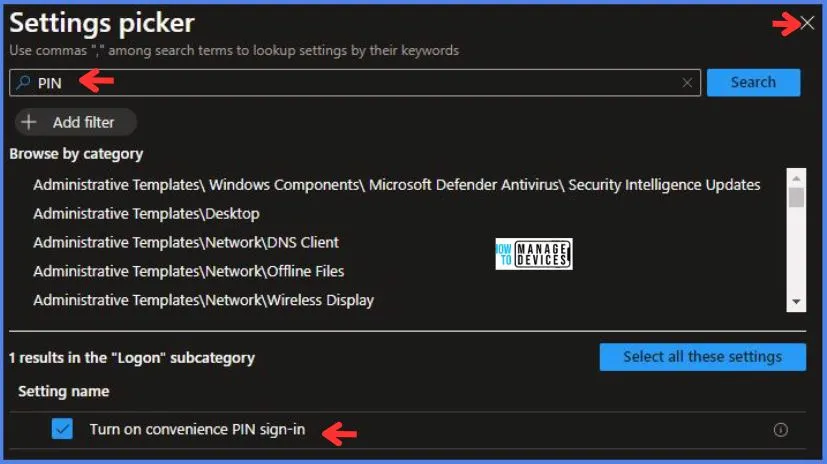
Turn On Convenience PIN Sign-In Policy Using Intune Fig.6

I kept the Turn on convenience PIN sign-in as Disabled and Click on Next to continue.
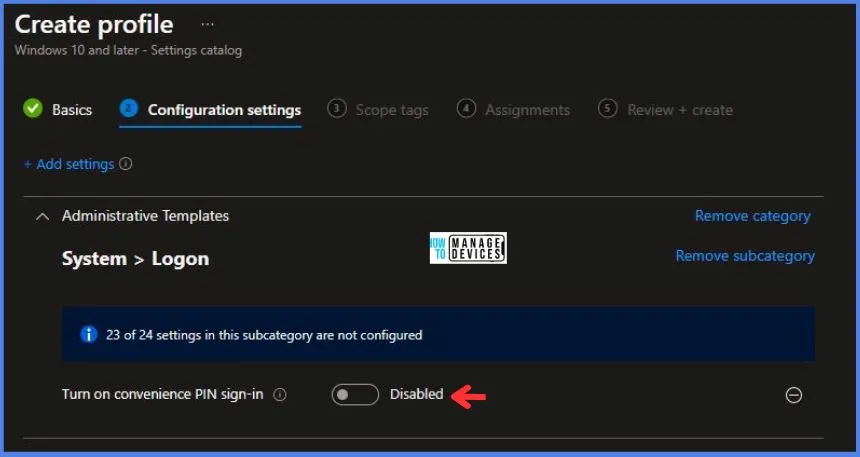
Turn On Convenience PIN Sign-In Policy Using Intune Fig.7

Using Scope tags, you can assign a tag to filter the profile to specific IT groups. One can add scope tags (if required) and click Next to continue. Now in Assignments, in Included Groups, you need to click on Add Groups, choose Select Groups to include one or more groups, and click Next to continue.
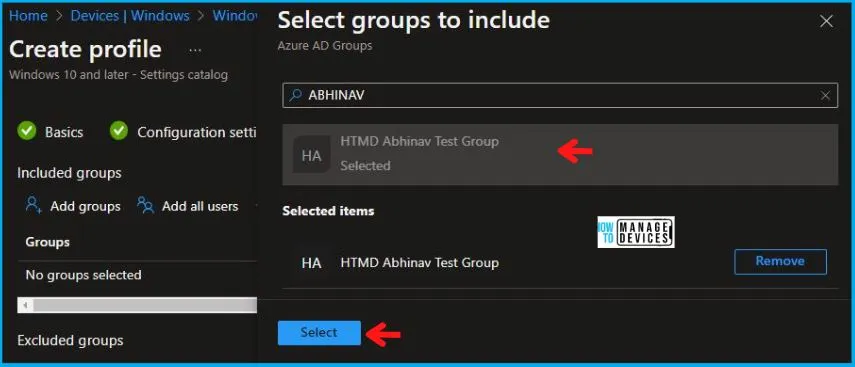
Turn On Convenience PIN Sign-In Policy Using Intune Fig.8

In the Review + Create tab, I review settings. After clicking on Create, changes are saved, and the profile is assigned.
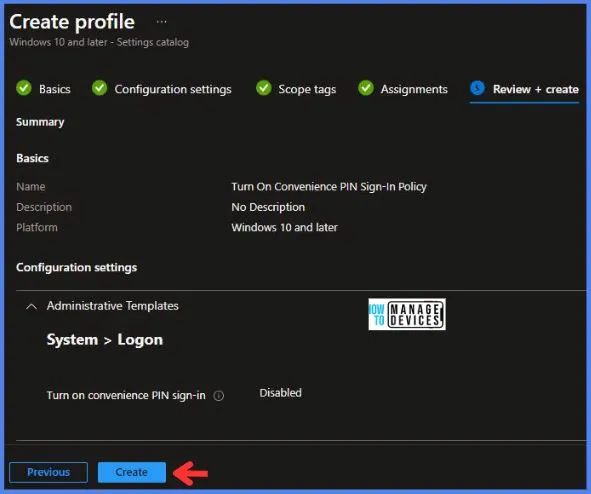
Turn On Convenience PIN Sign-In Policy Using Intune Fig.9

Upon successfully creating the “Turn On Convenience PIN Sign-In Policy, notification will appear in the top right-hand corner, confirming the action. You can also verify the policy’s existence by navigating to the Configuration Profiles list, where it will be prominently displayed.

Your groups will receive your profile settings when the devices check in with the Intune service. The Policy applies to the device.

Intune Report for Turn On Convenience PIN Sign-In Policy

From the Intune Portal, you can view the Intune settings catalog profile report, which provides an overview of device configuration policies and deployment status.

To track the assignment of the policy, you need to select the relevant policy from the Configuration Profiles list. Then, you can review the device and user check-in status to determine whether the policy has been successfully applied. If you require more detailed information, you can click on “View Report” to access additional insights.
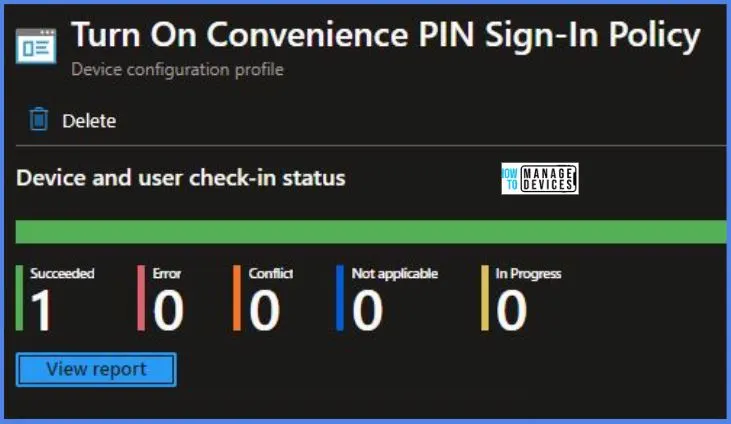
Turn On Convenience PIN Sign-In Policy Using Intune Fig.10

Intune MDM Event Log

To verify the successful implementation of String or integer policies on Windows 10 or 11 devices through Intune, you can leverage event IDs 813 and 814. These event IDs provide valuable insights into the application status of the policy as well as the specific value assigned to the policy on those devices. In the case of this particular policy, the value is a String and is linked to the event ID 814.

By analyzing these event IDs, you can gain a clear understanding of the policy’s application status and the corresponding value associated with it on the devices in question.

To confirm this, you can check the Event log path – Applications and Services Logs – Microsoft – Windows – Devicemanagement-Enterprise-Diagnostics-Provider – Admin.

MDM PolicyManager: Set policy string, Policy: (AllowPINLogon), Area: (CredentialProviders), EnrollmentID requesting merge: (5B88AEF1-09E8-43BB-B144-7254ACBBDF3E), Current User: (Device), String: (<disabled/>), Enrollment Type: (0x6), Scope: (0x0).

Turn On Convenience PIN Sign-In Policy Using Intune Fig.11

When I opened the above Event log, I found that the policy I have applied to the device has been successfully implemented. By reviewing the log entry shown in the above image, the Event Viewer, I came across essential information, including the Area and Enrollment ID. These details play a significant role in identifying the corresponding registry path. To locate the specific information, please consult the table provided below:

AreaPolicyStringScopedEvent ID
CredentialProvidersAllowPINLogonDisabledDevice814
Table 2 – Turn On Convenience PIN Sign-In Policy Using Intune

The details presented in the table above for the Turn On Convenience PIN Sign-In Policy Using Intune can be employed to access the registry settings that hold the group policy configurations on a specific computer. To accomplish this, you can execute “REGEDIT.exe” on the target computer and navigate to the precise registry path where these settings are stored.

  • Computer\HKEY_LOCAL_MACHINE\SOFTWARE\Microsoft\PolicyManager\providers\5B88AEF1-09E8-43BB-B144-7254ACBBDF3E\default\Device\CredentialProviders

When you navigate the above path in the Registry Editor, you will find the registry key named AllowPINLogon. Also, when I navigated to the above path, I saw that the Registry Key was created.

Registry NameValue
AllowPINLogonEnabled
Table 3 – Turn On Convenience PIN Sign-In Policy Using Intune
Turn On Convenience PIN Sign-In Policy Using Intune Fig.12

We are on WhatsApp. To get the latest step-by-step guides and news updates, Join our Channel. Click hereHTMD WhatsApp.

Author

Abhinav Rana is working as an SCCM Admin. He loves to help the community by sharing his knowledge. He is a B.Tech graduate in Information Technology.

Discussion · 2 comments

  1. Hello Anoop,

    Your intune content has helped me a lot in setting up intune for my Organization. Thank you for that!
    My query is regarding PIN.

    I’ve enabled Windows Hello for all devices and users have setup their PIN to log in.
    Now, if I want to disable access to the device for an employee after his/her last day, how can I do that?

    I tried disabling the user account from Azure AD but it doesn’t stop the user from logging in to the device using the already set PIN.

    Is there a workaround for that?

Join the discussion

Your email address will not be published. Required fields are marked *

Related guides

Intune

Simplify Windows Devices to Run Only the Required Applications using Intune

Key Takeaways Hey, let’s learn about Simplify Windows Devices to Run Only the Required Applications using Intune. This policy lets administrators replace the default windows shell with a custom or lightweight shell. it improves performance by using system resources and is useful for devices that run a dedicated application. If the policy is disabled or […]

AC Anoop C Nair 8 min read
Intune

Enhance macOS Compliance with Custom Security and Compliance Checks to Improve Device Security using Microsoft Intune

Key Takeaways In this post we are discussing about Enhance macOS Compliance with Custom Security and Compliance Checks to Improve Device Security using Microsoft Intune. Microsoft has announced the general availability of Custom Compliance Settings for macOS in Microsoft Intune. The feature helps organizations strengthen security controls while supporting many types of macOS management scenarios. […]

AC Anoop C Nair 4 min read
Intune

Manage Samsung Galaxy Firmware Versions to Improve Security and Compliance using Microsoft Intune

Key Takeaways In this post we are discussing Manage Samsung Galaxy Firmware Versions to Improve Security and Compliance using Microsoft Intune. Microsoft Intune has received a new update that expands firmware management capabilities for Samsung Galaxy devices through Firmware Versionsintegration. This enhancement gives IT administrators more control over firmware and operating system updates, helping them […]

AC Anoop C Nair 4 min read
Intune

MS Intune Adds Windows Registry Data Collection to Device Inventory for Single Values All Key Values and Subkeys

Key Takeaways Microsoft Intune 2607 introduces Windows Registry Data collection in Device Inventory, allowing IT admins to verify actual device configurations without relying on custom discovery or remediation scripts. Using the Properties Catalog, admins can collect registry information through Single Value, All Values Under a Key (Non-Recursive), or Same Value Across Subkeys. MS Intune Adds […]

AC Anoop C Nair 5 min read