






Enable or Disable Unattended Sleep Timeout on Battery using Intune Policy
Using the Intune Setting Catalog, let’s learn Enable or Disable Unattended Sleep Timeout on Battery using Intune Policy. The settings catalog is a central list of all the settings you can change. It makes creating policies easier and gives you a clear view of your options.
The unattended Sleep Timeout on Battery policy setting allows you to specify the period of inactivity before Windows transitions to sleep automatically when a user isn’t at the computer. Enabling this policy requires specifying a time in seconds for Windows to automatically enter sleep mode after inactivity. A value of 0 seconds prevents automatic sleep transitions.
Intune has 13 Power settings. You can choose individual or all settings to enable or disable the power policies. However, it’s best practice to select only the settings relevant to your devices. This ensures that your devices are configured with the most appropriate power settings for their needs. We have a post on the Power Button Action on Battery using the Intune Settings Catalog Policy.
Many organizations restrict power option changes for non-administrative users through the control panel. Intune extends this control by preventing users from altering power plan settings. Furthermore, Intune allows for granular assignment of configured power settings, applying them only to specific groups as needed.

Table of Contents
What is Power Settings in Microsoft Intune?
In Microsoft Intune, Power Settings is a feature that lets administrators control how devices use power in an organization. They can set sleep times, adjust screen brightness, manage battery use, and more. This feature helps organizations save energy by setting power plans for multiple devices in one place through policy settings.
CSP Policy – Power
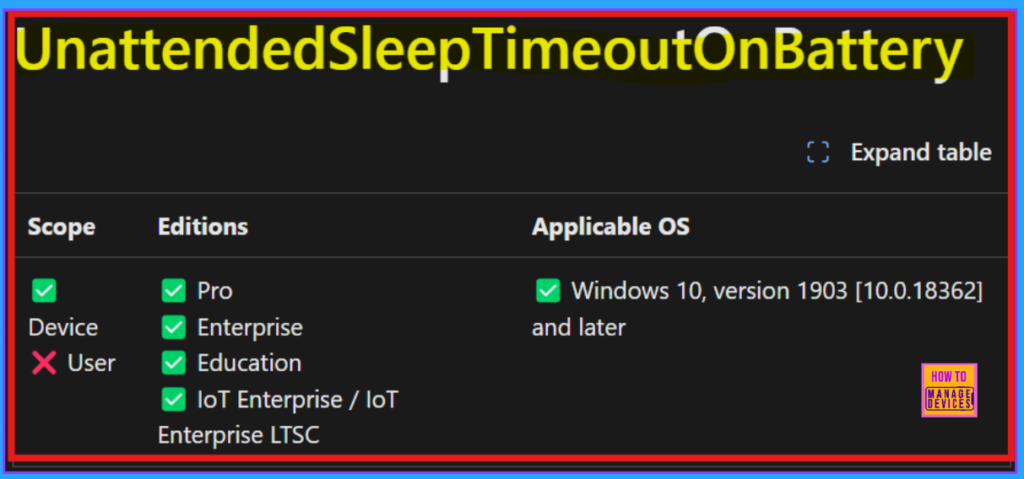
The Policy CSP enables enterprises to centrally configure and control Windows 10 and 11 settings on their devices. Unattended Sleep Timeout on Battery settings is under the Power settings category. The description framework properties for this setting are given below:
| Property Name | Property Value |
|---|---|
| Format | int |
| Access Type | Add, Delete, Get, Replace |
| Allowed Values | Range: [0-4294967295] |
| Default Value | 0 |
Enable or Disable Unattended Sleep Timeout on Battery using Intune Policy
As I mentioned above, Intune has 13 Power Settings which allow you to choose individual or all settings. Now, we can discuss how to enable the Unattended Sleep Timeout on Battery through the Intune Settings catalog.
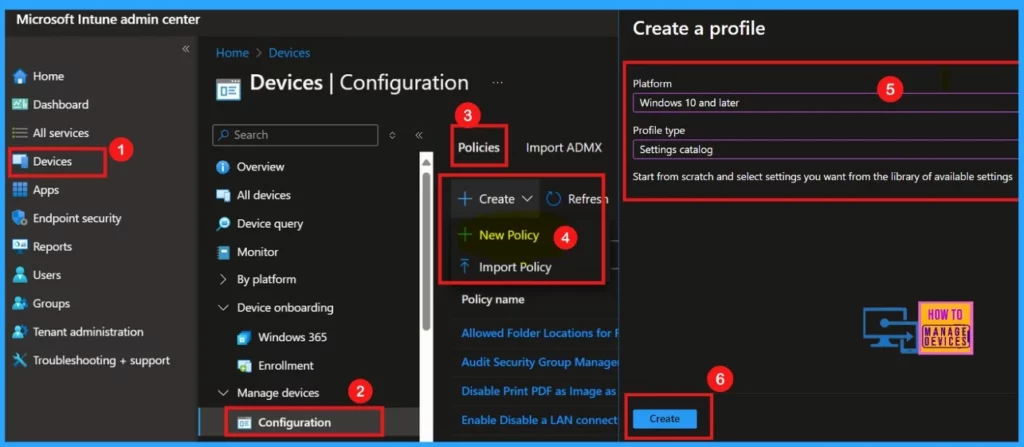
- To do so first, we have to log in to the Microsoft Intune admin center.
- Navigate through Device > Configuration.
- Click Policies > Select + Create > Choose New Policy
- Fill Platform as Windows 10 and later and Profile type as Settings catalog
- Click Create for the next step.
- Free Intune Training 2024 For Device Management Admins
- Easy Way To Enable Energy Saver Battery Threshold On Battery In Intune Settings Catalog
- What Is Microsoft Intune?
Basics
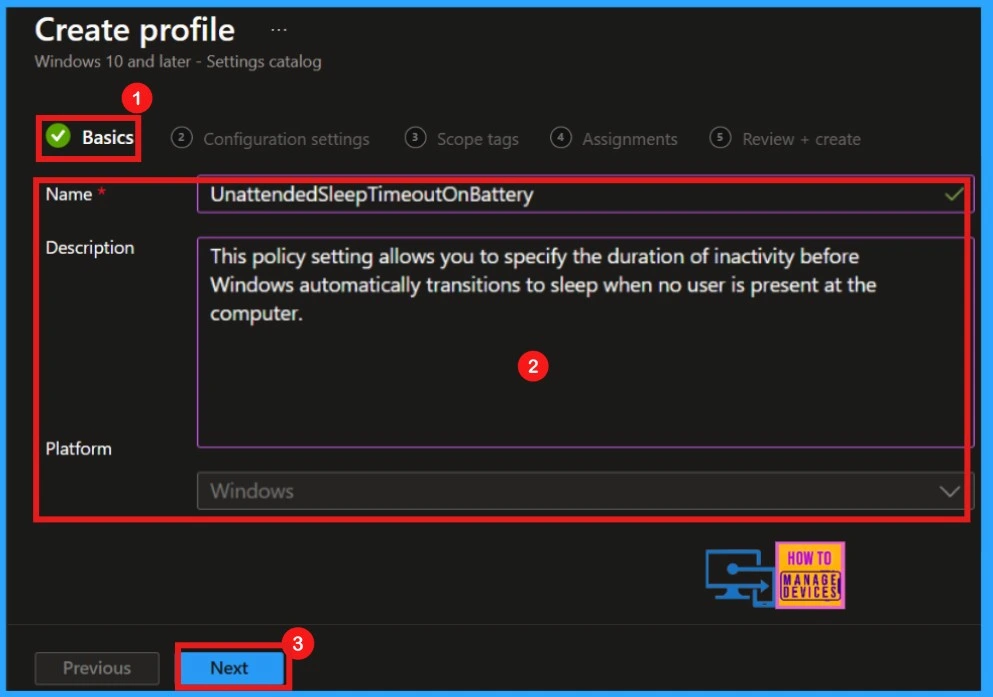
When initiating policy creation, the Basics tab requires you to input the policy’s name and description for easy identification. The platform is pre-selected as Windows. After completing these essential details, clicking Next advances you to the next configuration step.
Configuration
As I mentioned above paragraph, next is Configuration step. The settings catalog lists all the settings you can configure in one place. This feature simplifies how you create a policy and how you see all the available settings.
- Click + Add Settings to select a policy that you want to configure.
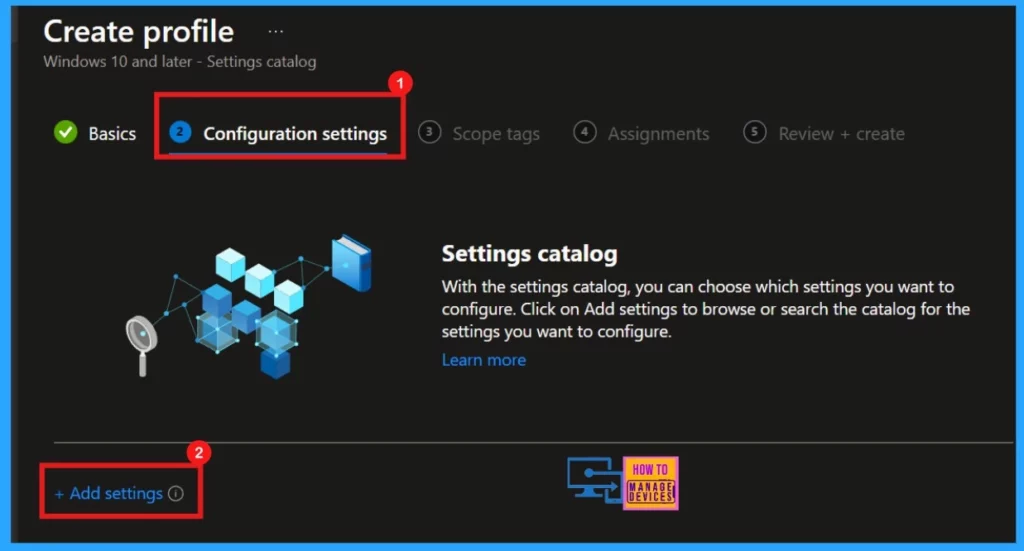
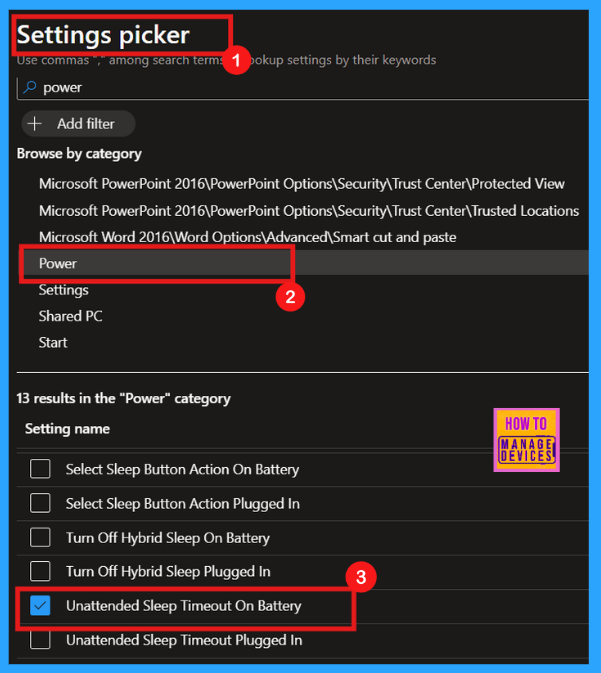
Moving to the configuration settings, selecting Add Setting opens the settings picker. Displaying settings by category reveals a list, from which Unattended Sleep Timeout on Battery for users, followed by closing the picker window. A list of the septs for configuring the this policy is given below for your ready reference.
- Click +Add Settings in the Configuration.
- Search the policy Unattended Sleep Timeout on Battery by typing in the search bar.
- Now you can see the Browse by Category option, where Power is displayed. Select it.
- From the list of available Power-related policy settings, select Unattended Sleep Timeout on Battery.
- Click Next to move on.
| Sl.No | List of 13 Power Settings |
|---|---|
| 1 | Allow Hibernate |
| 2 | Energy Saver Battery Threshold On Battery |
| 3 | Energy Saver Battery Threshold Plugged In |
| 4 | Select Lid Close Action On Battery |
| 5 | Select Lid Close Action Plugged-In |
| 6 | Select Power Button Action On the Battery |
| 7 | Select Power Button Action Plugged In |
| 8 | Turn Off the Hybrid Sleep On Battery |
| 9 | Turn Off Hybrid Sleep Plugged In |
| 10 | Unattended Sleep Timeout On Battery |
| 11 | Unattended Sleep Timeout Plugged In |
| 12 | Select Sleep Button Action On Battery |
| 13 | Select Sleep Button Action Plugged In |
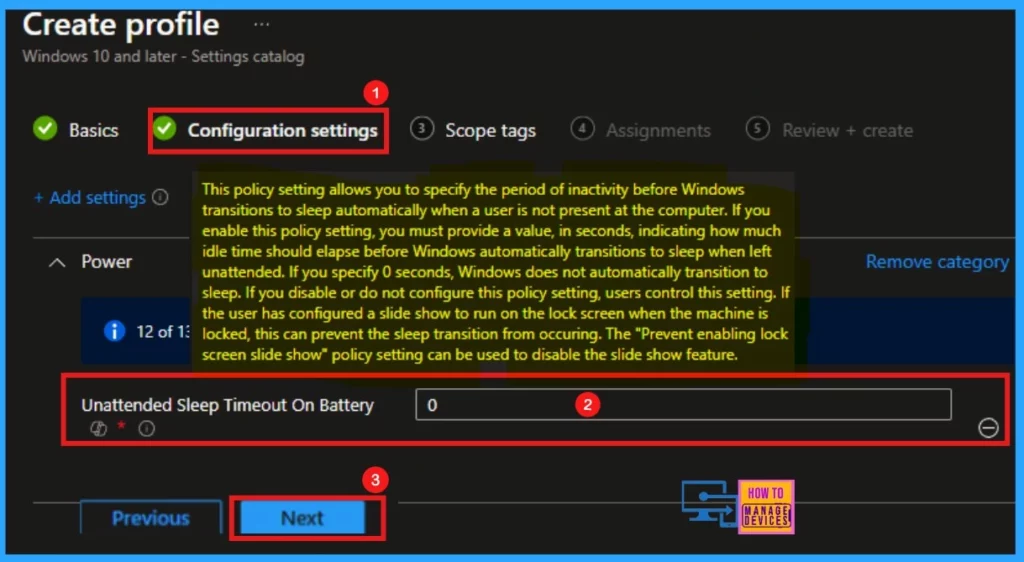
Disable Unattended Sleep Timeout on Battery
Closing the settings picker returns you to the main configuration page, where your selected settings are now visible. Set the inactivity time in seconds for Windows to enter sleep mode. Use 0 to disable automatic sleep. By default This policy is disabled.
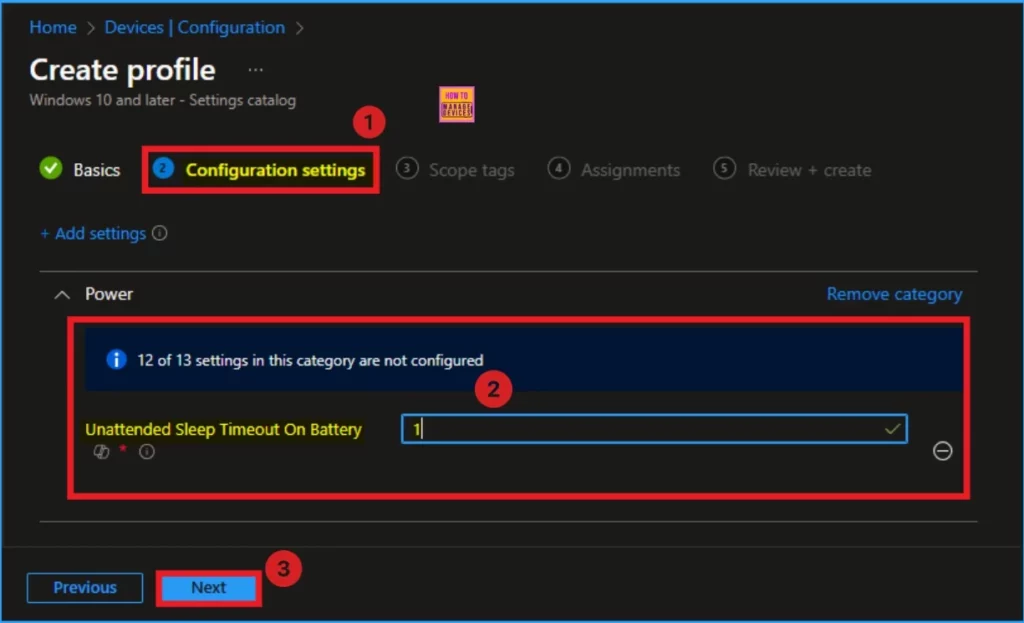
Enable Unattended Sleep Timeout on Battery
You can easily enable Unattended Sleep Timeout on Battery. If you enable this policy setting, you must provide a value, in seconds, indicating how much idle time should elapse before Windows automatically transitions to sleep when left unattended.
- Enter the Value as 1 in the Text box to enable Unattended Sleep Timeout on Battery
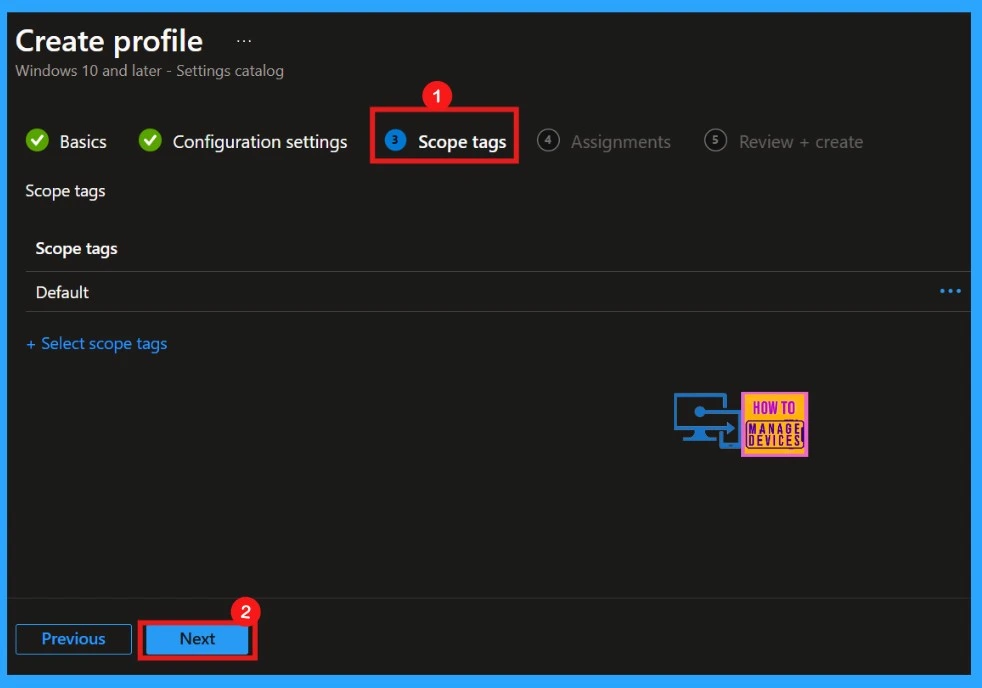
Scope Tags
Following the configuration settings, moves to the scope tags section, where you can assign scope tags to the policy. Since I chose not to apply any scope tags in this instance, I proceeded by clicking Next.
Assignments
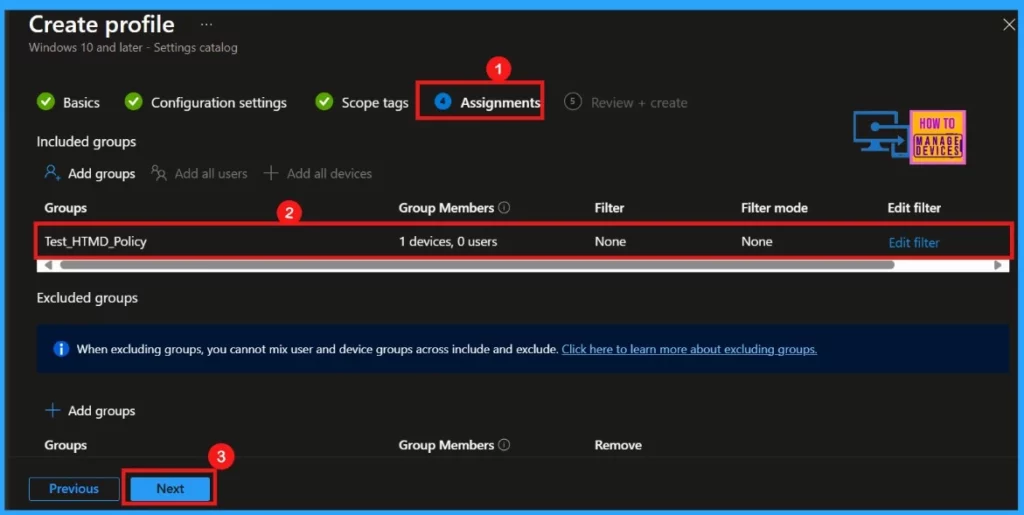
The Assignments tab allows you to define where and to whom this policy will assigned. To do this, click on Add Groups under the Include Groups section. Here, you can select the specific user or device groups to which the policy should be applied. Once you have selected the desired groups, click Next to proceed to the final review and creation stage.
Review + Create
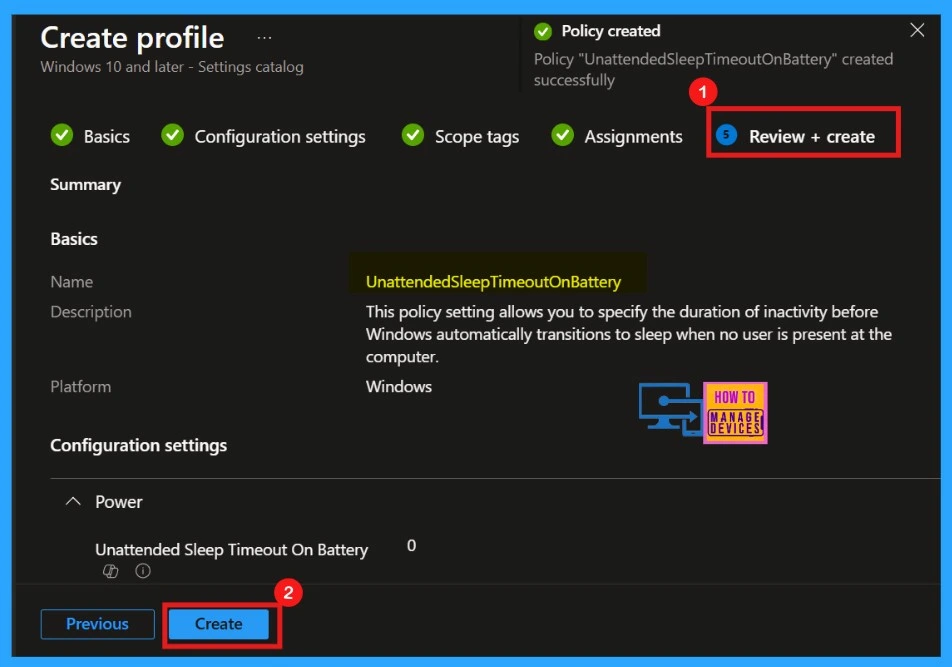
The Review + Create section presents a summary of the policy’s configurations. This step ensures that the policy is only deployed to the intended recipients, providing you with precise control over its application. After verifying the details, clicking Create finalizes the process, and you receive confirmation of the policy’s successful creation.
Device and User Check-in Status
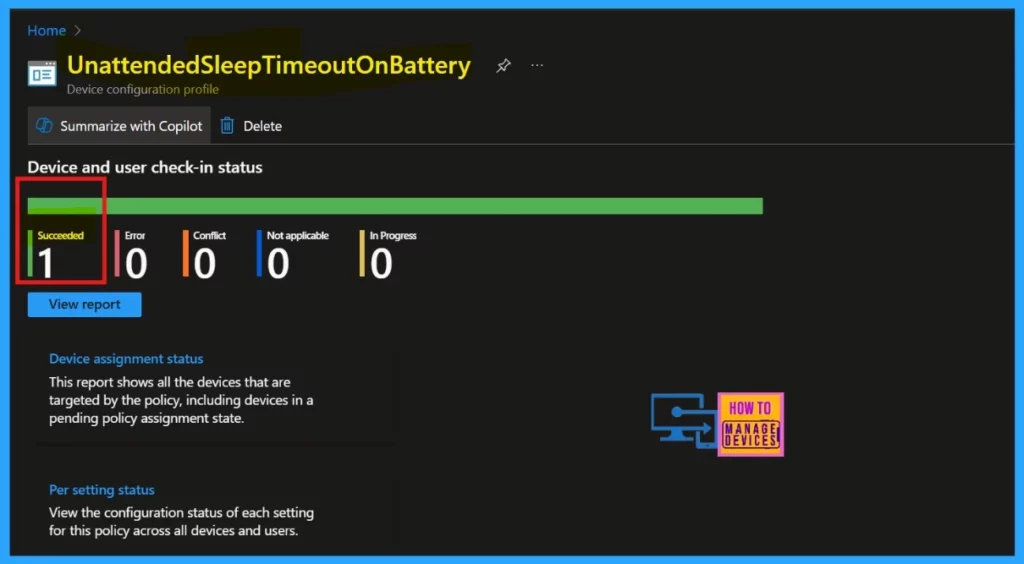
After you create a policy, it is important to check if it was implemented successfully. To do this, go to the device configuration settings and find the policy you created. Click on the policy to see its current status. This will tell you if the policy was applied successfully, if there were any conflicts, or if it was not applicable.
Client Side Verification
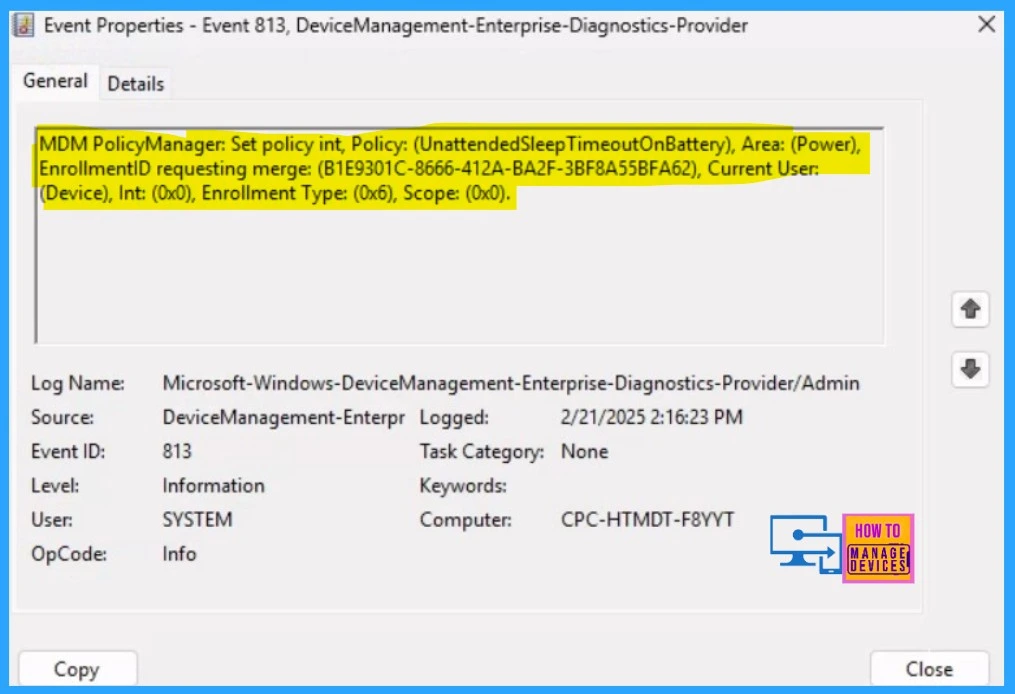
To ensure a policy has been correctly applied on the client side, you can verify the results after syncing. This involves reviewing event properties or utilizing the Event Viewer. To do it, navigate to Applications and Services Logs > Microsoft > Windows > Device Management > Enterprise Diagnostic Provider > Admin.
| Policy Details |
|---|
| MDM PolicyManager: Set policy int, Policy: (Unattended Sleep Timeout on Battery), Area: (Power), EnrollmentID requesting merge: (B1E9301C-8666-412A-BA2F-3BF8A55BFA62), Curnent User: (Device), Int: (0x0), Enrollment Type: (0x6), Scope: (0x0). |
Need Further Assistance or Have Technical Questions?
Join the LinkedIn Page and Telegram group to get the latest step-by-step guides and news updates. Join our Meetup Page to participate in User group meetings. Also, Join the WhatsApp Community to get the latest news on Microsoft Technologies. We are there on Reddit as well.
Author
Anoop C Nair has been Microsoft MVP for 10 consecutive years from 2015 onwards. He is a Workplace Solution Architect with more than 22+ years of experience in Workplace technologies. He is a Blogger, Speaker, and Local User Group Community leader. His primary focus is on Device Management technologies like SCCM and Intune. He writes about technologies like Intune, SCCM, Windows, Cloud PC, Windows, Entra, Microsoft Security, Career, etc.


Discussion