






Uninstall Application using Intune MEM Portal
In this post, you will learn the steps to uninstall application using Intune MEM Portal. The guide also helps you use an existing Intune Win32 App package deployed to the machine, and uninstall the application.
Before adding a Win32 app to Microsoft Intune, you must prepare the app using the Microsoft Win32 Content Prep Tool. You use the Microsoft Win32 Content Prep Tool to pre-process Windows classic (Win32) apps, Intune Win32 App Deployment Step By Step Guide.
When you delete an application, it’s no longer available in the portal. Intune deleted the active assignment for the application. However, Intune doesn’t uninstall an app from the targeted systems.
You can also explore the available options for Intune Win32 App Deployment Toast Notification and how you can suppress showing user notifications per app assignment, Intune Win32 App Deployment Toast Notification | User Experience.

Here’s how you can use the script in an Intune Win32 App requirement rules, Mark Thomas has written a PowerShell script that gets the device enrollment date from the registry on the client. This can then be used as a requirement rule Targeting Intune Win32 apps and PowerShell Scripts based on the Enrollment Date.
- Delete application deployment or assignments from Intune MEM portal
- Intune Win32 App Failure Log Collection Backend Secrets
- Create AAD Dynamic Groups based on MDM Intune SCCM Management
Uninstall Application using Intune MEM Portal
I will be utilizing an existing Intune Win32 App deployed to the machine for uninstalling the application. You can follow the same procedure if you want to use the new package by validating the few required parameters.
Important – If the application is not listed in the MEM Admin Center, You need to create the application for which you want to target the uninstallation and check the required command line, and detection method.
Here in Intune MEM Admin Center, you have two options to navigate to the application node either you can navigate to the All Apps or Apps -> By Platform.
- Sign in to the Microsoft Endpoint Manager admin center https://endpoint.microsoft.com/
- Select Apps > Windows. Select the existing Win32 application from the list to modify the notifications.
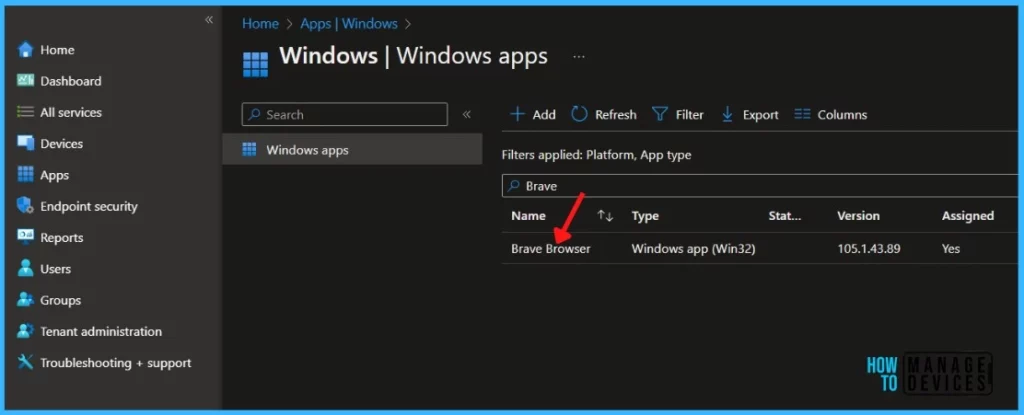
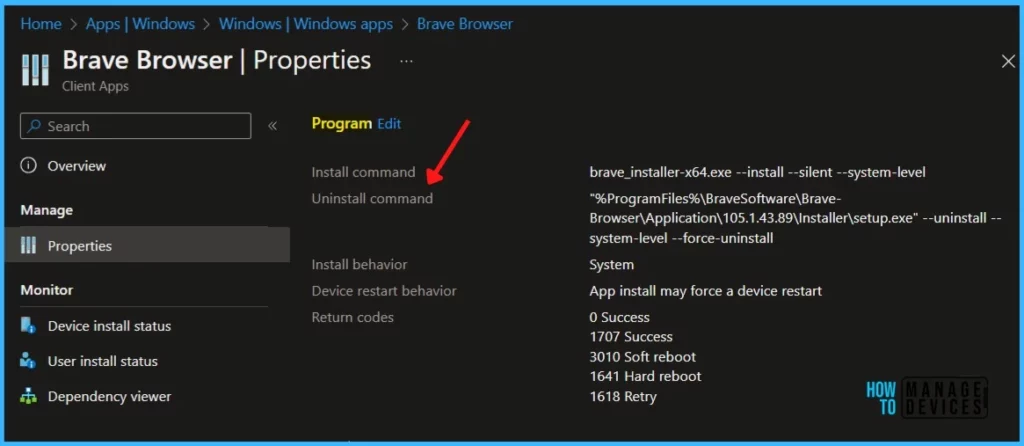
Select the application and In the Properties. Scroll down and validate the program details for the application. You can click on Edit in the Program to modify.
After you successfully installed the application in your environment. If you want to uninstall the application, you need to review the uninstall command for the app.
- Install Command / Uninstall Command – Admins must be careful when they use the command tools. Unexpected or harmful commands might be passed via the Install command and Uninstall command fields.
- Detection Method – Detection methods allow the administrator to check software installs to ensure that the application is not already installed.
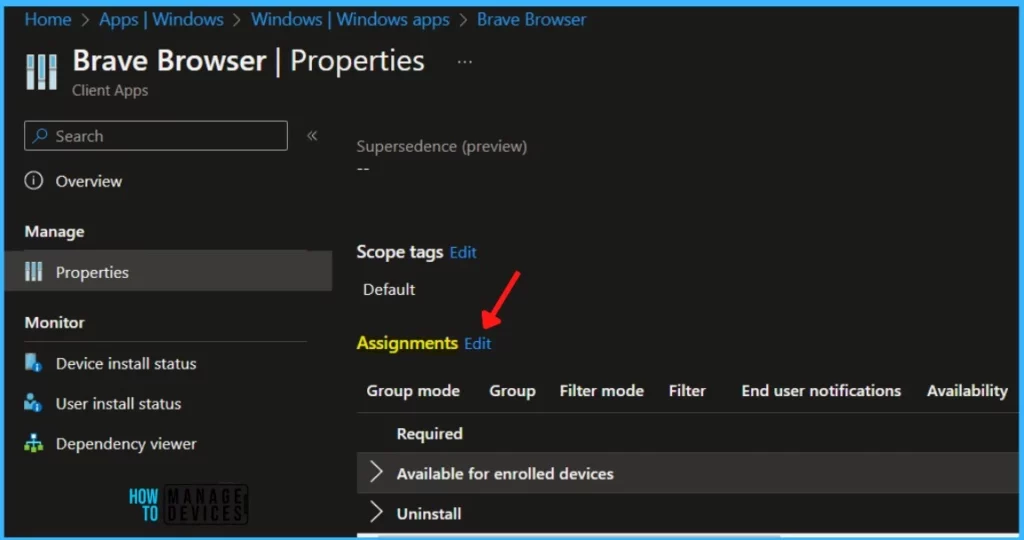
In the Properties. Scroll down and click on Edit in the Assignments. App availability can be set based on the assignment type. Assignment type can be Required, Available for enrolled devices, or Uninstall.
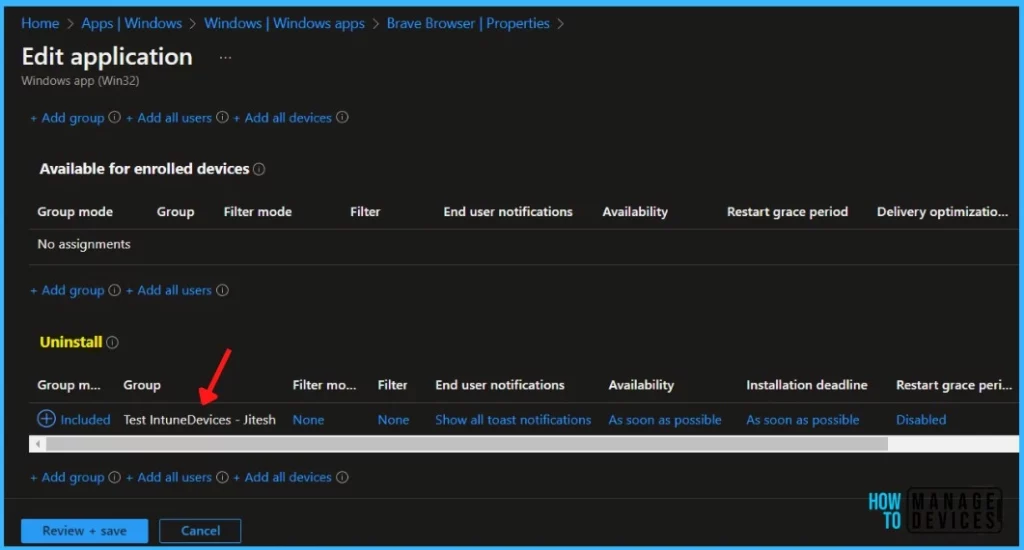
Select the groups for which you want to uninstall the app. You can uninstall this app for all users and uninstall this app for all devices. Once you have selected it, the summary screen will appear. Select Review + save.
Apps with this assignment are uninstalled from managed devices in the selected groups if Intune has previously installed the application onto the device via an “Available for enrolled devices” or “Required” assignment on the same deployment.
When you’re finished setting the programs and assignments, Select Next to display the summary. Once you have selected the summary screen will appear, Select Review + save.
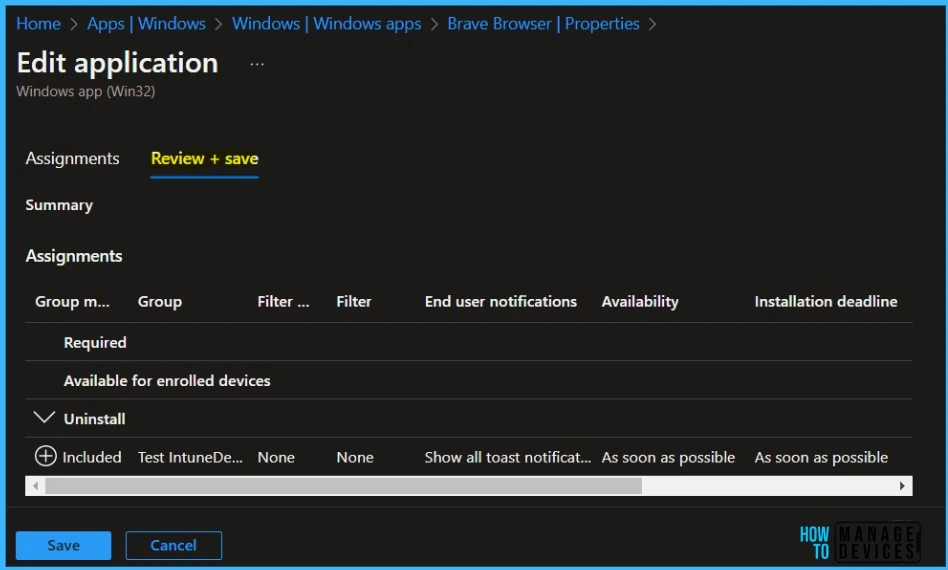
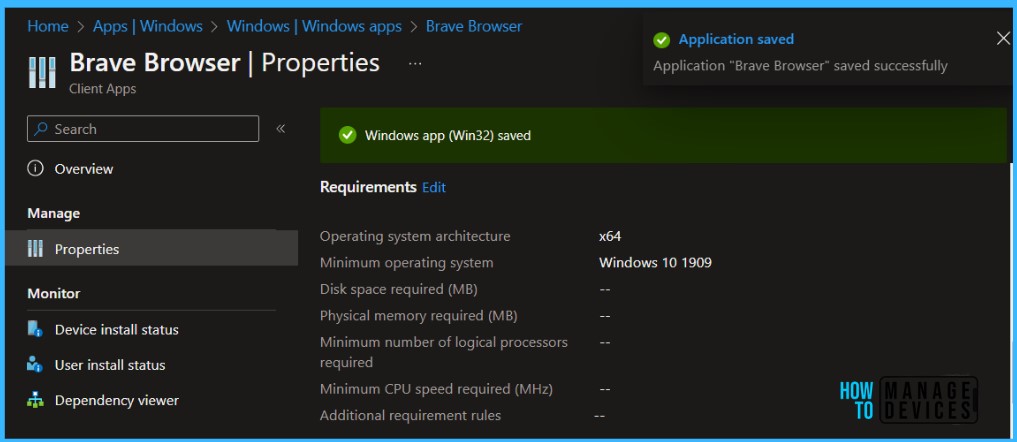
The next screen will appear with the Summary, Review the selection and click Save. A notification will appear automatically in the top right-hand corner with the message “Application saved successfully.”
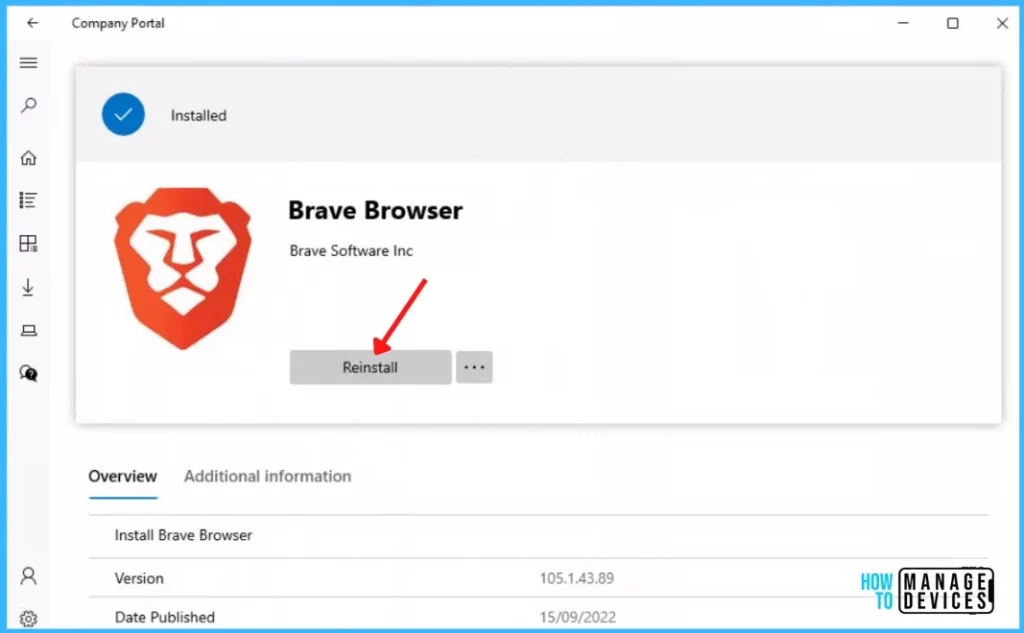
The application was installed in Intune Company Portal, before triggering the uninstallation. Here you also get an option to Reinstall the app from the Company Portal, If the application is already installed in the system.
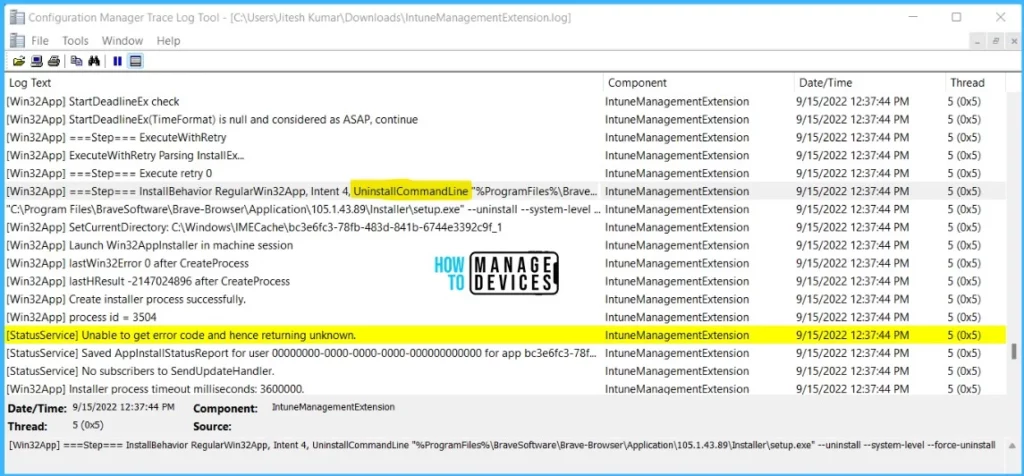
Once the application uninstallation starts, the “Detection rule” will be evaluated. Checks were performed against the rules configured and the app “Uninstall command” will be triggered.
You can track the details logged at IntuneManagementExtension.log located C:\ProgramData\Microsoft\IntuneManagementExtension\Log to review how the requirements are evaluated. For example, you can see uninstall command line of an application.
The Intune management extension is the client-side component to manage the MDM Intune Win 32 application deployment. Learn more about Intune Win32 App Issues Troubleshooting Client-Side Process Flow.
You can look at the Level 3 deep dive troubleshooting Intune Management Extension (IME) Level 3 Troubleshooting Guide.
After the successful uninstallation of apps, I don’t see any entries for the app in the Company Portal. You can also validate the status from Windows programs and features in Control Panel.


Hi,
How do you uninstall a program from all
Devices However the program is not in MEM you see the program from the device app list.
/Rob
StaffHi Rob, If the application is not listed in Intune, You need to create a fresh application for which you want to target the uninstallation and check the required command line, and detection method.
Hello,
What happens if the same aasignement group is into required and uninstall simultaneously? The devices you want to uninstall must be outside of the install (required) assignement or uninstall wins?
Regards
/Will
@Guillermo|
To ensure there are no challenges, simply add the group you are using for the Uninstall as an excluded group for the install.
~m
Is it possible to uninstall the app which installed manually by user on his own by running .exe