






Update Balloon Tips Duration using SCCM Configuration Item CI CB
In this post, we will Update Balloon Tips Duration using SCCM Configuration Item CI CB. We will update the duration for Balloon Tips notifications using SCCM Configuration Item Configuration Baseline. It is set to 5 seconds by default, and we will update it from 5 seconds to 15 seconds.
A balloon Tips is a small pop-up window that alerts users to a non-critical problem or special condition in control. There is an icon, a title, and a body text for balloons, all of which are optional. The source of balloons is also identified by a tail, unlike that of tooltips and info tips.
The Configuration Item(CI) is a container in ConfigMgr which stores specific information. As part of the SCCM world, configuration items are commonly used for identifying software updates, application models, etc. As CI is the building block of configuration baselines, it can be used across multiple baselines. A CI for determining compliance with settings related to the operating system version and configuration.
Now let’s start with our post. With the help of the Configuration Item Configuration Baseline in SCCM, we will Update Balloon Tips Duration using SCCM Console. We will try to explain everything to you all in a very simple way. We will make use of a Registry Key to do so.

- SCCM CI to find Windows 11 Device is Blocked from an Upgrade
- Detect Registry Changes and Revert using SCCM Configuration Item CI CB
Prerequisites for SCCM Configuration Item
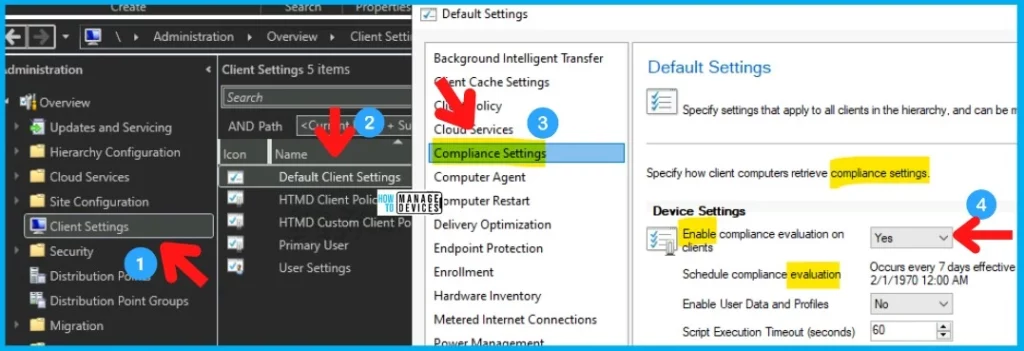
Before beginning, you must ensure that Configuration Item-related client agent policies are enabled and working ok. To check this, you need to option the client settings from the Administration workspace.
Follow the steps below to confirm whether everything is configured as expected for CI and CB to work!
- Navigate to \Administration\Overview\Client Settings.
- Open the Client Settings deployed to Windows 11 or 10 clients.
- Click on the Compliance Settings tab and check:
- The Enable Compliance Evaluation on Clients = Yes, as shown in the below screenshot.
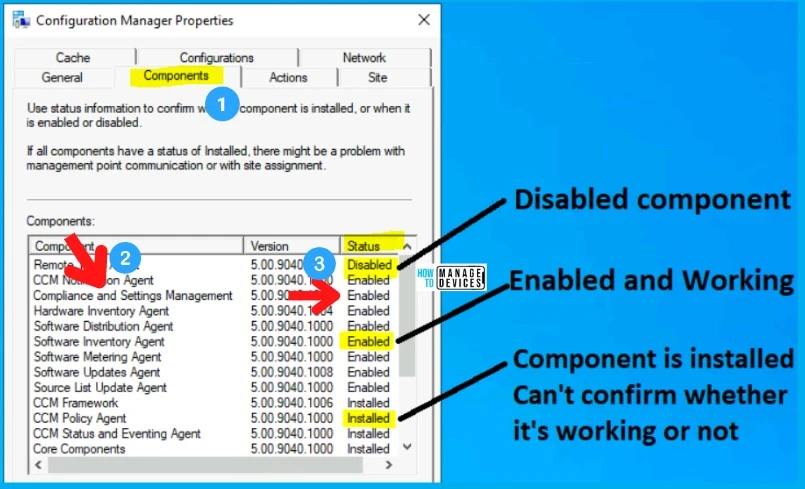
On the client side, you can open the Configuration Manager applet from the control panel or try running the following command from the RUN menu to open the ConfigMgr applet. Check the Components tab and confirm whether the Compliance and Settings Management component is ENABLED.
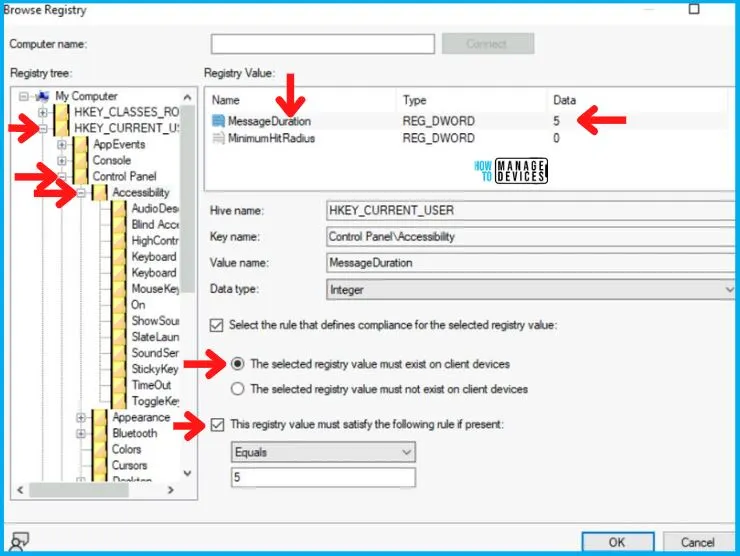
Before we begin creating the Configuration Item, let’s check with the path where balloon tips duration time is stored in the Registry Editor. The path where this information is stored is mentioned below:
- HKEY_CURRENT_USER\Control Panel\Accessibility\MessageDuration
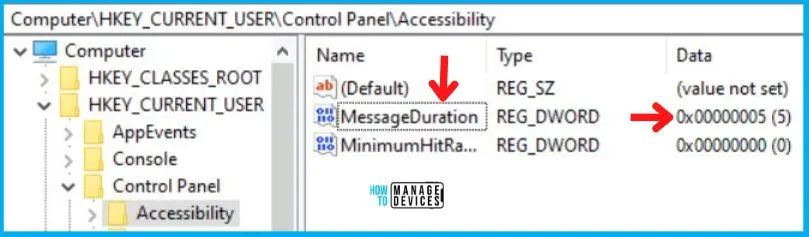
As you can see in the above image, MessageDuration is the registry key which is by default set to 5. We will check and remediate this to 15 with the help of the Configuration Item we are about to create.
- ConfigMgr Microsoft Edge SQL Query | Custom Report | SCCM
- Create SCCM Custom Report Using Report Builder
Let’s Create a Configuration Item using SCCM Console
Now let’s move on to the SCCM console and begin creating a Configuration Item for the registry key we have in the above image to check whether the machine is not blocked for upgradation or not. Open Configuration Manager Console and Go to:
- Navigate to SCCM Console \ Asset and Compliance \ Compliance Settings \ Configuration Items
- Right-click on Configuration Items and select ‘Create Configuration Item’
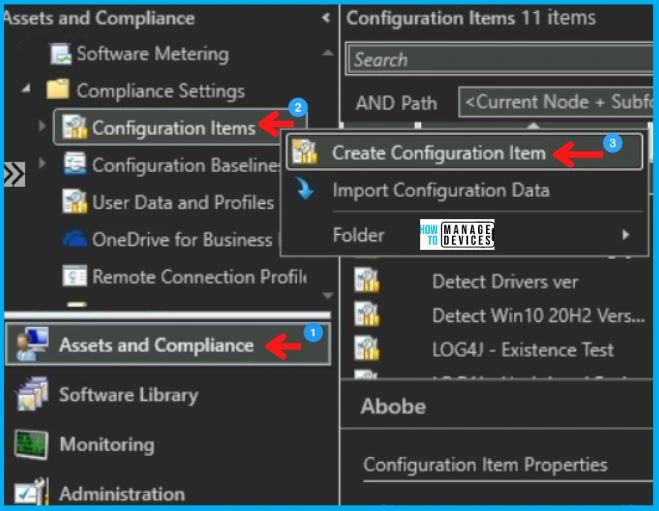
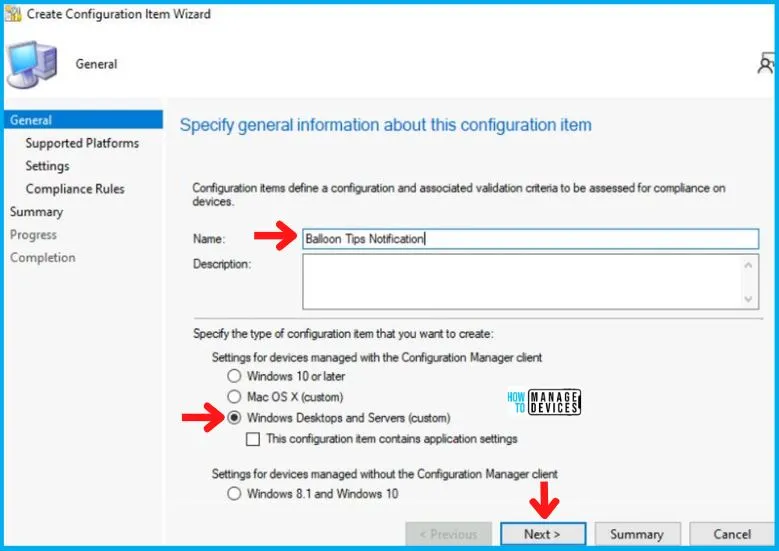
After this, Create Configuration Item Wizard will open and provide the name of CI in the Name box, select the option as shown below, and click on ‘Next ‘as shown below in the image.
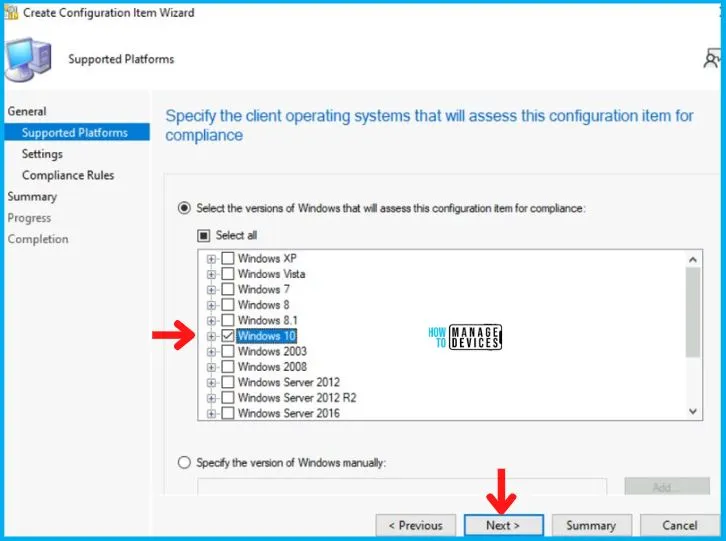
Here in the Supported Platforms tab, Select the operating system version for which you want to create the CI. Here I am choosing Windows 11 and clicking on “Next, “as shown below.
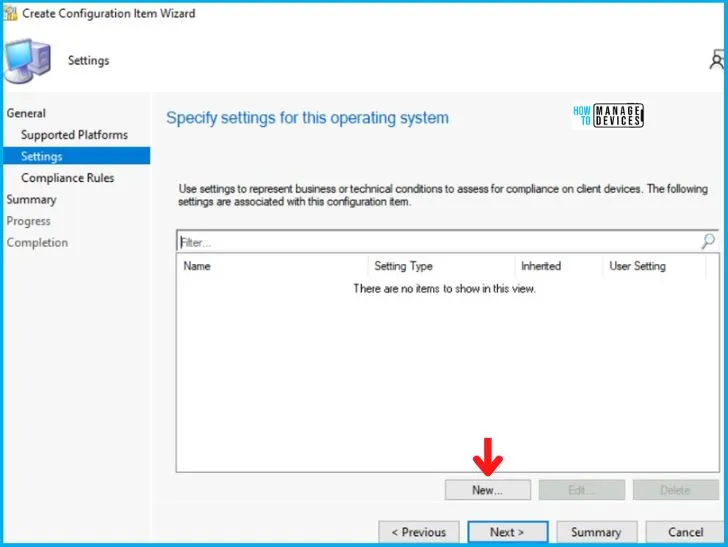
Now, in the Settings Tab, click on New, as shown below in the image.
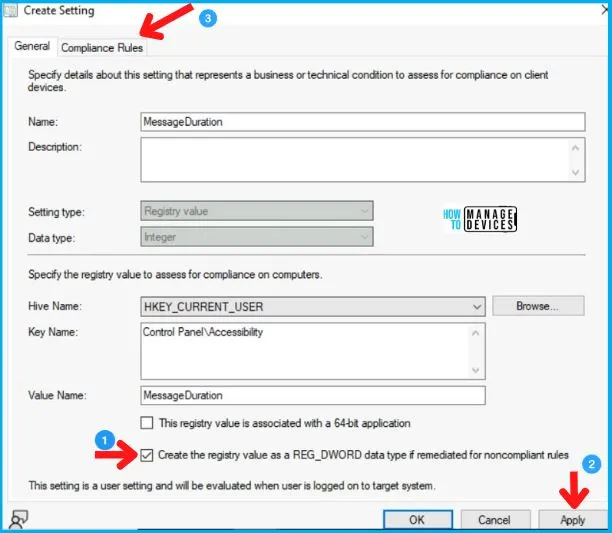
After clicking on New, Create Setting dialogue box will open. In the General Tab, enter the name in the Name box and click on Browse, as shown below.
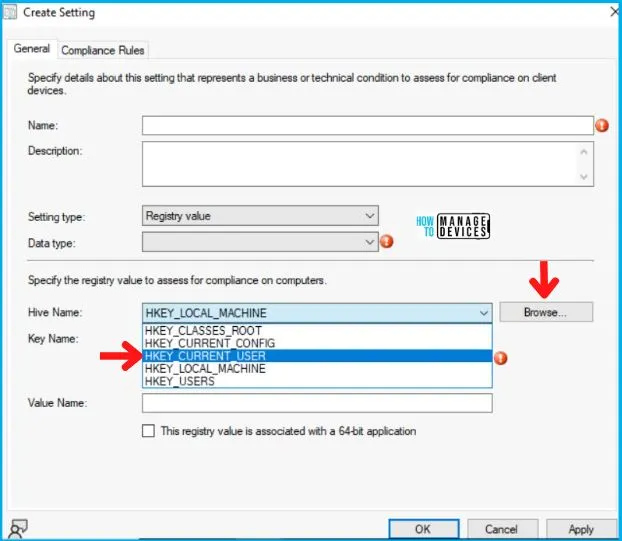
Now you have to browse the path shown in the table below using the Registry tree. You can check the following registry key.
| Hive Name | Key Name | Value Name | Data Type |
|---|---|---|---|
| HKEY_CURRENT_USER | Control Panel\Accessibility\MessageDuration | MessageDuration | Integer |
Now click on Apply and select the Compliance Rules tab, as shown below.
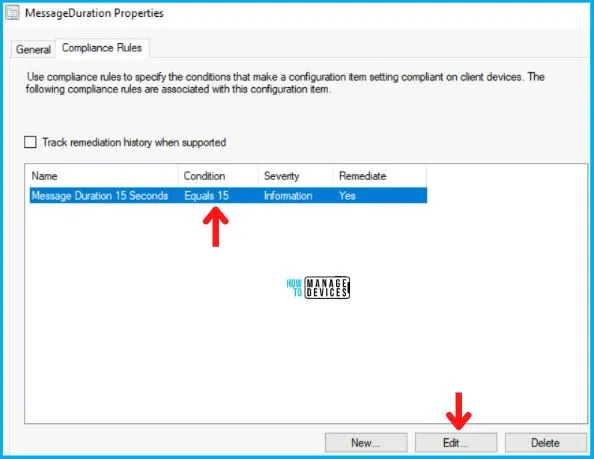
You can check the MessageDuration properties to check and confirm the condition. For this example, we have taken a decision to put the Condition as 15 seconds.
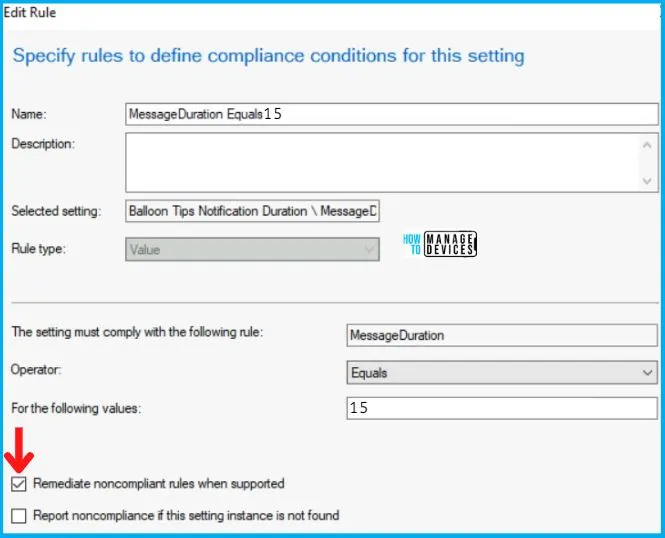
In the Edit Rule tab, check the options shown below:
- Report noncompliance if this setting instance is not found.
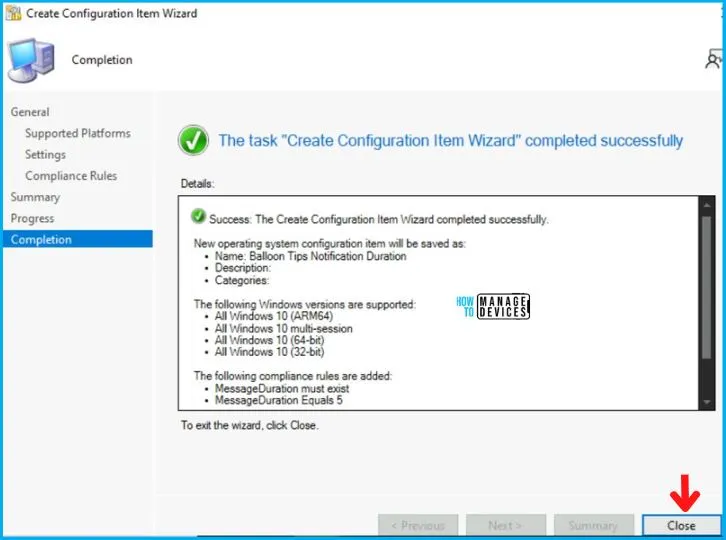
Click Next on Compliance Rules and Summary Tab and end the Create Configuration Item Wizard by clicking Close in Completion Tab.
- Top 20 Methods to Increase Windows 11 Performance Optimization
- Enable Optimized Performance of Edge Browser | Windows 11 | Intune | Group Policy
Create Configuration Baseline using SCCM Console
Now let’s create an SCCM Configuration Baseline using SCCM Console. For this, go to the:
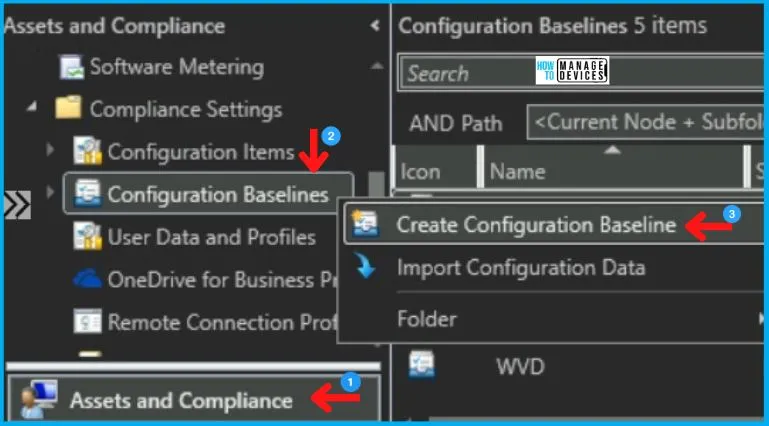
- Navigate to SCCM Console \ Asset and Compliance \ Compliance Settings \ Configuration Baselines
- Right-click on Configuration Baseline and click on ‘Create Configuration Baselines‘
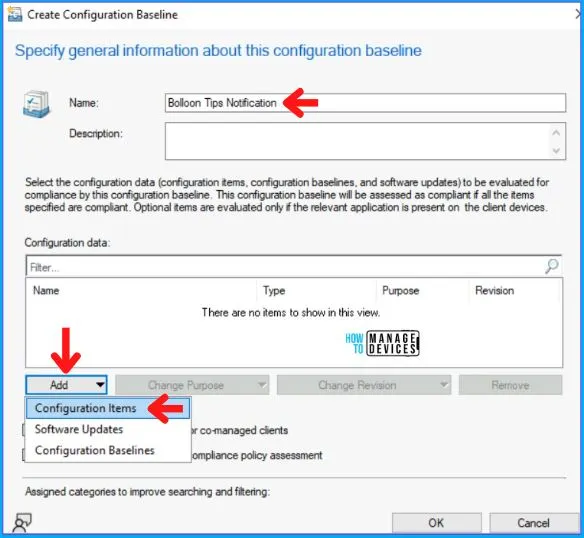
In the Create Configuration Baseline Dialogue Box, enter the Name of the Baseline and click on Add to add the Configuration Item created earlier, as shown in the image below.
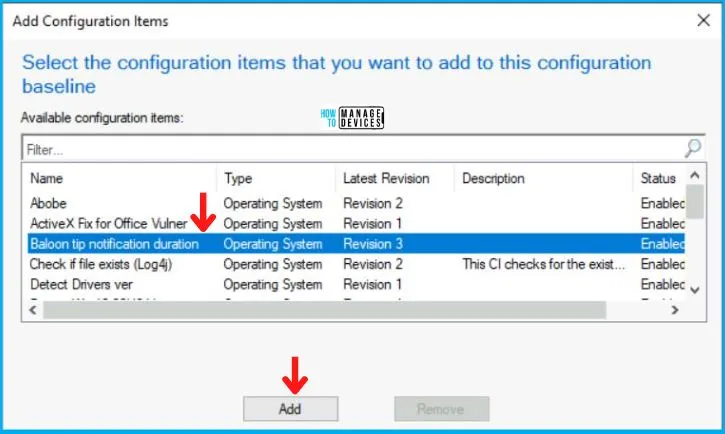
Now choose the Configuration Item created by you from the list as shown below, click on ADD, and press OK.
Also, don’t forget to tick the check box mentioning Always apply this baseline even for co-managed clients and click on OK, as shown below in the image. If you don’t enable this option, you normally get the following error in DCMAgent.log.
CDCMAgent::CheckAgentEnabled - The Desired Configuration Management agent is not enabled due to co-management. Request will be ignored.
Agent is disabled. No action needed.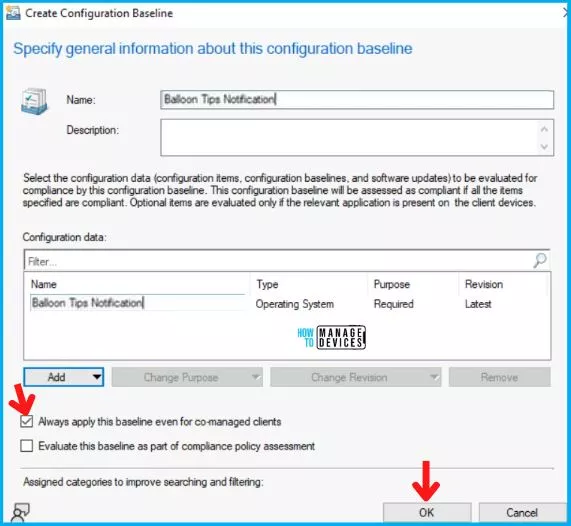
- Accidental Listing of C Release to WSUS Made Current Months CUs as Superseded in SCCM and WSUS
- FIX SCCM Console Access Error 0x80070005 0x800706ba RPC Server is Unavailable
Deployment of Configuration Baseline on Targeted Device Collection
After creating the Configuration Baseline, it will appear in the console, and now right-click on it and click on Deploy.
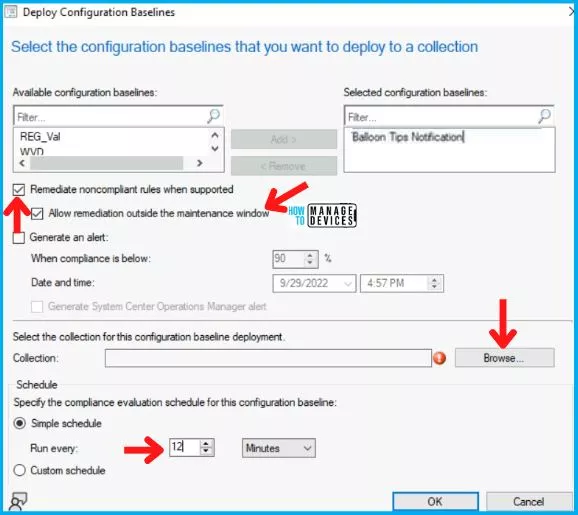
In the Deploy Configuration Baselines wizard,
- Tick the check box for Remediate noncompliant rules when supported
- Select Simple Schedule and set Run Every to 12 mins as shown below in the image. Please Note that this can vary from the production environment to environment. As I am performing this in my lab environment, I choose 5mins.
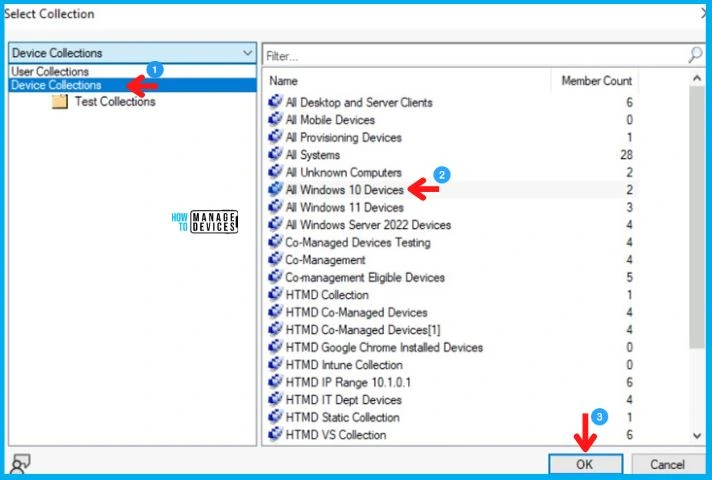
- After this, click on Browse to select the device collection shown below.
NOTE! – Keep the performance impact in mind before deciding on scheduled pop-up remediation, etc.
Now choose the device collection as shown below in the image. Here I choose Windows 11 device collection for deploying the SCCM Configuration Baseline.
User Experience – Update Balloon Tips Duration Using SCCM CI
Until now, we have created an SCCM CI (Configuration Item), then created SCCM Configuration Baseline and deployed it to windows 10 or 11 devices. To test the CI quickly on a lab device, you can manually initiate the machine policy either from Windows 11 or the console.
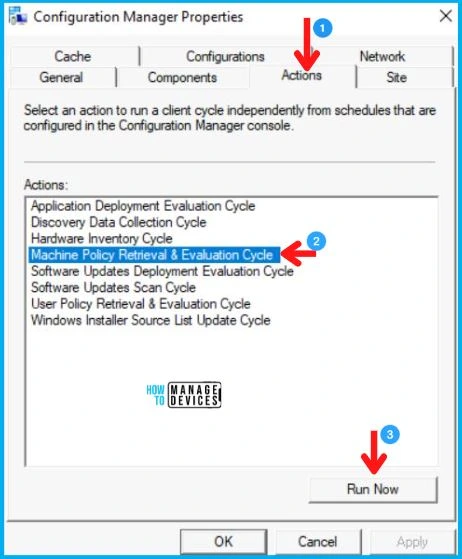
Now when you login into the Windows 10/11 device, open the Configuration Manager applet from the Control panel and select the Action tab. Now choose the Machine Policy Retrieval & Evaluation Cycle and click on Run Now, as shown below in the image.
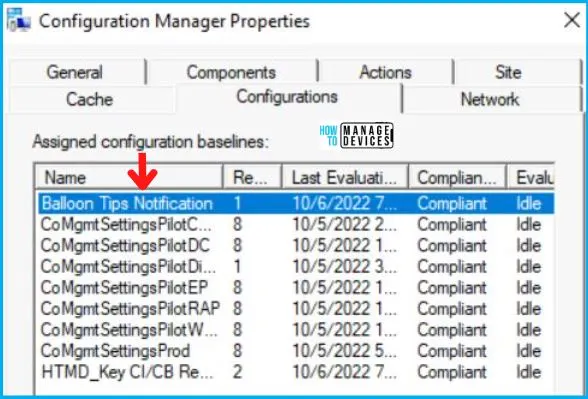
Now click on the Configurations tab, and you will see your Configuration Item in the list. So now click on Evaluate, as shown below in the image. The moment you click Evaluate it will check whether MessageDuraton is set to 5 and will remediate it to 15. As you can see in the below image, it returns Compliant.
To cross-check, when we again check the MessageDuration key in the registry editor, it’s set to 15, as shown below.
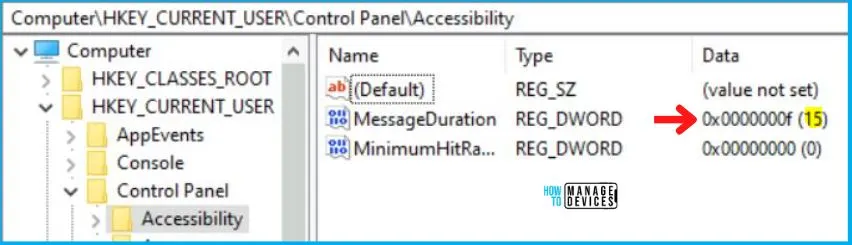
So the above you see, the Configuration Item Configuration Baseline we created works absolutely fine on the windows 10/11 device collection.
Troubleshooting Update Balloon Tips Duration Using SCCM CI
Let’s have a quick look at the Troubleshooting parts of the SCCM Configuration Item and Baseline Deployment. As usual, you need to understand the logs related to SCCM CI & CB. Normally you can check all the SCCM log file details from the following post – SCCM Log Files Updated List Client and Server.
- CIAgent.log
- CITaskManager.log
- DCMAgent.log
- DCMReporting.log
- DcmWmiProvider.log
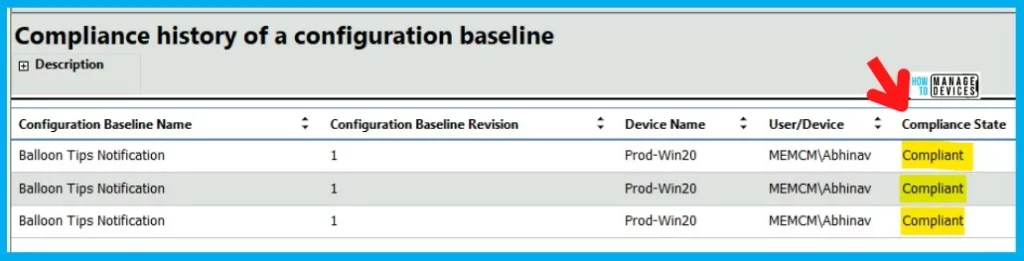
You can check the default SCCM reports available to tackle the progress of the SCCM CI. You can also have the option to add non-compliant devices to a collection.
- Compliance history of a configuration baseline Compliance and Settings Management
- Summary compliance of a configuration baseline for a collection Compliance and Settings Management
- Summary compliance by configuration policies Compliance and Settings Management
- Summary compliance by configuration items for a configuration baseline Compliance and Settings Management
- Summary compliance by configuration baseline Compliance and Settings Management
Author
Abhinav Rana is working as an SCCM Admin. He loves to help the community by sharing his knowledge. He is a BTech graduate in Information Technology.




Discussion