






Update Compliance Queries to Troubleshoot Intune WUfB Patch Deployment
Let’s check update compliance queries to troubleshoot Intune WUfB patch deployment. I have shared the step-by-step guide to configure Update Compliance. The Update Compliance is a Windows service hosted in Azure that uses Windows diagnostic data.
This reporting solution helps to get patch compliance reports for Intune managed Windows 11 or Windows 10 devices. The Update Compliance queries help troubleshoot Intune Windows Update for Business (WUfB) patch deployment.
It’s important to understand the differences between WSUS Vs. WUfB (Intune Vs. SCCM) patching before getting into the troubleshooting. More details – Difference Between WSUS Vs WUfB Intune Vs SCCM Patching Methods.
The client sends Quality Update federal, OS version, Revision (LCU and optional updates), App compatibility information, and Device ID to Windows Updates. All these details and additional details are collected through the Windows telemetry data.

All this data from the client is stored in the Update compliance Log Analytics workspace. I have seen many IT Pros already using Update Compliance queries to troubleshoot WUfB patch deployment. Also, you can get more details about Intune patching process from the following posts.
- List of Intune Devices with Patch Deployment Status and Country Details using KQL Queries
- Windows 11 Monthly Patch Deployment using Intune
- Remove Windows 11 Update Patch Latest Cumulative Update
- Windows 11 Troubleshooting Options Fixes
Update Compliance Data Stored in Log Analytics
The following are the Update Compliance tables that help store the Windows 10 or Windows 11 telemetry data collected from WUfB clients. You can query the following tables from Update Compliance to troubleshoot issues related to Intune WUfB patching.
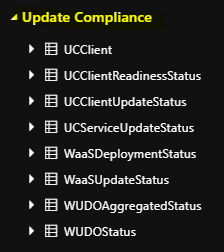
The highlighted ones in bold will help you identify different issues with the patching of Windows 11 or Windows 10 clients when Intune WUfB is in use.
| WaaSDeploymentStatus |
| WUDOAggregatedStatus |
| WUDOStatus |
| WaaSInsiderStatus |
| WaaSUpdateStatus |
| UCClientReadinessStatus |
| UCClient |
| UCClientUpdateStatus |
| UCServiceUpdateStatus |
| UCDeviceAlert |
WaaS Update Insights Dashboard Data is Not Getting Populated?
To get an overview of all the Intune WUfB managed Windows 10 or 11 devices, you must enable update compliance policies. It will take more than 24 to 36 hours to populate any data after enabling the policies.
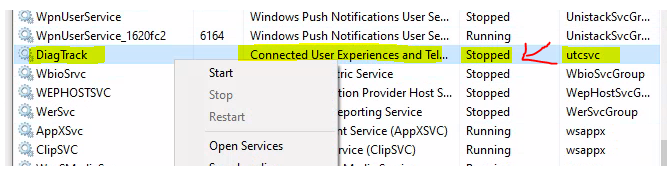
If the data is not getting populated, then you will need to start troubleshooting. The first step would be to check whether the Client devices can send the Telemetry data. Check whether the service called Connected User Experience and Telemetry is running on Cloud PC or not.
Workspace Summary of Intune Patching Reports
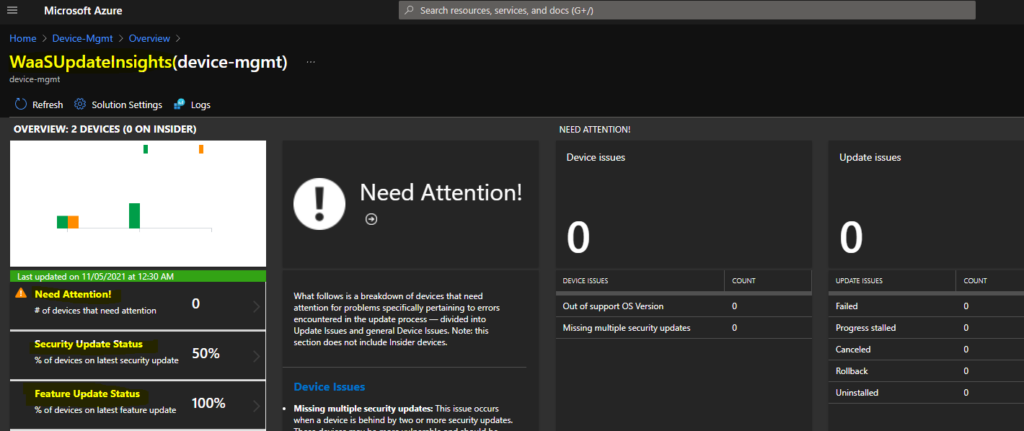
You will need to login into the Azure portal and navigate to Log Analytics Workspace. You can check the name of your log analytics workspace from your Azure Resource Group. Once you are in Log Analytics Workspace, you can go into the General section – Workspace summary tab to view the WaaSUpdateInsights Dashboard.
In the below screenshot, you can see the WaaSUpdateInsights dashboard for my log analytics workspace called Device-Mgmt. You can check the last updated date and time. This is important to understand when is last time update compliance solution compiled this data for getting the patch compliance of Intune WUfB managed devices.
Summary of Update Compliance Tables
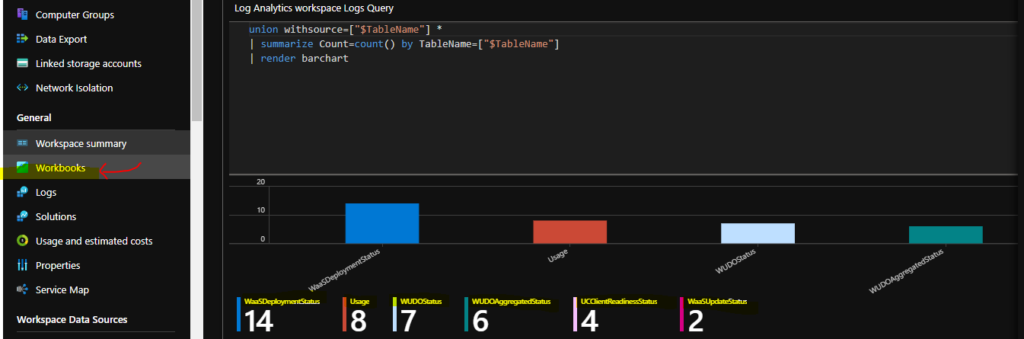
You can get the summary of the update compliance data using the following query. You will need to run this query from Log Analytics Workspace – General section – Workbooks tab. The KQL queries used in the Log Analytics workspace are similar to those SCCM admins use in CMPivot.
// Counts by table namesunion withsource=[“$TableName”] *| summarize Count=count() by TableName=[“$TableName”]| render barchart
You can create a new Workbook to run the query to find out the update compliance data details.
Log Analytics Query to Find out All Resources with a Heartbeat and Alerts
You can run this log analytics query to find out all the devices’ heartbeat and alerts in the last 24 hours. You can click on the +New button from the Workbook tab.
// All Resources with a Heartbeat in the last 24h
Heartbeat | where TimeGenerated > ago(24h)
| project Computer | distinct Computer
| order by Computer asc
// All Resources with an Alert in the last 24h
Alert | where TimeGenerated > ago(24h)
| project ResourceId | distinct ResourceId
| order by ResourceId asc
Find out Feature Update deployment Issues using Log Analytics Queries
Let’s find out whether Windows 10 or Windows 11 Feature Update deployment Issues using Log Analytics Queries. You will need to login into the Azure portal and navigate to the Log Analytics Workspace where the managed devices are part and click on the Logs tab.
The following KQL Update Compliance Log Analytics query will help understand and troubleshoot the issues related to Feature Updates for the last 30 days.
WaaSDeploymentStatus | where UpdateCategory == “Feature” | where DeploymentStatus == “Failed” or DeploymentError != “” and TimeGenerated > ago(30d)
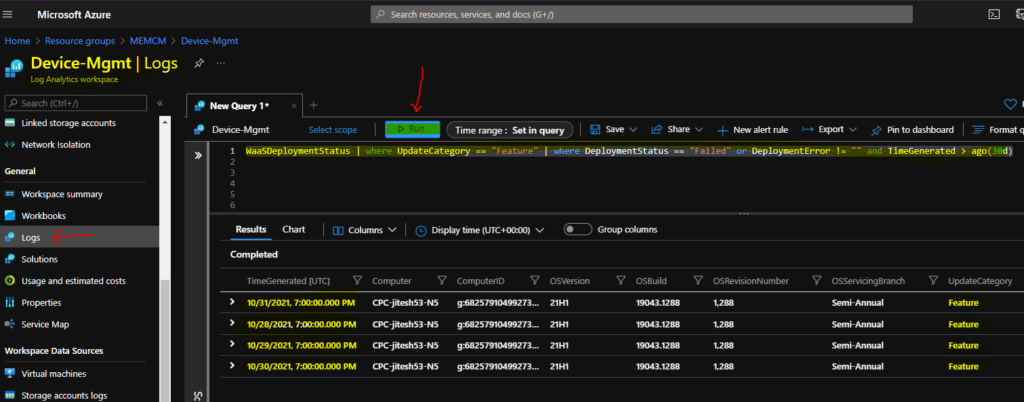
You will need to expand on one of the errors to understand the issue and more details about feature update errors. Check for the DeploymentError and DeploymentErrorCode columns for that particular Windows device.
| DetailedStatus | Reboot pending | |
| DetailedStatusLevel | 700 | |
| DeploymentError | The system must be restarted to complete the installation of the update. | |
| DeploymentErrorCode | 240005 |
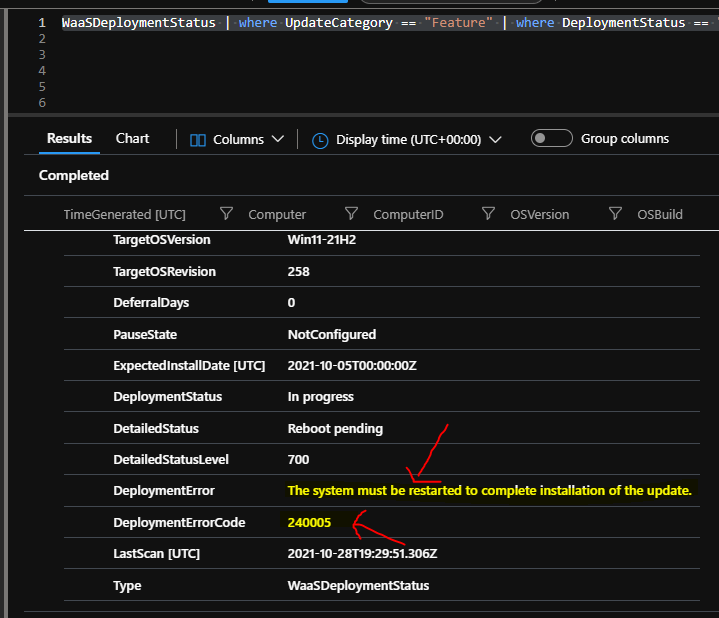
Now, you know the issue for the Feature Update deployment failure status for the Cloud PC. The reason for the failure is The system must be restarted to complete the installation of the update (failure error code 240005). You will need to restart the Windows device to fix the issue.
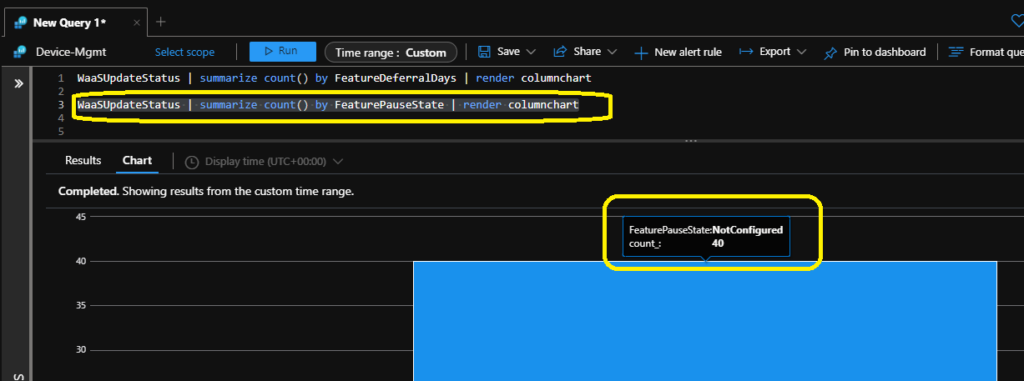
Summary of Feature Defferal Days and Feature Pause State Update Compliance Query
Let’s check the summary of Feature Defferal Days and Feature Pause State Update Compliance Query. You can the KQL query from the same place as mentioned in the above section.
WaaSUpdateStatus | summarize count() by FeatureDeferralDays | render columnchart
WaaSUpdateStatus | summarize count() by FeaturePauseState | render columnchart
Troubleshoot Quality Update Errors using Log Analytics KQL Query
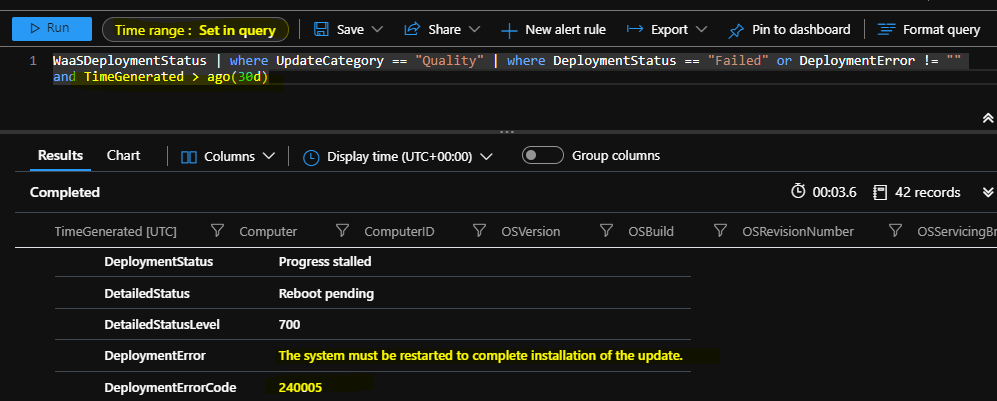
Let’s find out and troubleshoot Quality Update Errors using Log Analytics KQL Query from update compliance data of the Intune WUfB managed devices. You will get the quality update error details from the following query. This troubleshooting scenario would be similar to the Feature Update error details explained in the above section of this post.
WaaSDeploymentStatus | where UpdateCategory == “Quality” | where DeploymentStatus == “Failed” or DeploymentError != “” and TimeGenerated > ago(30d)
The quality update error is also because of the restart pending issue. The error is The system must be restarted to complete the installation of the update. Make sure you specify the time range in the KQL query itself.
Peering Status of Windows 10 or Windows 11 Devices
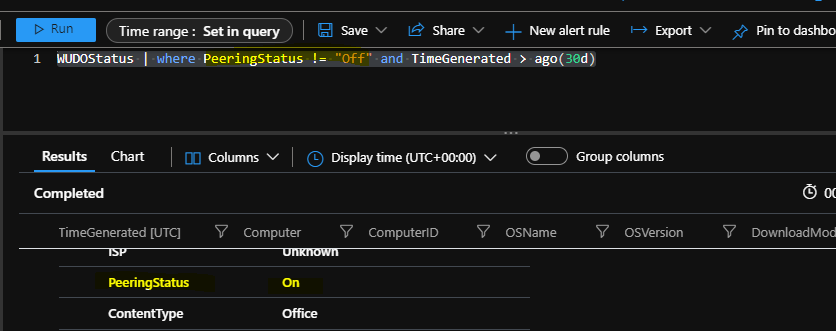
You will get the peering status of Windows 10 or Windows 11 devices from the following KQL query. This information about DO (Delivery Optimization) is also collected with Update Compliance data.
WUDOStatus | where PeeringStatus != “Off” and TimeGenerated > ago(30d)
Windows 11 Upgrade Readiness Report KQL Query
The update compliance data collected from Intune WUfB managed Windows 10 devices will help you get the list of Windows 11 Upgrade, not capable devices. This will also give the details of readiness reasons.
NOTE! – All Windows 10 PCs must meet the minimum system requirements to get upgraded to Windows 11.
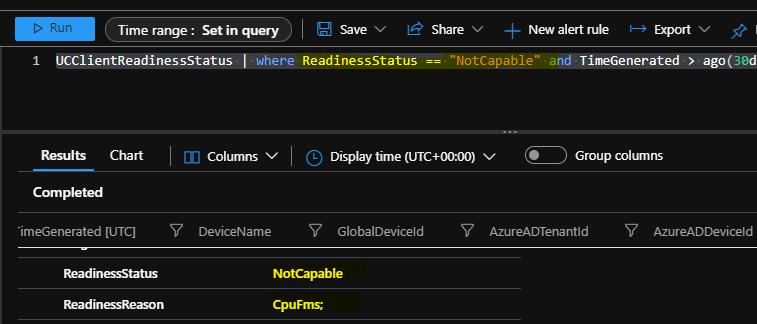
UCClientReadinessStatus | where ReadinessStatus == “NotCapable” and TimeGenerated > ago(30d)
You can use the KQL as mentioned above query from the Log Analytics workspace where the devices are part of to get the reason for not upgrading the device to Windows 11 even though the device is targeted to Windows 11 feature update policy.
| OSBuild | 19042.1237 |
| TargetOSName | Windows 11 |
| TargetOSVersion | Win11 21H2 |
| TargetOSBuild | 10.0.22000.194 |
| ReadinessStatus | NotCapable |
| ReadinessReason | CpuFms; |
Windows OS Edition Report Enterprise Vs Professional
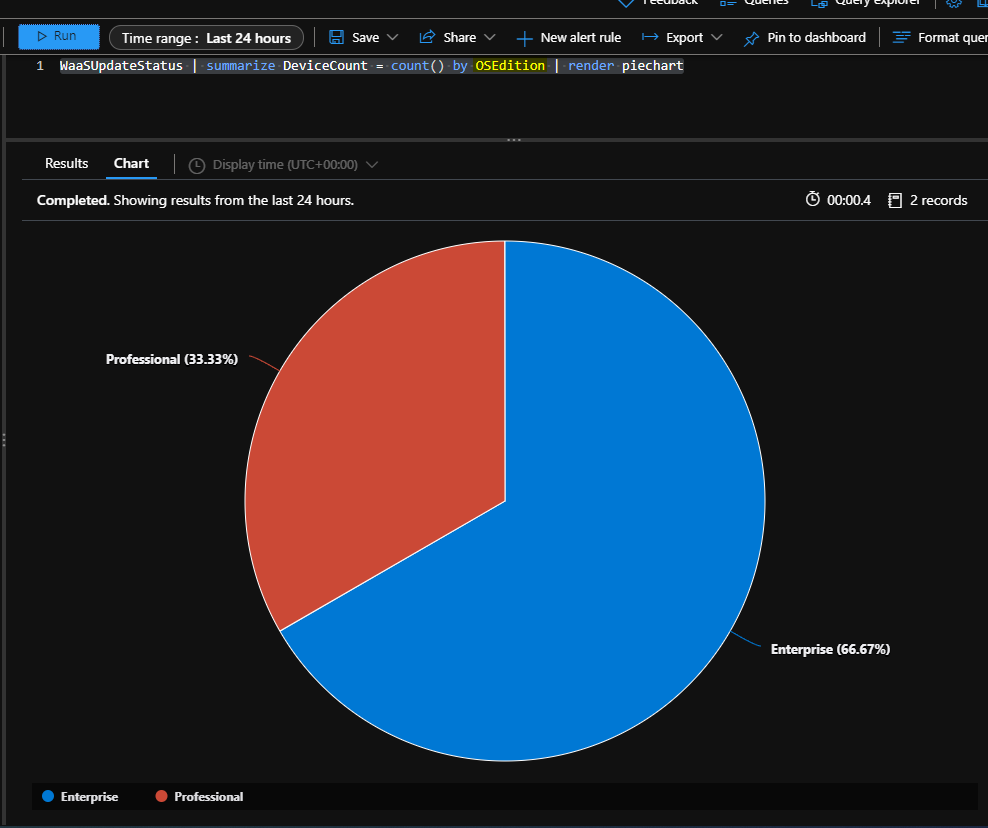
Let’s check the KQL query to find out the OS Edition distribution for the devices. This will help you to identify a different variety of Windows 10 or Windows 11 OS Edition reports. In the following Piechart diagram, you would be able to see the Enterprise Vs. Professional comparison.
WaaSUpdateStatus | summarize DeviceCount = count() by OSEdition | render piechart
Additional Log Analytics Update Compliance Queries for Troubleshooting
Additional Log Analytics Update Compliance Queries to help with Windows 10 or Windows 11 patch troubleshooting. This is only applicable if the patching (Windows Update deployment) of the devices is managed by Intune and WUfB.
Devices pending reboot to complete feature updates
WaaSDeploymentStatus | where UpdateCategory == “Feature” | where DetailedStatus in (“Reboot required”, “Reboot pending”)
Devices with a safeguard hold
WaaSDeploymentStatus | where DetailedStatus == “Safeguard Hold”
Target build distribution of devices with a safeguard hold
WaaSDeploymentStatus | where DetailedStatus == “Safeguard Hold” | summarize count() by TargetBuild | render piechart
Deferral configurations for Quality Update – Update Compliance Queries
WaaSUpdateStatus | summarize count() by QualityDeferralDays | render columnchart
Pause configurations for Quality Update – Update Compliance Queries
WaaSUpdateStatus | summarize count() by QualityPauseState | render columnchart
Devices pending reboot to complete security updates
WaaSDeploymentStatus | where UpdateCategory == “Quality” | where DetailedStatus in (“Reboot required”, “Reboot pending”)
Author
Anoop is Microsoft MVP! He is a Solution Architect in enterprise client management with more than 20 years of experience (calculation done in 2021) in IT. He is Blogger, Speaker, and Local User Group HTMD Community leader. His main focus is on Device Management technologies like SCCM 2012, Current Branch, and Intune. He writes about ConfigMgr, Windows 11, Windows 10, Azure AD, Microsoft Intune, Windows 365, AVD, etc……………


Great, article for wufb lots important information covered in this, thanks Anoop for that
Pls share any other native reports available for wufb