






Update SCCM Application Content on Distribution Points
Learn how to update SCCM Application content on distribution points. You have different options for managing content on distribution points in SCCM. The updated content options in available for SCCM application deployment types.
However, based on the content type that you want to update, You can select Update Distribution Points or create a schedule for when the site updates the content for the object. This option is useful for an object whose content changes frequently.
When you update the source file location for deployment by adding new files or replacing existing files with a newer version, update the content files on distribution points. Use the Update Distribution Points or Update Content actions.
- The site copies the content files from the original package source location to the content library on the site that owns the package content source.
- It increments the package version.
- Each instance of the content library on site servers and on distribution points updates with only the changed files.
Configuration Manager then distributes the new version of the content set to replace the previous set and any of its incremental versions. After the new content set is distributed, later incremental changes to the source files are again replicated by BDR.

Applications always use binary differential replication (BDR), Learn how Configuration Manager uses binary differential replication (BDR) to update content.
- ConfigMgr Redistribute Content to Distribution Point | SCCM | Package
- SCCM Application User Experience Options | Deployment Type
- How to Retire Application in SCCM | Delete App
Update SCCM Application Content on Distribution Points
Let’s follow the Process to update content on distribution points, and You can use the Update Distribution Points or Update Content actions. Here basically, we will see how to use update content options.
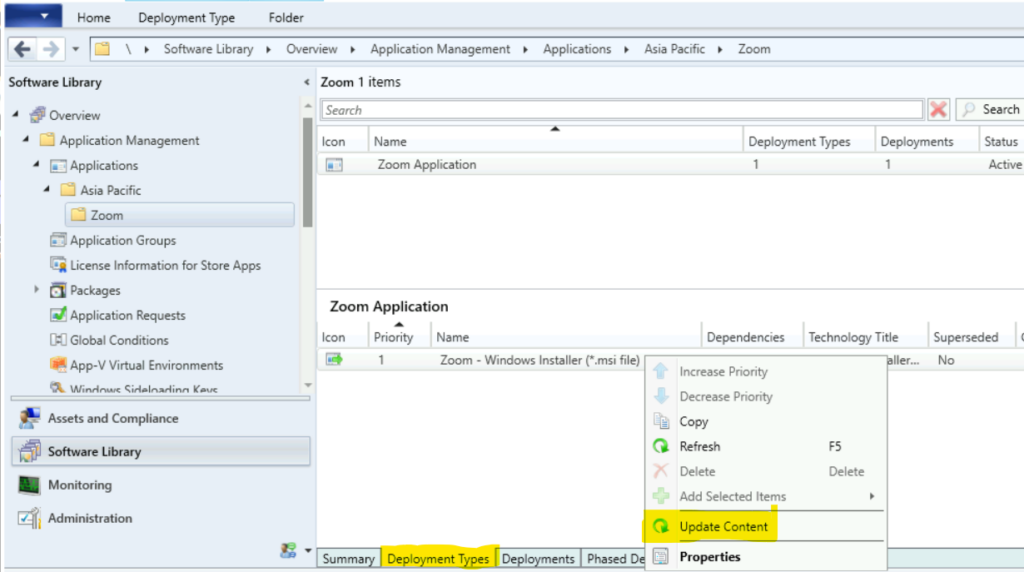
In the Configuration Manager Console, Navigate to the Software Library workspace, expand Application Management, and select the Applications node.
Select an application in the Applications node that you want to update and select the Deployment Types tab. Right-click on the existing deployment type and select Update Content.
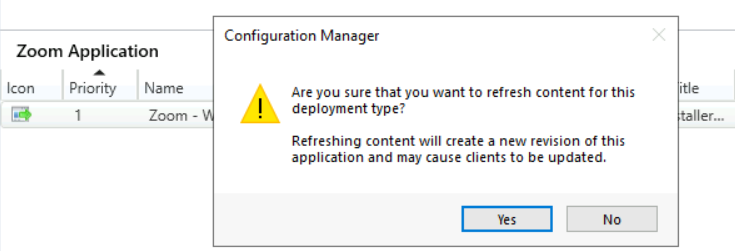
A prompt will appear with the message, “Are you sure that you want to refresh the content for this deployment type? Refreshing content will create a new revision of this application and may cause clients to be updated” Click on Yes to proceed.
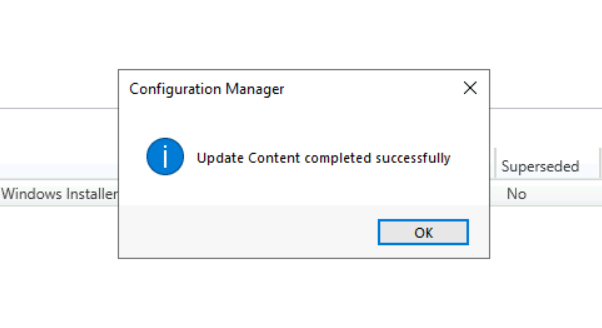
Once the content is updated successfully, you will get a prompt “Update Content completed successfully” Then select OK.
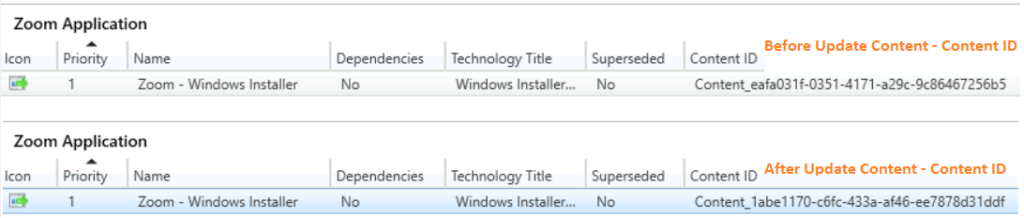
Note – The package version for applications is always 1. When you update the content for an application deployment type, Configuration Manager creates a new content ID for the deployment type, and the package references the new content ID.
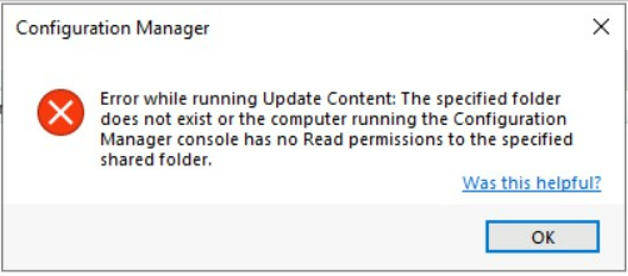
While running Update Content, you may encounter an error: The specified folder does not exist, or the computer running the Configuration Manager console has no Read permissions to the specified shared folder.
The error message typically appears when you don’t have permission to access the folder path or the application content is not available inside the specified application content location in SCCM. Ensure you have the appropriate permissions or the application source has accessible.
Update SCCM Application Content Using PowerShell Commands
You can use the PowerShell Commands or SCCM PowerShell commandlets to Update SCCM Application Content. You can launch the SCCM PowerShell CommandLets from the console itself.
Related Posts – 3 Best Methods to Import SCCM PowerShell Module Cmdlets
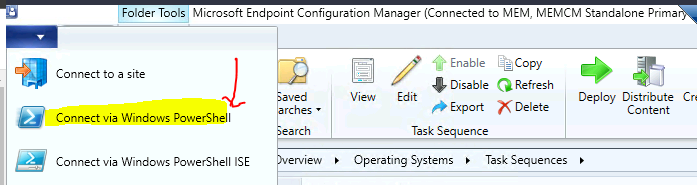
Click on the Drop-Down option on the top left side corner of the console and click on Connect via Windows PowerShell option.
Click on A on the following warning about the untrusted publisher.
Do you want to run software from this untrusted publisher?
File F:\Program Files\Microsoft Configuration Manager\AdminConsole\bin\Microsoft.ConfigurationManagement.PowerShell.Types.ps1xml is published by CN=Microsoft Corporation, O=Microsoft Corporation, L=Redmond, S=Washington, C=US and is not trusted on your system. Only run scripts from trusted publishers.
[V] Never run [D] Do not run [R] Run once [A] Always run [?] Help (default is “D”): A
Run the following PowerShell command Update content on a distribution point. You will need to change the value mentioned in the following command as per your environment.
Update-CMDistributionPoint
-ApplicationName
-DeploymentTypeName
[-ManifestPath ]
[-DisableWildcardHandling]
[-ForceWildcardHandling]
[-WhatIf]
[-Confirm]
For example, I am running the command below to update content for the Zoom Application.
Update-CMDistributionPoint -ApplicationName "Zoom Application" -DeploymentTypeName "Zoom - Windows Installer"




Discussion