






Use Intune to Restrict Non-patched Windows Devices from Accessing Email
Let’s discuss using Intune to restrict non-patched Windows devices from accessing EmailSecurity patching, which is vital to every organization. Now, with Intune, you can restrict Windows 10 devices that are not patched with the latest patches from accessing mail. Non-patched devices are risky to the organization.
There are two options to limit Windows devices from connecting to the corporate network. We will see these options in the following sections of the article.
Windows version = Specify the major.minor.build.CU number here. The version number must correspond to the version returned by the winvercommand.
I have uploaded a video tutorial to my YouTube channel. I hope this video will help you set these restrictions on your Intune test tenant.

Table of Contents
Subscribe to the YouTube channel
Use Intune to Restrict Non-patched Windows Devices from Accessing Email
I would recommend testing these in a staging environment before implementing them in production. As you are aware, patching is essential in any modern workplace project implementation.
Intune and Windows Update for Business can ensure all the Windows devices managed through Intune are patched promptly.
There is no need for on-prem components like WSUS to patch Windows 10 devices using Intune and Windows Update for Business. Setting the Windows 10 Update rings in Intune will not create security concerns.
Read my previous post, “How to Setup Windows 10 Software Update Policy Rings in Intune Azure Portal,” to learn more about Windows 10 update rings.
- MS Intune Stop Supporting User Enrollment with Company Portal for iOS iPadOS
- Onboard iOS/iPadOS Devices to Microsoft Defender for Endpoint
- Intune Shared Device Mode for Android and iOS Devices
- Intune Minimum Supported iOS iPadOS version changes
- Update iOS Apps with MAM Policies for iOS/iPadOS 17 Upgrade
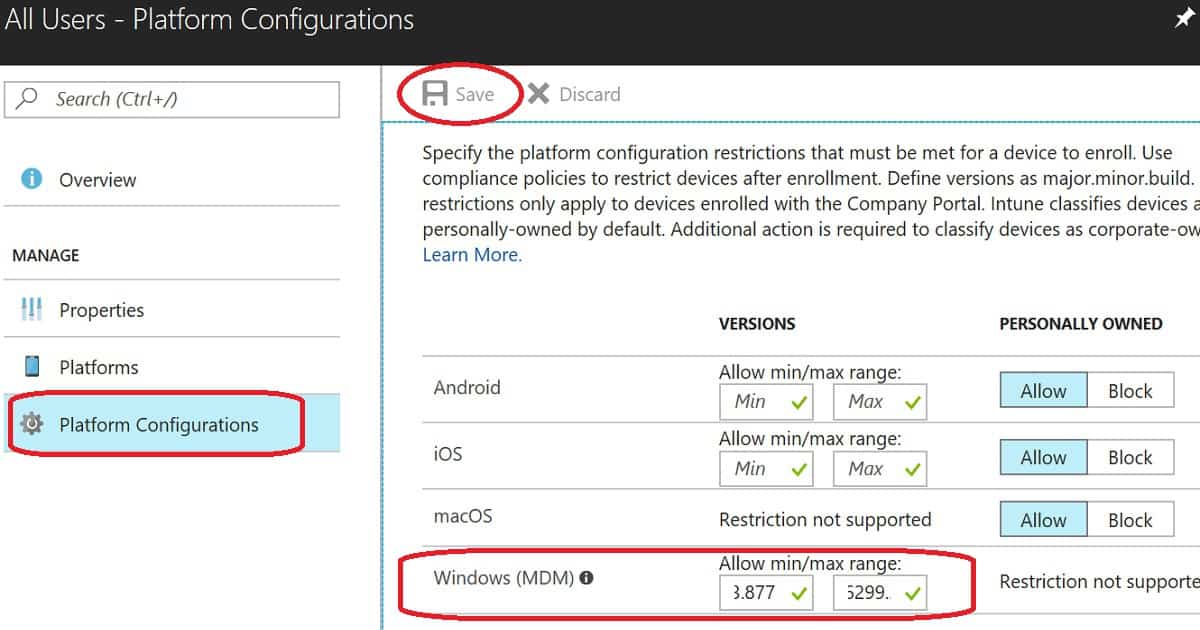
How Do You Restrict Non-patched Windows Devices from Enrolling in Intune?
This option is available only for NEW Windows devices that are enrolled in the Intune environment via the MDM channel. It is not available for Intune PC agent-managed devices.
The setting explained in this section won’t apply to already enrolled and non-patched Windows devices.
If you have already enrolled and non-patched Windows devices, you need to check out the compliance policy option mentioned in the section below.
| Servicing Option | Version | OS Build | Max/Min |
|---|---|---|---|
| Semi Annual Channel | 1709 | 16299.201 | Maximum Version |
| Semi-Annual Channel | 1703 | 15063.877 | Minimum Version |
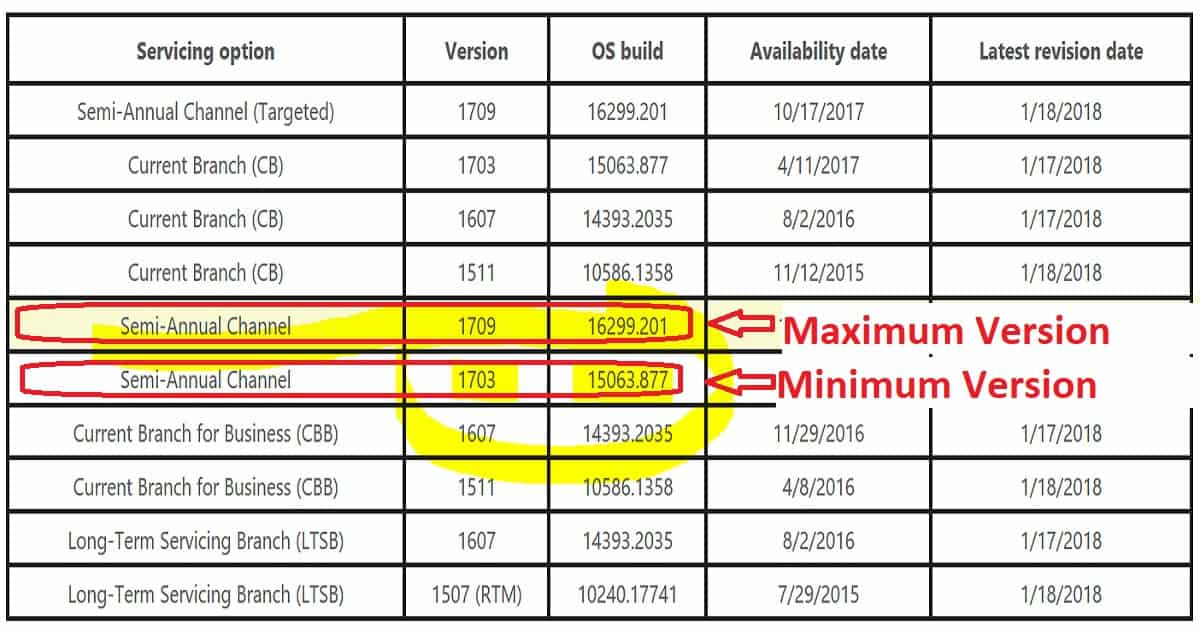
We need to set up Intune enrollment restriction policies to restrict Windows devices from enrolling in Intune. The above table is the best reference for setting up Intune enrollment restriction policies for non-patched Windows devices.
First, we need to decide on your Windows 10 minimum and maximum patch level requirements. More patch-level version details are available at http://aka.ms/win10releasenotes.
In my video, I have selected Windows 10’s minimum patch level of 10.0.15063.877 and maximum patch level of 10.0.16299.201. You can also leave the top patch level blank if you want to support all the latest patched Windows devices.
I have uploaded a video tutorial to my YouTube channel. This video provides a more detailed explanation of how to set up enrollment restriction policies.
You can read my previous post, “How to Prevent Windows Devices from Enrolling to Intune“. This post provides more details about setting up Intune enrollment policies. This also covers the end-user experience of Windows 10 devices if the device patch level is lower than the “Minimum version”.
For example
I have a Windows 10 device, and it’s a non-patched device. And the patch version of that device is “10.0.15063.250“. In this scenario, Intune will check whether the device is patched with a minimum version of the patch required for the organization, which is 10.0.15063.877.
The current patch level of the Windows 10 device is below the minimum version requirement set in the enrollment restriction policy. Hence the device won’t be allowed to enroll in Intune. Update the patches on that Windows 10 device to register to Intune successfully.
How Can We Force Users to Install Patches on Windows 10 Devices to Access Emails?
Most end-users are not always happy to install the latest patches and restart their devices on time. But as IT admins, it’s our responsibility to secure the enterprise environment with the latest patches.
Intune can probably help you force users to install patches on their non-patched Windows devices.
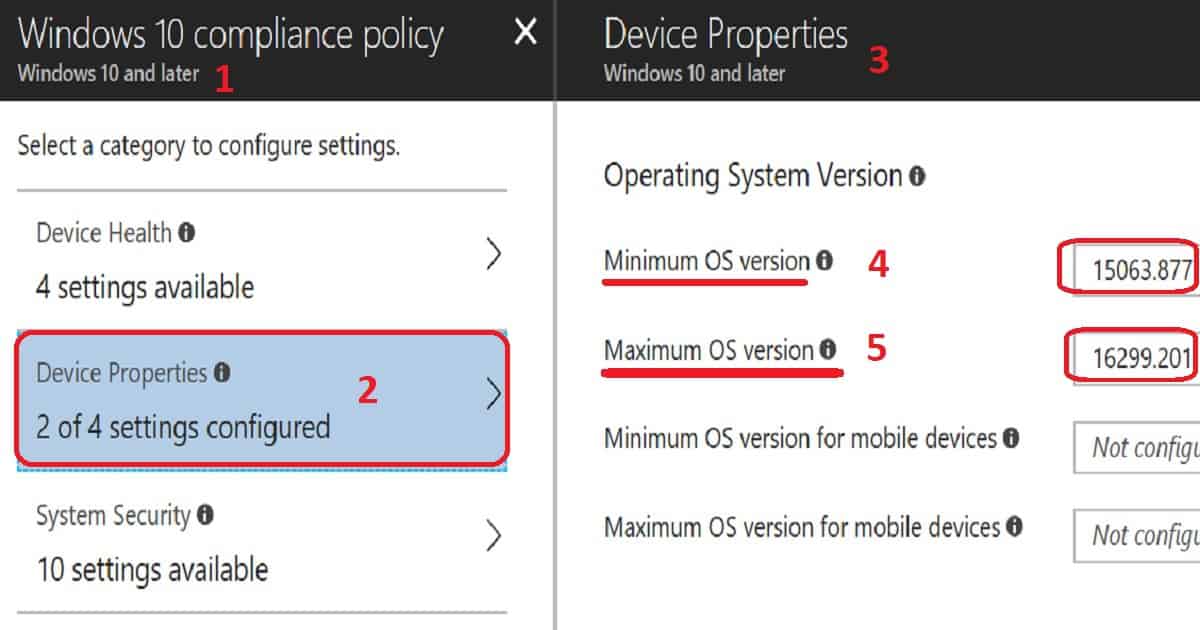
We can create a new compliance policy in Intune to set rules and force users to install patches immediately. The policy gives an option to set minimum and maximum patch levels for Windows devices.
When a device does not match the minimum compliance requirement, that device will be flagged as non-compliant.
When you have conditional access associated with compliance policies, the Windows device will lose access to enterprise applications (like mail, SharePoint Online, Skype, etc.) associated with that conditional access policy.
Once users update their Windows version with the latest patches, their devices get access back to mail.
You can create a WINVER command to decide your organisation’s baseline Windows 10 version with a certain patch level. You can also use the following links to get the latest patch versions of Windows 10.
In my scenario, I set up a new compliance policy with a minimum patch level of 10.0.15063.877 and a maximum patch level of 10.0.16299.201.
This will ensure that all Windows 10 devices with access to enterprise applications are patched, and the patch level version will be greater than 10.0.15063.877.
I have uploaded a video tutorial to my YouTube channel. This video provides a more detailed explanation of how to create a new compliance policy for minimum and maximum patch levels supported within your organization.
Navigate to the Azure portal, “Microsoft Azure—Microsoft Intune—Device Compliance—Policies,” and create a new compliance policy called “Restrict Window device depending on patches.”
Resources
- Intune Windows 10 Compliance Device property settings
- Windows 10 Compliance Policy – OS Version granularity
We are on WhatsApp now. To get the latest step-by-step guides, news, and updates, Join our Channel. Click here. HTMD WhatsApp.
Author
Anoop C Nair is Microsoft MVP from 2015 onwards for consecutive 10 years! He is a Workplace Solution Architect with more than 22+ years of experience in Workplace technologies. He is a Blogger, Speaker, and Local User Group Community leader. His main focus is on Device Management technologies like SCCM and Intune. He writes about technologies like Intune, SCCM, Windows, Cloud PC, Windows, Entra, Microsoft Security, Career etc…


Discussion