






Manage User or Device License for Apple Apps using Intune
This post helps to manage User or Device License for Apple Apps using Intune. You can control the license type for per-app assignment level using the license type setting.
Apple lets you purchase multiple licenses for an app that you want to use in your organization on iOS/iPadOS and macOS devices using Apple Business Manager or Apple School Manager. You can then synchronize your volume purchase information with Intune and track your volume-purchased app use.
Purchasing app licenses helps you efficiently manage apps within your company and retain ownership and control of purchased apps.
Purchased apps can be assigned to groups using two types of licenses that Apple offers for iOS/iPadOS and macOS devices. Device-licensed VPP apps must be installed and updated through the MDM channel only. Users cannot go to the store directly to install or update a VPP app manually.

Company Portal does not show device-licensed apps on User Enrollment devices because only user-licensed apps can be installed on User Enrollment devices.
- Intune Driver Firmware Update Policies | Review Approve Schedule Suspend Options
- Intune Inventory Options For Mac IOS Android Windows Devices And Custom Inventory
Manage iOS App License for User or Device
Let’s check the steps to manage the license type for the iOS macOS app using Intune. This article also helps you configure existing apps, and you can also use the same method while assigning new apps. Purchased apps can be assigned to groups using two types of licenses that Apple offers for iOS/iPadOS and macOS devices..
- Sign in to the Microsoft Intune admin center https://intune.microsoft.com/.
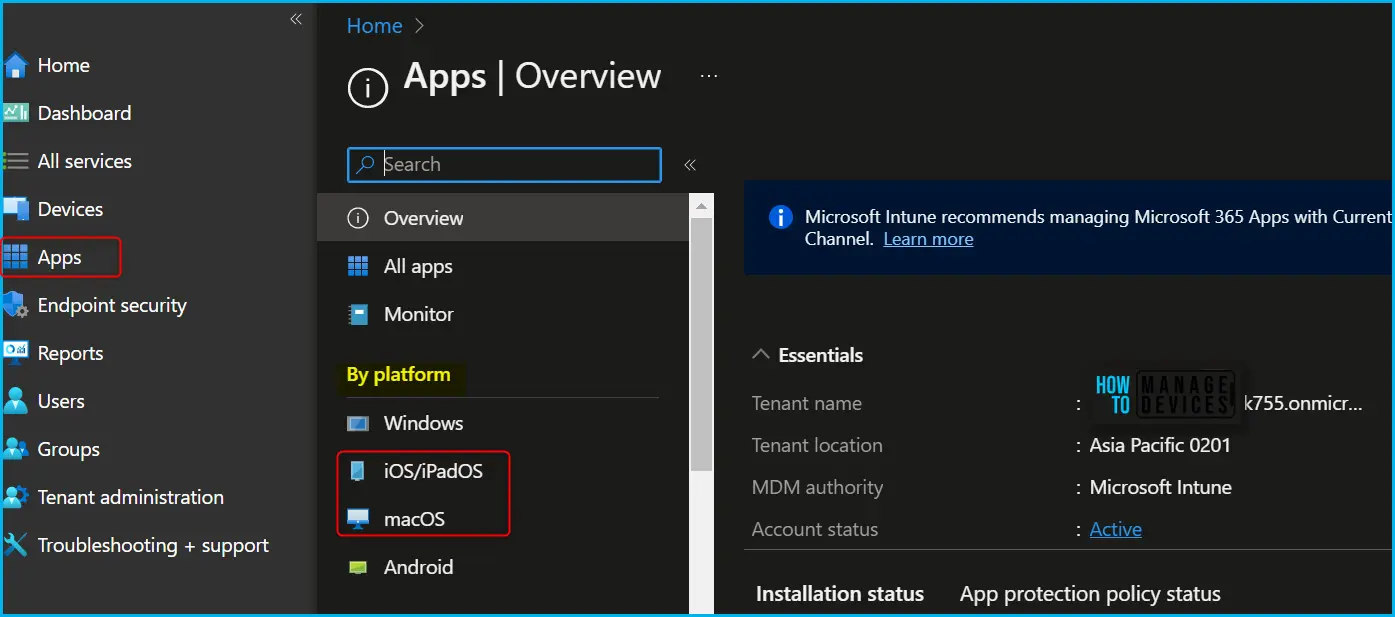
- Select Apps > iOS/iPadOS or macOS.
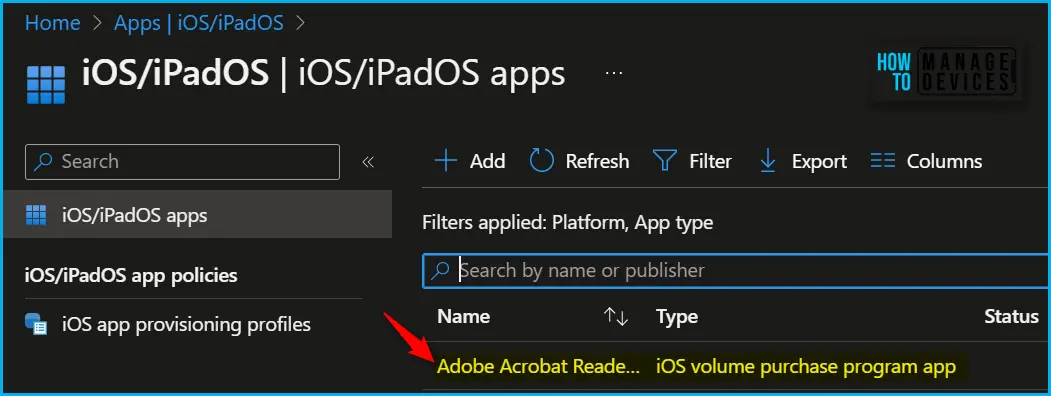
I have selected the existing volume purchase program app (VPP app), Adobe Acrobat Reader, from the list to modify the existing license type for users from the device.
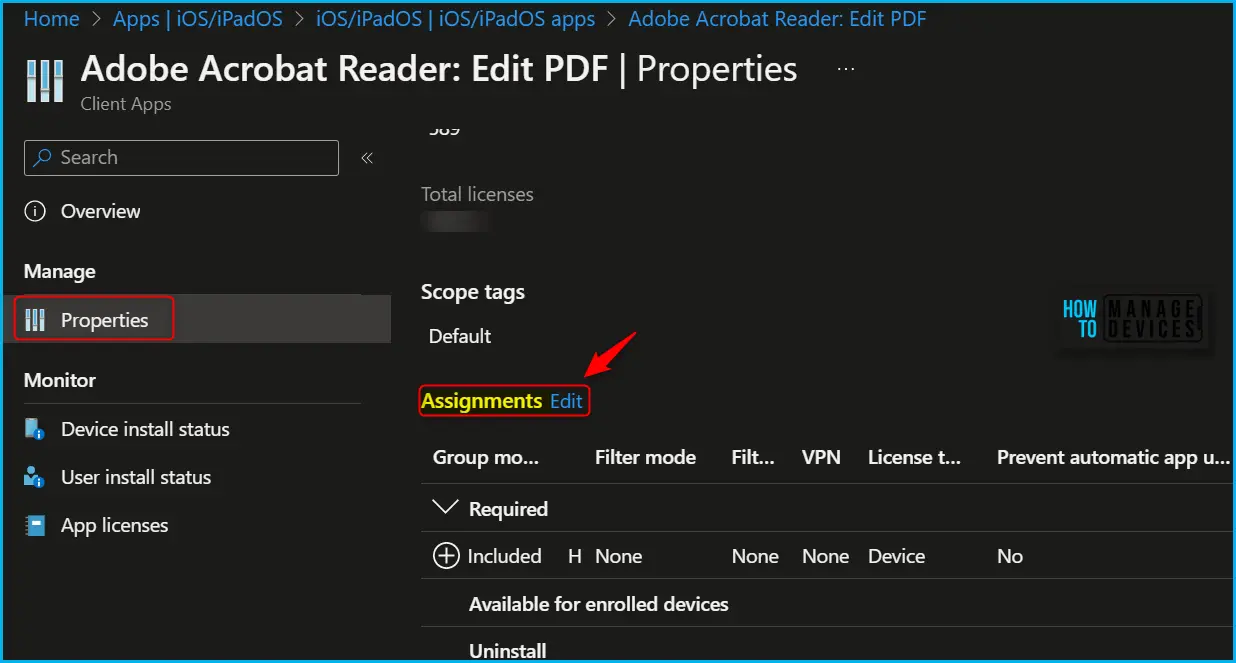
Once you select the application and select Properties, scroll down and click Edit in the Assignments to modify the settings.
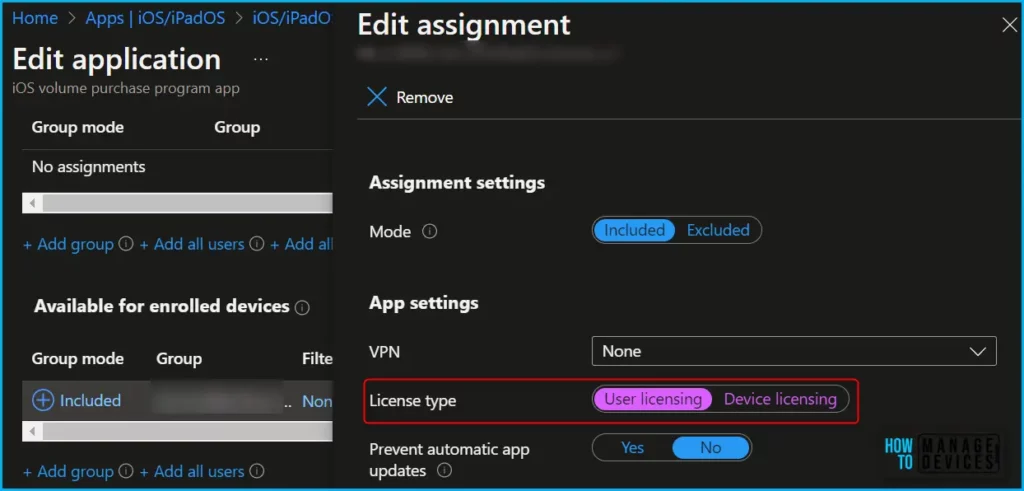
In application assignments properties, Here you can see the application is targeted as required. Select License type. When you create a new assignment for an Apple Volume Purchase Program (VPP) app, the default license type is now “device”. Existing assignments remain unchanged.
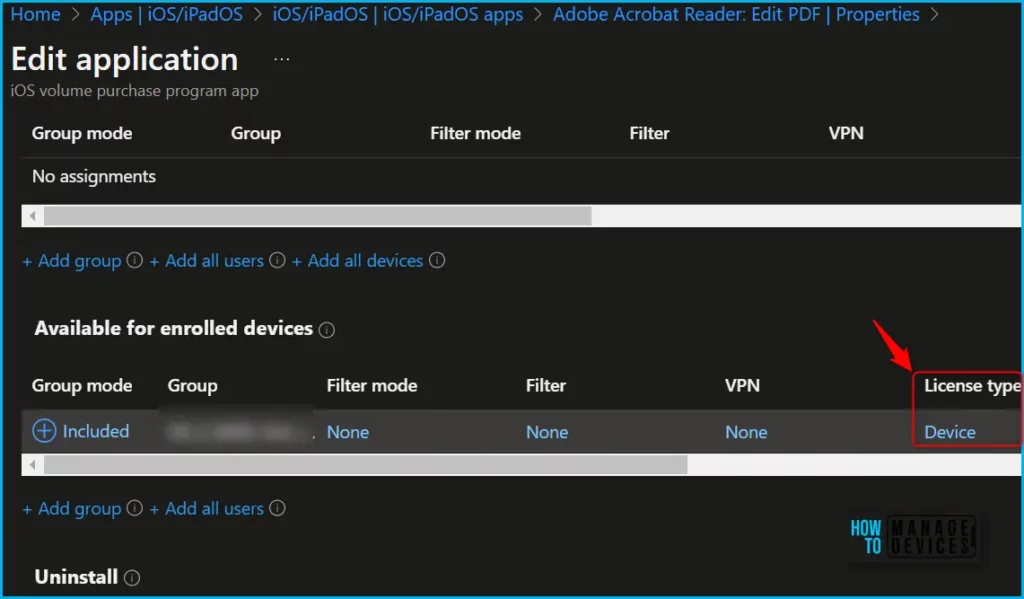
To modify the assignment status of an app in Intune, In the pop-up window. You can adjust the property value License type by selecting either “User licensing” or “Device licensing,” depending on your preference.
| Action | Device Licensing | User Licensing |
|---|---|---|
| License migration | Apps can migrate silently from user to device licenses only when using Required assignment type. | Apps cannot migrate from device to user licenses for any assignment type. |
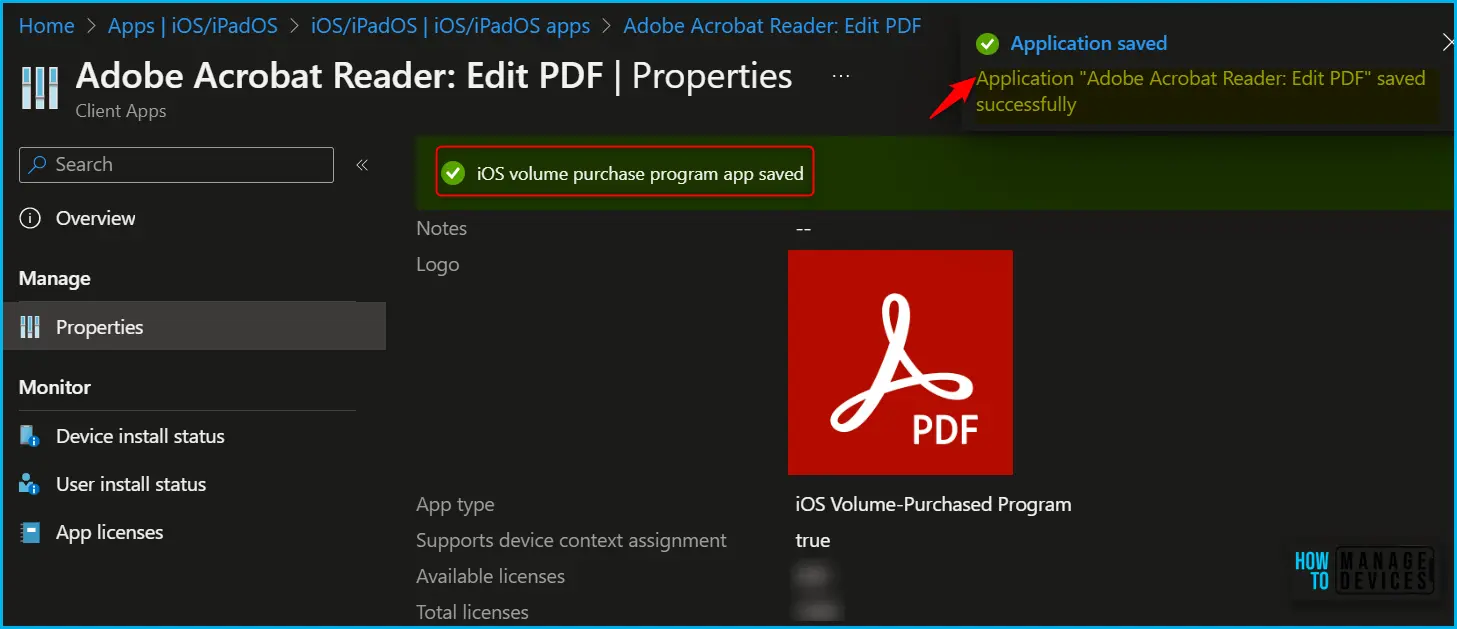
The next screen will appear with the Summary, Review the selection, and click Save. A notification will appear automatically in the top right-hand corner with the message “Application saved successfully.”
Apps assigned as Available do not become managed on the device until the user initiates an install of the application. Once an app assigned as Available has been installed, or the user has attempted to install the application, Intune will ensure that the app is licensed.
Author
About Author – Jitesh, Microsoft MVP, has over six years of working experience in the IT Industry. He writes and shares his experiences related to Microsoft device management technologies and IT Infrastructure management. His primary focus is Windows 10/11 Deployment solution with Configuration Manager, Microsoft Deployment Toolkit (MDT), and Microsoft Intune.


How to Allocate and distribute the license to Group of Users/Devices like Workspace ONE smart group. Customer whom we migrate from Airwatch to Intune