





Microsoft Enables Faster Recovery with User-Initiated Provisioning in Windows 365 Reserve
Key Takeaways
- Enables user-initiated Cloud PC provisioning from the Windows App
- Helps reduce downtime during device failure or travel scenarios
- Disabled by default and fully governed by IT
- Maintains centralized control over policies, licensing, and security
In this post we are discussing, Microsoft Enables Faster Recovery with User-Initiated Provisioning in Windows 365 Reserve. Microsoft introduced a new update to Windows 365, adding user-initiated provisioning for Windows 365 Reserve in public preview. This feature helps users quickly set up their own Cloud PC during situations like device failure, hardware issues, or when they are working remotely. It allows faster access to a secure desktop and helps reduce downtime.
Table of Contents
Microsoft Enables Faster Recovery with User-Initiated Provisioning in Windows 365 Reserve
Now, users can start the setup themselves directly from the Windows App. This makes it easier to get back to work quickly without depending on IT support every time. Even with this change, IT teams still have full control. The feature is Disabled by default and can be enabled using Microsoft Intune and managed through Microsoft Entra ID groups
- Easy Method to Deploy Windows App Mob for iOS and iPadOS using Intune
- How to Set Up Windows 365 Cloud PCs with Autopilot Device Preparation
- How to Fix End of Support Warning of Windows 365 Provisioning Policy in Intune
Configuration and Control
Administrators can enable this feature in Intune by configuring Windows App settings and assigning them to specific user groups. The setting “Enable users to provision new Cloud PC instances” applies only to users who are licensed for Windows 365 Reserve and included in the appropriate provisioning policies. This allows organizations to carefully control who can access the feature while maintaining overall governance.
| This feature, currently in public preview, is disabled by default and can be enabled by administrators through Microsoft Intune. |
|---|
| The latest update to Windows 365 introduces user-initiated provisioning for Windows 365 Reserve, allowing eligible users to create their own Cloud PC directly from the Windows App without waiting for IT support. |
| This feature, currently in public preview, is disabled by default and can be enabled by administrators through Microsoft Intune, |
Configuring User Self-Service Actions in Windows App Settings
In Microsoft Intune, administrators can configure Windows App settings (Preview) to control user self-service actions such as resetting or restoring their Cloud PCs. These options help users resolve issues easily. As part of recent updates to Windows 365, Microsoft is also introducing user-initiated provisioning for Windows 365 Reserve, although this option may not yet be visible in all tenants as it is currently in public preview.

- In Intune, go to Devices > Windows 365 > Settings and select Create > Windows App settings (preview).
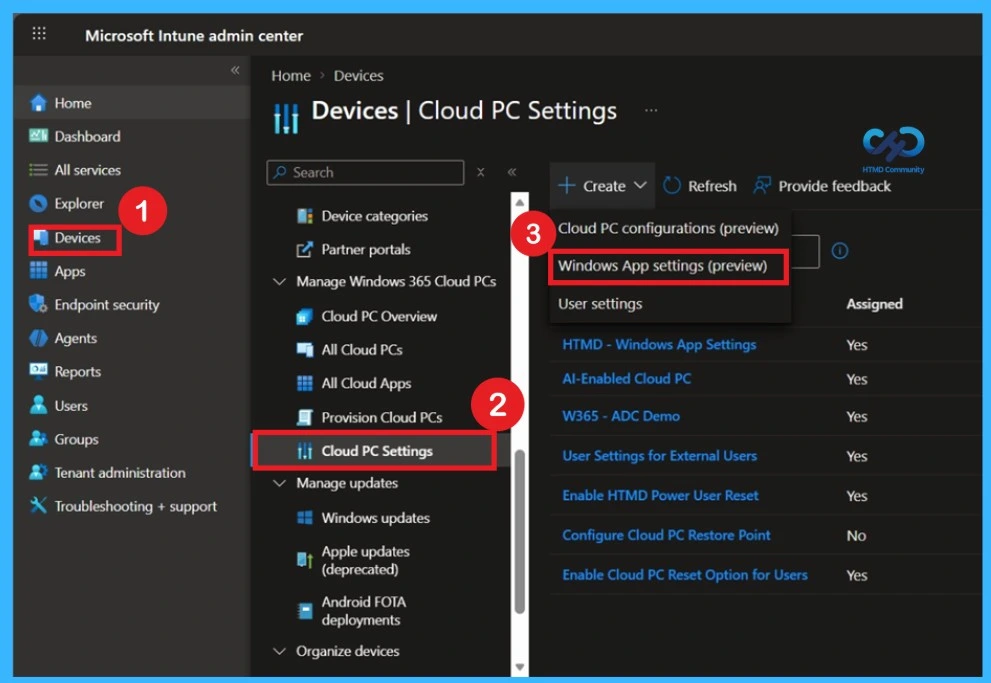
Windows App Settings for User Self-Service
In Microsoft Intune, administrators can configure Windows App settings (Preview) to manage user self-service actions such as resetting or restoring their Cloud PCs. As part of the latest updates to Windows 365, Microsoft is introducing user-initiated provisioning for Windows 365 Reserve, allowing users to set up their own Cloud PCs when needed.
- In Intune, go to Devices > Windows 365 > Settings and select Create > Windows App settings (preview).
- Under Basics, enter a name and description.
- Under Configuration settings, toggle Enable users to provision new Cloud PC instances to Enabled. Note: this setting applies only to user groups assigned to Reserve provisioning policies and licensed for Reserve.
- However, since this feature is currently in public preview, it may not yet be visible in all tenants and is gradually rolling out across environments.
- Add scope tags (optional).
- Under Assignments, add user groups.
- Review settings and select Create.
Need Further Assistance or Have Technical Questions?
Join the LinkedIn Page and Telegram group to get the latest step-by-step guides and news updates. Join our Meetup Page to participate in User group meetings. Also, join the WhatsApp Community and the Whatsapp channel to get the latest news on Microsoft Technologies. We are there on Reddit as well
Author
Anoop C Nair is a Workplace Technology solution architect with 25+ years of experience. Microsoft Certified Trainer. Microsoft MVP from 2015 onwards for consecutive 11+ years! He is a blogger, Speaker, and Founder of HTMD Community and HTMD Conference. His main focus is on Device Management technologies like Intune, Windows, and Cloud PC. He writes about technologies like Intune, SCCM, Windows, Cloud PC, Entra, and Microsoft Security.




Discussion