






How to Control User Input from the Wireless Display Receiver using Intune Policy
Using the Intune Policy, let’s discuss how to Control User Input from the Wireless Display Receiver. The AllowUserInputFromWirelessDisplayReceiver policy governs whether a wireless display receiver (such as a Miracast-enabled TV or another device) can send user input like keyboard, mouse, pen, and touch input—back to the source device (e.g., your PC or laptop).
This policy applies if the wireless display supports this capability. The feature enables interactive functionality during screen sharing or wireless projection. The wireless display can send input back to the source device if the policy is enabled. If the policy is disabled, any input from the wireless display (keyboard, mouse, touch, etc.) won’t be returned to the source device.
This setting lets you control your laptop or PC from a wireless display, like a TV, if the display supports touch or has a keyboard/mouse connected. For example, you can type or use the touchscreen on the TV to control your laptop while it’s showing on the screen.
This post will explain using an Intune policy to manage user input from a wireless display receiver. This means you can control whether devices like a TV or monitor are connected wirelessly to your PC and send input back to your PC.

Table of Contents
Windows CSP AllowUserInputFromWirelessDisplayReceiver
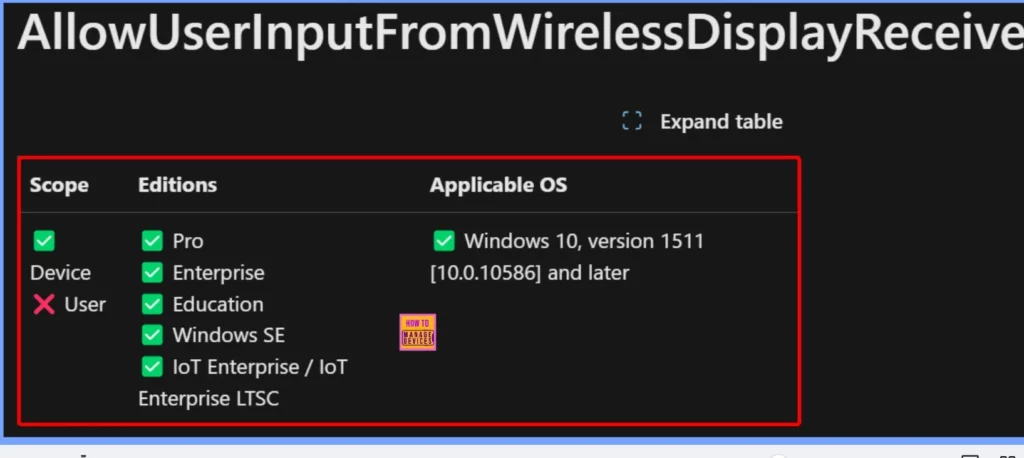
This CSP ensures better control and flexibility in wireless display interactions, enhancing productivity and security based on organizational needs. The CSP policy in Windows enables administrators to configure settings on devices running Windows 10 or newer through MDM solutions such as Intune.
- This policy determines whether a wireless display can send input, such as a keyboard, mouse, pen, or touch, back to the source device if the display supports it.
- The policy uses an integer format, where the value defines whether this feature is enabled or disabled. It allows actions like adding, deleting, retrieving, or updating the policy settings.
- The policy is set to 1 by default, which enables input from the wireless display to the source device.
- A value of 0 disables this feature, meaning the display can only show content without allowing any interaction with the source device.
- This configuration helps manage how connected devices interact during wireless screen projection.
./Device/Vendor/MSFT/Policy/Config/WirelessDisplay/AllowUserInputFromWirelessDisplayReceiver
- How to Disable Wireless Display Multicast DNS Advertisement Using Intune Policy
- Allow Cortana Above Lock Screen Policy using Intune
- Help Experience Improvement Program Policy using Intune
- Turn Off the Picture Password Sign-In Policy using Intune
Control User Input from the Wireless Display Receiver using Intune
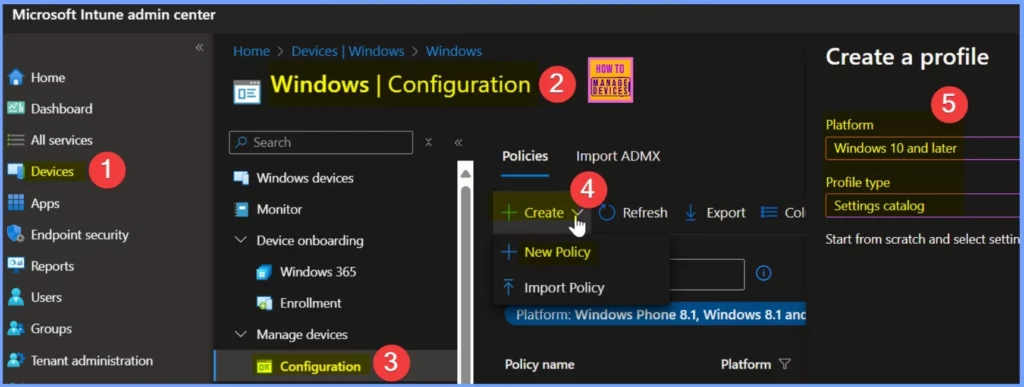
Using Intune, you can easily enable or disable the User Input from the Wireless Display Receiver. Sign in to the Microsoft Intune Admin Center using your administrator credentials. Go to Devices > Windows >Configuration > Create > +New Policy.
| Platform | Profile Type |
|---|---|
| Windows 10 and later | Settings Catalog |
Name and Description Settings
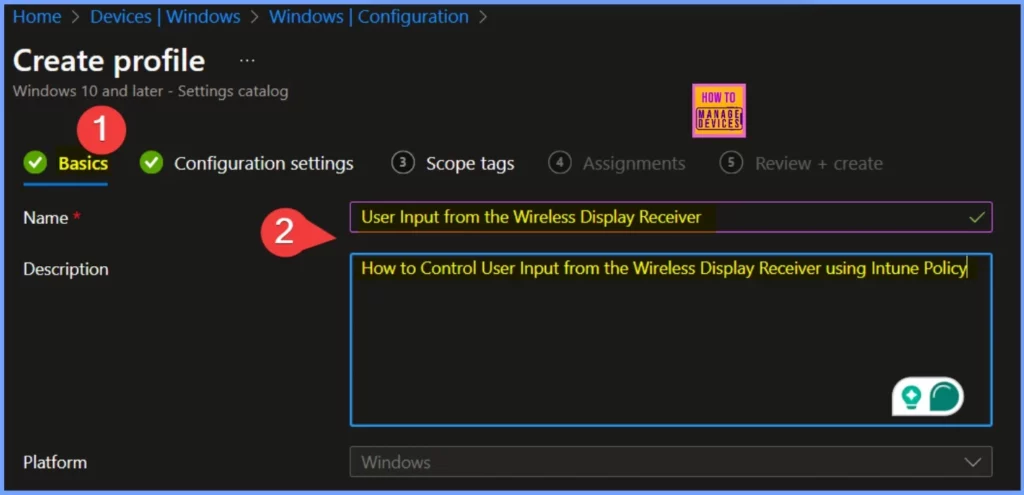
In the basic settings, you should provide the policy’s name and description. The name would be “User Input from the Wireless Display Receiver,” and the description would explain how to manage user input from a wireless display, such as a TV or monitor, using an Intune policy.
Configuration Settings
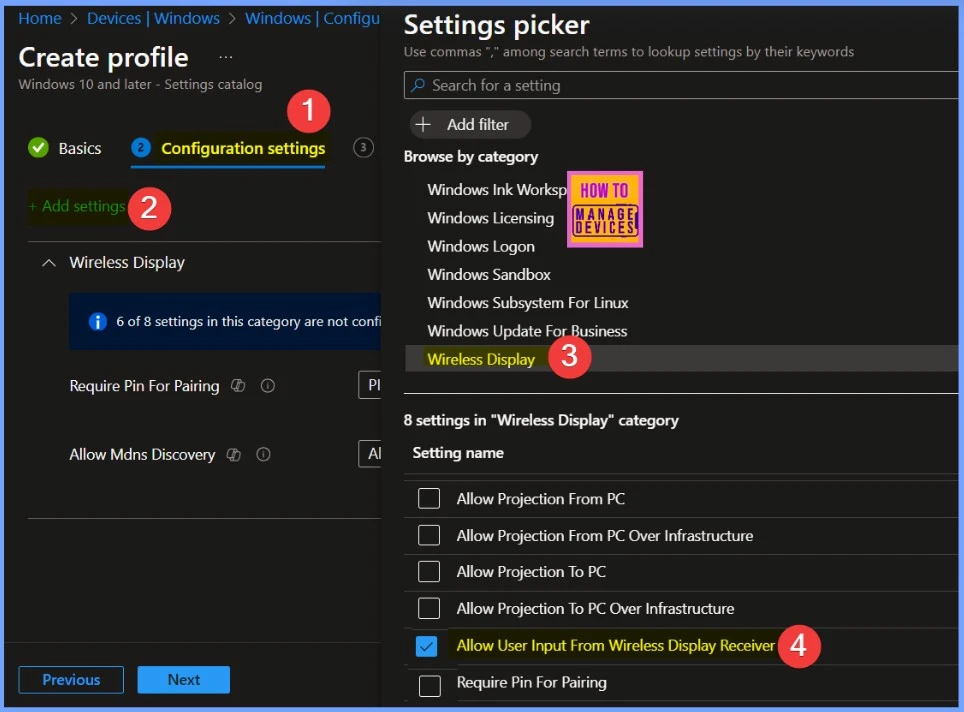
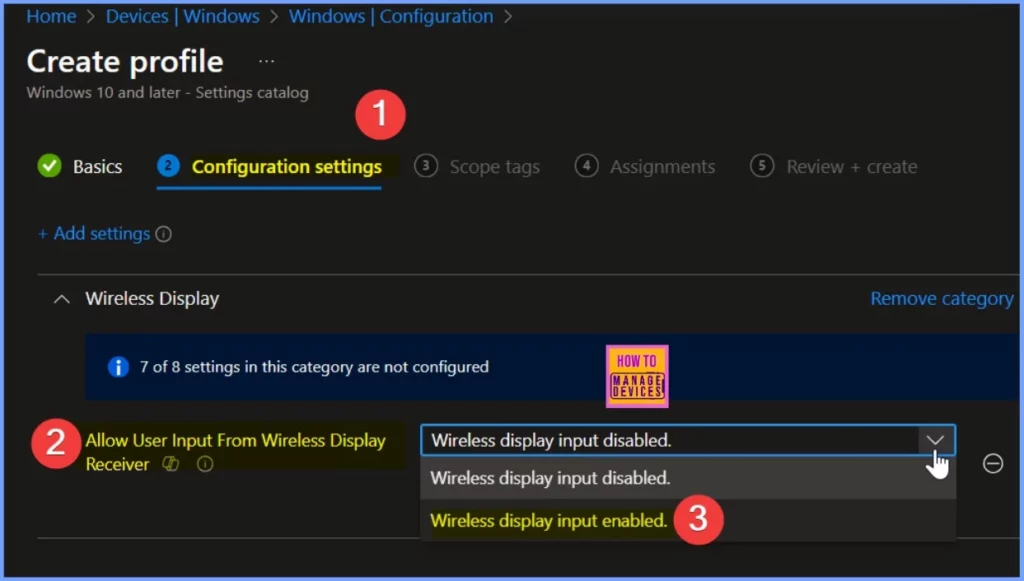
Next, you can configure the necessary settings in the Configuration Settings section by selecting options from the settings catalog. To do this, click the + Add settings hyperlink to browse or search for the settings you want to configure.
Clicking + Add Settings will take you to a new Settings Picker page, where you can search for specific settings by entering keywords and clicking the Search button. The + Add filter option helps you quickly access the relevant settings. You can also browse the settings by category, such as Wireless Display, to find the settings you’re looking for more efficiently.
- Settings Picker > Wireless Display > Allow User Input From Wireless Display Receiver.
Allow User Input From Wireless Display Receiver
Setting this policy controls whether or not the wireless display can send input—keyboard, mouse, pen, and touch input—back to the source device if the display supports it. Here in the settings, you get 2 options such as
- Wireless display input is disabled
- Wireless display input enabled
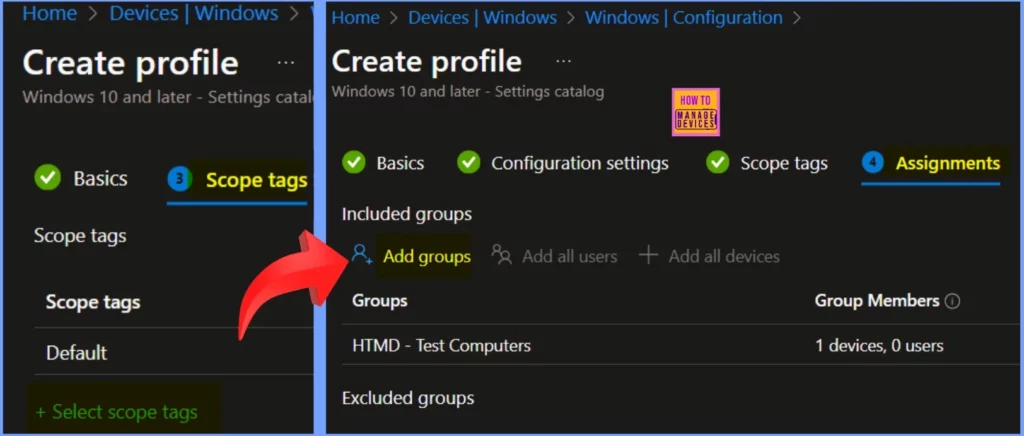
Scope Tags and Assignments
Scope tag helps categorise and filter policies based on specific needs or groups. Once a configuration setting is created, you can assign it to groups of users or devices.
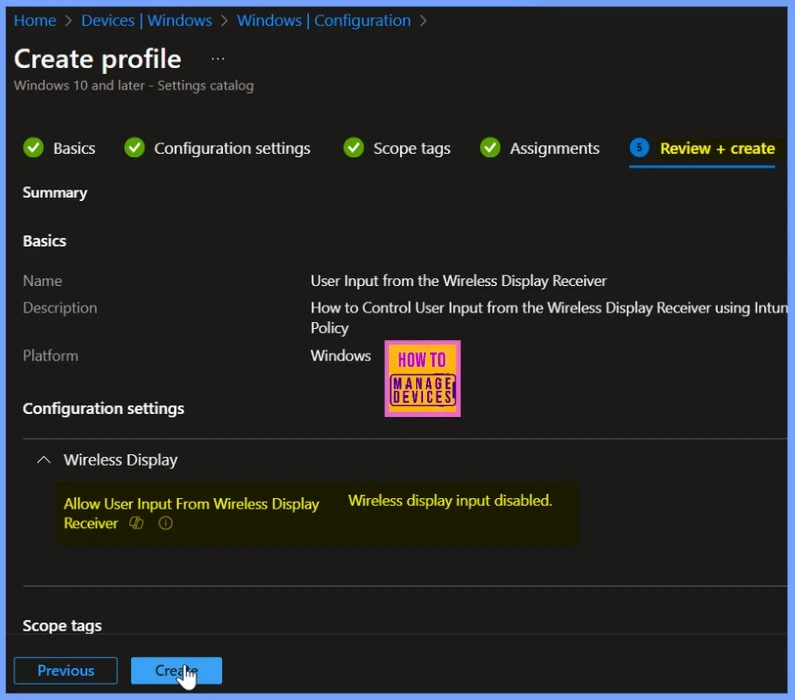
Review + Create
In the Review + Create tab, you ensure everything is set up correctly before finalising and deploying your configuration. The screenshot below shows more details.
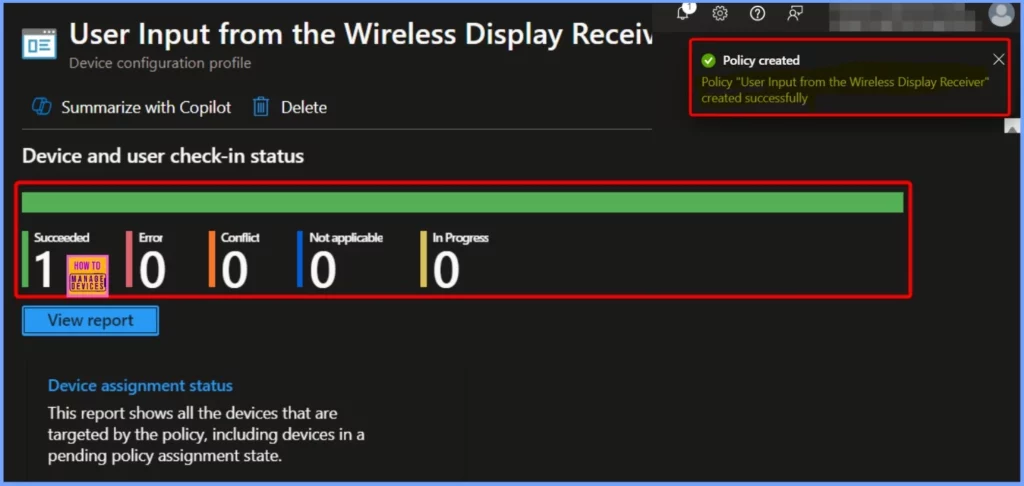
Device and User Check in Status
You can see that the User Input from the Wireless Display Receiver policy has been created successfully. The number of successful creations is displayed as “1,” indicating that the policy was applied without issues.
Client Side Verification
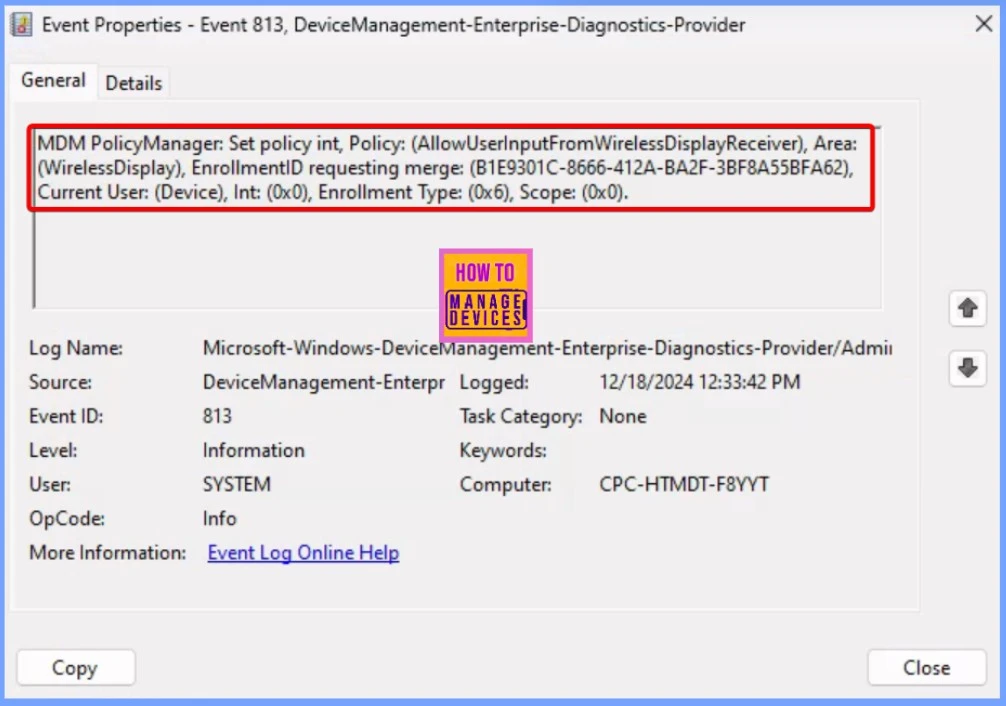
Using the Event Viewer, you can quickly check the status of a created Intune policy, such as the Allow User Input From Wireless Display Receiver. Click on Start and search for Event Viewer to open it.
Go to Application and Services Logs > Microsoft > Windows > DeviceManagement-Enterprise-Diagnostics-Provider > Admin in the left sidebar.
MDM PolicyManager: Set policy int, Policy: (AllowUserInputFromWirelessDisplayReceiver), Area: (WirelessDisplay), EnrollmentID requesting merge: (B1E9301C-8666-412A-BA2F-3BF8A55BFA62), Current User: (Device), Int: (0x0), Enrollment Type: (0x6), Scope: (0x0).
Need Further Assistance or Have Technical Questions?
Join the LinkedIn Page and Telegram group to get the latest step-by-step guides and news updates. Join our Meetup Page to participate in User group meetings. Also, Join the WhatsApp Community to get the latest news on Microsoft Technologies. We are there on Reddit as well.
Author
Anoop C Nair has been Microsoft MVP from 2015 onwards for 10 consecutive years! He is a Workplace Solution Architect with more than 22+ years of experience in Workplace technologies. He is also a Blogger, Speaker, and leader of the Local User Group Community. His primary focus is on Device Management technologies like SCCM and Intune. He writes about technologies like Intune, SCCM, Windows, Cloud PC, Windows, Entra, Microsoft Security, Career, etc.


Discussion