






Easy Methods to Know the Version of Installed Apps in Windows 11
Let’s discuss Easy Methods to Know the Version of Installed Apps in Windows 11. You must be wondering why I should know the version number of Installed Apps. But it’s necessary to know the version and build numbers for some problem-solving and updates in Windows 11.
Sometimes, you may encounter problems with an Application while you are working. We’ll have to troubleshoot to solve that problem. For that process, it is essential to know the version number of the working application.
The version number refers to the feature version of the Windows update. A version number is a unique number or set of numberers representing the specific release on the OS. For example, Windows 11 versions are 22H2 and 23H2.
Check the version number of the software you installed on your computer with the latest version number and release date to see if your Windows is updated. Normally, Microsoft releases its new feature updates once a year.

What are the Advantages of Knowing the Version of Installed Apps in Windows 11?
1. Software Compatibility: Knowing your Windows 11 version ensures that you can install and run compatible software.
2. Driver Updates: To ensure the best performance and stability, you should know the version that helps you to find and install the right drivers for your hardware components.
3. Security Patches: Knowing the Windows 11 version can help you identify any security issues and take the necessary steps to patch them.
4. Feature Access: Some specific Windows 11 have certain features and functionalities exclusively. Suppose you know your version number, that ensures you which features are accessible to you.
5. Troubleshooting: Knowing your Windows 11 helps troubleshoot issues and errors effectively.
- Windows 11 Version Numbers Build Numbers Major Minor Build Rev
- FIX Windows 11 Version 23H2 Download Error – 0x80246019
Easy Methods to Know the Version of Installed Apps in Windows 11
The following are the easy methods to know the current version number of installed applications or programs that are installed on your Windows 11.
| Different Methods to Know the Version Number of Installed Apps |
|---|
| 1. To know the Version of Installed Apps in Settings |
| 2. To know the Version of Installed Apps in the Microsoft Store |
| 3. To know the Version of Installed Apps in the Control Panel |
| 4. To know the Version of Installed Apps in Command |
1. To Know the Version of Installed Apps in Settings
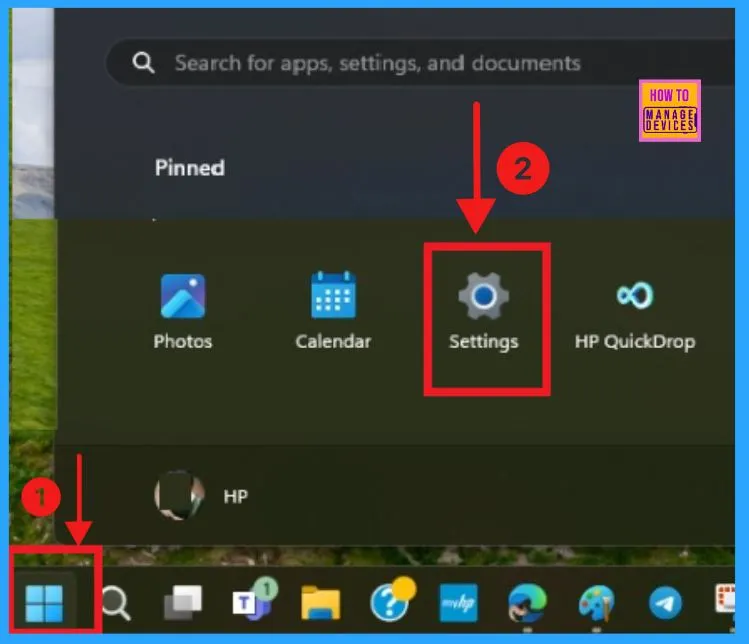
The easiest method is to know the Version number of Installed Apps via the Settings application. For this Click on the Start Menu and open Settings Application. You can also access settings by pressing Win+I or right-clicking on the Start menu and selecting Settings.
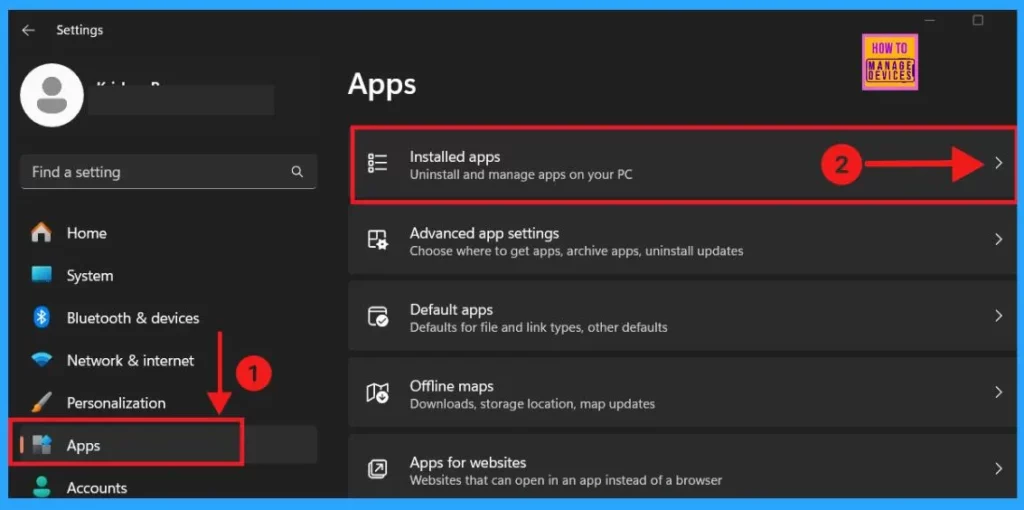
In the Settings Application, you can see different settings. Select the Apps settings on the left side and select the Installed Apps in the right window pane.
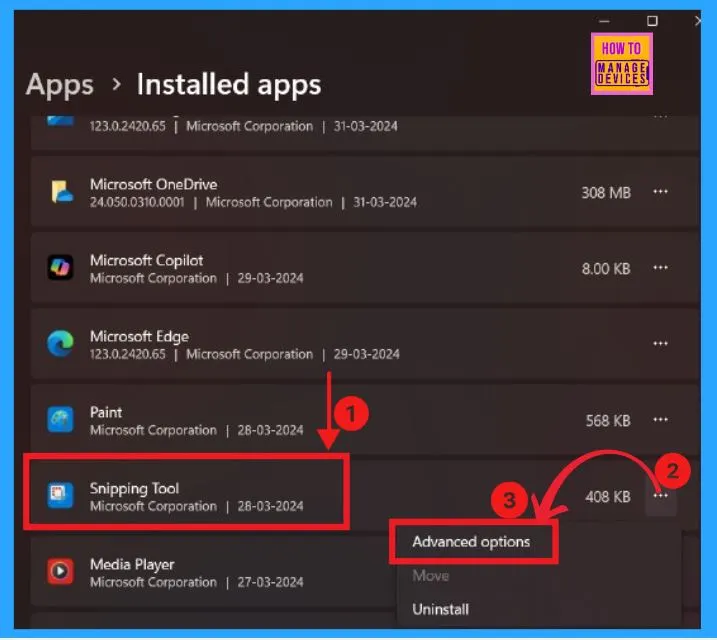
To see the app’s current version, click on the 3 dots on the right side of the right window pane. For example, to see the version of the Snipping Tool, tap on the 3 dots and click on Advanced Options.
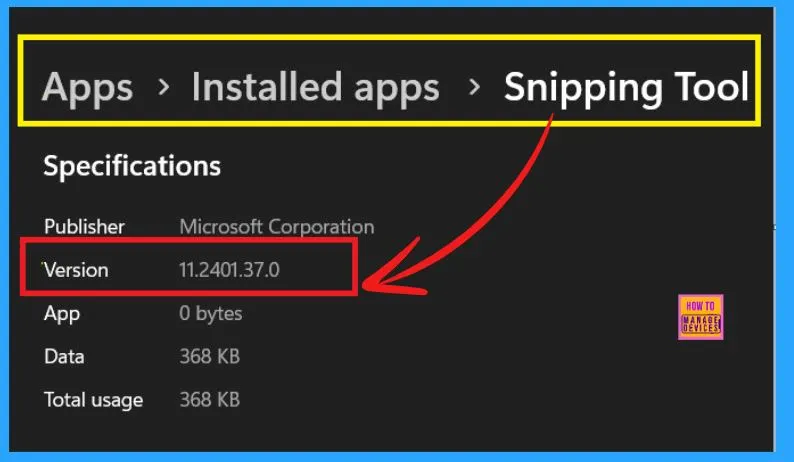
Here, under the Specifications, you can see the current version of the Snipping Tool. It also shows the Publisher name, App, Data, and Total Usage.
- Easy Methods to Check Hardware Specifications on Windows 11
- 3 Best Ways to Disable Taskbar Thumbnail Preview on Windows 11
2. To know the Version of Installed Apps in the Microsoft Store
To know the version of the app installed on Windows 11 from the Microsoft Store, you should first update your Microsoft Store’s latest version. Here’s how you can check it:
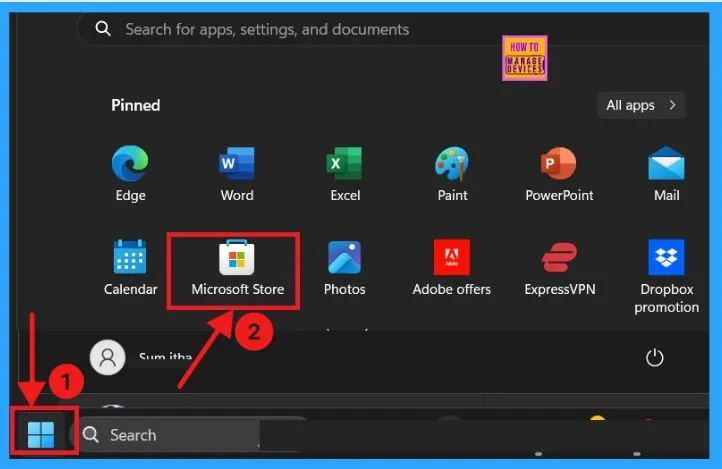
- Click Start menu
- Search Microsoft Store and Open it.
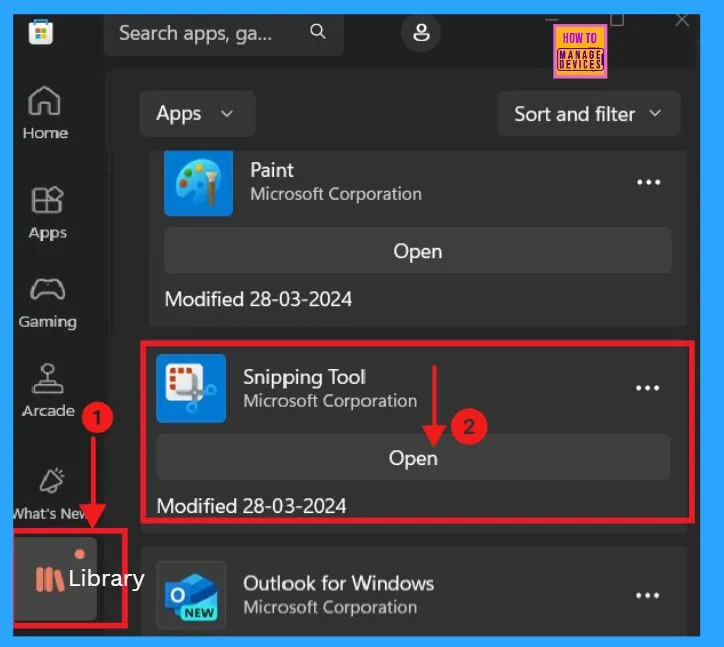
Click Library on the left side to get a list of apps you have installed and downloaded on your PC. Tap on the App (for example, Snipping Tool) that you want to know the version details.
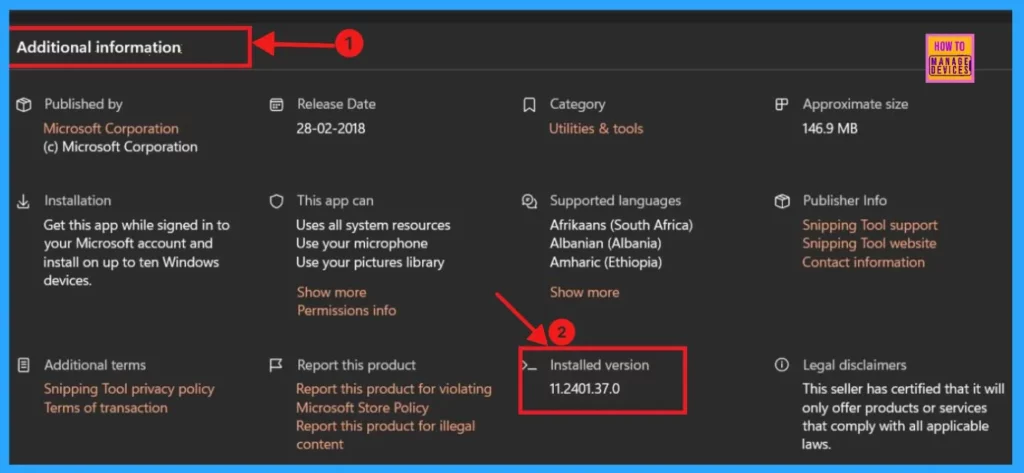
Open the App (Snipping Tool) and you will see the app download page where you must scroll down the Additional Information section. Under Additional Information you have the Installed Version Number of that particular App (here snipping Tool).
- Best Usage of Windows Memory Diagnostic Tool in Windows 11
- Enable Disable Settings Homepage in Windows 11
3. To know the Version of Installed Apps in the Control Panel
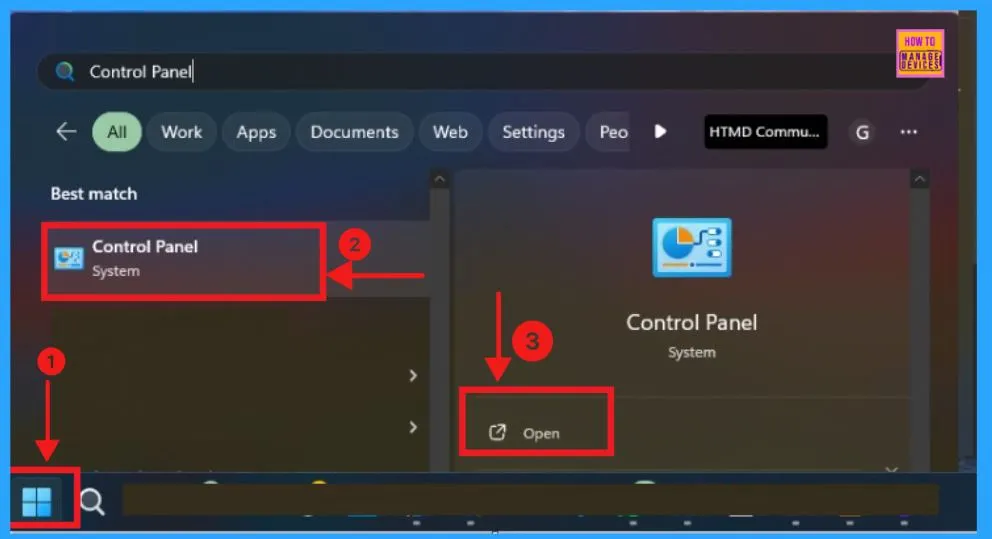
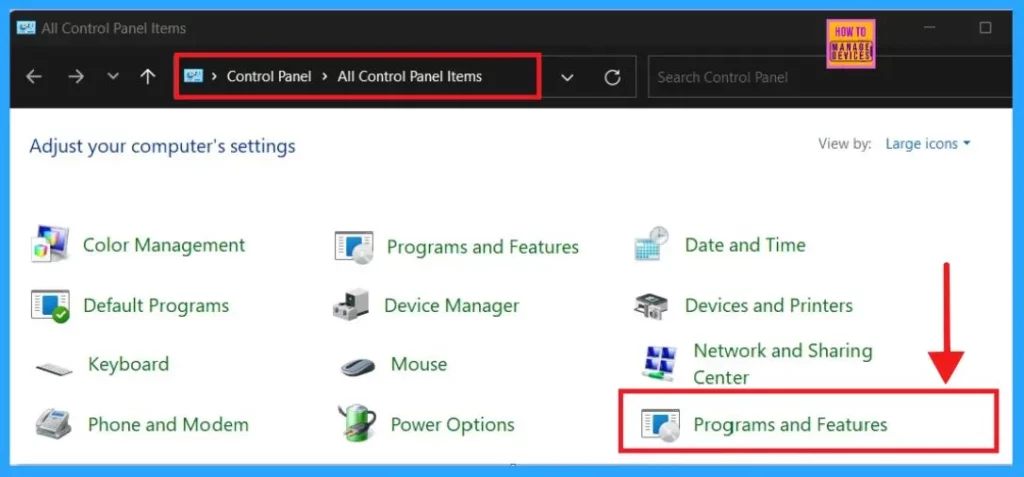
Use the start menu to search Control Panel to launch it. In another way, you can Press the WIN+ R keys together to Run and type control on the Run Command Box. Hit OK to execute it.
In the Control Panel there are different computer settings like Color Management, Keyboard, Mouse etc. Here we want to click on Programs and Features to know the version number of installed apps.
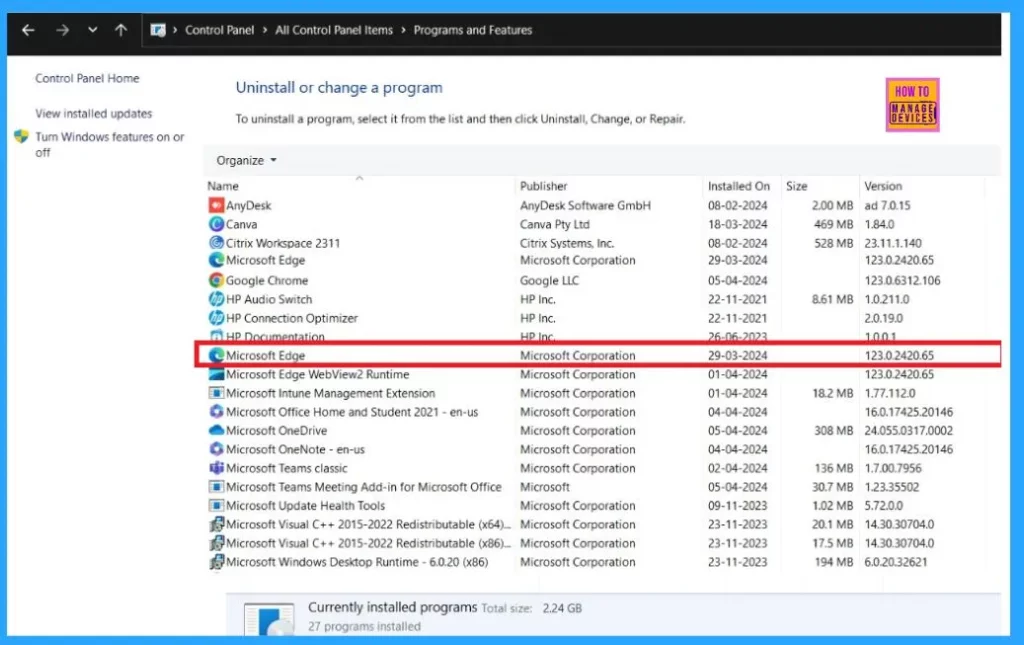
There you can see the list of installed apps and programs on the left side and the version number in the right-side version column. Here we take an example of Microsoft Edge. Its version number is 123.0.2420.65
- 2023 December KB5033375 KB5033369 Windows 11 Patches and 1 Zero-Day Vulnerability
- How to Use Windows Device Portal in Windows 11
4. To Know the Version of Installed Apps in Command
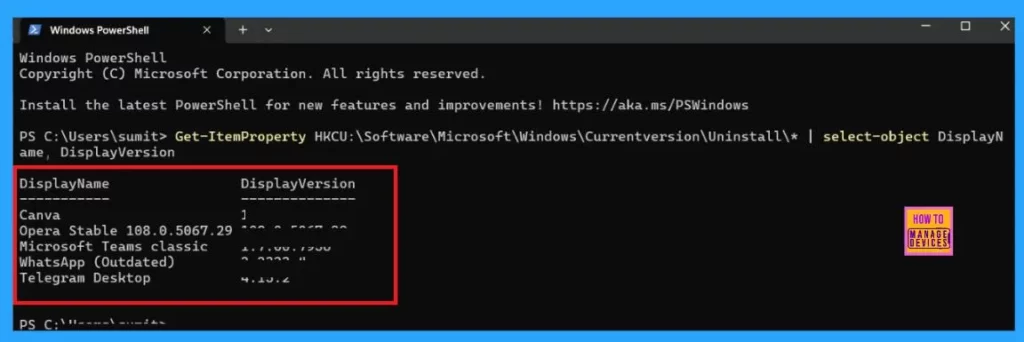
With a single command, you can know the version number of installed apps on your computer. For that open Windows Terminal and select PowerShell. Then Copy and paste the command given below into Windows Terminal, and press Enter.
Note:- (Apps installed for current user only)
Note:– Get-ItemProperty HKCU:\Software\Microsoft\Windows\Currentversion\Uninstall\* | select-object DisplayName, DisplayVersion
We are on WhatsApp. To get the latest step-by-step guides and news updates, Join our Channel. Click here –HTMD WhatsApp.
Author
Smitha Madathil is a computer enthusiast. She loves writing about Windows 11 and Intune-related technologies and sharing her knowledge, quick tips, and tricks about Windows 11 or 10 with the community.




Discussion