






Walk Through SCCM ConfigMgr Console
Walk Through SCCM ConfigMgr Console. I created this post for SCCM 2012, but it is useful for SCCM CB. If you are a newbie to SCCM and want to understand the console, then this is the post for you.
I always consider using a teaching technique that starts with the SCCM console. Would starting SCCM learning with an overview of the console be all right? You can check out more detailed SCCM training from HTMD SCCM Free training videos.”
This learning is really important if you’re starting out with SCCM. This article will guide you through all the SCCM / ConfigMgr Administrative Consoles and the most Commonly Used Terminologies.
I have a new blog post about the latest nodes of the SCCM/ConfigMgr console – Beginners Guide Step By Step SCCM Console Nodes Overview (anoopcnair.com)

| Index |
|---|
| Walk Through SCCM ConfigMgr Console |
| SCCM / ConfigMgr Administrative Console – Most Commonly Used Terminologies |
Walk Through SCCM ConfigMgr Console
The Configuration Manager uses the common System Center framework for its administrator console (“Microsoft.ConfigurationManagement.exe”) and no longer relies on an MMC interface as previous SCCM and SMS 2003 versions used.
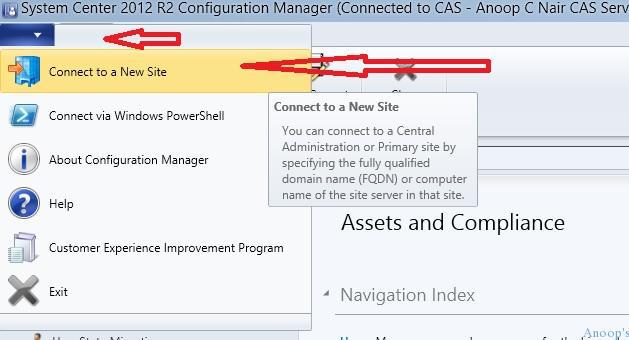
Launch the ConfigMgr / SCCM console by Clicking Start | All Programs | Microsoft System Center | Configuration Manager 2012. Issues with the SCCM / ConfigMgr administrative console can be traced in the SMSAdminUI.log file, which is located at “~\Microsoft Configuration ManagerAdminConsoleAdminUILog.”
Connect to New Site (Primary server): Click on the drop-down arrow near the Home button. Then, select the Connect to a New Site option from the drop-down list. This will allow you to connect to a primary or secondary site by specifying the FQDN or computer name of the server on that site.
SCCM / ConfigMgr Administrative Console – Most Commonly Used Terminologies
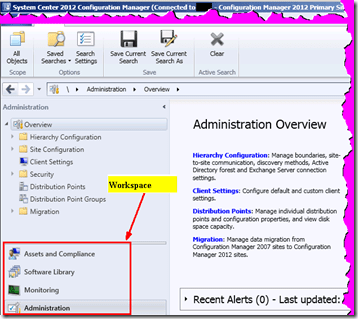
1) Workspace: This is a large bar set in the bottom left window pane. The workspace provides high-level features or topics that can be accessed to perform duties such as site administration, software management, site monitoring, and asset and compliance data management. When a workspace is selected, the remainder of the Configuration Manager Console reflects the workspace accessed. The default workspace selection can be the Asset and Compliance SCCM ConfigMgr Console.
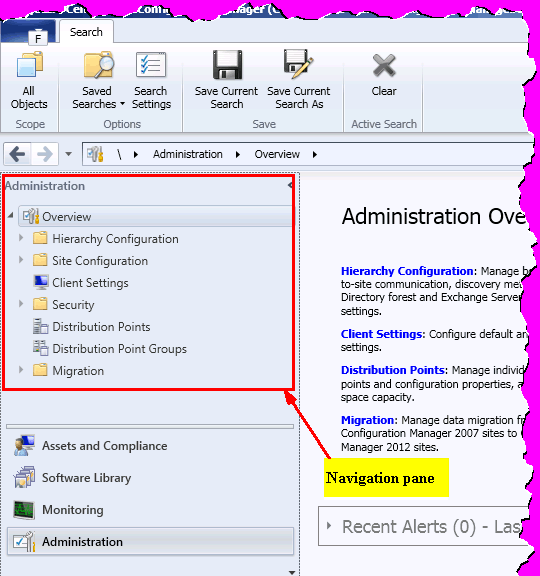
2) Navigation Pane: This is located above the workspaces in the far left window pane. The displayed navigation pane nodes are dependent upon the workspace selected. In the Configuration Manager 2007 console, this was referred to as the tree pane.
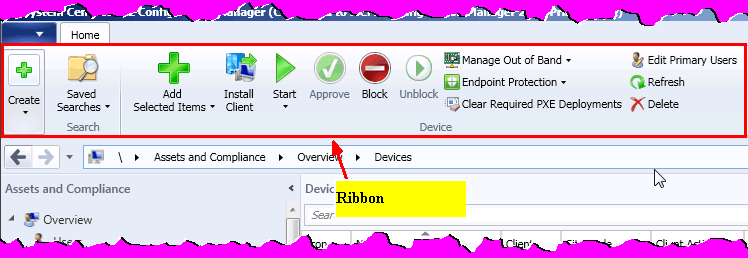
3) Ribbon – This is the set of actions or tasks for the selected navigation pane node or list view/results pane item selected. The Ribbon replaces the “Actions pane” from Configuration Manager 2007.
4) Results Pane: This large windowpane appears in the middle of the ConfigMgr / SCCM Console 2012. It displays objects based on the node or item selected in the navigation pane. The results pane comprises a list view, a details pane, and a filter box (see below for more information on these items).
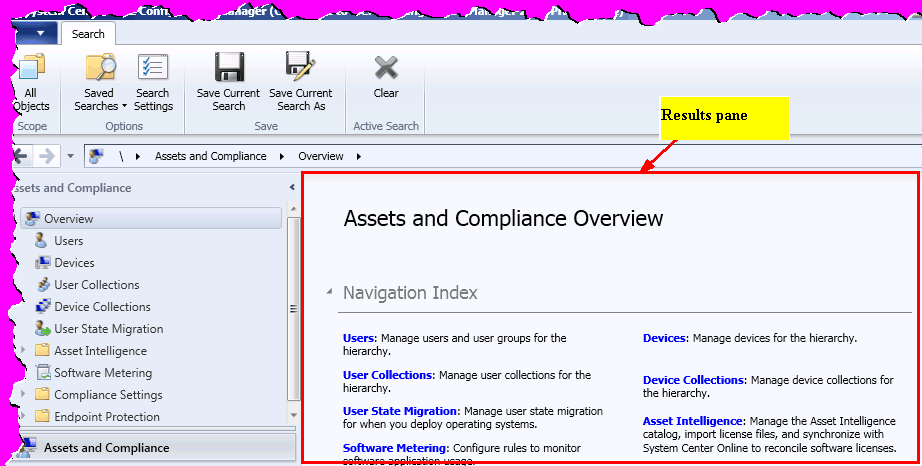
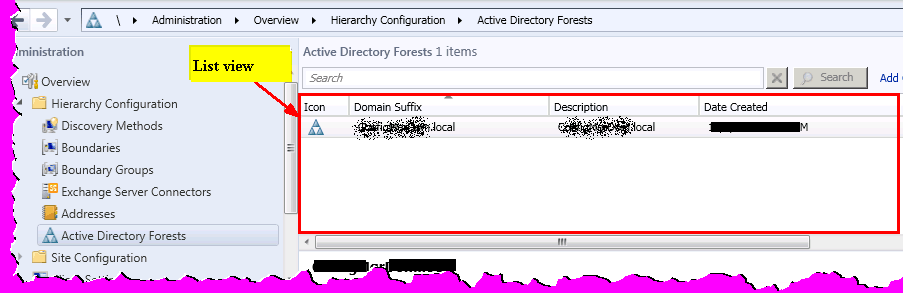
5) List View: The top portion of the results pane displays items based on the node or object selected in the navigation pane.
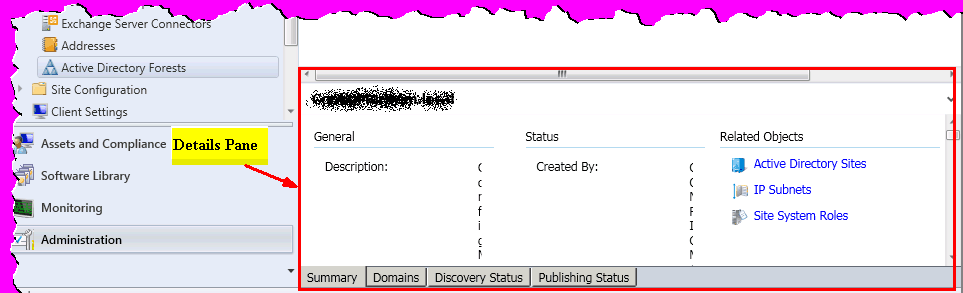
6) Details Pane: This is the bottom portion of the results pane, and when it appears, it displays additional details about the object selected in the list view.
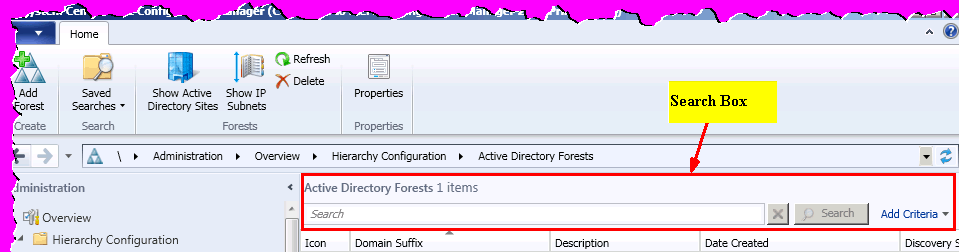
7) Search Box: This box appears at the top of the results pane, above the list view, and below the Ribbon. It allows you to enter text to filter the results of the results panellist view.
In-depth documentation about each SCCM / ConfigMgr 2012 console function can be found in the following link.
Beginners Guide Step By Step SCCM Console Nodes Overview (anoopcnair.com)
Preview and experience both new and old functions in System Center Configuration Manager 2012.
We are on WhatsApp. To get the latest step-by-step guides and news updates, Join our Channel. Click here –HTMD WhatsApp.
Author
Anoop C Nair has been Microsoft MVP from 2015 onwards for 10 consecutive years! He is a Workplace Solution Architect with more than 22+ years of experience in Workplace technologies. He is also a Blogger, Speaker, and leader of the Local User Group Community. His main focus is on Device Management technologies like SCCM and Intune. He writes about technologies like Intune, SCCM, Windows, Cloud PC, Windows, Entra, Microsoft Security, Career, etc.




Discussion · 3 comments