






Waterfox Deployment using Enterprise App Catalog App via Intune
Let’s discuss the Waterfox Deployment using Enterprise App Catalog App via Intune. Microsoft Intune is a cloud-based service that helps organizations easily install applications. The Enterprise App Catalog provides a centralized location for organizations to store and manage applications, making deploying apps to employees’ devices simple.
Additionally, this method is prepackaged, which facilitates app deployment. We have previously explained various types of posts based on this deployment method. Now, let’s focus on how to install the Waterfox app. Waterfox is a powerful browser that offers an excellent privacy-based web browsing experience.
This browser allows users to customize their extensions and container tabs according to their preferences. It includes built-in tracking protection to helps your online activities and enhance your privacy. The browser is developed by BrowserWorks Ltd.
Enterprise app catalog provide wide range of Apps for organizations. With this Intune feature its very simple to manage apps for organization. So in this post lets discuss how to install Waterfox using Enterprise App Catalog App via Intune.

Table of Contents
What are the Beneifit of Enterprise App Catalog App?
Waterfox Deployment using Enterprise App Catalog App via Intune
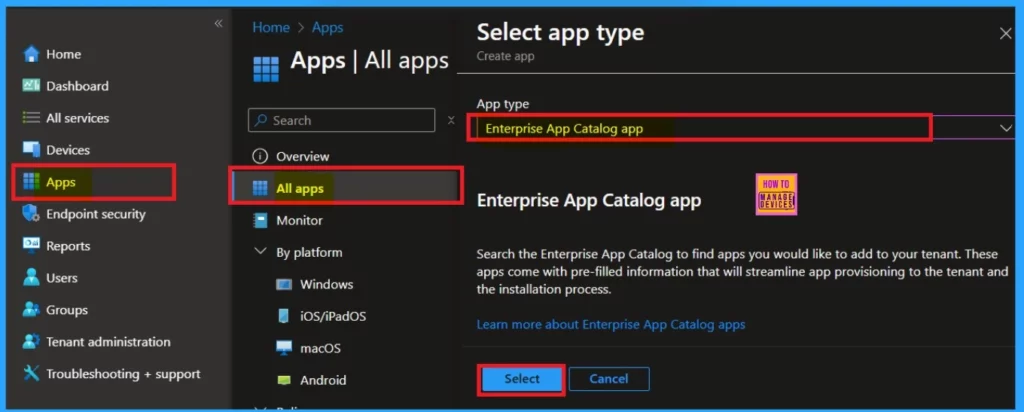
Installing apps through Microsoft Intune is quite easy. Previously, we explored various aspects of Waterfox and the Enterprise App Catalog app. Now, let’s focus on the app installation process using Intune. First, log into the Microsoft Intune admin center using your credentials. Then, navigate to Apps > All apps to get started.
- In all apps select the Enterprise app catalog as App type.
- Click on the Select.
- Create and Deploy Python Applications with Intune Enterprise App Catalog App
- Install Zoom Client using Windows Enterprise App Catalog App with Intune
- How to Install Power BI Desktop App using Intune Enterprise App Catalog App
App Information
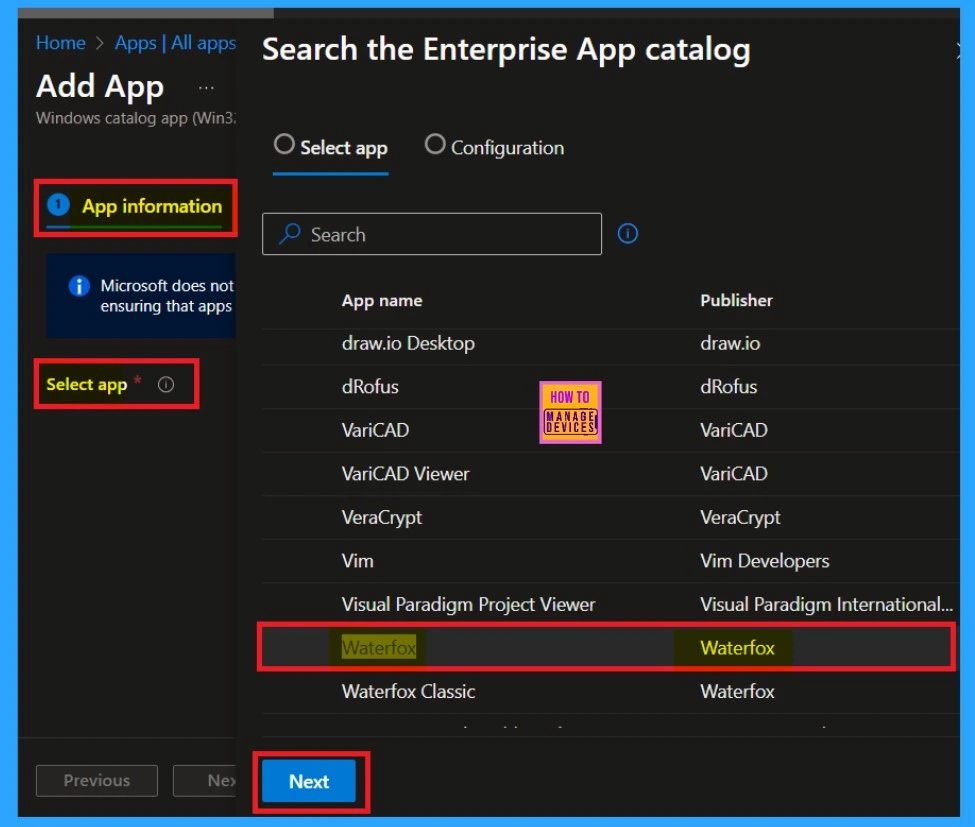
When you select the app type, you’ll be getting the app information page. Here, you will see a hyperlink labeled “Select App.” Click on it, and you’ll get a list of apps that you can install for your organization. I found Waterfox by searching.
- After selecting Waterfox, click on the Next option.
Waterfox
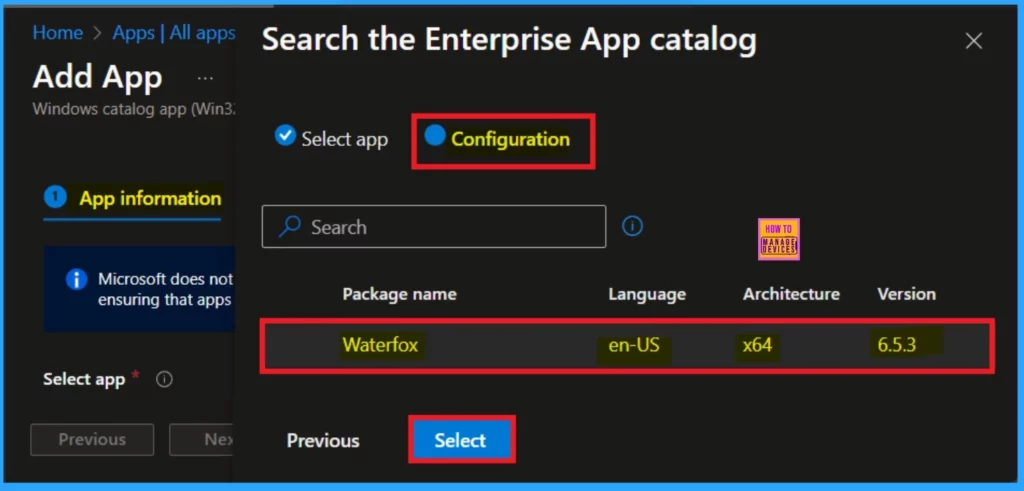
After clicking Next, you will be taken to the configuration tab page. Here, you will see the details of the app package name and the available language and versions. You can select the desired app version. In some cases, different Apps may have various versions available. This tab will help you in selecting the appropriate app version. Waterfox only have one version to display, so click on that version and then click on the next to proceed.
| Package Name | Language | Architecture | Version |
|---|---|---|---|
| Waterfox | en-US | *64 | 6.5.3 |
Logo Status
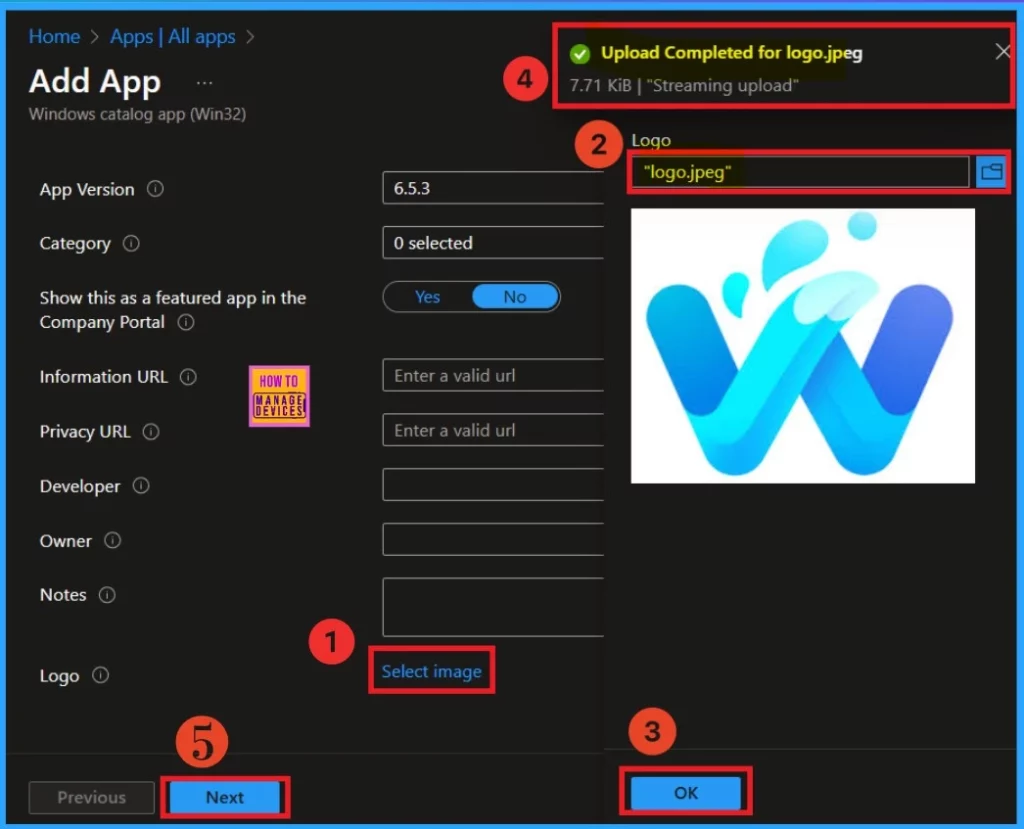
When you select the app version, you will still be on the app information page. If you scroll down, you will find the Select Image option. This option allows you to upload the app’s logo to the app information page, making it easier to identify the app quickly.
Click on Select Image, and you will be prompted to upload the logo from your files. Once you have selected the logo (which I have already downloaded), the system will notify you that the upload for the logo has been completed. Click OK, and you will see the logo displayed on your app information page. After that, click Next to proceed with the next steps.
Program
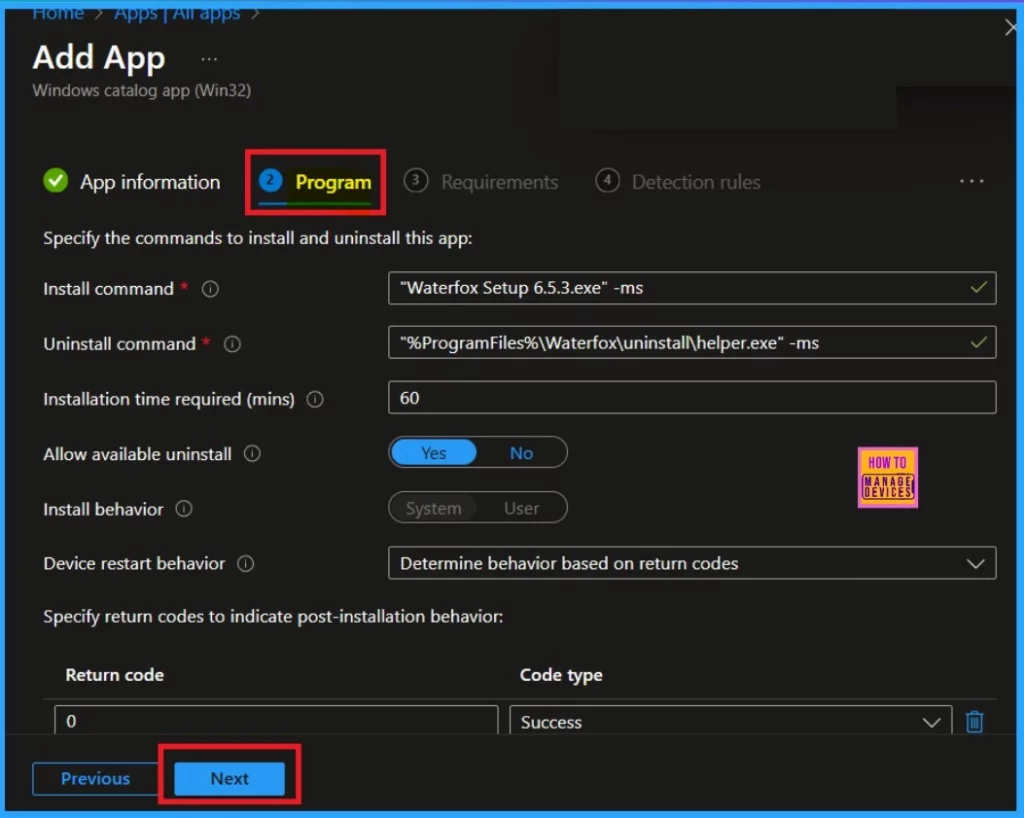
After the app information page, you will be directed to the program page. This page displays some basic details, such as the installation command. In an Enterprise catalog app nature, there is no need to specify anything here. Simply click Next to proceed.
Requirements
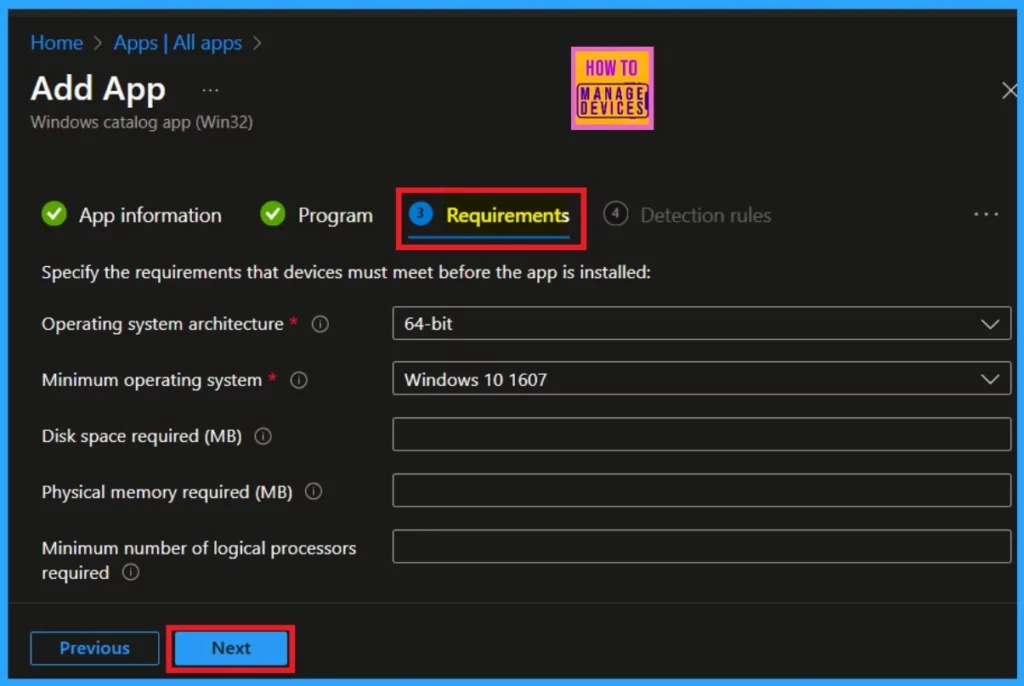
After that, you will see the requirements page. You don’t need to enter any specific details like the program, as it is automatically filled in due to the nature of the enterprise catalog app type. The page indicates that the operating system architecture is 64-bit and that the minimum required operating system is Windows 10 version 1607 and higher.
Detection Rule
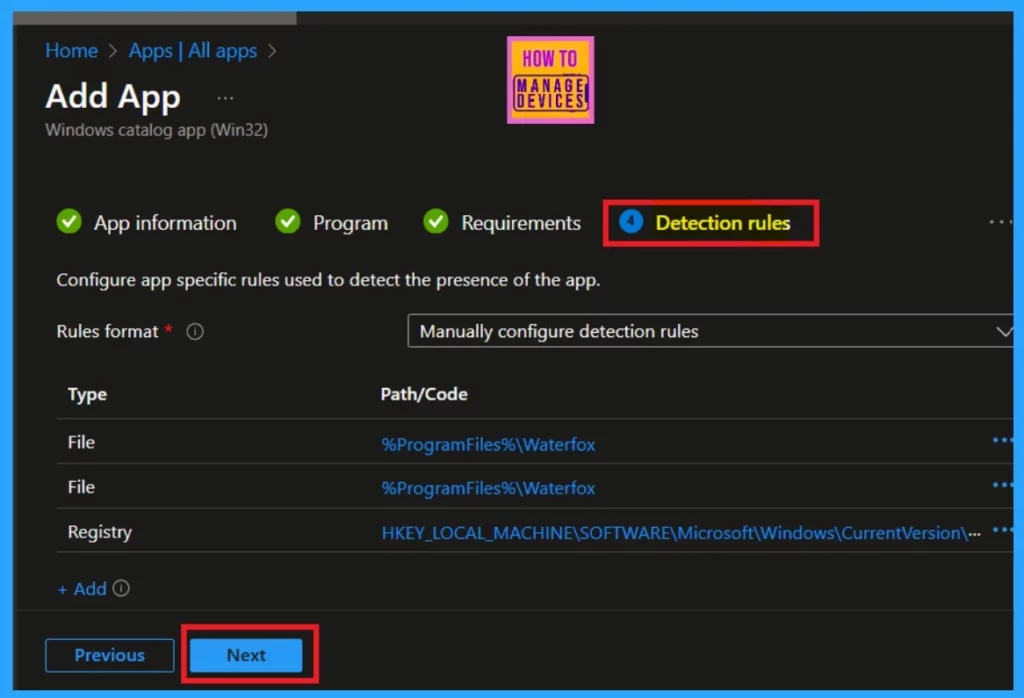
The Detection rules are the next section. Here You can obtain the rules format and path for file type, and registry type. This section also mandatory one. Please check the details and click Next.
Scope Tags
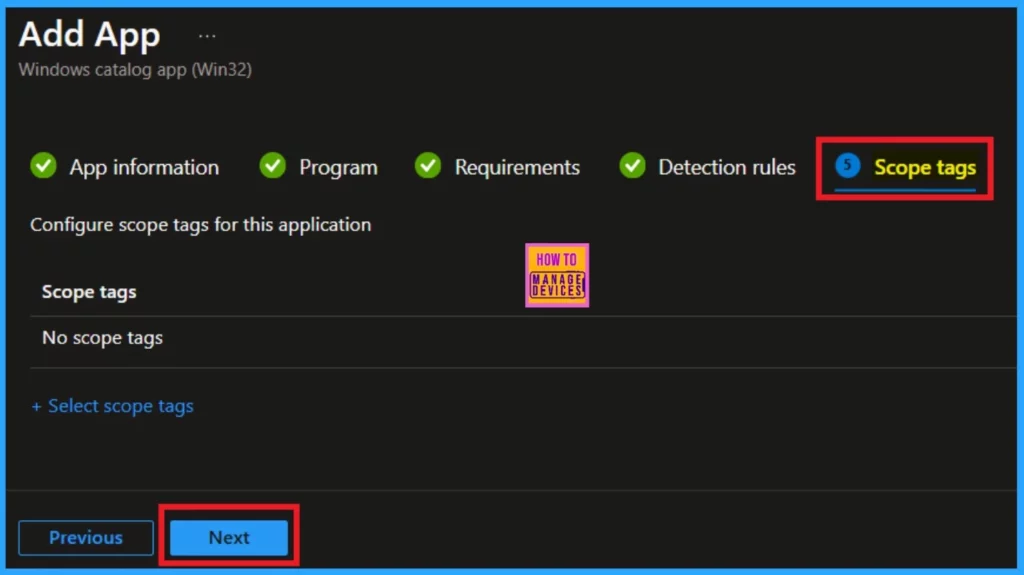
The next section is the scope and tag section. I did not add any scope tags in this section. If you want to add them, click on “Select Scope Tags.” I will skip this section, so click on the next one.
Assignments
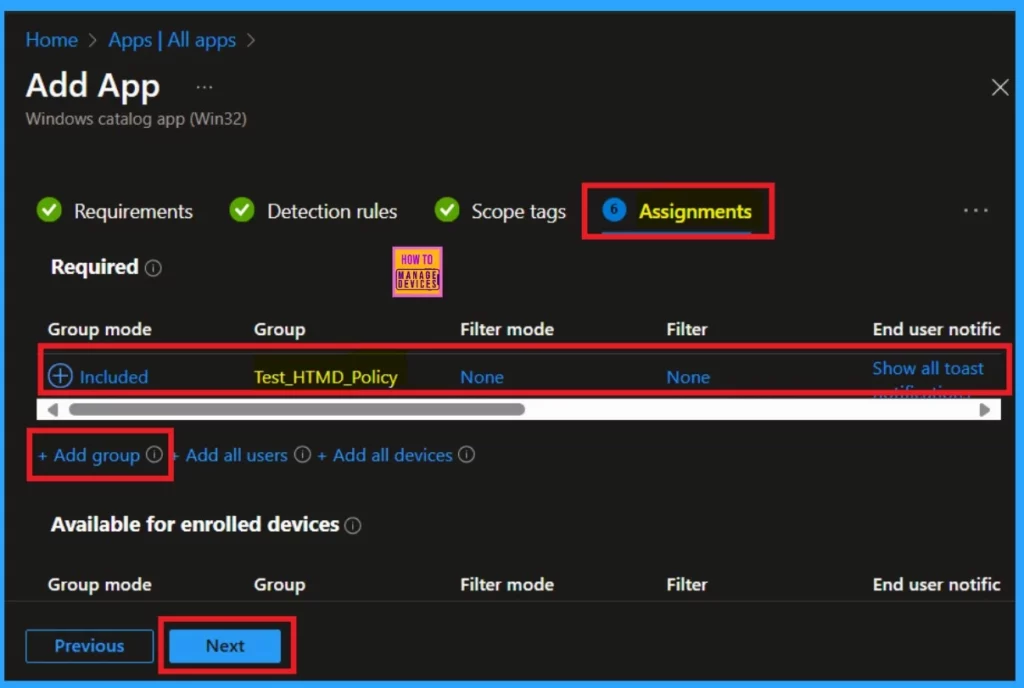
Assignments are very important because we assign this app (Waterfox) to specific groups. The assignment section allows you to add groups to the policy. You can see an “Add Group” button. Click on that, and you will see a list of groups that you can add to the app deployment. After selecting your desired group, you can proceed to deploy the app.
- If you need to create a new group, you can easily do that here as well.
- Once you have selected your group, click Next to continue.
Review + Create
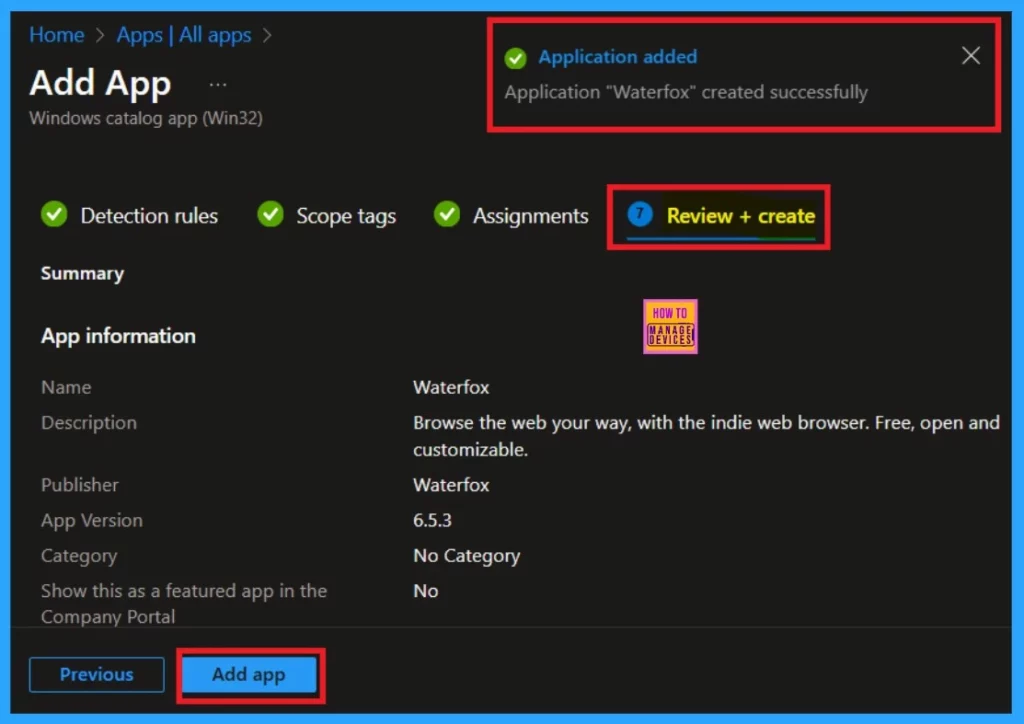
The “Review + Create” option is another session that acts as a summary page. Here, you will find all the information throughout the policy creation process, including the name, description, and app version. You will also see the Add App option.
This is the final stage where you can verify the details on the page. Once you have checked everything, click on Add App. You will then be notified that your application has been added successfully.
End User Experience
The next is end-user experience this is very important to check. The app deployment typically takes about 8 hours, so you have to wait for the results. Once the waiting period is over, if the app was successfully installed, it will appear in the installed apps list.
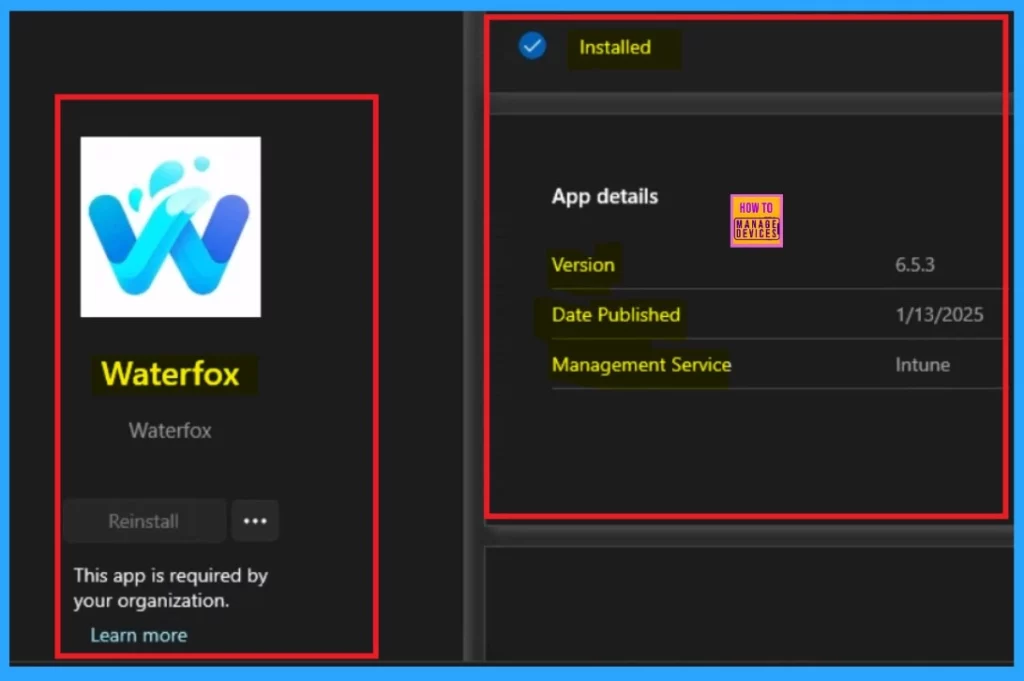
I usually use the company portal’s sync option to reduce the waiting period and so I get faster results. Afterward, I check the downloads and updates section in the company portal, where I find various installed apps. I searched for the Waterfox app, and it was there, indicating that the app deployment successfully installed the app for my organization.
Monitor Status
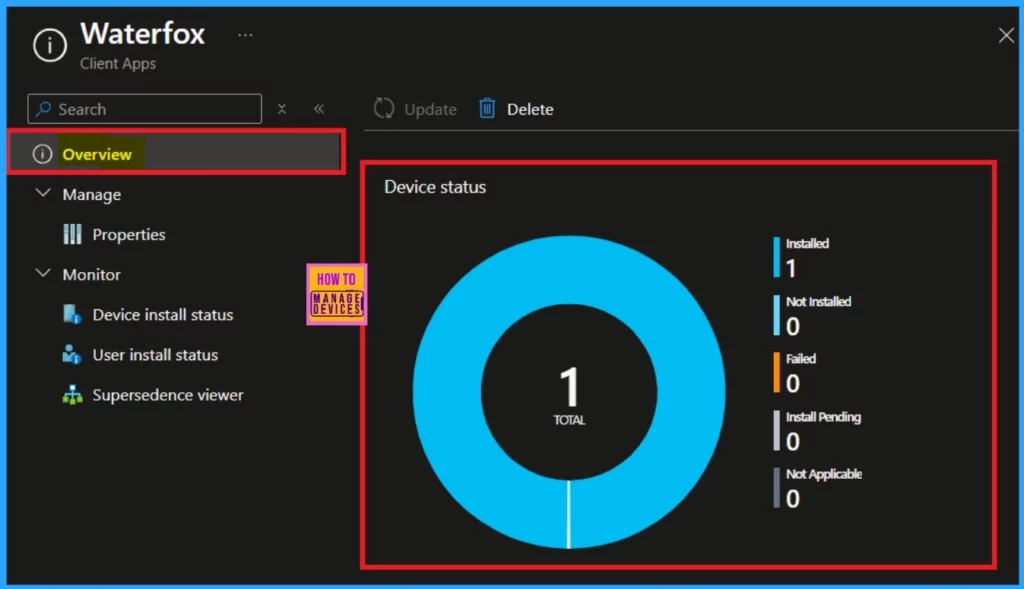
After checking in the downloads and update option, go to the Intune portal. Click on Apps> All app. Then search for “Waterfox” and clicked on it, when we click on the app you will get the overview it will shows the app state. It will help to confirming that the installation was successful. The app was installed without any conflicts or errors.
Need Further Assistance or Have Technical Questions?
Join the LinkedIn Page and Telegram group to get the latest step-by-step guides and news updates. Join our Meetup Page to participate in User group meetings. Also, Join the WhatsApp Community to get the latest news on Microsoft Technologies. We are there on Reddit as well.
Author
Anoop C Nair has been Microsoft MVP for 10 consecutive years from 2015 onwards. He is a Workplace Solution Architect with more than 22+ years of experience in Workplace technologies. He is a Blogger, Speaker, and Local User Group Community leader. His primary focus is on Device Management technologies like SCCM and Intune. He writes about technologies like Intune, SCCM, Windows, Cloud PC, Windows, Entra, Microsoft Security, Career, etc.


Discussion