






How to Allow or Block Web Authentication Requests on Sites with Broken TLS Certificates in Edge Browser using M365 Admin Center
Hi there today we are discussing how to Allow or Block Web Authentication Requests on Sites with Broken TLS Certificates in Edge Browser using M365 Admin Center. As you all know that security measurements are very important for the users Especially using a browser. Here secure method that allows users to log in to websites using biometric data instead of using passwords.
We know that passwords are not that much secured now a days. This Policy keep your accounts more secure and protect you from phishing and password hacking. But for this to work properly, the website itself needs to be secure. That’s why something called a TLS certificate is used for.
TLS certificate (Transport Layer Security certificate) is a digital file used by websites to prove their identity and this is a connection between website and browser. If you allow (Enable) this policy, it is huge risk in it because Edge will allow Web Authentication requests on websites that have TLS certificates with errors.
Allowing Web Authentication on not secured sites comes with serious security risks. It will block Web Authentication on any website that has TLS certificate issues. This helps protect users from potential threats such as phishing attacks.

Table of Contents
What Happens When this Policy Enabled?
If you enable this policy, Microsoft Edge will allow Web Authentication requests on websites that have TLS certificates with errors. But the website is not secured in this case.
How to Allow or Block Web Authentication Requests on Sites with Broken TLS Certificates in Edge Browser using M365 Admin Center
We discussed lot of things about web authentication requests on sites with broken TLS certificates. Now, let’s move on to a tutorial on how to allow or block this policy through the Microsoft 365 Admin Center. First, sign in to the Microsoft 365 Admin Center.
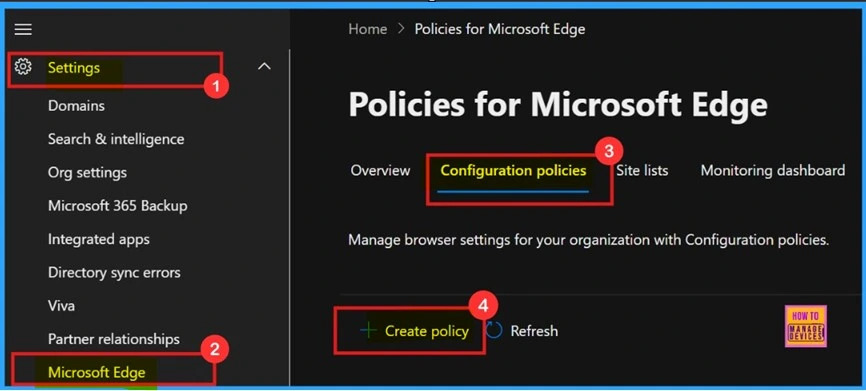
Then, go to Settings and select Microsoft Edge. From there, click on Configuration Policies, and then select the + Create Policy option to setting up the configuration.
- Enable Disable Search Bar Allowed in Edge Through Microsoft 365 Admin Center Policy
- Configuration Profile for Edge Browser Extensions and Sidebar Management using Microsoft 365 Admin Center
- Enable Autofill For Addresses In MS Edge Browser Using Microsoft 365 Admin Center Policy
Basics for Web Authentication Requests on Sites
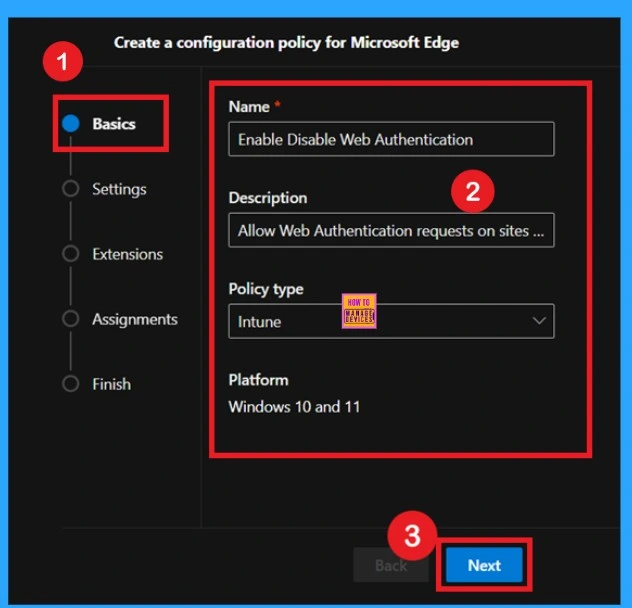
Now, we need to enter some basic details for the web authentication request policy on sites. First, provide a name that and helps you to identifies the policy, as this will help you locate it easily in the future. You can also add a description, select the policy type, assign the target users or groups, and choose the platform as Windows 10 and 11.
- Once all the details are filled in, click Next to continue.
How to Add Settings
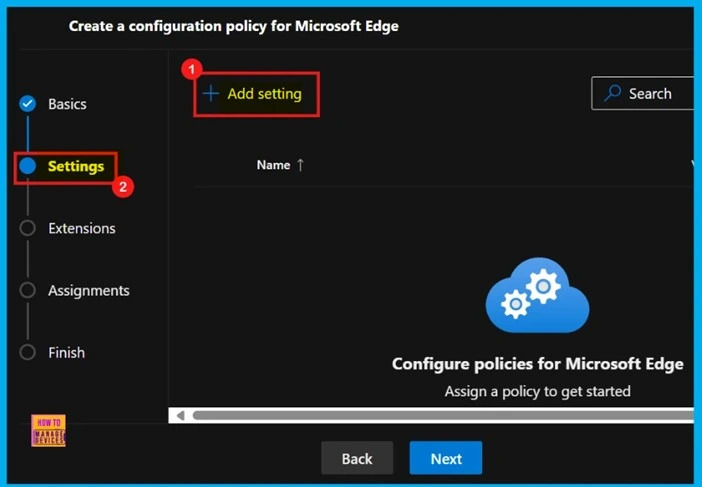
After completing the basic details, you will now be in the Settings section. In this section, we will show you how to add settings to the policy. First, click on the + Add Settings button. This will allow you to browse and select different types of settings from various categories.
How to Enable Disable Policy
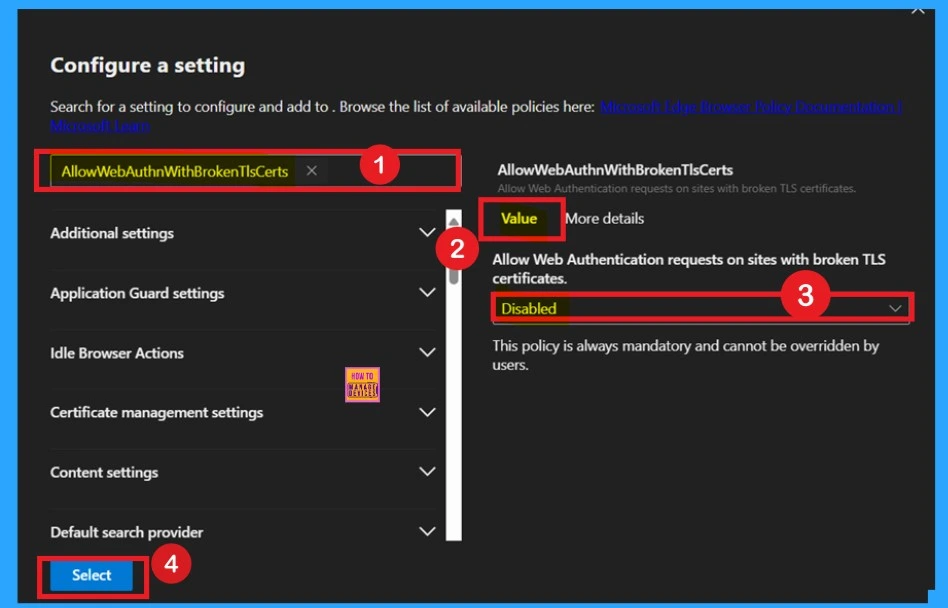
How to enable or disable the policy is an important step you need to manage after clicking on the Add Settings option. Once you do that, you will be taken to the Configure a Setting section. Here, you will find a search bar along with various categories such as Additional Settings, Application, Guard Settings, etc. You can either search for the policy by name using the search bar or browse through the categories to find it.
In this example, I searched for the policy by name and the policy details appear in the right pane, where you will see 2 tabs: Value and More Details. In the Value tab, you will see a box with a dropdown arrow. Click on the dropdown arrow to get the available options: Enabled and Disabled. Select your preferred option.
- Here, I selected Disabled.
- Then, click on Select.
- After this, a notification will confirm that the policy has been updated successfully.
Purpose of More Details
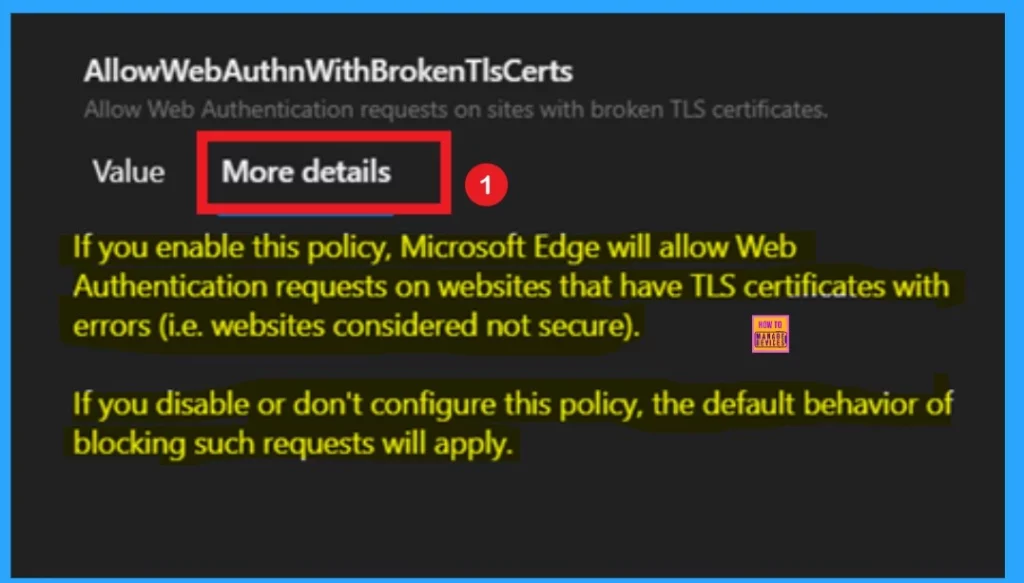
The More Details tab provides a detailed overview of the policy, including what happens when the policy is enabled, disabled, or not configured. This information is always available in this section. In some cases, it also mentions if a policy is deprecated. These details are essential for understanding the impact of the policy settings.
We, strongly recommended not to skip this section, as it plays a crucial role in an effective policy creation.
What is Extension for Configuration Policy
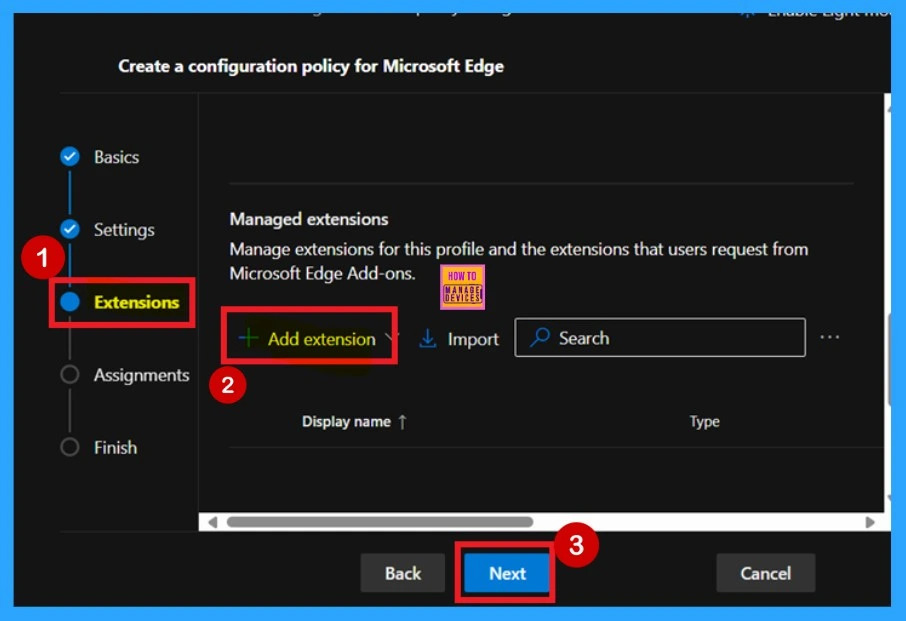
Now, we are on the Extensions tab. In this tab, you can add extensions to the policy. To do this, click on the + Add Extension option, which allows you to include specific extensions as part of the policy. In my case, I chose to skip this step since I don’t need to add any extensions to the policy. So, I clicked Next to continue.
Assignments
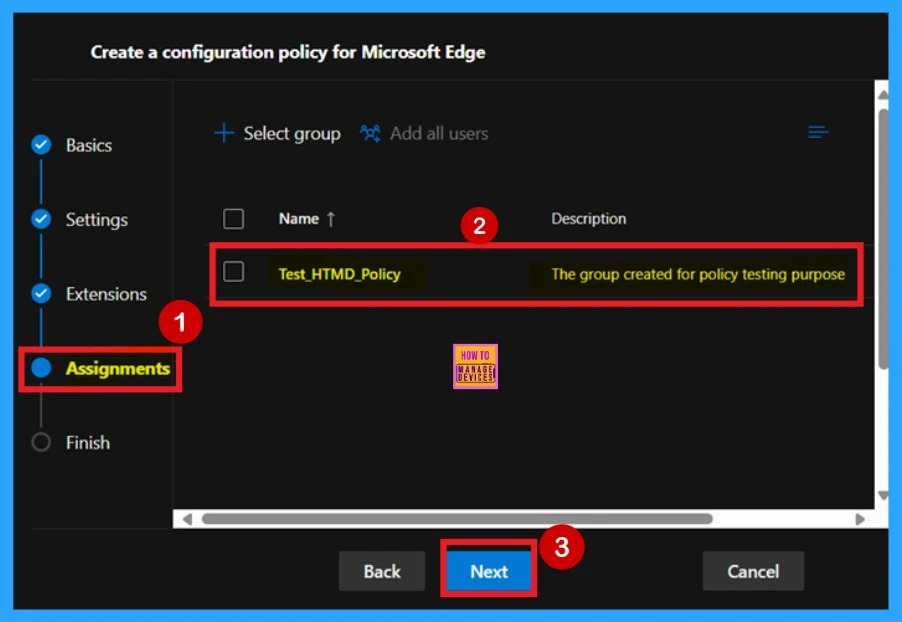
The next section is Assignments, which is one of the most important parts of the policy configuration process. If you are creating a policy, you need to deploy it to a specific group. Here, you can select the policy group and choose the group(s) to which you want to deploy the policy. Once you’ve selected the appropriate group, click Next to continue with the process.
Know the Final Stage of Policy Creation
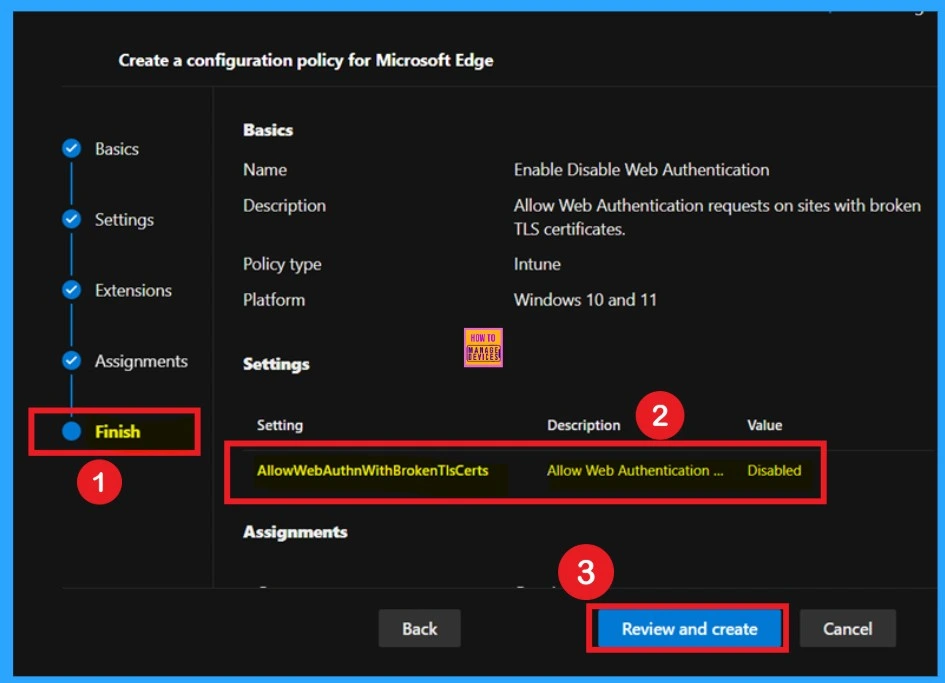
The final tab is Finish; this is the last step in the policy creation. In this section, you can review all the details of the policy, including basic information, settings, and assignments. This section acts as a summary page. If you need to make any changes to the policy name or settings, you can go back to the previous tabs and edit them before clicking on the Review and Create button.
Once you’re click on the configuration, click Review and Create, and you will receive a notification confirming that the policy has been created successfully.
Device and User Check-in Status
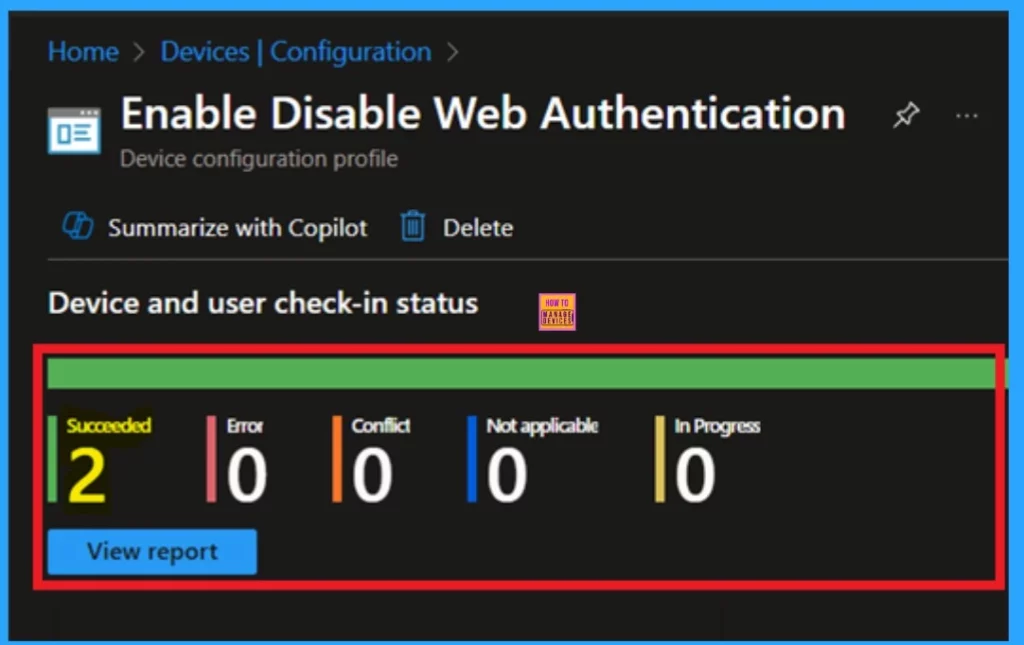
After syncing, you can now check the device and user check-in status, which helps confirm whether the policy was successfully applied or not. To check this status, go to Devices > Configuration Policies in the Microsoft Intune admin center. In the list of configuration policies, search for the policy you created.
- Then, click on the policy name to view its details.
- You will see the monitoring status of the policy below screenshot.
- The policy indicating that the policy succeeded in 2 (both device and user).
Client Side Verification through Event Viewer
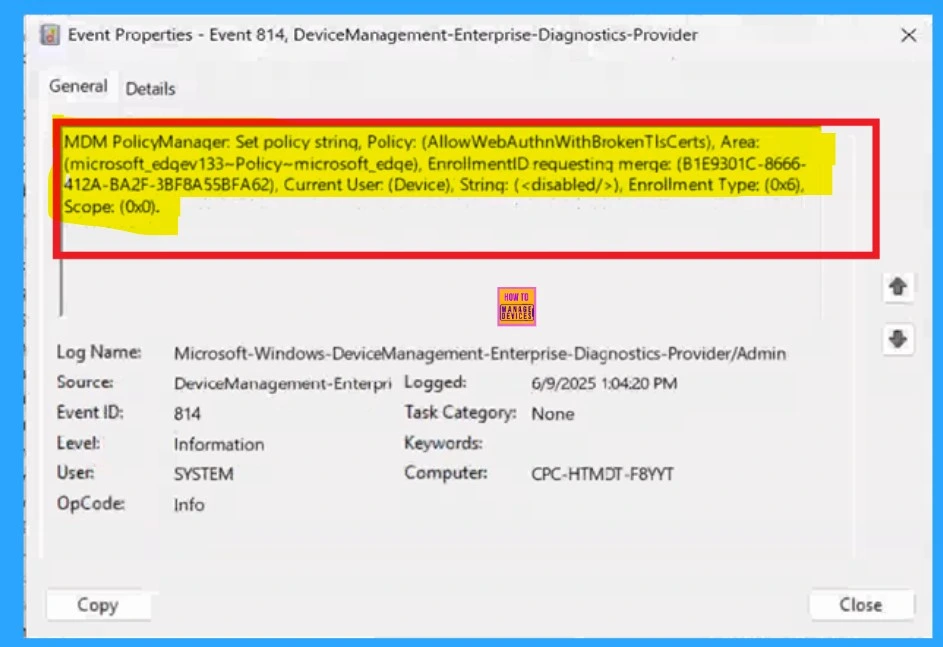
Once the policy is created, we should verify its application on the client device using Event Viewer. To do so, click the Start Menu, search for Event Viewer, and then click Yes in the User Account Control window.
| Navigate to the following log: |
|---|
| MDM PolicyManager: Set policy string, Policy: (AllowWebAuthnWithBrokenTlsCerts), Area: (microsoft_edqev133~Poticy~microsoft_edqe), EnrollmentlD requesting merqe: (B1E9301C-8666- 412A-BA2F-3BF8A55BFA62), Current User: (Device), Strinq: (), Enrollment Type: (0x6), Scope: (0x0). |
Need Further Assistance or Have Technical Questions?
Join the LinkedIn Page and Telegram group to get the latest step-by-step guides and news updates. Join our Meetup Page to participate in User group meetings. Also, Join the WhatsApp Community to get the latest news on Microsoft Technologies. We are there on Reddit as well.
Author
Anoop C Nair has been a Microsoft MVP for 10 consecutive years from 2015 onwards. He is a Workplace Solution Architect with more than 22+ years of experience in Workplace technologies. He is a Blogger, Speaker, and Local User Group Community leader. His primary focus is on Device Management technologies like SCCM and Intune. He writes about technologies like Intune, SCCM, Windows, Cloud PC, Windows, Entra, Microsoft Security, Career, etc.




Discussion