






Web to Browser Sign-in Enabled Policy in MS Intune
Today, we are discussing Web to Browser Sign-in in Microsoft Edge. When this policy is enabled, it allows smooth sign-in between Microsoft websites and the Edge browser, creating a smooth user experience. As we all know,Settings Catalog has become one of the most important features in Intune.
It provides administrators with a simple and powerful way to configure and manage policies across devices. In this session, our focus is on the Microsoft Edge identity and sign-in category within policy deployment. This category is particularly critical, as it controls how users authenticate, access resources, and synchronize their data between the browser and Microsoft services.
When this policy is enabled, users benefit from a simplified sign-in. If a user signs in on a Microsoft website such as Outlook, Edge can use that same login information to sign them into the browser itself. This provides a unified experience, eliminating the need to re-enter credentials multiple times.
If this policy is disabled, user will not get sign in CTA or smooth sign in experience when user sign in on Microsoft website. For organizations that prioritize security and control, disabling this policy can be beneficial. It prevents automatic synchronization of browser data such as favorites, history, and settings, which could be a concern in shared device environments.

Table of Contents
What is the Default Behavior if the Policy is Not Configured?
If the policy is not configured, it behaves the same as being enabled. Users will still get the sign-in CTA or seamless sign-in experience (if the related setting is enabled).
Get Start Configuring – Web to Browser Sign-in Enabled Policy in MS Intune
We have already discussed the key details of Web To Browser Sign-in Enabled Policy . Now, let’s look at how it can be deployed through the Microsoft Intune Admin Center. First, go to the Devices section in the Intune Admin Center. Next, click on Configuration profiles and then select + Create profile.
- When creating the profile, you will need to provide the required details such as the Platform and Profile type.
- For the Platform, select Windows 10 and later.
- For the Profile type, choose Settings catalog. Finally, click on Create to complete the process. This will deploy the policy through Intune.

- Enable Disable OneNote Audio Search for User Policy using Intune
- OneNote Text Prediction for user Policy Deployment using Intune
- Enable Disable Full Screen Mode in MS Edge Browser using Intune Policy
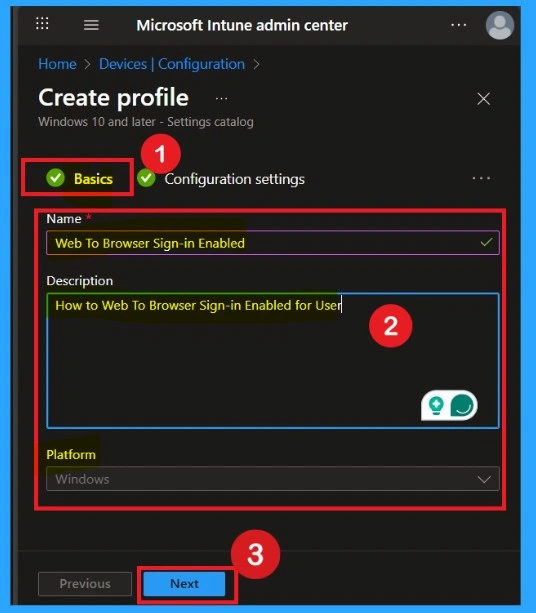
Start with Basic Step
You know, Naming the policy is the first step that help admins to identify the policy later. This is important and necessary step that allows you to know the purpose of the policy. Here is Name is important category, and description is optional in basics.
- After adding this click on the Next button.
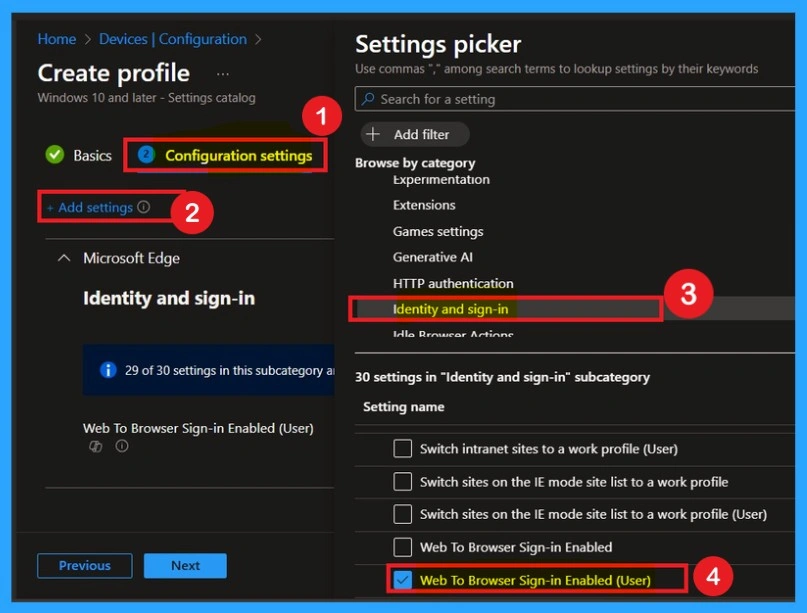
Configure Web To Browser Sign-in Enabled Policy
Configuration is the first important step after basics. We can’t skip this section. In this section you can see the Add Setting option in hyperlink click on that. Now you will get diffrent type of policy settings. There you have to go to the Microsoft Edge > Identity and sign-in> Web To Browser Sign-in Enabled Policy.
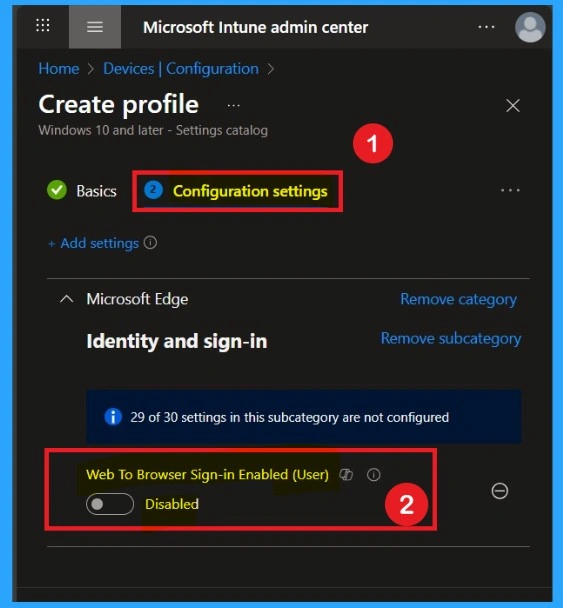
Disabled the Policy Mode
After selecting the configuration settings, you can now close the Settings picker window. Once it is closed, you will see the selected policy listed on the Configuration settings page. By default, the policy is set to Disabled. If you want to proceed with the current settings or make changes later, simply click Next to continue with the policy creation process.
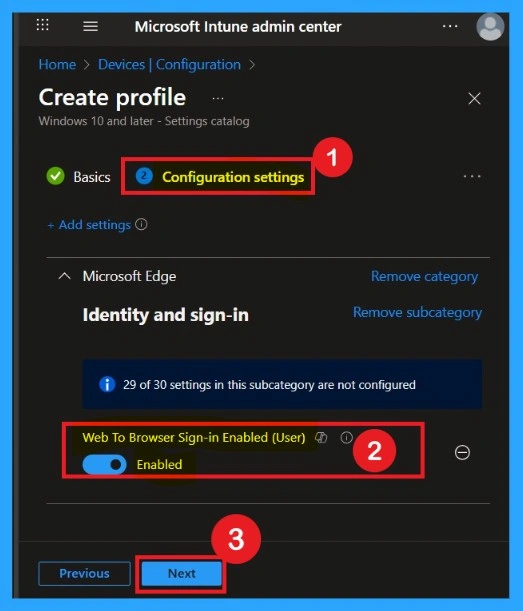
Enable the Web To Browser Sign-in Enabled Policy
Enabling this policy is very simple. You just need to move the toggle button from left to right, and it will turn blue, indicating that the Web To Browser Sign-in Enabled Policy is enabled. After that, click on Next. You can proceed this policy in enabled mode.
Know the Scope Tags
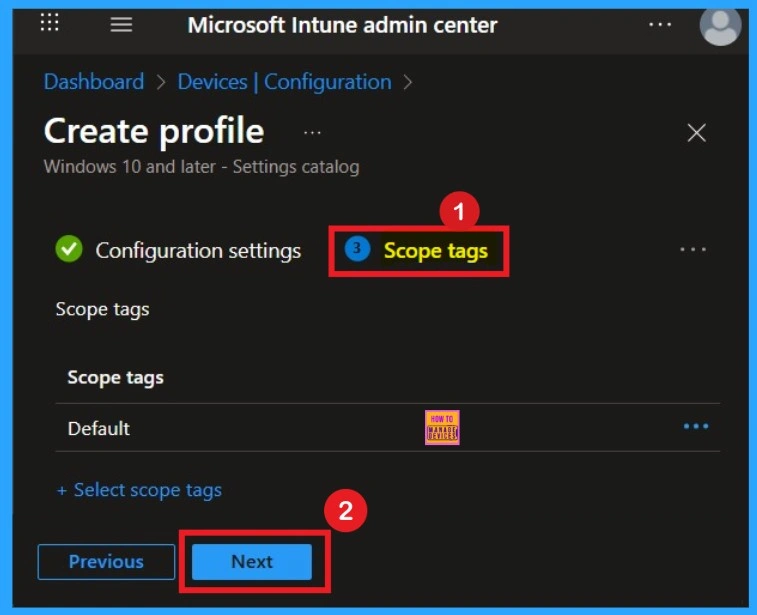
The purpose of scope tags is to categorize and associate your policy with a specific scope, making it easier to manage assignments for particular environments. Here, you can add a scope tag for the policy, although it is not mandatory.
Importance of Assignments
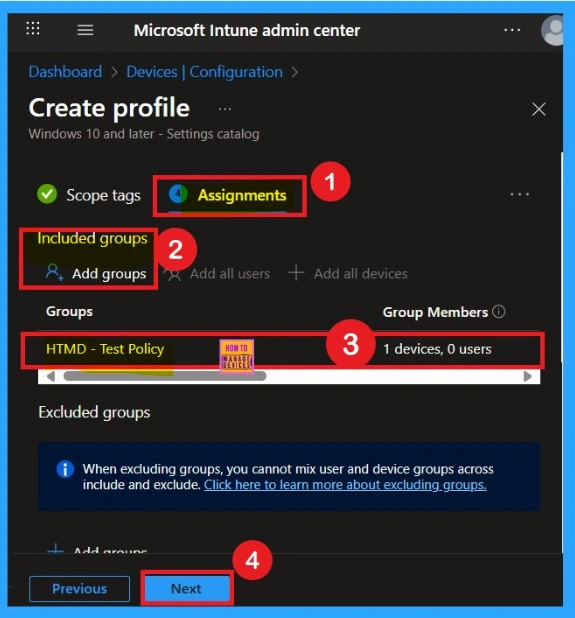
To assign the policy to specific groups, you can use the Assignment Tab. Here I click, +Add groups option under Included groups. I choose a group from the list of groups and click on the Select button. Again, I click on the Select button to continue.
Review + Create Tab
Before completing the policy creation, you can review each tab to avoid misconfiguration or policy failure. After verifying all the details, click on the Create Button. After creating the policy, you will get a success message.

Device Check-in Status
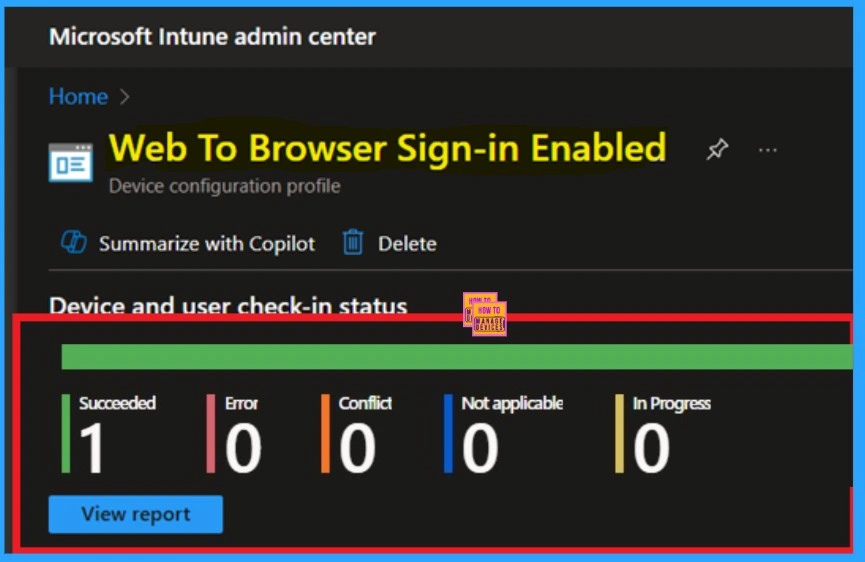
After creating the policy, administrators may want to confirm whether it has been successfully deployed. To check this, go to Devices > Configurations and search for the policy name you created. Once you find the policy, click on it to open the Monitoring Status page. On this page, you can view the deployment details for both devices and users. The status will show if the policy has been applied successfully.
- If it is as Succeeded, it means the deployment worked as expected.
- You may see 1 or 2 under “Succeeded.” If there are no entries under Error, Conflict, Not Applicable, or In Progress, it indicates that the policy has been deployed without issues.
Event Viewer Details
You can verify the confirmation in the Event Viewer by looking for Event ID 813 or 814. To access this, open Event Viewer and navigate to Applications and Services Logs > Microsoft > Windows >Device Management Enterprise Diagnostic Provider > Admin.
- You can see a list of policy-related events now.
- I found the policy details in the Event ID 814.
| Policy Details |
|---|
| MDM PolicyManager: Set policy string, Policy: (WebToBrowserSiqnlnEnabled), Area: (microsoft_edqev133~Policy~microsoft_edqe~Identity), EnrollmentID requesting merqe: (EB427D85-802F-46D9-A3E2-D5B414587F63), Current User: (S-1-12-1-3449773194-1083384580-749570698-1797466236), String: (), Enrollment Type: (0x6), Scope: (0x1). |

Removing the Assigned Group from this Settings
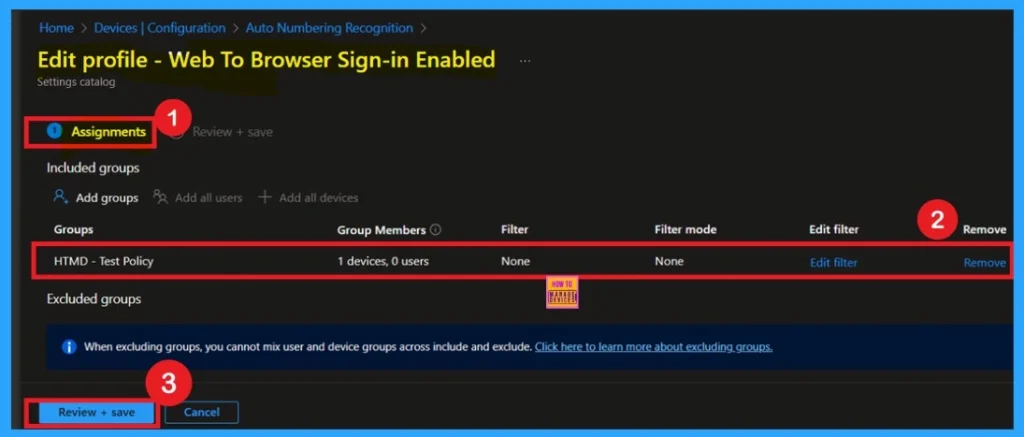
If you want to remove the Assigned group from the policy it is very easy for you. You know it is possible from the Intune Portal. To do this, open the Policy on Intune Portal Device check in status page and edit the Assignments tab and the Remove Policy.
To get more detailed information, you can refer to our previous post – Learn How to Delete or Remove App Assignment from Intune using by Step-by-Step Guide.
How to Delete Policy Permenently
If you want to permanently delete a policy, search for the policy name in the Configuration search bar. Once the policy appears, click on the 3-dot menu next to it. You will see 3 options: Duplicate, Export, and Delete. Select Delete, and the policy will be permanently removed.
For detailed information, you can refer to our previous post – How to Delete Allow Clipboard History Policy in Intune Step by Step Guide.

Need Further Assistance or Have Technical Questions?
Join the LinkedIn Page and Telegram group to get the step-by-step guides and news updates. Join our Meetup Page to participate in User group meetings. Also, Join the WhatsApp Community to get the latest news on Microsoft Technologies. We are there on Reddit as well.
Author
Anoop C Nair has been Microsoft MVP for 10 consecutive years from 2015 onwards. He is a Workplace Solution Architect with more than 22+ years of experience in Workplace technologies. He is a Blogger, Speaker, and Local User Group Community leader. His primary focus is on Device Management technologies like SCCM and Intune. He writes about technologies like Intune, SCCM, Windows, Cloud PC, Windows, Entra, Microsoft Security, Career, etc.


Discussion