






What is Copilot in Windows 11 | Features Advantages Disadvantages
Let’s explore Copilot in Windows 11 Features and learn more about the Advantages and Disadvantages. MS has released the latest update for Windows 11, which includes abundant AI features. A copilot is an artificial intelligence (AI) assistant that improves efficiency and innovation.
Copilot in Windows, powered by Microsoft Copilot (formerly Bing Chat), offers AI assistance directly from your device. It uses your data, such as typed or spoken words and web pages viewed in Microsoft Edge, to provide relevant responses.
Copilot is designed to assist you with writing, providing suggestions, summarising, editing and creating content. It can help create first drafts, add content to the documents, summarise text, and rewrite sections or entire documents to make them shorter.
You can control the Copilot with your choice. You can move, resize and use Snap Assist like any other Windows app. The familiar Alt+Tab function lets you easily switch focus between Copilot and other open apps, giving you complete control over your workflow.

Table of Contents
Features
In the September 2023 release, Microsoft introduced Copilot, its enormous new feature. Windows Copilot is a new AI assistant that applies the same technology found in Bing Chat. This assistant, integrated into Microsoft 365, enhances productivity by understanding complex queries and commands while grasping the context correctly. Replacing Cortana, Windows Copilot enables users to adjust PC settings.
You can access the new, unified Copilot on your Windows 11 PC by modifying some system standards. You can download and install the Windows 11 2023 update from a constant channel without waiting for a full rollout.
- Top 83 Windows 11 Desktop Admin Interview Questions
- Microsoft Introducing Copilot+ PCs
- Easy Steps To Enable Disable Copilot In Windows 11
Advantages and Disadvantages – Copilot in Windows 11
Copilot is a new feature from Microsoft that reads screenshots, performs location-based actions, and summarizes web pages. It has many advantages and disadvantages.
| Advantages | Disadvantages |
|---|---|
| Copilot integrates with Microsoft Teams and offers invaluable support to users during virtual meetings. | Copilot needs a constant internet connection to work correctly. This can be inconvenient for users who need to work offline or in areas with unpredictable internet access. Other AI tools that offer offline functionality may be more suitable for these environments. |
| It can capture action items, produce meeting summaries, and provide relevant information in real-time, enabling efficient collaboration and follow-up. | Users may need time to familiarise themselves with Copilot’s features and capabilities. While it can be customized, it may not meet all specific needs and may have limited enhanced options. |
| Save time by reducing the hours spent on writing, finding, and editing. | There is a fear that users may become too dependent on the tool. |
How to Launch Copilot
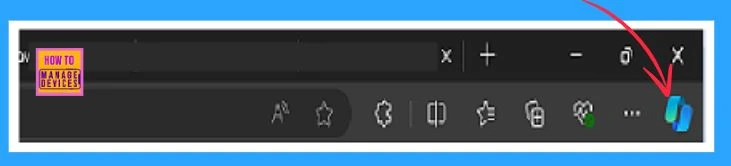
To start Copiolt in Windows 11, you open the Copilot icon, which is situated in the Windows Task Bar or from the Start menu. If your device keyboard includes a dedicated Copilot key, you can also use it to launch Copilot.
Copilot is found in the taskbar, which opens as a sidebar. This new feature is designed to give users greater control, mainly when working with extensive documents or demanding more space for AI responses.
How to Use Copilot
In the Copilot, you can be flexible in resizing, moving, and utilising Snap Assist, just like any other Windows app. To shift focus between Copilot and other open apps, use Alt + Tab. When you need to close Copilot, select the Close (x) button at the top, like closing any other app. Upon reopening Copilot, it will restore your previous chat content, maintaining the exact state you left it in. Copilot also integrates with your Windows theme, including high-contrast themes.
You can use ordinary language to ask Copilot to create ideas, organise them into themes, and develop designs to visualise thoughts. It helps you find answers from the web, encourages creativity and collaboration, and helps you stay focused on the task at hand.
There are several ways to use Copilot, and I will guide you through quick methods to get started. We can ask Copilot to generate the current page summary and suggest questions about the page. You can refer to the screenshot given below.
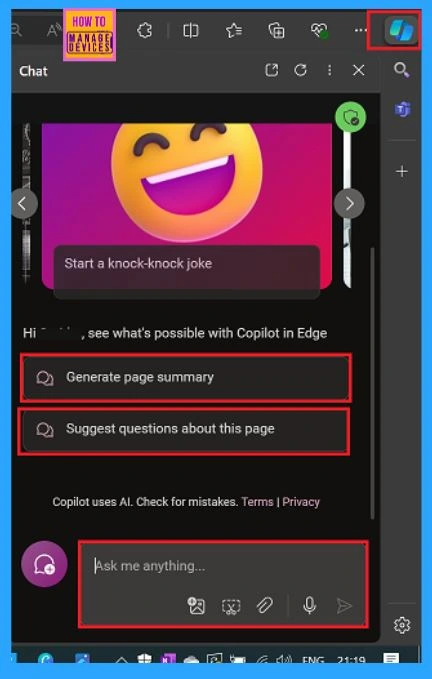
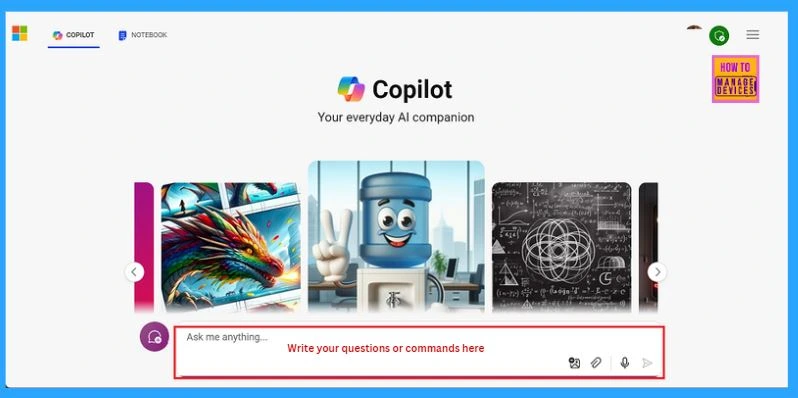
You can ask the Copilot any question or give a command. Add the question or command to the Ask me anything… box and select enter. You can chat with the Copilot like a friend. Ask as many follow-up questions as possible to help Copilot precisely provide what you want.
Examples
- What are some excellent gift ideas for my Mom?
- Provide a summary of this article [article link].
- What’s happening today in the news?
- Compare [product name] and [product name].
- Provide a four-day workout plan that focuses on upper body muscles.
- What are the best dog breeds for families?
Enhanced Data Protection with Enterprise-level Security
The Copilot experience on Windows is developing data security, privacy, and compliance while making the user experience straightforward for those signed in with a Microsoft Entra work or school account.
Updates are being made to the Copilot entry points in Windows to upgrade the user experience. The preview version of Copilot in Windows will be removed. Users may have different experiences based on whether their organisation has opted to use the preview version of Copilot in Windows.
The update to Microsoft Copilot, with expanded enterprise data protection, is now rolling out. The switch to the Microsoft 365 app as the entry point for Microsoft Copilot will support the annual Windows 11 feature update. Managed PCs will receive the changes starting with the optional non-security preview release on September 24, 2024. The monthly security update will be released on October 8 for all supported versions of Windows 11. Windows 10 PCs will receive the update the following month, replacing the current Copilot in the Windows experience.
Resources
- Welcome to Copilot on Windows – Microsoft Support
- What is Copilot (formerly Bing Chat), and How Can You Use It? | Microsoft Copilot
- Easy Steps To Enable Disable Copilot In Windows 11 HTMD Blog (anoopcnair.com)
We are on WhatsApp. To get the latest step-by-step guides and news updates, Join our Channel. Click here –HTMD WhatsApp.
Author
Anoop C Nair has been Microsoft MVP for 10 consecutive years from 2015 onwards. He is a Workplace Solution Architect with more than 22+ years of experience in Workplace technologies. He is a Blogger, Speaker, and Local User Group Community leader. His primary focus is on Device Management technologies like SCCM and Intune. He writes about technologies like Intune, SCCM, Windows, Cloud PC, Windows, Entra, Microsoft Security, Career, etc.




Discussion