






Turn Off Windows 10 News and Interests on the Taskbar using MEM Intune | Group Policy
In this post, I will show you how to manage Windows 10 News and Interests on the taskbar. News and interests in the toolbar have started rolling out to Windows 10 users’ devices running Windows 10, version 1909, or later installed. Those who have installed the May 2021 Windows monthly update (or later) will be included in this phased rollout.
News interests on the Windows taskbar simplify this process with a convenient, personalized experience centred around you. Selecting or hovering on the weather icon in your taskbar will open news and interests.
You will see content covering the news, weather, traffic, and more from here. Content updates throughout the day and is designed to keep you up to date. How do you eliminate weather and stock market details on the taskbar? You can get more information from this post.
Microsoft has now rolled out the Windows 10 News and Interests to everyone and enabled it by default on the taskbar. If you already have one, let’s check how to disable the News and Interests feature.

Table of Contents
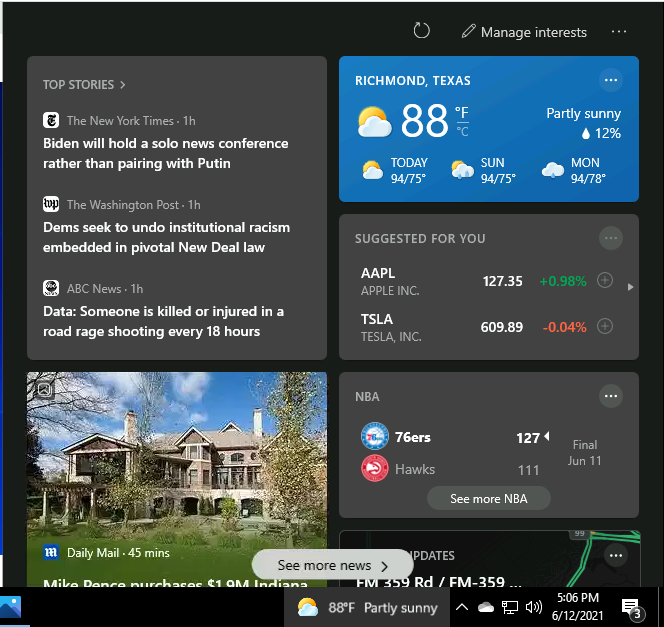
Turn On or Off News and Interests from the Taskbar
In Windows 10, a nice feature if you like to have at-a-glance weather on your taskbar, as well as news updates just a click away. Suppose you would rather not have News and Interests sitting there, taking up space on your Windows taskbar. However, getting rid of it is easy. Here’s how –
Right-click any blank space on the taskbar and select News and Interests>Turn off. When you turn off news and interests, the weather will no longer appear on your taskbar.
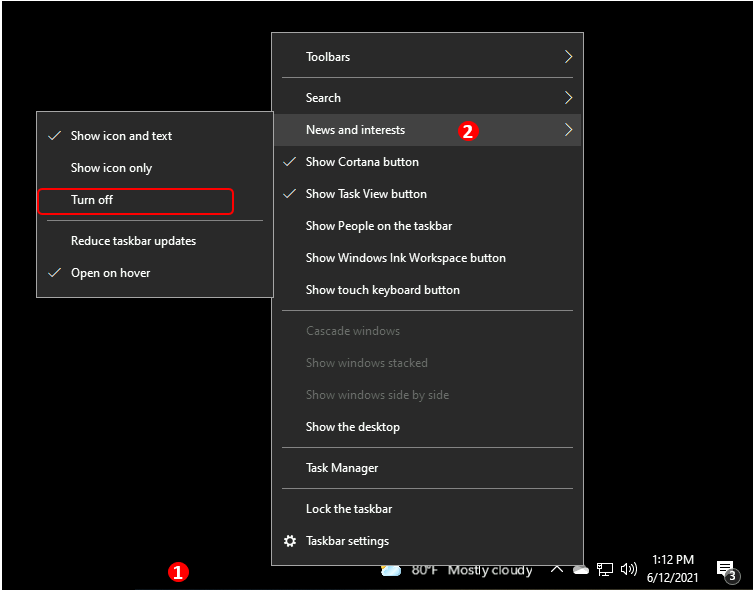
To turn on news and interests, right-click a blank space on the taskbar and select News and interests > Show icon and text.
You can switch to icon-only mode to show only the weather icon and save space on your taskbar. Right-click any blank space on the taskbar and select News and interests > Show icon only.
- How to Enable or Disable Battery Saver in Windows 11 | Energy Saver Battery Threshold Policies
- Bug Fix Windows 10 Desktop or Taskbar disappearing or unresponsive using KIR
- Windows 10 Known Issue: News and Interests Button on the Windows taskbar might have Blurry Text | 21H1
- Unpin Microsoft Store Apps from Taskbar with Intune | Do Not Allow Pinning Store App to the Taskbar
Turn Off News and Interests on the taskbar with Group Policy
To turn off news and interests on the taskbar from Windows 10, follow the steps below –
You must be logged in as an Administrator on the computer.
- On a Windows 10 device, click Start and type gpedit.msc in search to run the Local Group Policy Editor.
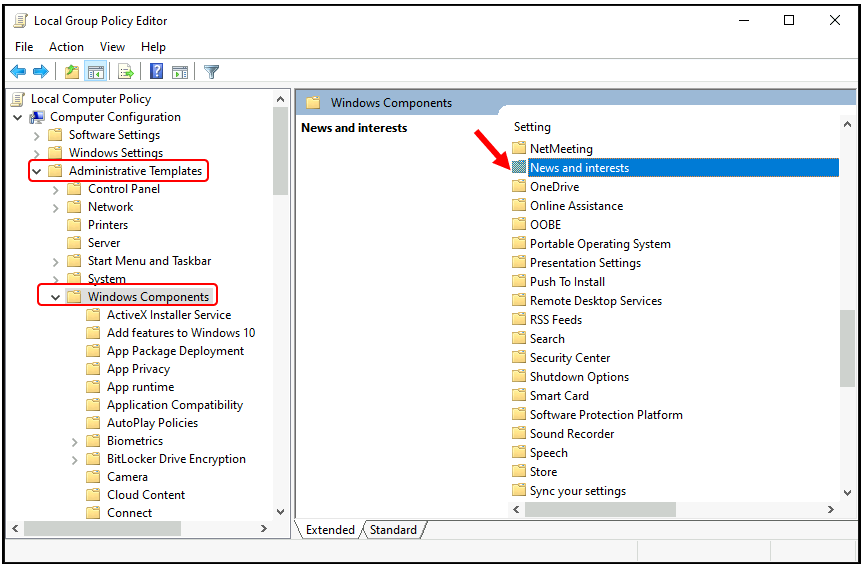
- Navigate to Computer Configuration > Administrative Templates > Windows Components > News and Interests. The Local Group Policy Editor is only available in the Windows 10 Pro, Enterprise, and Education editions.
Double-click the Enable news and interests on the taskbar policy to edit it. Through this policy, you can disable or enable the news and interests experience on the taskbar. If you leave the setting as “Not configured,” the experience will be enabled by default.
Enabled – News and interests will be allowed on the taskbar. The settings UI will be present in the Taskbar context menu, and users will be able to turn it off or switch modes.
Disabled – News and interests will be turned off completely, and the settings UI in the Taskbar context menu will be removed.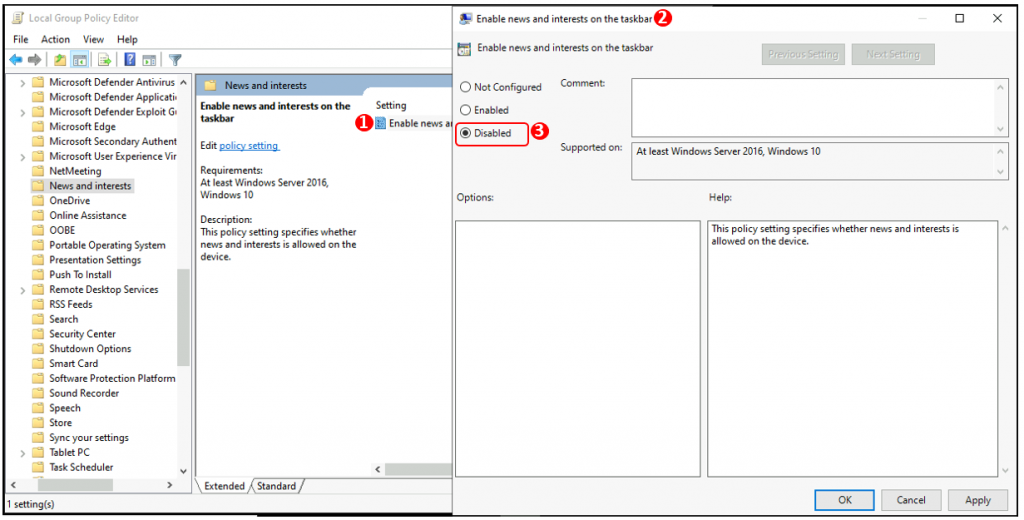
Close the Local Group Policy Editor. All changes have been saved and will take effect immediately. If needed, Sign out or Restart your computer.
Turn Off News and Interests on the Taskbar with Registry
To add or import a registry value, follow these steps:
Important – We recommend you create a backup before editing the registry.
Please navigate to the following registry path, do the changes mentioned below, export the registry Or prepare a registry file (.reg) with the help of this blog post and test it.
HKEY_LOCAL_MACHINE\SOFTWARE\Policies\Microsoft\Windows\Windows Feeds

EnableFeeds DWORD

0 = Disable
1 = Enable
The registry key below is applicable only for the current users, not the machine level.
Navigate to the following registry path
HKEY_CURRENT_USER\Software\Microsoft\Windows\CurrentVersion\Feeds

ShellFeedsTaskbarViewMode DWORD

0 = Show icon and text
1 = Show icon only
2 = Turn off
Once the changes have been saved, they will take effect after you sign out or restart your computer.
Turn Off News and Interests Using Intune Portal
Microsoft Endpoint Manager offers policy configuration options to allow or disallow News and Interests. How can I get rid of the weather on the Taskbar?
Follow the Steps to Configure Policies –
- Sign in to the Microsoft Endpoint Manager admin center.
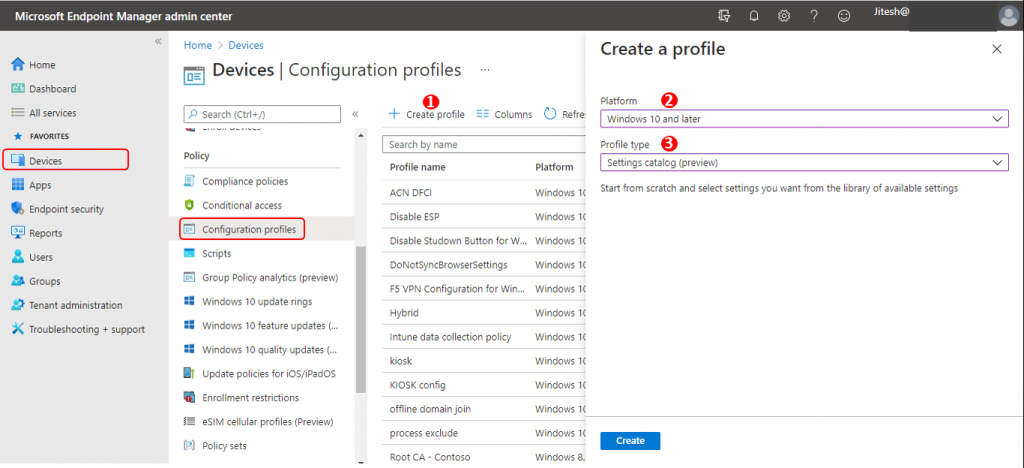
- Navigate to Devices > Configuration Profiles >+ Create Profile
- Select Platform as Windows 10 and Later
- Select Profile as Settings catalog (preview)
- Click on the Create button
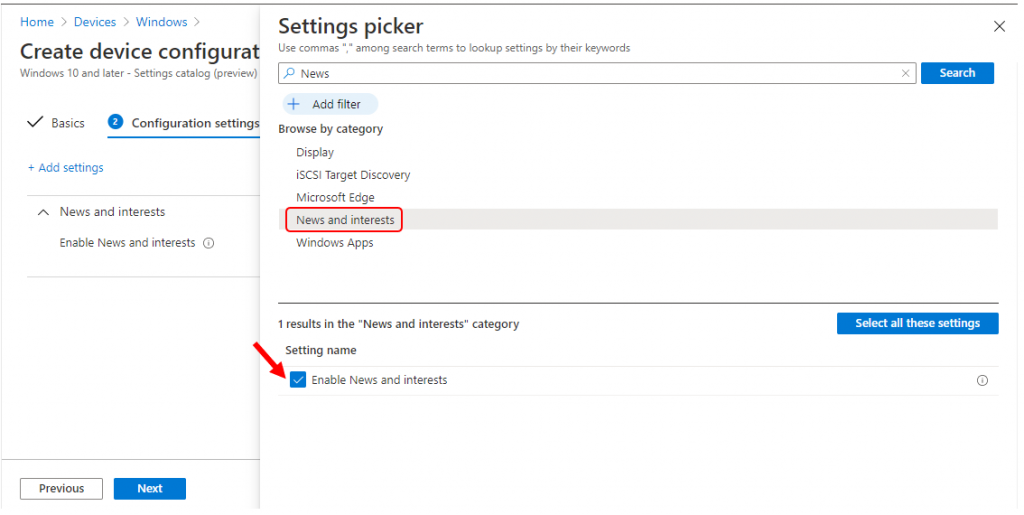
Click on + Add settings. A flyout will appear allowing you to search the settings by keywords easily. Select Enable News and interests.
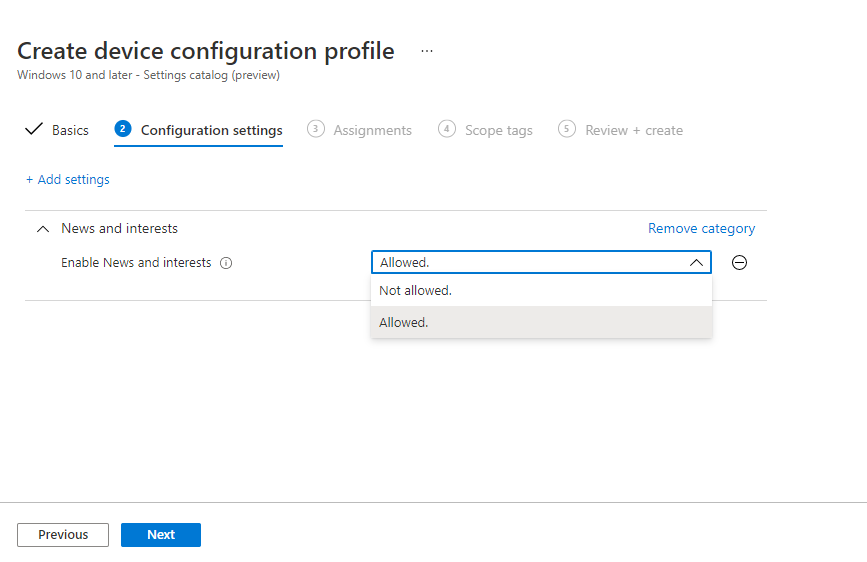
This policy setting specifies whether News and interests are allowed on the device. Select either Allowed or Not Allowed from the drop-down list and click Next to complete the assignment and deployment.
Resources
- Group configuration: news and interests on the Windows taskbar
- Easiest Option to Upgrade to Latest Version of Windows 10 21H1 | No Need to Download 21H1 | Best Upgrade Option
We are on WhatsApp. To get the latest step-by-step guides and news updates, Join our Channel. Click here –HTMD WhatsApp.
Author
Jitesh Kumar has over five years of experience in the IT Industry. He writes and shares his experiences related to Microsoft device management technologies and IT Infrastructure management. His primary focus area is the Windows 10 Deployment solution with Configuration Manager, Microsoft Deployment Toolkit (MDT), and Microsoft Intune.


Hi there,
I’m trying to disable this feature using Intune, but get an error message;
State: Error
Error Type
2
Error code
65000
Machine is Azure AD joined, Intune compliant, running Win10 Pro 19041.1052
If you or others looking over this post have an idea please share!
Thanks
StaffWhat is the error that you are getting? apart from the error code? Anything in the event logs to get more details about the error? The error code is 650001?
I have the exact same problem – trying to disable news and interests via intune using the exact instructions above generates at 65000 error – no further detail of error is reported.
Might want to update these instructions… as of October 1, 2021, the search for News returns a different set of results, one of which is “Feeds” which contains the News and Interests setting needed.
Thanks for this guide mate. Really helpful
I want to turn ON the News and Interests icon on the taskbar. My taskbar is at the top of the screen and I had the N & I icon on it for about a month. Then, after the last update, it disappeared and I just read another article saying you can only get it if the taskbar is on the bottom of the screen. The News and Interests switch does not appear when I right-click the taskbar when the taskbar is on the top of the screen. Is there any work around for this?
I think it would be beneficial to specify the full path of the setting instead of just searching or at least to confirm you have the correct one, as other templates might have similar names.