






Windows 11 File Explorer Tabs Experience is Enabled
Let’s get the Windows 11 File Explorer Tabs experience overview. I have updated to the latest version of the Windows 11 insider build. This is the first-party file explorer multiple tabs solution from Microsoft.
The multi-tab option of file explorer is now part of the Windows 11 production version. This feature is initially released with the Windows 11 Insider Preview 25140.1000 (rs_prerelease). This is the version released on 15th June 2022. I’m excited to see the multiple tabs or tabs option is enabled for the file explorer.
You don’t have to install any third-party file explorer tools for this to get enabled. This is the first-party feature coming out from Microsoft itself. The Windows 11 File Explorer Tabs option is not made available for all the insiders yet, as per Microsoft’s Jen.
I thought the first release of File Explorer Tabs would be similar to the Microsoft Edge multiple tabs experiences. No, it’s not. Remember this is the first preview release or insider release of file explorer, and I think this feature will be released to production version Windows 11 22H2.

- Windows 11 New File Explorer Experience New Features Design Details
- New 22H2 Windows 11 Task Manager Features Efficiency Mode
- Windows 11 Notification Changes and Focus Mode
Windows 11 Insider Preview 25140.1000
Microsoft is not highlighted much on the file explorer multiple tabs in the release documentation of Insider preview 25140.1000. The only reference I could notice on File Explorer Tabs is given below.
NOTE! – You can use CTRL + Tab and Shift + CTRL + Tab to navigate through your tabs if you are a fan of keyboard shortcuts.
The up arrow is misaligned in the File Explorer tabs. This will be fixed in a future update.

Some other bugs with File Explorer are also documented in the release notes. Launching the File Explorer in certain ways when using dark mode (for example, from the command line) shows the body of File Explorer unexpectedly in light mode.
- Fixed an issue leading some people to see error 0x80070026 when copying files from network drives unexpectedly.
- Fixed an issue where the active tab color didn’t match the command bar below.
- Fixed an issue where dragging to rearrange tabs wasn’t working sometimes.
- Fixed an issue that could cause artifacts in the windows thumbnail preview in the taskbar if File Explorer was maximized and you used WIN + M to minimize it.
Video Experience of File Explorer multiple tabs
Let’s check out the Video Experience of File Explorer multiple tabs feature is available below.
What is Windows 11 File Explorer Tabs Feature?
Windows 11 File Explorer Tabs Feature gives an opportunity to users to open multiple tabs in the same Windows file explorer window. This helps users from opening multiple file explorer windows to perform operations such copy and paste between two folders.
Many features and use cases will be available for File Explorer Tabs, similar to Microsoft Edge or Chrome browser multiple tab options.
Windows 11 File Explorer Tabs Experience
Let’s have a quick walkthrough of the Windows 11 File Explorer Tabs Experience in this section. The Tabs in File Explorer is not a fully developed feature; hence, only limited features are available at the time of writing this post.
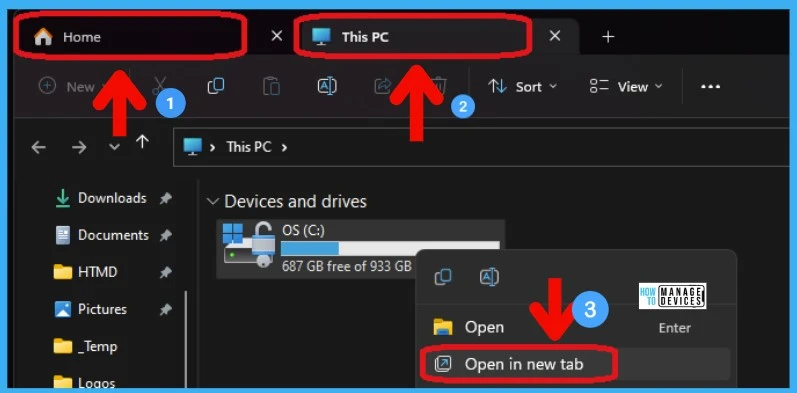
You can open the File Explorer from the Start menu on Windows 11 PC, or you can use the Taskbar to open the file explorer. Once the Windows File Explorer is open, you can right-click on any of the folders, Drives, Network Drives, etc., to get the option called Open in New Tab.
- Click on Open in New Tab to start experiencing Windows 11 File Explorer Tabs option.
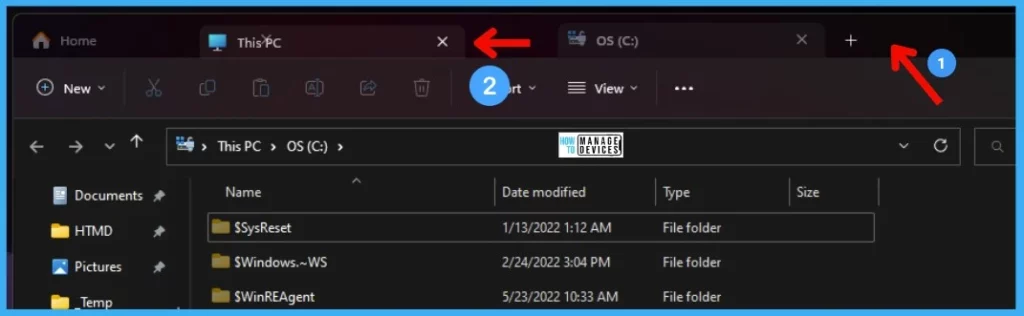
- You can click the “+” button to open the New HOME tab in the same File Explorer window.
Move (Drag and Drop) File Explorer Tabs
Let’s check whether you can easily move or reposition the tabs from left to right and right to left. As per my testing, you can move the file explorer tabs. You can Drag and Drop Tabs from one position to another.
You can also drag and drop (move or reposition) the Home tab from one place to another. This was not working as expected in my initial testing then worked fine.
Right-Click Options available for Windows File Explorer Tabs
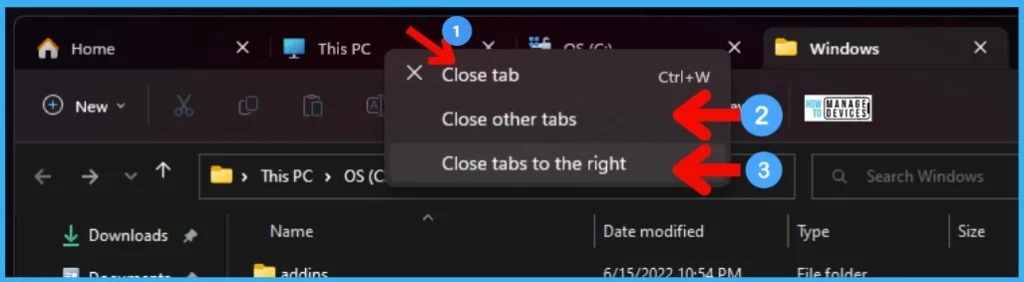
Let’s check what are the Right-Click options available for File Explorer tabs while writing the post. For this release of File Explorer Tabs, you have only 3 close tabs options. Those three options are given below.
- Close Tab (CTRL + W)
- Close Other Tabs
- Close Tabs to the Right
You can right-click on any of the Tabs to get the right-click options. In MS Edge, you have many right-click options such as Duplicate Tab, Reopen Last Closed Tab, etc. These options are going to come to File Explorer as well.
Scroll Tab List Forward and Backward
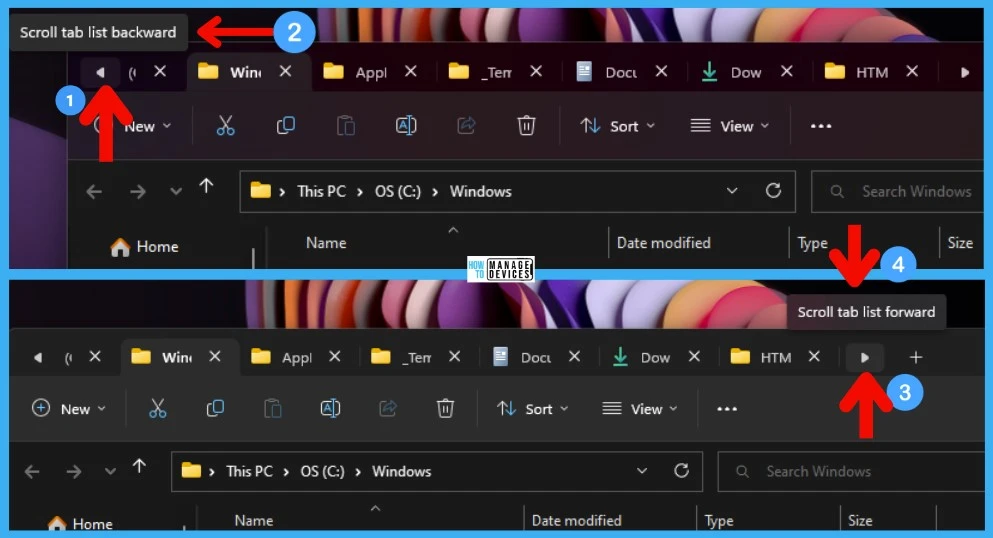
Let’s check Windows 11 File Explorer Scroll Tab List Forward and Backward options. As you can see in the below screenshot, there are left and right arrows (~play button icons) on the File Explorer window.
These are the button to scroll File Explorer Tabs list if you have opened many tabs. This is an interesting option similar to Microsoft Edge multiple tabs scrolling options.
- Scroll Tab List Backward
- Scroll Tab List Forward
Drag and Drop Files between File Explorer Tabs
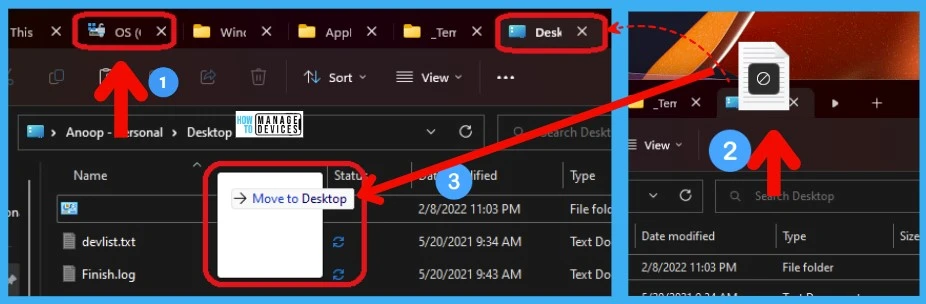
Let’s see how to drag and drop (copy and paste) files between tabs in file explorer without opening multiple File Explorer windows. I think this is very useful, even though I feel there is a bit learning curve when you try to drag a file from one tab to the other tab.
- Click and Drag the file or folder you want to paste to another tab.
- Drag the file to the top of the destination tab as shown in the screenshot, where it shows can’t move icon.
- Once the Destination Tab is opened, you can drop the file.
Author
Anoop is Microsoft MVP! He is a Device Management Admin with more than 20 years of experience (calculation done in 2021) in IT. He is Blogger, Speaker, and Local User Group HTMD Community leader. His main focus is on Device Management technologies like SCCM 2012, Current Branch, and Intune. He writes about ConfigMgr, Windows 11, 10, Azure AD, Microsoft Intune, 365, AVD, etc.




Is there a way to disable this feature and revert back to previous versions?
Hello.
I am coming across an annoying aspect of tabs in File Explorer and curious if it’s fixable.
When setting your tabs just like you like them, all goes well UNTIL I close File Explorer. When I reopen it, all the work put into setting up the tabs is gone and I am found back at the one tab setting. Is there anyway to preserve my tabs setting?
how to sort favourites under home tab?
I’m really excited about the new File Explorer tabs in Windows 11! It seems like a game-changer for multitasking and organizing files more efficiently. Can’t wait to give it a try and see how it enhances my workflow. Thanks for sharing the details!