






How to Get Windows 365 Alerts about Missing Frontline Licenses during Provisioning
Let’s learn how Windows 365 Alerts you about Missing Frontline Licenses during Provisioning. Microsoft has enhanced the provisioning workflow in Windows 365 by introducing a warning system that alerts administrators when no Windows 365 Frontline licenses are available during the creation of a provisioning policy.
This feature is aimed at improving the admin experience, preventing misconfigurations, and ensuring that only valid provisioning policies are created for Frontline Cloud PCs. Windows 365 Frontline lets businesses save money by letting several employees share the same Cloud PC license.
It’s perfect for people who only need a PC during certain hours like shift workers or part‑timers. Even though the license is shared, each person still gets their own personalized Cloud PC with all their apps, settings, and files. They can pick up work from any device, at any time, and feel like they’re using a dedicated PC.
This “shared mode” makes it much more affordable for frontline teams without sacrificing the full Windows experience. This post covers everything you need to know about how Windows 365 notifies you when Frontline licenses are missing during the provisioning process. You’ll learn how the alert works, when it appears, and why it helps prevent setup issues.


Table of Contents
What is the New Warning Feature in Windows 365 Provisioning?
When creating a provisioning policy for Windows 365 Frontline Cloud PCs, the system now checks if your tenant has any active Frontline licenses. If none are found, a warning message appears in the setup process.
Why is this Warning Important?
It helps prevent configuration errors. Without Frontline licenses, the policy won’t be able to provision any Cloud PCs. The warning alerts you early so you can take action before finalizing the policy.
How Windows 365 Alerts you about Missing Frontline Licenses during Provisioning
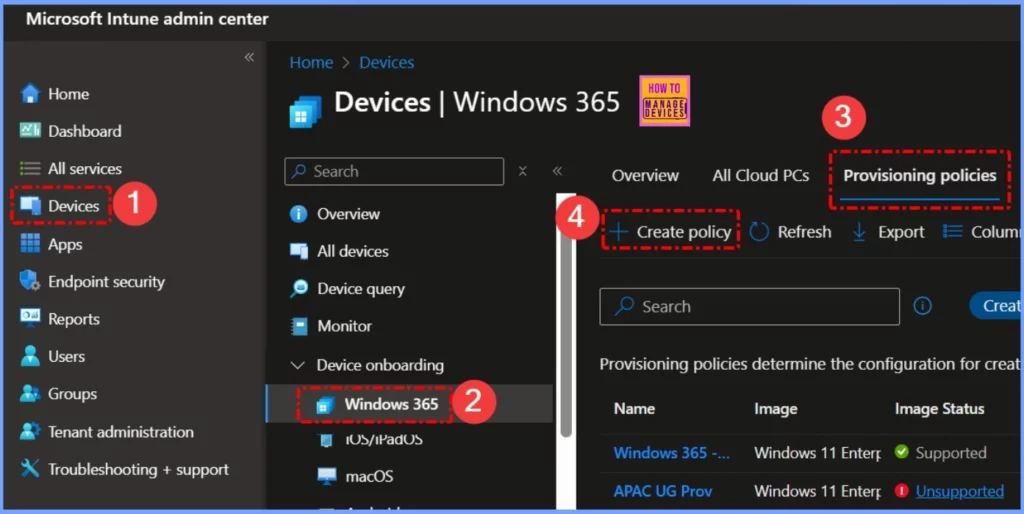
To create a provisioning policy for Windows 365 in the Intune Admin Center, start by signing in to the Microsoft Intune Admin Center. From the left-hand navigation menu, select Devices. Under the Provisioning section, click on Windows 365.
Next, choose Provisioning Policies from the available Windows 365 options. On the Provisioning Policies page, select Create Policy to begin the setup process for your Cloud PC deployment.
- Windows 365 Cloud PC Frontline Provisioning Policy Creation Process | 3 Cloud PC with One License
- Windows 365 Cloud PC Deployment Provisioning Process Step-by-Step Guide
- Configure Idle Session Time Limits for Windows 365 Cloud PC Frontline
- Most Asked 54 Windows 365 Cloud PC Interview Questions and Answers
Provisioning Policy for Windows 365 in Intune Admin Center
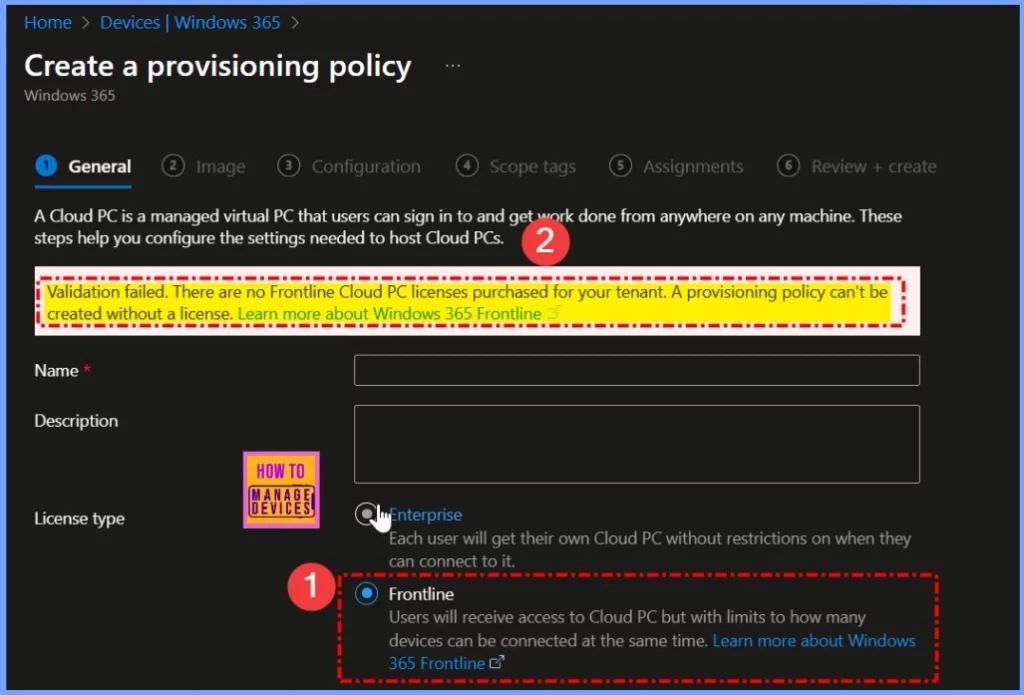
The warning appears during the provisioning policy creation process within the Intune Admin Center. As you go through the wizard to create a new policy and select Windows 365 Frontline as the license type, the system checks your tenant for any available Frontline licenses.
If none are found, a warning message is shown right in the setup flow, alerting you before you proceed further. This ensures that administrators are made aware of missing licenses early in the configuration process, helping prevent errors or failed provisioning later on.
Validation failed. There are no Frontline Cloud PC licenses purchased for your tenant. A provisioning policy can’t be created without a license. Learn more about Windows 365 Frontline.
| What should I Do If I Get the Warning? |
|---|
| Check your Microsoft 365 admin center to ensure you’ve purchased and assigned the appropriate number of Windows 365 Frontline licenses. Once assigned, return to the Intune portal to continue. |
Need Further Assistance or Have Technical Questions?
Join the LinkedIn Page and Telegram group to get the latest step-by-step guides and news updates. Join our Meetup Page to participate in User group meetings. Also, Join the WhatsApp Community to get the latest news on Microsoft Technologies. We are there on Reddit as well.
Resources
What’s new in Windows 365 Enterprise | Microsoft Learn
Move a Cloud PC | Microsoft Learn
Author
Anoop C Nair has been Microsoft MVP from 2015 onwards for 10 consecutive years! He is a Workplace Solution Architect with more than 22+ years of experience in Workplace technologies. He is also a Blogger, Speaker, and Local User Group Community leader. His primary focus is on Device Management technologies like SCCM and Intune. He writes about technologies like Intune, SCCM, Windows, Cloud PC, Windows, Entra, Microsoft Security, Career, etc.




Discussion