






Windows 365 Cloud PC 2310 October Update Service Release
Let’s discuss the Exciting features for Windows 365 Cloud PC 2310 October Update Service Release. The October 2310 Service Release brings some new upgrades to the Windows 365 Cloud PC experience.
Windows 365 Cloud PC keeps making things more accessible and more innovative in the digital workspace. Windows 365 solution is setting new standards for how we work on computers online.
In this article, we will cover the latest Windows 365 Cloud PC 2310 updates, giving you a comprehensive overview of the new features and improvements that come with it. It is an essential guide to understanding the exciting enhancements in this release.
Windows 365 Cloud PC includes many exciting features like location redirection, allowing Cloud PCs to access your approximate location securely. By turning on the location service, you let your Cloud PC use the location of your physical device for most apps, Location redirection requires local admin privileges on the Cloud PC.

- What is Windows 365 Cloud PC Windows in the Cloud
- Power Of Dark Mode On Windows 365 Cloud PC Web Portal
- Windows 365 Cloud PC 2309 September Service Release New Features Improvements
What are the Key Upgrade Areas Introduced in the October 2310 Service Release for Windows 365 Cloud PC?
The October 2310 Service Release brings several exciting enhancements to the Windows 365 Cloud PC, including improved performance, enhanced features, etc. The following areas were introduced in the October 2310 Service Release for Windows 365 Cloud PC.
1. Device management
2. Device provisioning
3. Miscellaneous
4. Monitor and troubleshoot
Exciting Features for Windows 365 Cloud PC 2310 October Service Release
On August 2, 2021, Windows 365 became available. It’s called Windows 365 Cloud PC, which lets you use a complete Windows computer from the internet. You can access it from any device designed to work for different users. This makes it flexible for both people and companies.
The following are the Exciting Upgrades for Windows 365 Cloud PC October 2310 Service Release.
1. Device Management
In the Device Management section, there is 1 important feature that Permissions update for placing a Cloud PC under review. Let’s delve into the features.
Permissions Update for Placing a Cloud PC under Review
If someone needs to investigate a Cloud PC for digital forensics, you might have to give them a picture of what’s on the computer at a particular time. This is called a “snapshot.” To do this, you save a copy of the Cloud PC to your Azure Storage account. Then, you can share that copy with the investigator.
To review a Cloud PC, you need a particular role called “Storage Blob Data Contributor” and other requirements. To place a Cloud PC under review, you must meet the following criteria.
- A Windows 365 Enterprise license.
- An Azure Storage account in the same tenant is set up per the requirements
How to Place a Cloud PC under Review
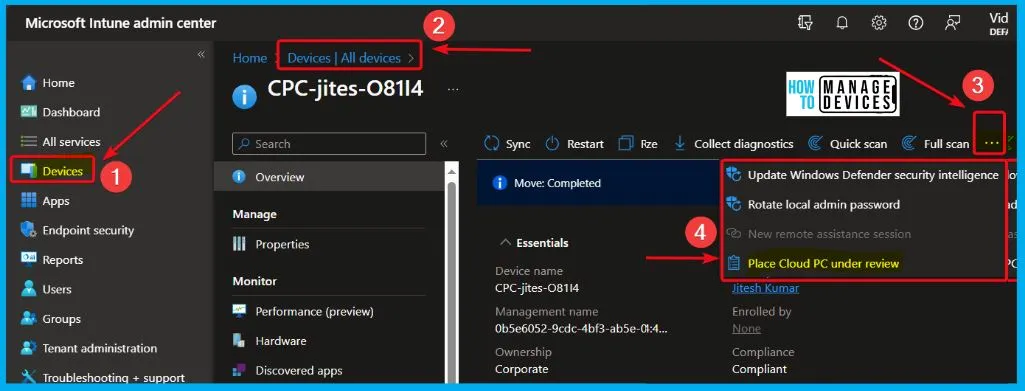
Go to the Microsoft Intune admin center, then click on “Devices. Select All Devices from Devices. Choose a specific device. Click on the three dots (…) and select “Place cloud PC under review.
2. Device Provisioning
The device provisioning now offers two additional sizes for Cloud PCs, along with a set of new gallery images. Let’s look at these two new features in the following sections.
Two New Sizes for Cloud PCs
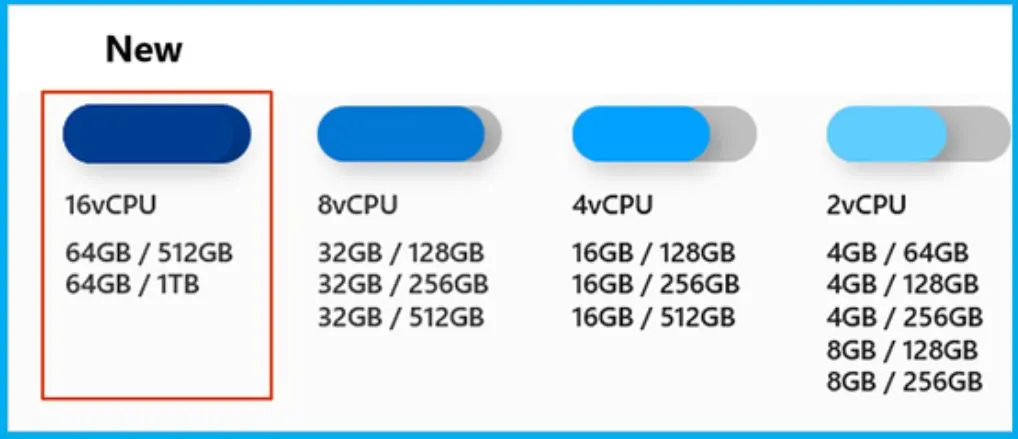
Microsoft has recently announced the availability of two new options featuring 16 vCPUs in Windows 365. You can easily purchase and assign the 16 vCPU licenses in the same way that you purchase and assign other Windows 365 licenses.
| New 16 vCPU Offerings in Windows 365 |
|---|
| 16vCPU/64GB RAM/512GB storage |
| 16vCPU/64GB RAM/1TB storage |
Microsoft is introducing new 16 vCPU options in Windows 365 and will reveal more details about GPU offerings shortly. GPU-enabled offerings are being presented to meet the requirements of organizations with the following.
- Intensive graphic design tasks.
- Image and video rendering needs.
- 3D modeling requirements.
- Data processing and visualization workloads.
Offerings Availability in Windows 365 Editions
The table below helps you to show the details of Windows 365 Edition, the Availability of 16 vCPU Offerings and the Availability of GPU-Enabled Offerings details. Please note that GPU-enabled offerings are coming soon, and they will be available across all mentioned editions.
| Windows 365 Edition | Availability of 16 vCPU Offerings | Availability of GPU-Enabled Offerings |
|---|---|---|
| Windows 365 Enterprise | Yes | Available Soon |
| Windows 365 Business | Yes | Available Soon |
| Windows 365 Business with Hybrid Benefit | Yes | Available Soon |
| Windows 365 Government | Yes | Available Soon |
| Windows 365 Frontline | Yes | Available Soon |
New Gallery Images
Windows 365 Cloud PCs now offer two additional gallery images specifically designed for Windows 11. When setting up a provisioning policy, you can pick these new gallery images. The new gallery image details are shown below.
- Windows 11 Preview + Microsoft 365 Apps 23H2
- Winodws 11 Preview + OS Optimizations 23H2
How to Create a Provisioning Policy
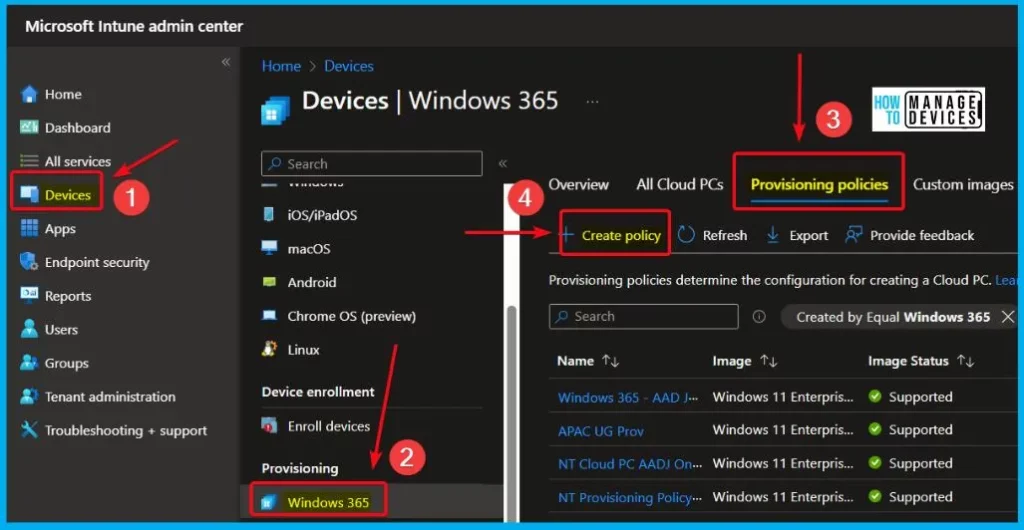
Log in to the Microsoft Intune admin center, then go to Devices. Click on Windows 365 under Provisioning and select Provisioning policies. From there, you can choose to create a new policy.
3. Miscellaneous
The miscellaneous area covers one feature, the New Graph API for Windows 365 Frontline. The feature is explained in detail below.
New Graph API for Windows 365 Frontline
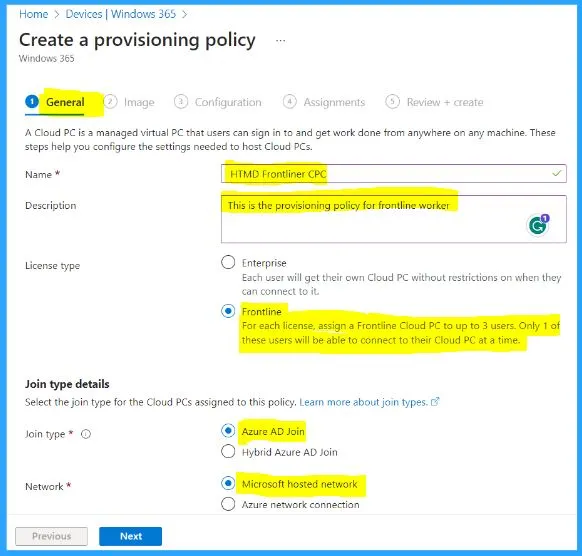
Windows 365 Frontline has introduced a new Graph API. Windows 365 Frontline brings the advantages of Cloud PCs to frontline and shift workers, making it more straightforward and cost-effective for them to access the benefits of Windows in the cloud. Introducing a new Graph API for Windows 365, Frontline marks a significant development.
| Windows 365 Enterprise | Windows 365 Frontline |
|---|---|
| Dedicated ALL DAY Cloud PC Access | Cloud PC Access only when needed it (for example, during their shift) |
| Individual License for each Cloud PC | 3 Cloud PCs for one Windows 365 Frontline license |
| General Workers | Cloud Native Shift Workers (for example, Hotdesk scenarios) |
Read More – Windows 365 Cloud PC Frontline Provisioning Policy Creation Process | 3 Cloud PC with One License
4. Monitor and Troubleshoot
The “Monitor and troubleshoot” section now includes a feature called “Audit logs supported in Azure Log Analytics.” This feature is all about providing detailed information in Azure Log Analytics to help keep track of activities and troubleshoot any issues effectively. Let’s take a closer look at what this means.
Audit Logs Supported in Azure Log Analytics
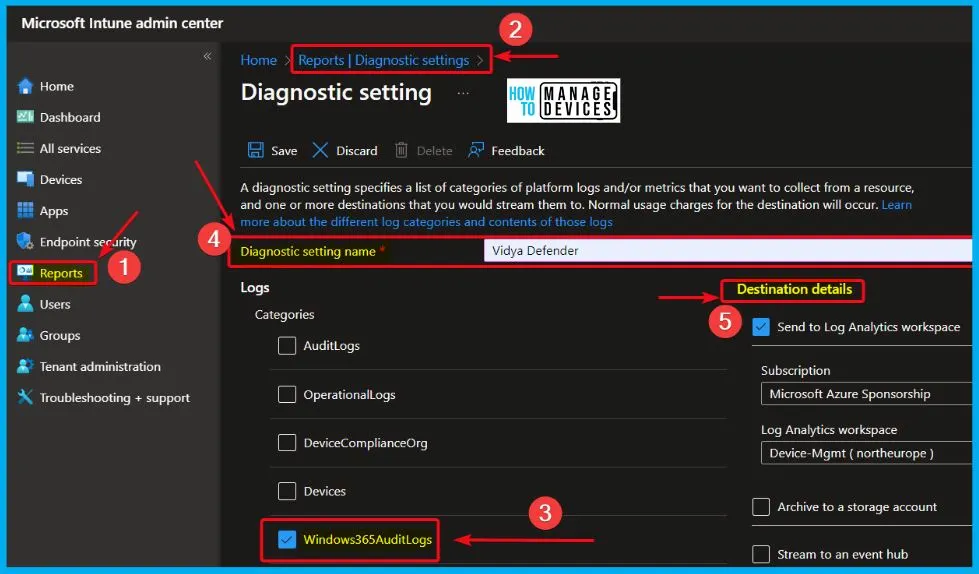
Now, you can directly send Windows 365 audit log information to Azure Log Analytics, Event Hub, or specific third-party tools. You can easily create a diagnostic setting for sending logs. The following are the steps to create a diagnostic set for sending logs.
- Make sure you are signed in with your Azure account.
- Go to the Microsoft Intune admin center, then click on Reports.
- Select Diagnostic settings under Azure Monitor
- Click on Add Diagnostic settings
- Look for Windows365AuditLogs under Logs and select it.
- For Destination details, choose where you want the logs to go and provide the necessary information.
- Click Save to save your settings.
We are on WhatsApp. To get the latest step-by-step guides and news updates, Join our Channel. Click here – HTMD WhatsApp.
Author
About the Author – Vidya is a computer enthusiast. She is here to share quick tips and tricks with Windows 11 or Windows 10 users. She loves writing on Windows 11 and related technologies. She is also keen to find solutions and write about day-to-day tech problems.




Discussion