






Windows 365 Cloud PC Action Status Report
Let’s check the Windows 365 Cloud PC Action Status Report from Intune. The Cloud PC action report gives you insights into the devices you manage and activated remote tasks on those devices.
Starting with Windows 365 Cloud PC 2311 November Service Release, The Cloud PC action status report that lets you know which actions have been performed successfully on Cloud PCs is now available. For failed actions, possible reasons will also be provided.
The Cloud PC actions status report is in public preview. This report shows you what actions admins have taken on which Cloud PCs, and the status of those actions.
The Cloud PC Action status report allows you to generate a list of performed remote device actions in the Intune tenant that have devices in a state of complete, pending, error, or unknown. You can use filters for the action and status.
Cloud PC Audit Logs are constructive to track who did what in the Intune environment. The audit logs for Cloud PCs are essential because many automated activities are happening behind the scenes. Audit logs include a record of activities that generate a change.

- Windows 365 Cloud PC Power On And Power Off
- Automatic Enroll Windows 365 Business Cloud PC In Intune
Use Windows 365 Cloud PC Action Report from Intune
There are multiple ways to get to action. The following method is more helpful for Intune admins. The other option is to Navigate to all devices -> search for devices.
To get to the Cloud PC actions report, sign in to the Microsoft Intune admin center, and select Devices > Monitor > Cloud PC actions (preview).
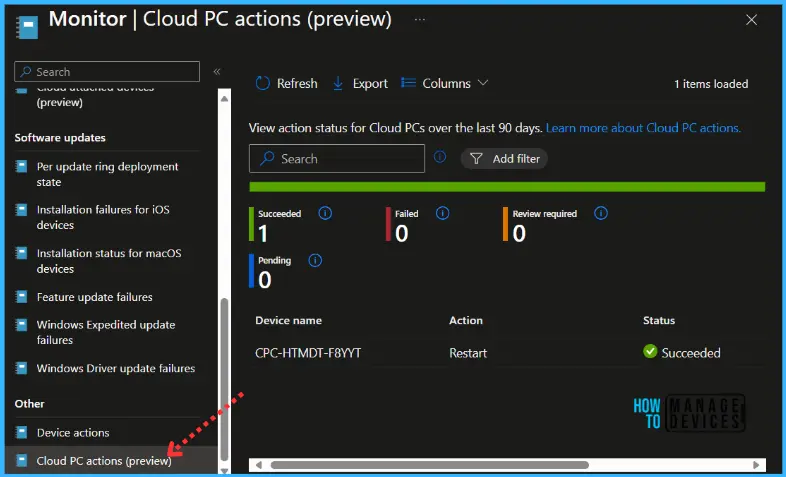
Get more insights into 12 Cloud PC remote actions: Cloud PC Remote Actions Windows 365 Device Actions Using Intune
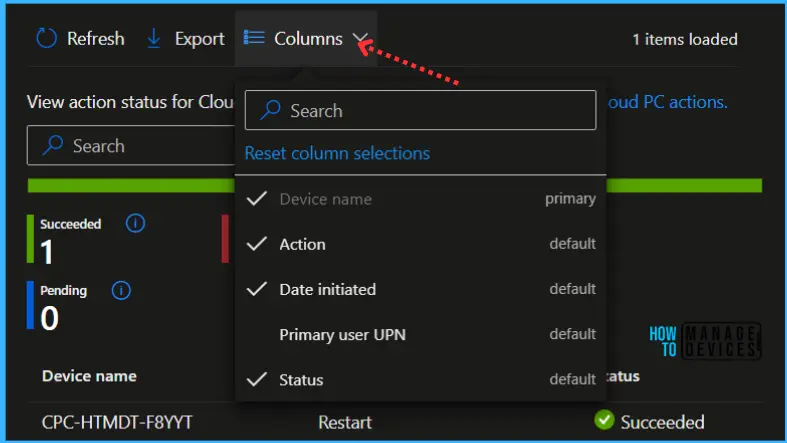
By choosing which columns are displayed. Using the various columns together, an experienced admin may draw clues to the state of the device and the underlying cause of any problems.
By default, All the appeared Columns will be selected, however, you can select or unselect based on requirements to refine the results and Export the report. The action status for Cloud PC report shows the following columns:
- Device name
- Primary user UPN
- Action: The following actions are included in the report:
- Create Snapshot
- Move Region
- Place Under Review
- Power On/Off (W365 Frontline only)
- Reprovision
- Resize
- Restart
- Restore
- Troubleshoot
- Status: There are four possible statuses for an action:
- Succeeded: The action completed successfully.
- Failed: The action didn’t complete. When available, you can select Retry to try again.
- Pending: The action is in progress. Don’t make changes to the Cloud PC (like removing the license).
- Review required: An admin must take action to complete the action. For example, assigning a target license to a device in Resize Pending License state for the Resize action.
- Date initiated
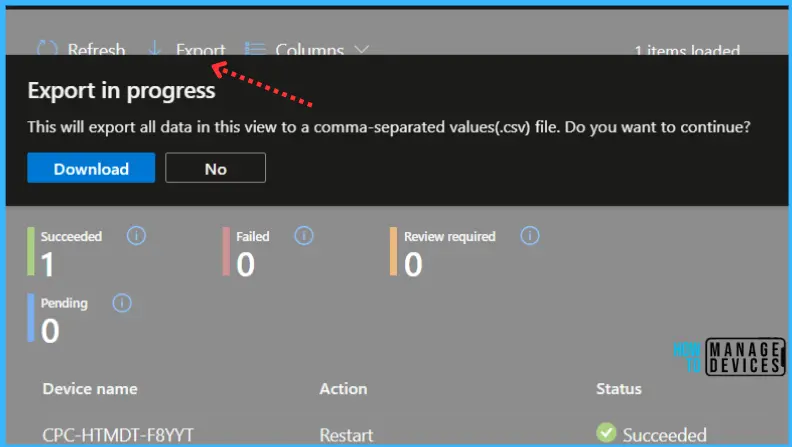
You can quickly export reporting data generated. Click on the Export. The popup will appear with the following message when exporting the Cloud PC actions report, Click Download.
A notification will appear automatically in the top right-hand corner with the message Export is in progress. You can also see the status by selecting the notification icon.
This will export data to a comma-separated values (.csv) file. The report file is added to your download tray and automatically saved to your computer, and a notification message will appear Export completed. Open the downloaded file to view the details.
We are on WhatsApp. To get the latest step-by-step guides and news updates, Join our Channel. Click here –HTMD WhatsApp.
Author
About Author – Jitesh, Microsoft MVP, has over six years of working experience in the IT Industry. He writes and shares his experiences related to Microsoft device management technologies and IT Infrastructure management. His primary focus is Windows 10/11 Deployment solution with Configuration Manager, Microsoft Deployment Toolkit (MDT), and Microsoft Intune.




Discussion