






Windows 365 Cloud PC Power On and Power Off
Let’s learn Windows 365 Cloud PC Power On and Power Off. Windows 365 is a cloud-based service that helps to create a new type of Windows virtual machine (Cloud PCs) automatically. You can easily manage Power On and Power off with Windows 365 Cloud PC.
Windows 365 Frontline allows users to extend the power of Cloud PCs with easy and affordable to shift workers and securely access personal Windows experience on any device. Cloud PC has some remote actions, including diagnostic and resizing the Cloud PC.
Windows 365 Frontline has a unique nature of being turned on and off. Microsoft created 2 new remote actions only available for Windows 365 Frontline: Power on and Power off. You can easily create a Policy for Windows 365 Cloud PC Power On and Power Off.
This blog post helps you to understand all about Windows 365 Cloud PC Power On and Power Off. This blog post will give you a demo section for creating a Windows 365 Cloud PC Power On and Power Off policy. It will help your organizations to manage Windows 365 Cloud PC Power On and Power Off.

- New Features Windows 365 Cloud PC 2311 November Service Release
- Windows 365 AI based Cloud PC Resize Recommendations
Windows 365 Cloud PC Power On and Power Off
Admins can easily manage Cloud PCs within the Intune Portal. Cloud PCs can controlled individually or in bulk. There are many remote actions available on Cloud PCs. Power on and Power off is the unique nature of Windows 365 frontline.
Admins may not depend on these remote actions daily as the service automatically manages the power status of Cloud PCs. Concurrency rates, run updates, or install critical apps can be worked with these remote actions as necessary tools.
| Different Remote Actions in Cloud PC |
|---|
| Restart |
| Rename |
| Restore |
| Reprovision |
| Place Cloud PC under review |
| Sync |
| Collect diagnostics |
| Quick scan or full scan |
Creating a Policy for Managing Windows 365 Cloud PC Power On and Power Off
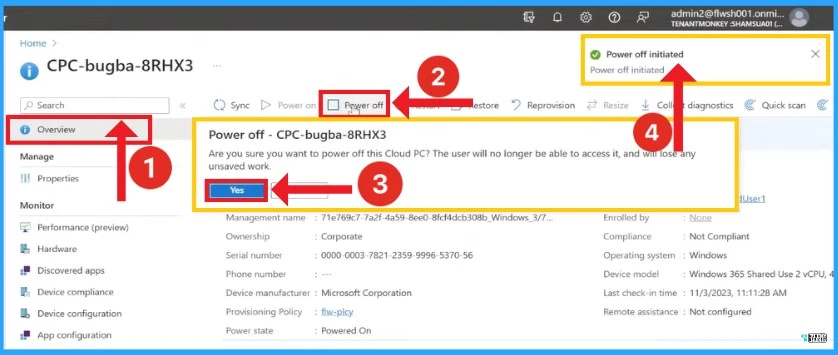
Windows 365 Cloud PC Power On and Power Off can be easily managed by creating a policy. You can see the power state in the Essential section, which indicates it is currently powered. Power off can be done with remote actions. Click on the Power off remote actions and click on the Yes. The right-hand corner indicates that power off has been initiated.
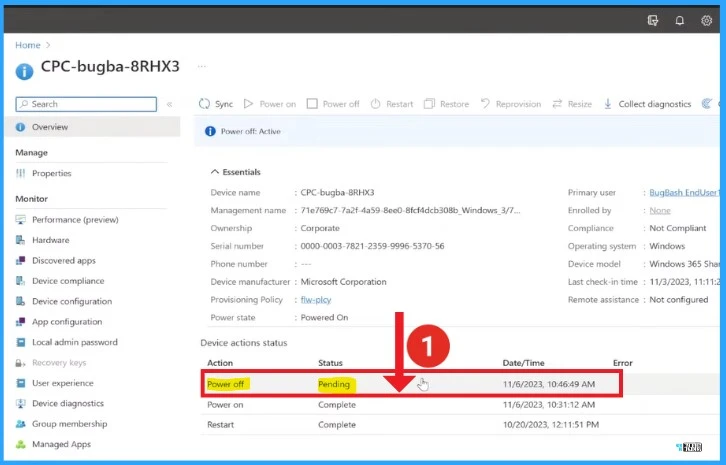
The above actions take a few minutes, and you can refresh the page. The power states still indicate that the Cloud PC is powered off. However, because the action is pending, the power off button is now greyed out. Over here in the Device action status list, you can see that power off is pending for the correct time and date.
- Enable Local Admin Access for Windows 365 Business Edition
- Manage Location Redirection for Windows 365 Cloud PC
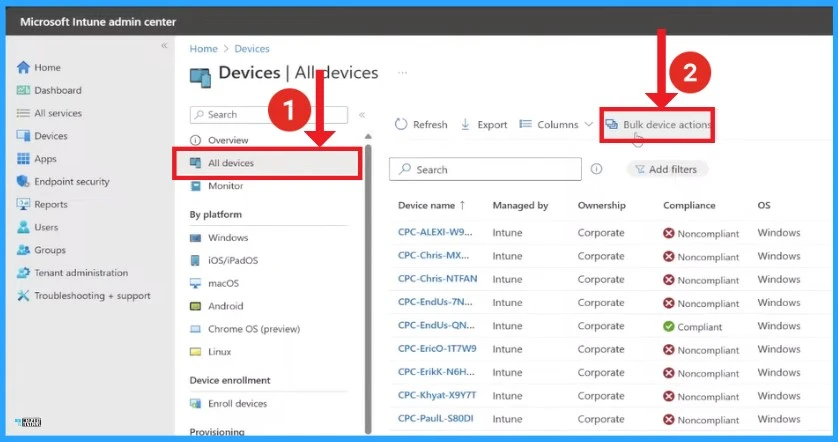
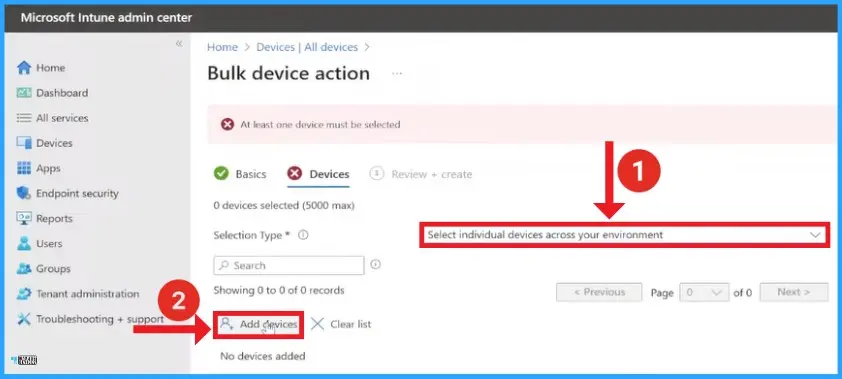
You can easily do the bulk action. To access this, select All Devices in Microsoft Intune and click on the Bulk device actions button. The below screenshot will help you.
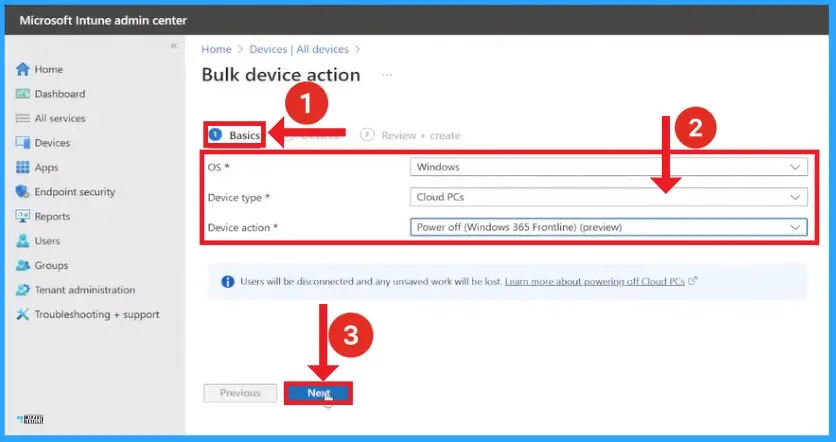
On the primary tab, select Windows for your OS and Cloud PCs for your device type, and then you will choose the action you want to perform in bulk. Select power off once more, and click next. Here, I prefer my devices in 2 ways. You can individually select available devices for this action or apply this to a group you may have already created.
In this window, choose the option Select individual devices across your environment from Device. Then, click on the option Add devices. It will show you all the power on.
- Identify Cloud PC Connectivity Issues from Windows 365 Performance Report
- Microsoft AVD Windows 365 Tops the Gartner Magic Quadrant Report
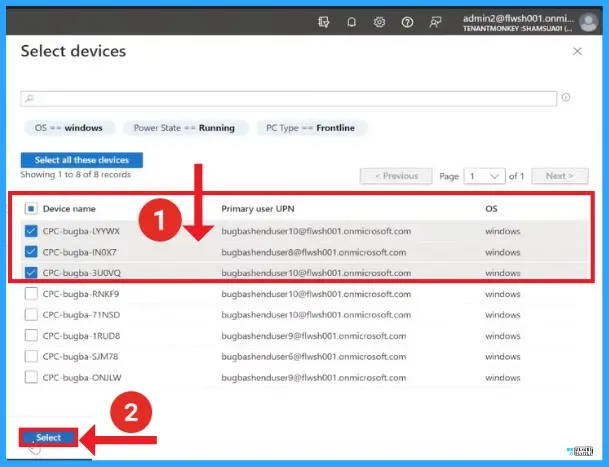
This window shows the list of devices that are currently powered on. So that they can be powered off. Here, select 3 Cloud PCs and click on the select button. The below screenshot will help you.
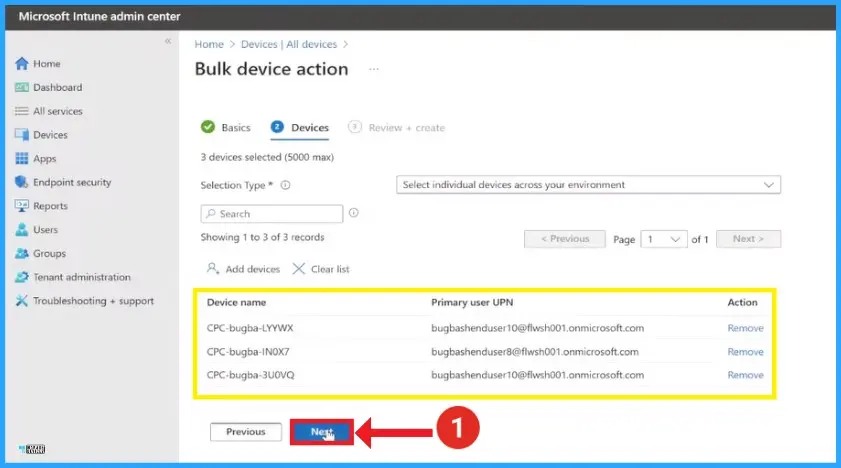
After that, you can see the selected Cloud PCs with Device name, Primary user UPN and action. Click on the Next button. The below screenshot will guide you.
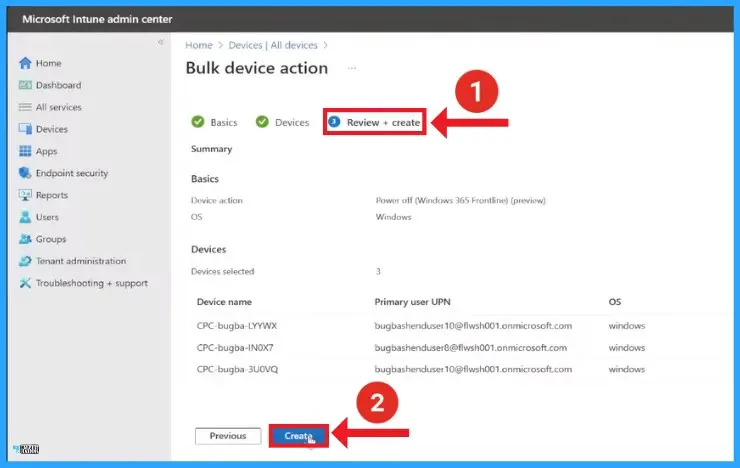
You can review all your selected devices in the Review tab; after completing your review, click the Create button. You can see all the details of bulk device actions in this window.
- Move Windows 365 Cloud PC Region to Another Region
- Windows 365 Switch Now in Public Preview | Cloud Computing at Your Fingertips
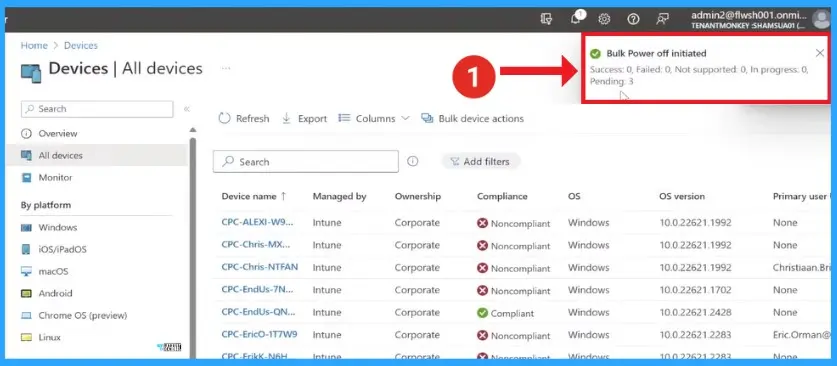
After that, you can see the top right corner, where you can see that the bulk power off has been initiated. Now, again, this will take a few minutes.
Reference
(69) Windows 365 Frontline: let’s talk deployment (and the road ahead!) – YouTube
We are on WhatsApp. To get the latest step-by-step guides and news updates, Join our Channel. Click here for HTMD WhatsApp.
Author
Gopika S Nair is a computer enthusiast. She loves writing on Windows 11 and related technologies. She is here to share quick tips and tricks with Windows 11 or Windows 10 users. She is Post Graduate Diploma Holder in Computer Science.




Discussion