






How Windows 365 Frontline Shared Makes Non-Persistent Cloud PCs Easier to Manage
Today we are discussing how Windows 365 Frontline Shared Makes Non-Persistent Cloud PCs Easier to Manage. In many organizations, IT teams spend hours maintaining systems, updates, and fixing issues related to user profiles. Frontline Shared removes these difficulties by offering a ready-to-use cloud environment that is managed directly by Microsoft.
So, that’s why it helpful for the manual tasks, faster setup, and smoother operations for every team. With cloud-based desktops, employees can log in from anywhere and continue their work without depending on physical devices. But managing all those virtual PCs can be complicated if done the traditional way.
Windows 365 Frontline Shared was designed to remove those difficulties and make management simple, flexible, and cost-effective. The main feature of this model is that it uses non-persistent Cloud PCs. This means that when one user logs out, the PC resets and becomes fresh for the next user.
No personal data or settings left behind. It gives every employee a secure system every time they log in. This setup is perfect for frontline workers or shared environments where multiple users access the same Cloud PC at different times.

Table of Contents
How Frontline Shared Makes Non-Persistent Cloud PCs Easier to Manage
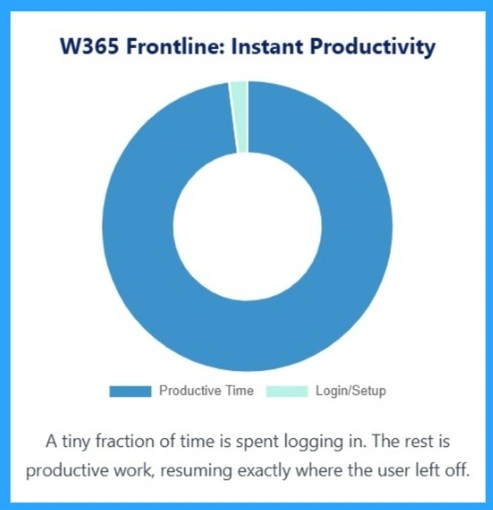
Above we discussed a lot of things about this Frontline Shared Makes Non-Persistent Cloud PCs Easier topic. Below I shared a chart shows how Windows 365 Frontline helps users start work instantly. Only a few seconds are spent on logging in, and the rest of the time is fully productive.
- Because Microsoft manages updates and settings, the Cloud PC is always ready to use.
- This makes work faster, easier, and more efficient for both users and IT teams.
| Productive Time | Login and Setup |
|---|---|
| Doing the work on the Cloud PC almost 100% | It takes few seconds or Minutes on Login and Setup |
- Windows 365 Cloud PC Frontline Provisioning Policy Creation Process | 3 Cloud PC with One License
- Configure Idle Session Time Limits for Windows 365 Cloud PC Frontline
- Most Asked 54 Windows 365 Cloud PC Interview Questions and Answers
How Shared Mode Works
The Shared mode of Windows 365 Frontline is designed to save costs and make management easier. In this setup, one Cloud PC can be shared among several users, but only one person can use it at a time. Each session is non-persistent, that means, the PC resets after every logout, giving the next user a clean desktop.
- The system automatically manages sessions, freeing the Cloud PC for the next user.
- Since no data is stored on the PC, files are safely saved in OneDrive through Intune policies, ensuring users can always access their work.
| Windows 365 Frontline Shared mode | Info |
|---|---|
| Shared Mode | One Cloud PC shared by a group of users, one at a time Saves cost and reduces management work. |
| Non-Persistent Design | Cloud PC resets after every logout Keeps desktops clean and secure |
| Session Management | Automatically wipes and makes Cloud PC ready for next user and Smooth transition between users. |
| Data Persistence Strategy | Files saved in OneDrive using Intune policy User data stays safe and easy to access. |
Shared Mode
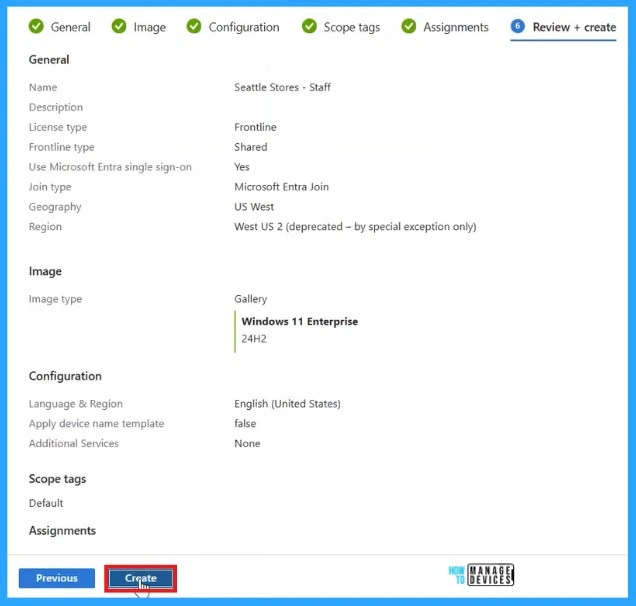
The Shared Mode configuration in Windows 365 Frontline allows organizations to set up Cloud PCs that can be used by multiple employees, one at a time, in a cost-effective and secure way. During setup, administrators can assign a single Cloud PC to a group of users through Microsoft Intune or the Windows 365 portal
Easy Access from Any Device
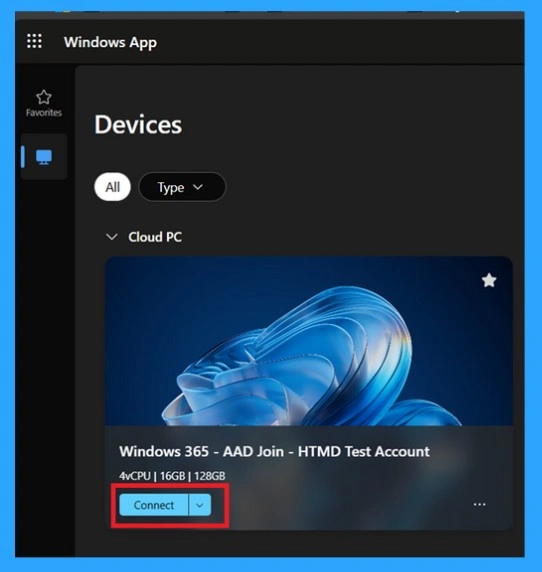
This image shows how users can easily log in to their Windows 365 Cloud PC using the Windows App. In Shared Mode, each employee in a group can sign in to the same Cloud PC (one at a time) from any device. Employees can log in quickly and start working without delay. The non-persistent design ensures that each session is clean and ready to use, which means there are fewer technical issues and no wasted time setting up or troubleshooting.
Need Further Assistance or Have Technical Questions?
Join the LinkedIn Page and Telegram group to get the step-by-step guides and news updates. Join our Meetup Page to participate in User group meetings. Also, Join the WhatsApp Community to get the latest news on Microsoft Technologies. We are there on Reddit as well.
Author
Anoop C Nair has been Microsoft MVP for 10 consecutive years from 2015 onwards. He is a Workplace Solution Architect with more than 22+ years of experience in Workplace technologies. He is a Blogger, Speaker, and Local User Group Community leader. His primary focus is on Device Management technologies like SCCM and Intune. He writes about technologies like Intune, SCCM, Windows, Cloud PC, Windows, Entra, Microsoft Security, Career, etc.




Discussion