





Windows 365 Introduces Three-Tier Region Selection for Smarter Cloud PC Deployment
Key Takeaways
- Windows 365 now uses a three-tier region selection model for Cloud PCs.
- Geography level gives the best resiliency by using multiple regions.
- Region group level supports data sovereignty while keeping availability.
- Region level allows strict control over specific Azure regions.
- This feature reduces downtime and improves Cloud PC reliability.
Hey, let’s discuss about Windows 365 Introduces Three-Tier Region Selection for Smarter Cloud PC Deployment. Microsoft Hosted Network with Automatic Region Selection helps Windows 365 choose the best Azure region for Cloud PCs. It improves performance, reliability, and availability. From December 2025, Microsoft introduced a new three-tier region selection model. This gives IT admins more control over where Cloud PCs are created. It also helps reduce downtime by spreading Cloud PCs across multiple regions.
Table of Contents
Windows 365 Introduces Three-Tier Region Selection for Smarter Cloud PC Deployment
The three-tier region selection model in Windows 365 gives admins better control over where Cloud PCs are created. It includes Geography, Region Group, and Region levels.
- How Autopilot Device Preparation Improves Windows 365 Cloud PC Readiness
- How to List all Windows 365 Cloud PCs in your Tenant using Microsoft Graph API
- How Windows 365 Enables Autonomous Agentic AI to Detect Issues Launch Environments and Execute Diagnostics Automatically
Geography Level
This level automatically selects all regions inside a geography. It gives the highest resiliency because Cloud PCs are distributed across many regions. If one region has an issue, others can still support users. This option is best for most organizations. Example: Choosing Europe allows Cloud PCs to be created in all European Azure regions.
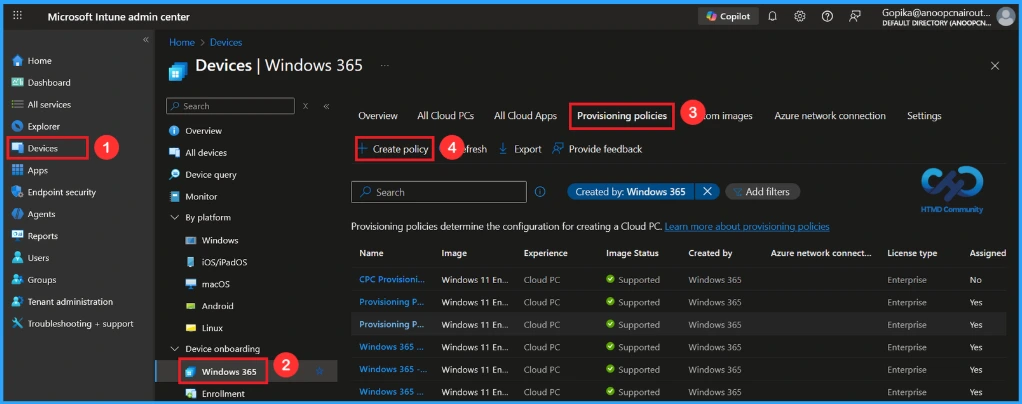
Region Group Level
This level lets admins choose a specific regional boundary such as Japan, US East, or US West. It helps organizations follow data sovereignty rules while still using multiple regions. Cloud PCs are distributed only within that selected region group. This improves resiliency without breaking compliance requirements. Example: Selecting the Japan region group keeps all Cloud PCs within Japan.

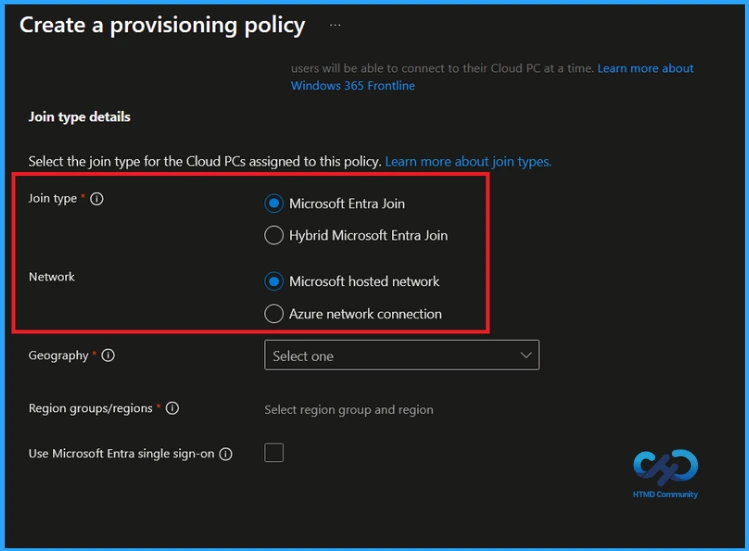
Region Level
This level limits Cloud PCs to one or more specific Azure regions. It is useful when strict compliance or performance needs exist. Admins can select a single region or multiple individual regions. This gives flexibility to balance availability and regulatory needs. Example: Germany West Central only, or Germany West Central and France Central.
Need Further Assistance or Have Technical Questions?
Join the LinkedIn Page and Telegram group to get the latest step-by-step guides and news updates. Join our Meetup Page to participate in User group meetings. Also, Join the WhatsApp Community to get the latest news on Microsoft Technologies. We are there on Reddit as well.
Author
Anoop C Nair has been Microsoft MVP from 2015 onwards for 10 consecutive years! He is a Workplace Solution Architect with more than 22+ years of experience in Workplace technologies. He is also a Blogger, Speaker, and Local User Group Community leader. His primary focus is on Device Management technologies like SCCM and Intune. He writes about technologies like Intune, SCCM, Windows, Cloud PC, Windows, Entra, Microsoft Security, Career, etc.




Discussion