






Fix Windows Autopatch Device Configuration Critical Alerts
This post explains how you can fix Windows Autopatch Device Configuration Critical Alerts. You can initiate remediation action for device configuration alerts. The recommended solution is to review and resolve all actions from Tenant management to ensure the healthy operation of the Windows Autopatch service.
If you have any critical actions in your tenant, you must take action as soon as possible, as the Windows Autopatch service might not be able to manage your tenant. When a critical action is active on your tenant, Windows Autopatch will consider your tenant inactive.
Windows Autopatch deploys, manages, and maintains all configurations related to the service’s operation. Don’t make any changes to the Windows Autopatch configurations.
When Windows Autopatch detects policies in the tenant are either missing or modified, which affects the service, Windows Autopatch will raise alerts and detailed recommended actions to ensure the healthy operation of the service.

Windows Autopatch will automatically restore any missing groups that are required by the service. When a missing deployment group is restored, and the policies are also missing, the policies are restored to the deployment groups.
- Windows Autopatch Implementation Setup Guide
- Customize Windows Update Autopatch Settings For Automatic Patch
Fix Windows Autopatch Device Configuration Critical Alerts
Let’s check how to restore device configuration policy to fix Windows Autopatch Device Configuration Critical Alerts. The Global administrator can perform these actions, The minimum role required to restore configurations is Intune Service Administrator.
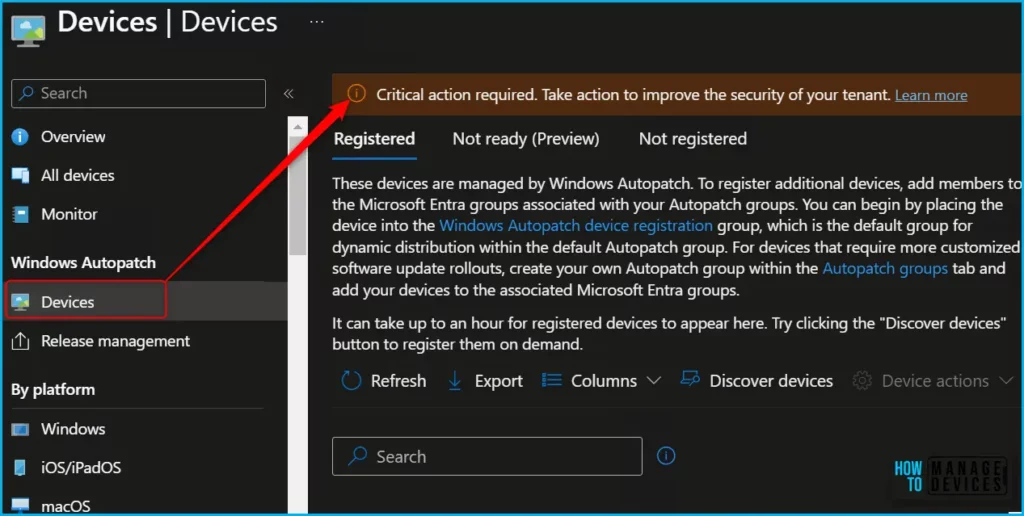
In the Microsoft Intune Admin Portal, Navigate to Devices, Under Windows Autopatch. When Windows Autopatch is inactive, or critical action is required. You will be alerted with banners on all Windows Autopatch blades.
You only have access to the Tenant management and Support requests blades. Critical action required. Take action to improve the security of your tenant. Clicking Learn more returns an error message and redirects you to the Tenant management blade.
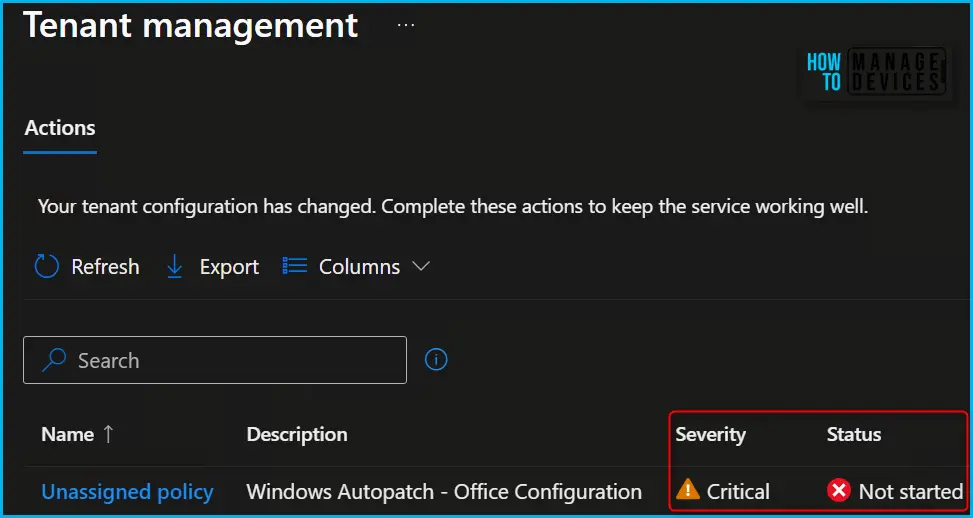
In the Tenant Management, Actions, You see here one of the policies is categorized as an Unassigned policy: Windows Autopatch – Office Configuration policy is unassigned and needs to be restored. Click on the Policy name to redirect to restore configuration profiles.
If policies are misconfigured or unassigned, admins must restore them. In the Release management blade, the service will raise a Policy error workflow that you must complete to repair Windows Update policies. All other policies must be restored from the Tenant administration blade
| Severity | Description |
|---|---|
| Critical | You must act as soon as possible to avoid disrupting the Windows Autopatch service.If no action is taken, Windows Autopatch might not be able to manage devices in your tenant, and the Windows Autopatch service may be marked as inactive. All critical pending actions must be resolved to restore service health and return to an active status. |
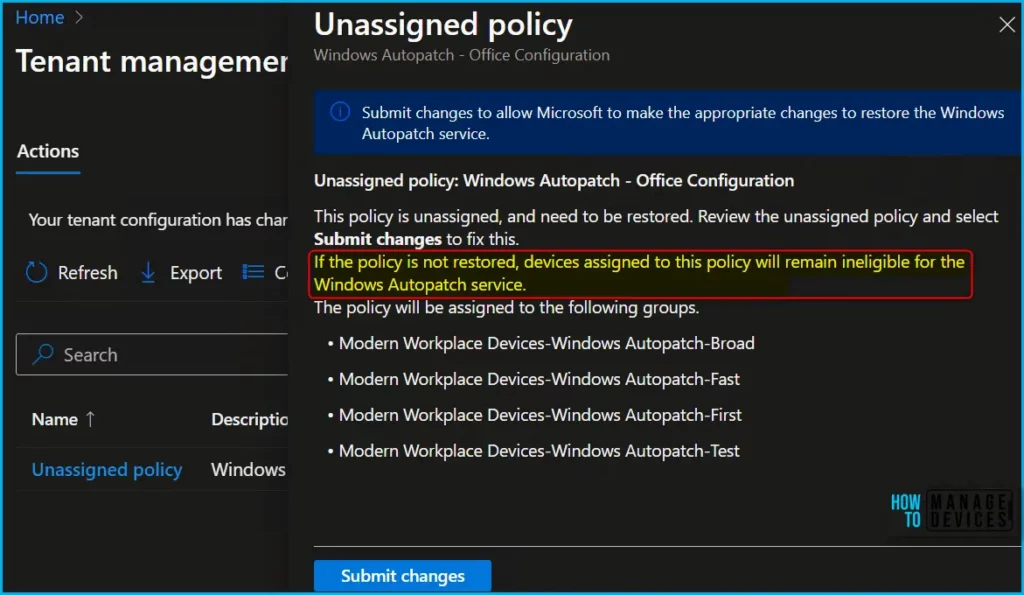
Review the unassigned policy and select Submit changes to fix this. If the policy is not restored, devices assigned to this policy will remain ineligible for the Windows Autopatch service.
The policy will be assigned to the following four groups automatically created while setting up Windows Autopatch.
•Modern Workplace Devices-Windows Autopatch-Broad •Modern Workplace Devices-Windows Autopatch-Fast •Modern Workplace Devices-Windows Autopatch-First •Modern Workplace Devices-Windows Autopatch-Test
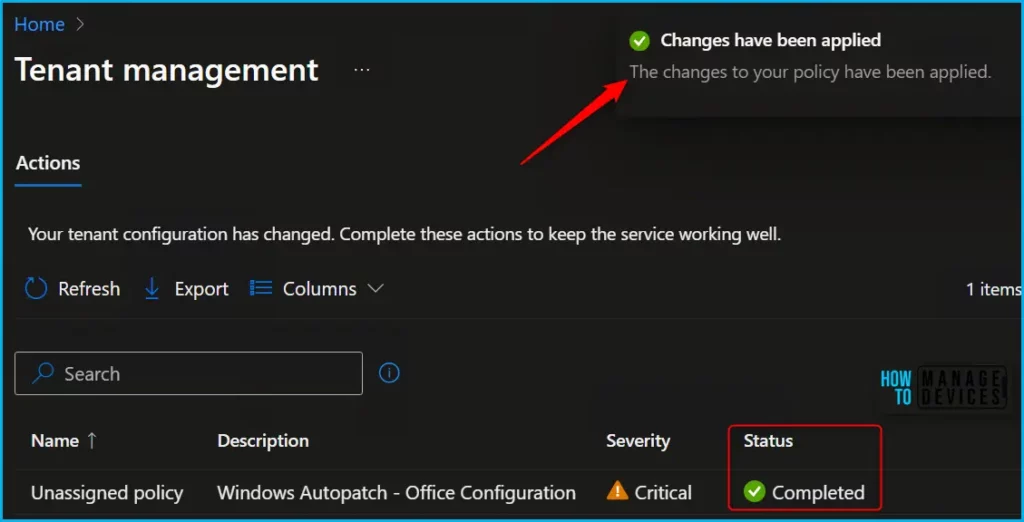
Here you can see the tenant action changes are applied in a few minutes, and the status is showing Completed. Once critical actions are resolved, it can take up to two hours for Windows Autopatch to return to an active state.
Windows Autopatch Tenant Alert Actions
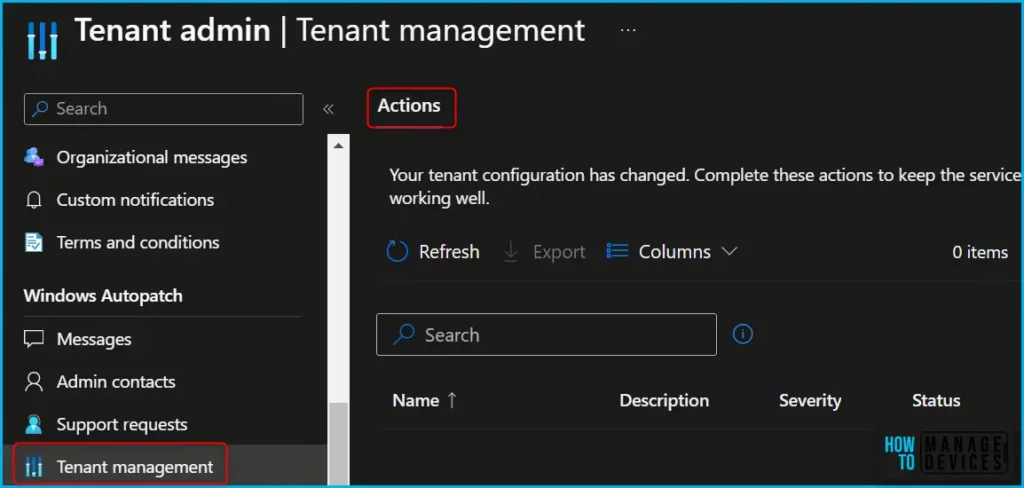
You can view alerts in line with the features you commonly use, Windows Update-related alerts in the Release management blade, and Device configuration alerts in the Tenant management > Alert actions tab.
The Tenant management blade presents IT admins with any actions that are required to maintain Windows Autopatch service health. The Tenant management blade can be found by navigating to Tenant administration > Windows Autopatch > Tenant management.
Here you can Initiate action for the Autopatch service to restore policies without having to raise an incident. To initiate remediation action for device configuration alerts: There will be an alert for each missing policy that has deviated from the service defined values.
Note! Since we have restored the device configuration profiles, as explained above, I can not find active alerts here in this tab. You can also perform the actions directly from here.
Windows Autopatch Overview – Video Guide
You can check out the video tutorial here to learn how Windows Autopatch services work. The Ultimate Guide explains how to use Windows Autopilot with Microsoft Intune.
We are on WhatsApp. To get the latest step-by-step guides and news updates, Join our Channel. Click here –HTMD WhatsApp.
Author
About Author – Jitesh, Microsoft MVP, has over six years of working experience in the IT Industry. He writes and shares his experiences related to Microsoft device management technologies and IT Infrastructure management. His primary focus is Windows 10/11 Deployment solution with Configuration Manager, Microsoft Deployment Toolkit (MDT), and Microsoft Intune.


Discussion