






Windows Autopatch Quality Updates Report In Intune MEM Portal
In this post, you will learn about Windows Autopatch Quality Updates Report In Intune MEM Portal. Windows Autopatch manages all aspects of deployment groups for Windows 10 and Windows 11 quality and feature updates, drivers, firmware, and Microsoft 365 Apps for enterprise updates.
Windows Autopatch reporting and messaging capabilities are designed to allow visibility into update status, device health, and offer insights into your estate.
The Windows Autopatch message center will have information about schedules, update status, and details from the Windows Autopatch team. The reporting offers data on update compliance as well as device and application performance.
The goal of Windows Autopatch is to deliver software updates to registered devices; the service frees up IT and minimizes disruptions to your end users. Once a device is registered with the service.

Once you’ve enrolled devices into Autopatch, the service does most of the work. But through the Autopatch blade in Intune MEM Portal, you can fine-tune ring membership, access the service health dashboard, and generate reports. The reporting capabilities will grow more.
➡️You can refer to the step-by-step Windows Autopatch setup guide to implement Windows Autopatch in your environment, Windows Autopatch Implementation Guide
- Windows Feature Update Device Readiness Intune Report
- List of Intune Default Reports Reporting Strategies Advanced Reporting Options
- Intune Report for AAD Joined Vs Hybrid AAD Joined Devices using KQL Query
Windows Autopatch Quality Updates Report In Intune MEM Portal
To view a summary windows quality update status report across all devices enrolled in Windows Autopatch, Let’s follow the steps below –
- Sign in to the Endpoint Manager Intune portal https://endpoint.microsoft.com/
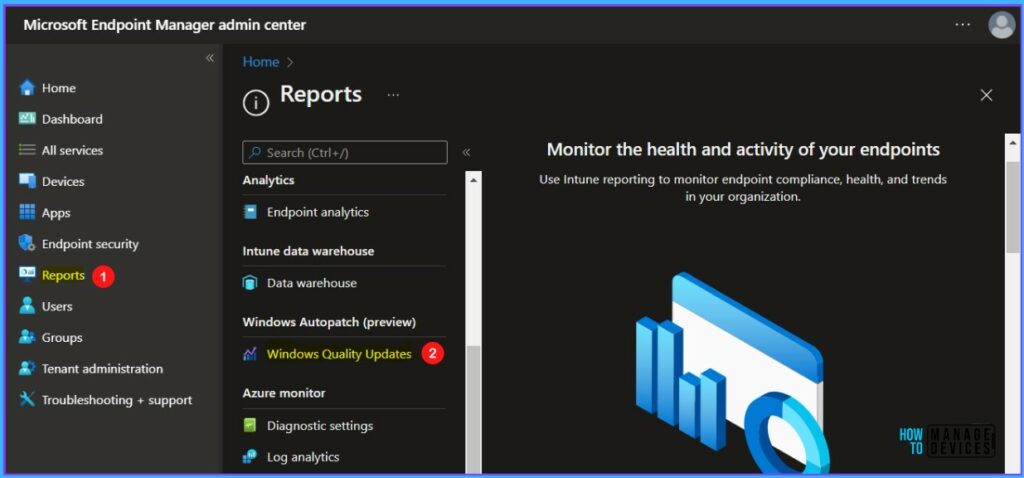
- Select Reports, Under Windows Autopatch, select Windows Quality Updates.
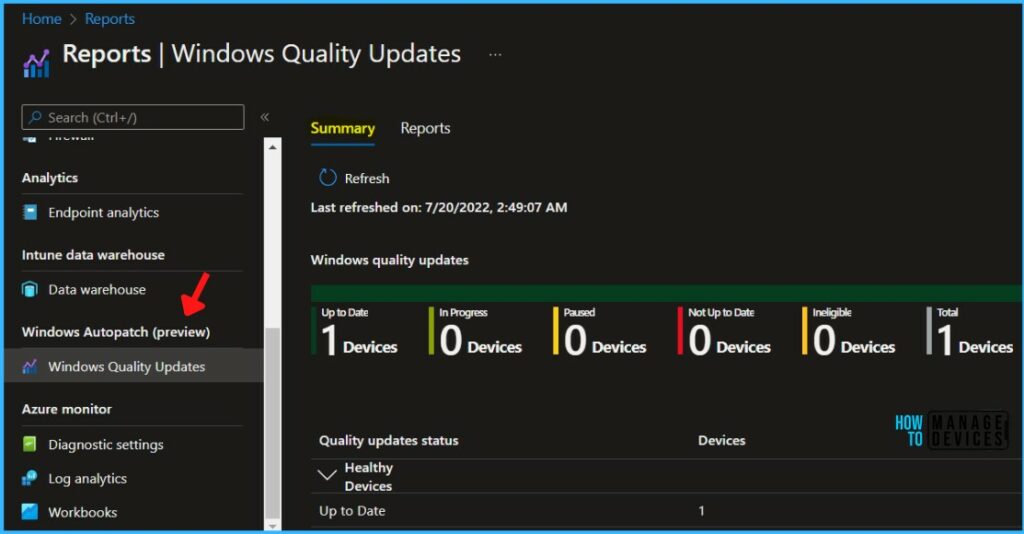
The default view displays the Summary tab, click on Refresh to update the report. Once it is successfully generated, the Windows quality updates summary is ready.
Important – Before Microsoft can manage your devices in Windows Autopatch, you must have devices registered with the autopatch service.
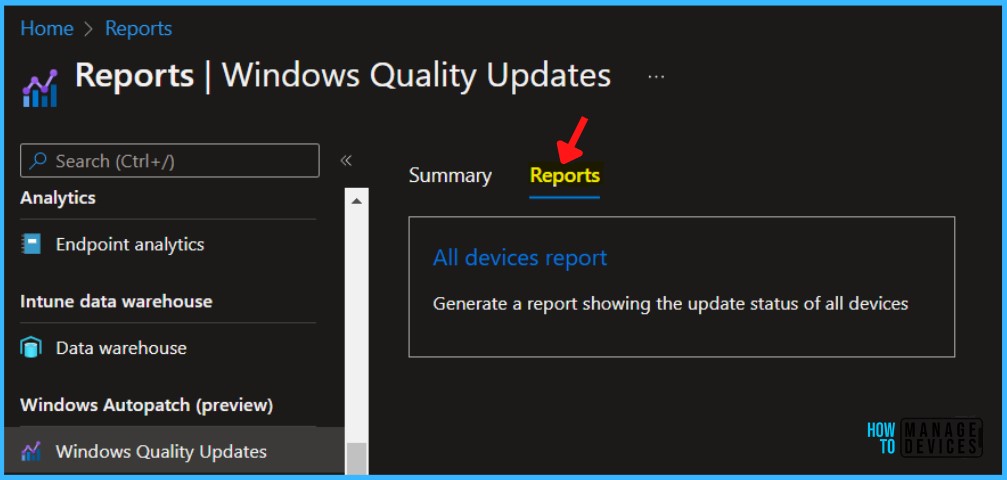
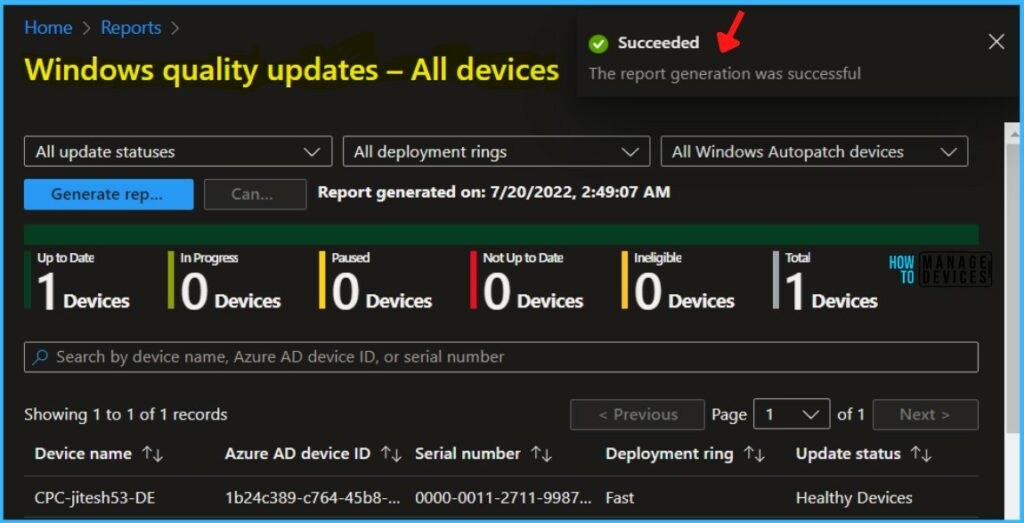
Select Reports > All Devices Report. You will generate a report showing the update status of all devices enrolled for Windows Autopatch.
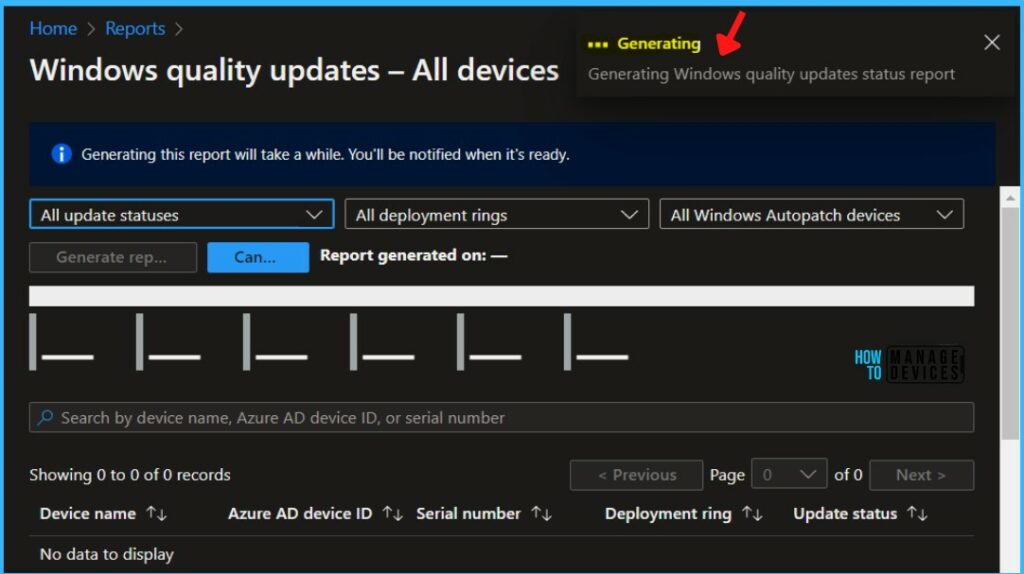
The Windows quality updates status report automatically started generating. A notification will appear automatically in the top right-hand corner with the message Generating Windows quality updates status report.
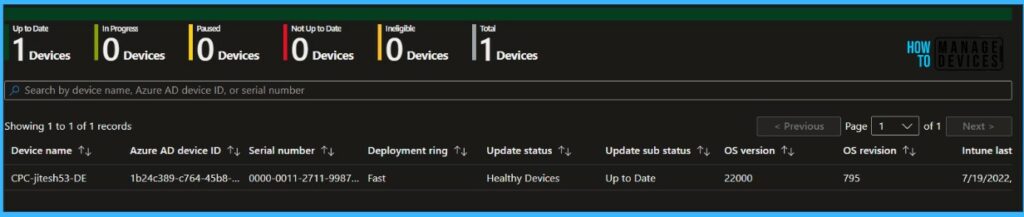
After the report is successfully generated, A notification will appear automatically in the top right-hand corner with the message “The report generation was successful”. It will retrieve data, and the following list identifies the columns that are available for the enrolled devices in Windows Autopatch.
Note: You can also search the reports from all devices, by device name, Azure AD device ID, or serial number.
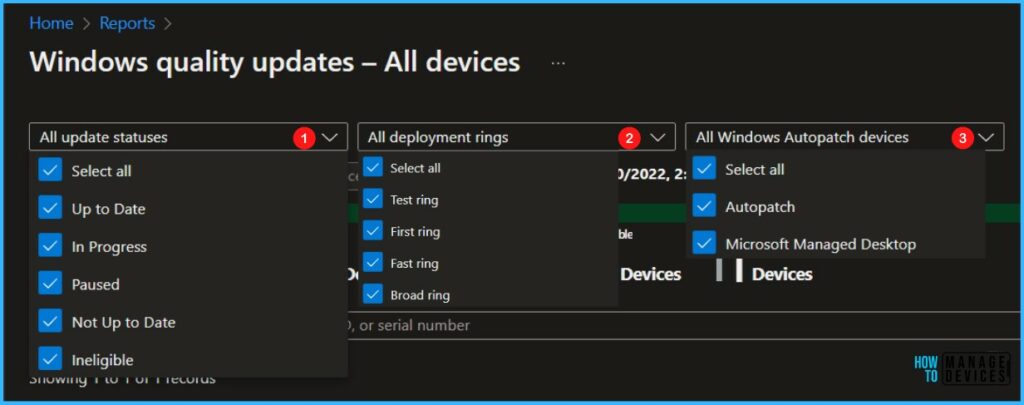
Before you generate the Windows Autopatch quality updates report, there are some filters that you can use. The filters are helpful when you want to view specific data from devices.
You can select All Update Statuses, All Deployment Rings, and All Windows Autopatch devices to refine the report, then Click Generate report to generate a Windows quality updates report.
The following information applies to All Update Status –
- Up to Date
- In Progress
- Paused
- Not Up to Date
- Ineligible
All Deployment Rings:
- Test Ring: This group is for devices used for testing purposes only.
- First Ring: Best for early adopters to receive and validate changes.
- Fast Ring: Best for assessing quality issues prior to broad deployment.
- Broad Ring: Use for business-critical devices.
All Windows Autopatch Devices:
- Autopatch
- Microsoft Managed Desktop
If you are completed with the applied filters that you have selected and generated a report. Here you will see the following data for the devices.


Discussion