






Best Guide to Configure Windows LAPS Automatic Account Management using Intune
In this blog post, Am going to explain how to configure Windows LAPS Automatic Account Management using Microsoft Intune. The new LAPS provides a streamlined way to manage local administrator passwords and account name across enterprise-managed Windows devices.
With the integration of Windows LAPS (Local Administrator Password Solution) into Intune, organizations can now automatically manage and rotate local admin passwords and account name without relying on legacy tools, third party Apps or manual processes.
This enhances endpoint security by ensuring that each device has a unique, complex password for its unique local administrator account, which changes regularly and is securely stored in Azure Active Directory/Entra ID or on-premises Active Directory. Automatic account management is now supported on Windows 11 version 24H2 and later.
Using Intune, IT Admins can configure LAPS settings via the Account protection or Endpoint security policies. This includes defining password complexity, length, expiration interval, and backup directory (Azure AD or on-premises AD).

Table of Contents
Capabilities of Windows LAPS Automatic Account Management
Intune’s policy framework ensures these settings are consistently applied across all targeted devices, minimising the risk of configuration drift or security gaps. Furthermore, administrators can audit password changes and access logs, ensuring transparency and compliance with organizational security policies. The integration with Intune also simplifies password recovery and operational efficiency.
- Admins can retrieve the current password for a managed device directly from the Intune admin center or Entra ID portal, depending on where the password is stored.
- This eliminates the need for external scripts or tools and provides a centralized, role-based access method to password retrieval.
- Overall, Windows LAPS via Intune offers a modern, scalable, and secure approach to local account management in hybrid and cloud-native environments.
The Windows LAPS Automatic Account Management offers several additional benefits over the traditional LAPS policy. The table below gives you an idea of these benefits.
| Feature | Description |
|---|---|
| Automatic Account Management Enabled | Use this setting to specify whether automatic account management is enabled. If this setting is enabled, the target account will be automatically managed. If this setting is disabled, the target account will not be automatically managed. If not specified, this setting defaults to False. |
| Automatic Account Management Enable Account | Use this setting to configure whether the automatically managed account is enabled or disabled. If this setting is enabled, the target account will be enabled. If this setting is disabled, the target account will be disabled. If not specified, this setting defaults to False. |
| Automatic Account Management Randomize Name | Use this setting to configure whether the name of the automatically managed account uses a random numeric suffix each time the password is rotated. If this setting is enabled, the name of the target account will use a random numeric suffix. If this setting is disabled, the name of the target account will not use a random numeric suffix. If not specified, this setting defaults to False. |
| Automatic Account Management Target | Use this setting to configure which account is automatically managed. The allowable settings are: 0=The built-in administrator account will be managed. 1=A new account created by Windows LAPS will be managed. If not specified, this setting will default to 1. |
| Automatic Account Management Name Or Prefix | Use this setting to configure the name or prefix of the managed local administrator account. If specified, the value will be used as the name or name prefix of the managed account. If not specified, this setting will default to “WLapsAdmin“. |
- Most Restrictive Elevation Behaviour with Intune Endpoint Privilege Management
- Windows LAPS Integration with Local Device MaximumPasswordAge Policy
- Windows LAPS Configurations from Azure AD and Intune
- New Automatic Account Management Enable Account settings on Windows LAPS Policy in Intune
Create a Windows LAPS Automatic Account Management Account Protection Policy
Here are the steps to create a Local admin password solution policy with Intune. Let’s discuss the step-by-step method to create the profile.
- Sign in to the Microsoft Intune admin center
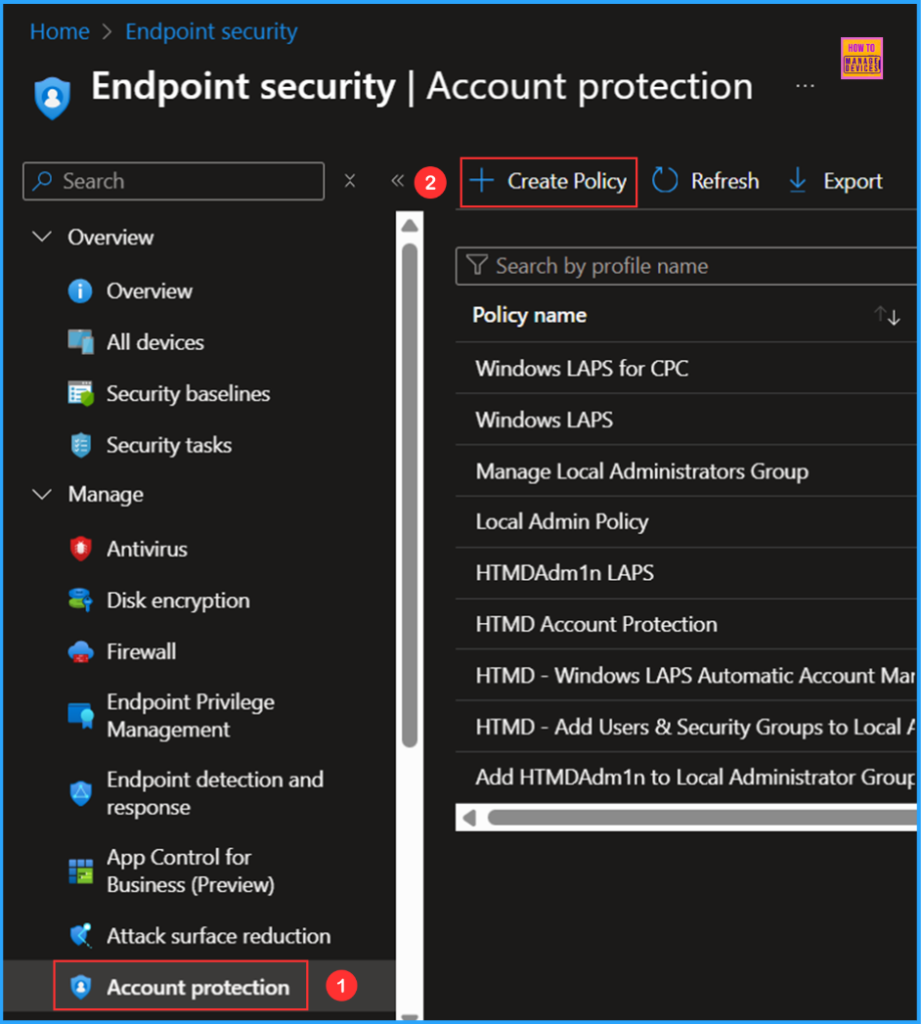
- Navigate to Endpoint Security > Account protection
- Click on +Create policy.
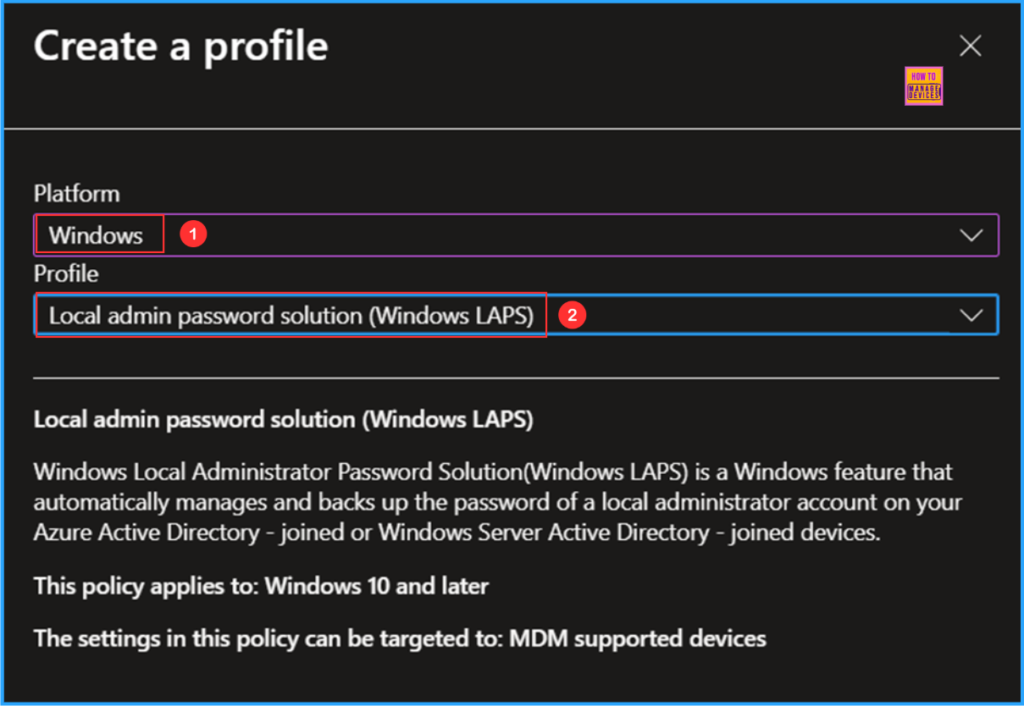
Under the Create a profile window, choose Platform as Windows and Profile as Local admin password solution (Windows LAPS). Two other profiles are available in Account protection. Then, click on the Create option at the bottom.
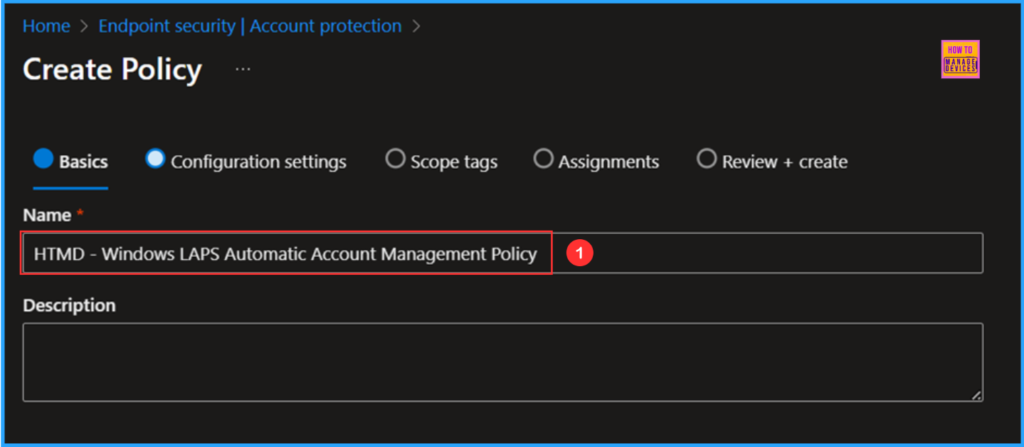
On the Basics details page, I will enter our policy name: HTMD – Windows LAPS Automatic Account Management Policy. If necessary, please provide a brief policy description and then click Next.
The first few options on the Configuration Settings page can be configured based on the Basic LAPS Policy. At least one option is mandatory. Please review the options below and select them accordingly.
- Backup Directory – Backup the password to Azure AD only
- Password Age Days – 7
- Password Complexity – Large letters + small letters + numbers + special characters
- Password Length – 8
- Post Authentication Actions – Reset the password and reboot: upon expiry of the grace period, the managed account password will be reset and the managed device will be immediately rebooted.
- Post Authentication Reset Delay – 8
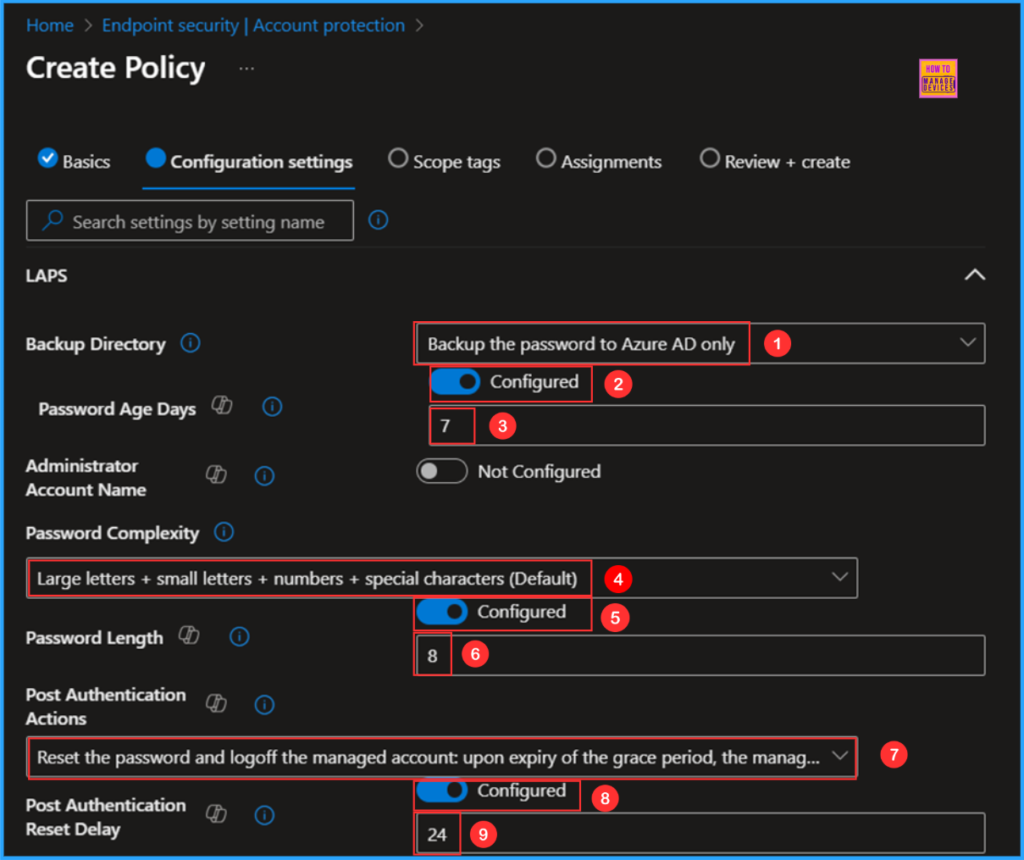
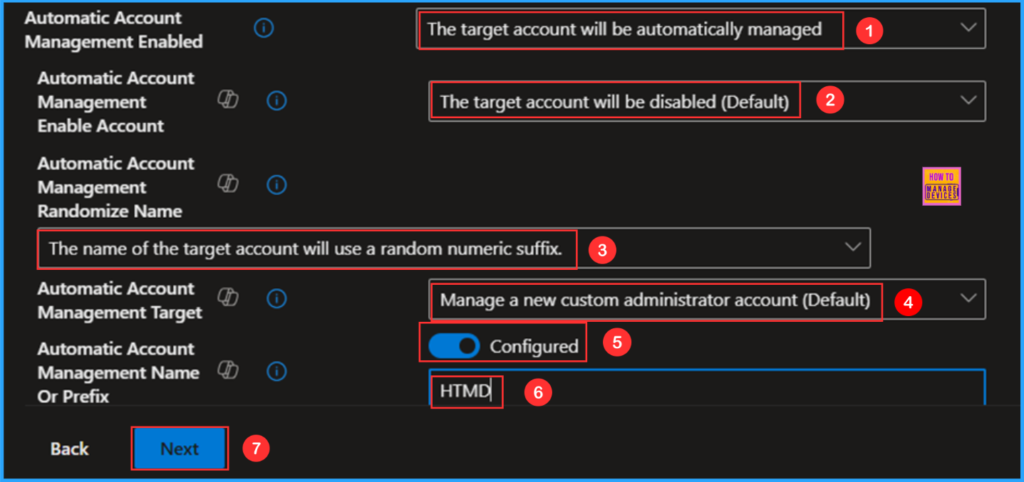
The remaining Configuration settings are based on the concept of Automatic Account Management. Please check the options below and select them accordingly.
- Automatic Account Management Enabled – The target account will be automatically managed
- Automatic Account Management Randomize Name – The name of the target account will use a random numeric suffix.
- Automatic Account Management Name Or Prefix – HTMD
- Automatic Account Management Enable Account – The target account will be enabled
- Automatic Account Management Target – Manage a new custom administrator account
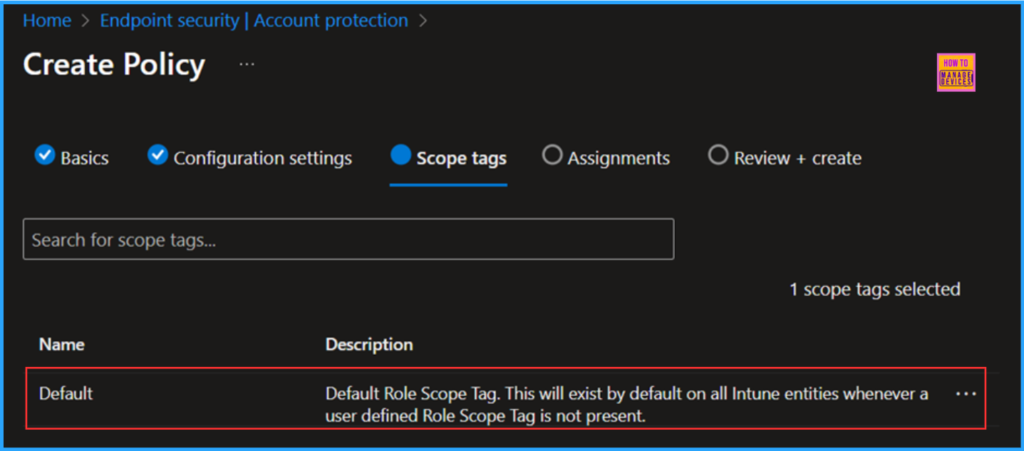
On the next page, leave the scope tags as the default. If you have any other custom scope tag available, you can select one based on your requirements.
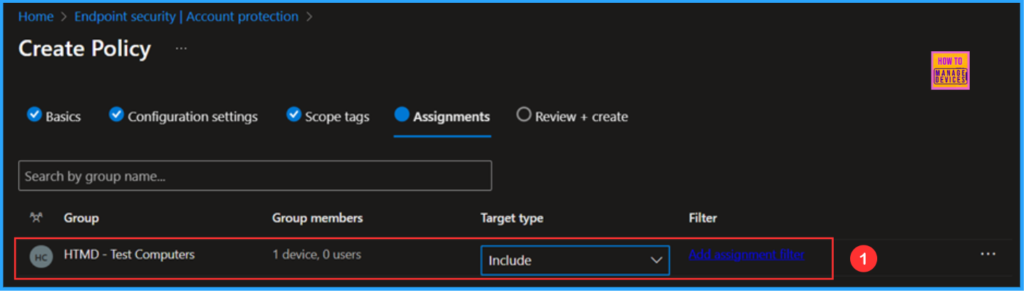
Now assign our Windows LAPS Automatic Account Management Policy to a device group. In this example, I am deploying it to the device group named HTMD – Test Computers. To do this, search for the group by name and set the target type to Include. Then, click Next.
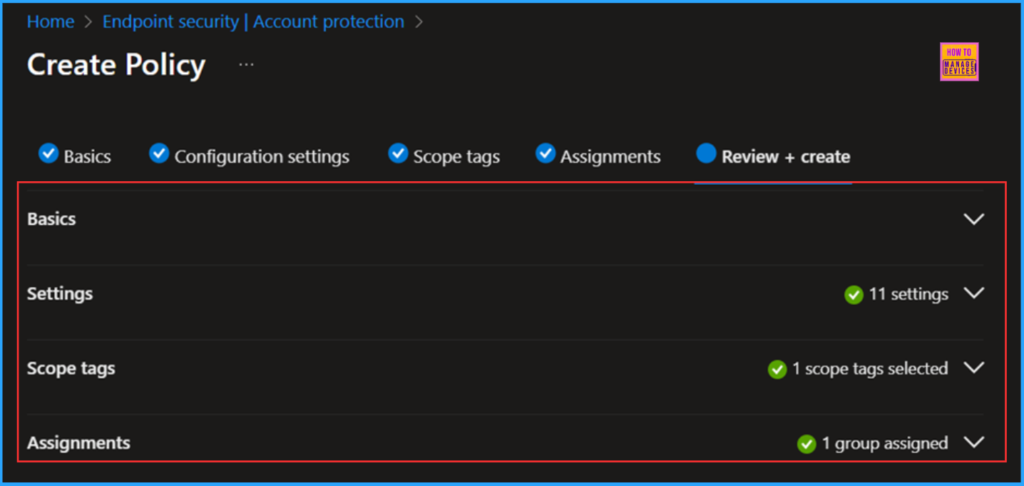
On the Review + Create pane, carefully check all the settings you’ve defined for the Windows LAPS Automatic Account Management Policy. Once you’ve confirmed everything is correct, select Save to apply the changes.
- Microsoft Intune 2304 April Update Windows LAPS Management
- Configure User Confirmed EPM Elevation Settings Policy using Microsoft Intune
- Easy way to Disable GitHub Copilot in Visual Studio using Intune
- How to Configure Support Approved EPM Elevation as Administrator using Intune Policy for Normal Users
Monitor Windows LAPS Automatic Account Management Policy Deployment
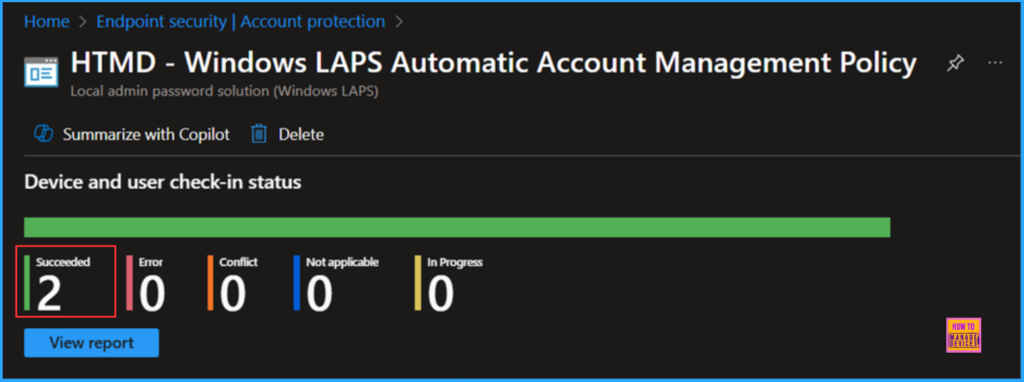
The newly created LAPS policy has been deployed to the Microsoft Entra ID group (HTMD – Test Computers). The policy will take effect as soon as possible once the device is synced. To monitor the policy deployment status from the Intune Portal, follow the steps below.
- Navigate to Endpoint Security > Account protection
Search for the HTMD – Windows LAPS Automatic Account Management Policy. Click on it to view the endpoint check-in status of our policy. By selecting View report, you can explore details such as Device name, Logged in user, and check-in status, Filter and Last report modification time.
End User Experience
Next, we need to verify if the Windows LAPS Automatic Account Management Policy is functioning correctly. Please log in to one of the devices that the policy targets.
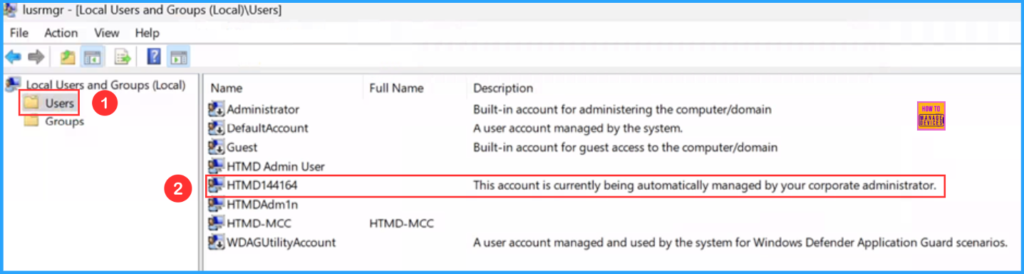
- Navigate to Run > Type “lusrmgr.msc” This will open you Local Users and Groups window > Click on Users
Now we can able to see “HTMD144164” LAPS Administrator account has been created successfully and in the description, it is mentioned as “This account is currently being automatically managed by your corporate administrator“. So we can conclude that the LAPS policy is successfully configured without any issues!
Intune Admin Experience
It’s time to check Intune Admin’s experience with the newly created LAPS policy. Follow the below-mentioned steps.
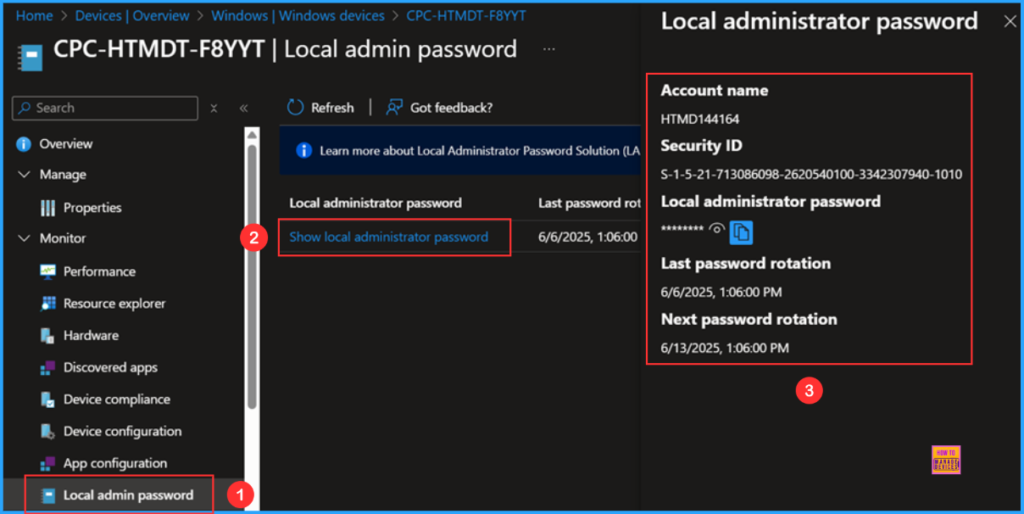
- Navigate to Device > Windows > Click on policy targeted device > Under Monitor click on Local admin password
Once you click on the Show local administrator password hyperlink. You will get all the details like Account name, Security ID, Local administrator password, Last password rotation and Next password rotation. Password will be shown as hide and you can use the show option to view it there is also an option copy to clipboard option available.
NOTE! For each password rotation Account name and Local administrator password will change.
Need Further Assistance or Have Technical Questions?
Join the LinkedIn Page and Telegram group to get the latest step-by-step guides and news updates. Join our Meetup Page to participate in User group meetings. Also, Join the WhatsApp Community to get the latest news on Microsoft Technologies. We are there on Reddit as well.
Author
Vaishnav K has over 11 years of experience in SCCM, Device Management, and Automation Solutions. Writes and imparts knowledge about Microsoft Intune, Azure, PowerShell scripting, and automation. Check out my profile on LinkedIn.


Great write-up. We have our policy set up to where LAPS should create the local admin account. A problem we’re running into on a handful of devices is that it doesn’t create the account and when you look in Intune at the LAPS details for the device, it shows that it’s using the built-in Administrator account which is disabled, so we have no way to elevate our access. Any idea what could be going on or how to fix?