






How to Track Windows OS Version and Build Details using Intune Inventory Policy
Let’s discuss how to Track Windows OS Version and Build Details using Intune Policy. The OsVersion property in Intune helps you to gives basic information about the operating system installed on a device. It includes the OS name, OS Version, Build Version etc.
This helps IT admins know exactly what system is running on each device in their organization. It works across different platforms Android, iOS, iPadOS, and Windows. You can use it to check OS details for many devices at once or look up information on a single Windows device when needed. It is especially useful for inventory and managing updates.
Microsoft has released updated build versions for different Windows 11 releases. The latest version, Windows 11 24H2, has build number 10.0.26100.4652 and was made available on 8th July 2025 with update KB5062553. It began servicing on 1st October 2024 and will be supported until 12th October 2027.
In this post, you will find all the details on how to track Windows OS version and build information using Intune policy. It explains how you can collect key details such as the operating system name, version, build number, patch level, installation date, and architecture.

Table of Contents
Track Windows OS Version and Build Details using Intune Policy
The Windows OS Version information helps IT admins monitor and manage Windows devices efficiently. Whether you are checking a single device or running a query across multiple endpoints, Intune provides a simple and effective way to get accurate OS details directly from the device inventory.
| Steps | Action |
|---|---|
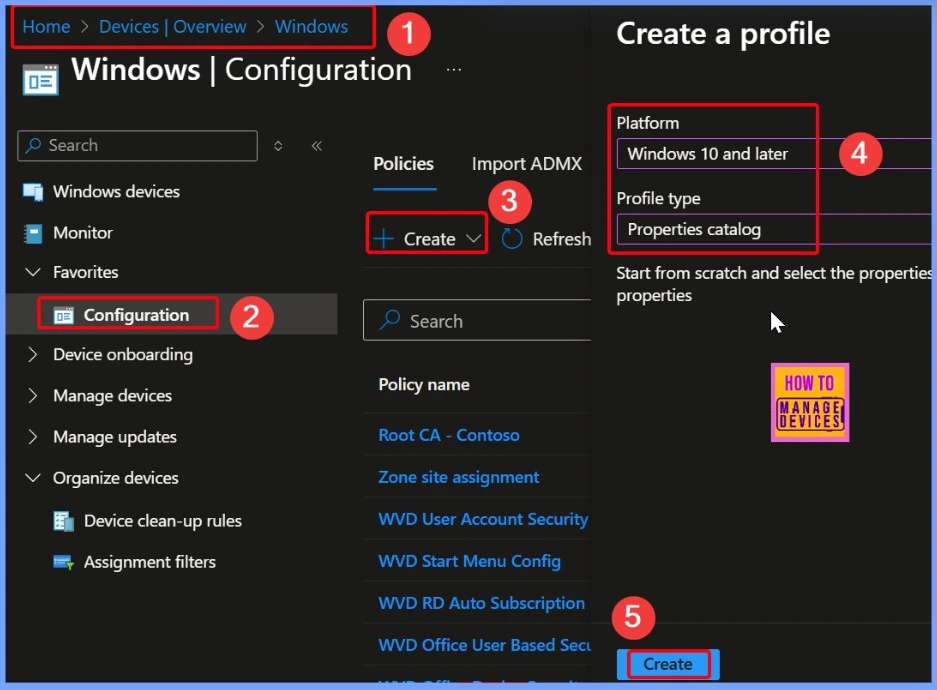
| 1 | Sign in to the Microsoft Intune admin center |
| 2 | In the left menu, click on Devices |
| 3 | Go to Manage devices and choose Configuration |
| 4 | Click Create and select New Policy |
| 5 | Set Platform to Windows 10 and later |
| 6 | Set Profile Type to Properties catalog |
- How to Check Your Windows 11 Edition
- Easy Methods to Know the Version of Installed Apps in Windows 11
- Windows 10 Version Numbers Build Numbers Major Minor Build Rev
Basics Page in Intune
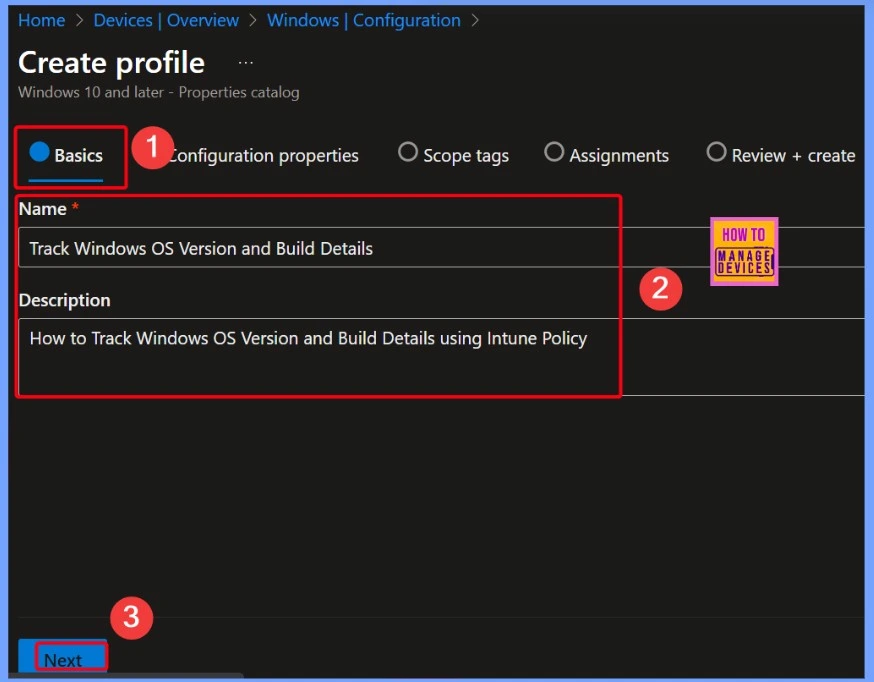
On the Basics page in Intune, you need to fill in some simple details to start creating the policy. For the Name, enter Track Windows OS Version and Build Details. In the Description box, you can write something like How to Track Windows OS Version and Build Details using Intune Policy. This helps you and your team understand the purpose of the policy when managing it later.
Properties Catalog
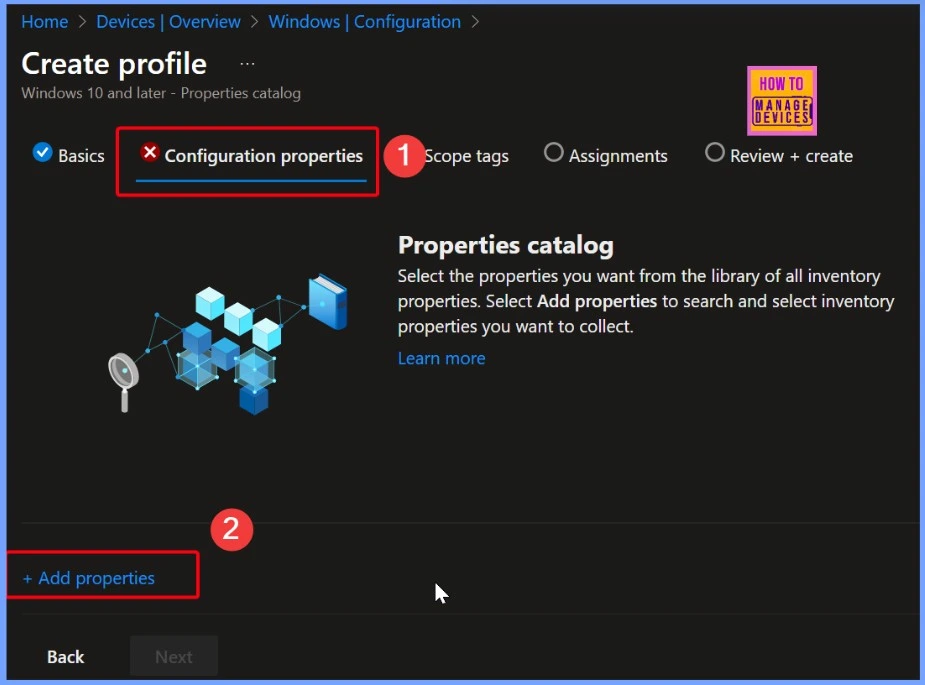
In the Properties catalog section, you can choose which inventory details you want to collect from devices. Click on Add properties to browse through the full list of available options. The below screenshot helps you to show more details.
OS Version Property
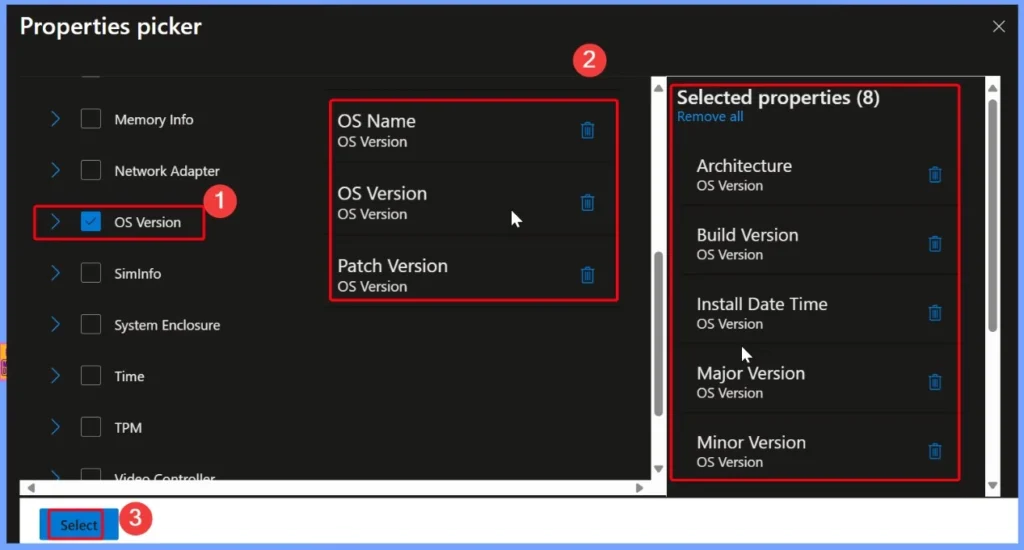
After you enable the OS Version property, Intune will automatically include a total of 8 related properties that give more details about the device’s operating system. These selected properties include the following. These details help you understand the complete OS setup of the device, including when it was installed, what version and build it’s running, and more.
- OS Version
- OS Name
- Architecture
- Patch Version
- Build Version
- Install Date Time
- Major Version
- Minor Version
Configuration Properties Page
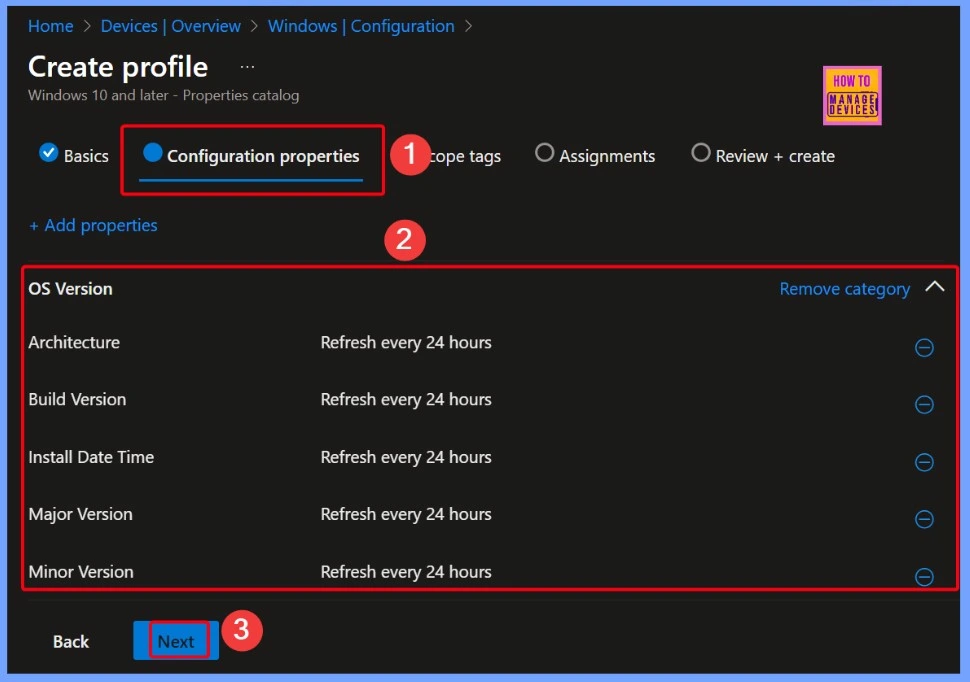
On the Configuration properties page, you will see a list of selected OS-related settings such as:OS Version, Architecture, Build Version etc. Each of these properties is set to refresh every 24 hours, which means Intune will automatically update the data once a day. After reviewing the settings, click Next to continue with the policy setup.
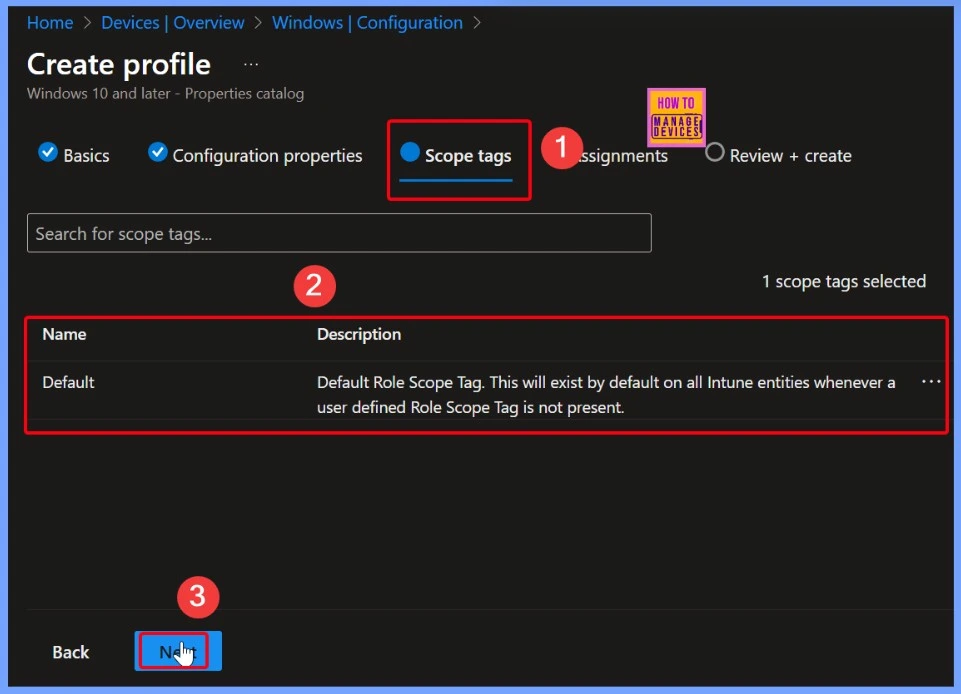
Scope Tag in Intune
A scope tag in Intune is a way to control who can see and manage certain devices, apps, or policies. It’s especially useful in large organizations where different IT admins handle different teams or regions.
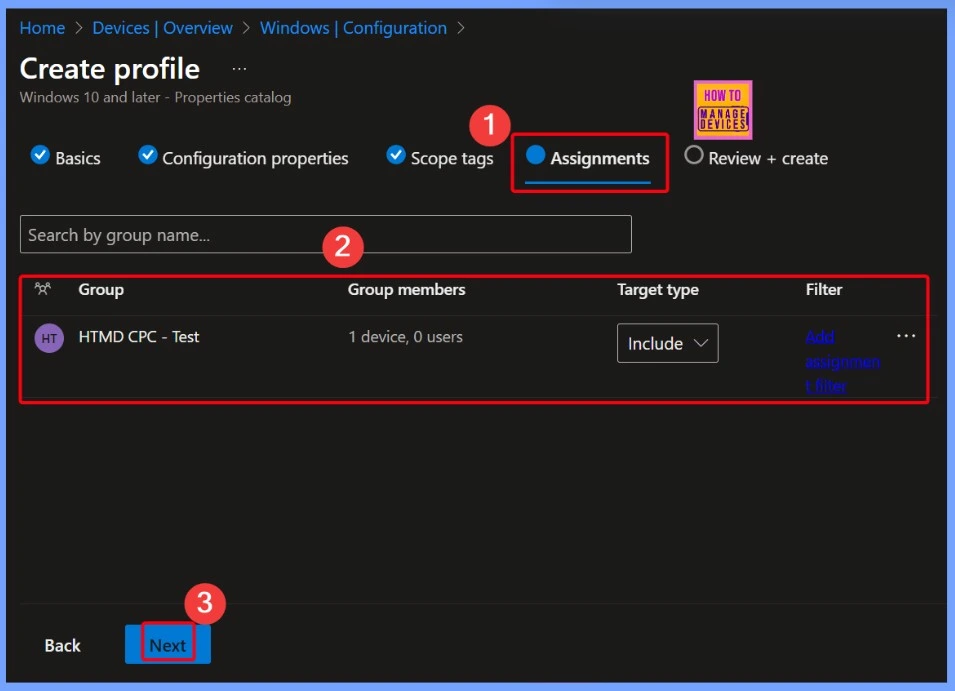
Create a Policy in Intune
When you create a policy in Intune, you must assign it to the correct group. If you don’t assign it, the policy won’t apply to any device or user. In this case, I selected the group HTMD CPC – Test as the assignment group. After choosing the group, just click the OK button to confirm the selection.
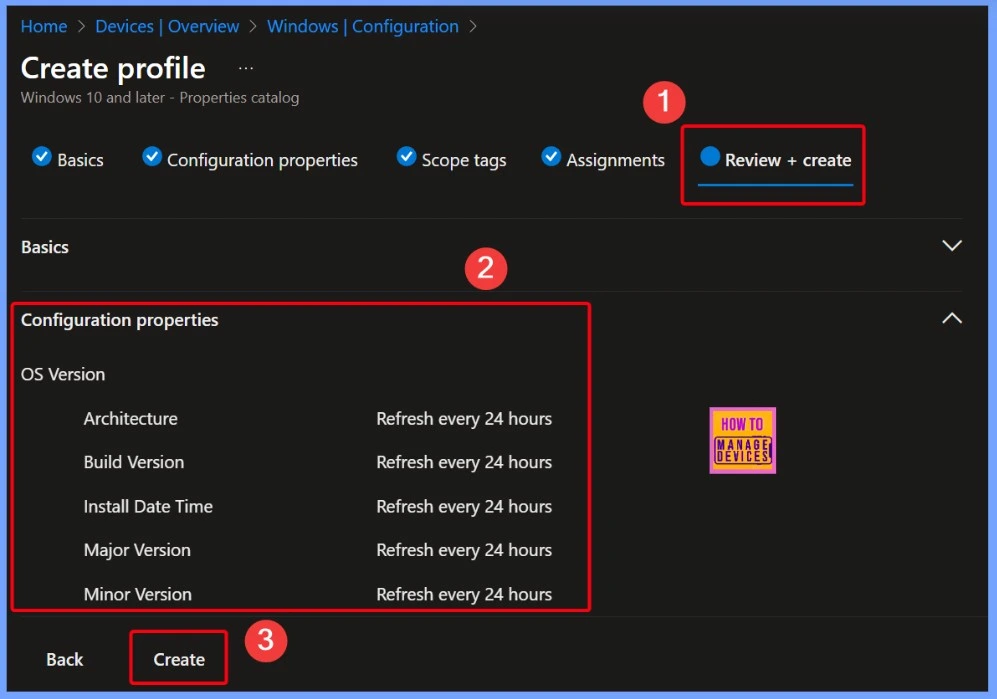
Review + Create
Review + Create is the last step when setting up a policy in Intune. It shows you a summary of all the settings you’ve chosen so far. This gives you a chance to check everything one last time and make sure it’s correct before you create and apply the policy.
Finish Creating the Policy
Once you finish creating the policy, you will see a message confirming that The Track Windows OS Version and Build Details has successfully been created. This means all your chosen settings have been saved, and the policy is now ready to work on the devices you assigned it to.

End Result
You can easily check the Windows OS Version and Build Details using Intune, go to Devices > Windows Devices in the Intune admin center and pick the device you want to view. In the Monitor section, click on Resource Explorer.
Here, you can browse different categories to see detailed hardware info, including Windows OS Version and Build details. Remember, after the device syncs with Intune, it might take up to 24 hours for the data to show up the first time. You will also do the manual sync through Company portal.
Starting with Intune’s September 2509 release, the Resource explorer pane will be renamed to Device inventory. This is a UI update only no changes will be made to functionality or data. The new name will appear under Devices > select a platform > select a device > Monitor, and will be visible if you have at least one corporate-owned or Windows device targeted by a properties catalog policy.
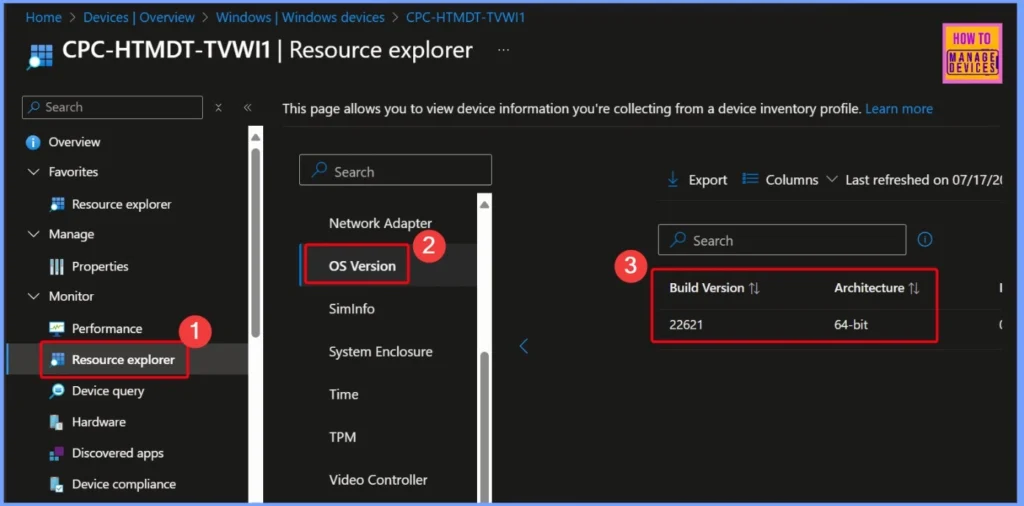
Here is the system information collected from the device inventory. It includes key details such as the operating system name and version, build and patch number, system architecture, and installation date and time. The below table helps you to show more details.
| Build Version | Architecture | Install Date Time | Major Version | Minor Version | OS Name | OS Version | Patch Version | Last updated |
|---|---|---|---|---|---|---|---|---|
| 22621 | 64-bit | 07/08/2025, 11:02:51 PM | 10 | 0 | Microsoft Windows 11 Enterprise | 10.0.22621 | 5624 | 07/17/2025, 06:33:54 PM |

Need Further Assistance or Have Technical Questions?
Join the LinkedIn Page and Telegram group to get the latest step-by-step guides and news updates. Join our Meetup Page to participate in User group meetings. Also, join the WhatsApp Community to get the latest news on Microsoft Technologies. We are there on Reddit as well.
Author
Anoop C Nair has been Microsoft MVP for 10 consecutive years from 2015 onwards. He is a Workplace Solution Architect with more than 22+ years of experience in Workplace technologies. He is a Blogger, Speaker, and Local User Group Community leader. His primary focus is on Device Management technologies like SCCM and Intune. He writes about technologies like Intune, SCCM, Windows, Cloud PC, Windows, Entra, Microsoft Security, Career, etc.


Discussion