






How to Track Windows Security Patch Installation Details using Intune Inventory
Let’s discuss how to Track Windows Security Patch Installation Details using Intune Inventory. The WindowsQfe section in Intune helps you to offer insights into the security patches and updates applied to a Windows device. QFE, short for Quick Fix Engineering, represents targeted update packages released by Microsoft to fix specific bugs or vulnerabilities.
These updates are crucial for protecting systems from vulnerabilities, improving overall device performance, and helping organizations stay aligned with security and compliance requirements. In Intune, WindowsQfe refers to a data section that provides detailed information about the security patches and hotfixes installed on a Windows device.
One of our posts helps you to show how to track Windows OS version and build details using Intune policies. The OsVersion property provides key information such as the OS name, version, and build number, making it easier for IT admins to identify the exact system running on each device.
In this post, you will get all the details of how to track Windows security patch details using Intune Inventory. These are small updates released by Microsoft to fix specific bugs, security vulnerabilities, or performance issues in the operating system.

Table of Contents
How to Track Windows Security Patch Installation Details using Intune Inventory
The WindowsQfe inventory helps IT admins track which updates have been applied to each device, ensuring that systems are up to date, secure, and compliant with organizational policies. In Intune, WindowsQfe data can be accessed through multiple methods such a device queries for multiple devices, on-demand queries for individual devices, and inventory reports.
These options provide flexibility for IT admins to monitor security patch status across the organization. Whether managing a large device fleet or investigating a specific system, this data helps ensure all Windows devices remain compliant, secure, and up to date.
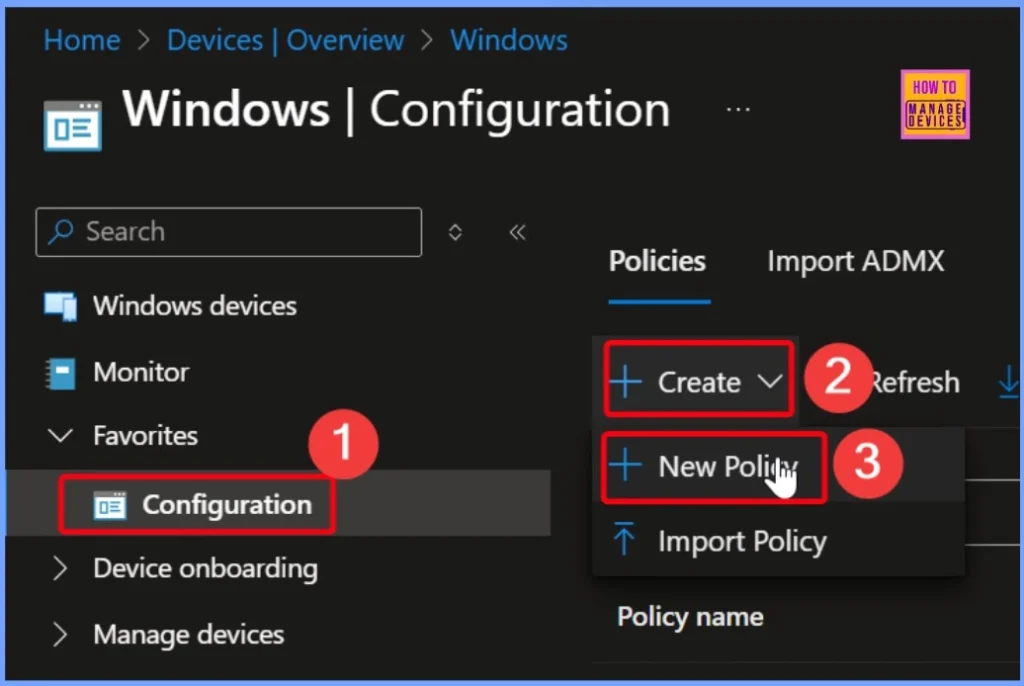
- Sign in to the Microsoft Intune admin center
- In the left menu, click on Devices
- Go to Manage devices and choose Configuration
- Click Create and select New Policy
- How to Track Device Battery Information using Intune Property Catalog
- How to Collect Physical and Virtual Memory Information using Intune Properties Catalog
- Intune Managing OneDrive File Downloads for Low Disk Space
Configuring the Policy
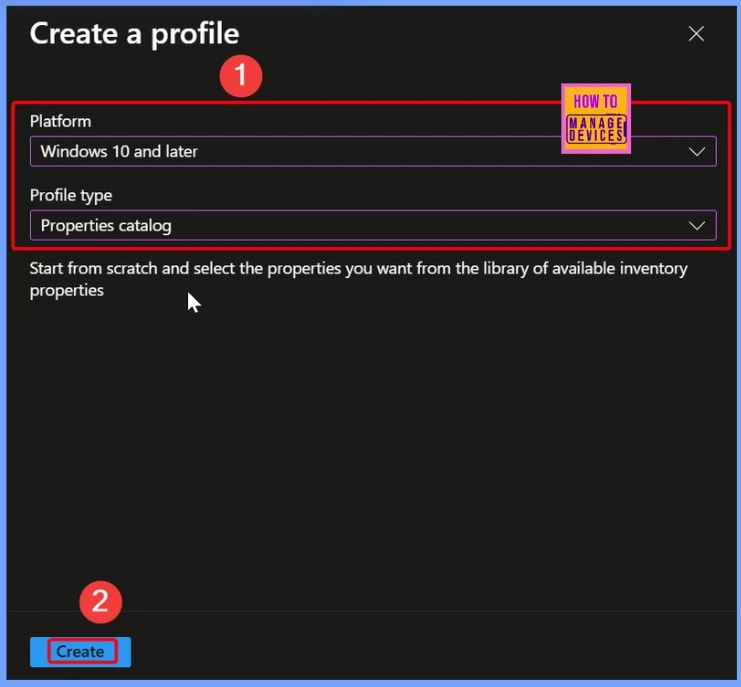
To begin configuring the policy, set the Platform to Windows 10 and later to ensure compatibility with supported devices. Next, choose Profile Type as Settings catalog. The below window helps you to show more details.
Basics Settings Page
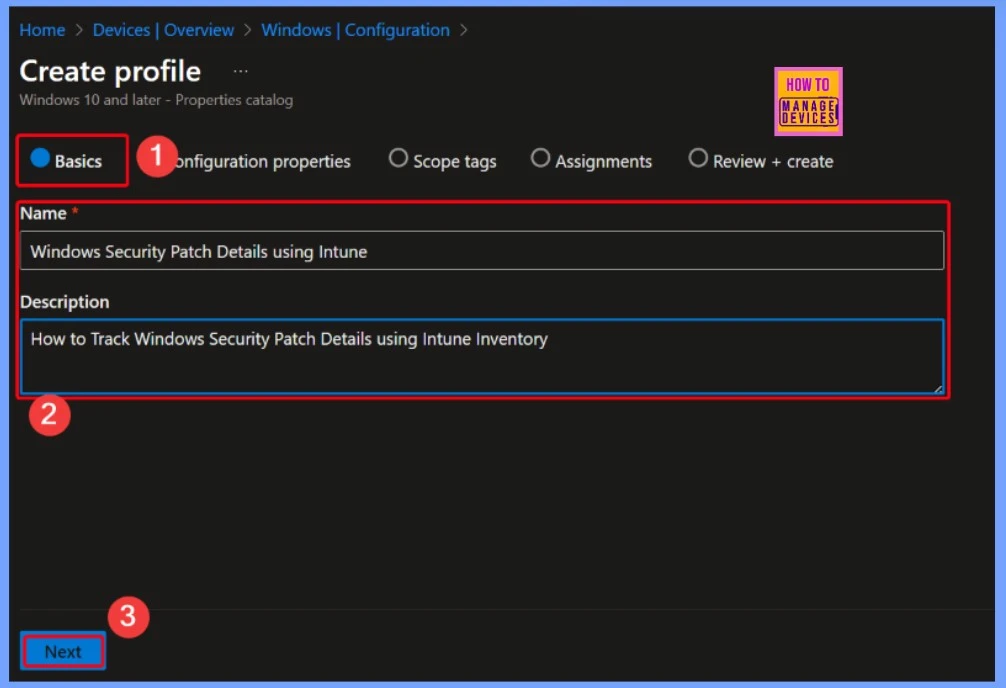
On the Basics settings page, you need to enter some basic information for the policy. For the Name, you can use something clear that Windows Security Patch Details using Intune. In the Description field, you can write a short note such as How to Track Windows Security Patch Details using Intune Inventory.
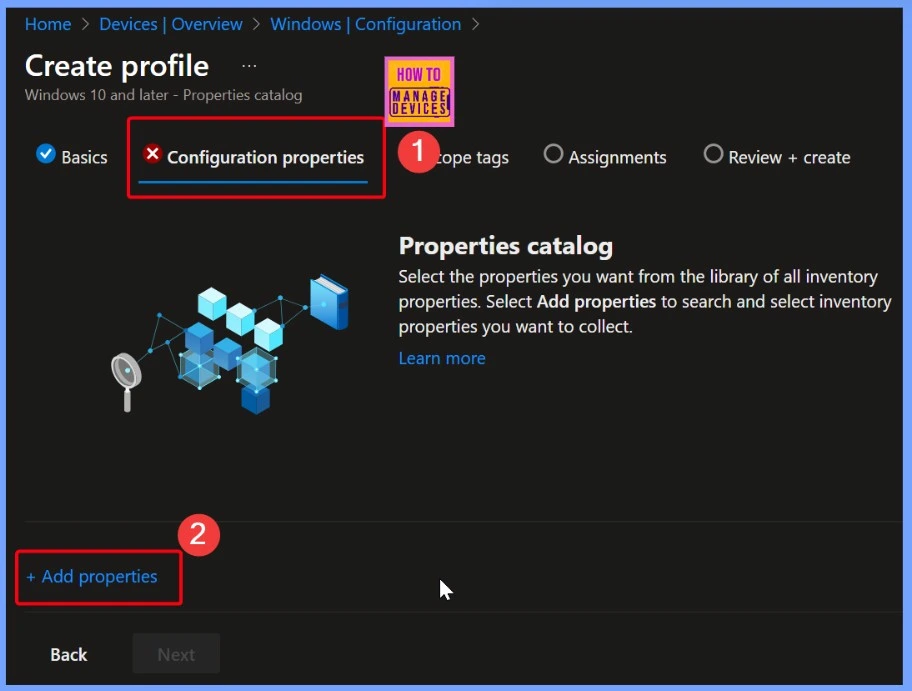
Properties Catalog
Tracking installed updates allows IT administrators to ensure that all devices have the latest security patches in place. With the help of WindowsQfe data, admins can confirm if critical updates have been successfully applied, helping to minimize security vulnerabilities and prevent potential compatibility problems across the organization.
- How to Check Your Windows 11 Edition
- Easy Methods to Know the Version of Installed Apps in Windows 11
- Windows 10 Version Numbers Build Numbers Major Minor Build Rev
Windows QFE
The Windows QFE section provides useful details about the security updates installed on a device. It shows the Installed Date, so you know when each update was applied. You can also see selected properties like the QFE Description, Computer Name, and any Fix Comments. Other important details include the Caption, the Hot Fix ID for each update, and the User Account that installed it. This information helps IT admins easily track and review update history on Windows devices.
| Windos QFE Properties | Details |
|---|---|
| Installed Date | Shows when the update was installed |
| QFE Description | Brief info about the update or fix |
| Computer Name | Name of the device where the update is installed |
| Fix Comments | Any notes or comments related to the update |
| Caption Title | short description of the update |
| Hot Fix ID | Unique ID assigned to the update |
| Installed By | User account that installed the update |
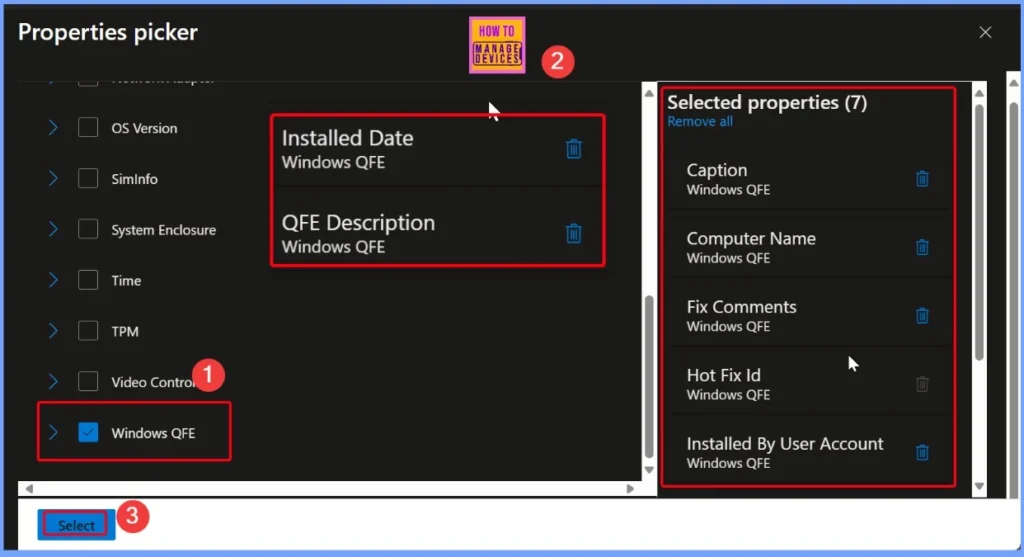
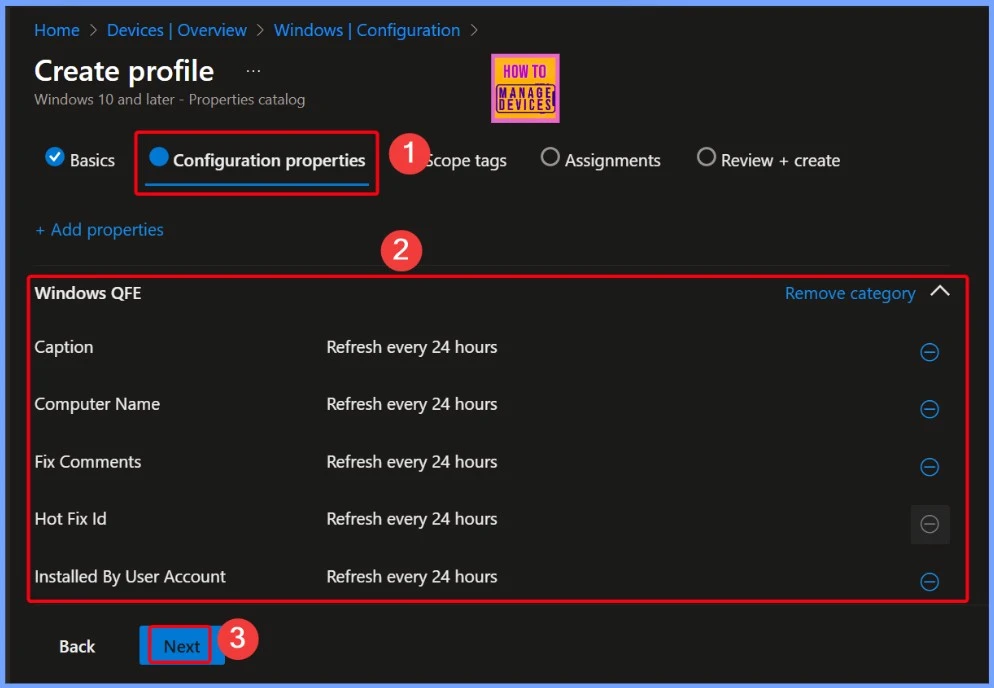
Windows QFE to Collect Update Details from Devices
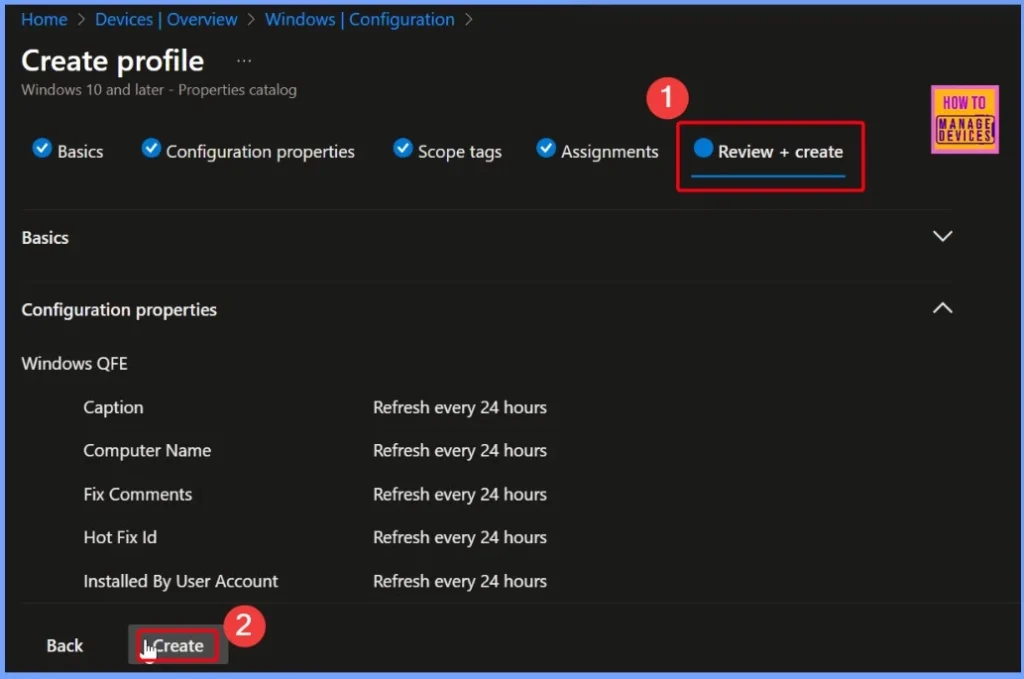
In the Configuration properties section, you can select key settings under Windows QFE to collect update details from devices. These include Caption, Computer Name, Fix Comments, Hot Fix ID, and Installed By User Account. Each of these properties helps provide a complete view of the installed updates. The data for all selected properties is refreshed automatically every 24 hours, ensuring you always have up-to-date information about security patches on your Windows devices.
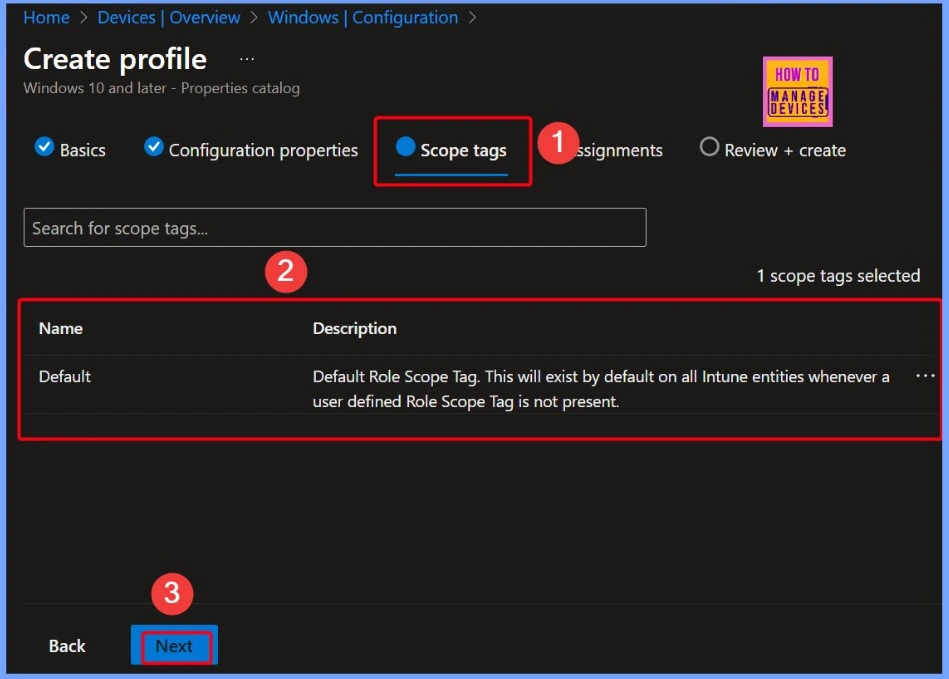
Scope Tag
Scope tag is a feature that is helpful in larger organisations, allowing different IT administrators to manage only the resources relevant to their team, department, or location. It helps keep management organised and secure by assigning the right access to the right people.
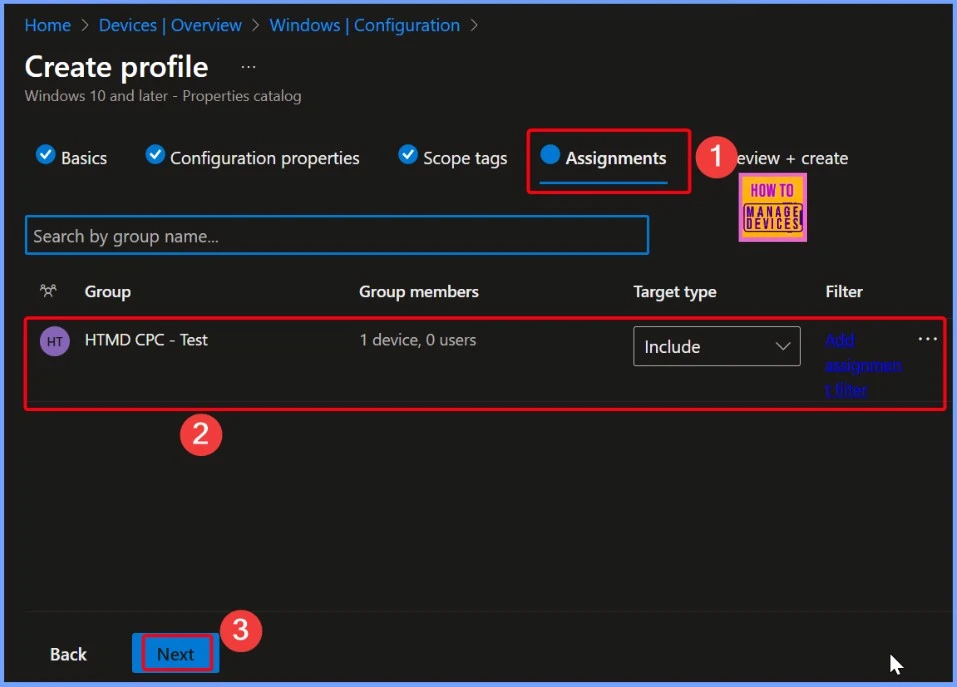
Assignments
While creating a policy in Intune, assigning it to the appropriate group is Important. or this setup, I selected the HTMD CPC – Test group to receive the policy. Once the group is selected, simply click OK to confirm and proceed.
Final Step in Setting up a Policy
The final step in setting up a policy in Intune is Review + Create. This step displays a complete summary of all the configurations you have made, allowing you to review them carefully. The below screenshot helps you to show more details.
Notification Confirmation
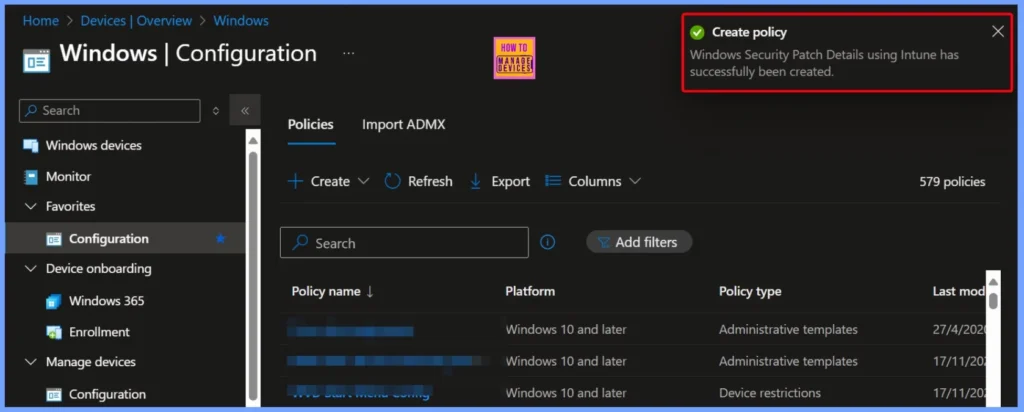
After the policy is created, a confirmation message will appear, indicating that the Windows Security Patch Details using Intune policy has been successfully set up. This confirms that all your configurations have been saved, and the policy is now active and ready to apply to the assigned devices.
End Result
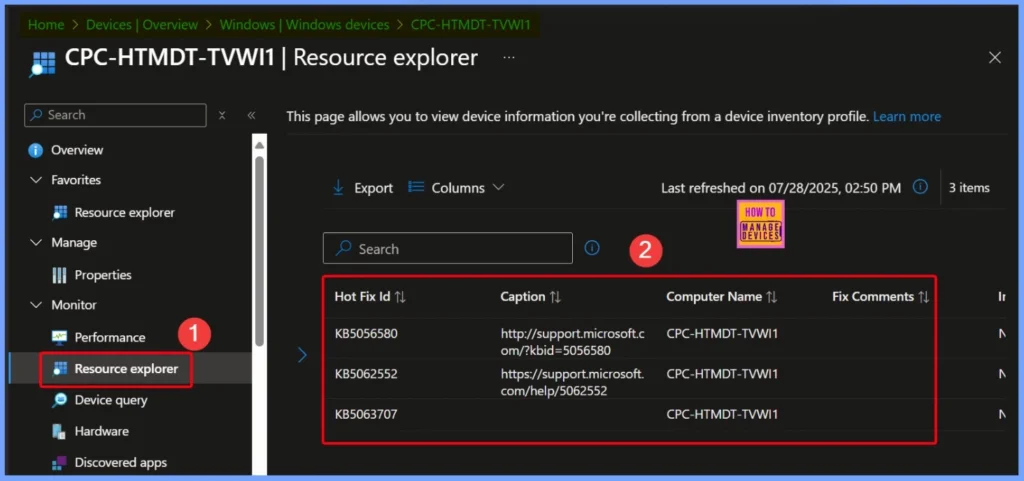
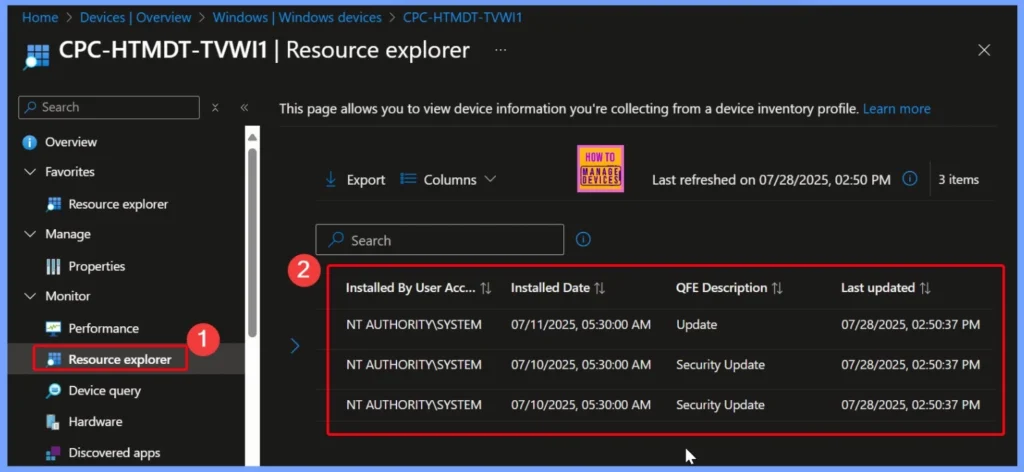
To view the Windows OS version and build details in Intune, navigate to Devices > Windows Devices in the Intune admin center. Select the specific device you want to inspect. Then, under the Monitor section, choose Resource Explorer to access detailed system informations.
Starting with Intune’s September 2509 release, the Resource explorer pane will be renamed to Device inventory. The new name will appear under Devices > select a platform > select a device > Monitor, and will be visible if you have at least one corporate-owned or Windows device targeted by a properties catalog policy.
| Hot Fix ID | Caption | Compuetr Name | Installed by User Account | Installed Date | QFE Description | Last updated |
|---|---|---|---|---|---|---|
| KB5056580 | http://support.microsoft.com/?kbid=5056580 | CPC-HTMDT-TVWI1 | NT AUTHORITY\SYSTEM | 07/11/2025, 05:30:00 AM | Update | 07/28/2025, 02:50:37 PM |
| KB5062552 | http://support.microsoft.com/?kbid=5056580 | CPC-HTMDT-TVWI1 | NT AUTHORITY\SYSTEM | 07/11/2025, 05:30:00 AM | Security Update | 07/28/2025, 02:50:37 PM |
| KB5063707 | http://support.microsoft.com/?kbid=5056580 | CPC-HTMDT-TVWI1 | NT AUTHORITY\SYSTEM | 07/11/2025, 05:30:00 AM | Security Update | 07/28/2025, 02:50:37 PM |
Reviewing WindowsQfe Information in Intune
By regularly reviewing WindowsQfe information in Intune, admins can proactively identify devices that may have missed updates or are running outdated builds. This can help maintain consistent system health, support internal audits, and prepare for compliance checks.
Need Further Assistance or Have Technical Questions?
Join the LinkedIn Page and Telegram group to get the latest step-by-step guides and news updates. Join our Meetup Page to participate in User group meetings. Also, Join the WhatsApp Community to get the latest news on Microsoft Technologies. We are there on Reddit as well.
Author
Anoop C Nair has been Microsoft MVP from 2015 onwards for 10 consecutive years! He is a Workplace Solution Architect with more than 22+ years of experience in Workplace technologies. He is also a Blogger, Speaker, and Local User Group Community leader. His primary focus is on Device Management technologies like SCCM and Intune. He writes about technologies like Intune, SCCM, Windows, Cloud PC, Windows, Entra, Microsoft Security, Career, etc.


Discussion