






Windows Terminal Allows Turn On or Off the Do You Want to Close All Tabs Prompt in Windows 11
Let’s learn how Windows Terminal Allows you to Turn On or off the Do You Want to Close All Tabs in Windows 11? Windows Terminal is a modern host application for command lines like Command Prompt, PowerShell, and Bash via Windows Subsystem for Linux (WSL).
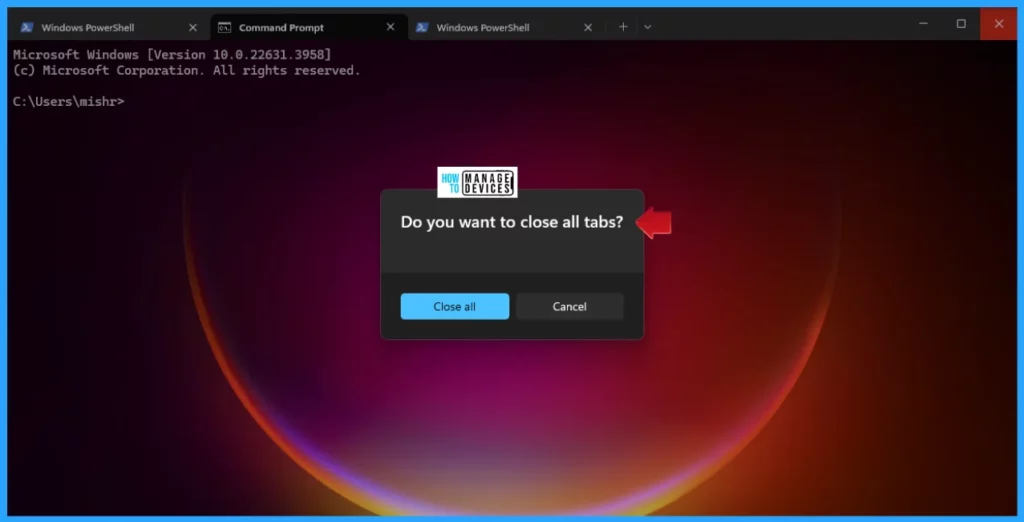
The main features of Windows Terminal include multiple tabs, panes, Unicode and UTF-8 character support; a GPU-accelerated text rendering engine; and the ability to create your themes and customize text, colours, backgrounds, and shortcuts. When you close Windows Terminal with more than one tab open, a Do you want to close all tabs confirmation dialogue will appear to ensure the user closes all your tabs.
Windows Terminal is Microsoft’s new feature terminal with a multi-tab layout. Like other multi-tab-supported apps, if you work with multiple tabs and try to close the Windows Terminal, a confirmation prompt will appear asking you to confirm the action. This feature prevents you from accidentally closing all your tabs and losing any unsaved work.
However, if some users find this feature of the confirmation dialogue not useful, then they can modify the Windows Terminal’s settings to disable the confirmation prompt in Windows 11. This post describes the process of how to Turn on or off the Do you want to close all tabs prompt in the Windows terminal.

Table of Contents

How to Turn On or Off the Do You Want to Close All Tabs
You can Turn On or Off the confirmation prompt “Do You Want to Close All Tabs” in Windows 11. The methods for changing the settings are listed below.
- Turn On or Off the Do You Want to Close All Tabs Using Windows Terminal Settings
- Turn On or Off the Do You Want to Close All Tabs Using JSON File
- Windows Terminal Default Command Line in Windows 11
- Install Ubuntu Terminal Environment on Windows 11 from Microsoft Store
- Microsoft Planning to Rename Windows Terminal App to Terminal Application | Rebranding
Windows Terminal Settings to Turn On or Off the Do You Want to Close All Tabs in Windows 11
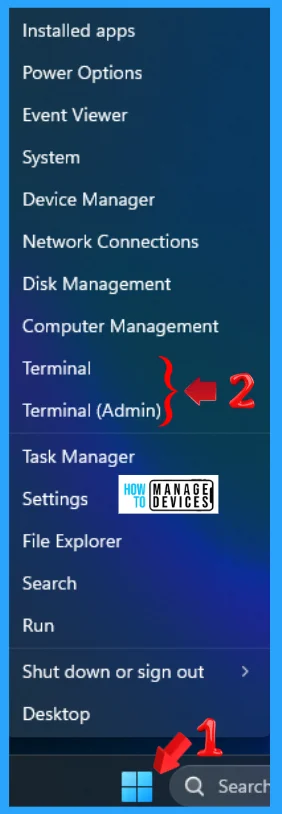
A user can turn on or off the “Do you want to close all tabs” using the Windows Terminal settings. To do so, right-click the Start button (hotkey: Win + X) to open the quick link menu to access quick services. Now select Terminal or Terminal (Admin).
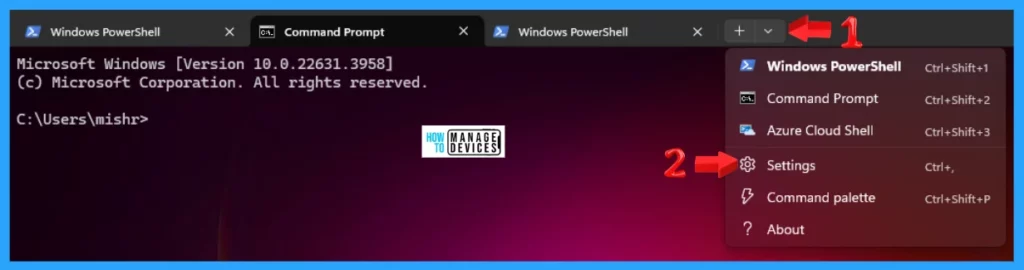
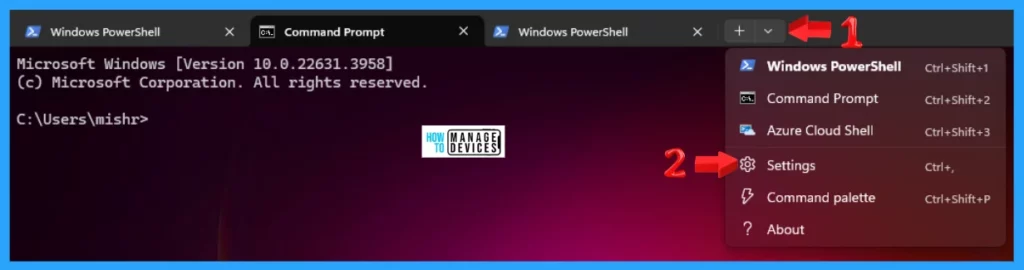
The Windows Terminal opens; try opening different tabs like PowerShell, Command Prompt, Linux, etc. Now click on the down arrow shown in the figure below as 1. The option pop-up opens; click on Settings to open it.
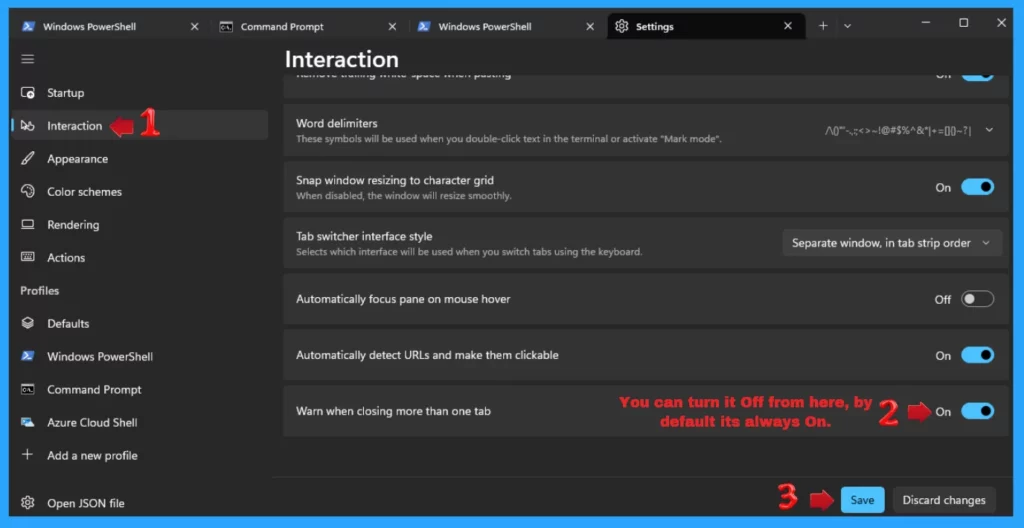
The Settings tab opens; click the Interaction option in the left panel. Scroll down to find the Warn when closing more than one tab option, which was turned on by default. Toggle the button to turn it off. Now press the Save button to secure the changes.
JSON File Method
As discussed above, after opening the Windows Terminal, try opening different tabs like PowerShell, Command Prompt, Linux, etc. Now click on the down arrow shown in the figure below as 1. The option pop-up opens; click on Settings to open it.
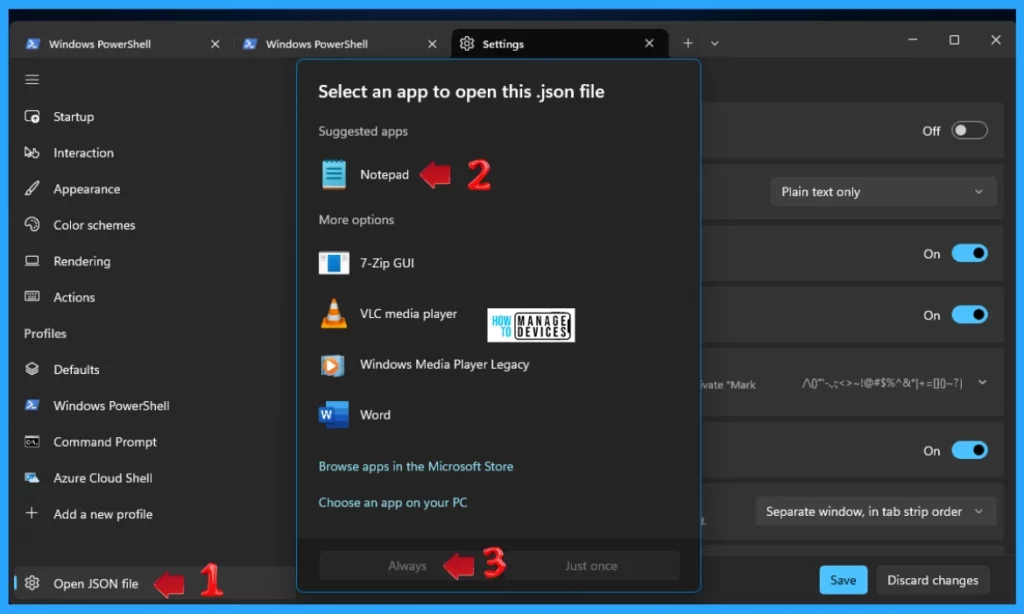
When the Settings window opens, scroll down, choose Open JSON file, and click on it. After clicking Open JSON file, select an app to open the .json file in the pop-up that appears. Choose the Notepad option and click on the Always button to open this type of file in Notepad.
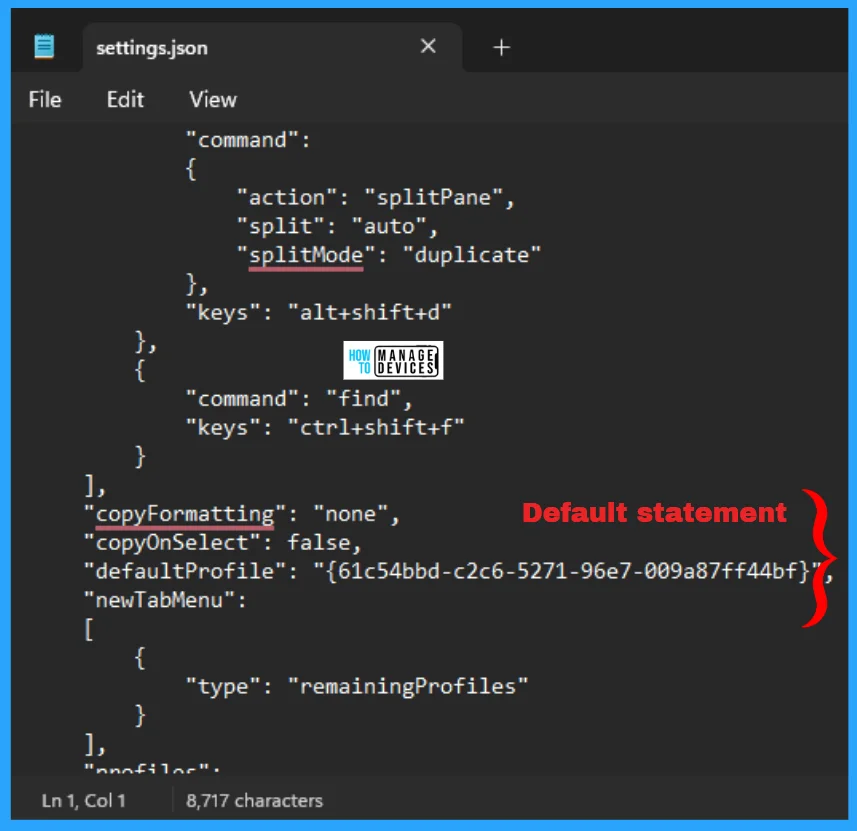
When the .json file opens in Notepad, you can see some codings, as shown in the figure below. The marked lines are the default lines in the .json file, as marked below.
{
    "$help": "https://aka.ms/terminal-documentation",
    "$schema": "https://aka.ms/terminal-profiles-schema",
    "actions":
    [
        {
            "command":
            {
                "action": "copy",
                "singleLine": false
            },
            "keys": "ctrl+c"
        },
        {
            "command": "paste",
            "keys": "ctrl+v"
        },
        {
            "command":
            {
                "action": "splitPane",
                "split": "auto",
                "splitMode": "duplicate"
            },
            "keys": "alt+shift+d"
        },
        {
            "command": "find",
            "keys": "ctrl+shift+f"
        }
    ],
    "copyFormatting": "none",
    "copyOnSelect": false,
    "defaultProfile": "{61c54bbd-c2c6-5271-96e7-009a87ff44bf}",
    "newTabMenu":
    [
        {
            "type": "remainingProfiles"
        }
    ],
    "profiles":
    {
        "defaults": {},
        "list":
        [
            {
                "commandline": "%SystemRoot%\\System32\\WindowsPowerShell\\v1.0\\powershell.exe",
                "guid": "{61c54bbd-c2c6-5271-96e7-009a87ff44bf}",
                "hidden": false,
                "name": "Windows PowerShell"
            },
            {
                "commandline": "%SystemRoot%\\System32\\cmd.exe",
                "guid": "{0caa0dad-35be-5f56-a8ff-afceeeaa6101}",
                "hidden": false,
                "name": "Command Prompt"
            },
            {
                "guid": "{b453ae62-4e3d-5e58-b989-0a998ec441b8}",
                "hidden": false,
                "name": "Azure Cloud Shell",
                "source": "Windows.Terminal.Azure"
            }
        ]
    },
    "schemes":
    [
        {
            "background": "#0C0C0C",
            "black": "#0C0C0C",
            "blue": "#0037DA",
            "brightBlack": "#767676",
            "brightBlue": "#3B78FF",
            "brightCyan": "#61D6D6",
            "brightGreen": "#16C60C",
            "brightPurple": "#B4009E",
            "brightRed": "#E74856",
            "brightWhite": "#F2F2F2",
            "brightYellow": "#F9F1A5",
            "cursorColor": "#FFFFFF",
            "cyan": "#3A96DD",
            "foreground": "#CCCCCC",
            "green": "#13A10E",
            "name": "Campbell",
            "purple": "#881798",
            "red": "#C50F1F",
            "selectionBackground": "#FFFFFF",
            "white": "#CCCCCC",
            "yellow": "#C19C00"
        },
        {
            "background": "#012456",
            "black": "#0C0C0C",
            "blue": "#0037DA",
            "brightBlack": "#767676",
            "brightBlue": "#3B78FF",
            "brightCyan": "#61D6D6",
            "brightGreen": "#16C60C",
            "brightPurple": "#B4009E",
            "brightRed": "#E74856",
            "brightWhite": "#F2F2F2",
            "brightYellow": "#F9F1A5",
            "cursorColor": "#FFFFFF",
            "cyan": "#3A96DD",
            "foreground": "#CCCCCC",
            "green": "#13A10E",
            "name": "Campbell Powershell",
            "purple": "#881798",
            "red": "#C50F1F",
            "selectionBackground": "#FFFFFF",
            "white": "#CCCCCC",
            "yellow": "#C19C00"
        },
        {
            "background": "#282C34",
            "black": "#282C34",
            "blue": "#61AFEF",
            "brightBlack": "#5A6374",
            "brightBlue": "#61AFEF",
            "brightCyan": "#56B6C2",
            "brightGreen": "#98C379",
            "brightPurple": "#C678DD",
            "brightRed": "#E06C75",
            "brightWhite": "#DCDFE4",
            "brightYellow": "#E5C07B",
            "cursorColor": "#FFFFFF",
            "cyan": "#56B6C2",
            "foreground": "#DCDFE4",
            "green": "#98C379",
            "name": "One Half Dark",
            "purple": "#C678DD",
            "red": "#E06C75",
            "selectionBackground": "#FFFFFF",
            "white": "#DCDFE4",
            "yellow": "#E5C07B"
        },
        {
            "background": "#FAFAFA",
            "black": "#383A42",
            "blue": "#0184BC",
            "brightBlack": "#4F525D",
            "brightBlue": "#61AFEF",
            "brightCyan": "#56B5C1",
            "brightGreen": "#98C379",
            "brightPurple": "#C577DD",
            "brightRed": "#DF6C75",
            "brightWhite": "#FFFFFF",
            "brightYellow": "#E4C07A",
            "cursorColor": "#4F525D",
            "cyan": "#0997B3",
            "foreground": "#383A42",
            "green": "#50A14F",
            "name": "One Half Light",
            "purple": "#A626A4",
            "red": "#E45649",
            "selectionBackground": "#4F525D",
            "white": "#FAFAFA",
            "yellow": "#C18301"
        },
        {
            "background": "#002B36",
            "black": "#002B36",
            "blue": "#268BD2",
            "brightBlack": "#073642",
            "brightBlue": "#839496",
            "brightCyan": "#93A1A1",
            "brightGreen": "#586E75",
            "brightPurple": "#6C71C4",
            "brightRed": "#CB4B16",
            "brightWhite": "#FDF6E3",
            "brightYellow": "#657B83",
            "cursorColor": "#FFFFFF",
            "cyan": "#2AA198",
            "foreground": "#839496",
            "green": "#859900",
            "name": "Solarized Dark",
            "purple": "#D33682",
            "red": "#DC322F",
            "selectionBackground": "#FFFFFF",
            "white": "#EEE8D5",
            "yellow": "#B58900"
        },
        {
            "background": "#FDF6E3",
            "black": "#002B36",
            "blue": "#268BD2",
            "brightBlack": "#073642",
            "brightBlue": "#839496",
            "brightCyan": "#93A1A1",
            "brightGreen": "#586E75",
            "brightPurple": "#6C71C4",
            "brightRed": "#CB4B16",
            "brightWhite": "#FDF6E3",
            "brightYellow": "#657B83",
            "cursorColor": "#002B36",
            "cyan": "#2AA198",
            "foreground": "#657B83",
            "green": "#859900",
            "name": "Solarized Light",
            "purple": "#D33682",
            "red": "#DC322F",
            "selectionBackground": "#073642",
            "white": "#EEE8D5",
            "yellow": "#B58900"
        },
        {
            "background": "#000000",
            "black": "#000000",
            "blue": "#3465A4",
            "brightBlack": "#555753",
            "brightBlue": "#729FCF",
            "brightCyan": "#34E2E2",
            "brightGreen": "#8AE234",
            "brightPurple": "#AD7FA8",
            "brightRed": "#EF2929",
            "brightWhite": "#EEEEEC",
            "brightYellow": "#FCE94F",
            "cursorColor": "#FFFFFF",
            "cyan": "#06989A",
            "foreground": "#D3D7CF",
            "green": "#4E9A06",
            "name": "Tango Dark",
            "purple": "#75507B",
            "red": "#CC0000",
            "selectionBackground": "#FFFFFF",
            "white": "#D3D7CF",
            "yellow": "#C4A000"
        },
        {
            "background": "#FFFFFF",
            "black": "#000000",
            "blue": "#3465A4",
            "brightBlack": "#555753",
            "brightBlue": "#729FCF",
            "brightCyan": "#34E2E2",
            "brightGreen": "#8AE234",
            "brightPurple": "#AD7FA8",
            "brightRed": "#EF2929",
            "brightWhite": "#EEEEEC",
            "brightYellow": "#FCE94F",
            "cursorColor": "#000000",
            "cyan": "#06989A",
            "foreground": "#555753",
            "green": "#4E9A06",
            "name": "Tango Light",
            "purple": "#75507B",
            "red": "#CC0000",
            "selectionBackground": "#555753",
            "white": "#D3D7CF",
            "yellow": "#C4A000"
        },
        {
            "background": "#000000",
            "black": "#000000",
            "blue": "#000080",
            "brightBlack": "#808080",
            "brightBlue": "#0000FF",
            "brightCyan": "#00FFFF",
            "brightGreen": "#00FF00",
            "brightPurple": "#FF00FF",
            "brightRed": "#FF0000",
            "brightWhite": "#FFFFFF",
            "brightYellow": "#FFFF00",
            "cursorColor": "#FFFFFF",
            "cyan": "#008080",
            "foreground": "#C0C0C0",
            "green": "#008000",
            "name": "Vintage",
            "purple": "#800080",
            "red": "#800000",
            "selectionBackground": "#FFFFFF",
            "white": "#C0C0C0",
            "yellow": "#808000"
        }
    ],
    "themes": []
}
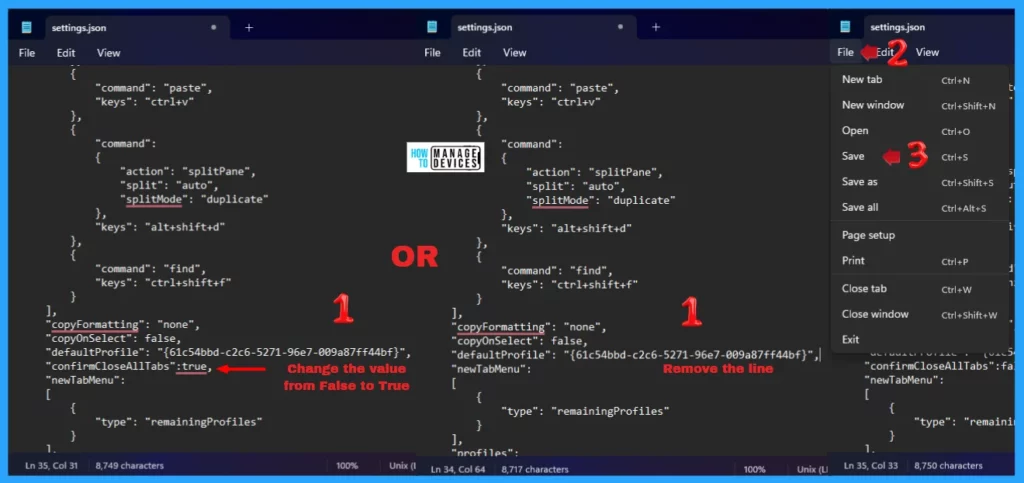
In the same phase, insert/ write the line “confirmCloseAllTabs”:false, in the area indicated below; this helps to turn off the Do You Want to Close All Tabs. Now go to File and then click on Save to secure the changes.
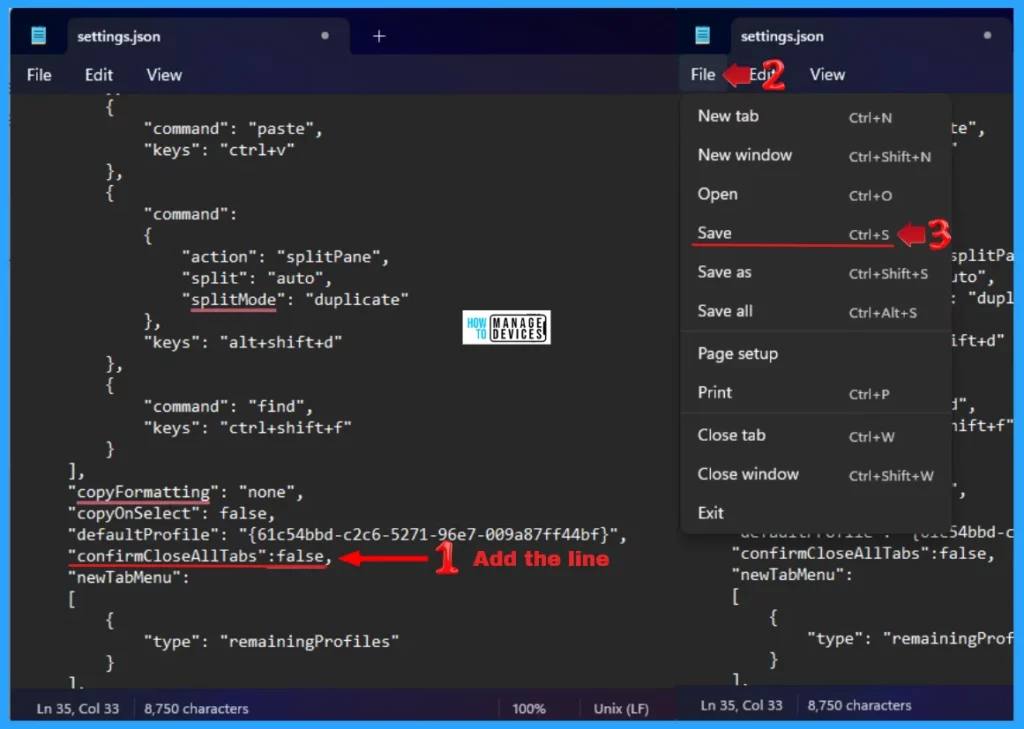
To turn on the Do You Want to Close All Tabs, you can change the value “confirmCloseAllTabs”:false to “confirmCloseAllTabs”:true or remove the line you edited earlier. Now go to File and then click on Save to secure the changes
I hope the information on how Windows Terminal Allows Turn On or Off the Do You Want to Close All Tabs Prompt in Windows 11 is helpful. Please follow us on the HTMD Community and visit our website, HTMD Forum, if you like our content. Suggest improvements, if any, and we would love to know which topic you want us to explore next.
Sources
We are on WhatsApp. To get the latest step-by-step guides and news updates, Join our Channel. Click here – HTMD WhatsApp.
Author
Alok graduated with a Master of Computer Applications (MCA) degree. He loves writing on Windows 11 and related technologies. He likes to share his knowledge, quick tips, and tricks with Windows 11 or Windows 10 with the community.




You should change the quotes for the json items to be copied to be straight quotes; instead of the smart quotes ones you have. As they are they will break JSON.