






Check WinRM Security Event ID Details using SCCM CMPivot
Let’s check WinRM Security Event ID Details using SCCM CMPivot. You can use this method to collect the details of the Windows devices based on Event IDs. Windows added additional details to WinRM event logs. More details are below.
After July Cumulative Updates (KB5015807 and KB5015814), it adds IP address auditing for incoming Windows Remote Management (WinRM) connections in security event 4262 and WinRM event 91.
You can also use CMPivot to query the registry entries on Windows servers and client operating systems. The CMPivot gives you almost live data of the online SCCM clients. So there is no delay, unlike other reporting methods.
CMPivot is the subset of the KQL query language that is used in Azure log analytics. You can also use the Intune portal to check the registry checks using the CMPivot query if you have already enabled the SCCM Cloud (tenant) attach feature.

- CMPivot Query For SCCM BitLocker Management Event Logs
- Publish CMPivot Query to the SCCM Community Hub Contributions
WinRM Event ID Details
You can get the WinRM Event ID Details from the Event Viewer. You can use the following path to get the Event ID details using CMPivot. But there is a catch! More details are available in the below section.
- WinRM Event Logs: Microsoft – Windows – Windows Remote Management
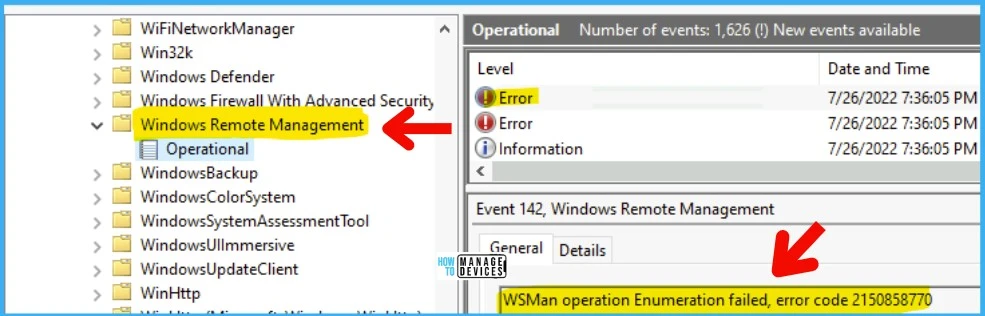
Security Event ID Details
Let’s check how to collect the Security Event ID details using SCCM CMPivot and list down or get the count of devices having a particular security event log. Again, you need to make some adjustments in the CMPivot query to get this working. More details are below.
- Security Event Logs: Windows Logs -> Security
Prerequisite for SCCM CMPivot
Ensure you are running the latest version of the SCCM client and CMPivot (SCCM console). Appropriate SCCM security permissions are required to run CMPivot.
Also, SCCM client devices should require PowerShell version 4.0. The Start CMPivot action doesn’t appear in the console when connected to an SCCM CAS site.
Launch CMPivot to Check WinRM Event ID Details
There are different methods to launch CMPivot. The in-console CMPivot method is explained in this post. However, there are other methods as well, such as:
Let’s check WinRM Event ID Details using SCCM CMPivot. Always use the smallest device collection as the first step for initial testing. This will help to understand whether the CMPivot query is working as expected or not.
- Navigate to the Device Collections against which you want to run the CMPivot query to review the BitLocker Management event logs.
- Select any one of the device collections as per your requirement.
- Right-Click on Device collection.
- Select Start CMPivot.
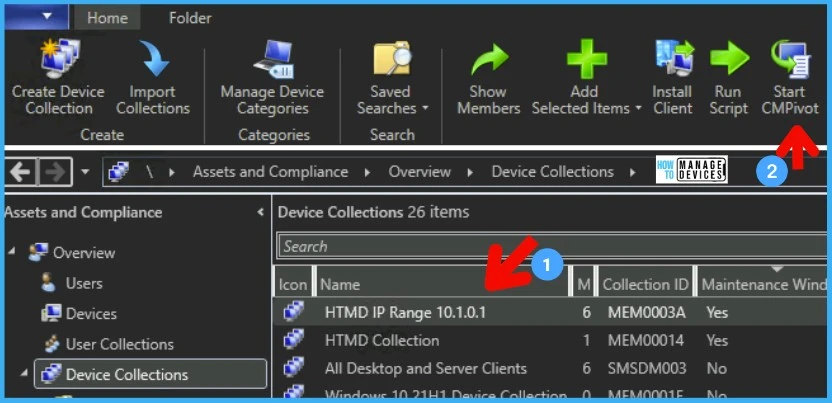
WinEvent Vs. EventLog
Let’s understand which CMPivot entity should be used to get the event log details. I see there are some differences, as listed down in the below table, between both entities.
I use WinEvent for checking the Microsoft Windows related events. The Winevent is specifically for windows events, and EventLog is more generic and even can be used for 3rd party app event logs.
| CMPivot Entity Name | Description | Properties |
|---|---|---|
| WinEvent | Events from a Windows event log | Device LevelDisplayName DateTime Message ProviderName ID |
| EventLog | Events from an Event log | Device Entry Type DateTime Message Source EventID |
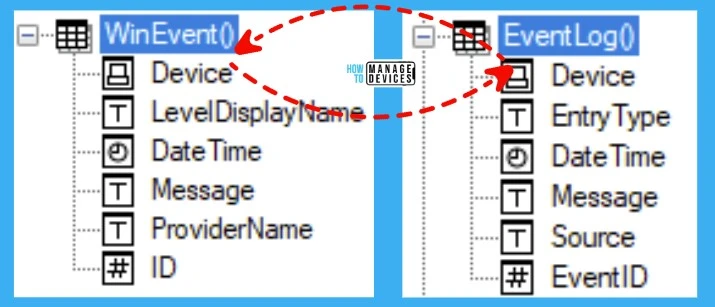
Check WinRM Event ID Details using SCCM CMPivot
Let’s try to use Windows Remote Management (WinRM) events to track the devices with some errors or with specific event IDs etc. But you must be careful with the CMPivot query, as explained below.
The following is the WinRM Event Logs path: Microsoft – Windows – Windows Remote Management. The question is how to convert this event log path into the CMPivot query event log path.
Wait, Microsoft-Windows-Windows Remote Management/Operational -> this is not going to work! Because Windows Remote Management is not the actual name of the event log path. You must use WinRM instead, as shown below.
- Click on the Query Tab from the CMPivot application/tool.
- Paste the WinRM CMPivot Query to the “query” window.
- The following query gives the list of all WinRM events for the last 2 hours.
- Click on the Run Query button and wait for it to complete the execution of the query.
WinEvent('Microsoft-Windows-WinRM/Operational', 2h)CMPivot query takes a long time to complete if you are running against a larger collection. So hold your horses and test your CMPivot queries with smaller collections first or run against a particular device.
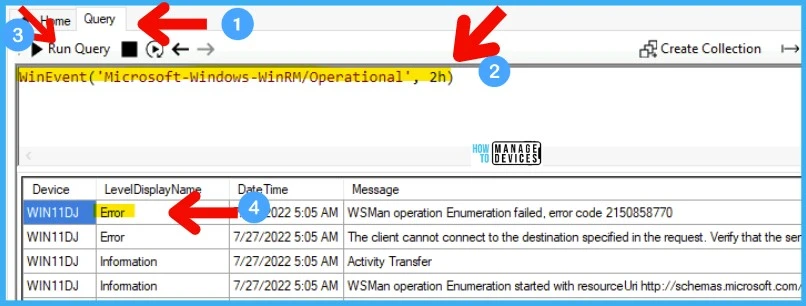
As explained below, you can expand or filter down the query to get the exact details or count of devices with a particular error. With the below query, let’s check the WinRM error code 2150858770. This CMPivot query will return the device details with the error code within the last hour (1h).
WinEvent('Microsoft-Windows-WinRM/Operational', 1h) | where Message contains 'error code 2150858770'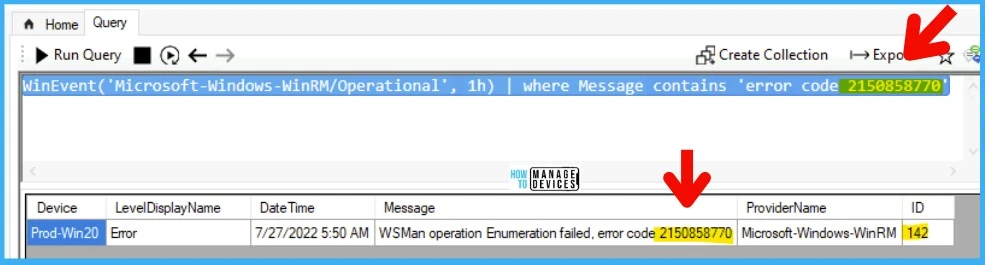
You can also fetch the high-level count of errors per device with any particular WinRM error or message using the SCCM CMPivot query shared below.
WinEvent('Microsoft-Windows-WinRM/Operational') |
summarize countif( (Message contains 'error code 2150858770') ) by Device |
where (countif_ > 0)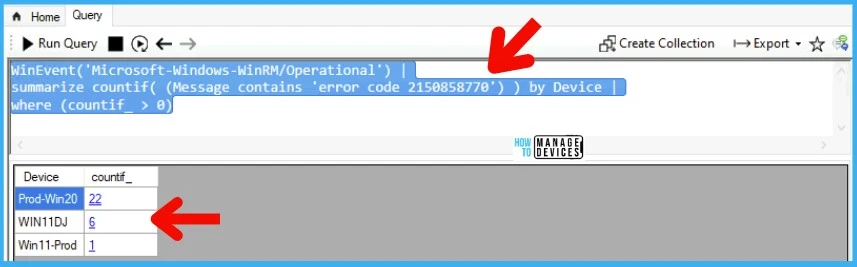
Check Security Event ID Details
Let’s try to use Windows Security events to track the devices with some errors or with specific event IDs etc. But you need to be careful with the CMPivot query here, as explained below.
Security Event Logs path is Windows Logs -> Security, and However, when you convert that into CMPivot, you need to be a bit more careful. You need to use “Security” as the path mentioned in the CMPivot query below to fetch the Windows security events.
NOTE! – The following CMPivot query gets Windows security event log details from all the devices in a particular collection for the last 2 hours. This information can be overwhelming. So try to reduce the number of devices in the collection before running this query.
WinEvent('Security', 2h)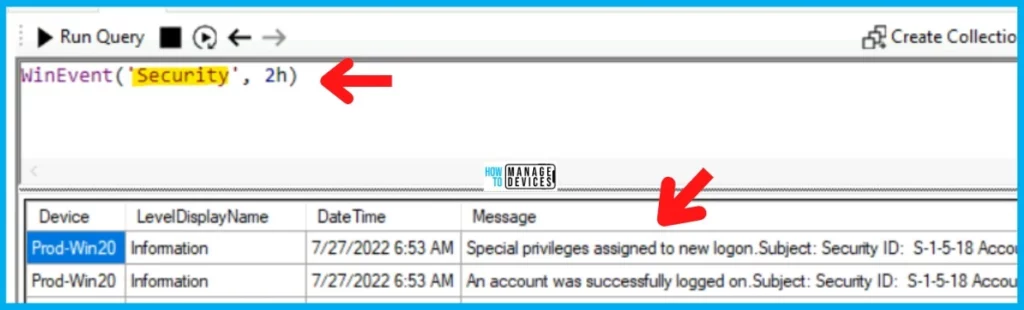
You can get the IP address auditing for incoming Windows Remote Management (WinRM) connections in security event 4262 and WinRM event 91 using the following CMPivot query.
The following CMPivot query helps to get new security events from the devices for the last 2 hours based on the specific event IDs.
WinEvent('Security', 2h) | where ID == 4262 or ID == 91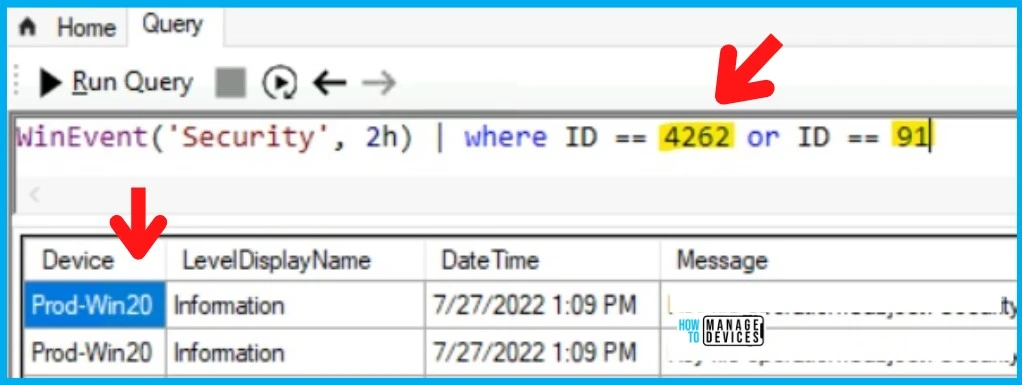
Some other sample CMPivot queries to check IP address auditing for WinRM connections.
WinEvent('Security') |
summarize countif( (Message contains 'IP Address') ) by Device |
where (countif_ > 0)
Resources
CMPivot overview – Configuration Manager | Microsoft Docs
Author
Anoop C Nair is Microsoft MVP! He is a Device Management Admin with more than 20 years of experience (calculation done in 2021) in IT. He is Blogger, Speaker, and Local User Group HTMD Community leader. His main focus is on Device Management technologies like SCCM 2012, Current Branch, and Intune. He writes about ConfigMgr, Windows 11, Windows 10, Azure AD, Microsoft Intune, Windows 365, AVD, etc.




Hello,
Is it possible to combive some WinEvent with some EventLog I am asking because in old Operating Systems the events were in EventLog Only…
WinEvent(‘Microsoft-Windows-Windows Defender/operational’, 7d) | where (ID == 1000 or ID == 1001)
OR
EventLog(‘System’) | where (ID == 1000 or ID == 1001)
Thanks,
Dom