





How to Start Working with Application Compatibility Tool ACT
Today, I will explore How to Start Working with Application Compatibility Tool ACT. The Upgrade Assessment Tool (UAT) helps to assess application compatibility.
ACT (Application Compatibility Toolkit) contains tools and documentation to assess and focus on application compatibility with various Windows versions.
Application Compatibility Toolkit helps build an application record, recognize compatibility issues, apply fixes, and deploy solutions to users.
This tool is useful if your organization migrates computers to Windows 7 and 8. The previous version of this tool is called Application Compatibility Tool Kit Connector (ACT Connector). How UAT works in FOUR steps.

How to Start Working with Application Compatibility Tool ACT

- The inventory collection package installed on each computer will collect the inventory from each computer and send it to ACT DB.
- The Upgrade Assessment Tool connects to your ACT server to download information about application compatibility.
- The Upgrade Assessment Tool connects to your SCCM 2012 SP1 site DB to sync CM inventory information for hardware devices’ Application Compatibility status.
- The Upgrade Assessment Synchronization service connects to the compatibility Online service, your ACT database, and your CM DB and then synchronizes the compatibility data for use with upgrade assessment reports.
- How To Run Program Compatibility Troubleshooter On Windows 11
- Fix SCCM Admin Console Version Compatibility Issue ConfigMgr
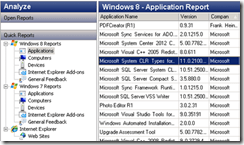
When migrating many workstations, you must use the Upgrade Assessment Tool and Application Compatibility Tool Kit. These tools will provide you with Device driver compatibility information for installed peripheral devices and reports that you can use to determine which device drivers must be upgraded to support the Windows operating system.
Summary reports can provide an enterprise-wide view of operating system upgrade readiness. The screenshot shows some sample reports (Windows 8 and Windows 7 Application Reports).
Prerequisite for Upgrade Assessment Tool (UAT)
- Site Server – System Center 2012 Configuration Manager SP1 RTM (or Beta).
- Client – System Center 2012 Configuration Manager RTM and above.
- Application Compatibility Toolkit (ACT) 6.0. (no need to install this separately on SCCM 2012 SP1 site Servers because this tool is already part of Windows Assessment and Deployment Kit (ADK) for Windows® 8).
- The Microsoft .NET Framework 4.
Configuration Steps for Upgrade Assessment Tool
Following are the Configuration Steps for Upgrade Assessment Tool
Launch the Application Compatibility Manager shortcut to configure ACT.
Configure Application Compatibility Toolkit (ACT) 6.0.

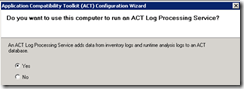
I want to keep my CM 2012 SP1 site server as an ACT log processing Service. An ACT Log Processing Service adds data from inventory log files and runtime analysis logs to an ACT database.
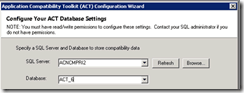
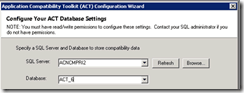
Configure Your ACT Database Settings. You must have read and written permission to configure these settings.
Specify the location Path and share it as ACT_6Logs. Data collected from the computers in your organization are automatically processed from this location. Note that Domain Computer writes access to this share.
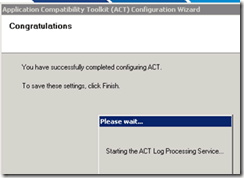
Starting the ACT Log Processing Service. That is the Configuration of ACT completed.
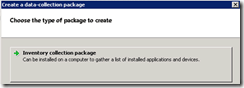
Select Collect—> File—> New from the Application Compatibility Manager console to create and deploy an Inventory collection package to computers. The package will collect inventory data that will be uploaded to the ACT database.
This package should be installed on all the computers on which you want to collect data. Use SCCM 2012 applications to install it on all the systems.
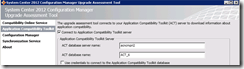
Start the configuration of System Center 2012 Configuration Manager. The upgrade assessment tools connect to your ACT server to download information about application compatibility.
The upgrade assessment tool connects to your SCCM 2012 SP1 site DB to sync CM inventory information for application compatibility status for hardware devices.
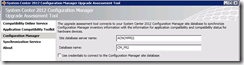
The Upgrade Assessment Synchronization service connects to the compatibility Online service, your ACT database, and your CM DB and then synchronizes the compatibility data for use with upgrade assessment reports.
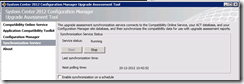
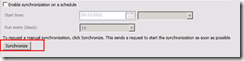
Schedule the Sync timings or manually sync to get the updated data.
We are on WhatsApp. To get the latest step-by-step guides and news updates, Join our Channel. Click here –HTMD WhatsApp.
Author
Anoop C Nair has been Microsoft MVP from 2015 onwards for 10 consecutive years! He is a Workplace Solution Architect with more than 22+ years of experience in Workplace technologies. He is also a Blogger, Speaker, and leader of the Local User Group Community. His main focus is on Device Management technologies like SCCM and Intune. He writes about technologies like Intune, SCCM, Windows, Cloud PC, Windows, Entra, Microsoft Security, Career, etc..




Hi where do I get the SCCM UAT install package, I have tried TechNet and cant find it.
thanks
angel
StaffHi ! – Beta version is still available for download in Microsoft Connect Site HERE