






5 Easy Steps to Secure your Microsoft 365 or Entra Tenant
Let’s discuss 5 Steps to Instantly Secure Your Microsoft 365 or Entra Tenant. Microsoft provides a 5 steps to secure Microsoft 365 or Entra tenant quickly. Securing your Microsoft 365 or Entra tenant is crucial for protecting sensitive data, preventing unauthorized access, and maintaining business continuity.
To easily ensure the security of those tenant Microsoft Introduced 5 Instant steps. This will instantly deploy 14 CA policies in report-only mode. From the tenant you can access advanced conditional access deployment guides.
As you know that, Conditional Access policy in Microsoft Entra ID is a security measure that helps organizations control access to their resources based on specific conditions. The Instant 5 steps is based on Conditional Access Policy.
This 5 steps are straightforward and it will effective for your tenant. Here I would like to explain more about 5 Steps to Instantly Secure Your Microsoft 365 or Entra Tenant. I will also shows 5 Instant steps in detailed way.

Table of Contents
5 Steps to Instantly Secure Your Microsoft 365 or Entra Tenant
As mentioned, you can easily secure your tenant with 5 instant steps. These 5 steps are explained by Mr. Meril Fernando Product Manager @ Microsoft. He explained the 5 steps with a quick walk through of the Conditional Access Advanced Deployment guide that I recorded with Brian Baldock (Senior Program Manager).
| 5 Steps | Details |
|---|---|
| Sign in as an admin | setup.cloud.microsoft. |
| Deploy CA (Conditional Access) policies | Deploy it from the “All guides” section. |
| Select Zero Trust category | Select it for enhanced security. |
| Select all and deploy | Select all CA policies and deploy them in “report-only” mode. |
| Enable them after review | Enable them after review to fully implement security measures. |
- How to Secure Entra Connect Sync with TPM Backed App Authentication
- How to Enable Token Protection in Entra Conditional Access for Windows App to Secure AVD and Windows 365
- Phase out of Microsoft Entra Permissions Management in April 2025
Sign in as an Admin
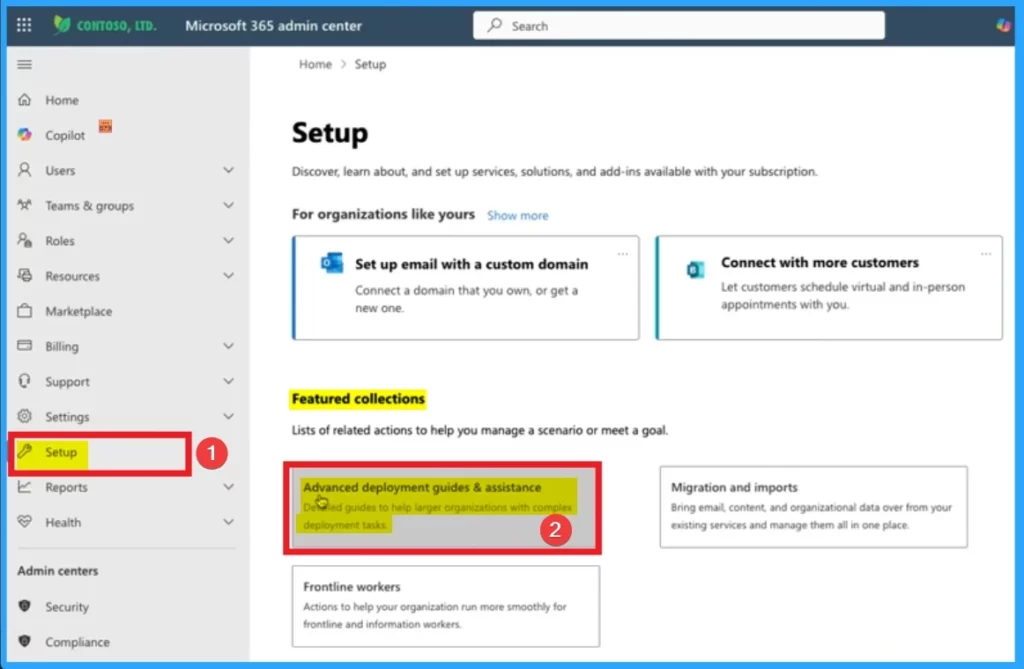
To configure the Conditional Access polies, you must sign in Microsoft 365 admin center using an administrator account. is the first step in deploying security measures like Conditional Access policies. Sign in as an admin in setup.cloud.microsoft.
- Open the Microsoft 365 admin center
- Select Setup blade
- Select Advanced deployment guides & Assistance
Deploy Conditional Access Policy
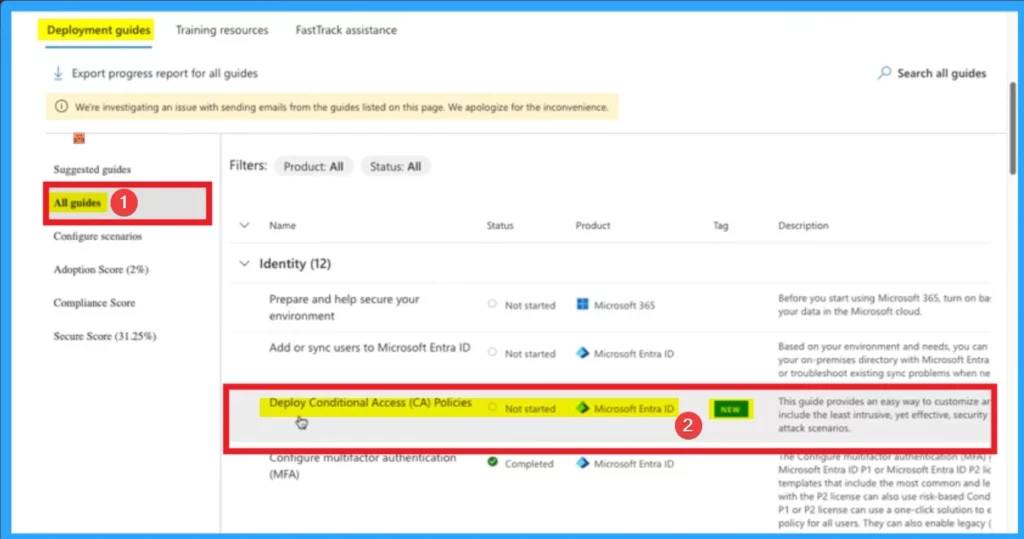
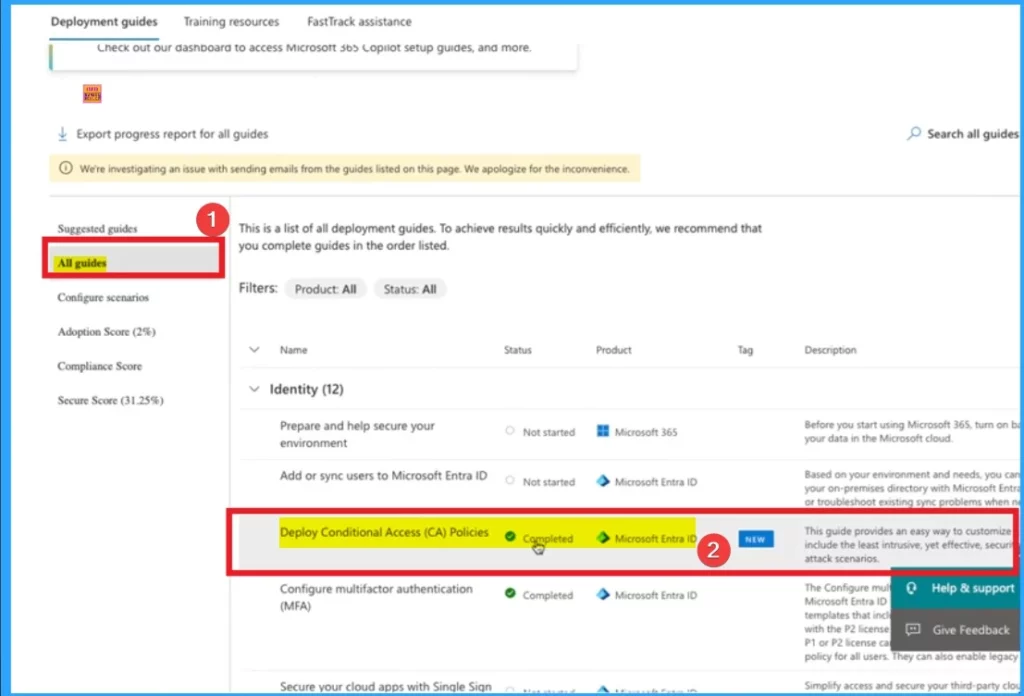
The 2nd step is deploying conditional access policy. Microsoft provides pre-configured Conditional Access (CA) policies that align with security best practices. After selecting Advanced deployment guides & asssistance from the above window, select All guides option under Deployment guides. Select Deploy Conditional Access Policies.
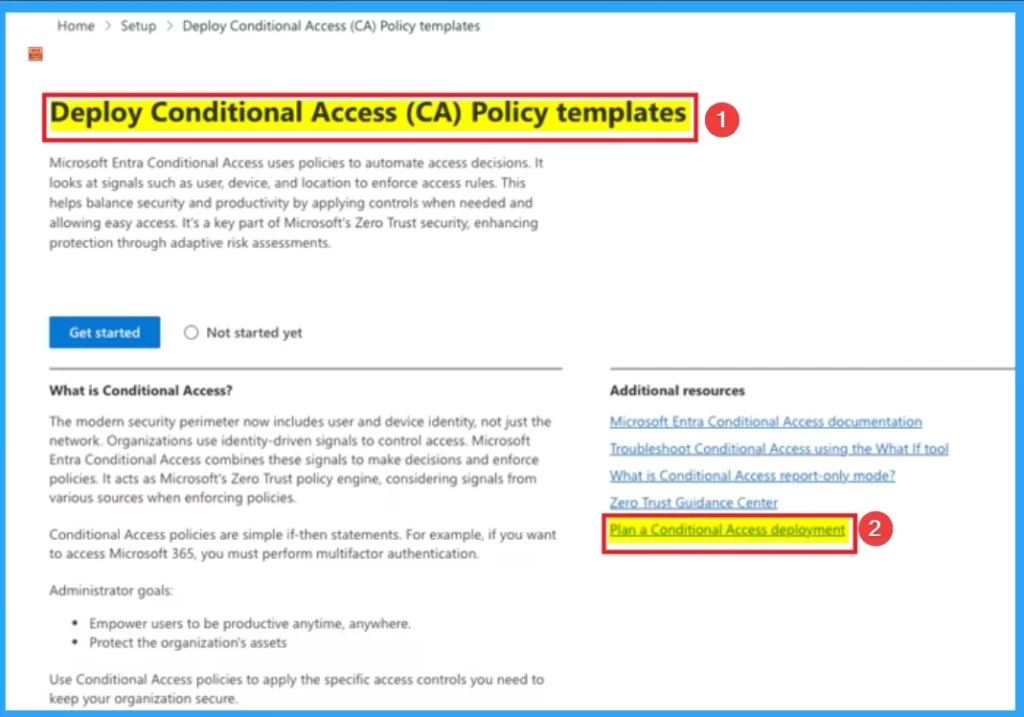
Then you will get the deploy Conditional Access Policies page. Here you can get start deploying. This page shows Additional Resources section that shows different hyperlinks. Click on the Plan a Conditional Access Deployment.
Select Zero Trust Category
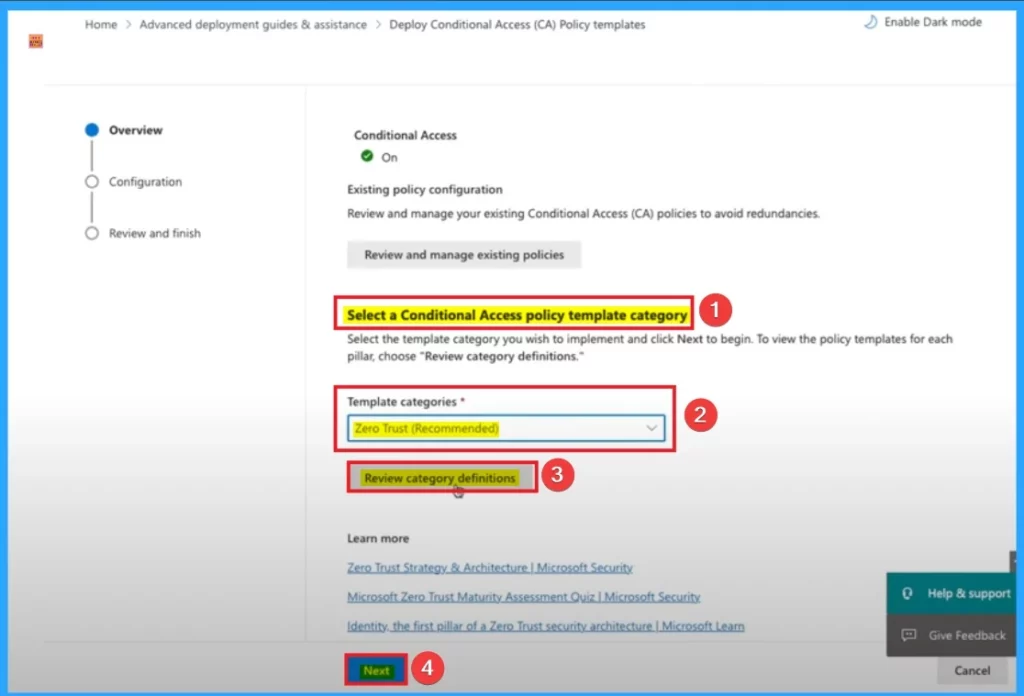
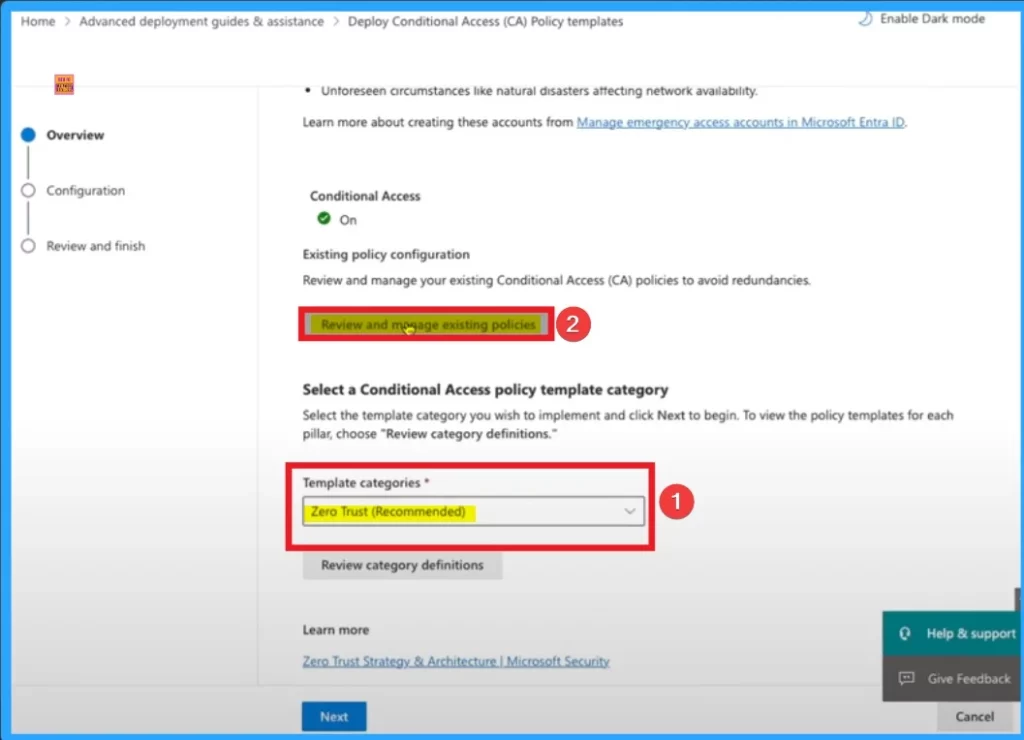
After that you can select a Conditional Access policy template category the below window. Here Zero Trust is choosed from template category. Selecting this category ensures that your policies align with modern cybersecurity frameworks.
- Then click on the Review Category
- Click on the Next button
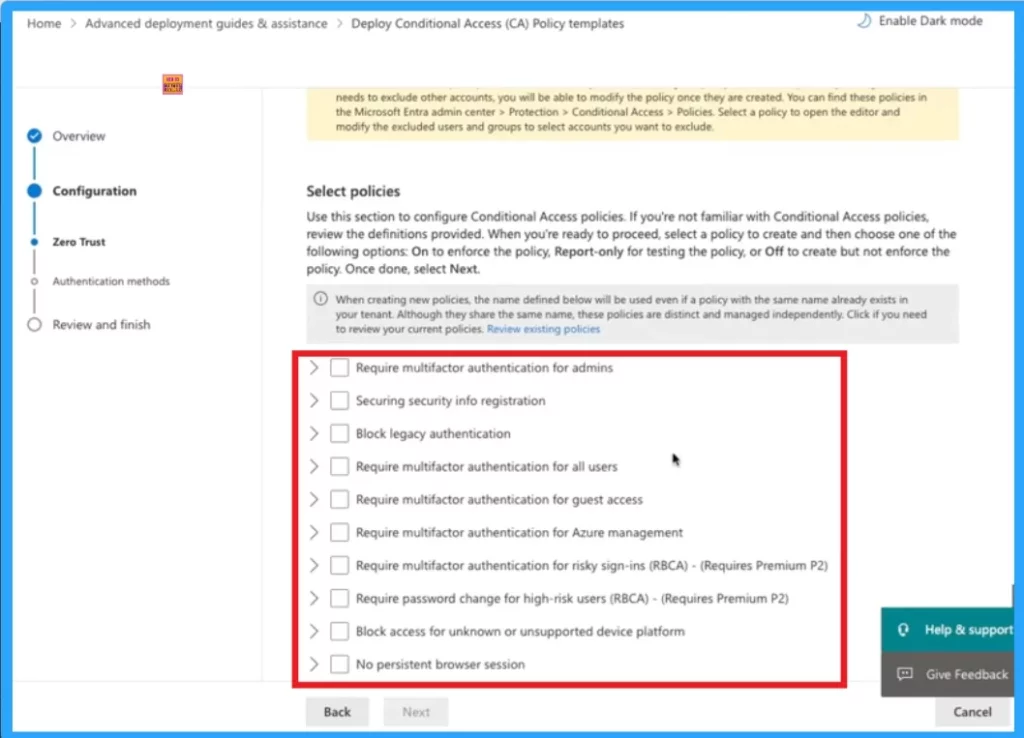
The below screenshot shows the different policies included under Zero Tust. By default Report only mode option is selected for this policies. You can enable the policies by clicking on the Check box. The following table shows the available policies.
| Available Policies |
|---|
| Require multifactor authentication for admins |
| Securing security info registration |
| Block legacy authentication |
| Require multifactor authentication for all users |
| Require multifactor authentication for guest access |
| Require multifactor authentication for Azure management |
| Require multifactor authentication for risky sign-ins (RBCA) – (Requires Premium P2) |
| Require password change for high-risk users (RBCA) – (Requires Premium P2) |
| Block access for unknown or unsupported device platform |
| No persistent browser session |
| Require approved client apps or app protection policies |
| Require compliant or Microsoft Entra hybrid joined device or multifactor authentication for all users |
| Require approved client apps or app protection policies |
| Block access to Office 365 apps for users with insider risk – (Requires Premium P2) |
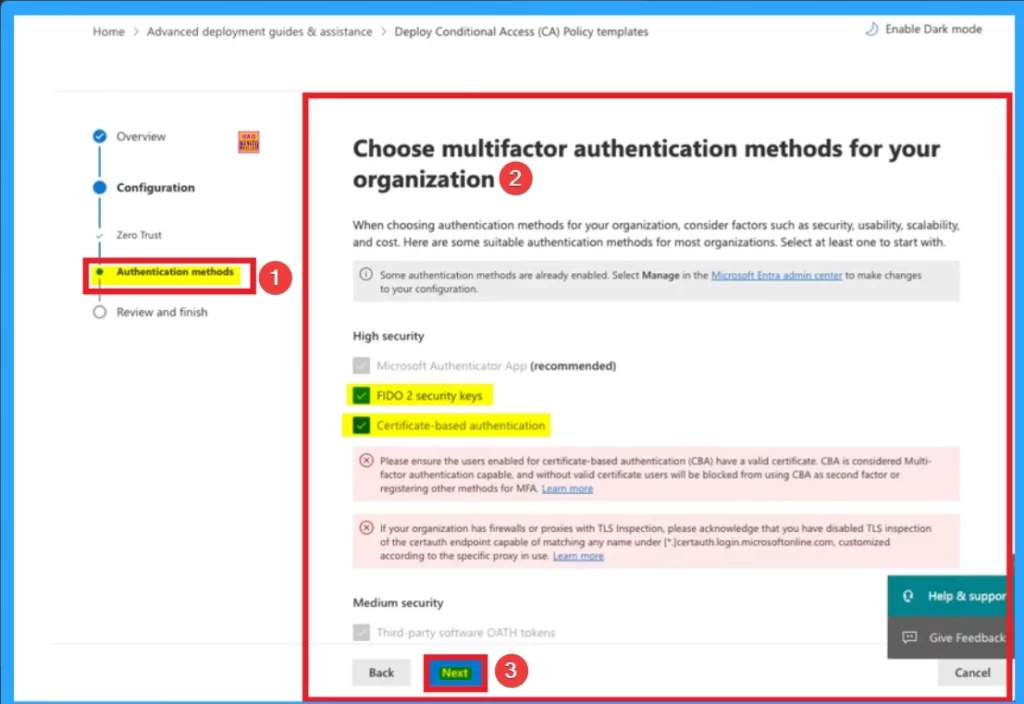
After that, you can choose multifactor authentication methods for your organization. Here you can see different authentication methods that can be as part of these policies. Microsoft recommended authentication app which gives high security. Here you can choose FIDO 2 security keys, Certificate based authentication. After choosing authentication methods click on the Next button.
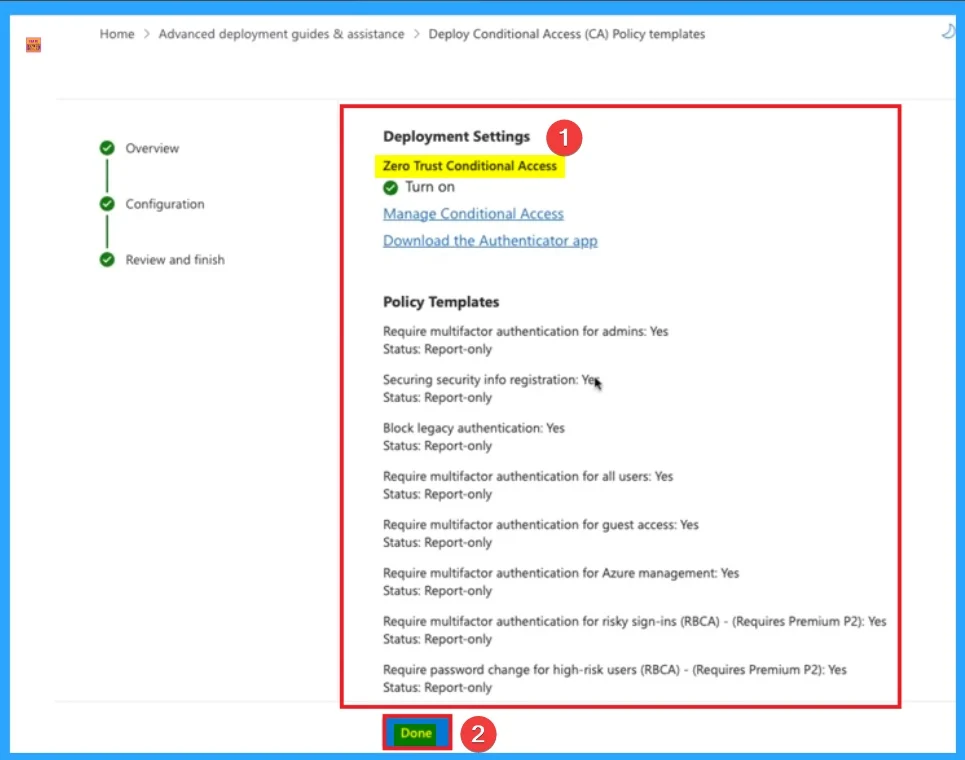
After that you will get the finish tab that shows different policy templates selected before. Report-only mode option is selected for each template.
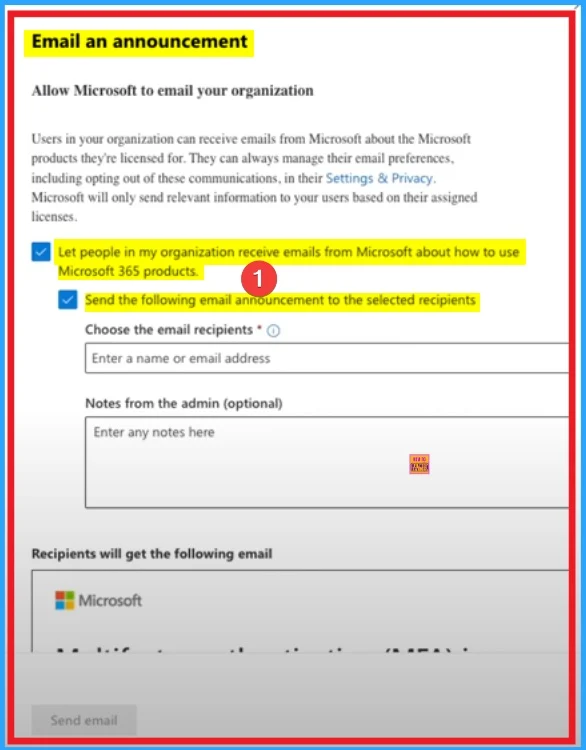
After that you can click on the email anouncement option under. You can choose this option to send email to your organization. Here 2 options are enabled and it includes Let people in my organization receive emails from Microsoft about how to use Microsoft 365 products and Send the following email announcement to the selected recipients.
After completing all the steps which are shown above, you can go back to the Deployment Guides page. Under Deployment Guides page, select All guides option. Under All guides you can see Deploy Conditional Access Policies is completed.
Review and Manage Exiciting Policies
After that, you can open the Deploy Conditional Access Policies page. Under Select a Conditional Access Policy template category, select Zero Trust template, and Click on the Review and Manage Existing Policies.
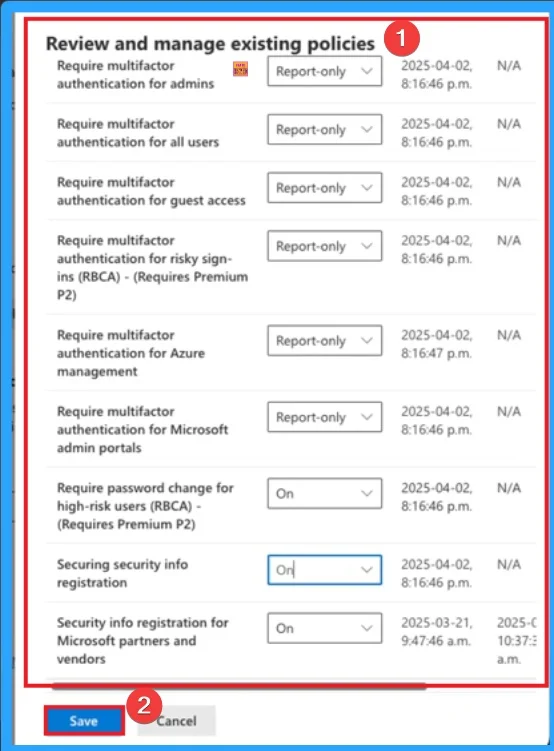
After that, you can see different policies which can be Review and Manage. Select Report Only option for each policies. Here you can see different policies related to multifactor authentication. After selecting Report Only Mode you can click on the Save button.
Need Further Assistance or Have Technical Questions?
Join the LinkedIn Page and Telegram group to get the latest step-by-step guides and news updates. Join our Meetup Page to participate in User group meetings. Also, Join the WhatsApp Community to get the latest news on Microsoft Technologies. We are there on Reddit as well.
Author
Anoop C Nair has been a Microsoft MVP for 10 consecutive years from 2015 onwards. He is a Workplace Solution Architect with more than 22+ years of experience in Workplace technologies. He is a Blogger, Speaker, and Local User Group Community leader. His primary focus is on Device Management technologies like SCCM and Intune. He writes about technologies like Intune, SCCM, Windows, Cloud PC, Windows, Entra, Microsoft Security, Career, etc.
Discussion