






Create AI Images from Microsoft Edge
Let’s learn about Creating AI Images from Microsoft Edge. AI images are one of the best features introduced by Microsoft in its Edge browser. AI has played a vital role in the technical world, and it is one of the built-in features of Microsoft Edge.
AI-powered tools help you boost your creativity, ease your work, and allow you to access everything at your fingertip. AI image creation is the best innovation with AI in Microsoft Edge. This feature helps you generate images with text prompts.
AI images (Bing Image Creator) feature is available only on Windows 10 and 11. Microsoft is trying to expand this feature to users on another platform. Bing Image Craetor only support the English Language currently. This blog post will help you to understand how to create an AI image in Microsoft Edge.
Bing Image Creator is now improved with the DALL-E 3 feature developed by OpenAI, which has brought a new era of Image creation. The DALL-E 3 images have a lot of features that enhance your daily life with new ways to use this AI image generator.

- How to Enable or Disable Copilot in Windows 10
- How to Remove and Replace Background using Windows Photos
What are the Features of DALL-E 3 in Microsoft Edge?
1. It enhances the image quality
2. It provides Versatile Creative options
3. It allows us to save time
4. It helps to improve efficiency
5. It has a user-friendly interface
Create AI Images from Microsoft Edge
Image Creator gives you a different experience. It is different from searching for an image on the web. You will get creative images with better prompts when you add details such as adjectives, Locations, and even artistic styles.
How to Create AI Images with Image Creator
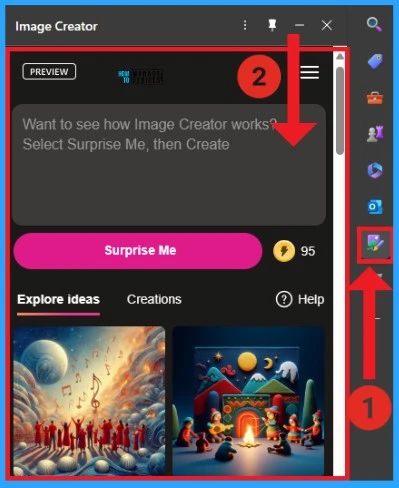
Microsoft Edge is the first browser with an integrated AI-powered image generator. You can easily access Image Creator from the Edge Sidebar. After selecting Image Creator, type the text prompt in the textbox and Click on the Create option. You will get the images according to the text prompt.
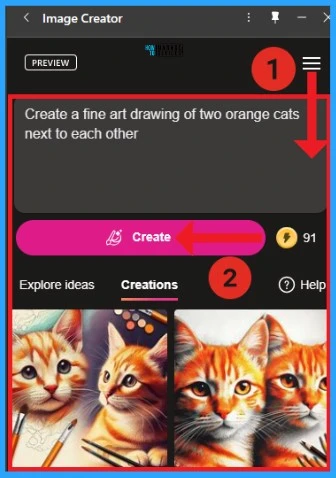
Image Creator provides a boost that helps to create more quickly. Image generation may take longer if you run out. In the screenshot below, you can see the boost (91) near the Create option.
- Turn On and Off Location Sharing in Edge
- Capture Network Trace for Troubleshooting in Microsoft Edge
- How to Enable Mica Effect in Microsoft Edge
Integration of Bing Image Creator with DALL-E 3
The DALL-E 3 feature helps you to create unique, customizable images. AI-generated artwork can be easily created with the DALL-E 3 improvement Bing Image Creator. You can easily create invitations, interior design ideas, creative presentations etc, in DALL-E 3 of Bing Image Creator.
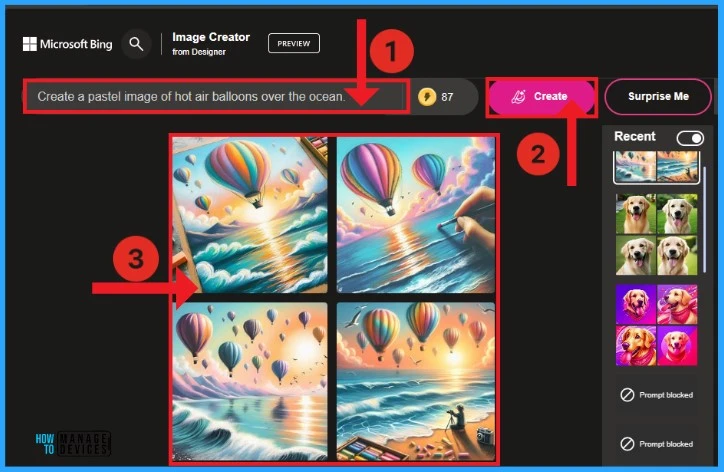
- Open Image Creator from Microsoft Designer (bing.com)
- Type the text Prompt “Create a fine art drawing of two orange cats next to each other” in the text box.
- Click on the Create button.
How to Share Created Image in Bing Image Creator
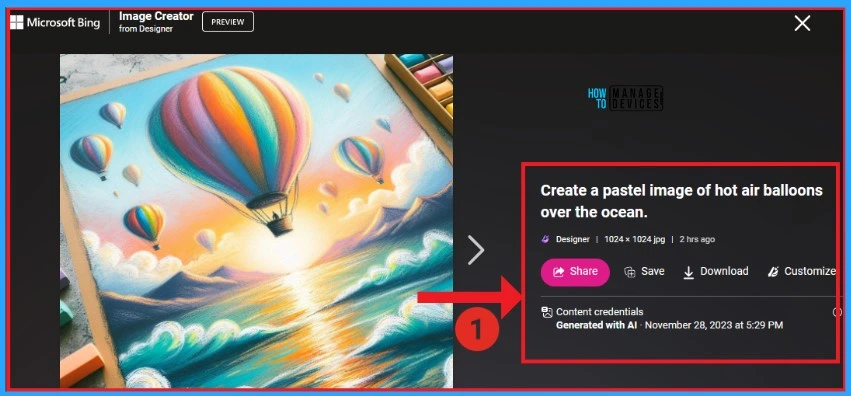
You can easily share created Images in Bing Image Creator. For this, click on the image that you create on Bing Image Creator. After that, the selected image will expand, and you can see the Share option near the images.
| Other Options in Bing Image Creator | How to do |
|---|---|
| Save | Click on the created image and select the Save option |
| Download | Click on the created image and select the Download option |
| Customize | Click on the created image and select the Customize option |
Creating Image in Bing Chat
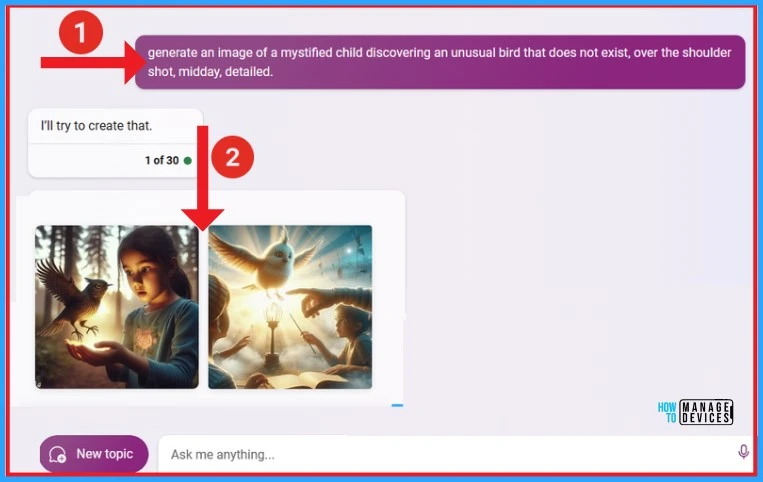
Bing Chat allows you to create AI images quickly. You can easily create images in Bing Chat by asking questions like “Generate an image of a mystified child discovering an unusual bird that does not exist, over the shoulder shot, midday, detailed”.
- Open Bing AI – Search
- Type the question to Generate an image of a mystified child discovering an unusual bird that does not exist, over the shoulder shot, midday, detailed
Reference
We are on WhatsApp. To get the latest step-by-step guides and news updates, Join our Channel. Click here for HTMD WhatsApp.
Author
Gopika S Nair is a computer enthusiast. She loves writing on Windows 11 and related technologies. She is here to share quick tips and tricks with Windows 11 or Windows 10 users. She is Post Graduate Diploma Holder in Computer Science.




Discussion