


Skip to content
Restore Excluded Devices from Windows Autopatch Service

Restore Excluded Devices from Windows Autopatch Service

Written By Jitesh Kumar
Last Updated July 8, 2026
Posted In Intune
SHARE

Key Takeaways

In this post, you will learn how to restore excluded devices from Windows Autopatch service in Intune. When you exclude devices from the Windows Autopatch service, they’re flagged as excluded in the backend so Windows Autopatch doesn’t try to re-register the device into its service again.

Before Microsoft can manage your devices in Windows Autopatch, you must have devices registered with the service. To re-register a device that was previously excluded from Windows Autopatch you must navigate to the Not registered tab in the devices blade and restore the excluded device.

To avoid end-user disruption, you might exclude a device in Windows Autopatch, It will only delete the Windows Autopatch device record itself, If you want to restore the excluded devices to receive the service again, you can perform the restore device action in simple steps.

Patch My PC

Windows Autopatch is a service that removes the need for organizations to plan and operate the update process. Windows Autopatch aims to deliver software updates to registered devices; the service frees up IT and minimizes disruptions to your end users.

Restore Excluded Devices from Windows Autopatch Service in Intune

To re-register a device that was previously excluded from Windows Autopatch you must navigate to the Not registered tab in the devices blade and restore the excluded device.

  • Sign in to the Intune admin center.
  • In the left navigation menu select Windows Autopatch and select Devices. In the Not registered tab, select the device(s) you want to restore. The excluded device from Autopatch status will appear as status “Excluded” as shown below.
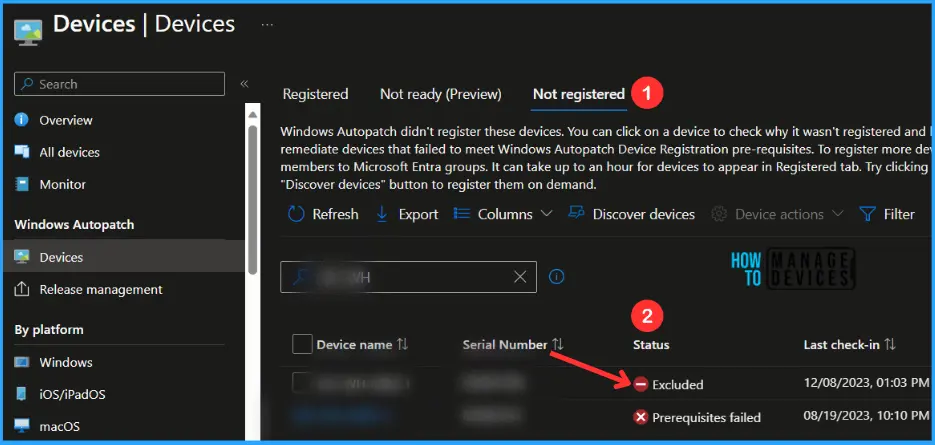
Restore Excluded Devices from Windows Autopatch Service Fig.1

Once a device or multiple devices are selected you want to restore with the status excluded, select Device actions. Then, select Restore excluded device option. Read more about, Exclude Device From Windows Autopatch Service.
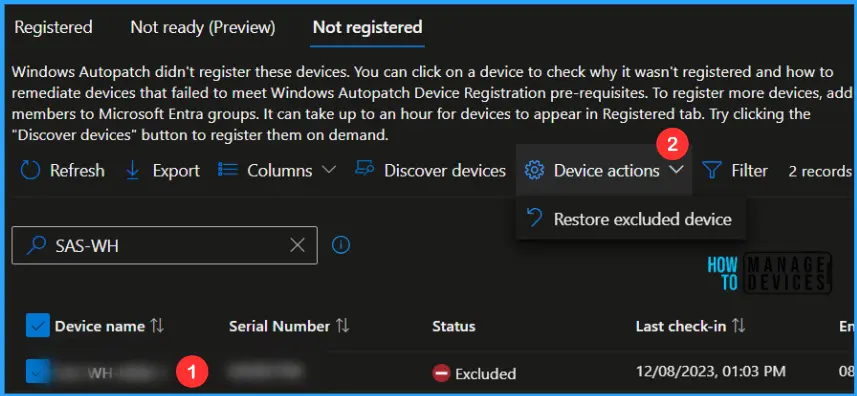
Restore Excluded Devices from Windows Autopatch Service Fig.2

A prompt message “Restore excluded devices” will appear with the message, Are you certain that you wish to restore the excluded devices that you have selected? Clicking on OK, proceed to restore excluded devices from Autopatch services.

You will experience a notification message that will appear with the status, Succeeded “Restore excluded devices” upon successful completion of the restore process.
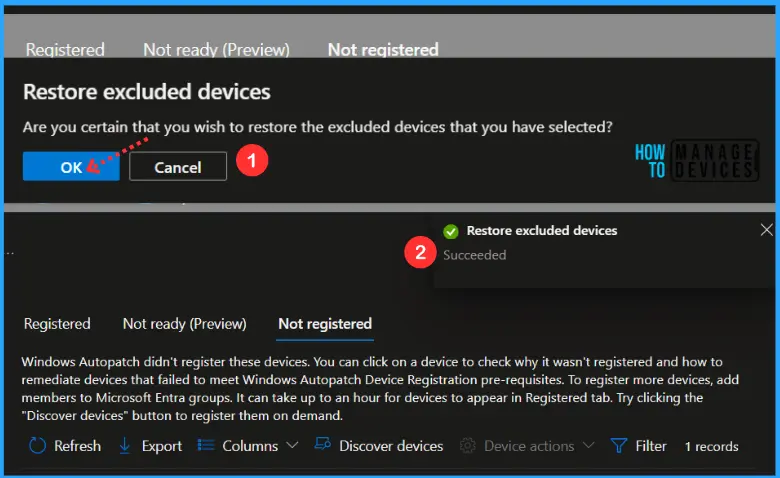
Restore Excluded Devices from Windows Autopatch Service Fig.3

It can take up to an hour for restore devices to appear here. Try clicking the “Discover devices” button to register them on demand. It took 10-15 minutes to complete the restore process. Once the devices are restored, you will be able to see inside the “Registered” tab with the status active and the Device state as Registered.
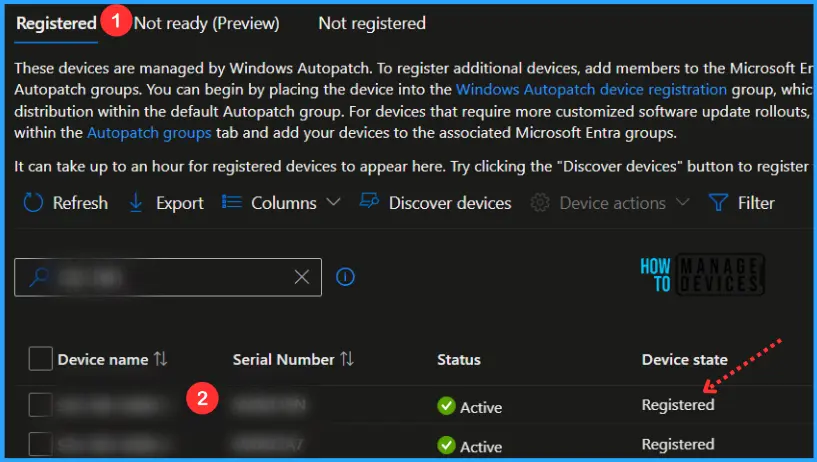
Restore Excluded Devices from Windows Autopatch Service Fig.4

We are on WhatsApp. To get the latest step-by-step guides and news updates, Join our Channel. Click here –HTMD WhatsApp.

Author

About Author – JiteshMicrosoft MVP, has over six years of working experience in the IT Industry. He writes and shares his experiences related to Microsoft device management technologies and IT Infrastructure management. His primary focus is Windows 10/11 Deployment solution with Configuration Manager, Microsoft Deployment Toolkit (MDT), and Microsoft Intune.

Written by

Jitesh has over 5 years of working experience in the IT Industry. He writes and shares his experiences related to Microsoft device management technologies and IT Infrastructure management. His primary focus area is Windows 10 Deployment solution with Configuration Manager, Microsoft Deployment Toolkit (MDT), and Microsoft Intune.

Discussion

Join the discussion

Your email address will not be published. Required fields are marked *

Related guides

Intune

Simplify Windows Devices to Run Only the Required Applications using Intune

Key Takeaways Hey, let’s learn about Simplify Windows Devices to Run Only the Required Applications using Intune. This policy lets administrators replace the default windows shell with a custom or lightweight shell. it improves performance by using system resources and is useful for devices that run a dedicated application. If the policy is disabled or […]

AC Anoop C Nair 8 min read
Intune

Enhance macOS Compliance with Custom Security and Compliance Checks to Improve Device Security using Microsoft Intune

Key Takeaways In this post we are discussing about Enhance macOS Compliance with Custom Security and Compliance Checks to Improve Device Security using Microsoft Intune. Microsoft has announced the general availability of Custom Compliance Settings for macOS in Microsoft Intune. The feature helps organizations strengthen security controls while supporting many types of macOS management scenarios. […]

AC Anoop C Nair 4 min read
Intune

Manage Samsung Galaxy Firmware Versions to Improve Security and Compliance using Microsoft Intune

Key Takeaways In this post we are discussing Manage Samsung Galaxy Firmware Versions to Improve Security and Compliance using Microsoft Intune. Microsoft Intune has received a new update that expands firmware management capabilities for Samsung Galaxy devices through Firmware Versionsintegration. This enhancement gives IT administrators more control over firmware and operating system updates, helping them […]

AC Anoop C Nair 4 min read
Intune

MS Intune Adds Windows Registry Data Collection to Device Inventory for Single Values All Key Values and Subkeys

Key Takeaways Microsoft Intune 2607 introduces Windows Registry Data collection in Device Inventory, allowing IT admins to verify actual device configurations without relying on custom discovery or remediation scripts. Using the Properties Catalog, admins can collect registry information through Single Value, All Values Under a Key (Non-Recursive), or Same Value Across Subkeys. MS Intune Adds […]

AC Anoop C Nair 5 min read