






Windows Autopilot Profile Assignment Changes in Intune Explained
Key Takeaways
- The Assign Profile button is not available in the Windows Autopilot Devices blade.
- Microsoft now uses a group-based deployment model for Windows Autopilot profile assignments.
- Deployment profiles should be assigned to Microsoft Entra device groups, not individual devices.
- Devices automatically receive the assigned profile when they become members of the targeted group.
- Dynamic device groups help automate profile assignment and simplify device provisioning.
- The new approach improves scalability, consistency, and management of Windows Autopilot deployments.
- Administrators can monitor profile assignment status from the Windows Autopilot Devices page in Intune.
Windows Autopilot Profile Assignment Changes in Intune Explained! Microsoft recommends assigning Windows Autopilot Deployment Profiles to Microsoft Entra device groups instead of assigning them to individual devices. With this method, devices automatically receive the correct Autopilot profile when they become members of the assigned group. This approach reduces manual work, simplifies management, and helps ensure a consistent deployment experience across all devices.
Table of Content
Table of Contents
Windows Autopilot Profile Assignment Changes in Intune Explained
If a Windows Autopilot device shows a Not Assigned status, it means the device has not yet received an Autopilot deployment profile. This can happen for several reasons. The device may not be a member of the Microsoft Entra device group that is assigned to the profile.
- The dynamic device group membership is still being processed and has not been updated yet.
- Intune synchronisation has not completed, so the profile assignment is still pending.
- The device’s Group Tag does not match the dynamic group membership rule.
- The device has not yet been added to the target Microsoft Entra device group.
- There is a temporary Windows Autopilot service delay, which can slow down profile assignment.
- After the device joins the correct Microsoft Entra group and synchronization is completed, the profile status should automatically change from Not Assigned to Assigned.
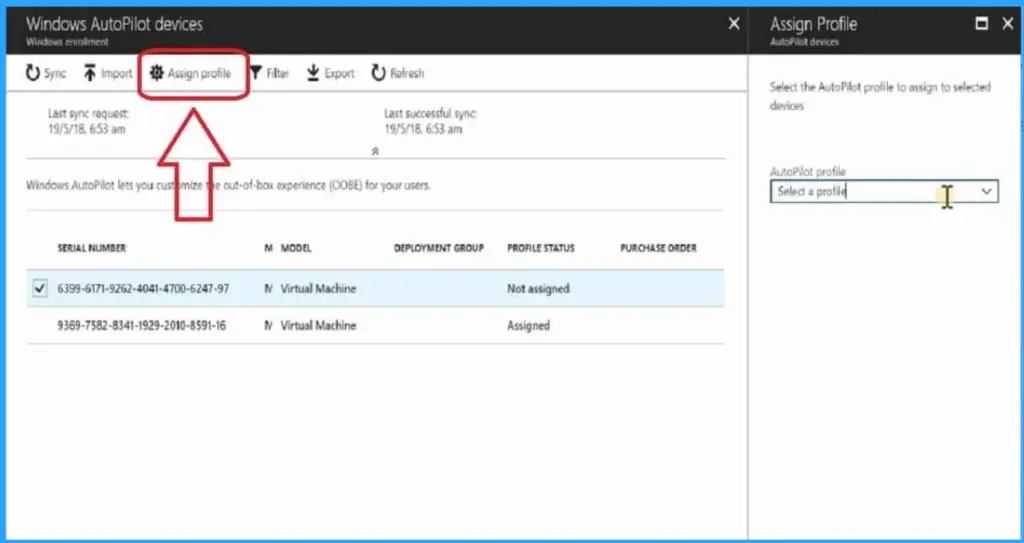
The screenshot shows the classic Windows Autopilot Devices page in the Azure portal, where administrators can manually assign an Autopilot deployment profile to selected devices using the Assign Profile button. After selecting a device, admins could choose an Autopilot profile from the drop-down list and assign it directly to that device.
- Beginners Guide Setup Windows AutoPilot
- Deployment Dynamically Deploy Security Policies and Apps to
- Windows AutoPilot Devices
- Where is the AutoPilot Assign Profile Button in Intune Portal(this post)
- Windows AutoPilot End-to-End Process Guide
Video Tutorial – How to Assign a Device to AutoPilot Deployment Profile?
This video tutorial demonstrates how to assign a Windows Autopilot deployment profile using the modern group-based assignment method in Microsoft Intune. You will learn how to create or select a Microsoft Entra device group, assign the Autopilot deployment profile to the group, and verify that devices receive the profile automatically.

Where is the AutoPilot Assign Profile Button in the Intune Portal?
Microsoft has moved away from manually assigning deployment profiles to individual devices and now recommends a group-based assignment model. Instead of selecting a device and assigning a profile directly, administrators should assign Windows Autopilot Deployment Profiles to Microsoft Entra device groups. Once a device becomes a member of the assigned group, Intune automatically applies the deployment profile.
How to Assign a Device to an AutoPilot Deployment Profile
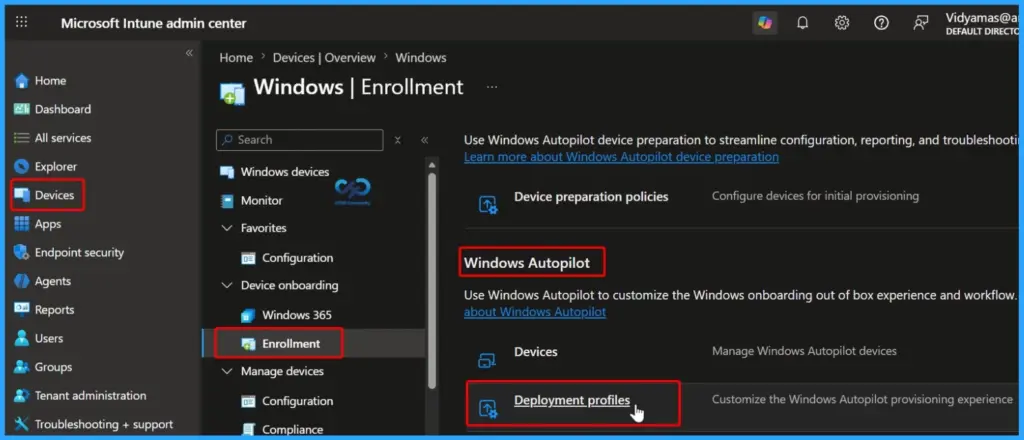
Navigate to Intune Admin Center > Devices > Windows > Enrollment > Deployment Profiles to create and manage Windows Autopilot deployment profiles. This is the central location where administrators can configure Autopilot settings, such as user-driven or self-deploying modes, and assign profiles to Microsoft Entra device groups
Create or Edit a Deployment Profile
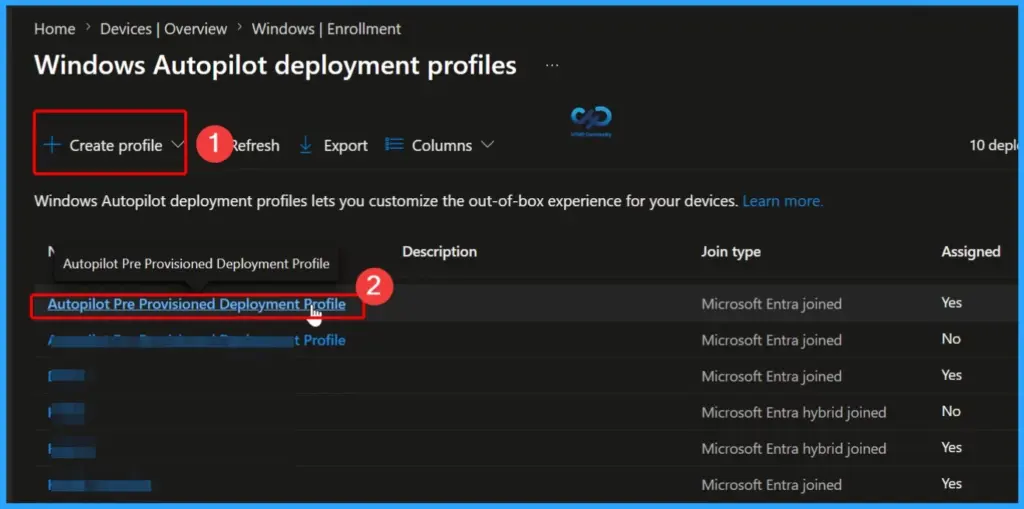
To configure Windows Autopilot settings, create a new deployment profile or edit an existing one from the Deployment Profiles section in the Intune Admin Center. Deployment profiles allow administrators to customize the out-of-box experience (OOBE), configure enrollment settings, and define how devices are provisioned during setup.
Edit the Deployment Profile Assignments
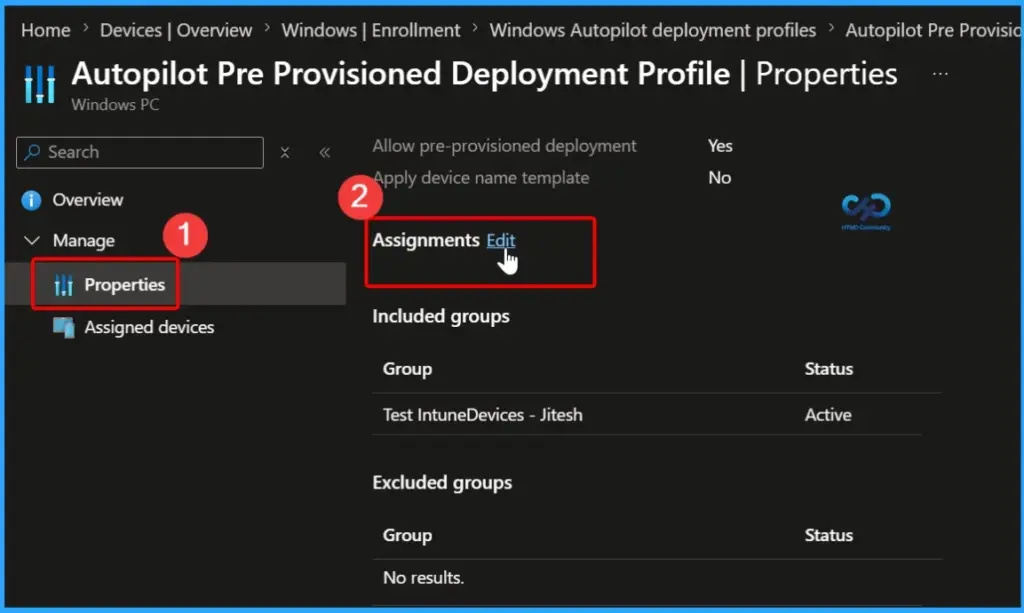
Here, we selected the Autopilot Pre-Provisioned Deployment Profile and opened its settings. From the Properties tab, click the Edit button next to Assignments to modify the groups associated with the deployment profile. This allows you to add or remove Microsoft Entra device groups
| Assignments |
|---|
| Edit |
Add Microsoft Entra Device Groups to the Deployment Profile
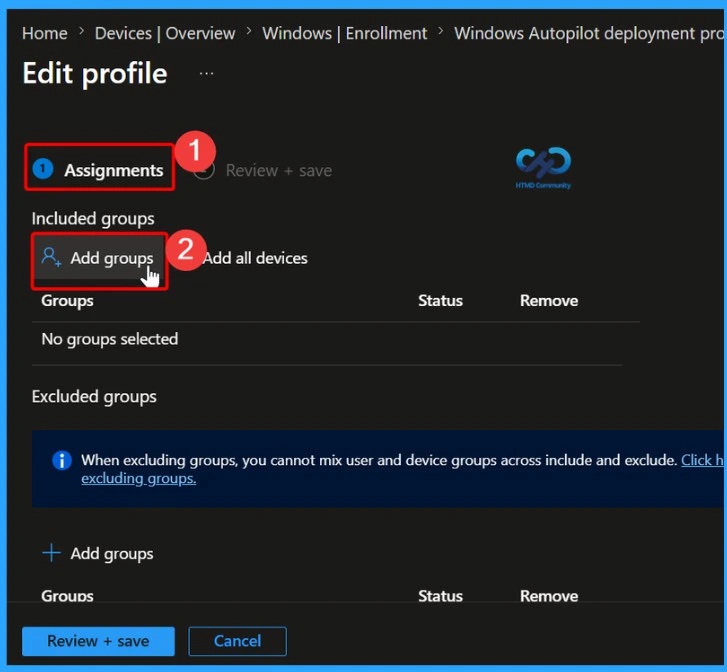
In the Edit Profile wizard, go to the Assignments section and click Add Groups under Included Groups. Select the Microsoft Entra device group that contains the Windows Autopilot devices you want to target.
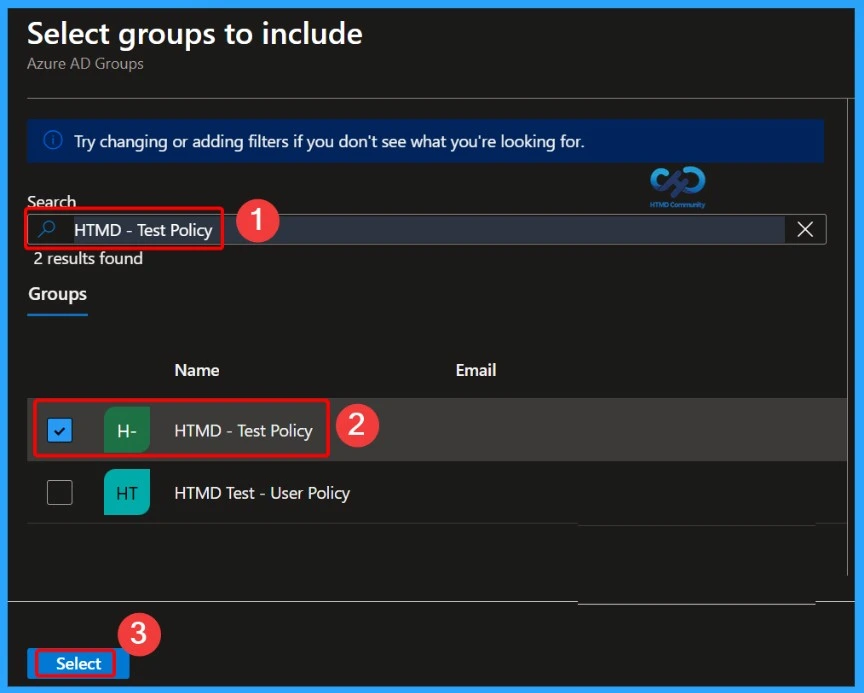
Select the Microsoft Entra Device Group
In the Select Groups to Include window, search for the Microsoft Entra device group that contains your Windows Autopilot devices. In this example, the HTMD – Test Policy group is searched for and selected from the list of available groups.
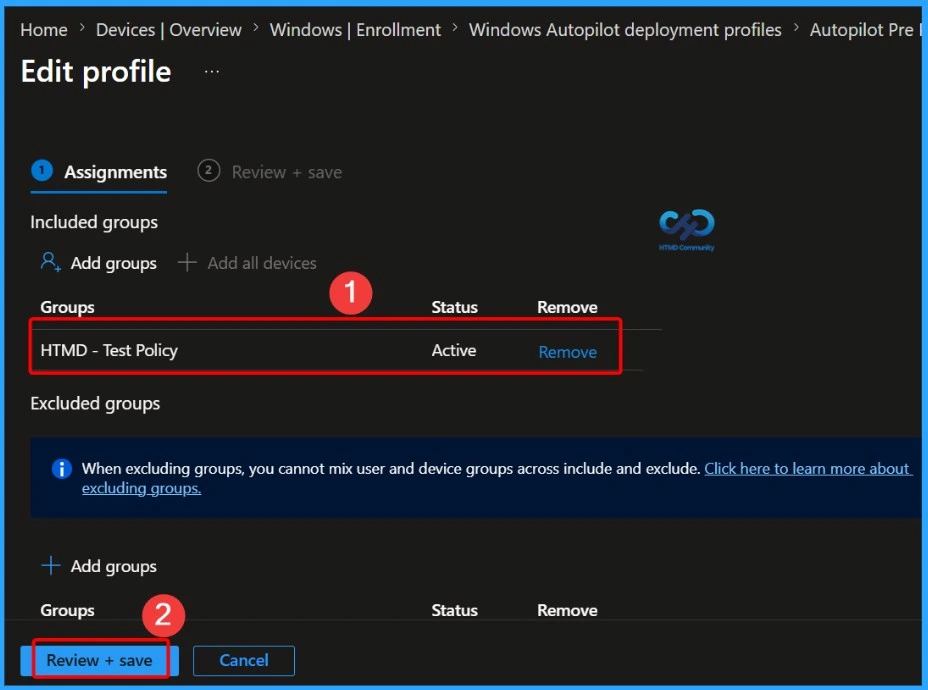
After choosing the required group, continue with the assignment process to associate the deployment profile with the selected group. Devices in this group will automatically receive the Windows Autopilot deployment profile during enrollment.
Review and Create the Assignment
On the Review + Create tab, verify the deployment profile settings and confirm that the correct Microsoft Entra device group has been selected for assignment. Review all configuration details to ensure they match your deployment requirements.
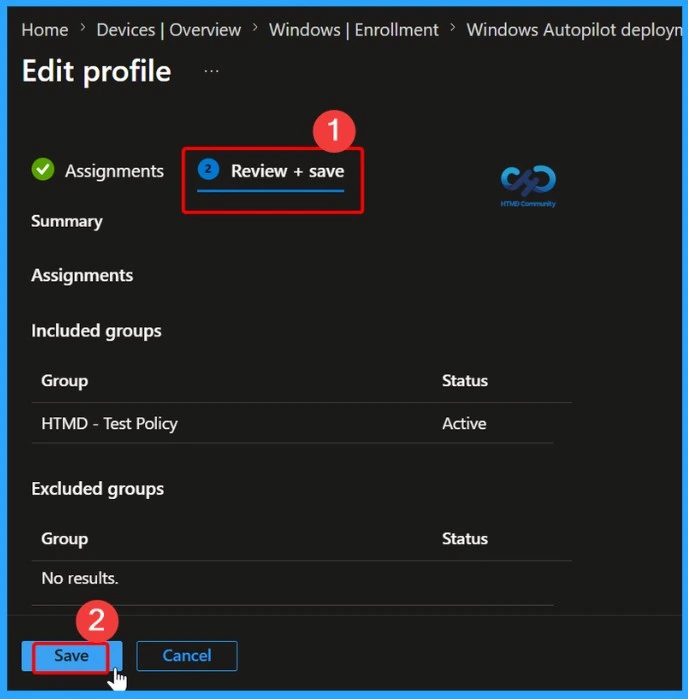
Save the Deployment Profile Assignment
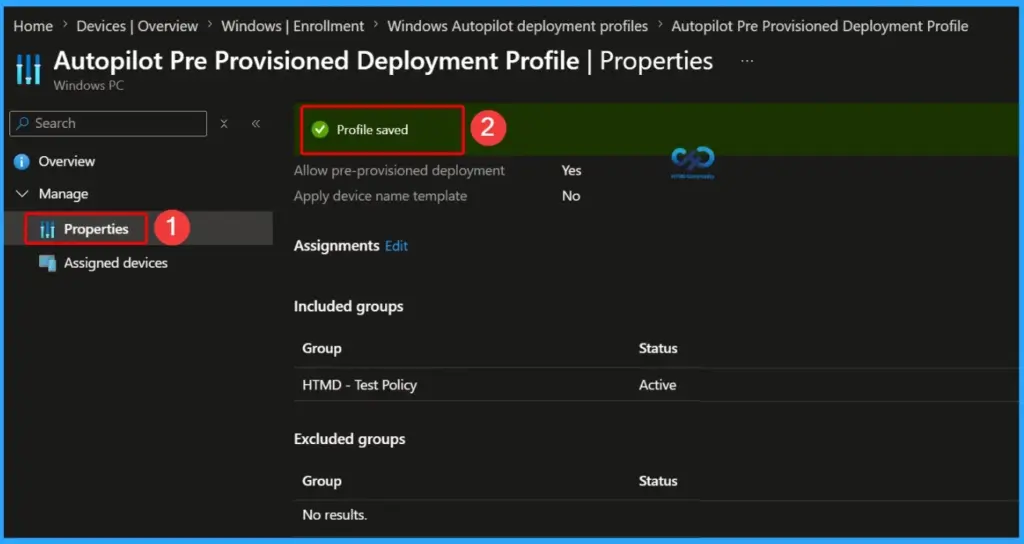
After selecting and assigning the Microsoft Entra device group, the deployment profile is updated successfully. The Profile saved notification confirms that the changes have been applied. You can verify the assignment details from the Properties page, where the assigned groups are listed under the Assignments section. Once saved, devices in the assigned group will automatically receive the Windows Autopilot deployment profile during enrollment.
Resources
Need Further Assistance or Have Technical Questions?
Join the LinkedIn Page and Telegram group to get the latest step-by-step guides and news updates. Join our Meetup Page to participate in User group meetings. Also, join the WhatsApp Community and the Whatsapp channel to get the latest news on Microsoft Technologies. We are there on Reddit as well.
Author
Anoop C Nair is a Workplace Technology solution architect with 25+ years of experience. Microsoft Certified Trainer. Microsoft MVP from 2015 onwards for consecutive 11+ years! He is a blogger, Speaker, and Founder of HTMD Community and HTMD Conference. His main focus is on Device Management technologies like Intune, Windows, and Cloud PC. He writes about technologies like Intune, SCCM, Windows, Cloud PC, Entra, and Microsoft Security.



“Microsoft removed that option from Intune to have a better user experience.”
Two things:
1) Regular “users” are not using this; us admins are. Changing this without even notifying us in the portal leads me to #2…
2) “Better user experience”? Really? More like wasting-even-more-of-my-time exprience.
Rather than removing buttons how about sorting out some issues? Like how damn slow it is to remove devices? I’m talking overnight to remove a single device. And adding useful features like hybrid AD-join functionality MS? No? OK…keep moving those buttons around. That’ll make for a better user experience.
StaffI totally agree with some of your comments. I know the pain to find out out a solution for “this missing button” issue… But I can try to give this feedback to Intune product team from Microsoft.
Hi Anoop,
Once I import the csv file I cannot find the device/serial to appear and add it to the device group so i can’t assign a autopilot profile for the device. It is indeed showing up under the AutoPilot devices though.
StaffYou should rather assign AutoPilot profile to group instead of device.
I have assigned the AutoPilot profile to a group, but, I cannot add any of the imported devices to that group. When searching for the device it won’t show up like you mentioned in the video where an object is created in Azure AD to add the device to the group. any thoughts?
StaffAre you using a static AAD group or Dynamic AAD group? When you use Azure AD dynamic groups as I explained here the device will automatically get added https://www.anoopcnair.com/guide-windows-autopilot-process/#How_to_Create_Azure_AD_Groups_for_AutoPilot
It is a static group, where I want to add the device individually.
StaffAre you sure the device is uploaded properly to Azure AD? As I mentioned in the section https://www.anoopcnair.com/guide-windows-autopilot-process/#How_to_Register_Devices_for_AutoPilot_testing – Can you make sure the status of the uploaded device? Azure Portal -> Microsoft Intune -> Device Enrollment – Windows Enrollment-> Windows AutoPilot Devices
BTW… with what name you are searching the device in AAD? You should search with serial number of the device?
Yes, I ran the PowerShell scripts and received the .csv file > imported through Intune Windows AutoPilot devices, did a sync and it appears with serial number, manufacturer, model (surface pro 1803):
Install-Script -Name Get-WindowsAutoPilotInfo
Get-WindowsAutoPilotInfo.ps1 -OutputFile AutoPilotHWID.csv
I then searched for device by the serial number (12 digit #) displayed but nothing shows up. It is strange..
StaffI would suggest to search with first 4-5 digits of the device serial number …
Hi Anoop,
Do you have any idea if AutoPilot will also work in an Intune Hybrid configuration?
I
m usually working with cloud only Intune, but we also have a customer whos SCCM environment is still connected to Intune.Thank you.
Peter
StaffHi Peter – No I don’t think hybrid Intune is supported scenario for AutoPilot. Hybrid SCCM Intune is going to die soon 🙂 https://www.anoopcnair.com/sccm-intune-hybrid-to-standalone/
KR
Anoop
Thanks for the reply. I now it`s is dying, yeah! 🙂
Good reason to migrate everything as quick as possible!