






Easy Methods to Find the Install Date of Apps in Windows 11
Hi, In this post, we can find the install date of apps in Windows 11. Windows 11 is the latest operating system, and it’s known for its extraordinary features. As users, we install many applications and programs in our operating system. Nowadays, it’s essential to manage our applications.
Now you’re wondering why we must maintain or manage our applications or programmes, right? It’s crucial to keep applications and programs for system performance and security. So you have to know the basic details or how to find the basic information of applications.
These details will help you in many things, like troubleshooting issues, ensuring up-to-date software, and managing licenses. In this post, our topic is related to the date of Find the Install Date of Apps in Windows 11. Knowing when applications were installed is crucial for running your system smoothly.
Tracking the install date can help you spot older apps that need updates, cleaning, or removal to free up space and resources. Regular maintenance based on these dates helps ensure your system stays fast and efficient. Here, I will give you some easy steps to find the installation date of applications and programs in Windows 11.

- 6 Different way to Find File System of a Drive in Windows 11
- Different Methods for Deleting Files in Windows 11
- 5 Ways to Check App Storage Space Usage in Windows 11
- Disable URL Copy Paste Feature in Microsoft Edge
- Turn On or Off Typing Insights in Windows 11
- Enable Disable Underline Access Keys in Windows 11
- Easy Methods to Check Hardware Specifications on Windows 11
What is the Importance of an Application or Programme Installed Dates?
Easy Methods to Find the Install Date of Apps in Windows 11
Above, we discussed many things about app Install dates in Windows 11. Over time, apps can gather temporary files, cache, and other data to slow down your computer. Finding the install date will help you track old apps that might need updates or cleaning, which will help you free up space on your device.
Here, we can discuss finding the installation dates for the apps and programmes. There are many methods for doing this, so let’s look into those methods.
Find the Install Date of Apps and Programmes Through Windows Settings
First, you can find the installation date for apps and programmes through Windows Settings. We all use the settings option when we have urgent needs or issues. The dates of installed apps should be readily available in the settings. Let’s check that.
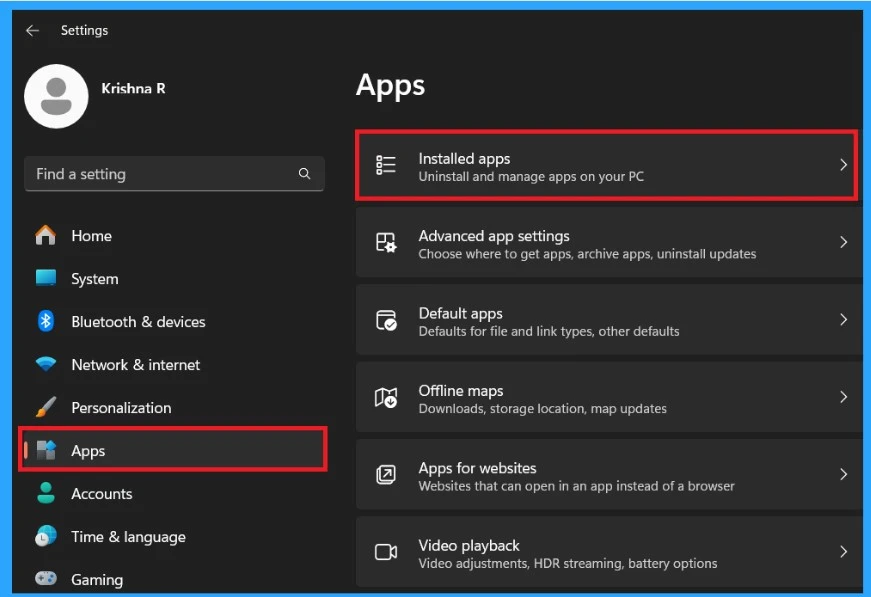
- Open Settings through the shortcut key using Win+I
- In the settings, click on the App option
- Select Installed Apps from that
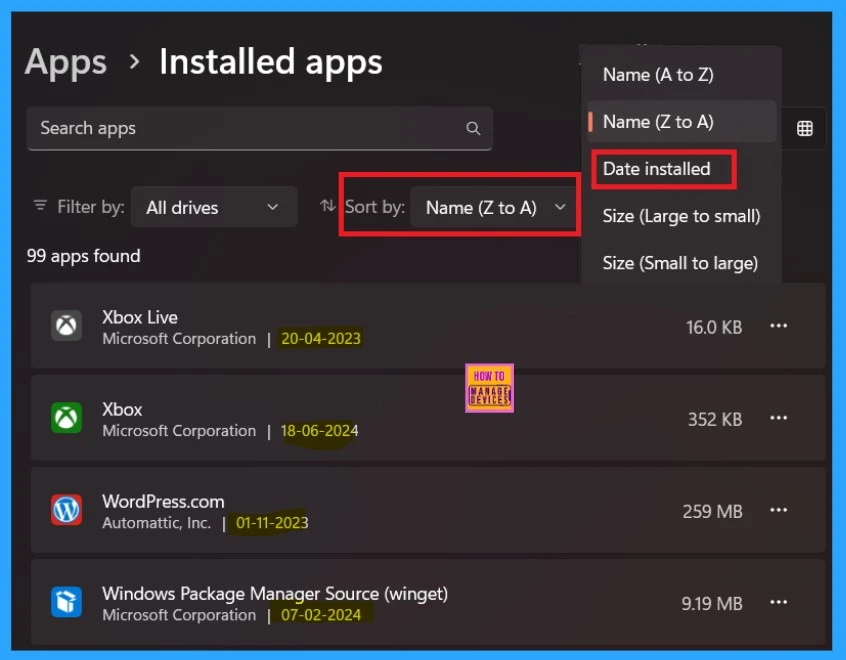
The installed apps section shows many applications installed on your system. Here, you can sort application visibility based on the application’s name, shown in A to Z( alphabetical order). You can also choose the Date installed. With this option, you can see the new applications installed recently will be shown first.
- You can also see the dates with the Application Name.
Find the Install Date of Apps and Programs through the Control Panel
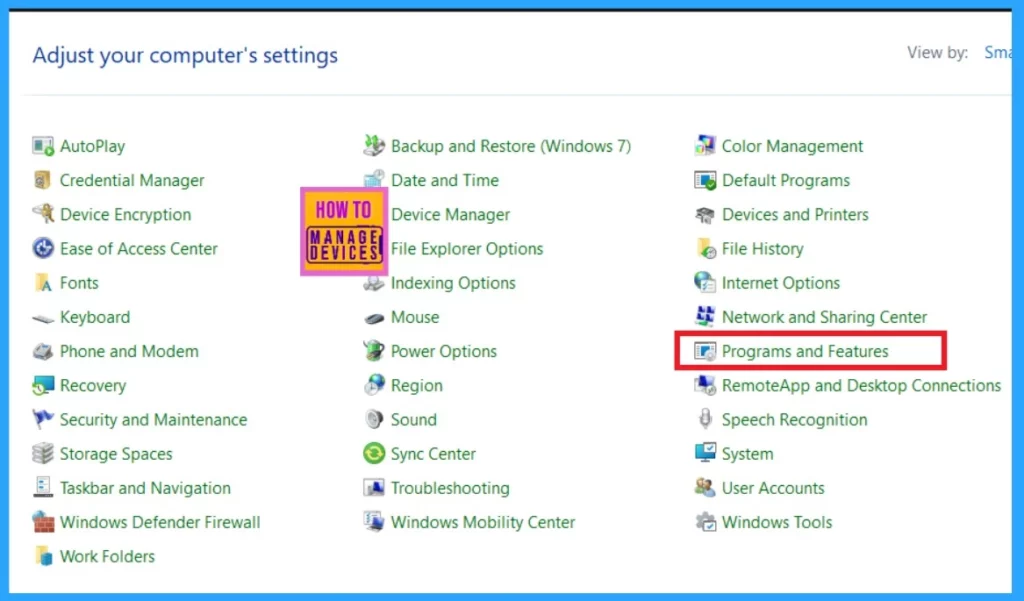
The Control Panel is a feature in the Windows operating system that allows users to view and change system settings. Here, you can get the installed app details. First, open the Control panel through the Search option in the Start menu.
- Open the Control panel
- Click on the Programmes and Features
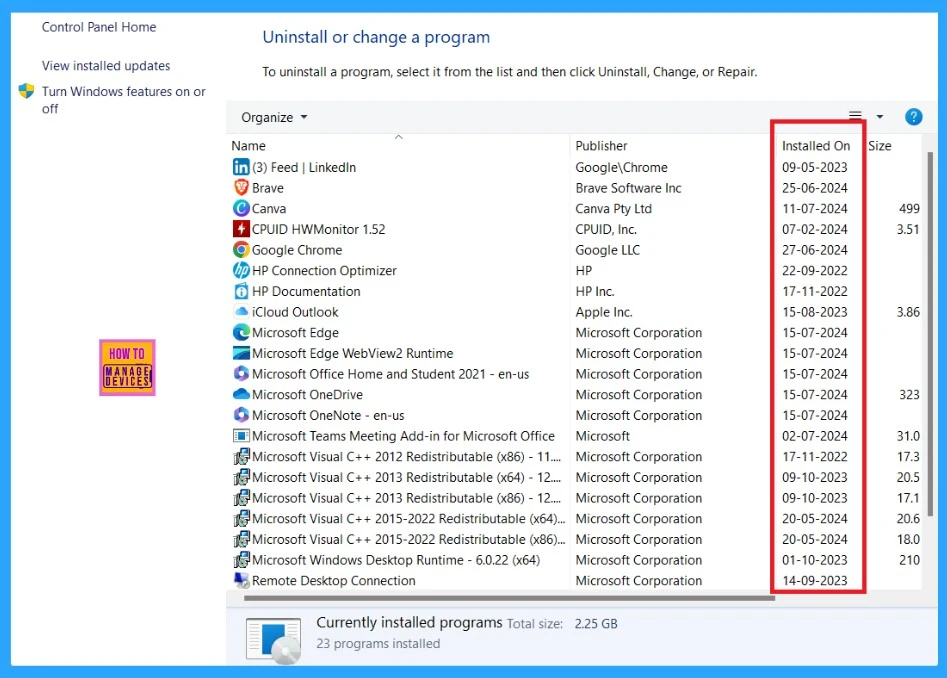
When you open Programmes and Features, you will see all the details of the Installed apps. For a better understanding, see the screenshot below. The dates are shown Under the installed on section.
Find a Specific Apps Installed Date
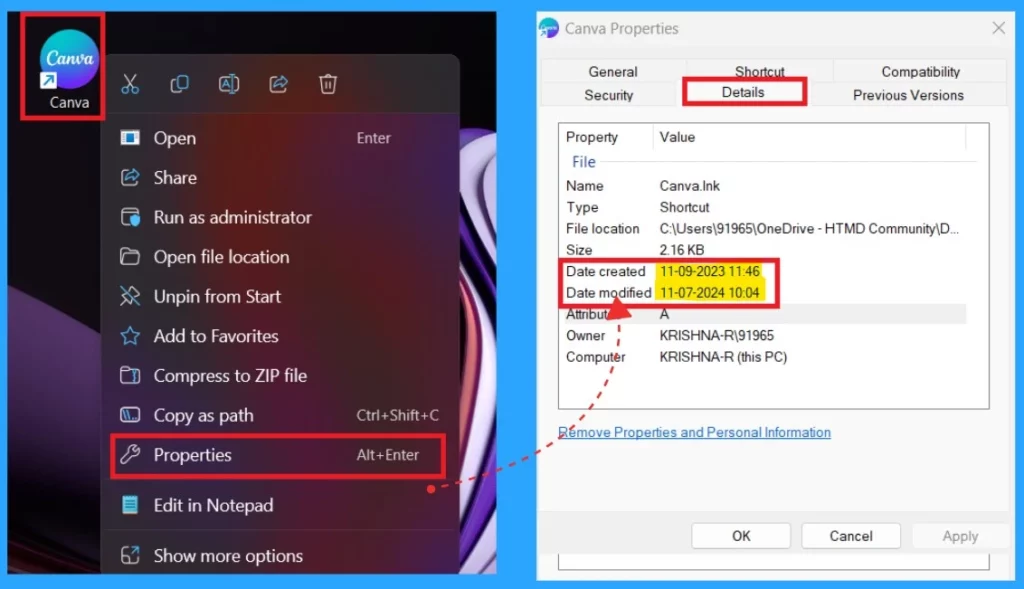
In this step, I will show you how to Find a Specific Application’s Installed Date. For example, I selected Canva. To find out when I installed this application, I right-clicked on Canva and selected the Properties option.
- When the Properties window opened, I selected the option called ” Details.”( Shown above in the properties)
- When you click on that, you can get the Date installed (Date Created) and app modified date( update).
- How to Enable or Disable Bluetooth in Windows 11
- How to Clear the File Explorer History in Windows 11
- How to Add iCloud Photos in Windows 11 Photos App
Find the Install Date of Apps and Programmes Through Powershell
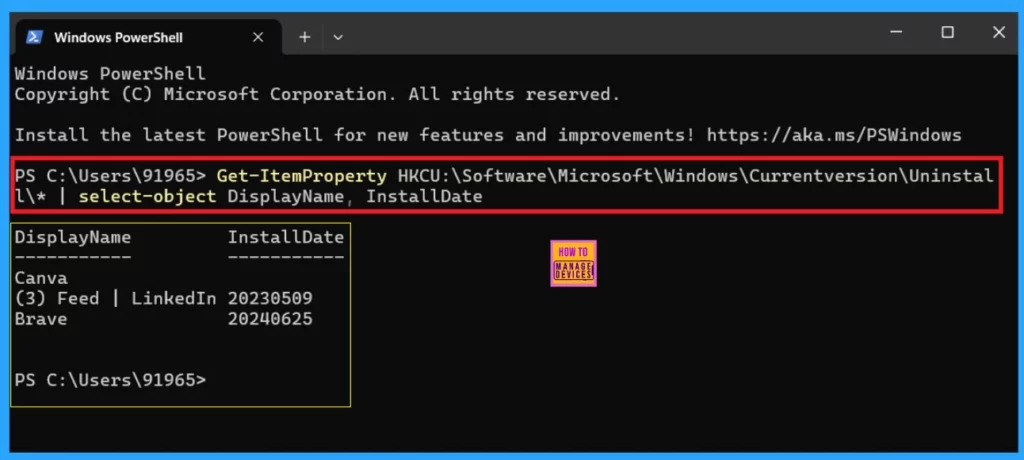
Another method is using the Powershell. To find out when apps and programs were installed using PowerShell is very easy. You have to apply some special command for this. Open the powershell using the Win +X key and choose powershell from that. The below command is 64-bit applications type.
| Application Type | Command |
|---|---|
| 64-bit applications | Get-ItemProperty HKCU:\Software\Microsoft\Windows\Currentversion\Uninstall* | select-object DisplayName, InstallDate |
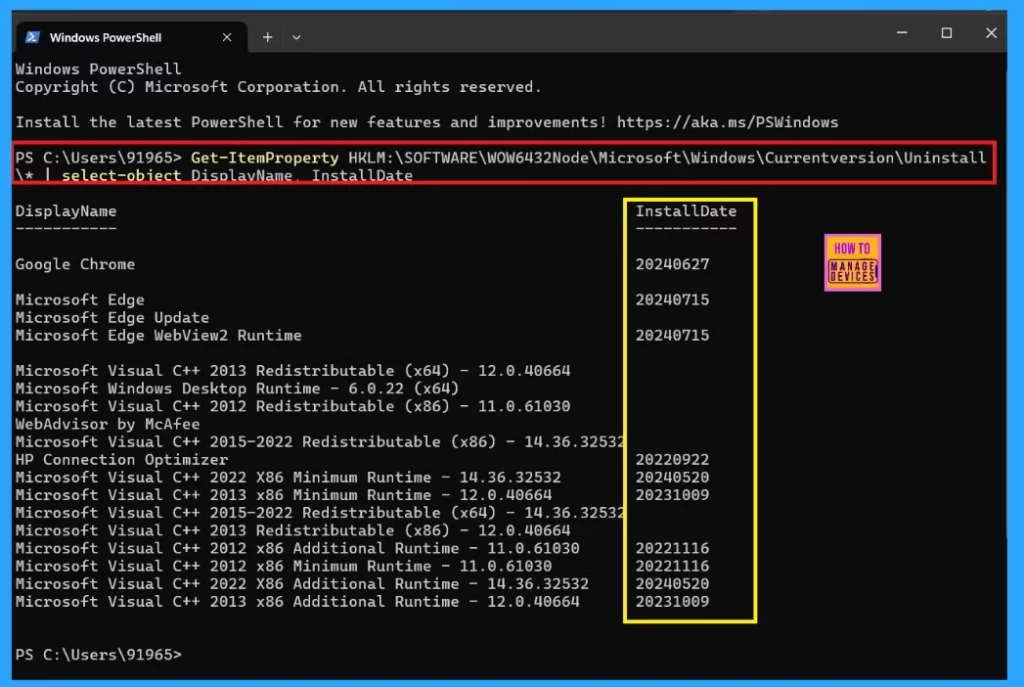
| 32-bit Apps | Get-ItemProperty HKLM:\SOFTWARE\WOW6432Node\Microsoft\Windows\Currentversion\Uninstall* | select-object DisplayName, InstallDate |
Copy this Command: Get-ItemProperty HKCU:\Software\Microsoft\Windows\Currentversion\Uninstall* | select-object DisplayName, InstallDate
- Enter the Above Command and Press the Enter Key
Another command shows the Installation date for 32-bit Apps installed for all users. To do this, enter the command below. As a result, you can see the Installation date for all applications.
Copy this: Get-ItemProperty HKLM:\SOFTWARE\WOW6432Node\Microsoft\Windows\Currentversion\Uninstall* | select-object DisplayName, InstallDate
Find the Install Date of Apps and Programmes Through the Registry
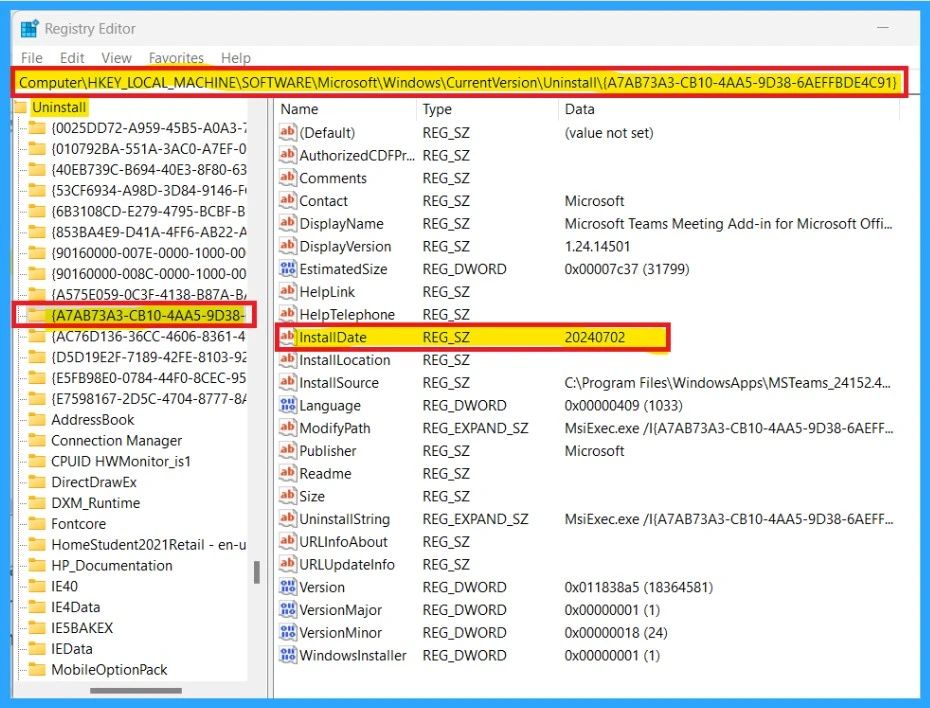
Another method to find an application’s install date is the Registry method. To do this, you must open the Registry using the Win+R key and then type regedit. It is to be entered automatically. You need to click on Ok. Then enter the below Navigation path.
Copy this : Computer\HKEY_LOCAL_MACHINE\SOFTWARE\Microsoft\Windows\CurrentVersion\Uninstall
- After entering the Navigation path, check the sub-key
- you can see that the Uninstall option in the left side pane of the registry
- Click on each sub-key to find the app name and Install date
- The screenshot below will help you to understand better
I hope these methods are helpful for you!
We are on WhatsApp. To get the latest step-by-step guides and news updates, Join our Channel. Click here for HTMD WhatsApp.
Author
Anoop C Nair is Microsoft MVP! He is a Device Management Admin with more than 20 years of experience (calculation done in 2021) in IT. He is a Blogger, Speaker, and Local User Group HTMD Community leader. His primary focus is on Device Management technologies like SCCM 2012, Current Branch, and Intune. He writes about ConfigMgr, Windows 11, Windows 10, Azure AD, Microsoft Intune, Windows 365, AVD, etc.




Discussion