






How to Enable Optimize Video Option in Microsoft Teams Screen Sharing Feature
Let’s discuss how to optimize video option in Microsoft Teams screen sharing feature. Microsoft introduced a new Optimize Video feature for users to enhance the Screensharing experience for Microsoft Teams Users. This incredible feature will be really helpful when presenting content in Teams meeting.
I think Microsoft Teams is a familiar application for you. It is a popular Collaborative Platform for organizations. Microsoft Teams is the ultimate messaging app for organizations and workspaces for real-time collaboration, communication, meetings, etc.
Every Month, Microsoft brings existing features for Teams users to improve their experiences. Microsoft recently introduced optimized video in Microsoft Teams screen sharing for members of the Teams Public Preview or Microsoft 365 Targeted release.
As you know, Microsoft already introduced the Dragging Presenter Toolbar while Screensharing. The Optimize Video feature can be accessed on the Teams Presenter Toolbar. This blog post will help you to understand more about Optimize Video in Microsoft Teams Screensharing.

Table of Contents

What are the Advantages of Optimize Video in Microsoft Teams Screensharing?
1. It allows manually optimize video playback when screen sharing
2. It helps to share quality videos in Meetings
3. Helps to ensure quality video Screensharing even in challenging network
4. Easy to share video with limited bandwidth
Enable Optimize Video Option in Microsoft Teams Screen Sharing Feature
The Optimize Video in Teams Screensharing feature is very user-friendly. This feature manually optimizes video playback when screen sharing, which is helpful for users when the automatic video detection fails or is delayed.
- Turn Off Turn On Notifications in Microsoft Teams Channel Posts
- Introducing Microsoft Teams in VDI
- Enable Disable MS Teams Notify When Available Settings
- New Hide General Channel Feature in Microsoft Teams
What is Automatic Video Detection in Teams?
You all know that AI capabilities are available on Microsoft Teams; it’s been a while. With the help of AI capabilities, Microsoft Teams can detect certain qualities of your audio or video feed and deliver high-quality experiences. Teams use AI algorithms to enhance your video quality with some features. The table below shows the features.
| Different Quality Enhancing Features in Teams |
|---|
| Backgrounds |
| Adjust brightness |
| Frame cropping |
| Soft focus |
- Microsoft Classic Teams Reaching to End of Life
- New Banner Notification on Teams Classic Client
- Now Get Microsoft Teams Meetings Shortcut Directly from Start Menu
- File App Experience in Microsoft Teams
Availability of Optimize Video in Microsoft Teams Screensharing
This Optimize Video is not available for all Teams users. To get this unique feature on Your Teams, you must be a member of the Teams Public Preview or Microsoft 365 Targeted release and use the new Teams client for Windows or macOS.
- To get the Optimize Video feature for you to enable your Teams client for the Public Preview, IT administrators must enable Show Preview features in their update policy.
- For Targeted releases, global admins can go to the Microsoft 365 admin center and give access to a select set of individuals or the entire organization
How to Use Optimize Video in Microsoft Teams Screensharing
Let’s look at how to Optimize Video in Microsoft Teams. Screensharing Works. After enabling this feature, the Optimize Button can be seen on the Presenter Toolbar. To access this feature, start your Meeting on Microsoft Teams and select Share from the toolbar to share your screen.
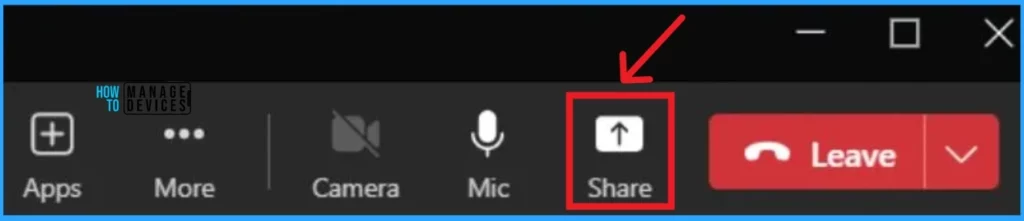
If you share video or other high-motion content, you can click the Optimize button on the toolbar to improve the playback experience.

We are on WhatsApp now. To get the latest step-by-step guides, news, and updates, Join our Channel. Click here. HTMD WhatsApp.
Author
Anoop C Nair has been Microsoft MVP from 2015 onwards for 10 consecutive years! He is a Workplace Solution Architect with more than 22+ years of experience in Workplace technologies. He is also a Blogger, Speaker, and leader of the Local User Group Community. His main focus is on Device Management technologies like SCCM and Intune. He writes about technologies like Intune, SCCM, Windows, Cloud PC, Windows, Entra, Microsoft Security, Career, etc..


Discussion